
Automatic Account Link
Authenticate customers automatically across Roku devices using stored access tokens
Automatic account link enables apps to authenticate customers using an access token or authentication artifact stored in the Roku cloud. This simplifies authentication for customers with multiple Roku devices: Once successfully authenticated on one device, customers are automatically signed in when they activate additional Roku devices linked to the same Roku account.
Certification requirement: Apps requiring a user account to log in that have streamed more than average of 1 million hours per month over the last three months (and new Apps expected to reach the threshold shortly after launch) must implement Automatic Account Link to pass certification. This requirement is applicable for TVE apps that use Adobe Primetime Authentication.
Overview
To implement Automatic Account Link, you first check whether there is a valid access token stored in the device registry. If the device registry contains an access token, grant the customer access to your content.
If the device registry does not contain a valid access token, you check whether one is stored in the Roku cloud. If there is an access token in the Roku cloud, store it in the device registry and then grant the customer access to your content; otherwise, display your app UI and have the customer sign in or sign up and then grant access.
The following table summarizes the logic to be used for Automatic Account Link; the subsequent flow chart illustrates this workflow.
| Valid Access Token in Device Registry ? | Valid Access Token in Roku Cloud? | Next Steps |
|---|---|---|
| YES | — | Get a refresh token from your entitlement server and store it in the device registry and Roku cloud. Grant access to content. |
| NO | YES | Store the access token in the device registry. Grant access to content. |
| NO | NO | Display your app UI, get the customer's email address, and have them sign up or sign back in. Once the customer has successfully authenticated, generate a new access token from your entitlement server and store it in the device registry and Roku cloud. Grant access to content. |
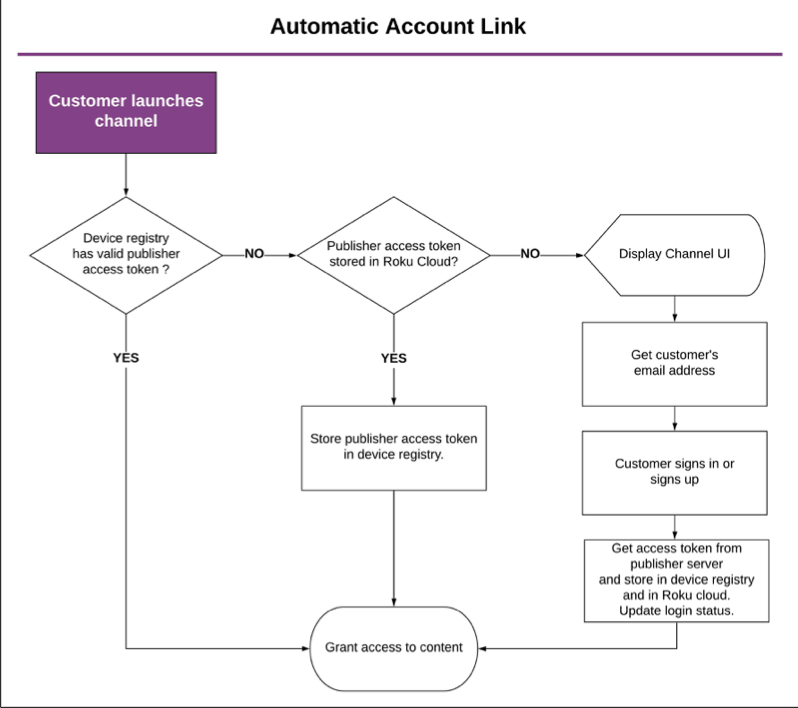
Checking for a valid access token in the device registry
To check for a valid access token in the device registry, follow these steps:
-
Create an roRegistrySection object. This provides access to your section within the device registry to get and read your keys. When creating the registry section, pass in the name of your registry. This must be the same name used when the registry section was created.
reg_sec = CreateObject("roRegistrySection", "<your_registry_section>")To get a list of the keys in the registry section in order to find the one linked to the access token, call the roRegistrySection.getKeyList() method.
-
Use the roRegistrySection.read() method to retrieve the access token. This method takes the name of the key to get the value associated with it.
access_token_value = reg_sec.read("access_token_key_name") -
Check the access token in your entitlement server to verify whether it is still valid.
-
If the access token is valid, get a refresh token from your entitlement server and store it in the device registry. Call the roRegistrySection.write() and roRegistrySection.flush() methods to permanently store the refresh token on the device:
reg_sec.write("access_token_key_name", "access_token_value") reg_sec.flush() -
Store the access token in the Roku cloud. Grant access to content. In this case, no additional steps are required and authentication is complete.
-
If the access token is invalid or there is no access token, check for an access token in the Roku cloud. Use the roRegistrySection.delete() method to delete an invalid access token from the device registry:
reg_sec.delete("access_token_key_name")
-
Checking for a valid access token in the Roku cloud
To check for a valid access token in the Roku cloud, follow these steps:
-
Call the ChannelStore.getChannelCred command. This causes the channelCred field to be set to a ContentNode that includes a json.channel_data field.
myChannelStore.command = "getChannelCred" accessToken = myChannelStore.channelCred.json.channel_data -
If the json.channel_data field contains your access token, check whether the customer is currently signed in using a flag in the device registry. This is a publisher-specific key-value pair that you have previously added to your registry section to track the login status of customers. The value should be toggled when customers sign in and out.
-
If the customer is signed in, store the access token retrieved from the Roku cloud in the device registry, and then grant the customer access to the content. In this case, no additional steps are required and authentication is complete.
-
If the customer is signed out (or is signing up), display your app UI and have them sign in.
Signing users in
If both the device registry and Roku cloud do not contain a valid access token, open your app UI to have the customer sign in (or sign up) following these steps:
-
Set the ChannelStore.requestedUserData field to "email, firstName, lastName" to ask the customer to share their email address and name from their account, and then call the ChannelStore.getUserData command to get the email address and name.
myChannelStore.requestedUserData("email, firstName, lastName") myChannelStore.command = "getUserData" -
When you call the ChannelStore.getUserData command, a "Request for information" screen is displayed automatically. It asks the customer whether your app can access the account information linked to their email address and name.
-
If the customer clicks Allow, the
userDatafield is automatically set to a ContentNode that contains a string field with the customer's email address and name. If the customer is signing up, you will send all the information stored in this ContentNode to your system after they submit their account information.email = myChannelStore.userData.email firstName = myChannelStore.userData.firstName lastName = myChannelStore.userData.lastName -
Optionally, display a keyboard dialog pre-populated with the customer's email address so that they can verify their email address or enter a different one. If the customer clicks Cancel, the
userDatafield is set to "invalid". In this case, display an empty keyboard dialog so the customer can enter their email address for your app. -
Display a keyboard for the customer to enter their password. If the customer is signing up and has allowed access to their Roku account information, pre-populate the keyboard with an auto-generated secure password, which the customer can accept or edit. If the customer is signing in or does not allow access, display an empty keyboard dialog so the customer can enter their password for your app.
-
After the customer submits their password, validate their credentials in your system. If the credentials are valid, obtain an access token from your entitlement server, and store it in the device registry and in the Roku cloud. In the device registry, also update the login status flag.
To store an access token in the Roku cloud, call the ChannelStore.storeChannelCredData command. You can use the status and response fields of the storeChannelCredDataStatus content node to verify that the command was successful and that the access token stored in the Roku cloud has the specified value.
Any metadata within the access token related to its validity must be managed entirely by the publisher.
myChannelStore.channelCredData = "your access token" myChannelStore.command = "storeChannelCredData" 'check if command was successful status = myChannelStore.storeChannelCredDataStatus.status if status = 0 ' ... end if 'check if access token stored in Roku cloud has specified value response = myChannelStore.storeChannelCredDataStatus.response if response.json.channel_data = myChannelStore.channelCredData ' ... end if -
If the customer is signing up, create a new account for them in your system. Use the
userDatafield to send the customer's email address and name to your system. -
Grant the customer access to the content. No additional steps are required and authentication is complete.
Signing users out
When a user signs out of the partner application, it is up to the application to enforce the partner's preferred protocol: The app could sign out the user account on all devices, for example, or sign out just the user on a particular device.
Roku does not recommend any one approach to addressing sign out situations, and leaves such decisions to individual partners, so that they can have the flexibility to do what is appropriate for their own business requirements.
Testing Automatic Account Link
You can test Automatic Account Link by sideloading your app and using the billing test feature in the Developer Dashboard.
Updated 3 months ago