
Deep linking
Accept and handle deep link parameters to launch content directly from the Roku UI
Deep linking enables users to get to your content faster from the Roku UI via Roku's content discovery features (for example, Roku Search and Roku home screen banners). With deep linking, your app is launched into playback or content springboards directly from the Roku UI. For example, when a movie is selected from Roku Search, playback starts immediately without any app navigation. This functionality enables you to leverage Roku's content discovery features in order to drive users to your app and increase engagement.
Public apps with video content must implement deep linking to pass certification.
Overview
The following diagram demonstrates how deep linking from Roku Search works. When content is selected, the contentId and mediaType are passed as query string parameters to the app. The app accepts and validates the deep linking parameters and identifies the appropriate launch behavior, which is determined by the mediaType. In this example, contentId "loganLucky123" corresponds to the film "Logan Lucky", and the mediaType is "movie". The "movie" mediaType requires the app to launch directly into playback (see MediaType behavior for more information on the launch behavior required for different mediaTypes).
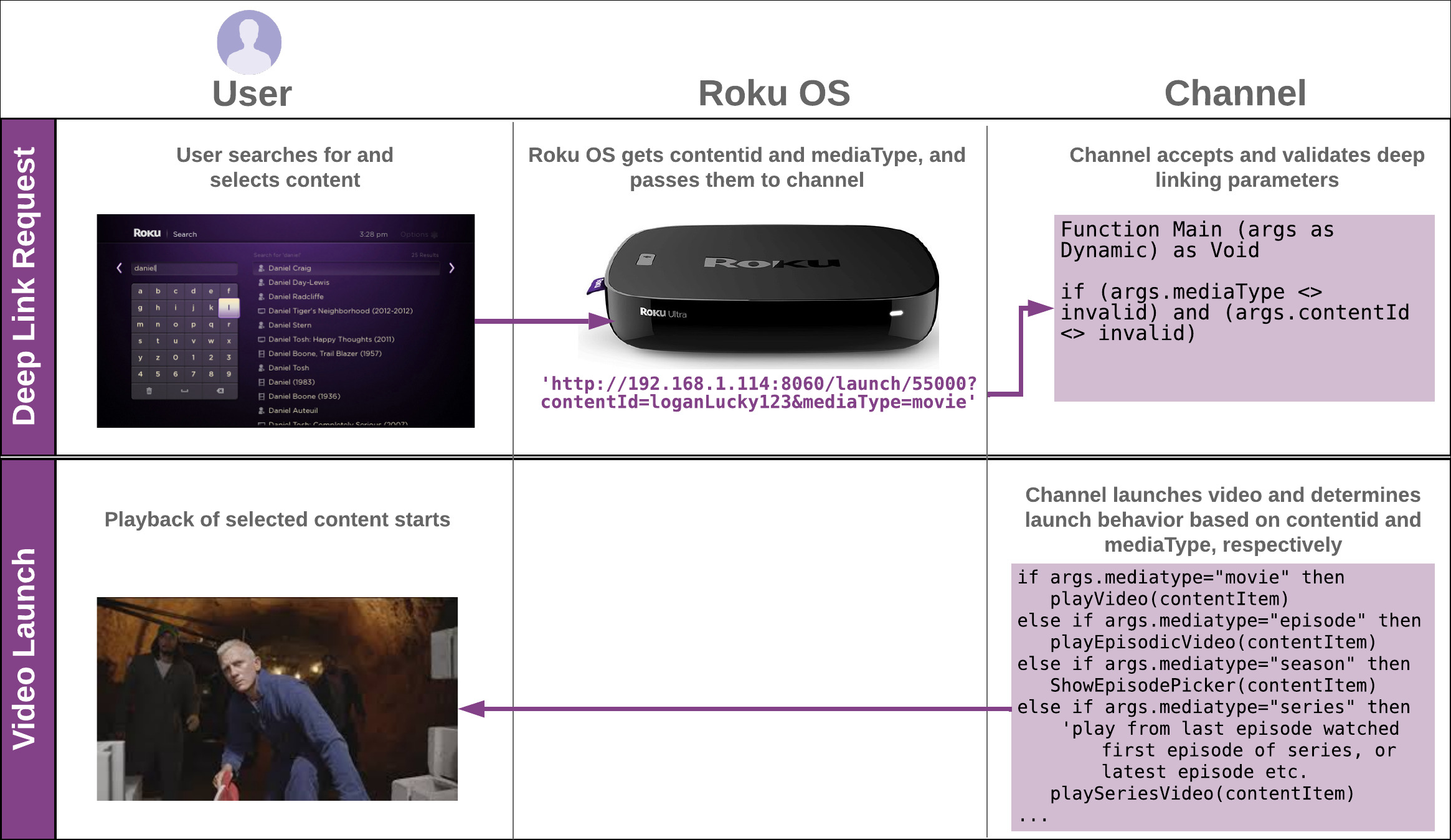
Implementing deep linking in an app entails the following steps:
-
Understand deep linking parameters. Identify the different content types in your app and map them to their corresponding Roku-supported mediaTypes.
-
Scope required deep linking behavior. Identify the work required for handling deep link requests based on content classifications.
-
Update the app. Program the app so it accepts and validates the deep linking parameters and launches into the required experience.
-
Test deep linking in the app. Verify that the app handles deep links correctly using the Roku Deep Linking Tester or External Control Protocol (ECP) commands sent via cURL.
-
Submit deep link samples for certification. Submit sample deep link parameters in the Developer Dashboard for each mediaType in your app.
Understanding deep linking parameters
Deep link requests contain two key parameters: contentid and mediaType.
-
A contentId is a URL-encoded ASCII string (maximum 255 characters) that uniquely identifies content in your app. The contentId may be an alphanumeric string, URL, or pipe-separated key-value pairs (for example, series=myAwesomeShow|Season=1|Episode=1).
-
The mediaType specifies how an app should behave when receiving a deep link request. See MediaType behavior for more information.
The following example demonstrates a deep link request sent to an app. The source parameter specifies the origin of the deep link request (in this case, it is from Roku Search):
http://192.168.1.114:8060/launch/50000?contentId=myAwesomeShow|Season=1|Episode=1&mediaType=series&source=hs-searchThe app receives the deep link parameters as an associative array as demonstrated in the following example (see Implementing Deep Linking for more information on handling these parameters; see Using the debug console for troubleshooting deep linking parameters for how to check the deep linking parameters being sent to your app):
<Component: roAssociativeArray> =
  {
      action: "display"
      contentid: "myAwesomeShow|Season=1|Episode=1"
      instant_on_run_mode: "foreground"
      isexternal: true
      lastExitOrTerminationReason: "EXIT_UNKNOWN"
      mediatype: "series"
      source: "hs-search"
      splashTime: "0"
  }
If an app is participating in Roku Search///, the contentid in the Roku Search feed (PlayID) must map to the contentid in your app for the same content. It is therefore important to keep the Roku Search feed synchronized with the app's content feed.
For episodic content, Roku Search only recognizes the episode contentid. An episode's contentid therefore must remain consistent, regardless if a deep link launches the episode or an episodic picker screen. These different deep link behaviors are determined solely by the mediaType. Separate contentIDs used to identify the season and series of the same content item are therefore ignored.
Scoping deep linking requirements
Before programming your app to handle deep links, you need to understand the required behavior for launching content based on the different mediaTypes. In addition, there are general requirements that your app should follow when responding to deep link requests.
Understanding and adhering to these deep linking requirements provides a standard user experience across the Roku platform and helps ensure that your app passes certification.
MediaType behavior
When a deep link is sent to your app, it will include contentId and a mediaType. The contentId specifies which content to play, and the mediaType tells your app how it must handle the launching of the content item. The following table summarizes the required launch behavior for each mediaType. For examples of the different mediaType behaviors, see MediaType behavior examples.
| mediaType in Deep Link | Description | Required Launch Behavior |
|---|---|---|
| movie | Movie or long-form film (over 15 minutes). | Play the movie identified by the contentId. Use bookmarks to determine the playback position. |
| episode | Single content item (an episode of a TV show, for example). | Play the episode identified by the contentId. Use bookmarks to determine the playback position. |
| season (optional) | As part of a series, single set of related TV episodes. | Optionally, launch a content springboard that displays episodes organized by season; highlight the episode mapped to the contentid. Season deep links are no longer being sent from Roku Search. |
| series | Set of related serialized episodes and possibly seasons. Includes TV shows and daily/weekly ongoing shows. | Launch an episode into direct playback using smart bookmarks. A smart bookmark determines the episode to be launched and the playback position based on the type of series, whether the user has previously watched the series, and whether they completed the last watched episode. The different types of series and their recommended smart bookmark behavior are as follows:
|
| shortFormVideo | Standalone content that is 15 minutes or less that is not a movie or TV show (for example, movie trailers, news clips, comedy clips, food reviews, or other clips). | Play the short-form item identified by the contentId. Apps containing only short-form items are exempt from deep linking certification requirements. |
| tvSpecial | One-time TV programs that are not part of a series, or content that does not fit into any other mediaType category (for example, music, artists, sporting events, non-episodic news specials). | Play the TV special identified by the contentId. Use bookmarks to determine the playback position. |
| liveFeed | Live linear stream | Play the live linear stream identified by the contentId. |
| sportsEvent | Live sports event | Play the live sports event identified by the contentId. |
A deep link for a single content item will always have the same contentId; however, the mediaType may vary based on the Roku content discovery feature sending the deep link. Your app therefore must be designed to execute the specified behavior required by each mediaType that could be sent to your app.
For example, if your app only includes short video clips, the app only needs to handle the "shortFormVideo" mediaType. Similarly, if your app only contains movies, the app only needs to handle the "movie" mediaType.
But if your app includes the last three seasons of a television episode, your app needs to handle the "episode", "season", and "series" mediaTypes to be able to respond to deep links sent from Roku Search, Roku voice search, and on-device ads.
You can use the "source" parameter to determine from where the deep linking request originated.
General app behavior
Your app should exhibit the following behaviors when responding to deep link requests:
-
Handle invalid deep links: If a deep link has an invalid contentid or mediaType, launch the app's home screen.
-
Handle unauthenticated users: If an unauthenticated user is launching or deep linking into your app for the first time, route the user to the appropriate authentication flow and then process the deep link request after the user has been authenticated. This can happen when a user deep links into your app via Roku Search or an on-device ad but the app is not installed. In this case, the Roku OS will prompt the user to install the app before continuing with the deep link.
-
Display a paywall (if needed): If your app requires a purchase prior to launching, the app may display a purchase screen before the letting the user view deep linked content.
-
Support a default profile If your app supports different profiles, set the last one used as the default for a movie, episode or series. An app may not display a profile selection screen, or any other screen other than one for purchases or authentication, between the selection and playback of a movie or episode. Do not use any profiles linked to children as the default.
-
Avoid resume/start over screens: Apps may not use resume/start over screens when handling deep links into movies, TV episodes, or TV series. Apps must use bookmarks or smart bookmarks to identify the playback position and resume at that spot.
-
Avoid deep linking into other apps: An app may not deep link into third-party apps.
Implementing deep linking
Deep linking is implemented by passing launch parameters to your app's Main() function. These launch parameters are passed in using an associative array similar to argv in C. Your app is responsible for parsing these parameters and taking the appropriate action, or in the case of an error, detecting it and going to the app's home screen. To integrate deep linking in your app, follow these steps:
-
Accept the deep linking parameters (contentId and mediaType) being passed to it. To do this, add an associativeArray argument to your app's main entry point, which is typically either the main() or runuserinterface() function. The name of the argument is arbitrary; for the example in this section, it is args.
Function Main (args as Dynamic) as Void
-
Verify that the contentId and mediaType have valid values. To do this, parse the associativeArray received by your app using the contentid and mediatype key names, and then check the values.
if (args.mediaType <> invalid) and (args.contentId <> invalid)
Use a case-insensitive check when validating the contentId and mediaType key names.
-
If the contentId and mediaType are valid, launch the specified content item using the appropriate launch behavior for the mediaType. If either the contentId or mediaType are invalid, launch the app home page.
if (args.mediaType = "movie" or args.mediaType = "episode" or args.mediaType = "shortFormVideo" or args.mediaType = "series" or args.mediaType = "tvSpecial") if valid_contentId(contentId) ' You define this function in your back-end 'play content directly, starting at last bookmarked position else 'pop an error message and launch app home page. end if else if (args.mediaType = "season") if valid_contentId(contentId) ' You define this function in your back-end 'display an episodic picker screen with the episode of the contentId selected else 'pop an error message and launch app home page. end if else 'deep linking issue such as contentId not matching any content in the partner's catalog 'display an appropriate error message for the user and launch home page. end if -
Use roInputEvent to check whether a deep link has been passed into the app while your app is running. This enables your app to deep link into content without re-launching your app.
-
The supports_input_launch attribute (supports_input_launch=1) must be added to the manifest for this functionality to work.
For example, when a voice input request is received (for example, "Play Game of Thrones" while your app is in the foreground), your app can send the deep link parameters through the roInputEvent—instead of re-launching your app with the parameters.
-
A message loop that listens for incoming events is typically used. If that event is an roInputEvent, an action is taken based on the input. If the input is content ID, the app typically finds the stream URL and metadata for that content ID, and then cues and plays the content.
See Sample app to download and install a sample app that demonstrates how to use roInputEvent to handle deep links while your app is running.
'...
screen = CreateObject("roSGScreen")
m.port = CreateObject("roMessagePort")
screen.setMessagePort(m.port)
'...

while(true)
  msg = wait(0, m.port)
  msgType = type(msg)
  if msgType = "roSGScreenEvent"
    if msg.isScreenClosed() then return

    if type(msg) = "roInputEvent"
      if msg.IsInput()
        info = msg.GetInfo()
        if info.DoesExist("mediatype") and info.DoesExist("contentid")
          mediaType = info.mediatype
          contentId = info.contentid
        end if
      end if
    end if
  end if
end while
-
Custom deep linking experiences from ads and Home screen banners
For campaigns and promotions, publishers can build custom deep linking experiences to drive users to any screen within their app from a home screen banner or ad placement. Use cases include (but are not limited to) launching to a content details screen or a subscription plan selection screen to promote content or subscriptions plans.
To handle deep linking for these scenarios, assign a unique contentId to the screen and update the app to launch that screen upon receiving the contentId. In this case, no business logic is required for handling the mediaType; the app should launch the screen regardless of whichever mediaType is received.
Testing deep linking in the app
You can verify whether your app is implementing the correct deep linking behavior using either the Roku Deep Linker Tester and the associated Roku Deep Linking Tester channel or ECP commands sent via cURL. Both methods enable you to test deep linking into content when launching an app; however, to test deep linking while your app is running, you must use ECP commands.
You can also check which deep linking parameters are being sent to your app using the debug console.
Test each mediaType in your content feed. For example, if your feed contains movies and short-form videos, you should test deep linking to content of both mediaTypes. In addition, if your feed contains series content, you must test that both series and episode mediaTypes demonstrate their required launch behaviors.
Deep links must work for your app to pass certification; therefore, it is recommended you do this testing.
Using the Roku Deep Linking Tester
The Roku Deep Linking Tester provides a UI for configuring, saving, import/exporting, and executing deep linking test cases. To use the tool for testing deep linking in your app, follow these steps:
-
Verify that your Roku device and computer are connected to the same sub-network.
-
Open the Roku Deep Linking Tester (https://devtools.web.roku.com/DeepLinkingTester). Optionally, you can download the Mac, PC, or Linux version of the tool onto your desktop. This saves you the step of having to manually enter the ID and name of the app to be tested.
-
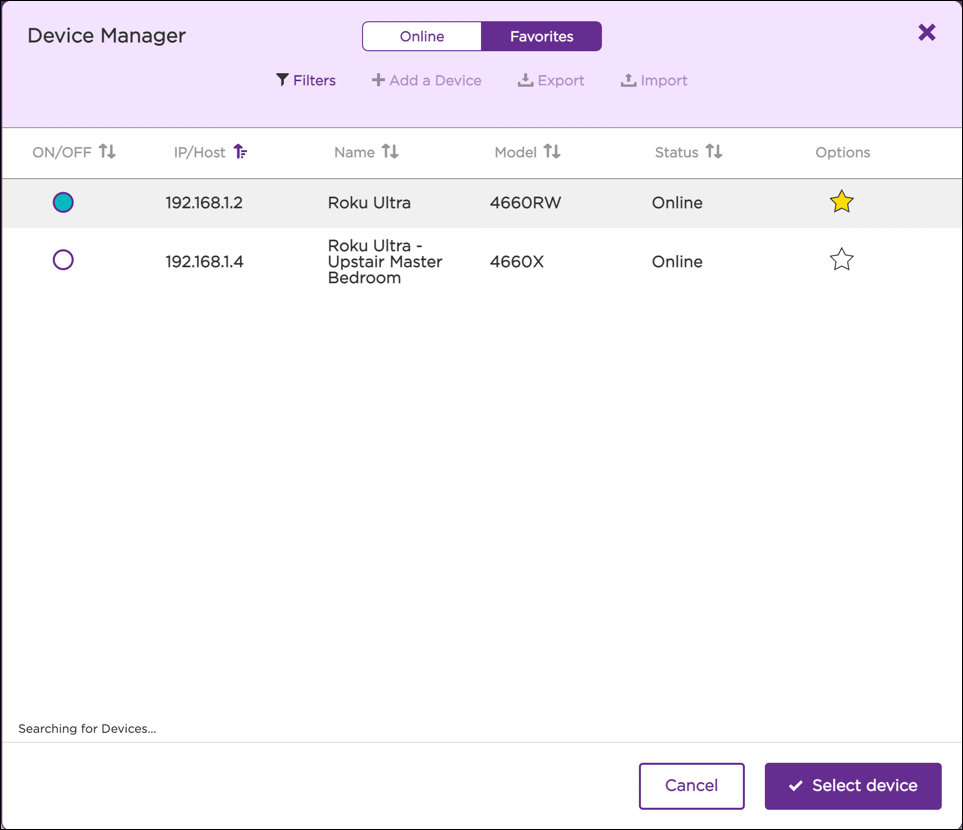
In the Device Manager > Online tab, select your test device by toggling the On/Off button and then clicking Select device. You can also manually add your device by clicking Add a Device, entering its IP address, entering a name to be used to identify it, and then clicking Add. To test sideloaded apps, click the settings icon under Options, enter the user name (rokudev) and password for your device, and then click Save.
-
Click the app to be tested from the list of apps on the left. For production apps, the Roku device must be keyed with the same developer key that was used to sign the app for publishing to the Streaming Store.
-
Add one or more test cases. To do this, click the Add a Test Case icon, enter a name for the test case, and then save the test case. Enter the contentId and select the mediaType for the test case; these will automatically be saved after you enter them.

-
Click Send, and verify that your app is launched and direct playback of the content starts immediately. You can change the command being sent from Launch (the default) to Input in order to verify that your app properly handles deep links while it is already running.
Using ECP commands for testing deep linking
You can test deep linking in an app by sending ECP commands via cURL to your Roku device. This enables you to test deep linking into content when your app is launched and while it also running.
To test deep linking using ECP/cURL, send an HTTP POST request to port 8060 on your Roku device using the following syntax:
http://<roku-device-ip-address>:8060/<EcpCommand>/<channelId>?contentId=<contentIdValue>&mediaType=<mediaTypeValue>The following attributes are required:
| Parameter | Description | Example |
|---|---|---|
| EcpCommand | Enter one of the following commands:
| launch |
| channelId | Enter one of the following:
The following examples show how to send ECP commands via cURL HTTP POST requests. The examples are based on a sideloaded app with contentId of 1234 and a mediaType of movie. The launch command is used to test deep linking into content when the app is launched; the input command is used for when the app is already running. When sending the input command, the app(dev) is not required. To test deep links on your production app, replace "dev" with your app ID (an app ID of 50000 is used in the following example). Because the input command does not require the app ID, the same command can be used for testing in development and production. | dev |
| contentIdValue | Enter the contentId of the content item to be used for the deep link test. | 1234 |
| mediaTypeValue | Enter the mediaType of the content item to be used for the deep link test. See MediaType behavior for the possible values. | movie |
Using the debug console for troubleshooting deep linking parameters
You can use the debug console to check the deep linking parameters that are being sent to your app. To do this, add a print statement to your app that outputs the associative array passed into your app's Main() function and roInputEvent.
This is useful when troubleshooting deep links because it helps you identify the contentId of the content being launched in case it is unknown, and it provides the mediaType in case the expected behavior is not being executed.
The following example demonstrates how to output the associative array containing the deep linking parameters:
sub Main(args)
    '...
    if (args.mediaType <> invalid) and (args.contentId <> invalid)
        '...
        'print deep linking paramaters in args
        print "args= "; formatjson(args)  'pretty print AA'
        'output
        ' args= {action: "display", contentid: "myAwesomeShow|Season=1|Episode=1", instant_on_run_mode: "foreground", isexternal: true, lastExitOrTerminationReason: "EXIT_UNKNOWN", mediatype: "series", source: "hs-search", splashTime: "0"}
        '...
    end if
end sub
Submitting deep linking samples for certification
As part of the app certification process, you must use the Developer Dashboard to submit sample deep linking parameters for your app. This enables Roku to certify that your app is responding with the correct behavior for the different types of content in your app.
To submit deep links for certification, follow these steps:
-
Verify that your app meets all certification requirements.
-
Open the Developer Dashboard and click Manage My Apps. Click your app, and then select Deep Linking from the list on the right.
-
Follow the instructions in the Deep Linking window documentation.
MediaType behavior examples
The following GIFs demonstrate the required launch behavior for the different mediaType values:
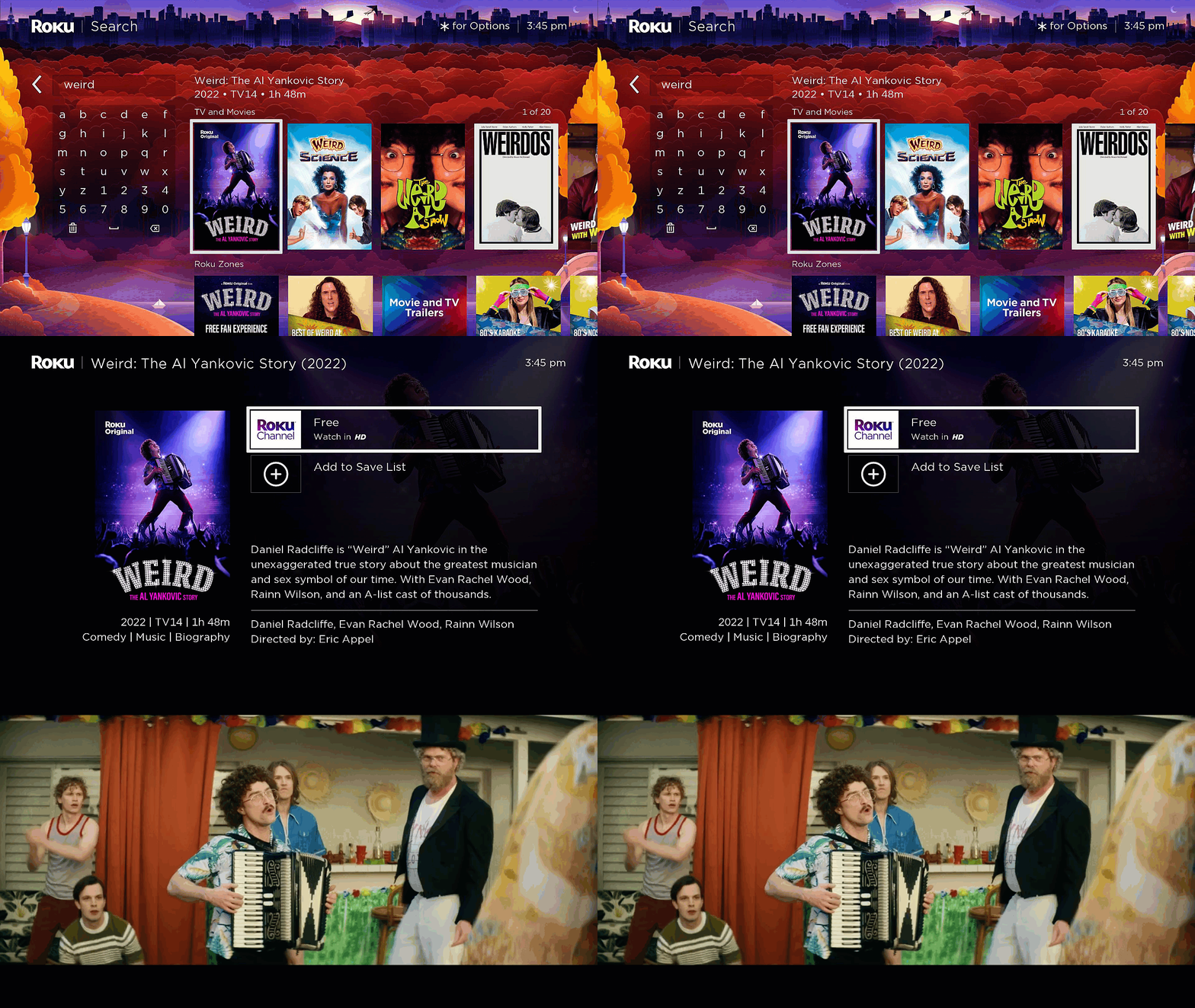
movie
The movie identified by the contentId is launched directly into playback. Bookmarks are used to determine the playback position.
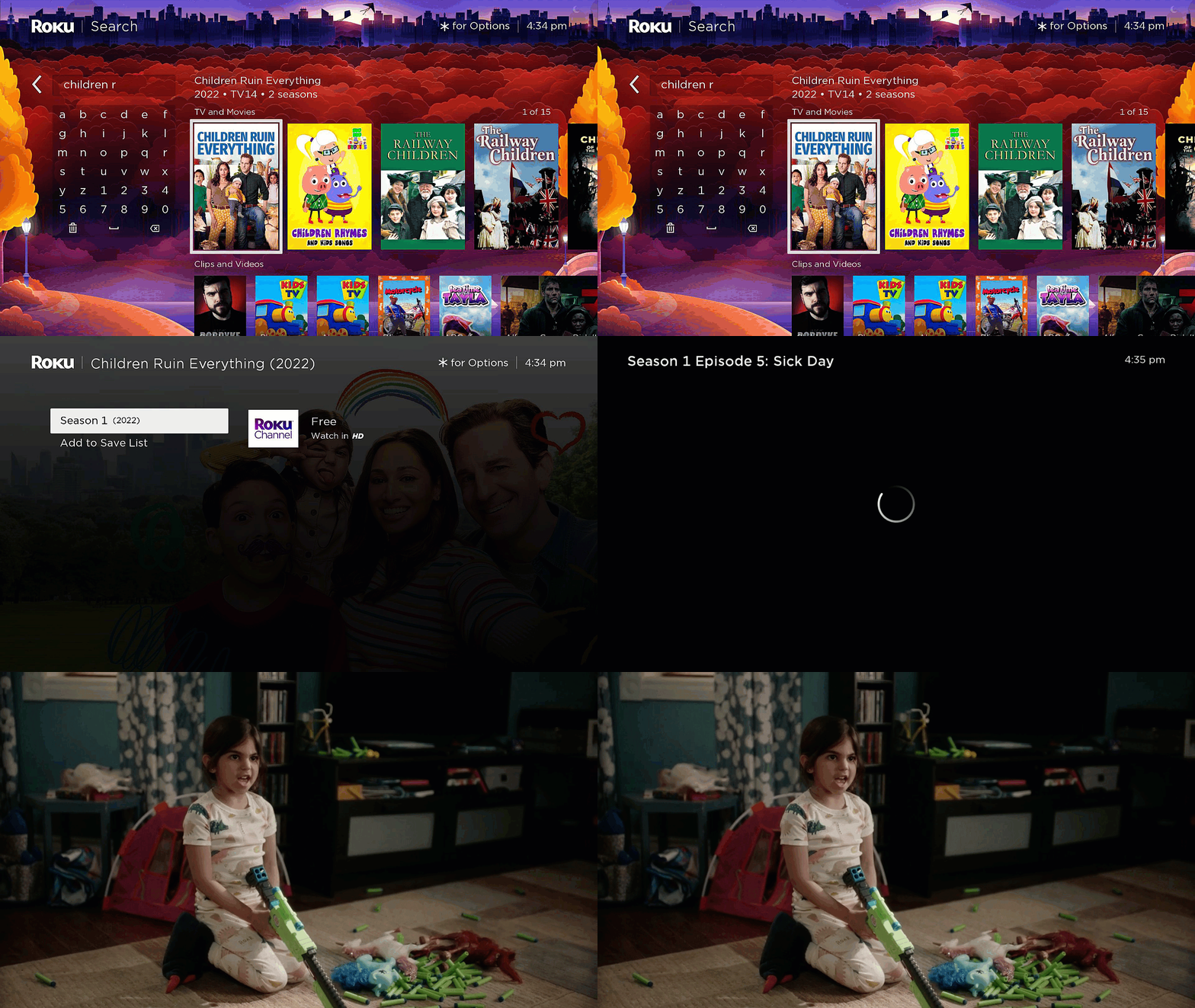
episode
The episode identified by the contentId is launched directly into playback. Bookmarks are used to determine the playback position.
season (optional)
A content springboard is launched. The springboard displays episodes organized by season and the episode mapped to the contentid is highlighted.
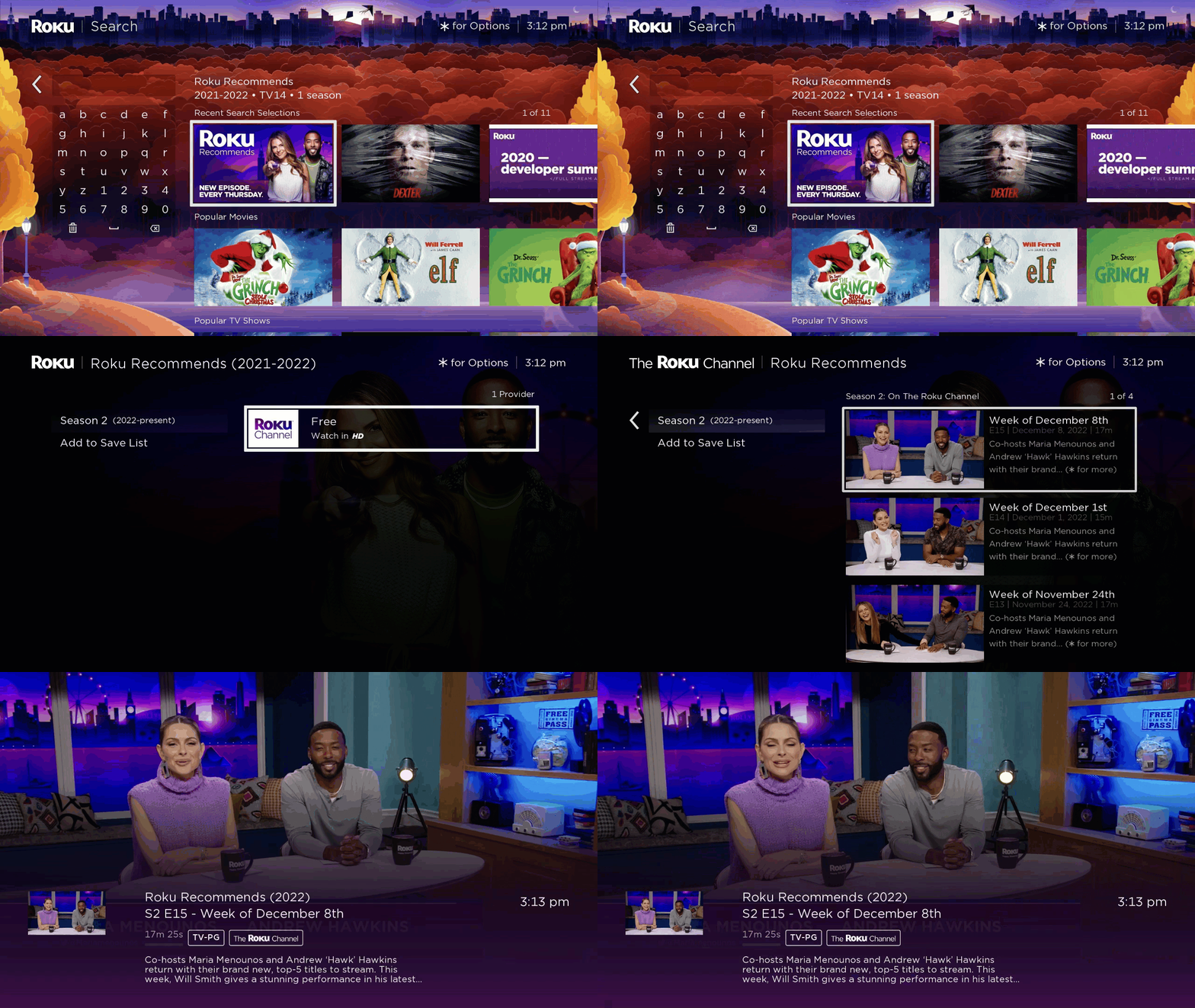
series
The episode identified by the contentId is launched directly into playback. Smart bookmarks are used to determine which episode to launch. The playback position is based on the type of series, whether the user has previously watched the series, and whether they completed the last watched episode.
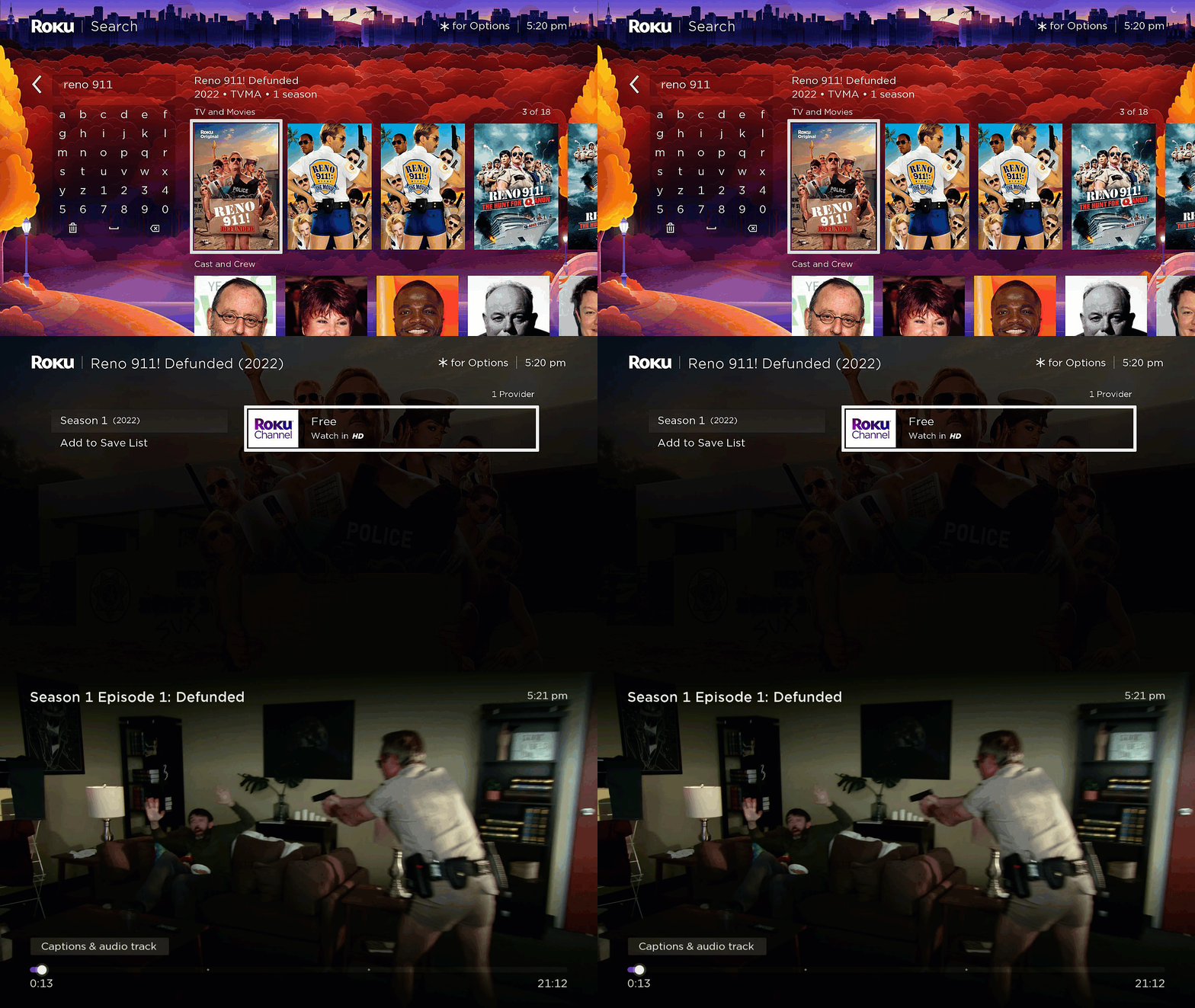
shortFormVideo
The shortForm video (less than 15 minutes) identified by the contentId is launched directly into playback.
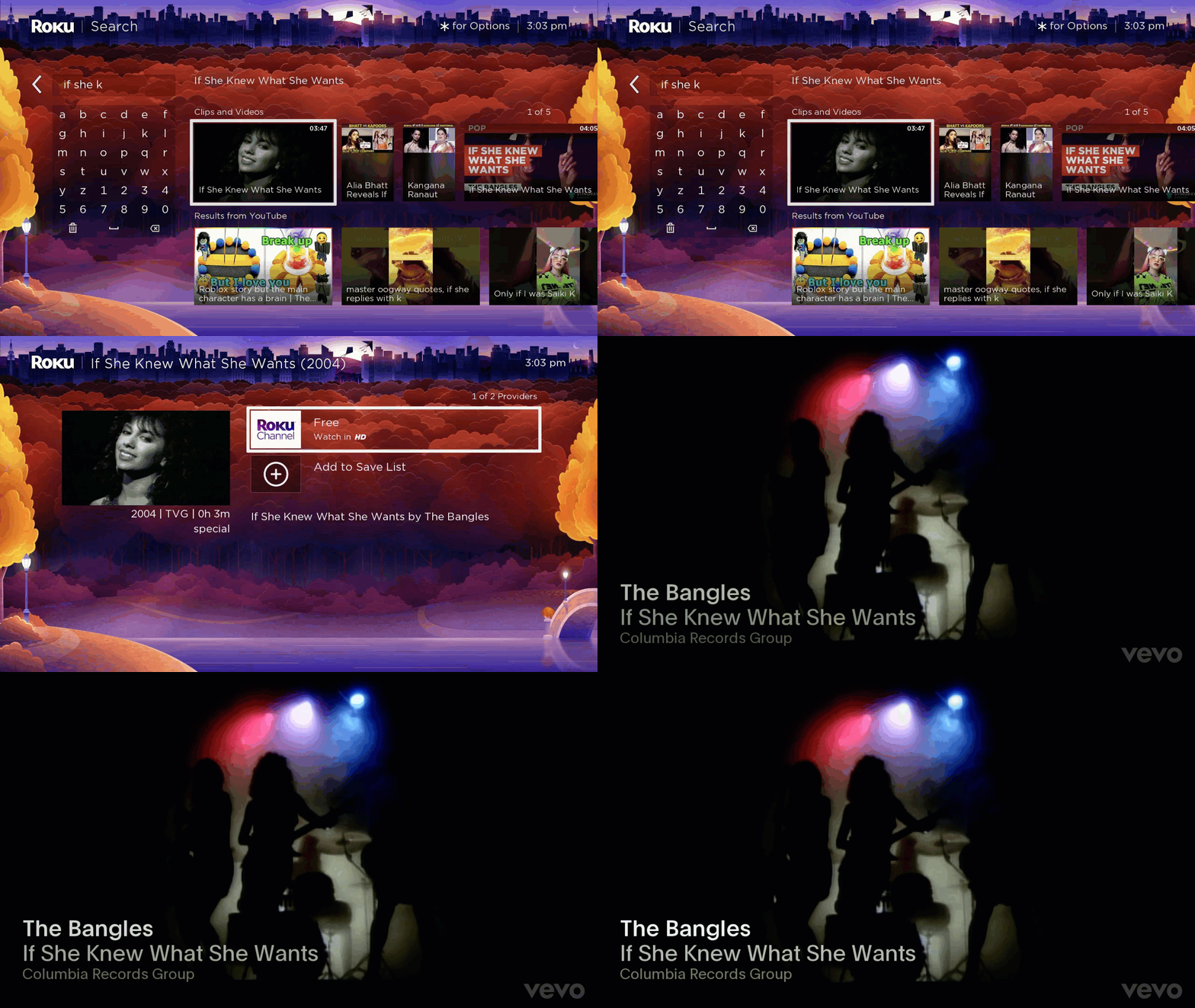
tvSpecial
The one-time TV program identified by the contentId is launched directly into playback. Bookmarks are used to determine the playback position.
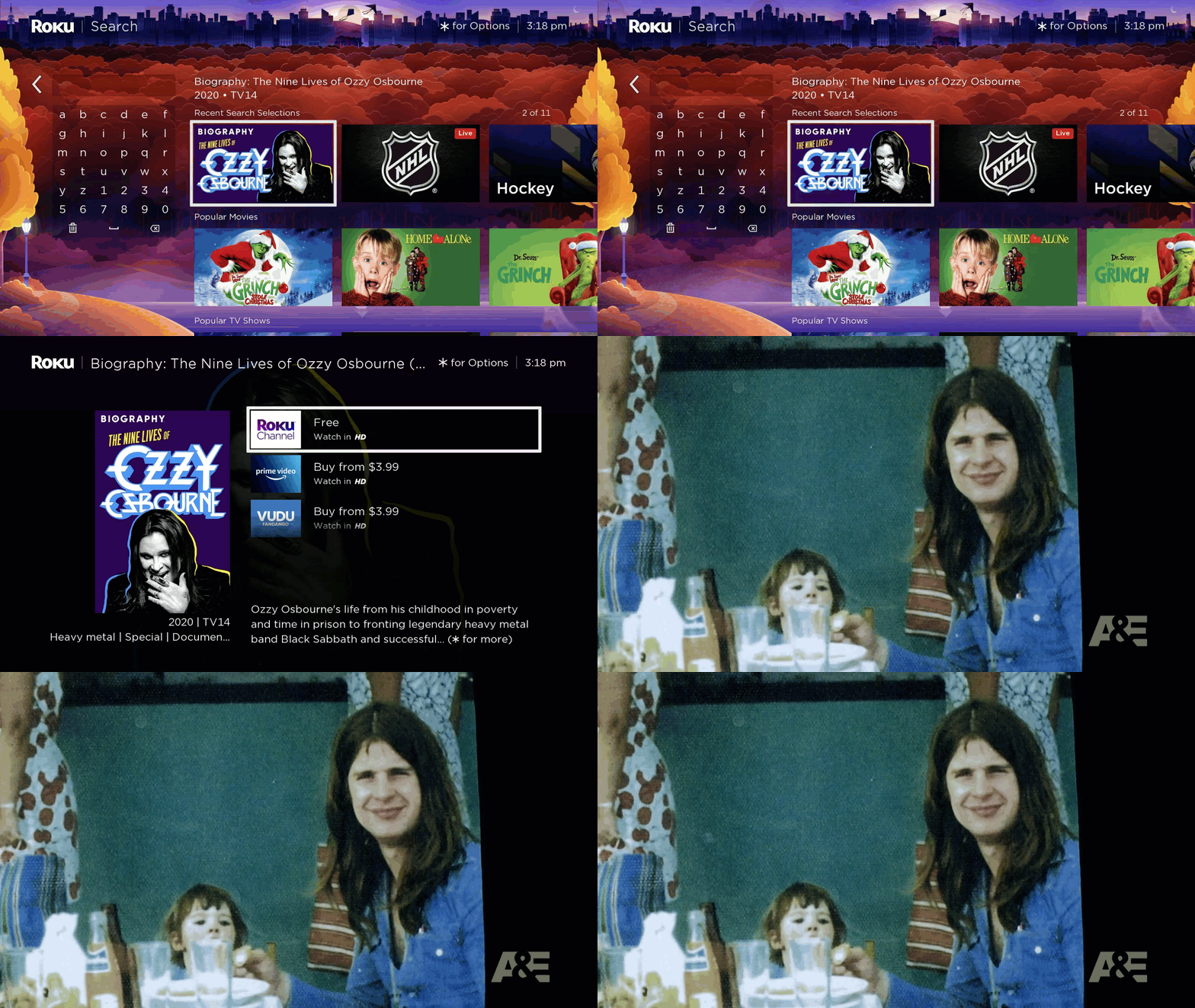
Deep linking video lesson
You can learn how to implement deep linking in your app by watching the Deep linking video lesson in Roku's SceneGraph: Build a App online video course.
This lesson details how to program your app to accept and process deep links upon being launched and while it is already running. It lists the different playback experiences requried for the various types of content in the app's feed.
Sample app
You can download and install a sample app that demonstrates how to launch content with deep links. It provides content that you can use to test deep linking via ECP commands sent via cURL. It shows you how you can design your app to deep link into content when both launching an app and while the app is already running.
Updated 3 days ago