
Prioritizing authenticated apps
SVOD and TVE apps must communicate the authentication status of customers when they launch your app. Authenticated apps are listed above non-authenticated ones in content discovery features such as the Roku Search; therefore, providing the authentication status prioritizes your app, which helps drive users to your app.
Apps that require authentication (SVOD, TVE, and other subscription services) must communicate authentication status to pass certification. AVOD apps are exempt from this requirement because they do not benefit from this integration.
Overview
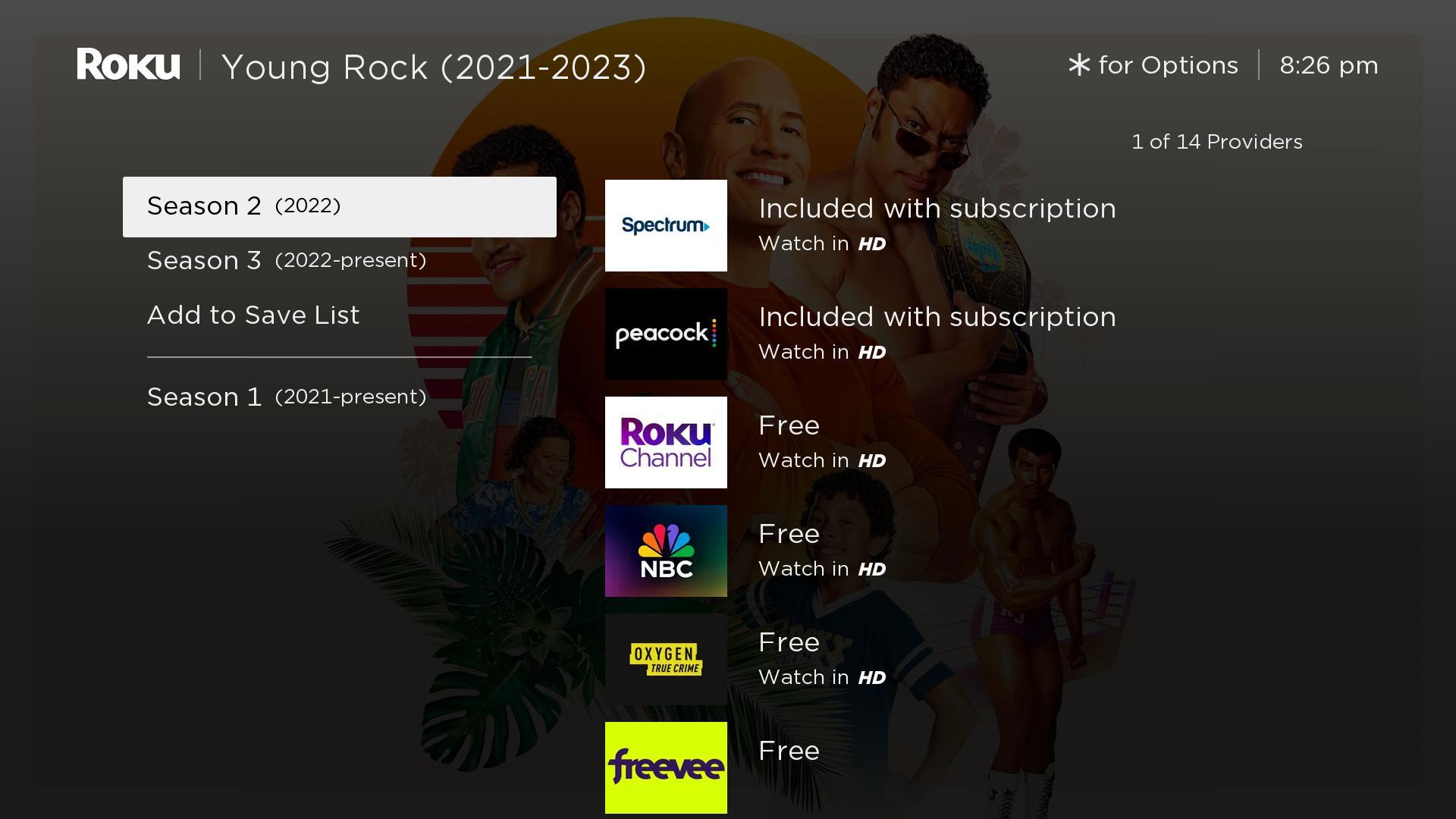
When customers search for a movie, TV series, actor/actress, and so on, Roku Search displays content matching the query. When customers select which content to watch, the content providers screen in Roku Search lists containing the requested content. The matching apps are ordered by active subscriptions, or in other words, which ones enable the content to be watched without requiring a transaction or viewing ads. This helps customers identify on which app the content is “free” for them.
For example, if a movie is available on an SVOD app that the customer has authenticated into, an AVOD app, and an unauthenticated SVOD app, the authenticated SVOD app is listed higher in the search results than the other apps. This is because the content on the authenticated SVOD app is the most "free" for the customer. On the other apps, the content resides behind an additional paywall or requires viewing ads.
The overall priority of apps in the Roku Search content providers list is based on Roku algorithms that consider a number of factors, including the priority of customer's entitlement to the selected content based on app type (for example, authenticated SVOD, TVE, free AVOD, and so on).
Sending authentication events
Each time an authenticated customer launches your app, send an authentication event to Roku. This can be done using either the Roku Event Dispatcher (RED) library or the fireRokuMarketingPixel() method in the Roku Advertising Framework (RAF) library. Using the RED library is the recommended approach; however, if you are already integrating RAF and want to avoid incorporating multiple libraries in the app, you can use the fireRokuMarketingPixel() method.
The Roku Search algorithm uses a 30-day lookback window for authentication events sent from Roku devices; therefore, sending authentication events each time ensures your app is prioritized appropriately in the content providers list.
Integrating the Roku Event Dispatcher in the authentication workflow
To use the Roku Event Dispatcher in your app's authentication workflow to send authentication events, follow these steps:
-
Enable the RED library in your app by adding the following line to the manifest file:
sg_component_libs_required=roku_analytics -
Use the Roku Analytics Component to send authentication events from your app following these steps:
a. When
roSGScreenis active, create a "Roku_Analytics:AnalyticsNode" node and persist it by storing in the global node.b. To add the RED library as a provider, include
RED:{}when assigning to its.initfield.c. To dispatch an event for authentication, assign
{RED: {eventName: "Roku_Authenticated"}} to the .trackEventfield.The following example demonstrates how to send authentication events:
sub Notify_Roku_UserIsLoggedIn(rsgScreen = invalid as Object) ' get the global node if type(m.top) = "roSGNode" ' was called from a component script globalNode = m.global else ' must pass roSGScreen when calling from main() thread globalNode = rsgScreen.getGlobalNode() end if ' get the Roku Analytics Component Library used for RED RAC = globalNode.roku_event_dispatcher if RAC = invalid then RAC = createObject("roSGNode", "Roku_Analytics:AnalyticsNode") RAC.debug = true ' for verbose output to BrightScript console, optional RAC.init = {RED: {}} ' activate RED as a provider globalNode.addFields({roku_event_dispatcher: RAC}) end if ' dispatch an event to Roku RAC.trackEvent = {RED: {eventName: "Roku_Authenticated"}} end sub -
Use the debug console to verify that your app is sending authentication events.

Integrating the RAF fireRokuMarketingPixel() method in the authentication workflow
To use the RAF fireRokuMarketingPixel() method to send authentication events to Roku, follow these steps:
-
Enable the RAF library in your app by adding the following line to the manifest file:
bs_libs_required=roku_ads_lib -
Instantiate the RAF library in the app:
adIface = Roku_Ads() -
When an authenticated customer launches your app, call the fireRokuMarketingPixel() method using the following syntax:
adIface.fireRokuMarketingPixel("Roku_Authenticated")