
Streaming Store
Browse, discover, and install apps on the Roku Platform via the Streaming Store
Overview
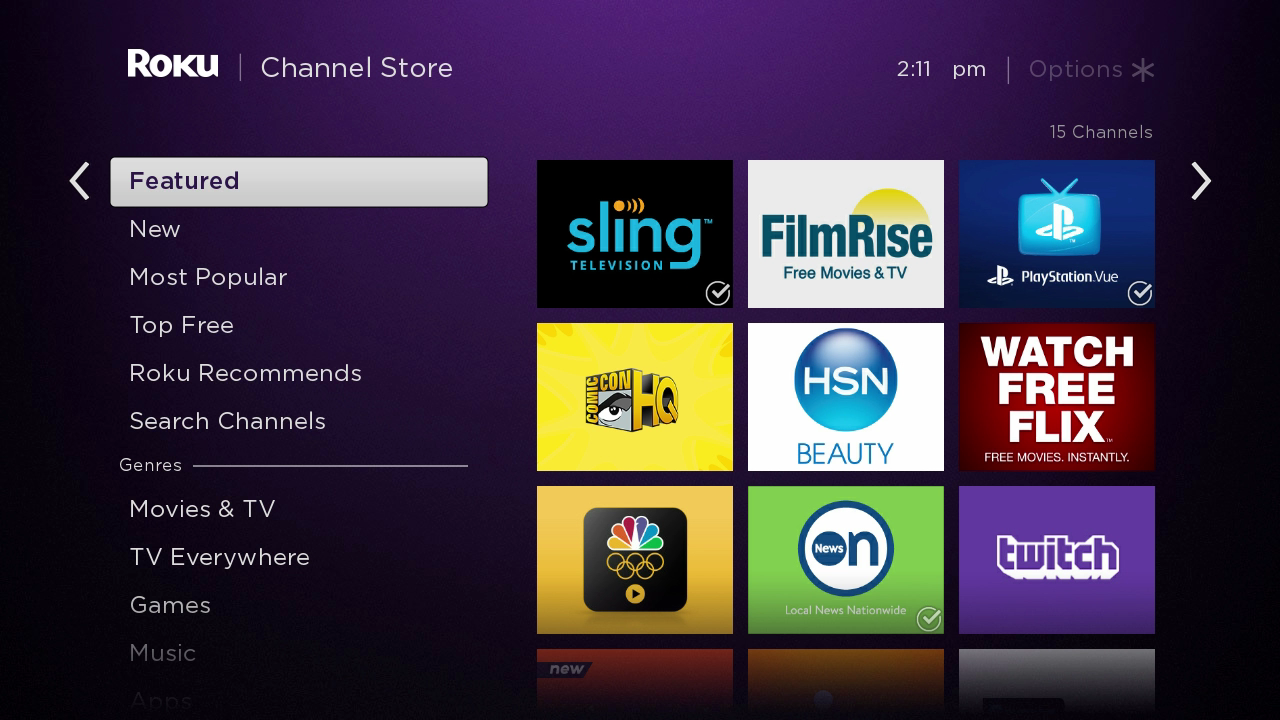
The Streaming Store is where Roku users can search, discover, and download apps on the Roku Platform.
What is the Streaming Store?
The Streaming Store is the “home” for all public apps on the Roku Platform. Despite its name, the Streaming Store contains more than just traditional video streaming “apps” — it also includes apps, games, podcasts, radio stations, social networking sites, screensavers, and homepage themes.
Essentially, the Streaming Store can be thought of as the Roku app store.
All public apps have been reviewed and certified for quality and functionality. This means that users can expect an app downloaded from the Streaming Store to be of a high standard.
Accessing the Streaming Store
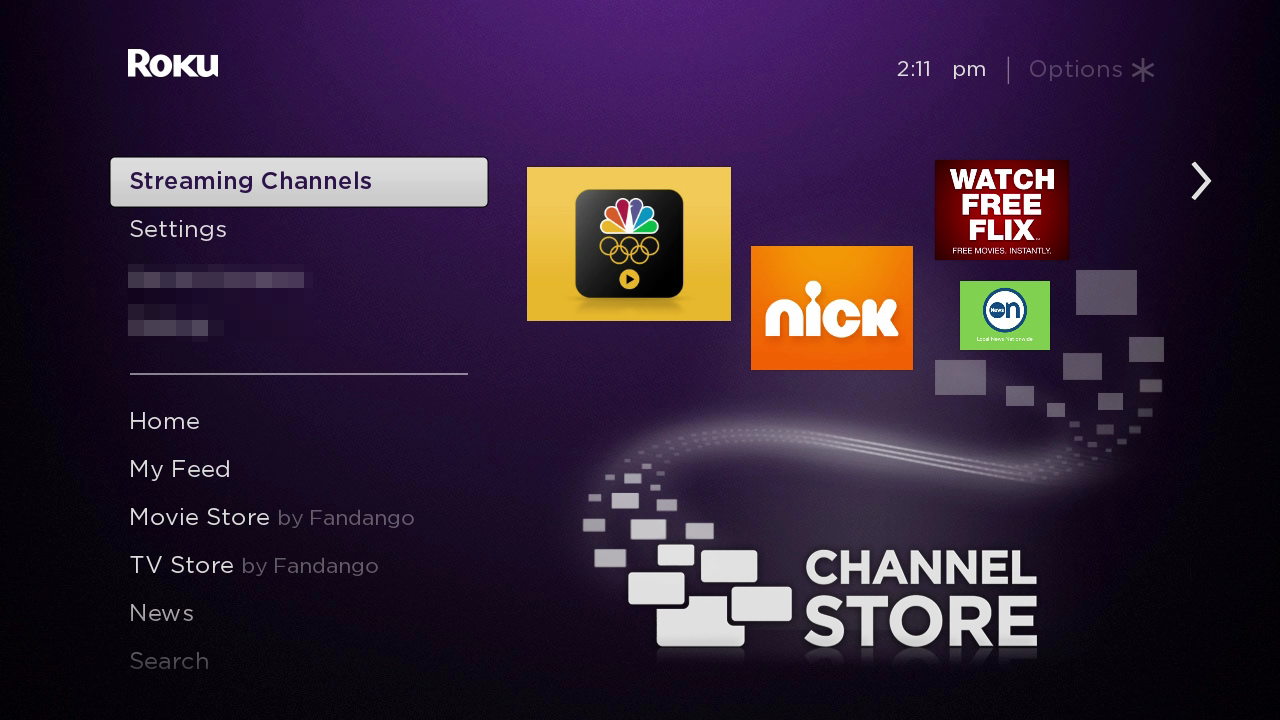
The Streaming Store can be found on the home screen of any Roku device by navigating to the “Streaming Store" section in the menu on the left-hand side. Additionally, users based in the United States can access the Streaming Store from the web by going to channelstore.roku.com from any browser.
Finding apps
Once in the Streaming Store, there are a variety of ways for users to find an app. The Streaming Store is broken into several categories, including specific genres, Most Watched, and “Top Free” apps. Each new app added to the Streaming Store is also featured in the “New” category for 30 days.
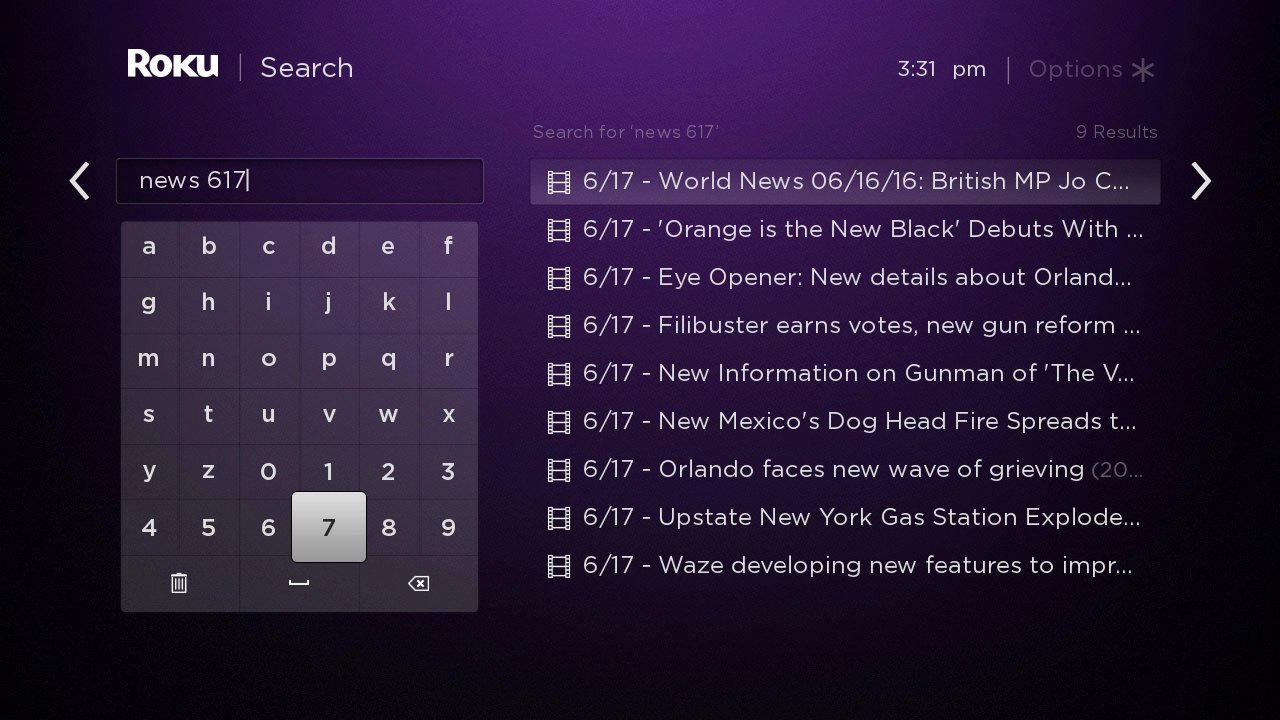
Users can also use the Roku Search feature in the left navigation bar of the Roku home screen (or the “Search channel” bar from the web) to find specific apps they’re looking for. Roku Search can also accept key terms, such as entering the words “news,” “sports,” or “weather” followed by a date.
Downloading apps
Depending on how you’ve found the app you’re looking for, it can be installed in a variety of ways.
Installing via Roku device
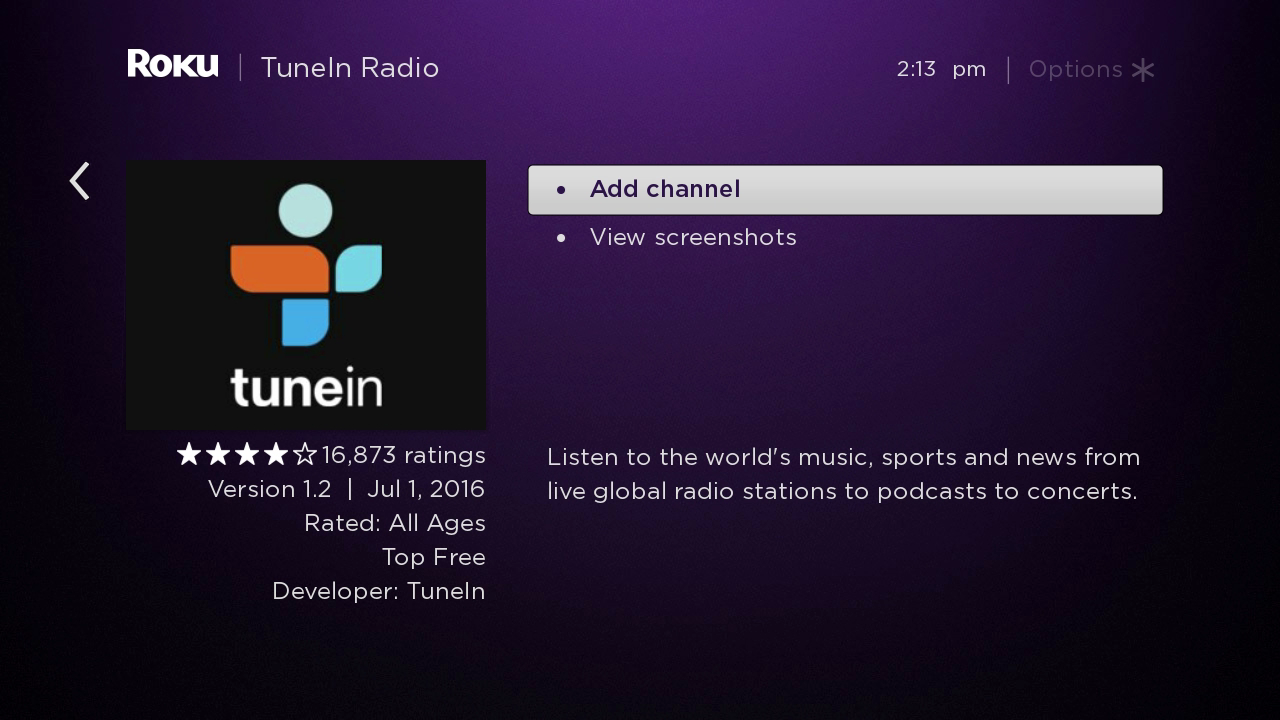
When viewing an app from your Roku device, you’ll see the following information:
- A description of the app
- Screenshots of the app’s UI
- User-based star ratings
- Price
- The developer who built the app
The page will also contain an “Add channel” button, which will automatically add the app to your homescreen. You may be asked to enter your billing password if the app costs money.
Installing via web store

Users in the US can also find similar information by searching for the app on the web store. As with the Roku Player, click the “+ Add Channel” button while logged in to your Roku account to add the app to your Roku device.
Installing via vanity code
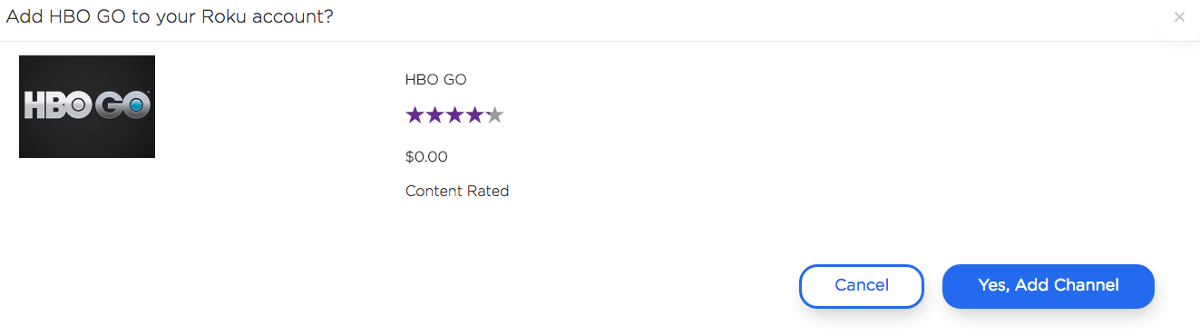
Every app has an access code that can be accessed from the web to quickly install an app. To install an app this way:
- Login to your Roku account
- Enter https://my.roku.com/account/add?channel=VANITY_CODE in your browser
- Replace VANITY_CODE with the app’s access code
- Click "Yes, Add Channel"
Note: When installing an app from the web, you will need to check for system updates before the app will appear on your home screen. To check for system updates on your Roku device, navigate to Settings > System > System Update > Check Now.
For more information on how to add or remove an app via the Streaming Store, read the following support articles:
- How do I add channels from my Roku® streaming device?
- How do I remove channels from my Roku® streaming device?
Multiple Streaming Stores
Roku users outside of the US should be aware that — due to differing copyright laws and distribution agreements — there is more than one Streaming Store, each with its own unique combination of available apps. In general, there are two types of Streaming Stores:
-
Country: Every country where consumers can buy Roku devices at the retail level has its own Streaming Store.
-
Roku Powered: In addition to the traditional Roku TVs and set-top-boxes, Roku also offers a “Roku Powered” solution to allow Pay TV service providers (such as Sky TV and Telstra) to operate on our platform. Every Roku Powered partner controls featured in their Streaming Store. To add your app to one of these Streaming Stores, reach out to the service provider directly.
Updated 5 months ago