
App Publishing
Create, test, and schedule beta or public apps for the Streaming Store
When your app is tested and ready to deploy, you publish it using the Developer Dashboard. There are two types of app you can work with.
-
Beta app: A sharable app for testing without certification. A beta app is a temporary app for development purposes that cannot be published to the public Streaming Store.
-
Public app: An app available for install from the Streaming Store. A public app must pass Roku's certification process and be reviewed by Roku before being published.
When publishing an app, use the Roku developer account that belongs to the organization that owns the app content. If you hired a third-party app development company to build your app for you, do not allow them to publish the app under their own account, otherwise ownership of the app will belong to them according to the terms of the Roku Distribution Agreement.
In other words, when publishing an app, make sure that your own account is the root account associated with the app, and that your third-party developer has simply been granted the role of "Administrator" or "App management." Our document on user access management in the Developer Dashboard provides more information on root accounts and role-based permissions.
App creation overview
When you create an SDK app, you'll have the option of setting the app as a beta or public app. For either type of app, you'll start by packaging your Roku app. Then follow the guidelines for creating a beta app or a public app.
Typically, you will first create a beta app to which you'll upload your package, and then you will share the app with your beta testers. Once you have finished testing and refining your app, you will create a public app using your tested package file. If you later make revisions to the public app that again require QA testing, you'll again use a beta app.
Beta app guidelines
Beta apps are a special app type designed specifically to enable you to test your app in a production-like environment before publishing or pushing changes to a production application in the Streaming Store. Beta apps allow up to 20 beta test users to run the application on the Roku OS, making real calls to the Streaming Store, Roku Pay API, and other production services.
A beta app allows the developer to instantly revise an app for test users to try out. You just create the app and upload your package. You can then provide the app access code to your selected group of beta test users so that they can install and QA test your app. No certification testing is required for beta apps.
Beta app rules
Beta app usage is limited to its intended purpose of quality assurance, as follows:
-
120 days. A beta app can exist for only 120 days after you create it (using Add App). After the expiration of that period, the app is: (1) deleted and removed from your Developer Dashboard and (2) disabled for all users who have installed it.
-
10 apps. Your developer account permits up to 10 beta apps at a time. For each beta app, you can:
-
Update the beta app with new packages as needed; your beta testers will get automatic package installation without needing a new access code.
-
Delete the beta app and create a new one replacing it; your beta testers will lose access to the original installation, and will need a new access code to access the new beta app.
-
20 users. You can have up to 20 beta test users per beta app at any given time.
Beta apps vs. public apps
Additional differences between beta and public apps are summarized as follows:
| Beta apps | Public apps | |
|---|---|---|
| Certification testing | Not required. Most of the certification tests available for Public apps are available for Beta apps. You should use them during beta development/testing, but none are required to pass before selected users can view the app. | Required. No Public app will be accessible by users unless it has passed all certification requirements. |
| Publishing | Not allowed. You submit a beta test app by simply uploading the package. There are no certification checks made. | Allowed. Public apps may only be submitted for publishing once they pass certification testing. |
| Deployment | Immediate. Your beta test app is deployed immediately after upload of the package (unless errors in the package file prevent its deployment). | Only after review. Public apps are not deployed until the scheduled date. |
| Access Code | Immediately usable. You send your beta test users an access code that allows them to install your test app on their Roku device. | After publication. The vanity access code you chose during app creation can be given to anyone to do a quick public app installation. |
| Streaming Store | Not available. Beta apps are not available for installation through the Streaming Store, or discoverable via Roku Search. | Available. Published public apps are always available for installation through the Streaming Store and are discoverable via Roku Search. |
Creating a beta app
To create and start testing a beta app, you will need to:
- Package your Roku app.
- Create an app (select Beta).
- Upload the package associated with this app.
- Provide the Access Code (from the Preview and Publish window) to your beta testers.
For additional revision cycles before moving to a Public app, simply repackage your project using the same key and re-upload it to the same Beta app (if within the 120-day life of the app).
Public app guidelines
Apps in the Streaming Store are certified before they are made available to the public. Some of the key benefits for public apps are:
- Displayed in a Streaming Store category (chosen during the submission process)
- Searchable by app name in Roku search.
Moreover, the Deep Linking and Roku Search feed information required for certification support:
- Home screen banner promotions
- Roku Search by content or person(s).
To ensure success in creating a Public app, you will need to:
- Package your Roku app.
- Create your design assets following Design and User Experience Guidelines.
- Go through the Pre-certification Check List.
- Create an app (select Public).
- Upload the package associated with this app.
- Follow the App certification procedure.
- Publish your app (submit it for deployment) using the Publishing an app procedure.
Create an app
-
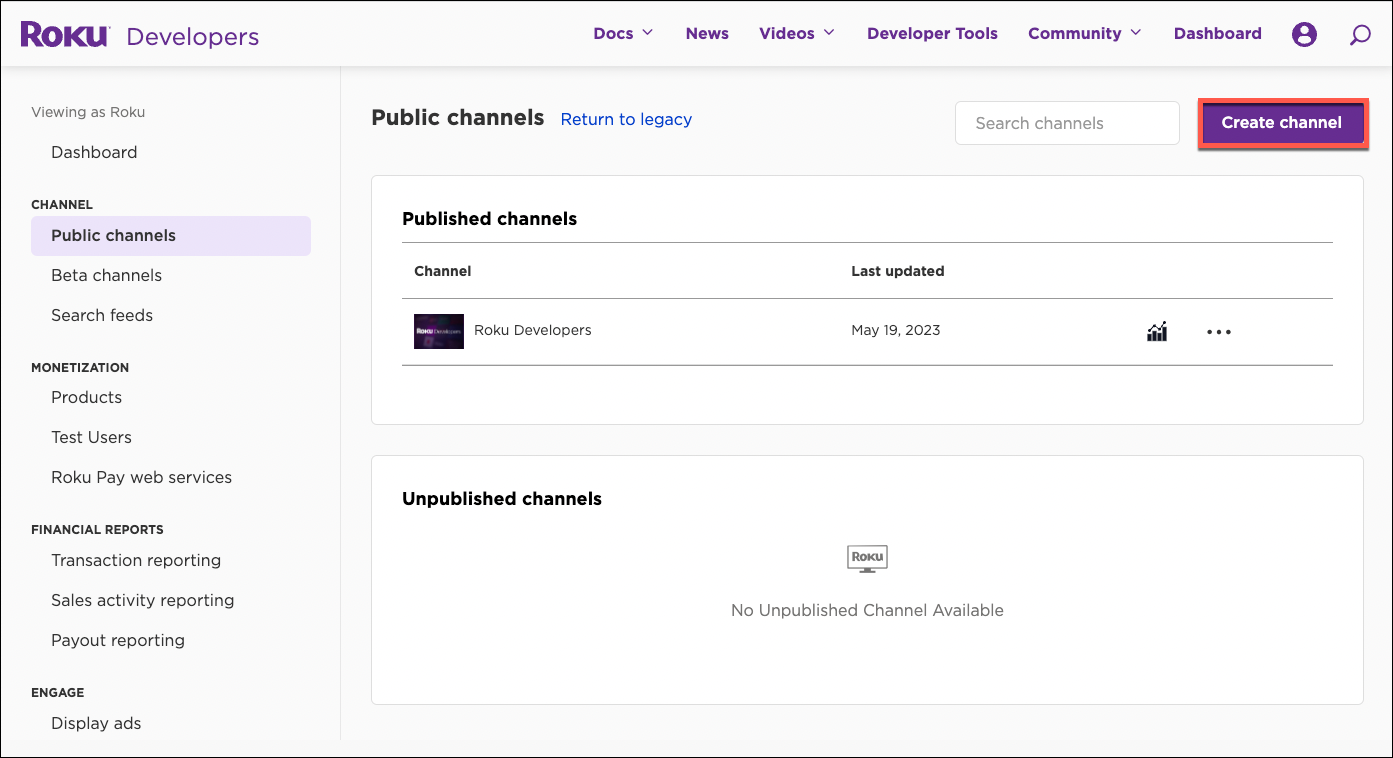
In the Developer Dashboard, click Public apps or Beta apps based on the type of app you want to create.
-
Click Create app. The New app dialog opens. Enter the following information:
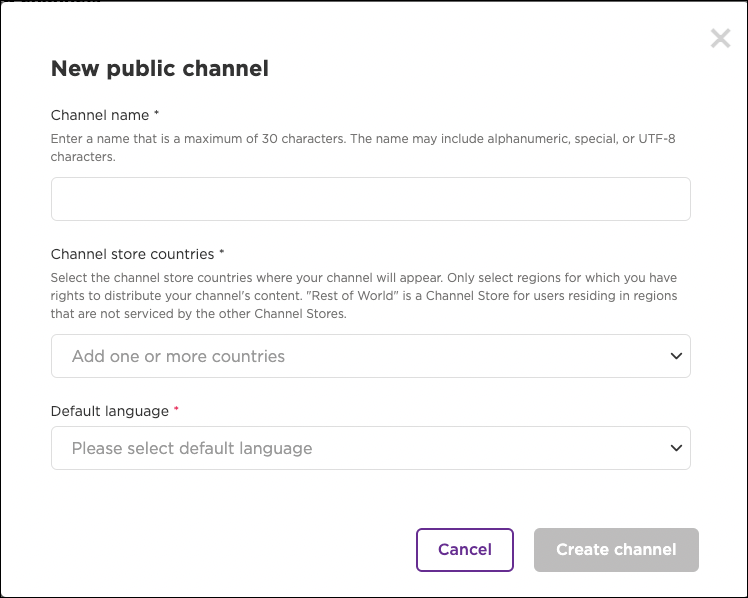
| Field | Description |
|---|---|
| App name | Enter a name for your app. The name may be a maximum of 30 characters, and it may include alphanumeric, special, and UTF-8 characters. This name will be displayed in your app's listing in the Streaming Store. The app name must clearly identify the company associated with the service, and the publisher must have full legal rights or consent for their app names and the rights to all trademarks and copyright expressions associated with the name. The app name may not include the name "Roku", and it may not contain any profanity, or derogatory or misleading language. |
| Streaming Store countries | Select the countries where your app will be distributed from the drop-down list. You can scroll through the list and select countries or enter the name of a country to filter the list as you type. Only select countries where you have the rights to distribute your app's content. The "Rest of World" Streaming Store includes regions not serviced by other Streaming Stores. Customers are associated with Streaming Stores based on their region when they created their Roku account. For example, if a customer creates their Roku account while in the United States and then moves to another region, they are still associated with the U.S. Streaming Store. |
| Default language | Select the language the Roku OS uses when the Streaming Store does not have metadata for your app in the language set on the customer's device. For example, if the device language is set to German, but your app only supports English and French, the specified default language is used. |
-
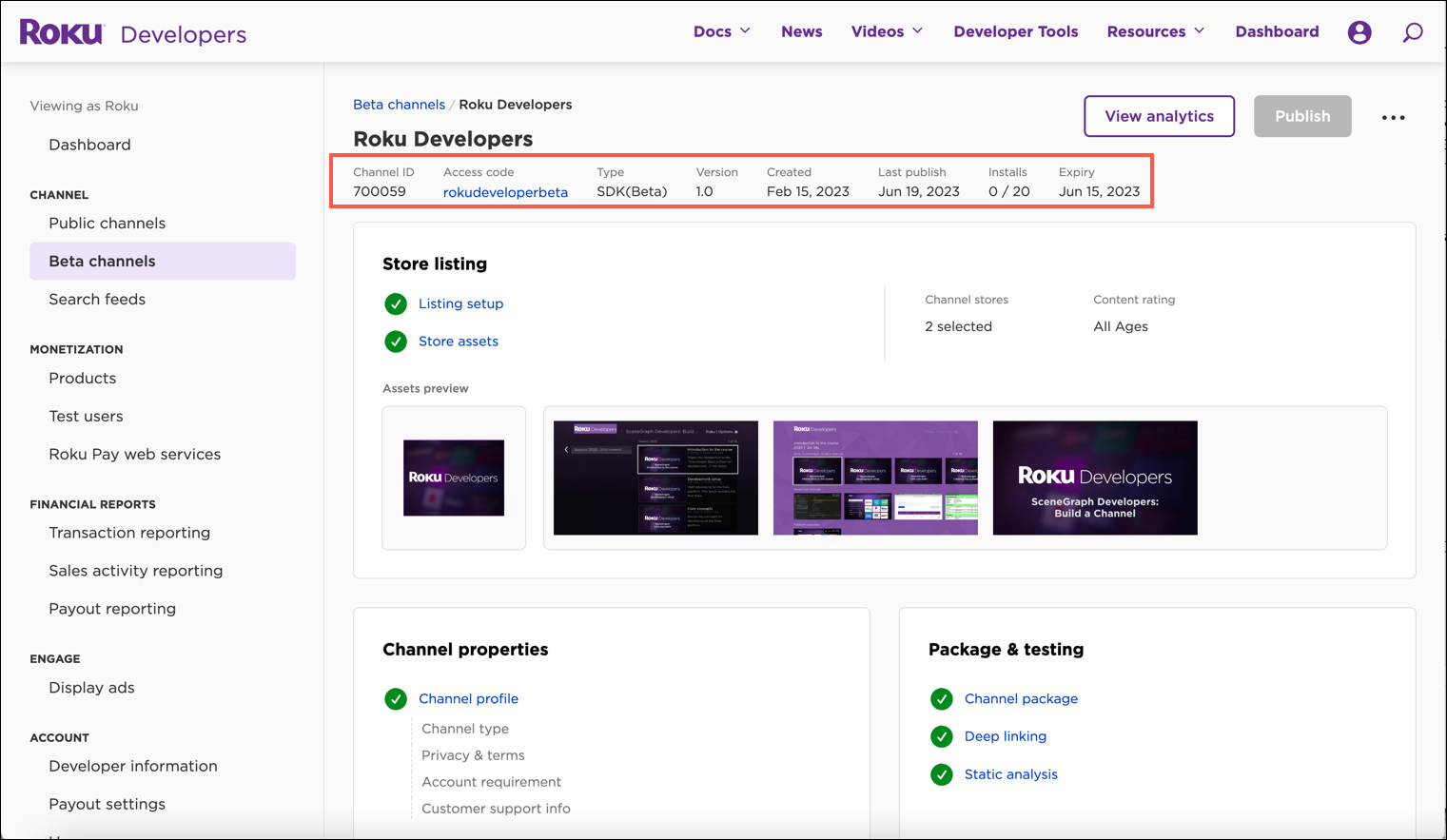
Click Create app. A new management page is created for your app. The top of the page includes a breadcrumb for navigating the app pages, the name of the app, and the following fields that provide basic and status information for the app:
| Field | Description |
|---|---|
| Channel ID | The unique ID generated for your app. |
| Access code | A six-character alphanumeric code that is included in the URL for installing your app. The URL is used to install beta apps, and it can be used to add public apps once they have been published. You can click the link to install the app on a Roku device linked to your developer account. In the App Profile page, you can enter a descriptive custom code (for example, "MyVideoApp"). |
| Type | The type of app, which may be one of the following values:
|
| Version | The version number of the app. |
| Created | The date the app was created in the Developer Dashboard. |
| Last publish | The date the app was last published. |
| Installs (Beta apps only) | The number of users that have installed the beta app. A beta app may be installed by up to 20 users at any time. |
| Expiry (Beta apps only) | The date when the beta app will expire and the number of days before the expiration. A beta app may exist for a maximum of 120 days after creation. After the expiration, the app is: (1) deleted and removed from your Developer Dashboard and (2) disabled for all users who have installed it. |
App store listing
Listing setup
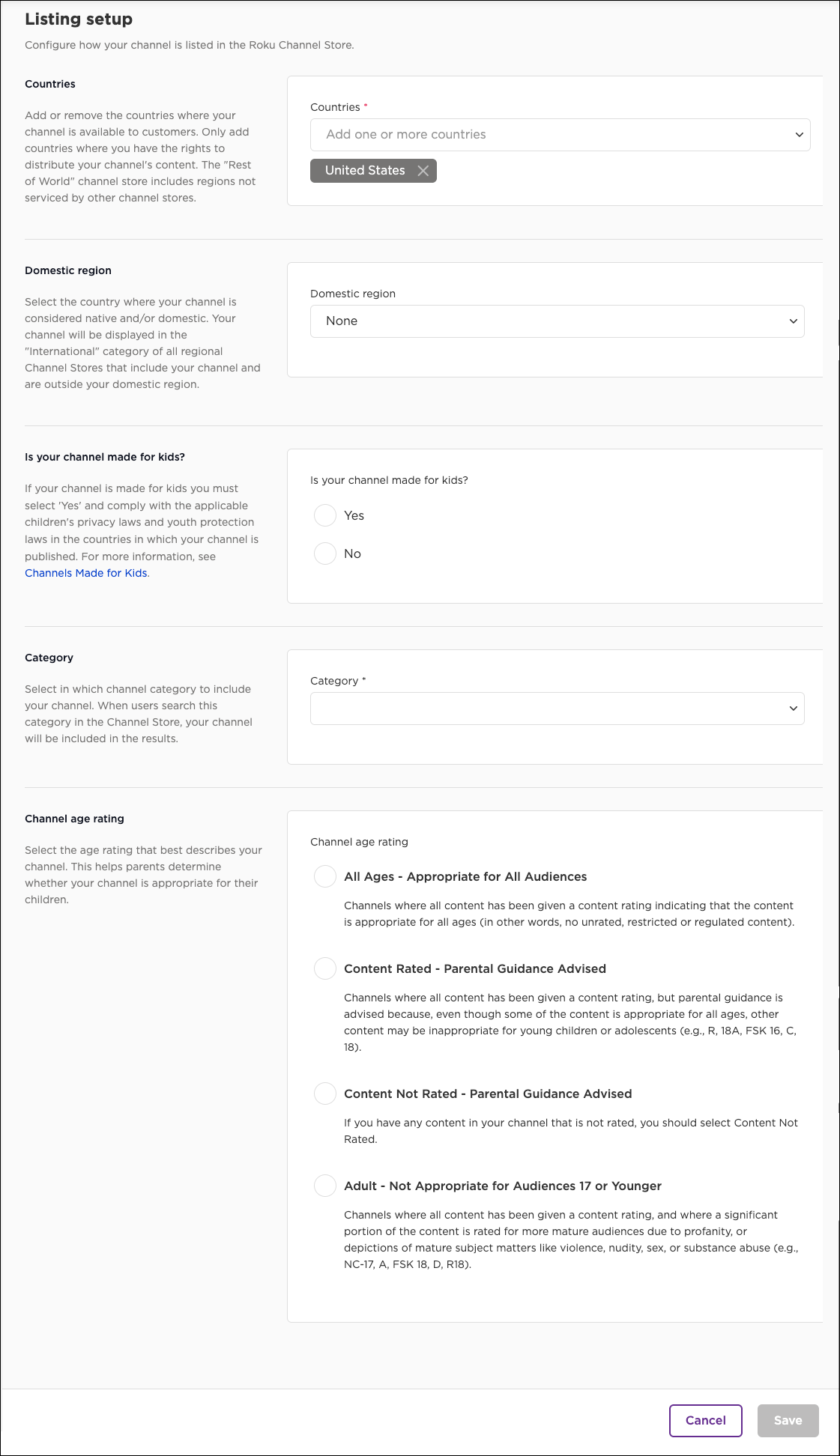
Configure how your app is listed in the Streaming Store, including the app's home region, made-for-kids setting, genre, and age rating. To do this, click Listing Setup, enter the following properties, and then click Save:
| Field | Description |
|---|---|
| Countries | Add or remove the countries where your app is distributed. Only add countries where you have the rights to distribute your app's content. The "Rest of World" Streaming Store includes regions not serviced by other Streaming Stores. |
| Domestic region | Select the country where your app is considered native and/or domestic. Your app will be displayed in the "International" category of all regional Streaming Stores that include your app and are outside your domestic region. |
| Made for kids? | If your app is made for kids you must select Yes and comply with the applicable children's privacy laws and youth protection laws in the countries in which your app is published. When you select Yes, the Category field is automatically fixed to "Kids" and cannot be changed, and you cannot set the App Age Rating to "Adult". If you select No, you cannot set the Category to "Kids". Selecting "Yes" automatically enables the kidsContent parameter in calls to the |
| Category | Select how your app is categorized in the Streaming Store. When customers search for apps in the selected category, your app will be included in the results. |
| App age rating | Specify the age rating that best describes your app. The selected rating is displayed on the app's details page in the on-device Streaming Store. This provides parents with information to help them determine whether your app is appropriate for their children. |
Streaming store assets
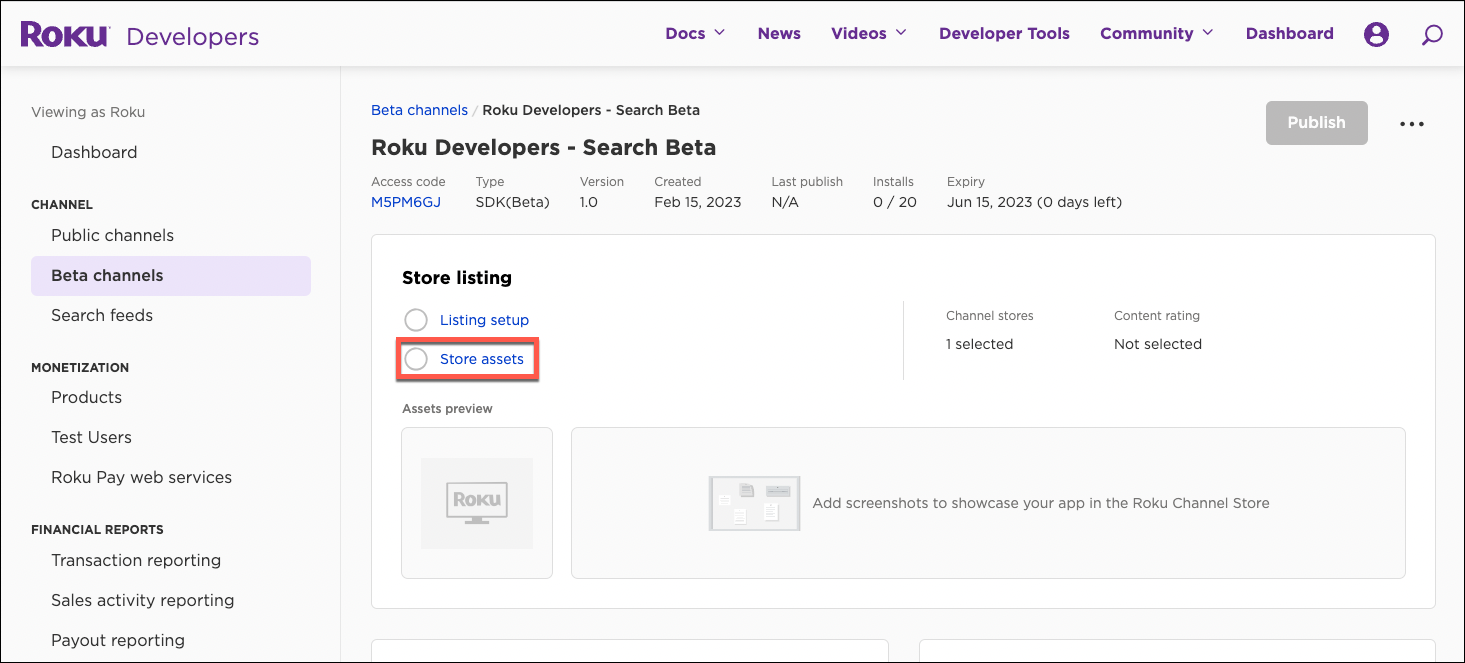
Provide localized names, descriptions, and artwork for your listing in the Streaming Store following these steps:
-
From the app's management page, click Store Assets.
-
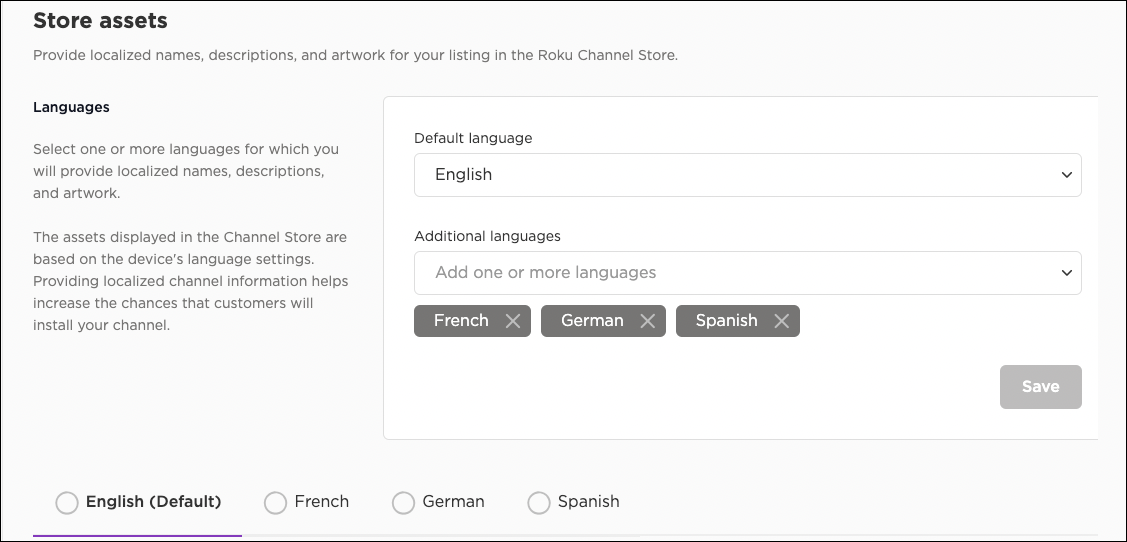
In the Languages field, select one or more languages for which you will provide localized names, descriptions, and artwork. The assets displayed in the Streaming Store are based on the device's language settings. Providing localized app information helps increase the chances that customers will install your app.
If you select multiple languages, a separate tab for each language is used for entering the properties (the currently selected tab is marked with a purple underline).
-
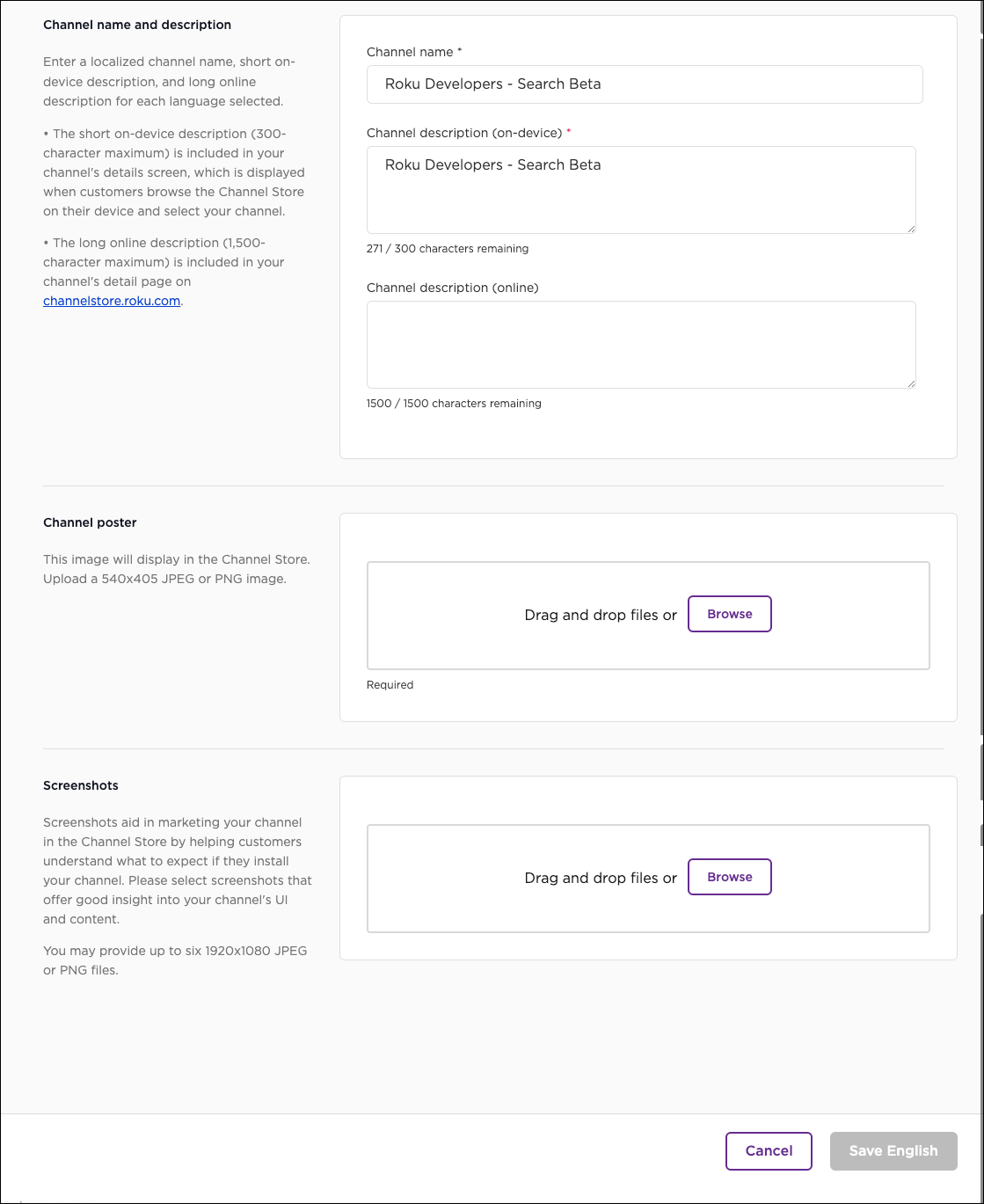
Enter the following properties for each language supported by your app:
| Field | Description |
|---|---|
| App name and description | Enter a localized app name, short on-device description, and long online description for each language selected:
|
| App poster | Upload an app poster (540x405 JPEG or PNG). The poster is displayed within your app's listing in the on-device and online Streaming Store. You can provide different localized app posters for each language you support. |
| Screenshots | Upload up to six screenshots (1920x1080 JPEG or PNG) that highlight your app's user experience and content. The screenshots are displayed within your app's listing in the Streaming Store. You can provide different localized screenshots for each language you support. |
- Click Save.
App properties
App profile
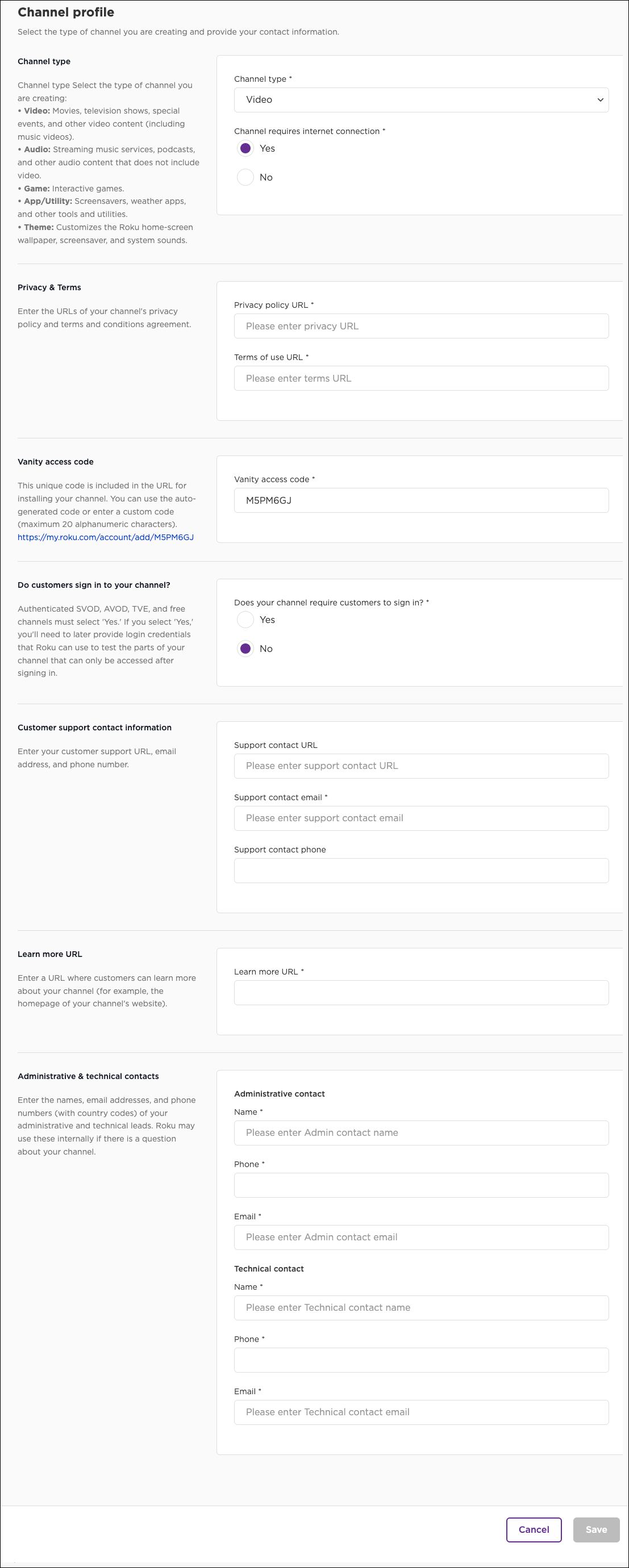
Select the type of app you are creating and provide your contact information following these steps:
-
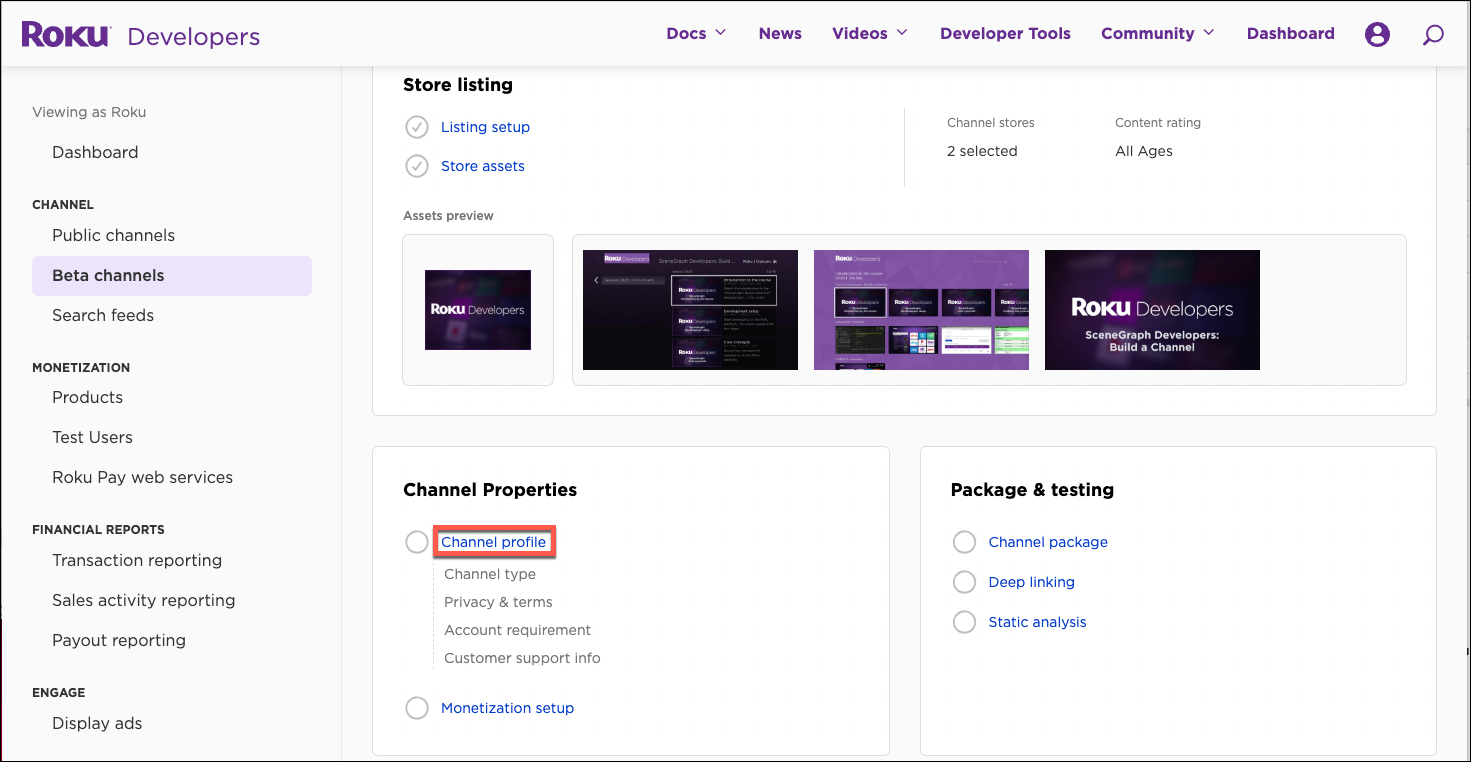
From the app's management page, click App profile.
-
Enter the following properties:
| Field | Description |
|---|---|
| App type | Select the type of app you are creating:
|
| Privacy and terms | Enter the URLs of your app's privacy policy and terms and conditions agreement. |
| Vanity access code | A six-character alphanumeric code that is included in the URL for installing your app. The URL is used to install beta apps, and it can be used to add public vs once they have been published.You can use the auto-generated code or enter a descriptive custom code, which may be a maximum of 20 alphanumeric characters (for example, "MyVideoApp") |
| Do customers sign in to your app? | Authenticated SVOD, AVOD, TVE, and free apps must select 'Yes.' If you select 'Yes,' you'll need to later provide login credentials that Roku can use to test the parts of your app that can only be accessed after signing in. |
| Customer support contact information | Enter your customer support URL, email address, and phone number. |
| Learn more URL | Enter the URL where customers can learn more about your app (for example, the homepage of your app's website). |
| Administrative and technical contacts | Enter the names, email addresses, and phone numbers (with country codes) of your administrative and technical leads. Roku may use these internally if there is a question about your app. |
- Click Save.
Monetization setup
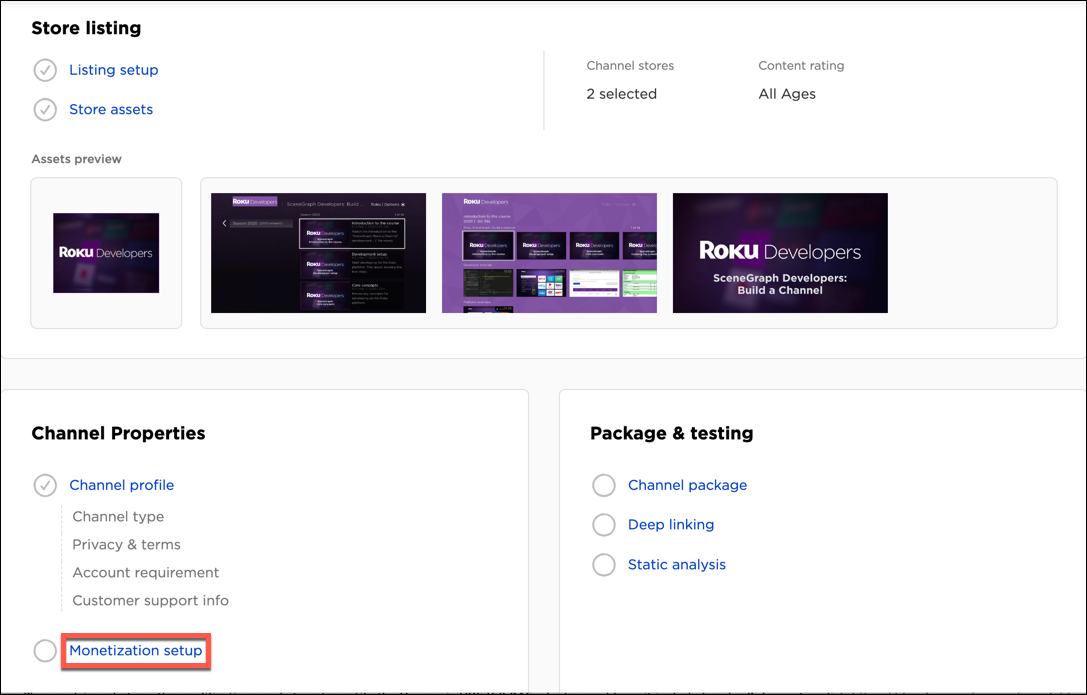
Select whether you plan on monetizing your app, and if so, the monetization methods (for example, ads, subscriptions):
-
From the app's management page, click Monetization setup.
-
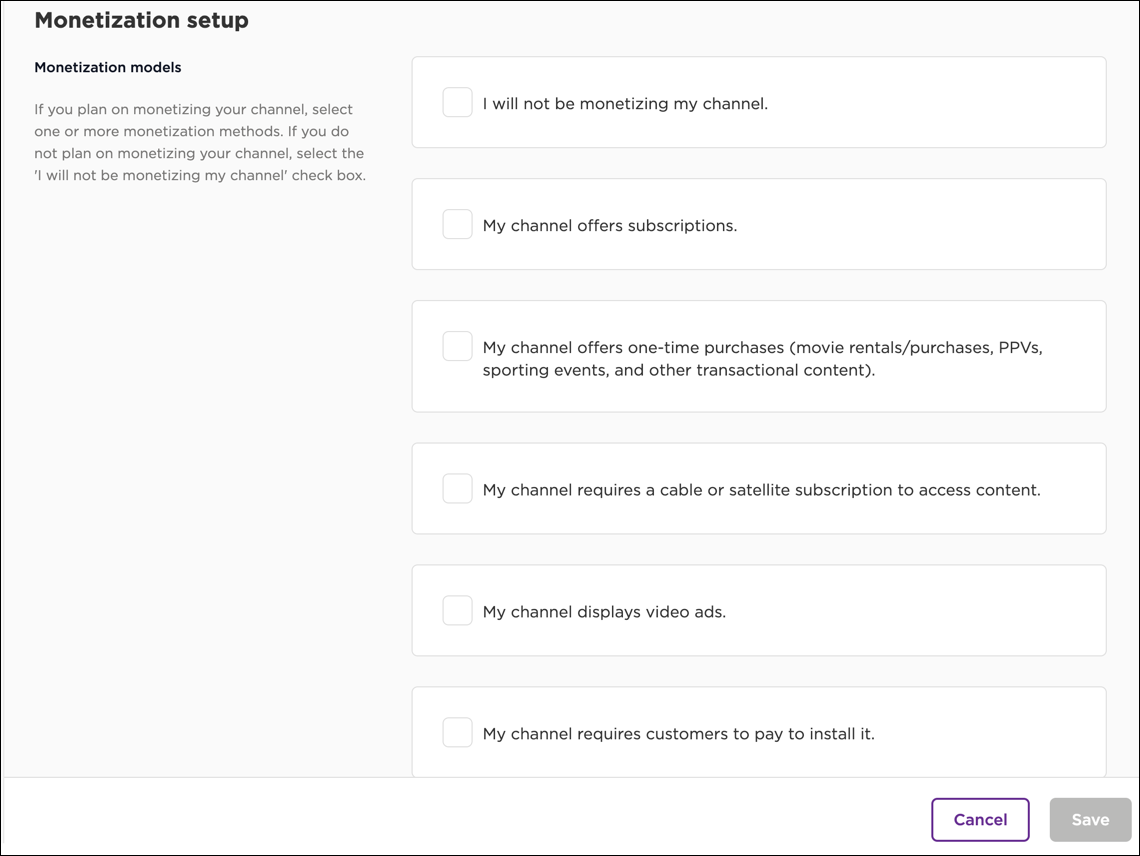
Select one or more of the following monetization methods:
| App type | Monetization option | Notes |
|---|---|---|
| Free | I will not be monetizing my app. | If you select this option, all other options are unavailable. |
| Subscription Video on Demand (SVOD) | My app offers subscriptions. | The app must [implement Roku Pay](doc:roku-pay) and adhere to all [Roku Pay certification requirements](doc:roku-pay-requirements#rp-3-payment-requirements). |
| Transactional Video on Demand (TVOD) | My app offers one-time purchases (movie rentals/purchases, PPVs, sporting events, and other transactional content). | The app must [implement Roku Pay](doc:roku-pay) and adhere to all [Roku Pay certification requirements](doc:roku-pay-requirements#rp-3-payment-requirements). |
| TV Everywhere (TVE) | My app requires a cable or satellite subscription to access content. | |
| Ad-supported | My app displays video ads. |
If you select this option, you must enter the URL path to an app-ads.txt file in the Developer URL field to secure your app's ad inventory. If you do not sell ads via third parties or run programmatic ads on your app's inventory, it's recommended that you include the following line in the app-ads.txt file: "# [App Name] does not authorize programmatic sellers". For more information, see the [IAB documentation](https://iabtechlab.com/ads-txt/).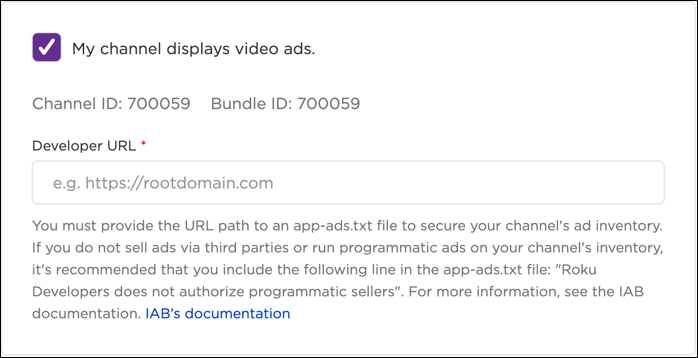 The Channel ID and Bundle ID values identify an app to the publisher's ad partners in the advertising ecosystem. These values can also be found via the meta-tags on the app's Streaming Store page. Following IAB App-Ads guidelines, Roku uses the meta-tags appstore:store_id and appstore:bundle_id to provide channel ID information in the http header of an app's Streaming Store page.
Using the values from the illustration above as examples, the meta-tags would appear in the <head> section, as so:
<head> section:
|
| Pay-to-install | My app requires customers to pay to install it. |
If you’ve enrolled in the Roku Partner Payouts Program, select the cost to install your app from the **One-time payment price tier** drop-down list. Price tiers are used to enforce 99 cent or 49 cent pricing on app products. One to three-digit tier numbers are used for 99 cent pricing. Subtract 1 cent from a tier to get the corresponding price. For example, Tier 1 is 99 cents, Tier 2 is $1.99, Tier 10 is $9.99, Tier 100 is $99.99 and so on. The highest tier is 400 ($399.99). Four-digit tier numbers are used for 49 cent pricing. Append 49 cents to the last digit or last two digits in the tier to get the corresponding price. For example, Tier 1000 is 49 cents, Tier 1001 is $1.49, Tier 1010 is $10.49, Tier 1020 is $20.49 and so on. The highest tier is 1030 ($30.49). 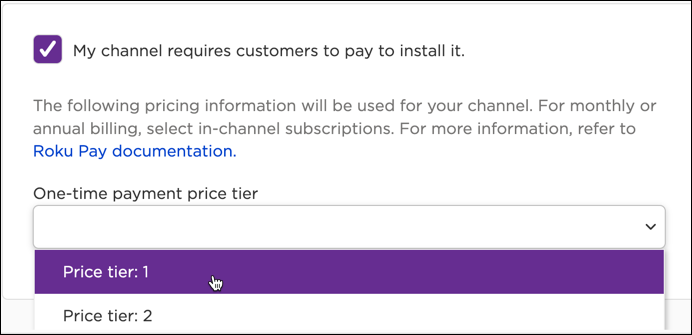
|
- Click Save.
Package and testing
Packaging is the process of encrypting the contents of your app (for example, the code, images, and so on) so that your app can be securely distributed on Roku devices.
Generating a package file
Generate an encrypted package file (.pkg) for testing, publishing, and distributing your app following these steps:
-
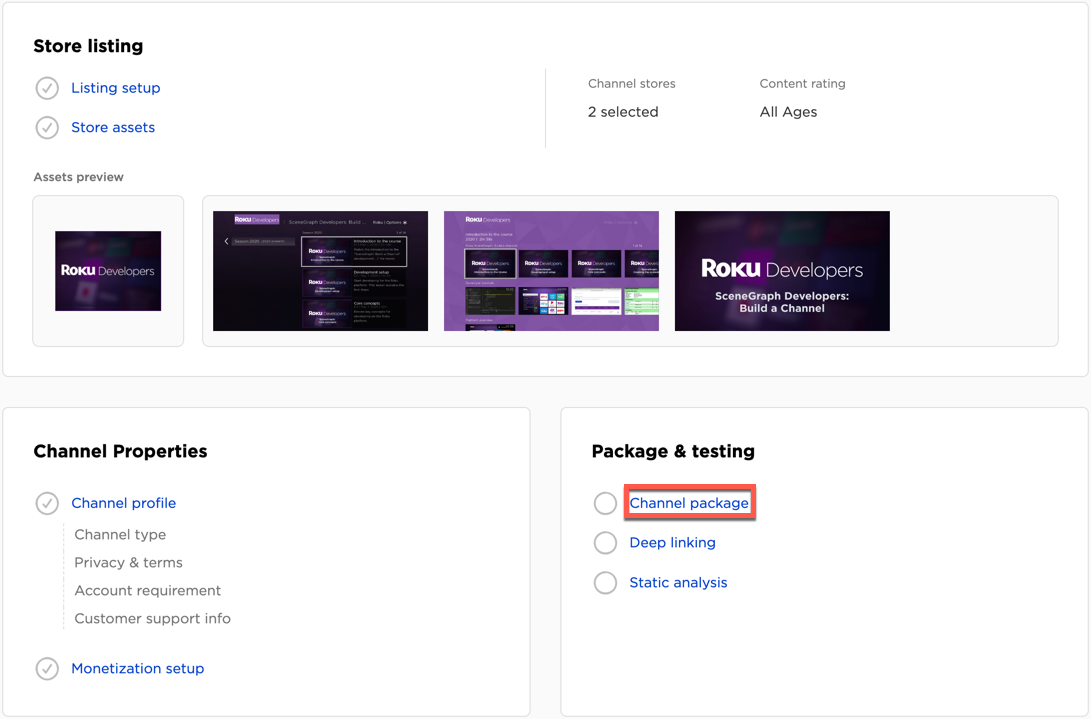
From the app's management page, click App package.
-
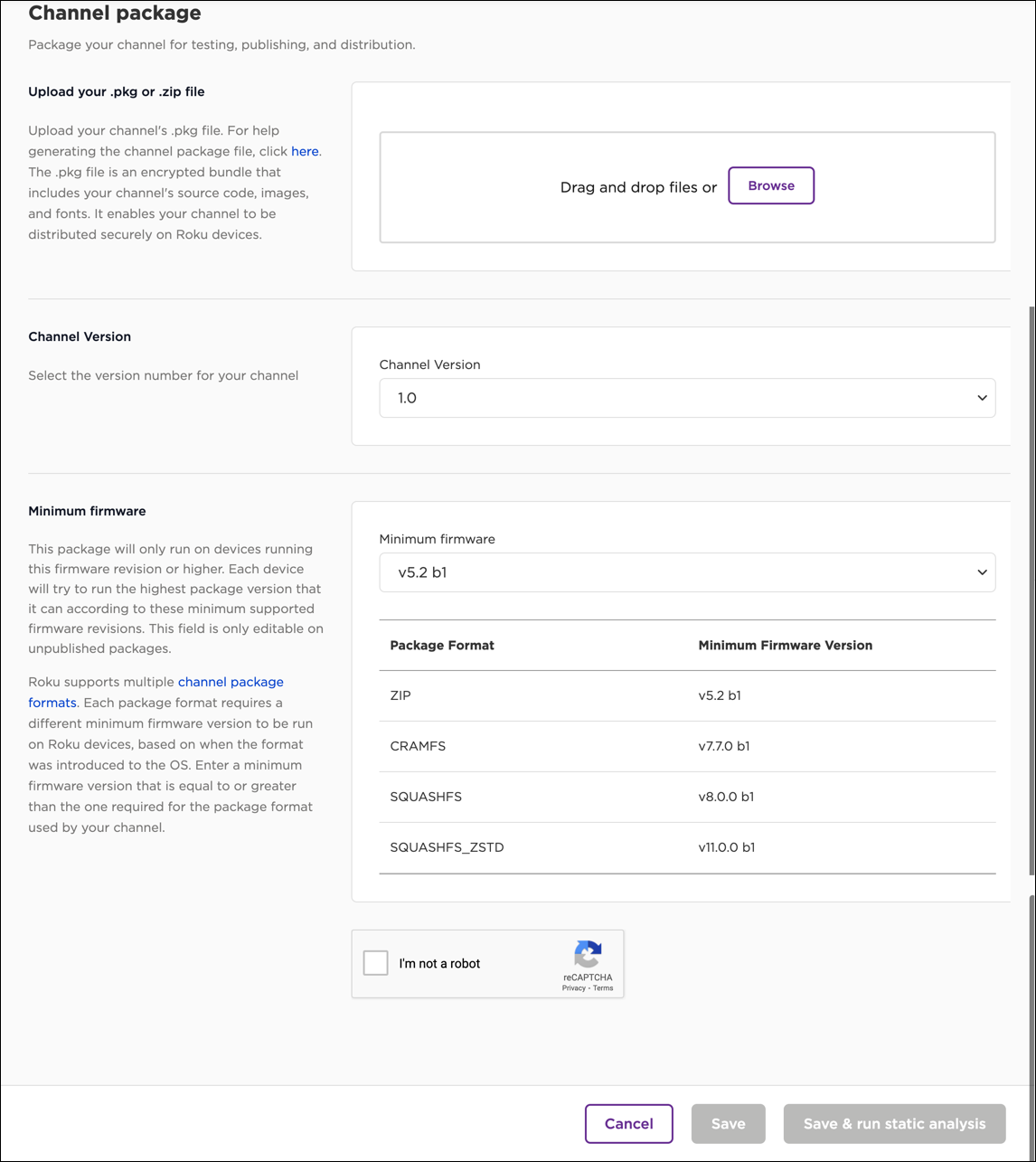
Enter the following properties:
| Field | Description |
|---|---|
| Upload your .pkg or .zip file | Upload the package file (.pkg) file that you created with the Development Application Installer. |
| App version | Select the version number for your app. |
| Minimum firmware | Roku supports multiple package file formats. Each package format requires a different minimum firmware version to be run on Roku devices, based on when the format was introduced to the OS. Enter a minimum firmware version that is equal to or greater than the one required for the package format used by your app. |
- Click Save.
Deep linking
To validate that your app is handling deep link requests properly, provide at least one set of deep linking parameters for each different media type in your app. For example, if your app contains movies and TV episodes, include deep linking parameters for at least one movie and one episode.
You must provide deep linking parameters, unless your app contains a single live feed. Apps submitted without deep linking parameters will not pass certification testing.
To enter deep linking parameters, follow these steps:
-
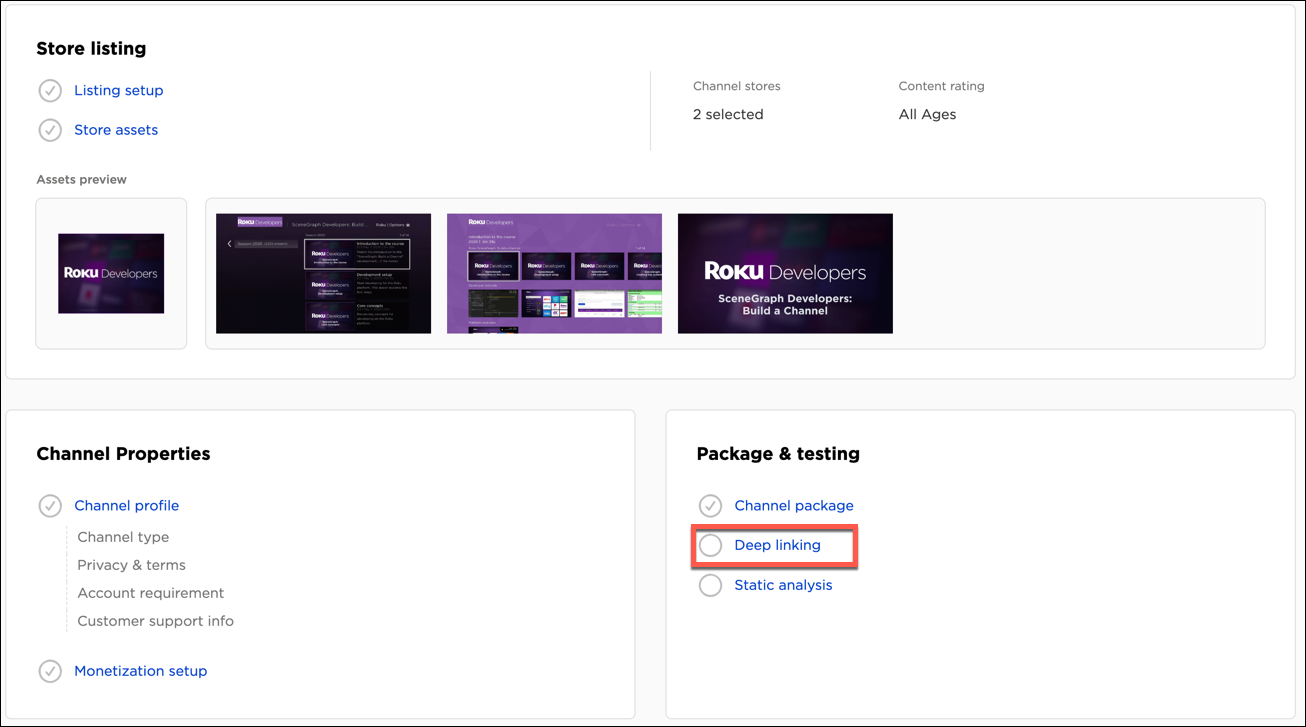
From the app's management page, click Deep Linking.
-
For each set of deep linking parameters to be included in the certification test, click Add deep link (or Add if at least one deep link is already listed).
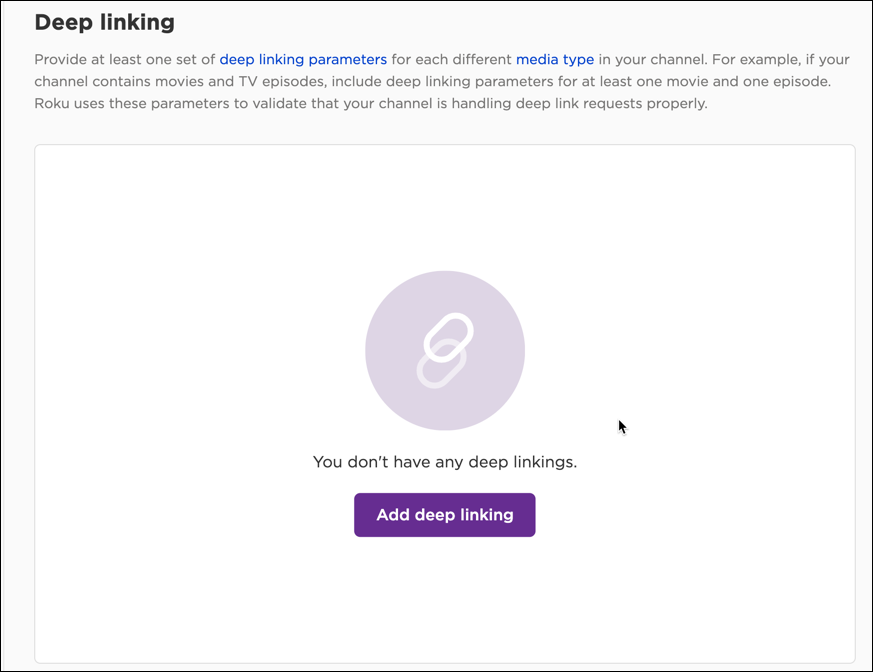
-
Enter the following information in the Add new deep link parameter dialog, and then click Save:
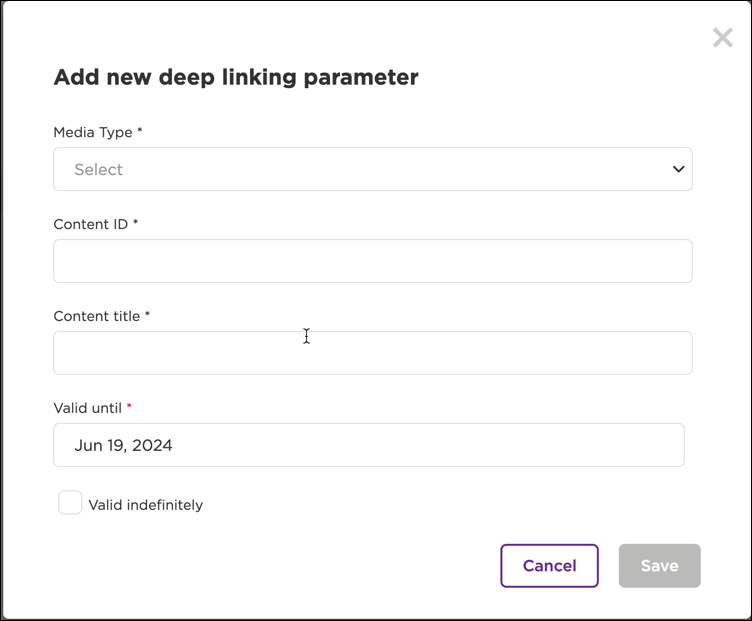
| Field | Description |
|---|---|
| Media type | Select the media type of the content item from the list of choices (for example, movie, television episode, or television series). Custom types are not available. |
| Content ID | Enter the content ID of the item (this should be the same as the PlayId in the app's search feed). |
| Content title | Enter a descriptive name that makes it easy to identify the content associated with the deep link parameters. |
| Valid until | Enter the last date when the deep linking parameters will be used in your app. Notice that, for a new parameter set, this field is pre-populated with a date that is one year in the future. You can change this date as needed. If the deep linking parameters do not expire, you can select the Valid indefinitely check box. |
-
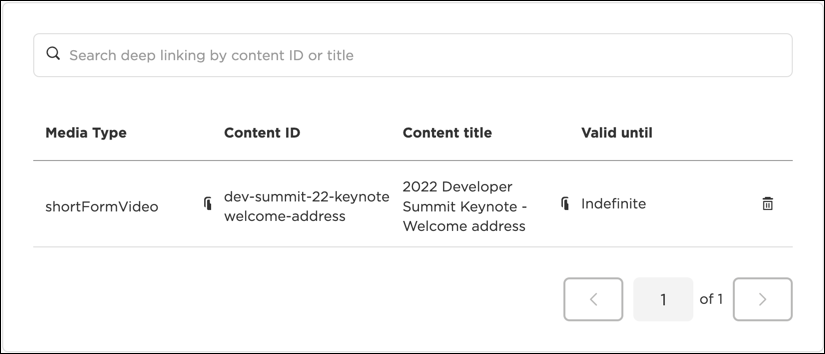
The deep linking parameters are added to the list. You can edit and delete deep linking parameters in the list.
Static Analysis
The Static Analysis tool checks the app's code for the use of deprecated APIs, and noncompliance with certification criteria. Apps must pass Static Analysis testing to be submitted for certification. To run Static Analysis testing on your app, follow these steps:
-
From the app's management page, click Static Analysis.
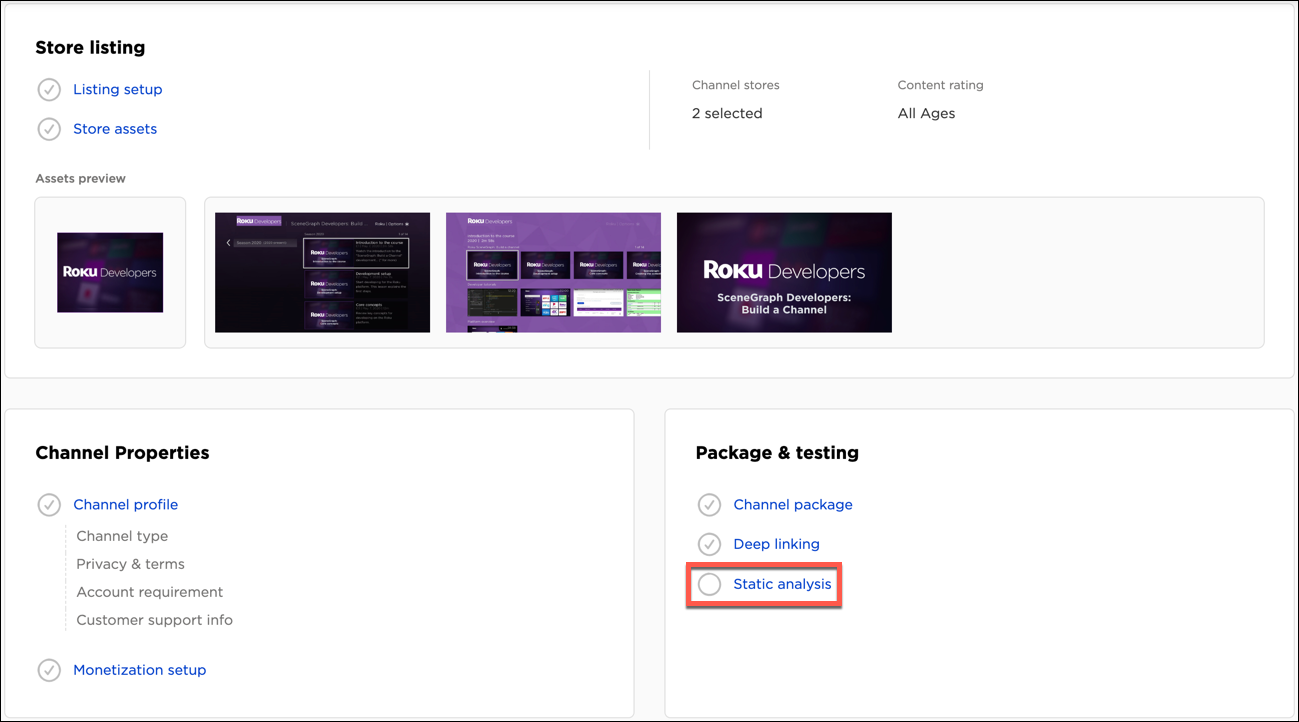
-
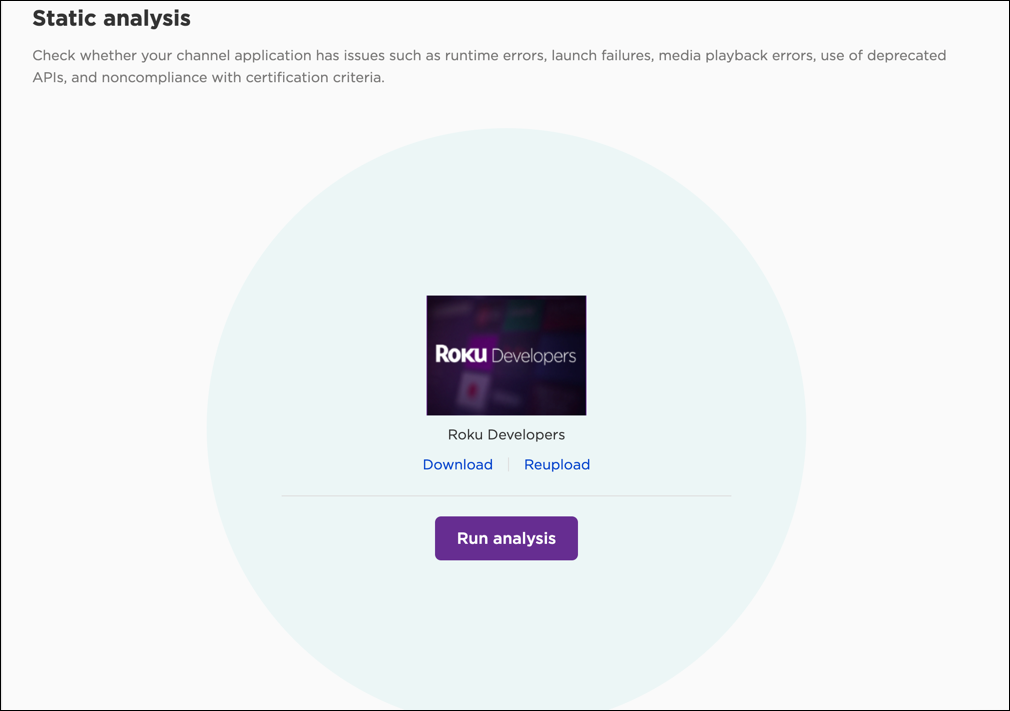
Click Run analysis.
-
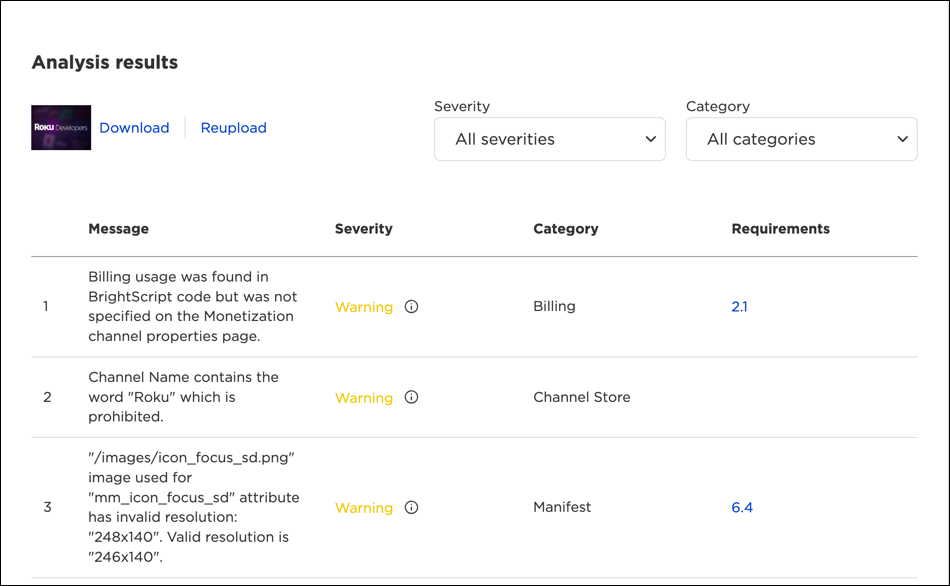
The window will update to indicate that analysis is underway and may take a few minutes to complete. When testing has been completed, the Analysis results screen opens and lists any error, warning, and info messages.
-
For each message, the following information is provided. You can filter the test results based on the Severity or Category.
| Column | Description |
|---|---|
| Message | A description of the issue related to the app. |
| Severity | The type of message: error, warning, or info.
|
| Category | The type of issue (for example, package, performance, billing, manifest, and so on). |
| Certification Requirement | Provides a link to any related certification requirements in the Certification Criteria document. |
For additional usage details and operational information, including a list of the tests conducted, see the Static Analysis Tool documentation.
Test credentials
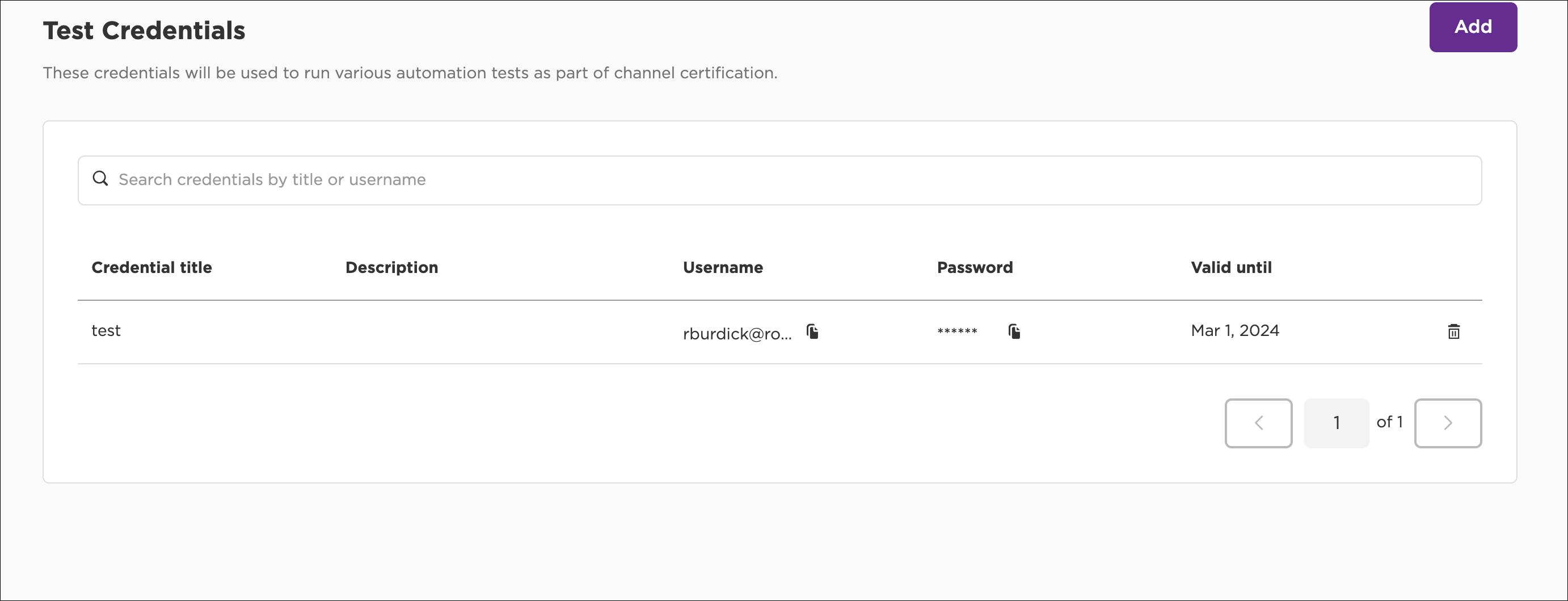
Developers of authenticated SVOD, AVOD, TVE, and free apps can enter the credentials for the account to be used for app testing. A test account is required to verify app functionality that can only be accessed after authenticating into the app. This includes, for example, testing on-device sign-up and sign-in workflows, measuring app performance, and validating deep links.
This screen is only accessible if you selected Yes for the Do customers sign in to your app question in the App Profile page.
To provide the credentials for one or more test accounts, follow these steps:
-
From the app's management page, click Test Credentials.
-
In the Credentials Title field, enter a descriptive name that makes the test account easy to identify.
-
Optionally, in the Description field, enter any notes related to the provided test account.
-
In the Authentication Type field, select the type of app: SVOD or Cable/Satellite. If you select Cable/Satellite, do the following:
a. In the Link URL field, enter the URL for linking devices to the test account.
b. From the Provider list, select the cable/satellite provider. -
In the Username field, enter the user name to be used for static analysis testing.
-
In the Password field, enter the password to be used for static analysis testing.
-
In the Valid until field, enter the expiration date for the provided test account.
-
Click Add.
-
Repeat steps 2–8 for each additional set of account credentials to be provided for testing.
App Behavior Analysis
Developers of SVOD, AVOD, and free apps can use the self-serve App Behavior Analysis tool to verify that their apps meet performance and deep linking certification requirements before submitting them for certification. This allows developers to get instant feedback on whether their apps meet specific deep linking and performance requirements, which reduces the wait time between submitting and publishing apps.
To run the app launch performance test, your app must have the required AppLaunchComplete signal beacon.
To run App Behavior Analysis testing on your app, follow these steps:
-
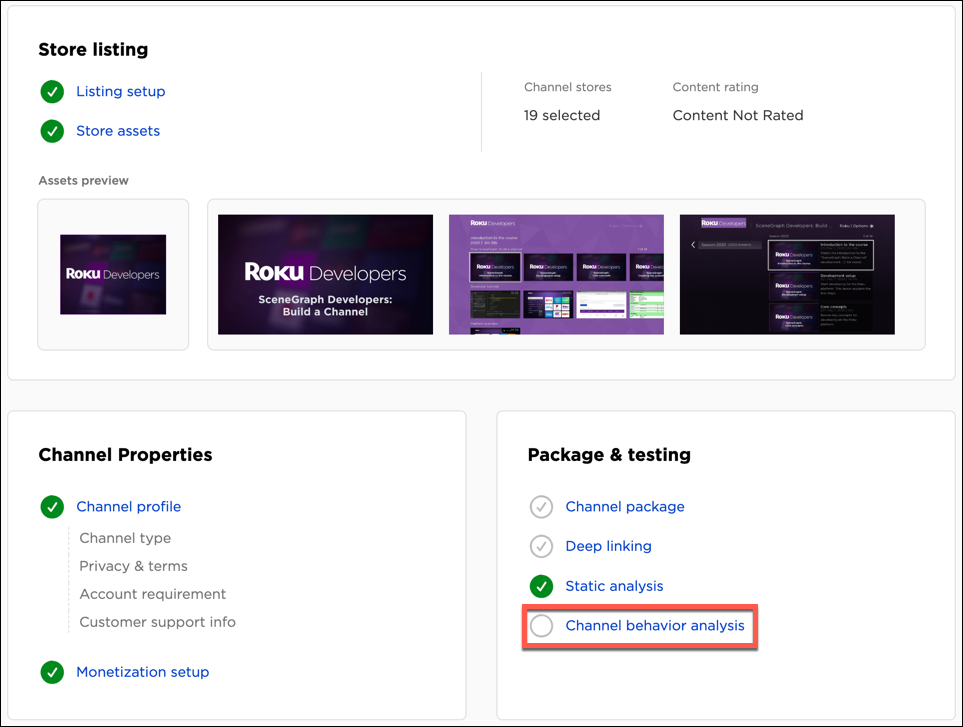
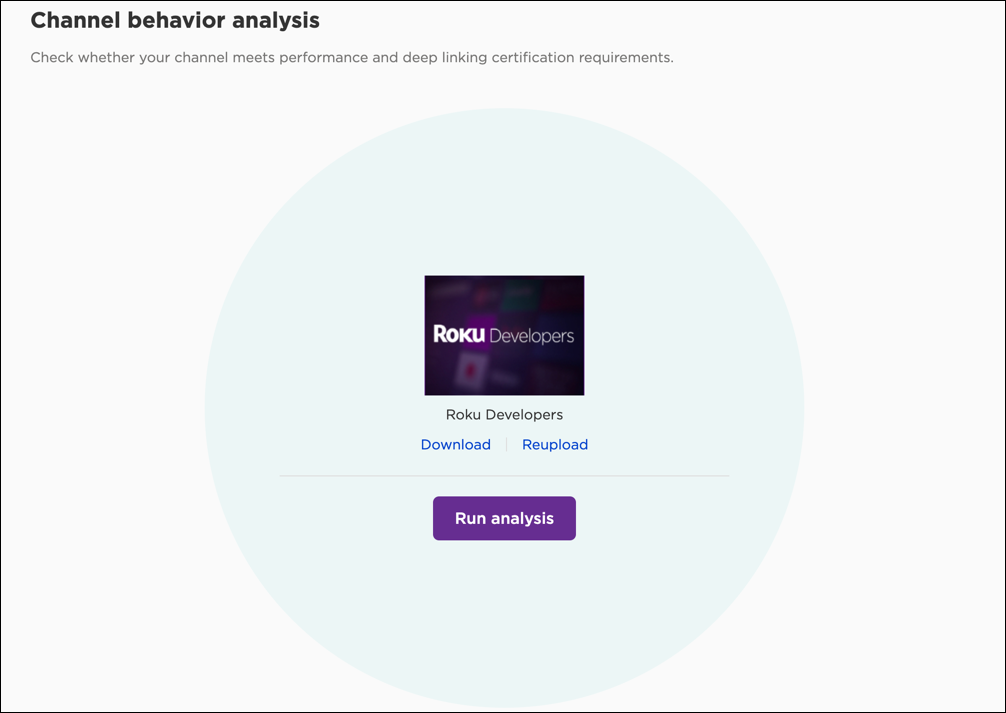
From the app's management page, click App Behavior Analysis.
-
If customers are required to sign in to your app, upload your sign-in and sign-out test scripts (unauthenticated apps can skip this step).
-
Click Run. Alternatively, you can scroll to the bottom of the Preview and Publish page that opens after you submit your deep linking parameters, click App Behavior Analysis, and then run the App Behavior Analysis test.
-
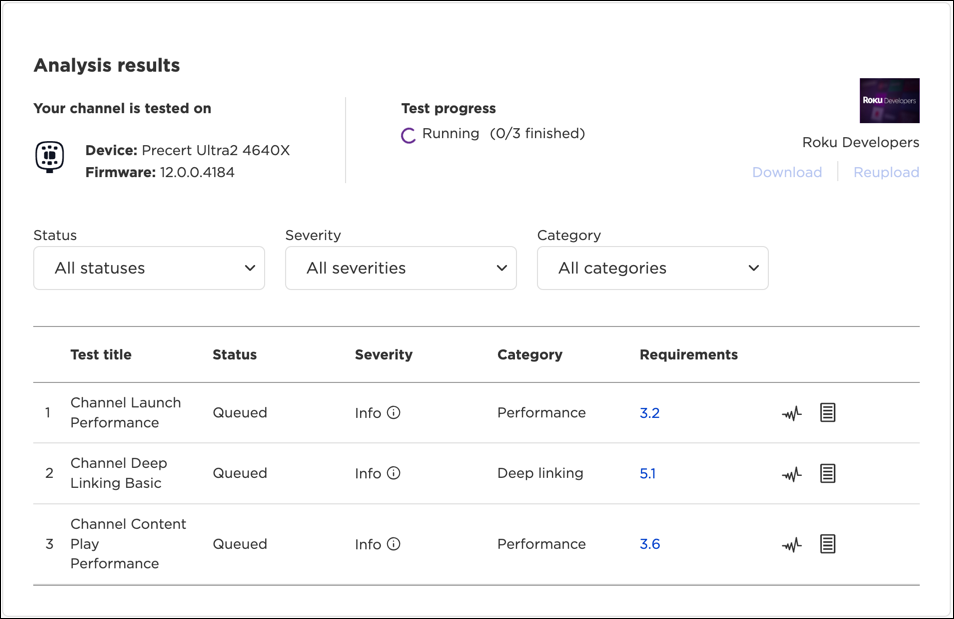
Once you start the certification testing tool, the Device and Firmware fields lists the Roku test device in the cloud that is being used and the Roku OS running on it, respectively. The Test progress field includes a spinner indicating that the test is running, and the number of tests completed and the total tests to be run. Testing of apps is done in a first-in, first-out method; therefore, the certification testing of your app may be queued.
-
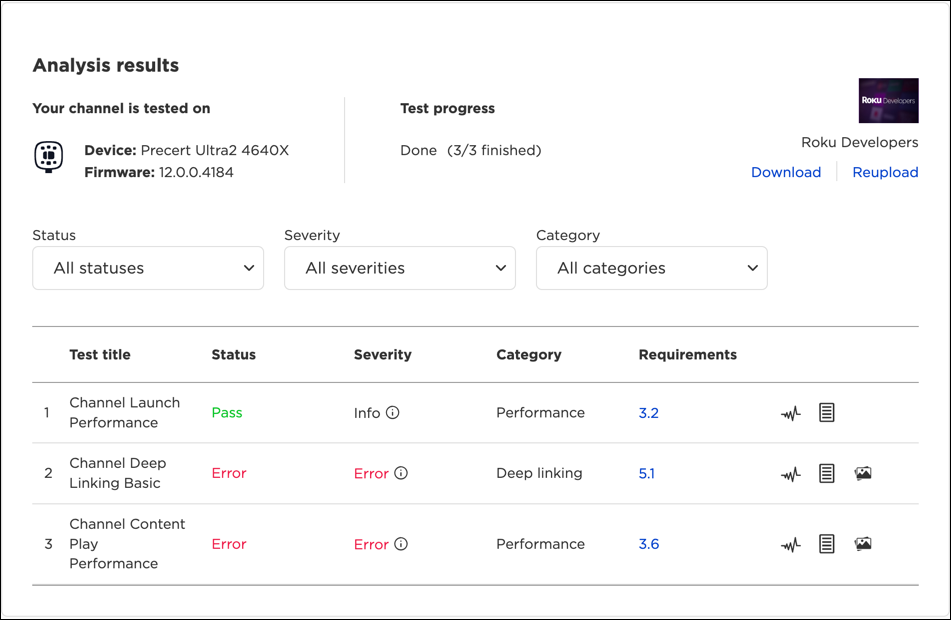
When testing has been completed, the Status field displays "DONE" and shows that all the tests have been completed. If the Status field, displays "CANCELLED", "ERROR", or "UNAVAILABLE", click Run to re-run the test.
-
The App Behavior Analysis table lists the status of each individual test being executed. You can sort the test results by toggling the Status, Severity, or Category column headers. You can filter test results based on the same fields. This table includes the following columns:
| Column | Description |
|---|---|
| Test title | The name of the test being executed ("Channel Launch Performance", "Channel Deep Linking Basic", "Channel Content Play Performance"). |
| Status | The results of the test. Completed tests have a status of "Passed" or "Failed"; tests still to be performed have a status of "Queued". |
| Severity | Any info messages, warnings, or errors related to a completed test. |
| Category | The type of test being performed: "Performance" or "Deep Linking". |
| Certification requirements | Provides a link to the section in the Certification Criteria document, where the criterion in question is located. |
| Actions | Displays information, script, and screenshot icons that you can click to learn more about the test:
|
Publishing an app
Once your public app has passed Static Analysis and App Behavior Analysis testing, you can schedule it for publishing by following these steps:
-
Click Schedule Publish in the upper-right corner of the app management page. For beta apps, click Publish; this publishes the app and makes it available for up to 20 users to install it.
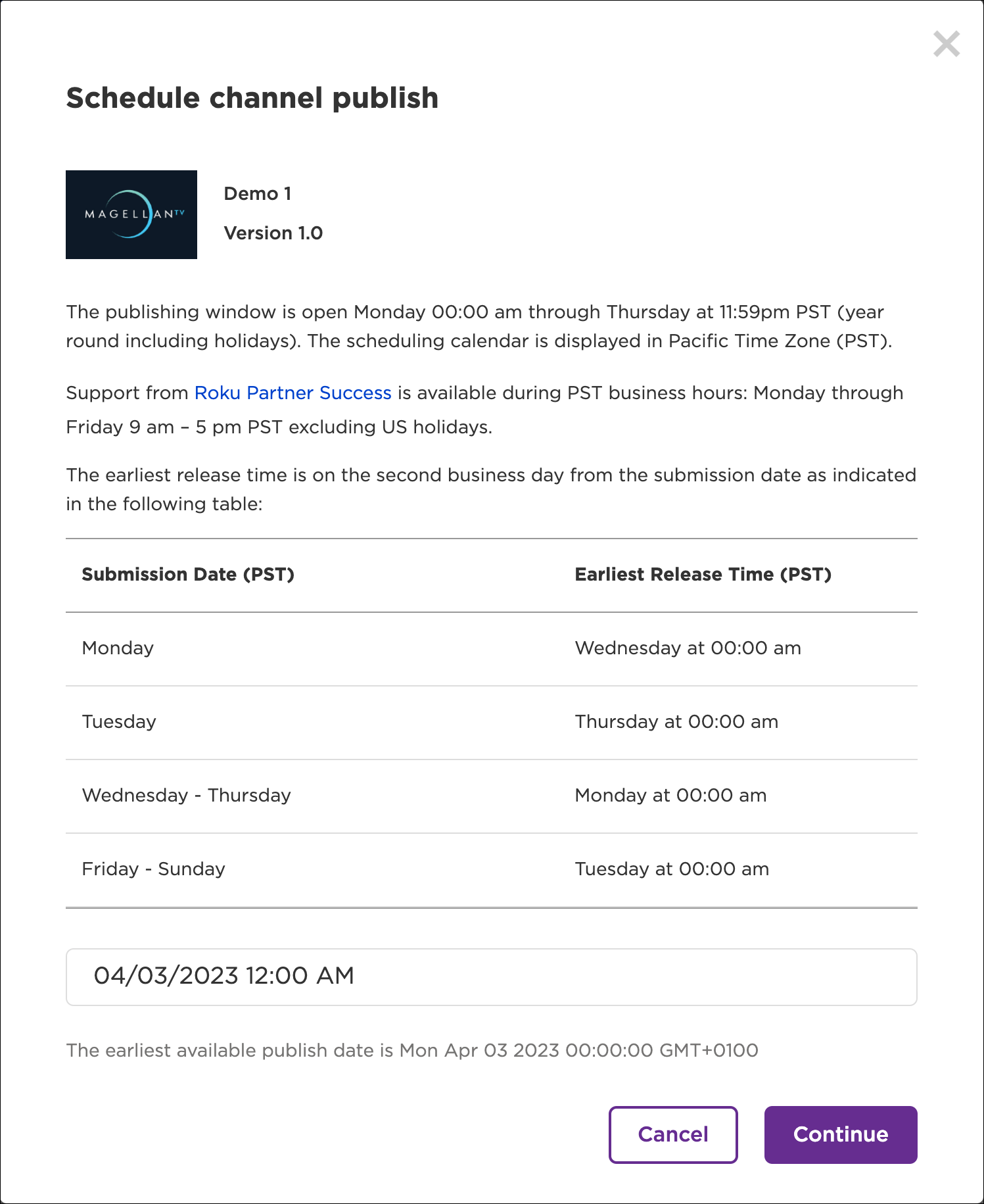
-
In the Schedule app publishing dialog, enter the date and time when you want your app to be published to the Streaming Store, and then click Continue. The earliest possible publishing time is the second business day from the current time, and is the default. Publishing can not be scheduled for Fridays or weekends.
-
Optionally, enter any release notes for this app version (maximum 1,500 characters), and then do the following:
a. Select the I confirm that check box to confirm that you have tested your app per Roku App Publishing Checklist and your app complies with the listed agreements.
b. Select the I certify that check box to confirm that you have the authority the submit the app, the provided listing information is accurate, and that you have the rights to distribute your app in the selected countries.
c. Click Submit.
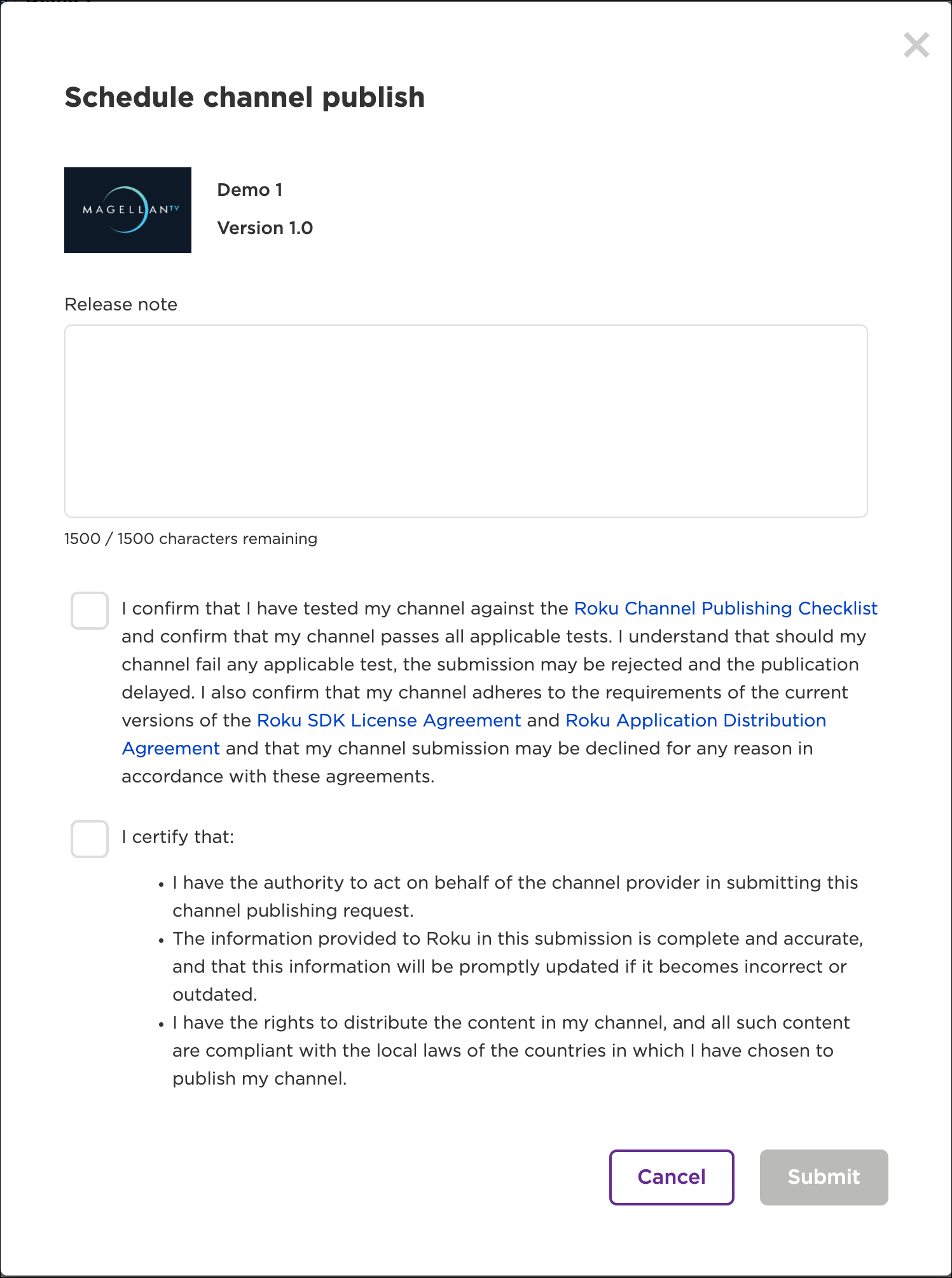
-
The app will automatically be published at the specified time. During the app publishing process, you may receive the following emails:
- A confirmation that your app has been submitted and its publication is scheduled for a particular date and time.
- An announcement that your app has been published as scheduled.
- If applicable, a notice that publication has been canceled (either by you or by Roku).
Post-publishing
The following section summarizes when updates to the Streaming Store, Roku Search, and other platform features are propagated once a public app has been published or updated.
Streaming Store categories
After an app is published, it may be tagged with one or more categories. This includes the category selected and any other Roku-applied tags such as "New & Updated" or "Recommended"
An app is typically visible in the selected category after 5 minutes—if the category has less 1,000 apps. Otherwise, the app is not added to the category until it has been streamed by enough customers to move it up the popularity rankings in that category.
If the category is changed and the app is re-published, it takes approximately 5 minutes for the app to be switched to the new category. However, the app is only visible in that category if the aforementioned criteria is met.
For Roku-curated categories (for example, Featured Free), the app is typically visible after 5 minutes.
Other Streaming Store updates
The following items take approximately 5 minutes to be updated in the Streaming Store after the app is re-published:
-
App added/removed to a country's Streaming Store after being enabled/disabled and the app being re-published.
-
Localized versions of an app's name, description, or poster image are available in a country's Streaming Store where that localized language is the primary language.
-
The "SERVICE MAY REQUIRE ADDITIONAL FEES" text being displayed in the app in the Streaming Store after being switched from Free to Paid.
-
Updated app owner is displayed.
-
App removed from Roku Streaming Store after it has been deleted.
Roku Search
Apps and their individual content items are typically added to Roku Search within 24 hours of the app being published.
Device installation
Once a public app is published to the Streaming Store, it is available for installation on Roku devices immediately using the app's vanity access code, which is specified in the Properties window. To get the latest version of the app, users can do a System Update (Home > Settings > System > System update > Check now) or update the individual app (press the options key [*] on the app tile > Check for updates).
Rolling back an app to the previous release
If you detect app performance issues following an update, you can revert the app to its previously published version using the self-serve rollback feature in the Developer Dashboard up to four days after the update. Rolling back an app deletes the current version and restores the previously published package. Once you roll back an app, the reverted version is deployed immediately, and will typically be installed on any devices with your app within six hours.
The app rollback feature has the following rules and requirements:
- Eligible apps. The self-serve rollback feature is only available for self-published apps.
- User roles. Only users with the root, admin, or app management role may do the rollback.
- App versions. An app can only be rolled back once to its previous version. For example, if you publish v3 of an app, you can only roll it back to v2. Once the app is rolled back to v2, you cannot roll it back to v1. To return an app back to v3, you would need to re-submit the app through the standard certification and scheduling process.
- Availability: The self-serve rollback feature is available 24 hours a day, 7 days a week, including weekends and holidays.
- Time limit. After an app is published, it can be rolled back within four days. Once the four-day rollback eligibility period ends, the app cannot be reverted.
- Streaming Store metadata: Rolling back an app only reverts the package file, not its Streaming Store metadata. If you changed any Streaming Store listing or app properties in the current app version being rolled back, you will be prompted to confirm that the metadata should be reverted.
To rollback an app release, follow these steps:
-
Click the options menu in the upper right-hand corner and click Rollback app in the shortcut menu.
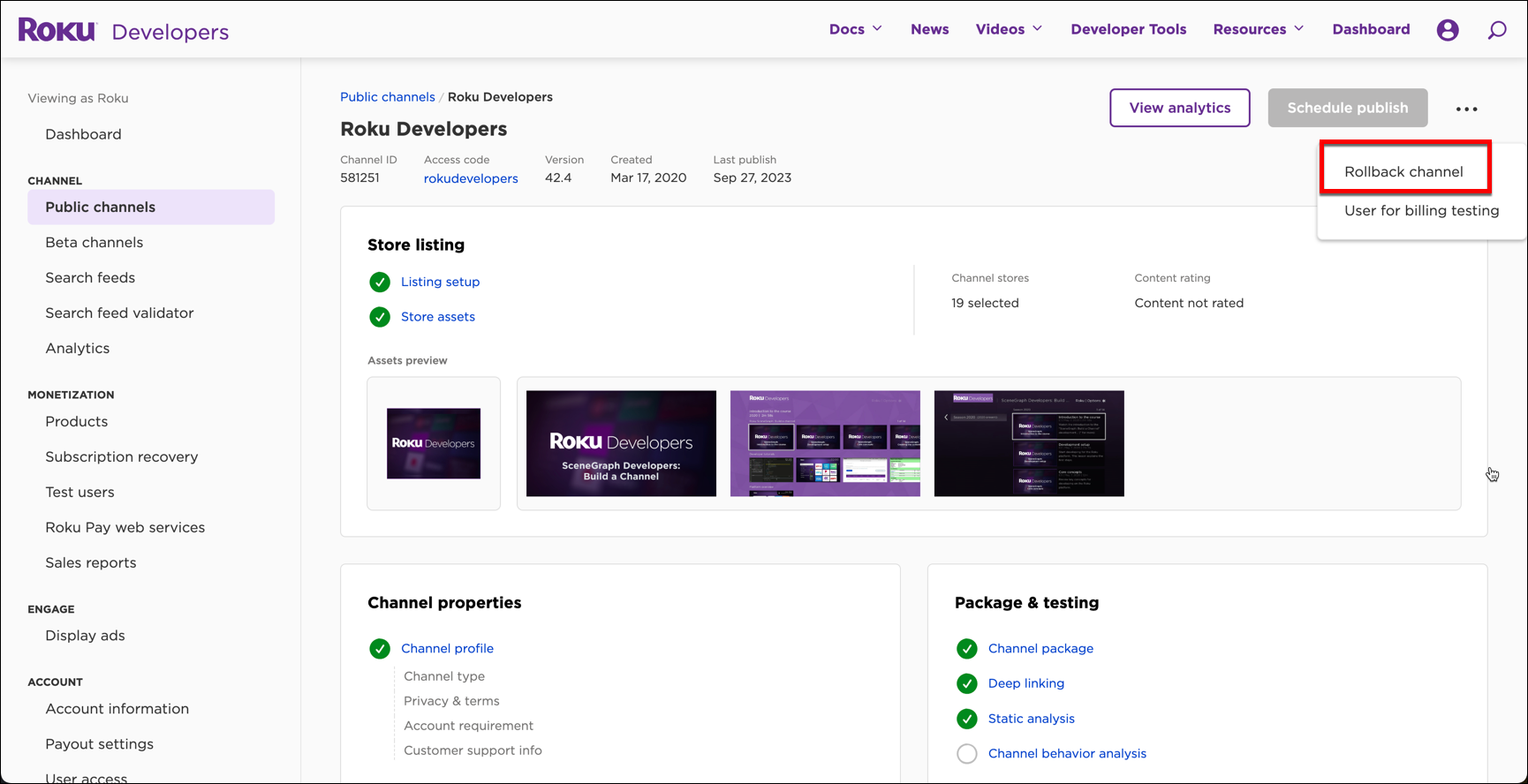
-
The confirmation dialog displays the current app version and the previous version to which the app will be rolled back.
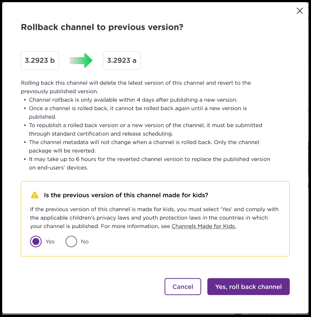
-
If the previous app version was made for kids, click Yes.
-
Click Yes to complete the rollback.
-
In the app page, you can observe that the app version number is updated.
Updating an existing app
To update an app, follow these steps:
- On the Developer Dashboard, select the public or beta app that needs to be updated.
- Update any Store listing information and App Properties.
- If the app code has changed, you need to generate a new package file and upload it from the App package page. Make sure to increment the app version number.
- Run Static Analysis and App Behavior Analysis (if applicable) testing.
- Schedule the app for publishing (public apps). If you are updating a beta app, publish the update.
- If the updated app passes Roku's review, it is added to the Streaming Store on the scheduled publishing date. If the app fails the review, you will receive an email notification with the issues that need to be resolved in order for the app to be published.
Updated about 2 months ago