
Roku Remote Tool
The Roku Remote Tool provides developers a quick and intuitive way to create reusable scripts for ad-hoc testing of their app. This ensures a high-quality end-user experience and efficient use of developer resources. Developers can use the Roku Remote Tool to do the following:
- Automatically log-in or log-out of an app that requires it
- Build up a library of test scripts over time, to make for quicker certification and regression testing
- Exercise a feature of your specific application (stress testing)
- Generate scripts to be brought into an automation framework.
For more robust automated certification testing, refer to the automated app testing documentation.
Getting started
To prepare your device and workspace for writing a script, follow these steps.
Starting step 1: Sideload an app
Testing your own app starts by sideloading the app to your Roku test device. Use the provided developer sample app if you're not yet ready with your own.
Starting step 2: Install the tool
The Roku Remote Tool application is available for download and installation on Windows, Mac, and Linux. It can receive all responses from the a Roku device.
Starting step 3: Add your Roku development device
-
Start the Device Manager. If the Device Manager is not shown at tool startup, begin by clicking Select a Device in the upper left corner. Then:
a. Click Favorites (needed for Desktop client only)
b. Click +Add a Device

-
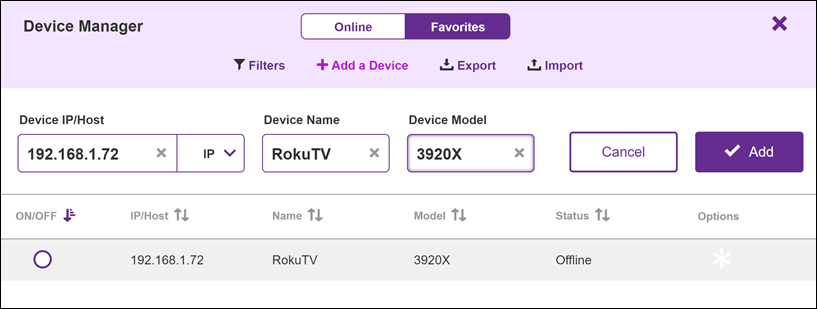
Enter the following device information.
a. Device IP address
b. Device Name (any name may be used)
c. Device Model
-
Enter device credentials. If the credentials window is not visible at the bottom, begin by hovering over the device entry in the table and clicking the gear (*****) when it appears. Then:
a. Enter Username
rokudevb. Enter the associated password
c. Click Save.

-
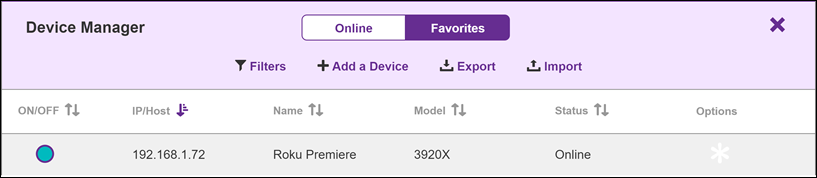
Select a device.
a. Verify that the device Status is Online.
b. Click the radio button to select the device to be used for the session.
c. Close the window.
Starting step 4: Add an app
You must define a name and identifier for at least one app. Refer to the params section for more information.
Starting step 5: Choose an app to launch
From you added, you must select one and launch it. Refer to the blocks section for more information.
Writing the script
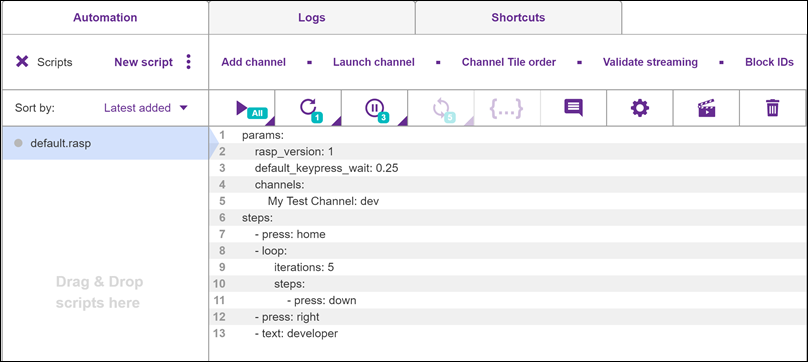
The Roku Remote Tools records button press and text entry sequences as "steps" in a script editor window. These steps can then be used to simulate end-user operation of the device by the Roku TV remote.
params
Begin by specifying your app information in the params section. You must use Add Channel to add at least one app before continuing.
| Keyword | Graphic or Label | Description | Example (in params section) |
|---|---|---|---|
rasp_version | none | Define the scripting version; default is inserted for you. | rasp_version: 1 |
default_keypress_wait |  | Use the gear button to set the integer value of global delay between button presses. For non-integer values: - Manually position the cursor at the end of the line - Backspace to delete the old value - Type in the new value and hit Enter. | default_keypress_wait: 2default_keypress_wait: 0.25 |
channels | Add Channel | Use the Add Channel macro as a convenient way of entering app listings in the script. (You could instead type the entries in manually.) To add app(s) using the macro, repeat these steps as needed: 1. Provide a Channel Name 2. Enter Channel ID 3. Click Add to table then click the  next to each table entry to be inserted. next to each table entry to be inserted.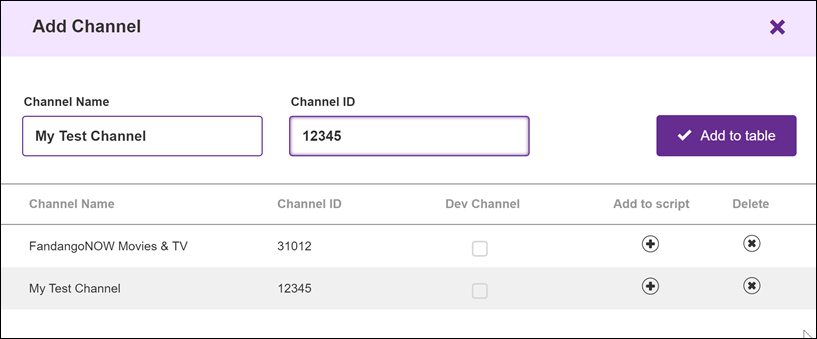 | channels: 'My First Channel': 12345 'My Second Channel': 12346 'My Third Channel': 12347 |
steps
Continue by creating operational steps, using a concise set of commands. Steps can be typed manually into the editor, but are more rapidly created by clicking the emulated remote keys.
| Step | Graphic | Description | Example |
|---|---|---|---|
press | 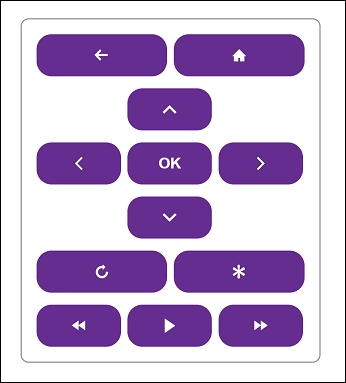 Keypad | Button press | |
text | 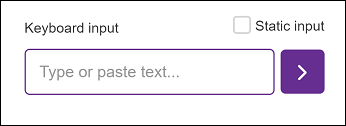 Text entry box below keypad | Alphanumeric keystroke entry, where permitted by the Roku TV device interface Static input – Checked: Keystrokes withheld until the adjacent [>] button is clicked – Unchecked: Each keystroke is sent out as it is entered | Developer(typed in box) |
pause | 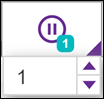 | A pause (or delay or sleep) may be inserted at a specified point between steps. 1. Position the cursor in the script where the pause should occur. 2. Click the lower-right corner of Sleep and set the number of seconds to pause. 3. Click the main part of Sleep to insert the command. You may need to insert a pause step for any action in the UI that takes time to be completed before another step in the script can be executed. For example, it may take a few seconds for the app UI to be populated after being launched. This ensures that the subsequent steps are actually navigating the UI. Do not include more than 10 pause steps in a script. | |
loop | 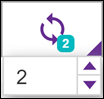 | One or more steps can be made into a loop. This button remains grayed-out until more than one line of code has been highlighted.Using the mouse, select a two or more steps in the editor. 1. Click the lower right corner of the Add Loop button and select the number of iterations. 2. Click the main part of Add Loop to surround the steps with the appropriate loop commands. | |
wait_for_player_state |  | Pause to wait on player state to be selected by user press of Play, Stop, or Pause.Put the cursor in the script where the wait should occur.Click the Wait for Player State button.Select Play, Stop, or Pause. | |
blocks
Creation of the following blocks is aided by macros. Click on each label for details.
| Step | Label | Description | Example |
|---|---|---|---|
launch | Launch Channel | Launch one of entered with Add Channel in the params section. To launch an app, repeat these steps as needed to enter channel information for you plan to use: 1. Select an app 2. Enter Content ID and Media type 3. Click Add then click Add to script on the app(s) to be launched.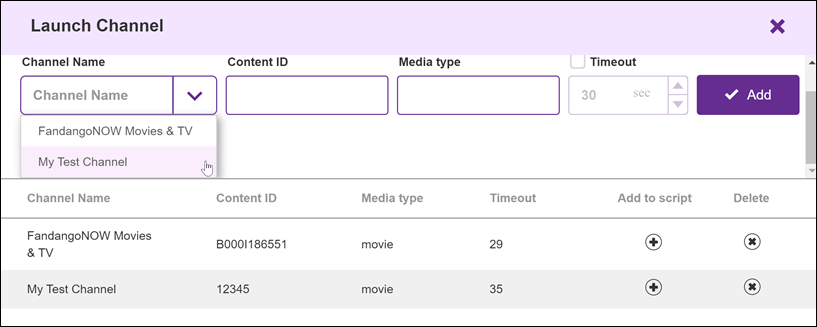 | |
validate_streaming | Validate Streaming | Verify that the specified stream functions as expected. Select: - the desired Video codec - the audio codec in use - the DRM method then click Add to script to insert script commands to validate the indicated stream type. 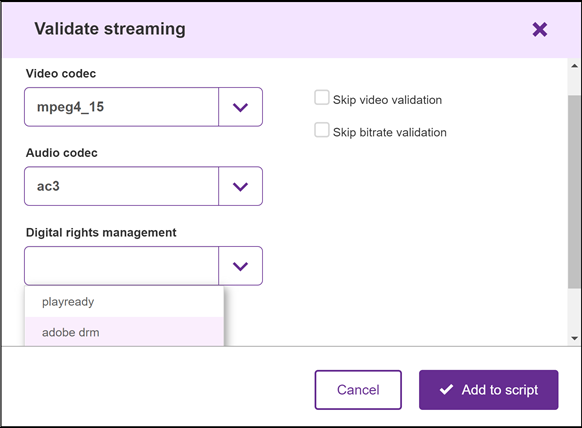 | |
channel_tile_order | Channel Tile Order | Set how the displayed channel tiles are ordered on the screen 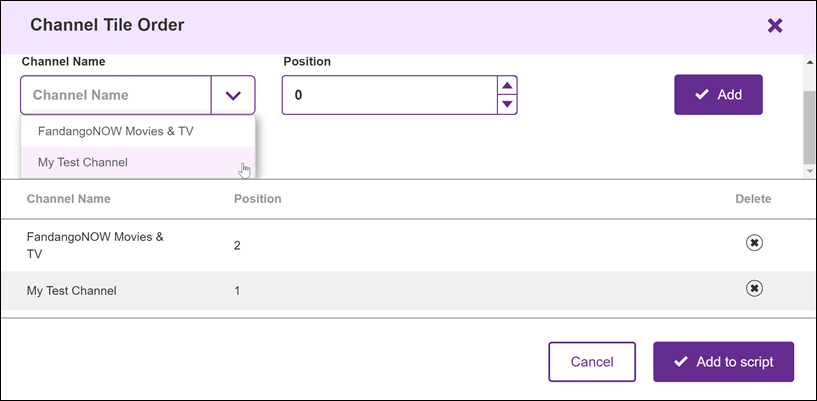 | |
Defining your own blocks of steps for re-use
For sequences of steps that you have to follow in multiple places within your script, define the sequence once and then label it for re-use.
| Step | On-screen label | Description | Example |
|---|---|---|---|
step: &idxxxx |  Add Block | Two or more steps can be defined as a block with an identifier. Using the mouse or cursor control keys, highlight a step or group of steps in the editor. Click the Add Block button to create the block and generate its ID in the form &id1234 | |
*idxxxx | Block IDs | Steps defined as blocks are reusable throughout the code by referring to the identifier. Place the cursor elsewhere in the code. Click Block IDs and pick from the list, which will insert the chosen block as *id1234 | |
Running a script
To play back scripts, use the control buttons shown below. Notice that as each command completes, its status changes from running to done.
| Action | Graphic | Description |
|---|---|---|
| Play | 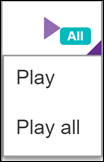 | The script in the Script Editor pane is run once by clicking the Play button.Clicking the lower right corner and selecting Play all runs all scripts loaded to the Automation pane.Click this same button to stop a running script. |
| Repeat |  | The script in the Script Editor pane can be set to run multiple times by clicking Repeat .Click the lower-right corner of Repeat and set the number of iterationsClick the main part of Repeat to toggle Repeat mode (gray when active)Click Play to start the repeated run. |
Editing a script
Like most text editors, the script editor can use both mouse and keyboard cursor positioning techniques to insert, highlight, and delete code. Note that the emulated keypad and macros always add to the end of the script, not at the current cursor location. If you need those lines inserted elsewhere, you'll need to then cut and paste them.
Two additional buttons are provided to expedite editing.
| Graphic | Description |
|---|---|
 | The Trash can button is used to immediately remove all steps in the procedure (the params section is not affected).To clear a syntax error, click this button following it with an Undo command (for example, Ctrl-Z for Windows) to reinstate all of the correct code but leave off the syntax in error.For removal of specific lines, simply select them with the mouse and use the Delete key. |
 | The Comments button serves two purposes:Comments-out (and un-comments) selected blocks of code by adding # to the beginning of the line.Removes displayed comments such as done after a run, and error for certain error conditions. |
Saving a script
Exporting (saving) a script. Once you have written a script, saving it for future use involves Exporting the script in the RASP format.
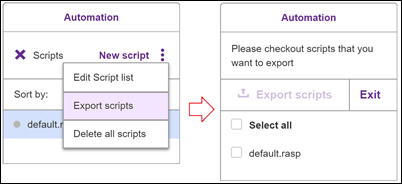
Using New script  – but clicking on the dots – displays three Export options.
-
Select Export scripts to save one or more of your scripts to an external file.
-
Select Edit Script list to delete selected scripts, or Delete all scripts to remove everything.
Creating new scripts
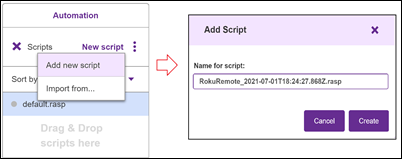
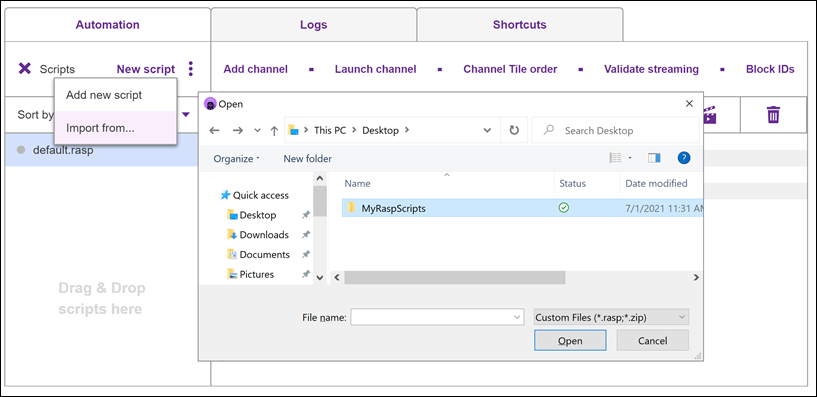
Select New script and then use Add new script to give a name to the script in the editor. (The name default.rasp is used if you skip this step.)
Importing scripts
If you already have a script from your own library or from other developers, choose the Import from option to load it.
Sample exercises
Keypad input
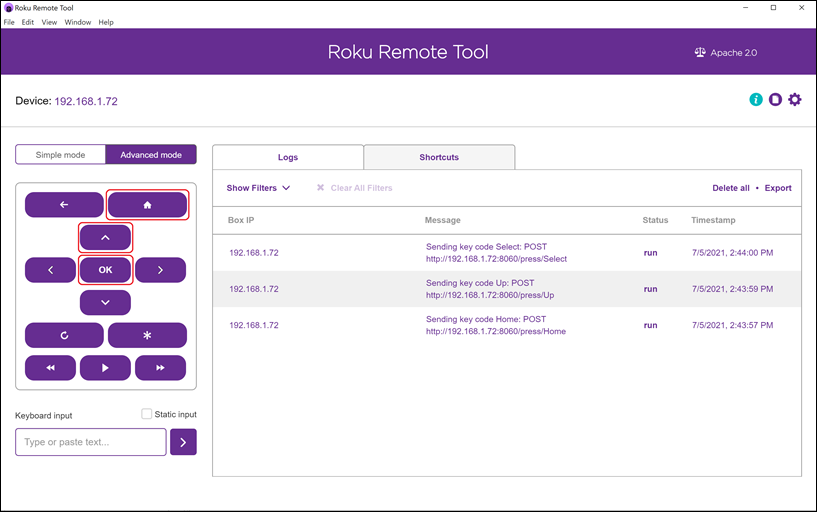
The keypad replicates the keys present on the physical Roku Remote. Use the mouse to click on any key to send it to the device.
Exercise 1: Select "Settings". Click the Home 🏠, Up ⬆️, and 🆗 keys in sequence, watching the Roku TV screen to follow the activity. The Settings list item on the Roku TV screen should be selected.
Alphanumeric input
The tool provides a text input box to allow the keyboard to be used for alphanumeric field input where allowed by the app.
Exercise 2: Enter a "Search" term. Click Home, then the Down arrow 5 times, then the Right arrow once to select the Search page keyboard on the Roku TV screen. Click in the Keyboard input box of the tool, and type a term like developer while watching the activity on the Roku TV screen. Selections containing the term "developer" should be listed.
Automatic script block generation
Macro generators on the tool allow for quick creation of commonly used command sequences.
Exercise 3: Generating script content. Click "Validate streaming" and make a selection in each box. (This exercise is just for learning, so any choice is okay.) Now click "add to script" (and OK to Errors if the message comes up). Observe the block of information that has been added to the end of the current script.
Script editing
Exercise 4: Editing lines of a script. With the commands from Exercise 3 still in the editor window, highlight them using the mouse or keyboard, and cut/paste them to a location earlier in the script.
Selecting a block of code for deletion, or highlighting a section to create a Loop or Block, requires a specific approach.
-
Place the cursor at the end of the last line to be selected, using the mouse. Otherwise, keyboard cursor keys in the next step may be interpreted as shortcut keypad presses.
-
Use the Up arrow on the PC keyboard to select the current line. The line above it will also be included in a Block or Loop selection, even if not fully highlighted. The mouse may be used to move upward instead, making sure that the current line is fully selected (including its line number).
-
Continue in this manner until the selection is complete, and proceed with cut, Loop, or Block.
Appendix
Script generation aids
The macro functions listed here allow rapid generation of blocks of scripting code. These sections may also be entered or copied in manually.
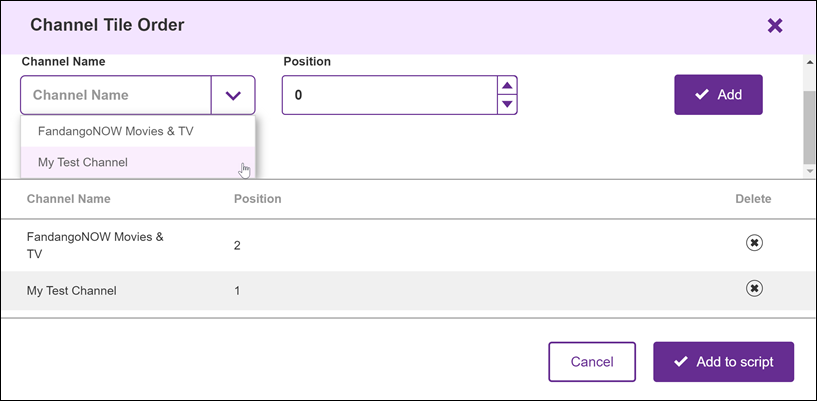
App Tile Order
To reorder apps:
- Select an app
- Choose its position in the tile ordering
- Click Add to effect the change and reorder the list.
To insert the ordering command and the ordered list to the script:
– Click Add to script .
Block IDs
Lists defined Block IDs within the script.
Clicking Add to script inserts that ID at the current cursor location (to repeat that code block)

Logs
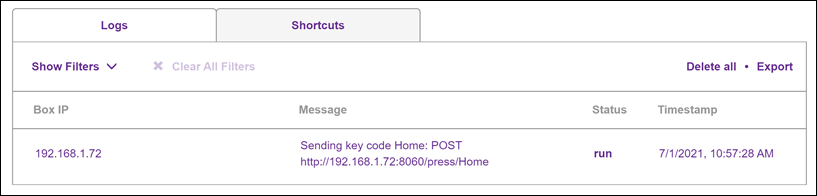
The Logs tab keeps track of all keystrokes that have been sent. The logs can be filtered as needed and exported to an external file. If not needed, they can be deleted.
Shortcuts
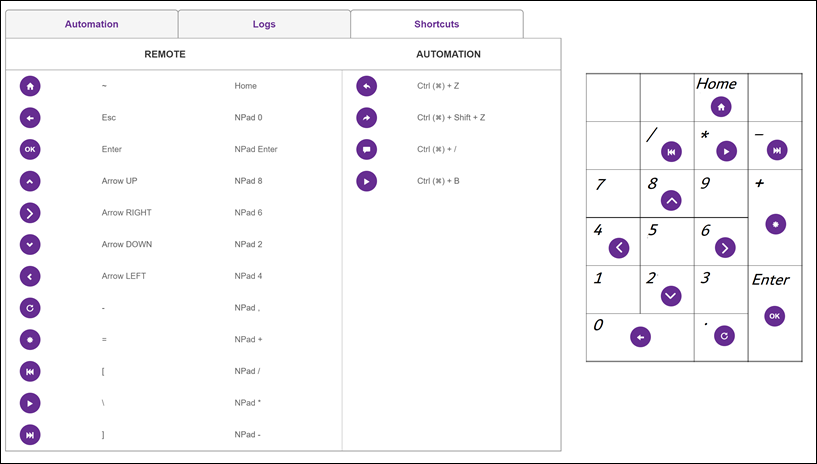
On physical keyboards with a numeric keypad, the keypad may be used instead of the on-screen keypad.
The Shortcuts tab shows the correspondence of PC keyboard keys to remote keys. The image below shows the Shortcuts page and additionally illustrates the mapping as applied to a typical PC numeric keypad.
Tool Utilities
The three icons at the top right of the page provide access to utility functions.

These utility functions operate as follows.
- Information icon: Turns control hints on/off.
- Page icon: Brings up a RASP documentation article that explains the scripting language.
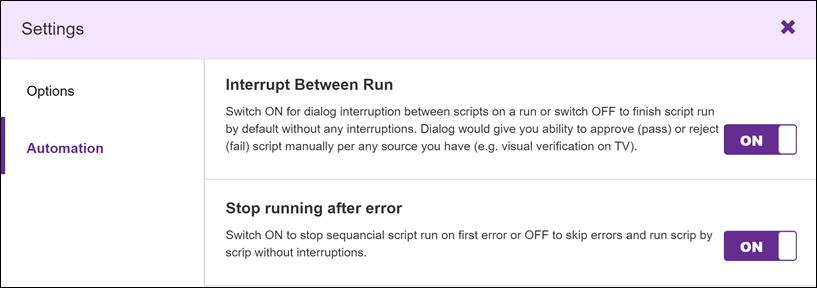
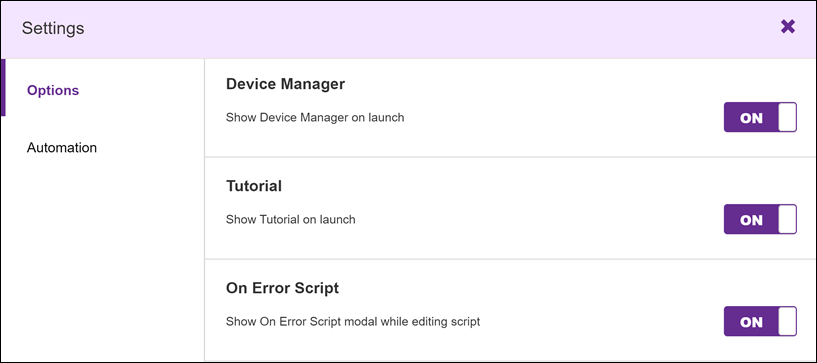
- Gear icon: Displays the Settings pages shown below.
Start-up / run options (Settings page)
Automation
Options
Updated 3 months ago