
Integrating the Roku Advertising Framework
Integrate the RAF library to render preroll, midroll, and postroll ads
Getting started
The RAF library is intended to allow developers to focus their effort on
the core design of their applications, and provide them with the ability
to quickly and easily integrate video advertising features with minimal
impact to the rest of their application. This section provides an
overview of the fundamental steps required to integrate with such
applications. Other developers may wish to have more control over
certain features within their applications, such as rendering the ads
with a custom UI, or integrating the event tracking with a 3rd-party
analytics API. The API Reference provides
more detailed information on the video ad API, and the Use
Cases section offers
examples designed to cover a variety of different scenarios. The video
ad features are provided as a common library deployed and managed as a
hidden app.
The RAF library may not be loaded through a component library.
The following line must be placed in the manifest file for
any applications using the Roku Advertising Framework library:
Manifest entry
bs_libs_required=roku_ads_libClient applications do not include any additional BrightScript modules
as part of their own package file. Instead, the “Library” keyword is
used. The following line should be the first entry in
your main.brs file:
Library "Roku_Ads.brs"The library interface is obtained by calling the constructor with no arguments:
adIface = Roku_Ads()Configure the ad URL before making the ad request call:
adIface.setAdUrl(myAdUrl)(You may wish to check URL Parameter Macros to
see if any parameter values in the ad URL should be replaced with the
provided macros.)
Aside from the Configuration interface,
there are two main methods used to control ad parsing and rendering. The
first, getAds(),
makes the initial request to the ad server, parses the server response,
and returns the structure of ads to be rendered prior to, or during
playback, of the selected content:
adPods = adIface.getAds()Any preroll ads present in the returned set of ad pods can be
immediately rendered by calling:
shouldPlayContent = adIface.showAds(adPods, invalid, adHolder)Checking and acting on the return value here allows the application to
determine if the user exited out of the ad (for example, by pressing the
“Back” button on the remote) and return to the content selection screen
before playing the main content.
If the application is only showing preroll ads, the above five lines are
sufficient. If the ad server URL was configured for additional midroll
and/or postroll ads, the client application should periodically
call getAds() with the message from the content video playback loop to determine when to
halt the content playback and render the
ads:
Calling getAds() in a while loop
while shouldPlayContent
  videoMsg = wait(0, contentVideoScreen.GetMessagePort())
  adPods = adIface.getAds(videoMsg)
  if adPods <> invalid and adPods.Count() > 0
    contentVideoScreen.Close() ' stop playback of content
    shouldPlayContent = adIface.showAds(adPods) ' render current ad pod
    if shouldPlayContent
      ' *** Insert client app's resume-playback code here
    end if
  end if
  ' *** Insert client app's video event handler code here
end while
Please note that the system overlay behavior has been modified in Roku
OS 8. Every time RAF is rendered, the Video node will not be in focus.
For the Roku system overlay to slide out when the * button is clicked,
the Video node should be set to be in focus. Otherwise, the app
retains control over the * button and will need to handle button
presses on their own. To set the Video node in focus again, use the
following code snippet:
sub init()
  m.top.setFocus(true)
  setVideo()
end sub
Use cases
The video ad library is intended to support a variety of use cases,
depending on the requirements of the application. The sample code
presented here is provided for illustrative purposes of each of these
cases and is not intended to represent required or optimal usage in
client applications. For clarity and concision, error and object
validity checking are omitted in these examples.
In all cases, the library must first be included and its interface
constructed as described in Getting Started.
Additionally, unless the client application is using Roku’s default ad
URL (which currently provides only a single ad), the ad URL must be
configured before requesting an
ad pod:
Library "Roku_Ads.brs"

adIface = Roku_Ads()
adIface.setAdUrl(myAdUrl)
adPods = adIface.getAds()
You may wish to check URL parameter macros to
see if any parameter values in the ad URL should be replaced with the
provided macros.
At this point, the ad server response has been fully parsed and is
available in the adPods Ad Structure.
Client side ad insertion
If the client application has no need for custom UI or user interaction
during ad rendering, it is recommended to use the default rendering
method showAds().
This method handles rendering and control of interactive and video ads,
as well as displaying basic messaging UI (e.g., “Your program will
continue after these messages”) and feedback UI (“Ad 1 of 3”).
Calling showAds() with
an array of ad pods (such as the structure returned from the initial
call to getAds())
will render the first pod scheduled as a preroll. Calling it with a
single ad pod will render that pod, regardless of
its renderSequence attribute.
Single preroll ad pod
Just call showAds() with
the adPods value that the application obtained above:
shouldPlayContent = adIface.showAds(adPods)Note that the return value should still be checked to see if the user
exited the ad, and therefore should also exit out of content playback
back to a selection screen.
Sequential rendering
Typically, if the ad service URL is configured to return a slate of ad
pods to be presented throughout the presentation of the content, it is
sufficient to
use getAds() as
an event listener in the content video event loop, as described
in Getting
Started, to
determine when the scheduled ad breaks should
occur:
Sequential ad pod rendering example
shouldPlayContent = adIface.showAds(adPods)
while shouldPlayContent
  videoMsg = wait(0, contentVideoScreen.GetMessagePort())
  adPods = adIface.getAds(videoMsg)
  if adPods <> invalid and adPods.Count() > 0
    contentVideoScreen.Close() ' stop playback of content
    shouldPlayContent = adIface.showAds(adPods) ' render current ad pod
    if shouldPlayContent
      ' *** Insert client app's resume-playback code here
    end if
  end if
  ' *** Insert client app's video event handler code here
end while
This usage of getAds() also
automatically implements the default policy that determines whether to
re-render ads that have already been viewed. This policy permits the
user to rewind content up to 5 minutes before a scheduled ad break
before displaying that ad pod again.
Custom scheduling
Alternatively, there may be instances where the application must have
greater control over when ad breaks occur. As an example, if the ad
service is configured to return a VAST 2.0 response without temporal ad
breaks, the application could re-interpret this unstructured response
and schedule rendering of those ads as
necessary:
Custom ad scheduling example
adBreakSchedule = [adBreakTime1, adBreakTime2, adBreakTime3]
scheduledPods = []
adBreakIndex = 0
for each ad in adPods[0].ad
  ' schedule one ad per ad break
  scheduledPods.Push([{
    viewed : false,
    renderSequence : "midroll",
    duration : ad.duration,
    renderTime : adBreakSchedule[adBreakIndex],
    ads : [ad]
  }])
  adBreakIndex = adBreakIndex + 1
end for
Default sequential rendering could then be used by first importing this
new scheduledPods ad structure, as described in Custom Ad Parsing and
Rendering.
Or, if the library’s ad rendering features are desired without the
default ad scheduling mechanism, the application may completely control
which ads are scheduled for
rendering:
Complete ad rendering control example
shouldPlayContent = true
adBreakIndex = 0
while shouldPlayContent
  videoMsg = wait(0, contentVideoScreen.GetMessagePort())
  if videoMsg.isPlaybackPosition()
    curPos = videoMsg.GetIndex()
    nextPod = scheduledPods[adBreakIndex]
    if curPos > nextPod.renderTime and not nextPod.viewed
      contentVideoScreen.Close() ' stop playback of content
      shouldPlayContent = adIface.showAds(nextPod) ' render next ad pod
      adBreakIndex = adBreakIndex + 1
      if shouldPlayContent
        ' *** Insert client app's resume-playback code here
      end if
    end if
  end if
  ' *** Insert client app's video event handler code here
end while
This type of custom ad scheduling may also be necessary if the client
application relies on multiple ad services to fill its ad slots. For
this case, separate calls are made
to setAdUrl(),
followed
by getAds(),
to get the ads from each service. Then scheduling and rendering can be
done using one of the methods described above.
Example
For examples, see the Roku Advertising sample apps
Just in Time (JIT) midroll ad retrieval
Apps using VMAP or SmartXML ad responses to structure midroll ad pods can enable the Just In Time (JIT) feature to speed up ad playback start times. With JIT, individual midroll ad pods are retrieved before ad breaks instead of all them being fetched prior to content playback. This can reduce multiple seconds from the playback start time depending on the number of midroll ads being inserted.
Apps that want to use the JIT feature, but use an ad response structure other than SmartXML or VMAP for inserting midroll ad breaks, can contact [email protected] for solutions to speed up content playback.
To enable the JIT feature, call RAF’s enableJITPods() method:
adIface.enableJITPods(true)
See the RAF API reference guide for more information on this method.
Enabling audience measurement
The impression tags fired when video ads are displayed on your app must include your content's metadata (genre, ID, and length) for measurement purposes. This enables you to measure and report audience delivery with third-party audience measurement solutions such as Nielsen's Digital Ad Ratings (DAR), ComScore Campaign Ratings (CCR), and ComScore Validated Campaign Essentials (VCE).
To enable ad measurement, call the enableAdMeasurements() method, and pass the required content metadata within the setContentGenre(), setContentId(), and setContentLength() methods.
adIface.enableAdMeasurements(true)
adIface.setContentGenre(content.categories)
adIface.setContentId(content.stream.contentid)
adIface.setContentLength(content.length)
Setting the content genre
Each ad server may require different Roku genre tags tags that you need to pass. Check with your ad server for the Roku genre tags to be used.
Passing the kidsContent flag with the content genre
When specifying the content genre with the setContentGenre() method, pass the kidsContent flag to specify whether the content being played is targeted towards children (true) or not (false).
Frequency capping and targeting using RIDA
The RIDA is similar to advertising identifiers used on other platforms. It is designed to allow ad personalization and frequency capping on the Roku platform via a device identifier that can be reset by the end user.
Apps can use the GetRIDA() API to get the RIDA of a device and then pass it in ad server requests. If the customer has not opted out of ad targeting, the RIDA is set to a unique user ID (UUID). If the customer has opted-out (by enabling the "Limit ad tracking" flag from the Settings menu), the RIDA is set to a temporary ID that is different than the UUID and expires after 30 days. Apps must still pass this temporary ID in ad server requests to support frequency capping.
Retrieving RIDA example
function getAdID() as String
    adId = ""
    dev_info = createObject("roDeviceInfo")
    if dev_info <> invalid then
      adId = dev_info.GetRIDA()
    end if
    return adId
end function
RIDA specific parameters
Many leading ad servers such as FreeWheel and DFP have Roku specific
parameters in their ad request that the app can pass the RIDA in.
For Freewheel, the parameters are:
_fw_did=rida:<roku-device-id>
_fw_vcid2=<roku-device-id>
Example
url = http://my.ad.server.net/?my_first_param=MyFirstValue&other_param=SomeOtherValue&_fw_did=rida:<roku-device-id>For DFP, the parameter is called rdid. Additional details available
here: <https://support.google.com/dfp_premium/answer/6238701?hl=en>
Example
url = http://pubads.g.doubleclick.net/gampad/request-type?my_first_param=MyFirstValue&other_param=SomeOtherValue&rdid=<roku-device-id>Replace <roku-device-id> with the RIDA for audience
targeting.
Custom buffering screens
RAF also supports multiple ways of customizing the buffering screen
which appear before ad playback.
Default ad buffering screen
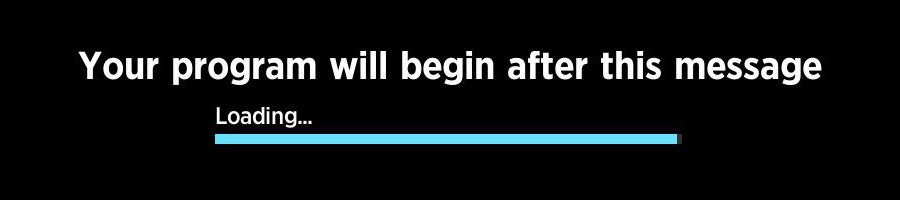
The default ad buffering screen displays a message and a progress bar.
Both attributes can either be enabled or disabled
using enableAdBufferMessaging().
Custom buffering screen using content metadata (fixed positioning)
The buffering screen can also be customized by passing a content
metadata object
to setAdBufferScreenContent().
This function does not support custom positioning. Instead, use
SetAdBufferScreenLayer() as described in the next section.
The supported content meta-data attributes are:
| Attribute | Positioning | Example (below image) |
|---|---|---|
| HDBackgroundImageUrl | Aligned to top-left corner | <https://upload.wikimedia.org/wikipedia/commons/thumb/f/f8/Aspect-ratio-16x9.svg/1280px-Aspect-ratio-16x9.svg.png> |
| SDBackgroundImageUrl | Aligned to top-left corner | n/a |
| HDPosterUrl | Aligned to top-center | <http://static.commentcamarche.net/ccm.net/faq/images/0-BX4VeV6H-resolution-comparison-s-.png> |
| SDPosterUrl | Aligned to top-center | n/a |
| Title | Center-aligned relative to and displayed below PosterUrl | "Title for custom buffering screen" |
| Description | Left-aligned relative to PosterUrl | "Description for custom buffering screen" |


bufferScreenContent = {}
bufferScreenContent.HDBackgroundImageUrl = "https://upload.wikimedia.org/wikipedia/commons/thumb/f/f8/Aspect-ratio-16x9.svg/1280px-Aspect-ratio-16x9.svg.png"
bufferScreenContent.HDPosterUrl = "http://static.commentcamarche.net/ccm.net/faq/images/0-BX4VeV6H-resolution-comparison-s-.png"
bufferScreenContent.Title = "Title for custom buffering screen"
bufferScreenContent.Description = "Description for custom buffering screen"

adIface.SetAdBufferScreenContent(bufferScreenContent)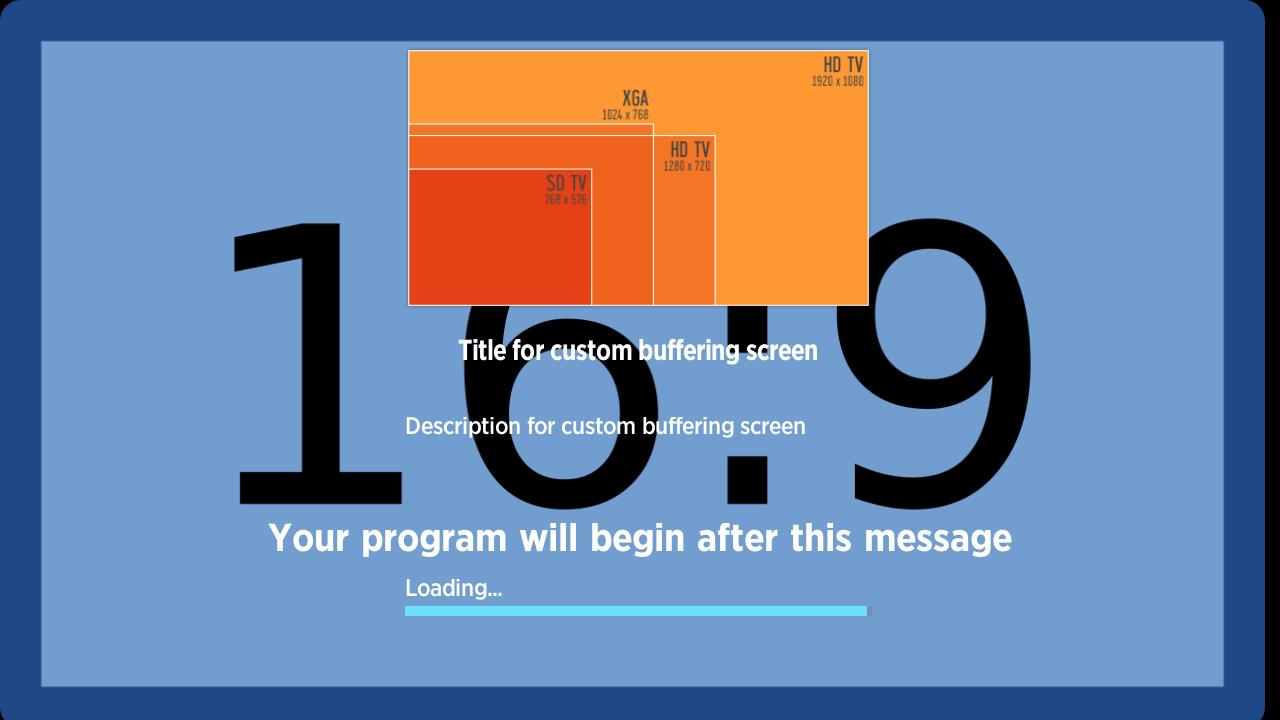
Custom buffering screen using content metadata (custom positioning)
For a complete custom buffering
screen, setAdBufferScreenLayer() allows
the same content meta-data attributes
as setAdBufferScreenContent(),
but enables you to customize the positioning and
other roImageCanvas attributes.
Custom buffering screen using layers
layers = [
    {Url: BackgroundImageUrl}
    {Url: PosterUrl, TargetRect : {x : 405, y : 370, w : 467, h : 262}}
    {
        Text : "This is a custom build screen"
        TextAttrs : { Color : "#FF0000", HAlign : "Center", Font : "Large"}
        TargetRect : {y : 50, h : 30}
    }
]
adIface.setAdBufferScreenLayer(2, layers)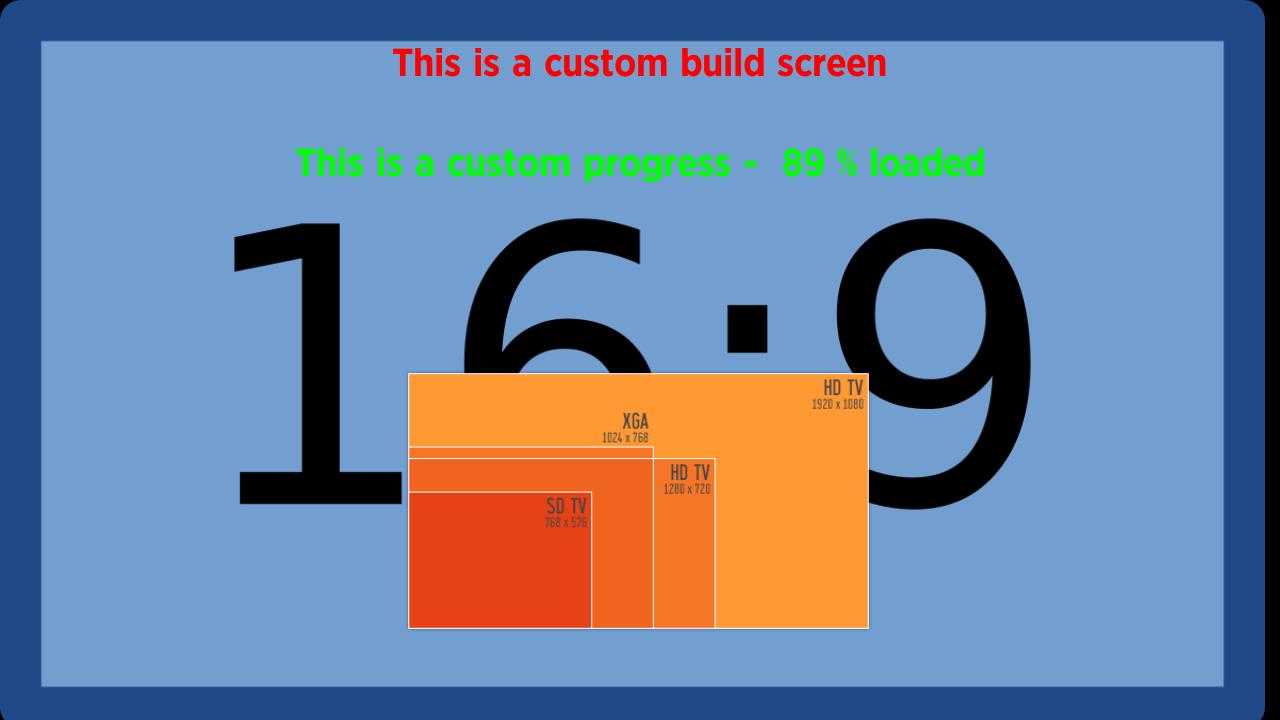
For an example on different custom buffering screen implementations,
see CustomBufferScreenSceneGraphSample.
Custom ad parsing and rendering
Custom ad parsing and rendering requires explicit approval from Roku to
ensure proper ad delivery and quality. Please reach out to <[email protected]\ for verifying your implementation prior to
submitting your app for publication.
Custom ad parsing
Some applications may use an ad service that returns an unsupported
response format, but can still take advantage of the library’s ad
rendering features. In this case, the application is reponsible for
requesting and parsing the ad response and structuring the ads into an
array of pods according to the required Ad
Structure.
Scheduling and rendering can then proceed as described in Client Side Ad Insertion by
first calling
the importAds() method
with the ad structure constructed externally by the client:
adIface.importAds(myAdPodArray)Custom ad rendering
Client applications may elect to control the ad rendering within the
application, either to provide custom UI while loading ads, or because
the ads are rendered by a method unsupported by the video ad library
(e.g., by server-side video stitching). It is sufficient to make a
single call
to getAds() to
get the entire Ad Structure. The
client application is then responsible for using the streams data to
render the ads, and also must trigger
the Tracking events
when the requisite conditions are
met.
The fireTrackingEvents() method
is used to trigger event tracking, including client macro replacement
and processing of ad measurement beacons. The adStructure parameter
passed in to this method can be either an adPod or a single ad
from Ad
Structure,
depending on whether the event is relevant for the entire pod (such
as PodStart or PodComplete) or for a single ad (all other event
types). The ctx parameter should contain either a type string from
the Tracking events
or a time numerical value for firing time-dependent events such as
quartile beacons. If both are specified, the type value takes
precedence. Custom tracking event types can be added and fired as well,
but client code should attempt to use conventional event types such as
“Impression” where appropriate, as certain operations like Nielsen DAR
parameter substitution rely on the “Impression” event
type.
Note: The type values are case-sensitive, so will only fire events with
names that match exactly the type specified.
Client code should fire all supported tracking events specified
by Tracking during
ad rendering when the appropriate conditions are met. Some events need
not be fired such as Error, which is specific to VAST parsing only.
Events corresponding to operations unsupported during ad rendering also
need not be fired, such as Rewind, Mute,
or AcceptInvitation (which is specific to ads with interactive
elements).
As an example, if ad contains the Ad structure for a
video ad that the client application has just begun rendering,
the Impression beacons for that ad could be fired with a single call:
adIface.fireTrackingEvents(ad, {type: "Impression"})While the ad playback progresses, assuming the
variable adProgressTime holds a value representing the number of
seconds since the ad began rendering, the quartile beacons can be sent
via:
adIface.fireTrackingEvents(ad, {time: adProgressTime})If the ad were paused by the user, then the client app would fire
the Pause beacons:
adIface.fireTrackingEvents(ad, {type: "Pause"})Requirements for server side ad insertion
1. Frequency capping and targeting requirements
For apps that serve ads via SSAI, the outbound ad call to the ad server
is not made from the client. The app will have to assume the onus of
passing the RIDA and device user agent from the client to the server side component of the
SSAI vendor or the ad
server.
Note: Please work with your SSAI vendor on how to pass the RIDA to the SSAI
server side component. In some cases, the app may need to pass the RIDA
as part of an ad call, in other cases there may be a web service that
the app needs to call.
2. Ad measurement beacon requirements
For server side ad inserted applications,
call fireTrackingEvents() in
RAF and ensure that the ad measurement beacons are passed to RAF via that API.
It is valid to pass all impression beacons to RAF via this API. For
non-Nielsen DAR beacons, RAF will be just a
pass-through.
Per Roku's certification requirements, all ad measurement beacons must be fired directly by RAF client-side (they may not be wrapped). This is required to apply the Roku Advertising Watermark to the beacons.
Note: All these data points are sent directly to audience measurement platforms via RAF. RAF does not
keep or save any of these data elements on the device or any cloud
storage.
3. User agent requirements
Apps must use the Roku-generated device user agent in all server-side ad requests to pass certification. To include the user agent in server-side ad requests, do the following:
- Obtain the user agent from a client-side call made to the ad stitcher or ad server.
- Pass the user agent into the User-Agent header in the server-side ad request, without any modifications.
4. Uniform ad experience requirements
To enhance user engagement and consistency of ads served on the Roku
platform, RAF supports rendering of both video and interactive ads (from
certain vendors such as Brightline and Innovid) in server-stitched
streams. This allows Roku to display standard UI components and behavior
(ad counter, ad timer, trickplay support, etc.) for server-stitched
streams.
Note: Any interactive ad types that are not enabled in RAF when
server-stitched would need to be rendered by the application. See
Custom Ad Rendering
above.
Implementation details
There are two API methods required for these use cases. First, the
application is responsible for requesting and parsing the ad response,
and structuring the ads into an array of pods, according to the
required Ad Structure. This ad
metadata may, in some cases, come from a third party SDK provided by
your stitching platform.
- For server stitched ads, the 'time' member of the 'tracking' data
(in Ad Structure) for
each ad is required. The value of this data member should
correspond to the absolute time in the entire stream, not just
relative to the current ad.- Example: For a 30-second ad that starts at 15:00 in the stitched
stream, the 'Impression' beacons for that ad should be set to
900 seconds and the 'Midpoint' beacons for that ad should be 915
seconds (i.e., @15:15). The 'time' member should still be
omitted for beacons that do not depend on time (such as 'Pause'
or 'AcceptInvitation').
- Example: For a 30-second ad that starts at 15:00 in the stitched
- The meaning of postroll stitched ads is slightly different than for
client-inserted ads, since the ads are part of the stream. Client
code can still set the 'renderSequence' for the pod to 'postroll',
but all time values should still refer to the absolute position
within the stitched stream.
Scheduling and rendering is then initialized by first calling
the stitchedAdsInit() method with the ad structure constructed by the
client:
adIface.stitchedAdsInit(myAdPodArray)Playback of the stitched stream is then started via an roVideoPlayer
object (or optionally, a wrapped interface that matches the
specification described in stitchedAdHandledEvent()). In the event
loop for the video player, the app should then first check if an ad
renderer handled the event, as well as checking for exit condition. If
no ad renderer handled the event, control falls through to the
application’s regular event-handling
logic:
Server side ad insertion example
playContent = true
while playContent
  msg = Wait(0, videoPlayer.GetMessagePort())
  currentAd = adIface.stitchedAdHandledEvent(msg, videoPlayer)

  if currentAd <> invalid and currentAd.evtHandled
    ' ad handled event, take no further action
    if currentAd.adExited
      ' user exited, return to content selection
      playContent = false
    end if
  else
    ' if no current ad or ad did not handle event, fall through to default event handling here
    ' ... Your application's usual event-handling code here ...
  end if
end while- If currentAd = invalid, then no current ad is being rendered, and
the app can handle the event normally. - If currentAd <> invalid and currentAd.evtHandled = true, then the
ad renderer handled the event, and no further action should be taken
on that event. - If currentAd.adExited = true, then the user exited the ad renderer
and the app should exit playback and return to content selection. - Only if no current ad is being rendered or currentAd.evtHandled =
false should the app handle the event in any way. Keep in mind that
ad rendering can create new roImageCanvas objects with their own
navigation, or roVideoPlayer objects with their own internal state
and position. These will in general have nothing at all to do with
any such object created by the content playback app, yet they will
share the same message port so that the application event loop can
forward all events to the ad renderer first.
Alternatively, an roAssociativeArray can wrap and mimic the interface of
the roVideoPlayer parameter
of stitchedAdHandledEvent().
See method description for the minimum required key-value pairs. This
wrapped interface is useful if there are other actions to be taken on
player control methods (such as analytics fired when the stream is
paused, etc.).
URL parameter macros
The video ad library allows parameter values to be substituted in ad
request and tracking URLs. This allows for dynamic configuration of
values that are either not directly exposed to the client application or
are unnecessary for it to initialize and maintain. These values are
typically used for ad targeting, interaction tracking, and development
purposes, or to optimize the ad experience for the user’s
device.
| URL Parameter | Description |
|---|---|
| ROKU_ADS_TRACKING_ID | RIDA (Roku ID for Advertising) value used for device identification |
| ROKU_ADS_LIMIT_TRACKING | Set to true or false, depending on whether user has limited ad tracking |
| ROKU_ADS_APP_ID | Identifies the client application making the ad request |
| ROKU_ADS_APP_VERSION | Used to obtain the application version string |
| ROKU_ADS_LIB_VERSION | Used to obtain the RAF library version string |
| ROKU_ADS_CONTENT_ID | Identifies the content to allow for ad targeting |
| ROKU_ADS_CONTENT_GENRE | Identifies the content categorization to allow for ad targeting |
| ROKU_ADS_CONTENT_LENGTH | Improves ad targeting by providing length of content (in number of seconds) |
| ROKU_ADS_USER_AGENT | Device model and Roku OS version |
| ROKU_ADS_DEVICE_MODEL | Device model |
| ROKU_ADS_EXTERNAL_IP | External IP address of the device |
| ROKU_ADS_DISPLAY_WIDTH | Width of device display |
| ROKU_ADS_DISPLAY_HEIGHT | Height of device display |
| ROKU_ADS_TIMESTAMP | Current timestamp value (number of milliseconds elapsed since 00:00:00 1/1/1970 GMT) |
| ROKU_ADS_CACHE_BUSTER | Makes the URL unique to avoid retrieving cached ad server responses, or to ensure proper counting of unique event tracking beacons |
| ROKU_ADS_KIDS_CONTENT | Mark ad requests as appearing in a content title, app, or area of an app that is made for kids, or where you have actual knowledge that the end user is a child. This macro is designed to help flag ad requests that may be subject to child privacy and child protection laws such as the Children's Online Privacy Protection Act (COPPA). For more information about these laws, see Channels or Content Made for Kids. |
| ROKU_ADS_LOCALE | Returns current locale in the same format as roDeviceInfo.getCurrentLocale() (e.g., "en_US", "es_ES") |
Example
To make an ad request that requires the application ID, user agent, and
timestamp values,
call setAdUrl() with
those parameters
set:
setAdUrl example
rokuAds = Roku_Ads()
url = "http://my.ad.server.net/?my_first_param=MyFirstValue&my_app_id=ROKU_ADS_APP_ID&my_user_agent=ROKU_ADS_USER_AGENT&my_timestamp=ROKU_ADS_TIMESTAMP&other_param=SomeOtherValue"
rokuAds.setAdUrl(url)
Ad structure
For a client application that must implement its own ad rendering, it is
necessary to understand how the ad structure is represented in
the BrightScript object returned
from getAds().
The following is a description of the ad structure. Ad pods passed
to showAds() must
conform to this
structure.
Note: Square brackets ‘[ ]’ indicate BrightScript arrays, curly brackets '{
}' indicate associative arrays, and prefix ‘+’ indicates a required data
member.
Ad structure
adPods : [{
         +viewed         : Boolean,
         +renderSequence : String ("preroll" | "midroll" | "postroll"),
         +duration       : Float (in s),
          renderTime     : Float (in s),
          slots          : Int,
          backfilled     : Boolean,
         +tracking: [{
            +event: String,
            +url: String,
            +triggered: Boolean,
             valid: Boolean
          }],
         +ads : [{
                 +duration     : Float (in s),
                 +streamFormat : String,
                 +adServer     : String,
                  adId         : String,
                  adTitle      : String,
                  advertiser   : String,
                  creativeId   : String,
                  creativeAdId : String,
                  clickThrough : String (URL),
                 +streams : [{
                             +url      : String (URL),
                             +bitrate  : Int (in kbps),
                             +width    : Int,
                             +height   : Int,
                             +mimeType : String,
                              provider : String,
                              id       : String
                  }],
                 +tracking : [{
                              +event     : String,
                              +url       : String (URL),
                              +triggered : Boolean,
                               valid     : Boolean,
                               time      : Float (in s)
                  }],
                  companionAds: [{
                                 +url          : String (URL),
                                 +width        : Int,
                                 +height       : Int,
                                 +mimeType     : String,
                                  clickThrough : String (URL),
                                  provider     : String,
                                 +tracking : [{
                                              +event     : String,
                                              +url       : String (URL),
                                              +triggered : Boolean,
                                               valid     : Boolean,
                                               time      : Float (in s)
                                  }]
                  }]
          }]
}]
The object returned from a new call
to getAds() with
no parameters is an array of adPods in this format.
Tracking
Tracking events are triggered automatically during ad rendering
by showAds().
For client applications that perform their own ad rendering, the valid
event types that must be handled are represented in the tracking array
of the Ad Structure by:
| Event name | Trigger condition |
|---|---|
| Impression | Start of ad render (e.g., first frame of a video ad displayed) |
| PodStart | Beginning of ad pod render |
| PodComplete | Completed rendering ad pod |
| FirstQuartile | 25% of video ad rendered |
| Midpoint | 50% of video ad rendered |
| ThirdQuartile | 75% of video ad rendered |
| Complete | 100% of video ad rendered |
| Error | Error during ad parsing or rendering (VAST 3.0) |
| Close | User exited out of ad rendering before completion |
| Skip | User skipped ad (if skippable) |
| Pause | User paused ad |
| Resume | User resumed ad |
| Rewind | User rewound ad |
| Mute | User muted ad |
| Unmute | User un-muted ad |
| AcceptInvitation | User launched another portion of an ad (for interactive ads) |
Roku genre tags
Tagging content by genre
via setContentGenre() is
specific to the ad provider, and may not be uniformly implemented. For
ads provided by the Roku ad service, there is currently a canonical set
of genre tags that can be used to improve ad targeting:
- Action
- Adventure
- Animals
- Animated
- Anime
- Ballet
- Biography
- Children
- Comedy
- Comedy drama
- Crime
- Crime drama
- Cuisine
- Dark comedy
- Docudrama
- Documentary
- Drama
- Educational
- Entertainment
- Faith
- Fantasy
- Fashion
- Food
- Gaming
- Health
- Historical drama
- History
- Horror
- Martial arts
- Miniseries
- Music
- Musical
- Musical comedy
- Mystery
- Nature
- News
- Performing arts
- Reality
- Romance
- Romantic comedy
- Science
- Science fiction
- Sitcom
- Special
- Sports
- Suspense
- Talk
- Technology
- Theater
- Thriller
- Travel
- War
- Western
Nielsen DAR genre tags
The enableAdMeasurements method deprecates the enableNielsenDAR API; therefore, do not use the enableNielsenDAR API. The setContentGenre() API translates Roku Genres to Nielsen Genres without additional steps. Optionally, apps may also use the setNielsenGenre() API to pass specific Nielsen Genre granularity. If using the setNielsenGenre() API, pass a single primary genre code for the selected content from the following set of values. Publishers should provide the most specific category applicable to the content for which ads are to be shown.
Action: "GD"
Adventure: "A"
Animated: "GV"
Ballet: "GV"
Biography: "DO"
Children: "CP"
Comedy: "CV"
"Comedy drama": "CV"
"Crime drama": "GD"
Cuisine: "GV"
"Dark comedy": "CV"
Docudrama: "GD"
Documentary: "DO"
Drama: "GD"
Entertainment: "GV"
Fantasy: "GV"
"Historical drama": "GD"
Horror: "SM"
"Martial arts": "GV"
Music: "GV"
Musical: "MD"
"Musical comedy": "CV"
Mystery: "SM"
"Performing arts": "GV"
Romance: "GV"
"Romantic comedy": "CV"
"Science fiction": "SF"
Special: "GV"
Suspense: "SM"
Talk: "GV"
Theater: "GV"
Thriller: "SM"
Travel: "GV"
War: "GD"
Western: "EW"
animals: "GV"
anime: "GV"
crime: "GD"
educational: "IA"
faith: "D"
food: "GV"
fashion: "GV"
gaming: "GV"
health: "IA"
history: "GD"
miniseries: "GV"
nature: "GV"
news: "N"
reality: "GV"
science: "GV"
sitcom: "CS"
sports: "SE"
technology: "GV"
Updated 18 days ago