
BrightScript Profiler
Pinpoint CPU, memory, and wall-clock bottlenecks in your Roku app
You can use the BrightScript Profiler to pinpoint where performance improvements and efficiencies can be made in your Roku app. The tool enables you to collect and analyze the following metrics:
- CPU Usage: Determine where BrightScript code execution is happening
- Wall-Clock time: Determine where the most time (execution and waiting) is being spent when an app is running
- Function call counts
- Memory usage, including memory leak detection
You can use each of these metrics to diagnose problems and get insights where you can improve the app's performance.
Developers can build a custom profiling tool by following the BrightScript profiler file format specification. This specification describes the entries in the header, body, and footer of a BrightScript profiler file (.bsprof) file.
Usage
The workflow of the BrightScript Profiler is as below:
- Add at least the required manifest entries to the app to run the profiler
- Run and then Exit the app to generate data and metrics
- Save the profiling data to the device or stream it to the machine (PC) you are using for development
- Analyze the profiling data as necessary
Manifest entries
Below is the list of manifest keys used by the profiler:
| Manifest Entry | Value Type | Legal Values | Default Value | Required | Description |
|---|---|---|---|---|---|
| bsprof_data_dest | enum | local , network | local | Yes | If this entry value is local, profiling data is collected on the device and can be downloaded from the Application Installer after the app terminates. This is the default. If this entry value is network, the profiling data is sent over the network rather than being stored on the device. See the section on Retrieving Profiling Data for details. |
| bsprof_enable | boolean | 0 , 1 | 0 | Yes | Turns on BrightScript Profiling when the app is running. This is the master flag and must be set to 1 for any other profiling options to take effect. |
| bsprof_enable_lines | boolean | 0 , 1 | 0 | Yes | Collects memory and CPU data for each line of BrightScript source code. This makes it easier to pinpoint memory and CPU usage issues. This value is set to 0 by default, which means that data is collected for each BrightScript function as a whole. Enabling this feature can have a significant impact on device performance. Requires BrightScript profiling to be enabled ( bsprof_enable=1), and the RSG version to be set to 1.2 (rsg_version=1.2). |
| bsprof_enable_mem | boolean | 0 , 1 | 0 | Yes, if using memory profiling | Turns on memory profiling. Requires BrightScript profiling to be enabled ( bsprof_enable=1).If this is enabled, the bsprof_sample_ratio is automatically set to 1.0. |
| bsprof_pause_on_start | boolean | 0 , 1 | 0 | No | Immediately after launching the app, profiling is paused until manually resumed with the bsprof-resume command on the port 8080 debug console. This is useful for profiling isolated parts of an app's UI or operations, rather than profiling the entire startup sequence of the app. Requires BrightScript profiling to be enabled ( bsprof_enable=1). |
| bsprof_sample_ratio | float | 0.001 to 1.0 | 1.0 | Yes | Sets how often profiling samples are taken, while the app is running. Only has effect if bsprof_enable=1.If memory profiling is enabled (bsprof_enable_mem=1), this value is automatically set to 1.0.The bs_prof_sample_ratio can be adjusted from 0.001 to 1.0. A sample ratio of 1.0 is the default and provides the most accurate data because every BrightScript statement is measured. A sample ratio of 1.0, however, may slow down device performance, but does not typically affect the usability of the app. If slower device performance is observed, reduce the ratio to lessen the profiler’s overhead. |
| rsg_version | float | 1.1, 1.2 | Yes, if using line-levl memory profiling | To use line-level profiling, this must be set to 1.2 (rsg_version=1.2). If it is not set to 1.2, profiling will still work correctly; however, line-level data will not be generated.rsg_version 1.2 provides significant performance improvements; therefore, you should set it to 1.2 regardless whether your app is using line-level profiling.See Roku Manifest for more information. |
Running the profiler on an app
To initiate the memory profiler, sideload, run, and then exit the app. The profiling data is complete only after the app exits.
Pausing and resuming profiling
Profiling can be paused and resumed at any time. Use the following commands on port 8080 to either pause or resume the memory profiler:
bsprof-pausebsprof-resume
If the profiler is paused, very little data is written regardless of the data destination. This allows the profiling data (generally, the data relevant to specific parts of an app's UI or other operation) to be collected and analyzed later. These two commands are particularly useful when combined with the bsprof_pause_on_start manifest entry.
Manifest entry:
bsprof_pause_on_start=1
For example, if starting video playback is slow or seems to cause memory leaks, the bsprof_pause_on_start=1 entry can be set in the app's manifest. After the app is launched, but prior to video playback, execute the bsprof-resume command on port 8080 to begin collecting profiling data. After performing the UI operations to be profiled, execute the bsprof-pause command to suspend the storing operation of the profiling data. Then, exit the app to make the profiling data available for analysis. In this scenario, the profiling data will pertain specifically to the operations performed between bsprof-resume and bsprof-pause.
Port 8080 Commands
These profiling commands exist on port 8080 (Roku OS Versions 9 and later):
| Command | Purpose |
|---|---|
| bsprof-status | Get the status of BrightScript profiling |
| bsprof-pause | Pause the generation of profiling data |
| bsprof-resume | Resume the generation of profiling data |
Collecting the data
The app's manifest entry bsprof_data_dest determines how the
profiling data is retrieved from the device. The data can be stored
locally on the device and downloaded after the app finishes running
and exits, or it can be streamed over a network connection while the
app is running. Streaming consumes significantly less memory on the
device while the app is running. In addition, if the app fails,
the memory data will have been accurately collected up until the time of
the crash (CPU data, however, is typically lost if a failure occurs).
Data Destination: Local
Local data storage is the default storage for profiling, though it can
be explicitly selected by adding bsprof_data_dest=local to the
manifest file. When using this destination, the data becomes
available on the device's Application Installer after the app
exits:
- Launch the app and run through the test cases. Once the app
finishes running and exits, open Roku device's Developer
Settings and click on Utilities.
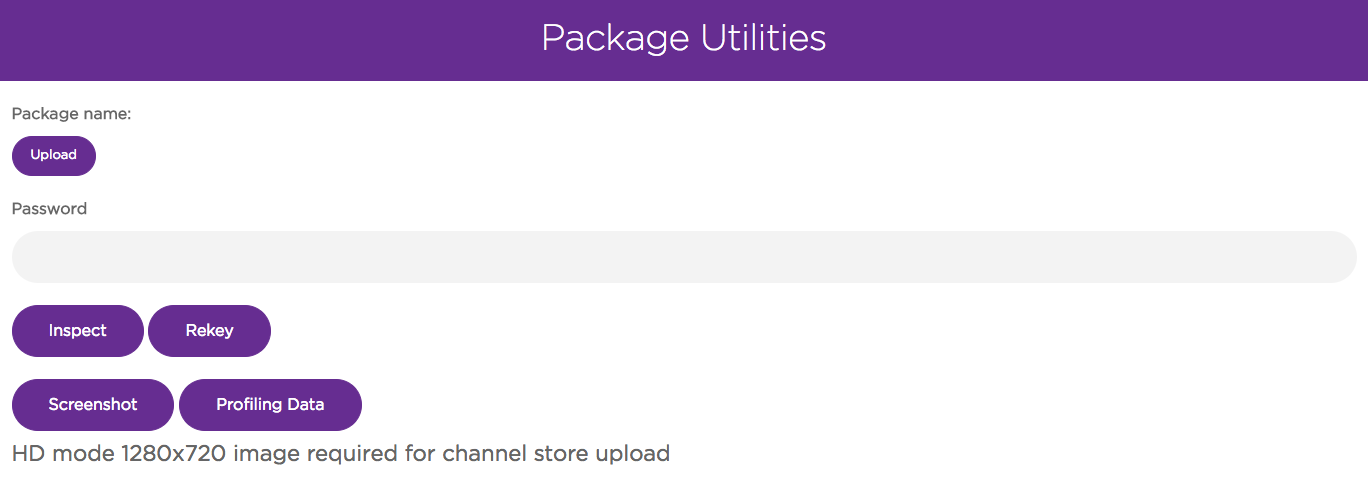
- Click Profiling Data to generate a
.bsproffile and a link to download the data from your Roku device.
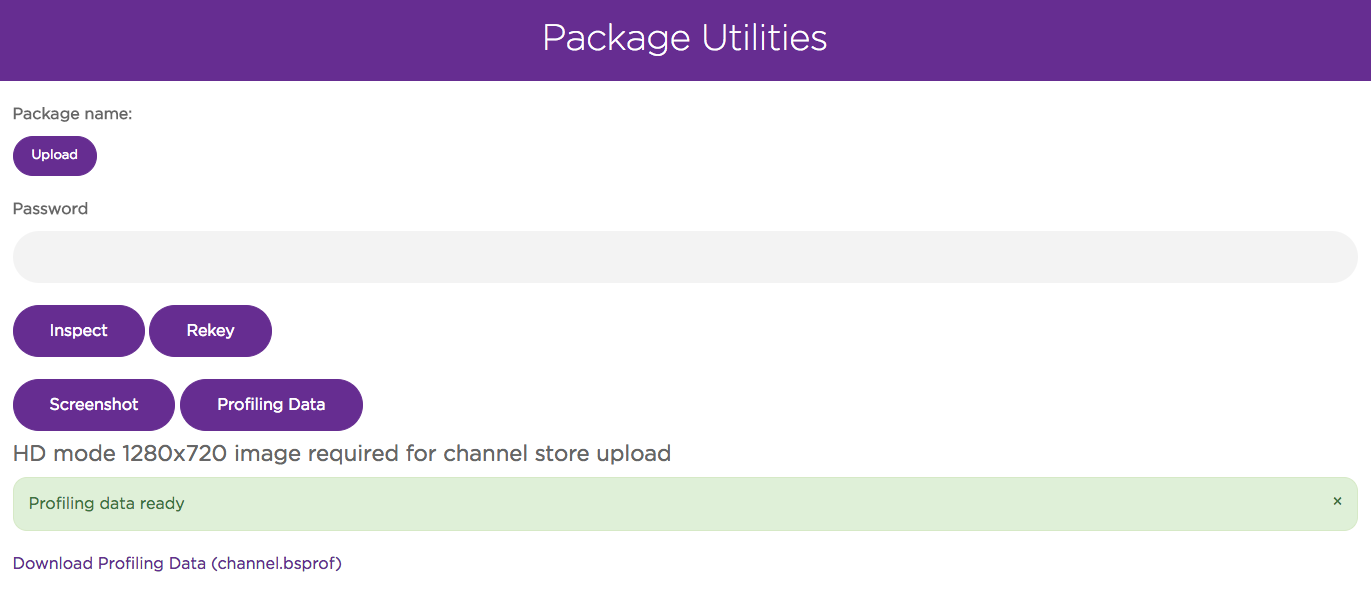
The
.bsprofformat is unique to Roku to ensure the format is as efficient and small as possible and easy to generate even on low end Roku devices.
Data Destination: Network
In order to stream an app's profiling data to a network while the app is running, add bsprof_data_dest=network to the app's manifest. Streaming data over the network is especially useful when profiling an app's memory usage because all memory operations are included in the profiling data, and the amount of space necessary to store the data can be very large. By streaming the data to a network, the data size is limited primarily by the host computer receiving the data, and not by the available memory on the device itself. Even while streaming the profiling data to the network, there are still additional demands placed on the device's resources while profiling as compared to running an app without profiling. However, the use of resources on the device is significantly reduced.
When this feature is enabled, the start of the app is delayed until a network connection is received by the device, which is the destination for the data. When the app is launched, a message similar to the following appears on the port 8085 developer console:
08-31 23:15:29.542 [scrpt.prof.connect.wait] Waiting for connection to http://192.168.1.1:8090/bsprof/channel.bsprof
The URL is used with wget, curl, or a web browser. Once a connection is received from one of those programs, the following message appears on the developer console:
08-31 23:15:38.939 [scrpt.prof.connect.ok] profiler connected
When the app exits, the following message appears on the developer console:
08-31 23:16:04.774 [scrpt.prof.save.ok] Profiling data complete, sent via network
Once that message is seen, the profiling connection is closed by the device and the remote file is populated with profiling data.
Disconnecting from the network during a profiling session may cause device instability.
Viewing profiling data
After downloading the .bsprof file, the data can be viewed using
the BrightScript Profiler Visualization
Tool.
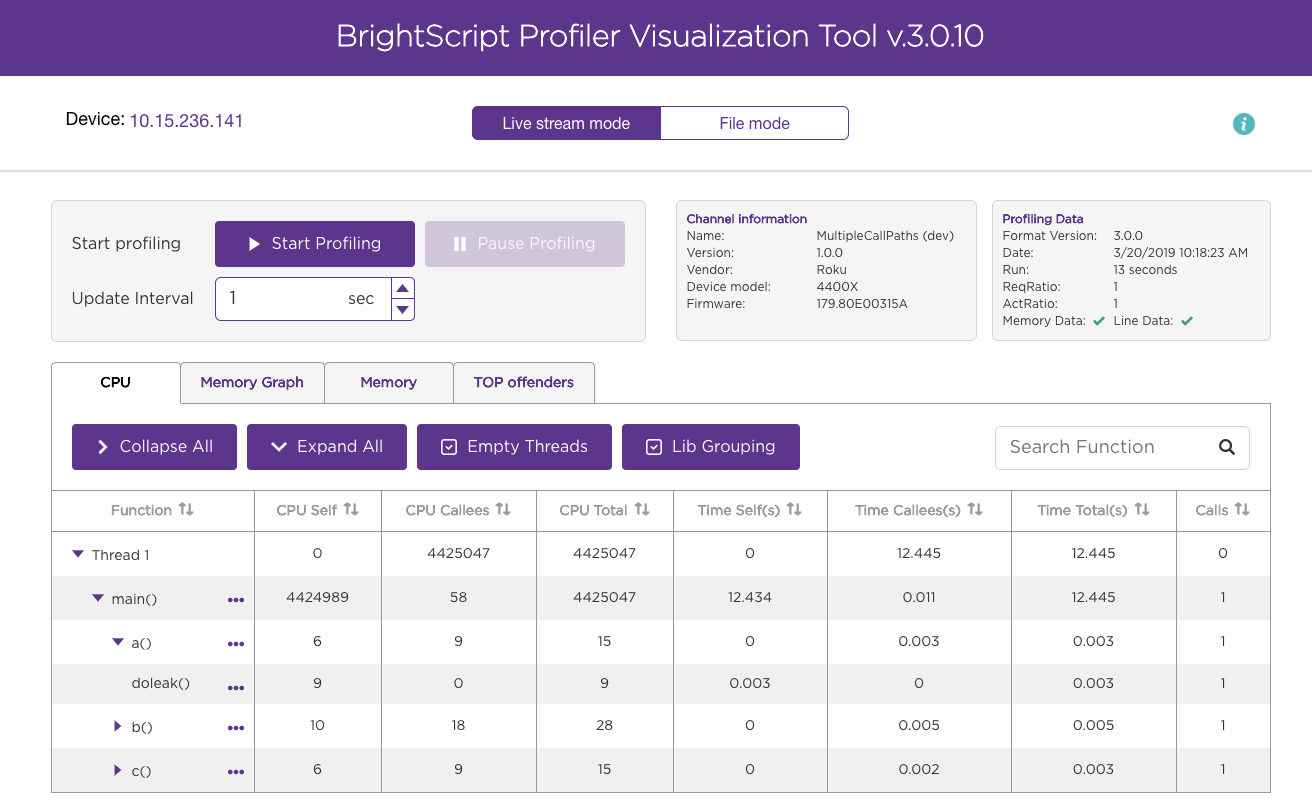
The tool lists the function calls in each thread. For SceneGraph
applications, each thread corresponds to either the main BrightScript
thread or a single instance of a <component>. For example, if you have
a Task node that is instantiated multiple times, each instance will
appear as a separate thread. The results are the same for
any custom <component> in the app that is instantiated multiple
times. The main BrightScript thread (Thread main) is also represented
as a single thread even though it has no <component>.
For each function listed in the tool, you can expand it to drill down
further into its call path and get more detailed data on the function.
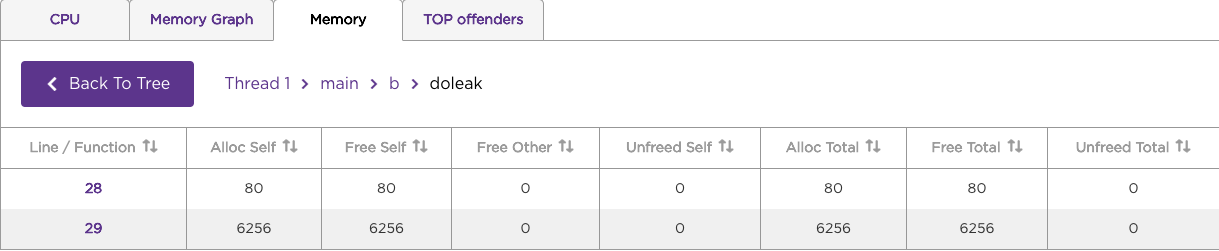
If you enabled line-level profiling for the app, you can also click
on the ellipses to the right of a function to view profiling data for
the individual lines of code within a function.
CPU
The CPU tab lists CPU time, wall-clock time, and call count
statistics for each function observed and for the function's associated
call path (expand a function to view its call path). CPU time refers to
the number of operations each function takes to complete; this number
should be equal on the low end and high-end Roku devices. Wall-clock
time refers to the real world time that a function takes to complete.
This value can vary across different Roku devices. For example, a
function may take an equal number of operations to complete across
different Roku devices but low-end Roku devices can take more real-world
time to complete one operation than a high-end Roku device.
The CPU and wall-clock time columns are further divided into separate
sections for self, callees, and total:
- self. The CPU/wall-clock time the function consumes itself.
- callees. The amount of CPU/wall-clock time consumed by any
functions called by the original function. - total. The amount of CPU/wall-clock time consumed by the
original function (self) and any callee functions.
Memory Graph
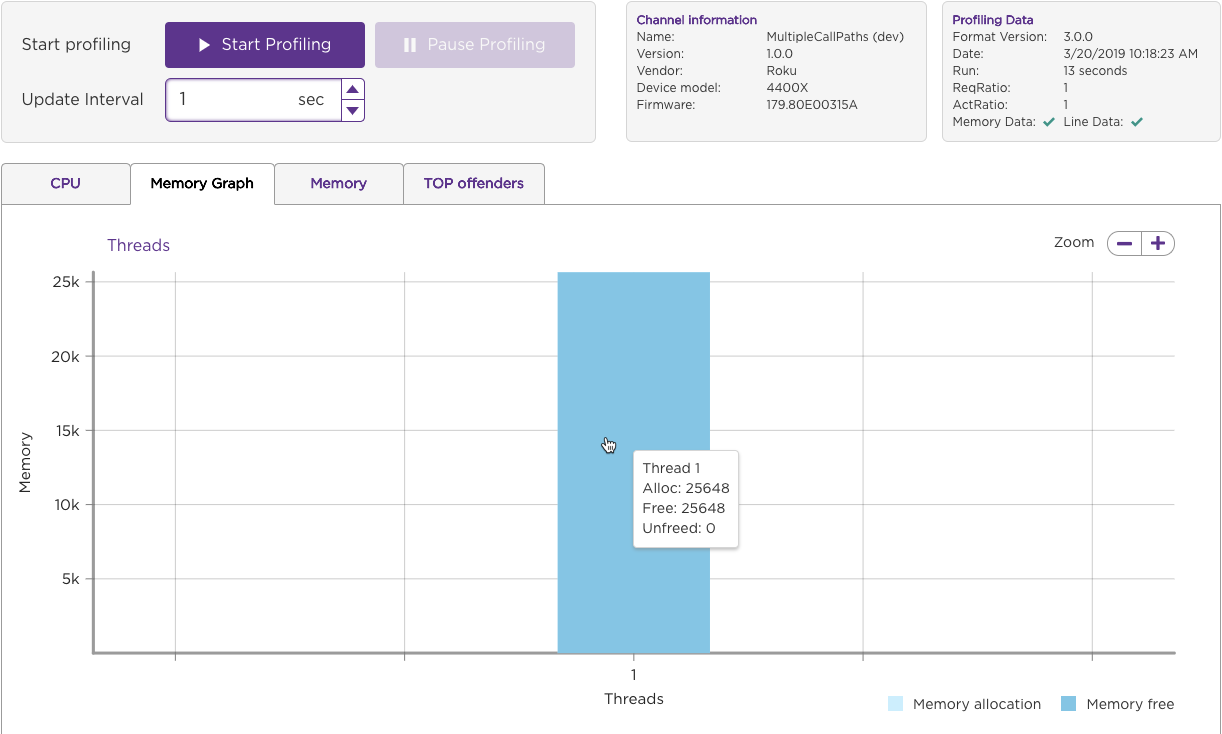
The Memory Graph tab visualizes the memory consumption for each
thread in the app. Move the mouse pointer over a column
to view the allocated, free, and unfreed memory for the thread.
Memory
The Memory tab lists allocated, freed, and unfreed memory statistics
for each function observed (self) and for the function's associated
call path (total).See Profiling Values for more information on
the memory statistics displayed in this
tab.
Line-Level profiling
You can collect profile data for each line of BrightScript source code
to better pinpoint high CPU and memory usage. To do this, enable
profiling (bsprof_enable=1), line-level profiling
(bsprof_enable_lines=1), and RSG version 1.2 (rsg_version=1.2) in
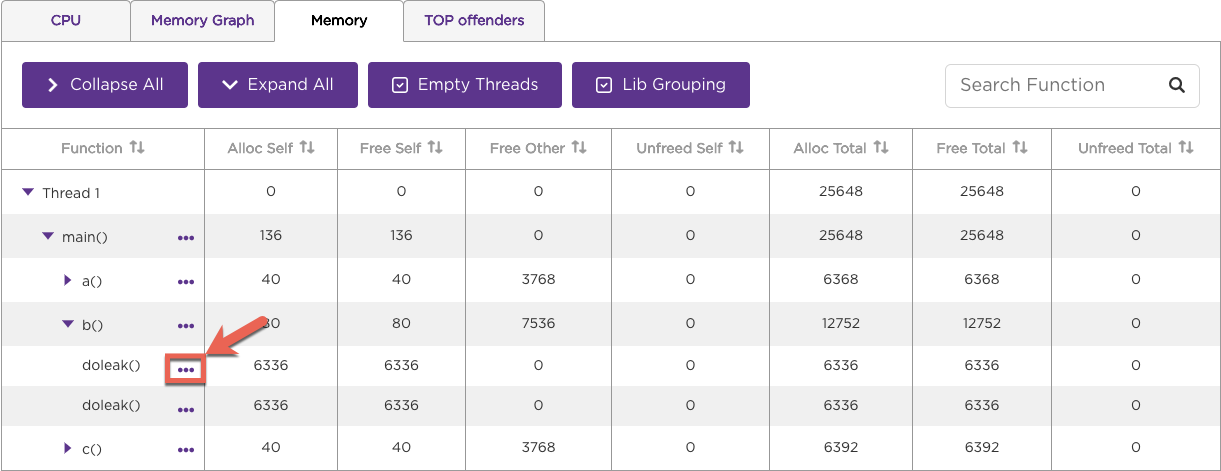
the manifest. In the CPU or Memory tab, click on the
ellipses to the right of the function to drill down into its individual
lines of code.
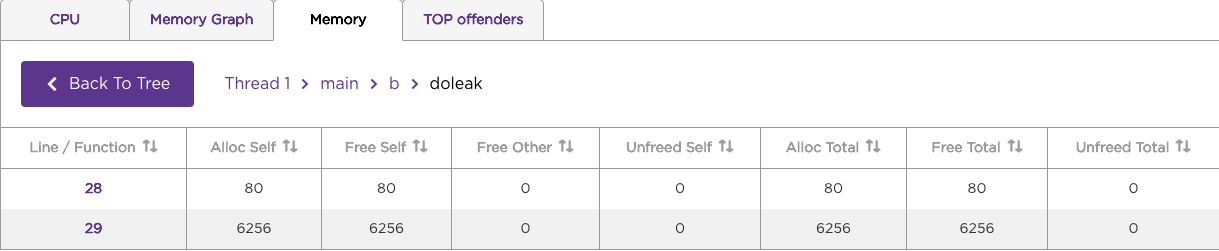
The BrightScript Profiler lists the CPU or memory usage at the time the
individual lines of code in the function were
executed.
See Profiling Values for
more information on the CPU and memory statistics displayed in the
tool.
Profiling Values
The following table describes the profile statistics displayed in the
BrightScript profiler tool. The descriptions are applicable for the
functions as a whole or for individuals lines of code in the functions
(if using line-level profiling).
Values from memory profiling
| Calls | Number of times a function was called |
|---|---|
| Cpu.self | CPU* used in a function, itself |
| Cpu.callees | CPU* used in functions called by a function |
| Cpu.total | Cpu.self + cpu.callees |
| Mem.self | Memory allocated within a function itself, but not freed (leaks) |
| Mem.callees | Memory allocated by functions called by a function, but not freed (leaks) |
| Mem.total | Mem.self + mem.callees |
| Tm.self | Real (wall-clock) time spent on a function, itself |
| Tm.callees | Real (wall-clock) time spent on functions called by a function |
| Tm.total | Tm.self + tm.callees |
| Avg.cpu_self, Avg.cpu_callees, Avg.cpu_total, Avg.mem_self, Avg.mem_total, Avg.tm_self, Avg.tm_callees, Avg.tm_total, | Average of the metric, over the number of calls (e.g., if cpu.self=100 and calls=2, avg_cpu_self will be 50) |
A “memory leak” is simply any memory that is allocated, but not freed while the profiler was running. If memory is freed while profiling is paused, the free memory is not tracked and the memory may show up as “leaked.”
Time is measured as if a stopwatch were used to time the action. For example, if a function makes a network call, there may be very little CPU time used, but a significant amount of time waiting for the network response.
If any of these metrics appear in a call path, they are specific to that call path. For example, in this call path:
<root>: cpu.self=0,cpu.callees=14700,tm.self=0.000,tm.callees=1.989,mem.self=0,mem.callees=324452,calls=0

+- func1(): pkg:/components/file1.brs:83,cpu.self=200,cpu.callees=14500,tm.self=0.728,tm.callees=1.261,mem.self=5840,mem.callees=318612,calls=1

|  +- func2(): pkg:/components/file2.brs:22,cpu.self=14500,cpu.callees=0,tm.self=1.261,tm.callees=0.000,mem.self=31800,mem.callees=612,calls=1
The metrics for func2() are specific to when it is called from func1().
However, in the table below:
------------- BEGIN: TOP CONSUMERS: CPU.SELF -----------------

  1: func1(): pkg:/components/file1.brs:83,cpu.self=300,cpu.total=450,tm.self=0.001,tm.total=0.001,mem.self=0,mem.total=0,calls=5

  2: func2(): pkg:/components/file2.brs:22,cpu.self=55430,cpu.total=80500,tm.self=0.126,tm.total=0.126,mem.self=0,mem.total=0,calls=3

-------------- END: TOP CONSUMERS: CPU.SELF -----------------
The metrics displayed are the totals for all calls to each function, on any call path.
Top Offender
The Top Offenders tab displays the functions or function call paths
that used the greatest amount of CPU, memory, or time. This tab is
typically the best place to start diagnosing potential performance
issues. The top 10 functions with the most unfreed memory are listed by
default. You can change the report to a top 20, 100, 500 list or enter a
custom depth, and you can select which metric to view. For example, the
top 5 methods with the highest total CPU time are displayed in the
following image:
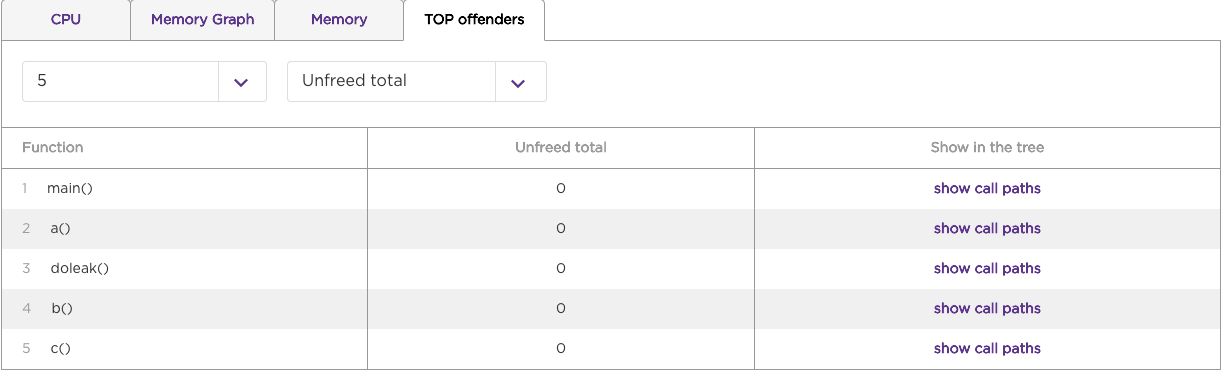
Click Show call paths to open the CPU or Memory tab with more detailed profiling data for the selected function and metric.
Using this data
Here are a few key points on how to use this data to improve app performance:
Updated 7 days ago