
MarkupGrid
Grid node that renders each item using a custom XML component
Extends ArrayGrid
The MarkupGrid node class is a is a generic grid class that can be used to display a set of items arranged into a 2D grid. The contents of each grid item is an instance of an XML component specified by the itemComponentName field. An instance of the XML component is used to display the data for each item in the grid data model. The appearance of the grid item as it enters/exits the grid focus position can be customized using scripting. SimpleMarkupList is a sample app containing a MarkupGrid where each item is an instance of an XML component. See the section MarkupGrid XML component for details.
The number of columns in the MarkupGrid node is fixed and the number of rows varies as needed to display all of the items in the grid data model. The items in the grid fill each row from left to right, then top to bottom. For example, if the grid data contains 8 items and the number of columns is set to 3, then items 1, 2 and 3 will be in the first row. Items 4, 5 and 6 will be in the second row. The third row will contain items 7 and 8 in the leftmost two columns and blank space in the right column.
The layout of rows and columns in the grid is very flexible. Possible layouts include:
- a simple layout with all items in the grid having the same size
- a layout with the items in some rows having varying heights and/or the items in some columns having varying widths
- a layout with varying width rows and columns and items that occupy one or more rows and columns
The grid items can be organized into sections that are demarcated by labelled horizontal divider lines between the sections.
Example
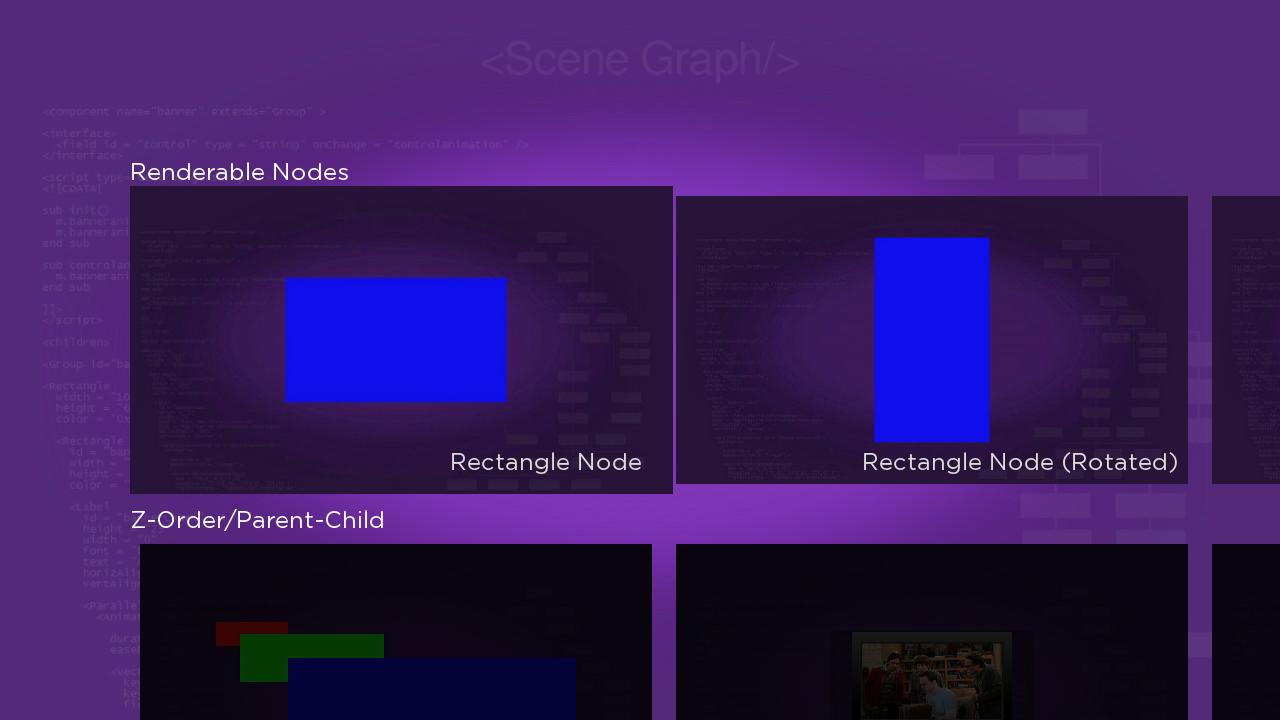
The following is an example using MarkupGrid.
Grid Layouts
The MarkupGrid class supports very flexible layouts. The philosophy is that simple layouts are easy to produce and complicated layouts are possible.
There are three general categories of layouts:
-
Simple layouts with all grid items and spacings between items equal.
To specify a simple layout, set theitemSizefield value to the width and height of each of the items in the grid, and set theitemSpacingfield value to the desired spacing between items. For example, if theitemSizefield value is [300,100],anditemSpacingfield value is [4,8], then the grid items will be 300 pixels wide and 100 pixels high. There will be four pixels between the columns of the grid, and eight pixels between rows of the grid. -
All the items are aligned in rows and columns, but the rows and columns (or the spacing between them) varies.
To specify this type of layout, set thecolumnWidths,columnSpacings,rowHeightsandrowSpacingsfield values. Each of these fields takes an array of values, specifying the values for each row width, column height or spacing between rows and columns. If there are more rows or columns in the grid than specified in the arrays for these fields, the corresponding simple layout field values are used for the missing values (such as the x-dimension value of theitemSizefield for a missingcolumnWidthfield value).
For example, suppose a grid is designed with four columns, where each item was 80 pixels wide, and had four pixels of space between them. The grid data includes ten rows, where the first four rows have items that are 120 pixels tall, and the remaining six rows have items that are 80 pixels high. All the rows should have six pixels of space between them. To specify this layout, you would set the field values like this:
| Field | Value |
|---|---|
| itemSize | [ 80, 80 ] |
| itemSpacings | [ 4, 6 ] |
| rowHeights | [ 120, 120, 120, 120, 80, 80, 80, 80, 80, 80 ] |
Since the final six values in the rowHeights field value array equal the y-dimension itemSize field value, you could omit them, so in this case setting the rowHeights field value to [120,120,120,120] would have the same result.
- There are clear alignments in the row/column layout, but some items can span more than one row or column (plus the space in between).
To specify this type of layout, set the field values as in the first two types of grid layouts to define the sizes of the rows/columns. If any of the grid items occupy more than one row or column, then the metadata for each grid item must contain extra metadata specifying the starting row, starting column, numbers of rows and number of columns that the item occupies. In addition, thefixedLayoutfield value must be set totrue.
For example, if a grid item is supposed to span columns 2 and 3, and rows 3 through 6, then in addition to the metadata for the item contents, the metadata for that item would include (X = 2, Y = 3, W = 2, H = 4). W is set to 2 because the item is 2 columns wide. Similarly H is set to 4 because the item is 4 rows tall.
The total pixel width of the item would be the (width of column 2) + (spacing between columns 2 and 3) + (width of column 3). Similarly, the height of the item would be the sum of the heights of columns 3, 4, 5 and 6, plus the spacings between columns 3 and 4, 4 and 5, and 5 and 6.
The X and Y indices start from 0 (that is, the first column is X = 0).
Fields
| Field | Type | Default | Access Permission | Description |
|---|---|---|---|---|
| itemComponentName | string | READ_WRITE | Specifies the name of a XML component for the grid items. An instance of this component is created on demand for each visible item of the grid. The XML component must define a specific interface as detailed in MarkupGrid XML component below. | |
| content | ContentNode | none | READ_WRITE | Specifies the content for the list. See Data bindings below for more details. If the data contains section markers, section dividers will be drawn between each section. These section dividers may contain an icon and/or a string. |
| itemSize | vector2d | [0,0] | READ_WRITE | Specifies the width and height of the default size for the grid items. |
| numColumns | integer | 0 | READ_WRITE | Specifies the number of columns in the grid |
| numRows | integer | 12 | READ_WRITE | Specifies the number of visible rows displayed. The actual number of rows may be more or less than the number of visible rows specified depending on the number of items in the list content. |
| rowHeights | array of floats | [ ] | READ_WRITE | When specified, the rowHeights field specifies the heights of the poster for each row of the grid. This allows the height of each row of the grid to vary from row to row. The rowHeights values override the height specified in element 1 of the basePosterSize field. If the rowHeights array contains fewer elements than the number of rows needed to display all the items in the grid, element 1 of the basePosterSize field is used as the height of the excess rows. |
| columnWidths | array of floats | [ ] | READ_WRITE | When specified, the columnWidths field specifies the widths of the poster for each column of the grid. This allows the width of each column of the grid to vary from column to column. The columnWidths values override the width specified in element 0 of the basePosterSize field. If the columnWidths array contains fewer elements than the number of columns specified by the numColumns field, element 0 of the basePosterSize field is used as the width of the excess columns. |
| rowSpacings | array of floats | [ ] | READ_WRITE | When specified, the rowSpacings field specifies the spacing after each row of the grid. This allows the spacing between rows to vary from row to row. The rowSpacings values override the vertical spacing specified in element 1 of the itemSpacing field. If the rowSpacings array contains fewer elements than the number of rows needed to display all the items in the grid, element 1 of the itemSpacing field is used as the spacing after the excess rows. |
| columnSpacings | array of floats | [ ] | READ_WRITE | When specified, the columnSpacings field specifies the spacing after each column of the grid. This allows the spacing between columns to vary from column to column. The columnSpacings values override the horizontal spacing specified in element 0 of the itemSpacing field. If the columnSpacings array contains fewer elements than the number of columns specified by the numColumns field, element 0 of the itemSpacing field is used as the spacing after the excess columns. |
| fixedLayout | Boolean | false | READ_WRITE | When fixedLayout is false, the MarkupGrid assigns each item in the data model to sequential cells in the grid (or the section if the data model includes section information). When fixedLayout is true, the data models using the X, Y, W and H attributes to specify which cells of the grid each item should occupy, where X is the column number, Y is the row number, W is the number of columns the item occupies and H is the number of rows the item occupies. Fixed layout should only be set to true for cases where one or more items in the grid should span multiple rows or columns. |
| imageWellBitmapUri | uri | READ_WRITE | Specifies the bitmap file to use to suggest where images would appear for empty grids and empty sections of grids. Only set this field to specify a custom bitmap that differs in appearance from the default bitmap. | |
| drawFocusFeedback | Boolean | true | READ_WRITE | Specifies whether or not the focus indicator bitmap is displayed |
| drawFocusFeedbackOnTop | Boolean | false | READ_WRITE | Specifies whether the focus indicator bitmap is drawn below or on top of the list items |
| focusBitmapUri | uri | READ_WRITE | Specifies the bitmap file used for the focus indicator when the list has focus. In most cases, this should be a 9-patch image that specifies both expandable regions as well as margins. Only set this field to specify a custom bitmap that differs in appearance from the default bitmap. | |
| focusFootprintBitmapUri | uri | READ_WRITE | Specifies the bitmap file used for the focus indicator when the list does not have focus. In most cases, this should be a 9-patch image that specifies both expandable regions as well as margins. Only set this field to specify a custom bitmap that differs in appearance from the default bitmap. | |
| focusBitmapBlendColor | color | 0xFFFFFFFF | READ_WRITE | Blend the graphic image specified by focusBitmapUri with the specified color. If set to the default, 0xFFFFFFFF, no color blending will occur. Set this field to show a focus indicator graphic image with a different color than the image specified by focusBitmapUri. |
| focusFootprintBlendColor | color | 0xFFFFFFFF | READ_WRITE | Blend the graphic image specified by focusFootprintBitmapUri with the specified color. If set to the default, 0xFFFFFFFF, no color blending will occur. Set this field to show a focus footprint indicator graphic image with a different color than the image specified by focusFootprintBitmapUri. |
| wrapDividerBitmapUri | uri | READ_WRITE | Specifies the bitmap file to use as a wrap divider, the visual separator between the last and first list items when the list wraps. In most cases, this should be a 9-patch image that specifies both expandable regions. Only set this field to specify a custom bitmap that differs in appearance from the default bitmap. | |
| wrapDividerHeight | float | 0.0 | READ_WRITE | Specifies the height of the wrap divider, the visual separator between the last and first list items when the list wraps. The bitmap for the wrap divider is scaled to this height. The width of the wrap divider is set to the width of the list items as specified by the itemSize field width value. |
| sectionDividerBitmapUri | uri | READ_WRITE | If the ContentNode specifies sections for a list or grid, specifies a custom bitmap to use as a visual divider between the sections of the list or grid. Only set this field to use a bitmap with a different appearance than the system default. For sections that do not include an icon or a title, the system default or custom bitmap specified as the wrapDividerBitmapUri field value is used for the section dividers. In most cases, you will want to use a 9-patch PNG bitmap with both expandable regions, which is the type of bitmap used as the system default. | |
| sectionDividerFont | font | system default | READ_WRITE | Specifies the font for section divider labels |
| sectionDividerTextColor | color | 0xddddddff | READ_WRITE | Specifies the text color for section divider labels |
| sectionDividerSpacing | float | 10 | READ_WRITE | Specifies the spacing between the items appearing in the section divider (e.g. the spacing between the section divider icon, the section divider label, and the section divider bitmap). Note the section divider does not always include an icon and/or a title. |
| sectionDividerHeight | float | 40 | READ_WRITE | Specifies the height of the section dividers. The width of the section dividers is determined by the width of the list items as specified by the itemSize field width value. |
| sectionDividerMinWidth | float | 117 | READ_WRITE | Specifies the minimum width of the section divider bitmap. The section divider label will be ellipsized if necessary in order to ensure that the section divider bitmap meets the minimum width. |
| sectionDividerLeftOffset | float | 0 | READ_WRITE | Number of pixels to offset the left edge of the section divider relative to the left edge of the list items. |
| itemSelected | integer | 0 | READ_ONLY | When a list item is selected, itemSelected is set to the index of the selected item. |
| itemFocused | integer | 0 | READ_ONLY | When a list item gains the key focus, set to the index of the focused item. |
| itemUnfocused | integer | 0 | READ_ONLY | When a list item loses the key focus, set to the index of the unfocused item. |
| jumpToItem | integer | 0 | WRITE_ONLY | When set to a valid item index, this causes the list to immediately update so that the specified index moves into the focus position. |
| animateToItem | integer | 0 | WRITE_ONLY | When set to a valid item index, this causes the list to quickly scroll so that the specified index moves into the focus position. |
MarkupGrid XML component
The MarkupGrid node itemComponentName field value should be set to the name of an XML component used to display each item in the grid. An instance of this component is created for each visible item in the grid.
If the XML component contains interface fields that match the names shown in the table below, those fields will be updated by the MarkupGrid node. This allows the XML component to alter the item appearance based on changes to these interface fields.
Note that the fields are updated in the order presented in the table below. Any layout scripting you write based on these fields should be done in that order to avoid updating your layout based on a field that has not been updated yet.
| Field Name | Field Type | Description |
|---|---|---|
| width | float | Read-Only Set to the width of the grid item. |
| height | float | Read-Only Set to the height of the grid item |
| index | integer | Read-Only Set to the index of this item in the data model. |
| gridHasFocus | Boolean | Read-Only Set to true if the MarkupGrid node has focus, false otherwise. |
| itemContent | ContentNode | Contains the data to be displayed by the grid item. The relationship between data in the ContentNode and the visual elements of the grid item is determined by the scripts in the item XML component. Typically, an observer callback function of the itemContent field is used to update the grid item when the content changes. |
| focusPercent | float | Read-Only The fractional value, from 0.0 to 1.0, of a time delay after focus has moved from one item to the next. The fractional value increases incrementally from 0.0 to 1.0 for the newly-focused item, while simultaneously decreasing from 1.0 to 0.0 for the previously-focused item. This value can be used as a timing key to smoothly animate the appearance of the focused item as well as the previously-focused item, to indicate the movement of focus to the user. |
| itemHasFocus | Boolean | Read-Only Indicates whether the item component currently is the MarkupGrid's focused item. When scrolling starts, the itemHasFocus field for the currently focused item is set to false. When scrolling ends, the itemHasFocus field for the newly focused item is set to true. During the scrolling animation, all itemHasFocus fields are set to false. Only one item component of any MarkupGrid should have itemHasFocus set to true. If the MarkupGrid does not focus, all itemHasFocus fields of their item components should be set to false. |
Example MarkupGrid XML component
The following shows an example MarkupGrid node XML component. The XML markup defines a component named SimpleGridItem that creates a poster for each grid item. The poster has either a price or an icon overlaid on top of it, depending on the value of the GOTITEMCONTENT attribute of the item ContentNode. If GOTITEMCONTENT is true, that indicates that the item has already been purchased, and an icon is drawn on top of the lower/right corner of the poster. If GOTITEMCONTENT is false, that indicates that the item has not already been purchased. In that case, a semitransparent rectangle is drawn over the bottom part of the poster, and inside that rectangle, a label is drawn containing the price of the item.
To use this component, set the value of the itemComponentName field of a MarkupGrid node to SimpleGridItem.
Note that the index and focusPercent interface fields are not used by the component, so they are not included in the component interface.
MarkupGrid XML component example
<?xml version="1.0" encoding="utf-8" ?>
<component name="SimpleGridItem" extends="Group">
  <interface>
    <field id="width" type="float" onChange="widthChanged" />
    <field id="height" type="float" onChange="heightChanged" />
    <field id="itemContent" type="node" onChange="itemContentChanged" />
  </interface>

  <script type="text/brightscript">
    <![CDATA[
      function itemContentChanged()
        m.gridPoster.uri = m.top.itemContent.HDPOSTERURL
        if m.top.itemContent.GOTITEMCONTENT
          m.priceBox.visible = false
          m.priceLabel.visible = false
          m.ownedIcon.visible = true
        else
          m.priceLabel.text = m.top.itemContent.PRICE
          m.priceBox.visible = true
          m.priceLabel.visible = true
          m.ownedIcon.visible = false
        end if
        updateLayout()
      end function

      function widthChanged()
        updateLayout()
      end function

      function heightChanged()
        updateLayout()
      end function

      function updateLayout()
        if m.top.height > 0 and m.top.width > 0
          posterSize = m.top.height
          m.gridPoster.width = m.top.width
          m.gridPoster.height = m.top.height
          ' position the ownedIcon in the bottom/right corner
          m.ownedIcon.translation = [ m.top.width - m.ownedIcon.bitmapWidth, m.top.height - m.ownedIcon.bitmapHeight ]
          m.priceBox.width = m.top.width
          m.priceBox.height = m.ownedIcon.bitmapHeight
          m.priceBox.translation = [ 0, m.top.height - m.priceBox.height ]
          m.priceLabel.width = m.top.width
          m.priceLabel.height = m.priceBox.height
          m.priceLabel.vertAlign = "center"
          m.priceLabel.horizAlign = "center"
          m.priceLabel.translation = m.priceBox.translation
        end if
      end function

      function init()
        m.gridPoster = m.top.findNode("gridPoster")
        m.priceBox = m.top.findNode("priceBox")
        m.priceLabel = m.top.findNode("priceLabel")
        m.ownedIcon = m.top.findNode("ownedIcon")
        m.ownedIcon.loadSync = true
        m.ownedIcon.uri = "pkg:/images/greenCheck.png"
      end function
    ]]>
  </script>

  <children>
    <Poster id="gridPoster" renderPass="1" />
    <Rectangle id="priceBox" color="0x00000080" renderPass="2" />
    <Label id="priceLabel" renderPass="3" />
    <Poster id="ownedIcon" renderPass="4" />
  </children>
</component>
Data bindings
A MarkupGrid node should have a single ContentNode as the root node in its content field. The structure of the rest of the data model depends on whether or not the grid items are to be grouped into sections.
List items not grouped into sections
If the grid items are not to be grouped into sections, one child ContentNode should be added to the root node for each item in the grid (these child nodes can be thought of as item nodes). Item nodes should contain the data required by the MarkupGrid node XML component.
List items grouped into sections
If the grid items are to be grouped into sections, one child ContentNode should be added to the root node for each section in the grid (these child nodes can be thought of as section roots). Each section root should contain one child ContentNode for each item in the section (that is, item nodes). The item nodes should contain the data required by the MarkupGrid node XML component.
The section root ContentNodes use the following attributes:
| Attribute | Type | Description |
|---|---|---|
CONTENTTYPE | string | Must be set to SECTION |
TITLE | string | Label for the section divider |
HDGRIDPOSTERURL | uri | The image file for the icon to be displayed to the left of the section label when the screen resolution is set to HD. |
SDGRIDPOSTERURL | uri | The image file for the icon to be displayed to the left of the section label when the screen resolution is set to SD. |
X | integer | When the fixedLayout field is set to true, this specifies the first row of the grid occupied by this item, where 0 refers to the first row. Note that there can be more rows in the data than visible rows, where the number of visible rows is specified by the numRows field. For example, if the data model contains enough data to fill 12 rows, X would be set to a value from 0 to 11. |
Y | integer | When the fixedLayout field is set to true, this specifies the first column of the grid occupied by this item, where 0 refers to the first column. Note that the number of columns is always specified by the numColumns field, regardless of how many items are in the data model. For example, if the numColumns field is set to 3, Y would be set to 0, 1 or 2. |
W | integer | When the fixedLayout field is set to true, this specifies how many columns the grid item occupies. If not specified, the default value of 1 is used. For example, if the numColumns field were set to 3 and a grid item is to occupy the rightmost two columns, X would be set to 1 and W would be set to 2. |
H | integer | When the fixedLayout field is set to true, this specifies how many rows the grid item occupies. If not specified, the default value of 1 is used. For example, if a grid item is to occupy the third, fourth and fifth rows, Y would be set to 2 and W would be set to 3. |
Sample app
MarkupGridExample is a sample app demonstrating MarkupGrid in action.
Updated 5 months ago