
Storefront
Overview
Storefront allows you to manage the featured row on your channel storefront directly within the Roku Content Partner Portal.
Available only to eligible Premium Subscription partners.
By default, the featured row is populated by Roku’s recommendation system to deliver personalized content to viewers. With Storefront, you can pin titles to specific positions for a defined period of time, ensuring key content is prominently displayed.
Pinned titles appear alongside Roku recommendations, giving you a balance of control and automated optimization to keep your storefront engaging and relevant.
Tip: The featured row works best when used sparingly. Pin a small number of high-impact titles for short durations to maximize visibility and engagement.
AvailabilityThe Roku Content Partner Portal is currently in a limited alpha or beta phase and is available by invitation only. Access is being rolled out in stages to ensure a high-quality experience while incorporating your feedback into ongoing development.
If you’re interested in participating, reach out to your Roku partner manager to express interest in joining the program. Eligible participants will be onboarded as capacity allows.
Who this is for
Storefront is available to eligible content partners who manage Premium Subscription storefronts on The Roku Channel.
This feature is designed for teams responsible for marketing, merchandising, and audience growth, enabling them to control how titles are promoted within their Premium Subscription pages.
If your organization has a Premium Subscription storefront but does not yet have access to this feature, reach out to your Partner Support team to express interest.
Getting access
To use this feature, get the appropriate role assigned to your account.
- Request marketing manager access from your company’s account administrator.
- Ask your administrator to grant access based on your responsibilities, such as storefront and creative management.
- Contact your internal team if you are not sure who your administrator is.
Key concepts
Featured row
The top row on your channel storefront. This row is fixed in position and highlights promoted content.
Pinned titles
Titles you assign to specific positions in the Featured row. These override recommendation-driven placements.
Scheduled pins
Titles configured to appear during a defined start and end time.
Recommendation-filled positions
Any positions not pinned are automatically filled by Roku’s recommendation system to ensure a complete row.
Eligible titles
Only titles that are production-ready, have valid availability dates, and include required metadata and artwork can be pinned.
Page layout
The storefront interface is designed to help you quickly view, manage, and update your Featured row.
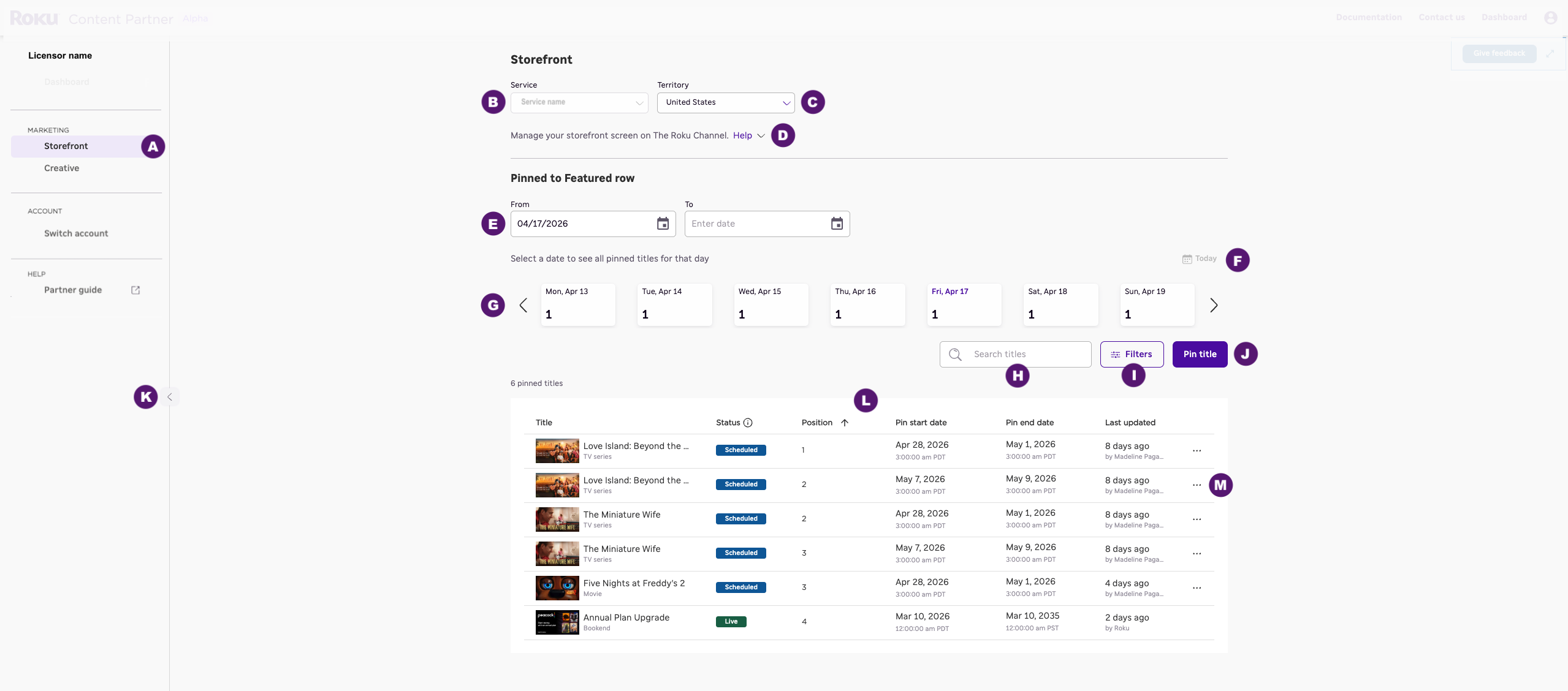
Each labeled element corresponds to the components described in the table below.
| Key | Page component |
|---|---|
| A | Feature navigation: Displays the available features within the portal and allows users to switch between them. Organizes functionality into sections so users can quickly access different areas such as Title Tracking, Storefront, Creatives, and more. |
| B | Service field: Select the Premium Subscription service you want to manage. If you only have access to one service, it is automatically selected. |
| C | Territory field: Choose the territory (channel store) you want to view or edit. Each territory has its own independent Featured row configuration. |
| D | Feature description: Displays a brief description of the feature, explaining its purpose, how it should be used, the actions available, and any guidance to help you get the most value from it. |
| E | Date range filter: Filter the Featured row to view which titles are active or scheduled within a selected date or date range. |
| F | Today: Quickly return to the current date view to see which titles are pinned today. |
| G | Date navigation cards: Browse Featured row configurations across different dates. Each card represents a specific date or time period, showing the titles pinned during that window. |
| H | Pinned titles search field: Enables searching for titles by name. |
| I | Pinned titles filter panel: Provides filtering options to refine the pinned title list based on selected criteria. |
| J | Pin title control: Add a title to the Featured row by selecting its position and, if needed, defining when it should be active. |
| K | Collapse left navigation: Toggles the visibility of the left-hand navigation panel to expand workspace. |
| L | Pinned titles table: Displays detailed information for each pinned title, including status, position, availability dates, actions, and more. |
| M | Pinned title action control: Manage an existing pinned title by editing its position or schedule, or removing it from the Featured row. |
What you can do
Manage the featured row
View and edit all titles currently pinned in your Featured row, including their positions and metadata.
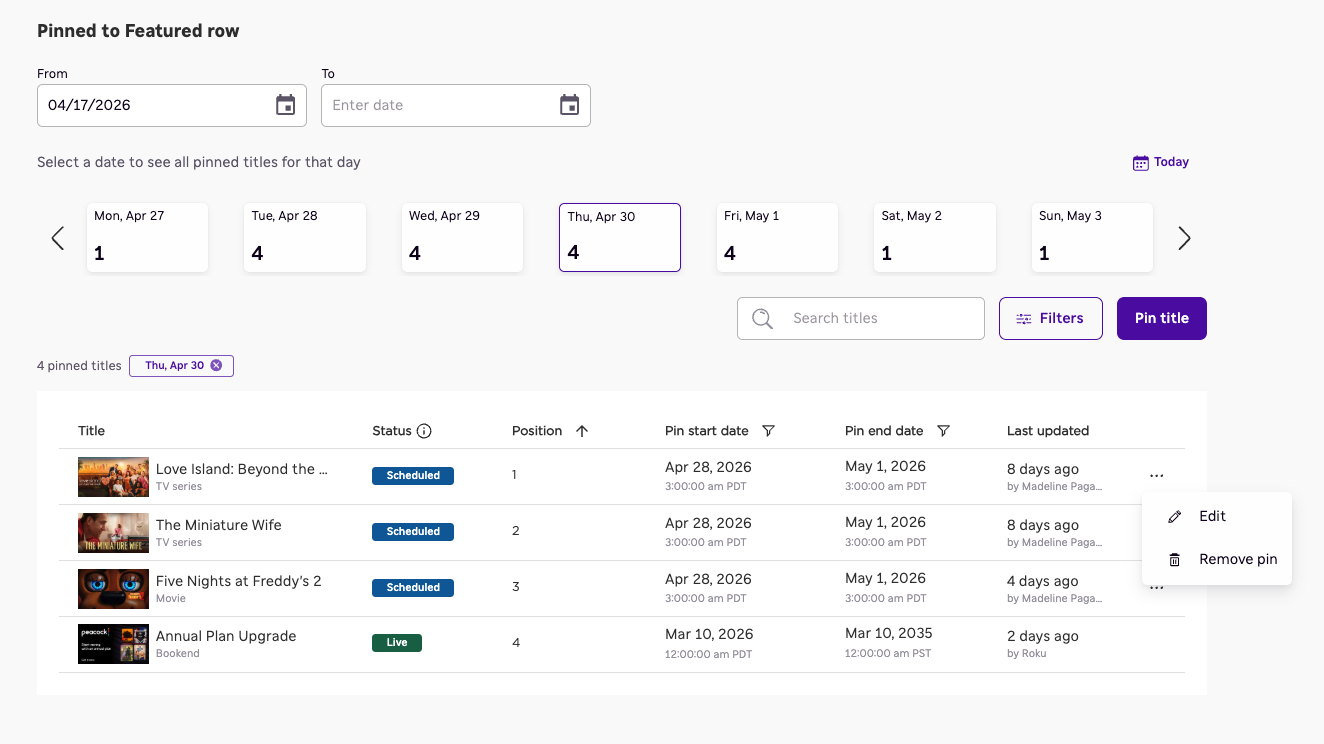
View, edit, or remove existing pinned titles from the row.
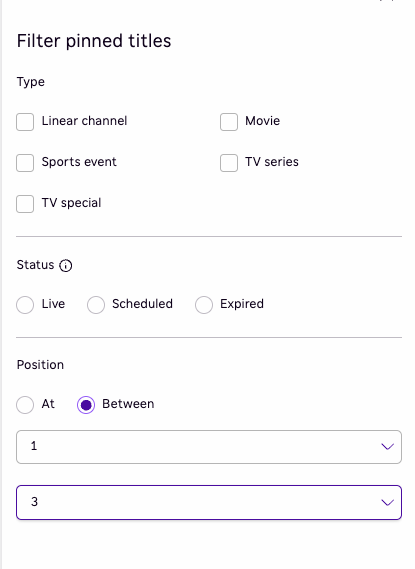
Filter pinned titles
Filter pinned titles by content type, status, and position.
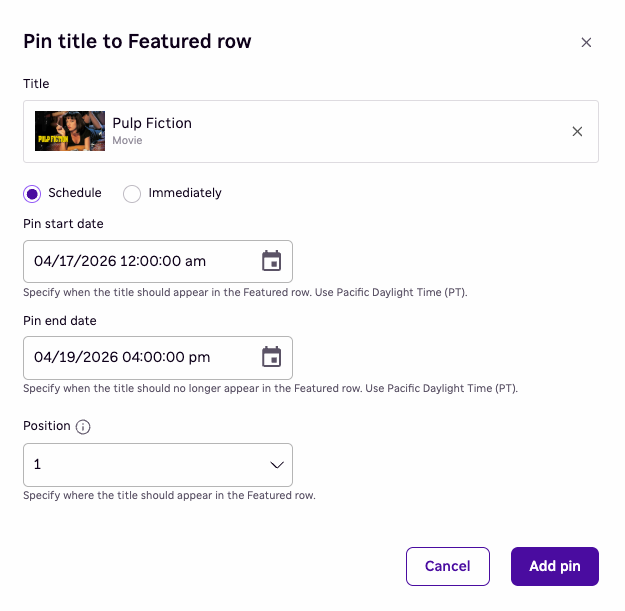
Pin titles to specific positions
Assign titles to fixed positions (for example, position #1 or #5) to control layout and visibility.
Schedule featured titles
Plan ahead by scheduling titles to go live or expire at specific dates and times. You can also view which titles will be active on any future date or date range.
Customize by territory
Configure different featured rows per territory (channel store). Changes made in one territory do not affect others.
Search and select eligible titles
Search for titles that are eligible to be featured, including movies, TV series, TV specials, sports events, and linear channels.
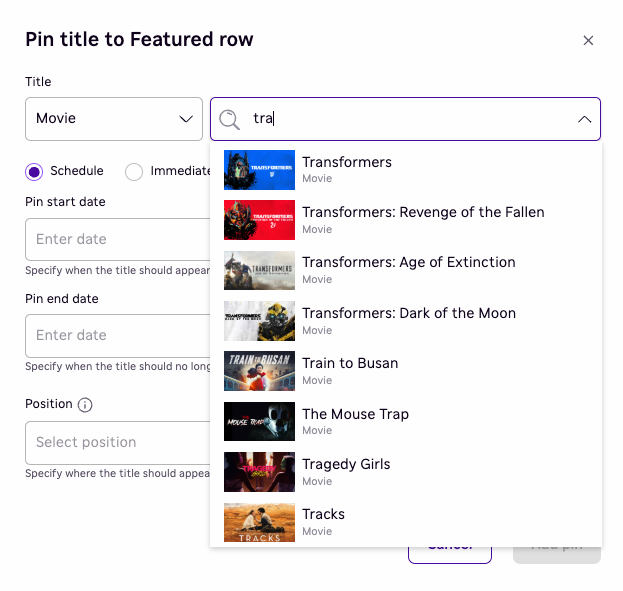
Search for eligible titles by content type and title name.
Recommendation-filled positions
Any positions not pinned are automatically filled by Roku’s recommendation system to ensure a complete and personalized row.
Track changes and ownership
See who created or last modified each pinned title, providing visibility across your team.
How it works
- Select a Premium Subscription service (if applicable)
- If you manage multiple services, choose which storefront you want to manage
- If you only have one service, it is automatically selected
- Select a territory (if applicable)
- Choose the territory you want to manage (for example, US, UK, etc.)
- View current pinned titles in the Featured row
- Search and select eligible titles
- Pin titles to positions or schedule them for future dates
- Preview your changes
- Publish updates (changes take effect immediately)
System rules and limits
To maintain a consistent storefront experience, the following rules apply:
- A Featured row contains up to 40 titles
- Duplicate titles are not allowed
- Only eligible titles can be pinned
- Conflicting pins (same position or overlapping schedules) must be resolved before publishing
- Scheduled pins cannot exceed the 40-title limit at any given time
If these conditions are not met, the system will block publishing until issues are resolved.
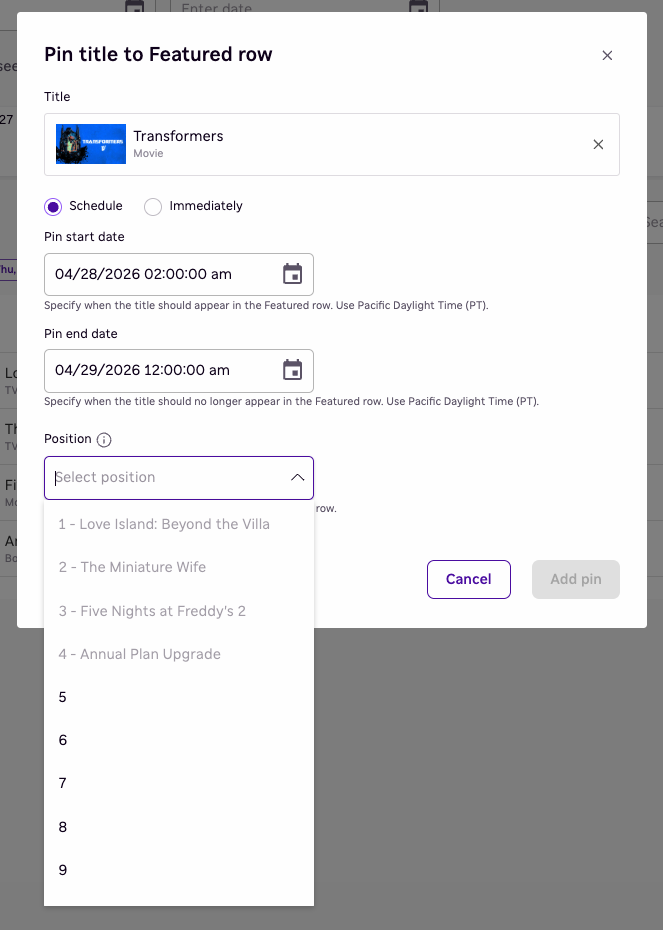
Helps identify and prevent conflicts when multiple titles are pinned to the same position.
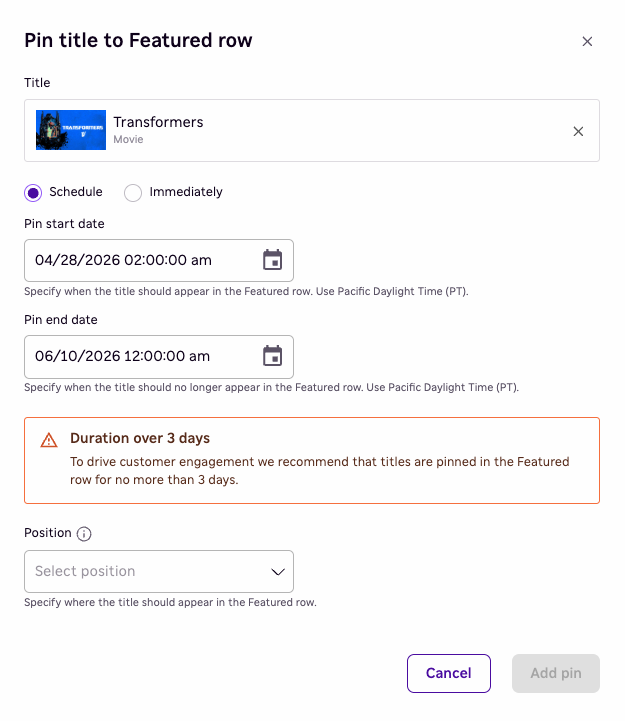
Recommends limiting pin duration to no more than 3 days to maximize consumer engagement.
Best practices
- Focus on a small number of high-impact titles rather than filling the entire row
- Pin no more than 5 titles at a time to maintain effectiveness
- Limit pin duration to no more than 3 days to keep content fresh
- Align pinned titles with key moments such as launches, promotions, or live events
- Use scheduling to plan ahead rather than making last-minute changes
- Preview changes before publishing to avoid conflicts
- Regularly refresh your Featured row to maintain engagement
Updated 4 months ago