
Sales Activity Report
View app revenue from transactions, refunds, and subscription cancellations
The Sales Activity Report displays app revenue, including sales from transactions, refunds, and subscription cancellations (both active and passive), over a given month. This information can be helpful in closing a publisher's accounting books or reconciling payouts received from Roku Accounts Payable.
Opening the Sales Activity Report
To open the Sales Activity Report, go to the Developer Dashboard, click Sales reports in the left sidebar, click the Sales Activity tab, and then select the app for which you want to view the sales.
Running the Sales Activity Report
Whenever the user chooses an app from the drop-down list of apps (see "Transaction Channel ID," below), the report begins running for that app, using default Filters. Click Run to produce another report for the same app, after changing the Filters.
Filters
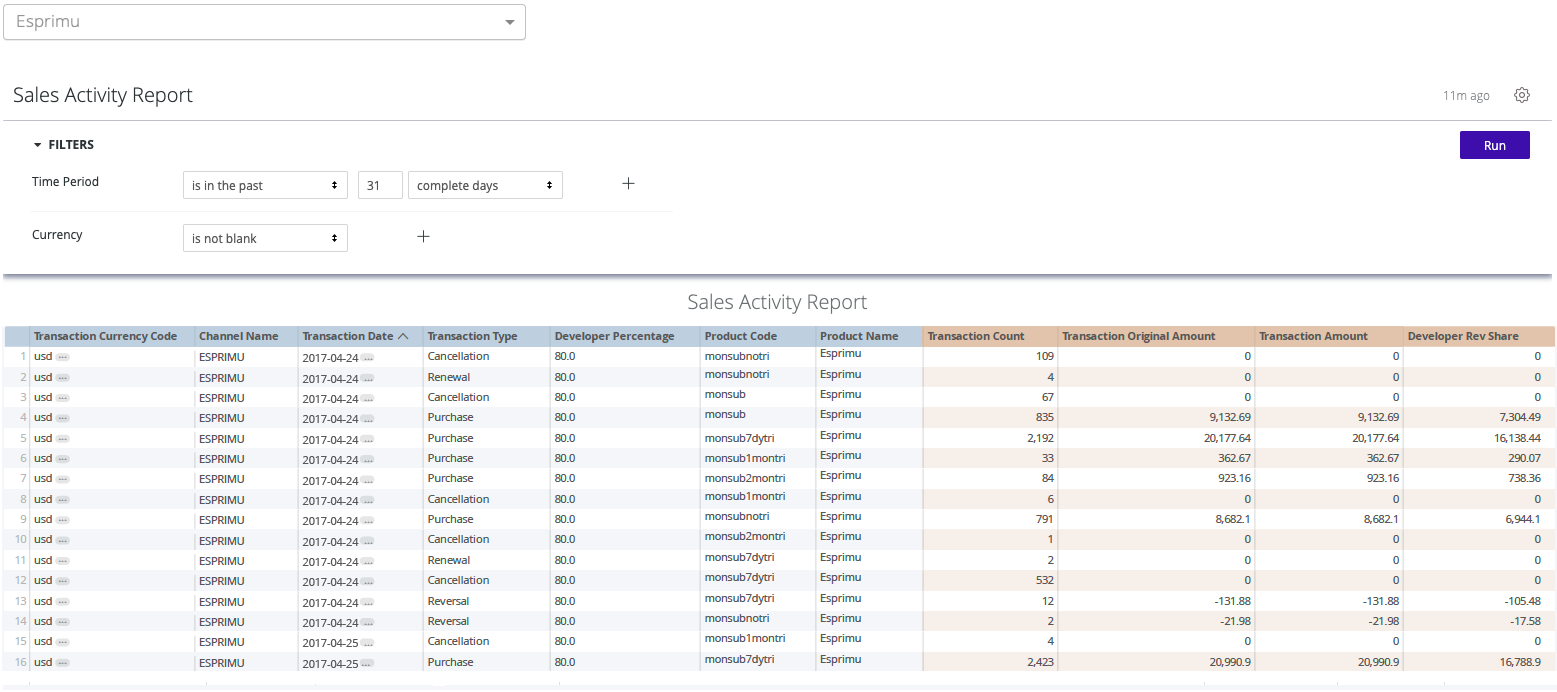
- Transaction Channel ID – Indicates the app, for which earnings are shown in the report. This is chosen by the user, via a drop-down menu at the top of the reporting area, which shows all monetized apps that the user has permissions to access. In the screenshot below, the chosen app is "Esprimu."
- Time Period – Determines the interval for which earnings are reported. This interval may begin at any point in the lifetime of the account, and may cover less than a full month, but should not exceed 31 days (or the length of the month in question, for intervals that begin on the first of a month).
- Currency – Restricts the display to reflect only transactions that are denominated in the specified currencies.
Screenshots
The Sales Activity Report displays only a tabular grid, in which each row represents a summary report of all of the transactions of a given "class" during a given day. Each row includes the following columns:
-
Transaction Currency Code – The currency, in which all of the transactions reflected by this row are denominated (e.g., usd, cad, gbp, eur, etc.).
-
Channel Name – The name of the app that generated this row's transactions.
-
Transaction Date – The date of all transactions represented by this row.
-
Transaction Type – The nature of the transaction, as explained in the table below:
Type Meaning Cancellation Either an end user actively canceled a subscription ("active" cancellation), or Roku is unable to successfully capture the end user's subscription event ("passive" cancellation). Charge A successful purchase transaction (historically used to indicate purchases under Roku as Payment Method: RPM). DowngradeCancel A successful downgrade transaction's cancellation of the outgoing (base) subscription. DowngradeSale A successful downgrade transaction's sale of a new (downgraded) subscription, to replace the outgoing (base) plan. Purchase A successful purchase transaction (historically used to indicate purchases under Roku Standard Billing: RSB). Such transactions include 1) one-time purchases. and 2) initial and recurring subscription charges. Refund A successful refund transaction (historically used to indicate refunds under Roku as Payment Method: RPM). Renewal An end user, who actively cancelled a subscription, successfully signed up again before the previously scheduled expiration of the subscription. Reversal A successful refund transaction (historically used to indicate refunds under Roku Standard Billing: RSB). GraceInitiated Payment for a subscription auto-renewal fails. Customer may still access content while Roku attempts to charge the MOP. GraceRecovered Payment is received for a subscription that was in a grace period. Customer maintains access to content and the billing period remains the same. OnHoldInitiated Payment for a subscription auto-renewal fails after the grace period elapses. Customer should no longer have access to content while Roku continues to attempt to charge the MOP. UpgradeCancel A successful upgrade transaction's cancellation of the outgoing (base) subscription. UpgradeSale A successful upgrade transaction's sale of a new (upgraded) subscription, replacing the outgoing (base) subscription. Chargeback The customer has initiated a transaction dispute.
For apps in the Germany Streaming Store only, a SEPA chargeback may occur when the customer disputes a transaction made through Roku Pay that results in a chargeback or their bank account has insufficient funds.ChargebackReversed Roku successfully reversed the chargeback claim. SecondChargeback The customer's bank has disputed the chargeback reversal on the transaction (this may occur if the customer provided new information, the chargeback reason changed, or the bank determined that the information provided by Roku was not sufficient to refute the chargeback). -
Developer Percentage – The Publisher's portion of earnings reflected by this row, expressed as a percentage.
-
Product Code – The Publisher's unique identifying code for the product reflected by this row.
-
Product Name – The Publisher's name for the product specified in the row's Product Code
-
Transaction Count – The number of transactions reflected by the given transaction row.
-
Transaction Original Amount – For transactions that are billed in full, in advance, but only partially fulfilled during the reporting window, the Original Amount is the full amount of the original transaction. For example, the Transaction Original Amount for a yearly subscription at ten dollars per month would be $120.00. The Transaction amount during any single month would be ten dollars. If the Publisher's revenue share were 80%, then the corresponding Developer Rev Share would be eight dollars.
-
Transaction Amount – The amount of a transaction ascribed to the Publisher during the reporting period (which will be the full amount for a one-time item that is delivered within the reporting period, but will be a monthly pro-rated amount otherwise).
-
Developer Rev Share – The Publisher's (Developer's) share of the Transaction Amount, given in units of the indicated currency.
The "class" of a transaction is determined by a unique combination of Transaction Currency Code, Transaction Type, and Product Code. Some "classes" of transaction may not occur at all during a particular day, but there will ever only be one row per transaction "class" on any day.
$0 amounts: If the amount is $0 and the transaction type is “Purchase”, the transaction is for a free trial or is a test transaction. All cancellation and downgrade transaction types should have a $0 amount.
Availability
The Sales Activity Report is available to all apps that conduct transactions through Roku, regardless of region.
Exporting report data
To export data from the Sales Activity Report, follow the steps below:
-
Set Filters properly and run the report, as described above.
-
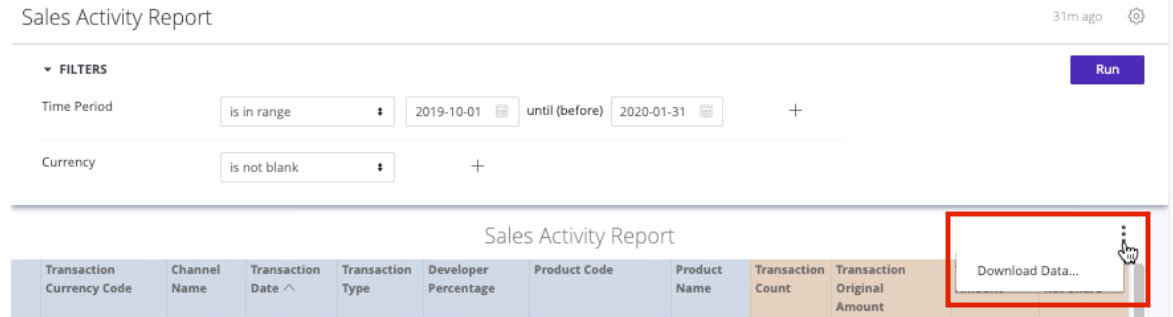
Click the "three-dot" (...) button in the upper-right portion of the generated report's table-heading. Choose Download Data...
-
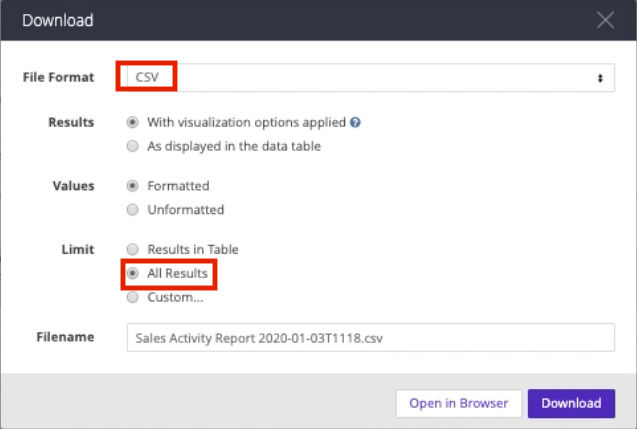
The Download dialog appears. The File Format field provides several output options, some of which include PDF, Excel worksheet (Excel 2007 or later), and CSV. For example, choose CSV:
-
Make sure that All Results is the selection in the Limit field, as shown above, or the full range of data may not be exported.
-
If desired, change the default Filename to something else.
-
Click Download.
Sample report
You can view and download a sample report in Excel format here: https://go.roku.com/sales-activity-report-sample.xlsx.
Updated 2 days ago