
Standard dialog framework
The standard dialog framework enables developers to use new pre-built modal pop-up dialogs and build custom ones. Dialogs are used to display information to users that requires their immediate attention (for example, selecting a subscription product, entering credentials or account information, informing the user that a screen is loading, and so on). These new pre-built and custom standard keyboards are summarized as follows:
-
Pre-built message, keyboard, pin pad, and progress dialogs. These new dialogs feature updated graphics and color palette support that enable developers to provide a consistent user experience across the dialogs in their app (and across the Roku platform as developers can easily adopt the new design of Roku OS system dialogs). In addition, the keyboard and pin pad dialogs include voice entry support for faster customer sign-ups and sign-ins. These new dialog nodes deprecate the legacy versions.
-
Developer-defined custom dialogs. Developers can design custom dialogs that may include a combination of text, buttons, bulleted lists, keyboards, loading indicators, and other building blocks. Custom dialogs also include all the features provided by the pre-built dialogs (voice, custom layout, and graphics). This provides developers with the flexibility to build and configure dialogs to meet their app's requirements.
Structure
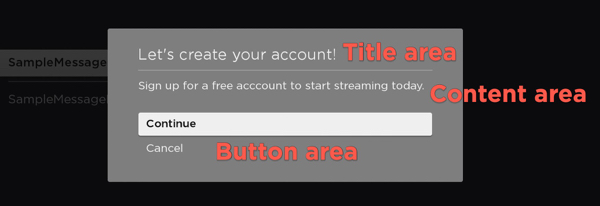
A StandardDialog contains a background image drawn under the dialog contents. The dialog contents include a vertical column containing the following areas (from top to bottom): title area, content area, button area. Each area is optional, which means a dialog may contain one to all three areas. A dialog may only have a single title area and button area, but it may have multiple content areas. The width of the title area, button area, and the sum of the widths of the content areas are always equal.
-
Title Area. The title area is drawn at the top of the dialog. It always contains a primary title that consists of a single line of text that briefly describes the purpose of the dialog. The title area may also include optional icons that appear left or right justified. A dialog may only have a single title area, and the title area is optional.
-
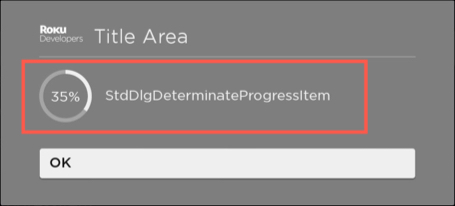
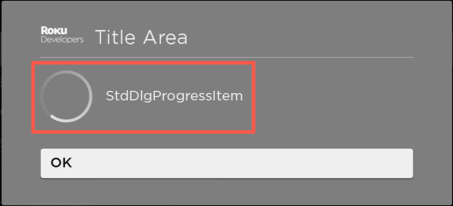
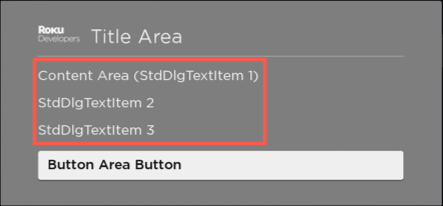
Content Area. A content area is a vertical column of content items. The Content Items may include static information, such as a block of text, a bullet list or a progress indicator, or dynamic objects such as a pin pad or a keyboard. A dialog may have one or content areas, and the content area is optional.
-
Button Areas. The button area contains a vertical-arranged set of buttons. Buttons in a dialog are typically used to confirm or cancel the dialog's operation or to advance forward/backward through a multistep process. A dialog may only have a single button area, and the button area is optional.
Summary
Pre-built dialog hierarchy and examples
The pre-built message, keyboard, pin pad, and progress dialogs inherit their basic properties from the StandardDialog node class, which extends the Group node. The following table summarizes the standard dialog nodes and their hierarchy:
| Node | Description | Example |
|---|---|---|
| Group | ||
| ++ StandardDialog | Defines the width, height, color palette, button selected, and button focused fields that are inherited by its child nodes. | |
| ++++ StandardMessageDialog | Displays a message to the user. |  |
| ++++ StandardKeyboardDialog | Enables text and voice entry of strings consisting of alphanumeric characters as well as many commonly used symbols. |  |
| ++++ StandardPinPadDialog | Enables text and voice entry of numeric digits—typically, short numeric PIN codes. | 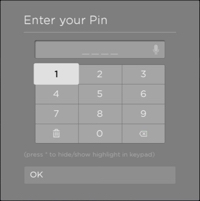 |
| ++++ StandardProgressDialog | Displays a spinning progress indicator that includes a short progress message to the user. |  |
Custom dialog hierarchy and examples
As described in the dialog structure overview, a dialog contains three areas: title, content, and button. Additionally, a custom dialog may include a side card, which is a freeform area to the right or left side of the dialog that is used for displaying decorative images or annotative text.
Each of these areas has a corresponding node for building a custom dialog: StdDlgTitleArea, StdDlgContentArea, StdDlgButtonArea, and StdDlgSideCardArea. Each of these nodes inherits its functionality from the StdDlgAreaBase node, which extends the Group node.
-
The StdDlgTitleArea node does not contain any child nodes. It displays the title and/or icons at the top of the dialog.
-
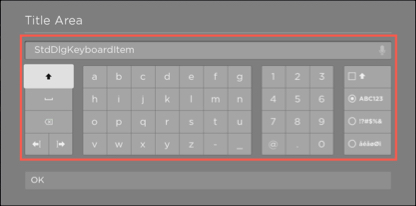
The StdDlgContentArea node may contain a number of content items such as a block of text, a bullet list or a progress indicator, or dynamic objects such as a pin pad or a keyboard. Each of these content items has a corresponding node that inherits its basic functionality from the StdDlgItemBase node. For example, the text block has a StdDlgTextItem node, the keyboard has a StdDlgKeyboardItem node, and so on.
-
The StdDlgButtonArea node may contain a single StdDlgButton node.
-
The StdDlgSideCardArea node may contain one or SceneGraph nodes (for example, a Poster node for displaying an image or a Label node for displaying text).
The following table summarizes the standard dialog nodes used to build custom dialogs and their hierarchy. For completeness, the content items and buttons that may be included in the StdDlgContentArea and StdDlgButtonArea nodes are listed; however, they do not inherit any properties from the nodes.
| Node | Description | ||||||||||||||||||||||||||||||||||||
|---|---|---|---|---|---|---|---|---|---|---|---|---|---|---|---|---|---|---|---|---|---|---|---|---|---|---|---|---|---|---|---|---|---|---|---|---|---|
| Group | |||||||||||||||||||||||||||||||||||||
| ++ StdDlgAreaBase | Provides common functionality for the StdDlgTitleArea, StdDlgContentArea and StdDlgButtonArea classes. | ||||||||||||||||||||||||||||||||||||
| ++++ StdDlgTitleArea | Contains the title information and/or icons at the top of the dialog. | ||||||||||||||||||||||||||||||||||||
| ++++ StdDlgContentArea | Contains the main body of the dialog, which may include zero to multiple content area items (StdDlgItemBase nodes), which are as follows:
| ||||||||||||||||||||||||||||||||||||
| Node | Description | ||||||||||||||||||||||||||||||||||||
| StdDlgItemBase | Provides common functionality for all content area items. | ||||||||||||||||||||||||||||||||||||
| ++StdDlgItemGroup | Visually groups a set of StdDlgAreaBase child nodes in a custom dialog | ||||||||||||||||||||||||||||||||||||
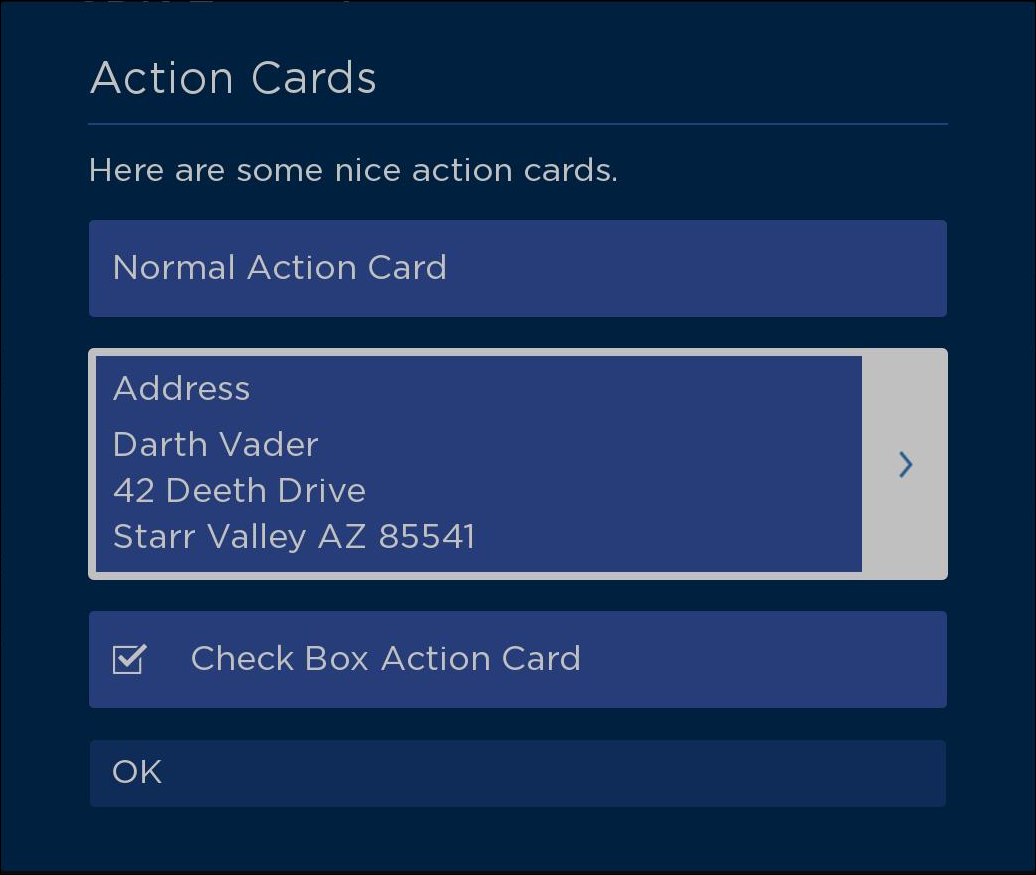
| ++StdDlgActionCardItem | Highlights the StdDlgItemBase child nodes in the content area of a custom dialog. | ||||||||||||||||||||||||||||||||||||
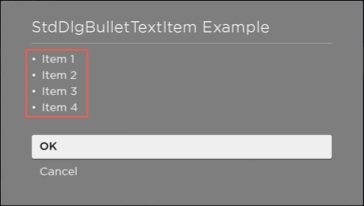
| ++ StdDlgBulletTextItem | A bulleted list of text. | ||||||||||||||||||||||||||||||||||||
| ++ StdDlgDeterminateProgressItem | A progress indicator that represents the percentage of the progress that has been completed. | ||||||||||||||||||||||||||||||||||||
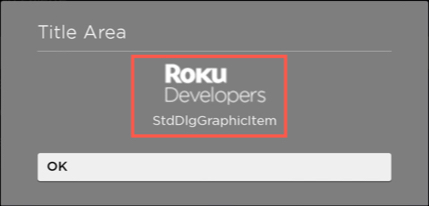
| ++ StdDlgGraphicItem | An image with an optional text label. | ||||||||||||||||||||||||||||||||||||
| ++ StdDlgKeyboardItem | Either a keyboard or PIN pad for the text and voice entry of alphanumeric/symbol strings or numeric digits (typically, short numeric PIN codes), respectively. | ||||||||||||||||||||||||||||||||||||
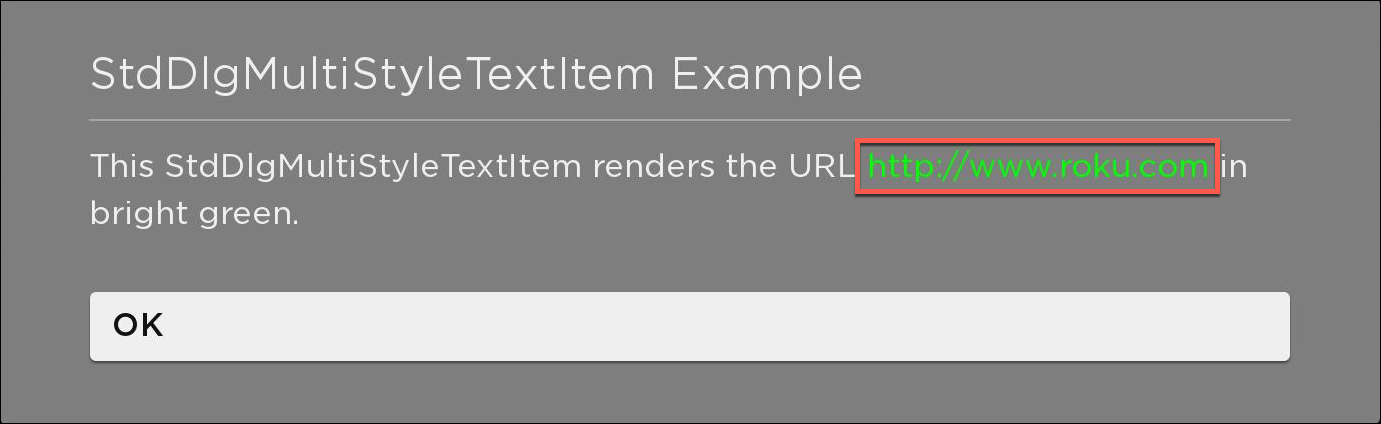
| ++ StdDlgMultiStyleTextItem | A line of text with multiple styles (for example, plain and bold characters, different fonts, multiple colors, and/or emojis). | ||||||||||||||||||||||||||||||||||||
| ++ StdDlgProgressItem | A spinning progress indicator for tasks that take an indeterminate amount of time. | ||||||||||||||||||||||||||||||||||||
| ++ StdDlgTextItem | A block of text. | ||||||||||||||||||||||||||||||||||||
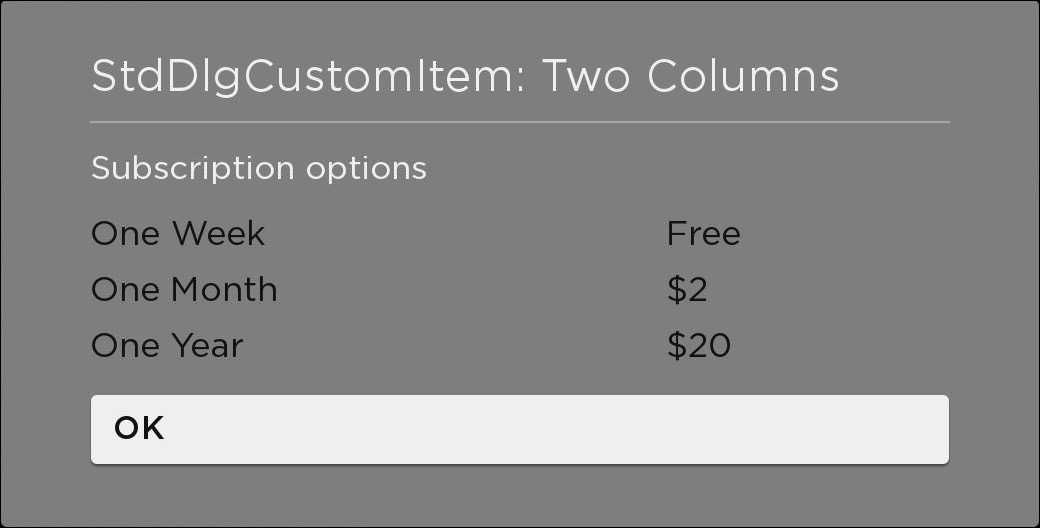
| ++ StdDlgCustomItem | A free-form custom item. | ||||||||||||||||||||||||||||||||||||
| ++++ StdDlgButtonArea | Contains any buttons (StdDlgButton nodes) in the button area located at the bottom of the dialog: | ||||||||||||||||||||||||||||||||||||
| ++++ StdDlgSideCardArea | A freeform area to the right or left side of a custom standard framework dialog that contains decorative images or annotative text. |
Code examples
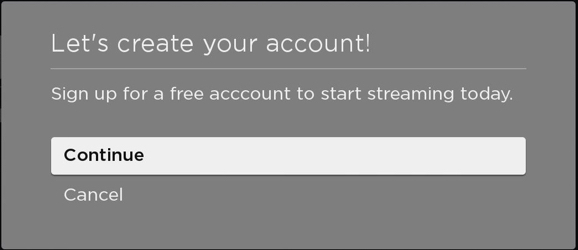
The following sections demonstrate the SceneGraph and/or BrightScript code that could be used to create the following confirmation dialog using pre-built and custom standard dialog nodes:
Creating a pre-built dialog
To create the confirmation dialog with a pre-built StandardDialog node and detect button events, the following BrightScript code could be used:
BrightScript
sub showAccountDialog()
    ' set up the dialog
    m.accountDialog = createObject("roNode", "StandardMessageDialog")
    m.accountDialog.title = "Let's create your account!"
    m.accountDialog.message = [ "Sign up for a free account to start streaming today." ]
    m.accountDialog.buttons = [ "Continue", "Cancel" ]

    ' observe the dialog's buttonSelected field to handle button selections
    m.accountDialog.observeFieldScoped("buttonSelected", "onButtonSelected")

    ' display the dialog
    scene.dialog = m.accountDialog
end sub

'detect button events
sub onButtonSelected()
' use the dialogs buttonSelected field to perform the appropriate action
    if m.accountDialog.buttonSelected = 0
        doContinueAction()
    else if m.accountDialog.buttonSelected = 1
        doCancelAction()
    end if
end sub
Creating a custom dialog
To create the confirmation dialog with a custom standard dialog and detect button events, the following SceneGraph and BrightScript code could be used:
SceneGraph
<?xml version="1.0" encoding="utf-8" ?>
<component name="AccountDialog" extends="StandardDialog">
  <children>
    <StdDlgTitleArea primaryTitle="Let's create your account!" />
    <StdDlgContentArea>
      <StdDlgTextItem text="Sign up for a free account to start streaming today." />
    </StdDlgContentArea>
    <StdDlgButtonArea id="buttonArea">
      <StdDlgButton text="Continue" />
      <StdDlgButton text="Cancel" />
    </StdDlgButtonArea>
  </children>
</component>
BrightScript
sub showAccountDialog()
    ' set up the dialog
    m.accountDialog = createObject("roNode", "AccountDialog")

    ' functions that are typically in the code that creates dialog (not in component's  scripts)

    ' observe the dialog's buttonSelected field to handle button selections
    m.accountDialog.observeFieldScoped("buttonSelected", "onButtonSelected")

    ' display the dialog
    scene.dialog = m.accountDialog
end sub

'detect button events
sub onButtonSelected()
' use the dialogs buttonSelected field to perform the appropriate action
    if m.accountDialog.buttonSelected = 0
        doContinueAction()
    else if m.accountDialog.buttonSelected = 1
        doCancelAction()
    end if
end sub
Layout algorithm
Based on the width of the StandardDialog node, the node's layout algorithm automatically determines the widths and heights of its constituent parts (StdDlgTitleArea, StdDlgContentArea, and StdDlgButtonArea). Those results are used to determine the overall height of the dialog and the width/height/position of each part.
Dialogs should generally be designed to always fit onscreen for the specified width. However, if the specified dialog width generates a dialog with a height that does not fit onscreen, one or more of the dialog parts may be placed into a scrolling region. This enables the user to see the entire contents of the dialog. The algorithm to adapt such dialogs to support a scrollable region will try the following:
-
If a content area item is marked as scrollable, it will be put into a scrolling container with a height equal to the max dialog height minus the sum of the heights and spacings of the title area, button area, and other content area items (scrollingContainerHeight = maxDialogHeight - [titleAreaHeightSpacing + contentAreaItemsHeightSpacing + buttonAreaHeightSpacing]). Typically, only one content area item is marked as scrollable, but if multiple items are marked as such, the scrollable item that has the largest height is the one converted into a scrolling region.
-
If step 1 fails (or no items are marked as scrollable), the entire content area is placed into a scrolling container.
-
If both steps 1 and 2 fail (or the dialog does not have a content area), the number of visible buttons shown is automatically decreased and the button area is configured for scrolling up/down. At least three buttons are always shown.
-
If all steps fail, both the content area and the button area will automatically be configured to support scrolling.
None of these options guarantees a successful dialog layout. If a dialog has too many buttons and/or too much content, the layout algorithm will try to fit the dialog onscreen; however, in some cases, it may not be possible.
Color palettes
By default, the StandardDialog node uses a default color palette consisting of shades of gray, as demonstrated in the dialog images displayed throughout this document. The default color palette can be overridden for a single dialog or all the dialogs in an app:
-
Setting the color palette for a single dialog: Set the dialog's palette field to an RSGPalette node that defines the colors to be used.
-
Setting the color palette for all dialogs (recommended): Create an RSGPalette node and assign it to the Scene's palette field. This ensures that all the dialogs in the app have a consistent appearance because the Scene's palette is used for all StandardDialog nodes, unless overridden in an individual dialog. Overriding the Scene's palette is typically done in the init() function of a custom RSG component that extends the Scene node.
For more information about how StandardDialog nodes used the RSGPalette colors, see the StandardDialog's palette field.
Example
The following BrightScript code demonsrates how to create an RSGPalette node with green colors and assign it to the Scene's palette field. The resulting dialog is displayed below the code.
m.greenPalette = createObject("roSGNode", "RSGPalette")
m.greenPalette.colors = {DialogBackgroundColor: "0x003000FF",
                         DialogItemColor: "0x00EF00FF",
                         DialogTextColor: "0x00EF00FF",
                         DialogFocusColor: "0x00EF00FF",
                         DialogFocusItemColor: "0x007E00FF",
                         DialogSecondaryTextColor: "0x00EF0066",
                         DialogSecondaryItemColor: "0x80FF804D",
                         DialogInputFieldColor: "0x80FF8080",
                         DialogKeyboardColor: "0x80FF804D",
                         DialogFootprintColor: "0x80FF804D" }

  scene.palette = m.greenPalette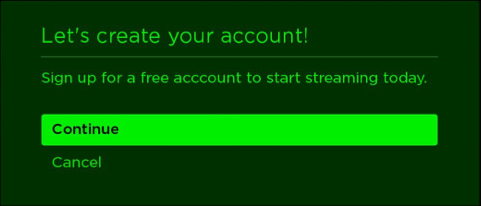
Sample app
You can download and install a sample app that demonstrates how to create built-in and custom dialogs with the Standard Dialog Framework. This sample app includes examples for the built-in standard keyboard, PINpad, and message dialogs, and custom dialogs featuring the standard dialog building blocks such as the keyboard, text and bullet text, and progress loaders.
Updated 4 months ago