
On-Device Authentication
Sign customers up and in on the device using ChannelStore and access tokens
Apps implement on-device authentications so that customers can complete sign-ups and sign-ins entirely on their Roku devices—without having to visit an external webpage. Additionally, once a customer authenticates on one device, they can automatically be signed in when they activate additional Roku devices linked to their same Roku account.
Apps that include authentication must complete account sign-ups and sign-ins on the device using on-device authentication to pass certification. Sign-up and sign-in workflows are prohibited from including external webpages, links to off-device promotional or marketing materials, or utilizing off-device sign-up or sign-in mechanisms.
Apps must complete upgrades and downgrades on the device using On-device upgrade and downgrade. The upgrade/downgrade workflows are prohibited from including external webpages.
Overview
To implement on-device authentication, you first verify whether a customer should have access to your content. To do this, you check whether the customer has an active Roku subscription for the content, and then check whether there is a valid access token stored in their device registry. If the device registry does not contain a valid access token, you check whether one is stored in the Roku cloud. The next steps depend on the results of these checks. The following table lists the next steps for each possible outcome; the subsequent flow chart illustrates the logic used in this authentication workflow.
| Active Subscription through Roku Pay? | Valid Access Token in Device Registry and Entitlement? | Valid Access Token in Roku Cloud? | Next Steps |
|---|---|---|---|
| YES | YES | — | Get a refresh token from your entitlement server and store it in the device registry and Roku cloud. Grant access to content. |
| YES | NO | YES | Store an access token in the device registry. Grant access to content. |
| YES | NO | NO | The next steps depend on whether the customer originally created their account through Roku Pay or your own service ("publisher service)":
If the Roku cloud does not have an access token, display your app UI and then get the customer's email address. Use the email address to check whether the customer is linked to an active subscription in your system. If there is already an active subscription, generate a new access token from your entitlement server and store it in the device registry and Roku cloud. Grant access to content.
|
| NO | YES | — | Grant access to content. |
| NO | NO | YES | If the customer is signed in, store the access token in the device registry, and grant access to content. If the customer is signing up (or has signed out), have them re-authenticate. |
| NO | NO | NO | Create a new subscription through Roku Pay. |
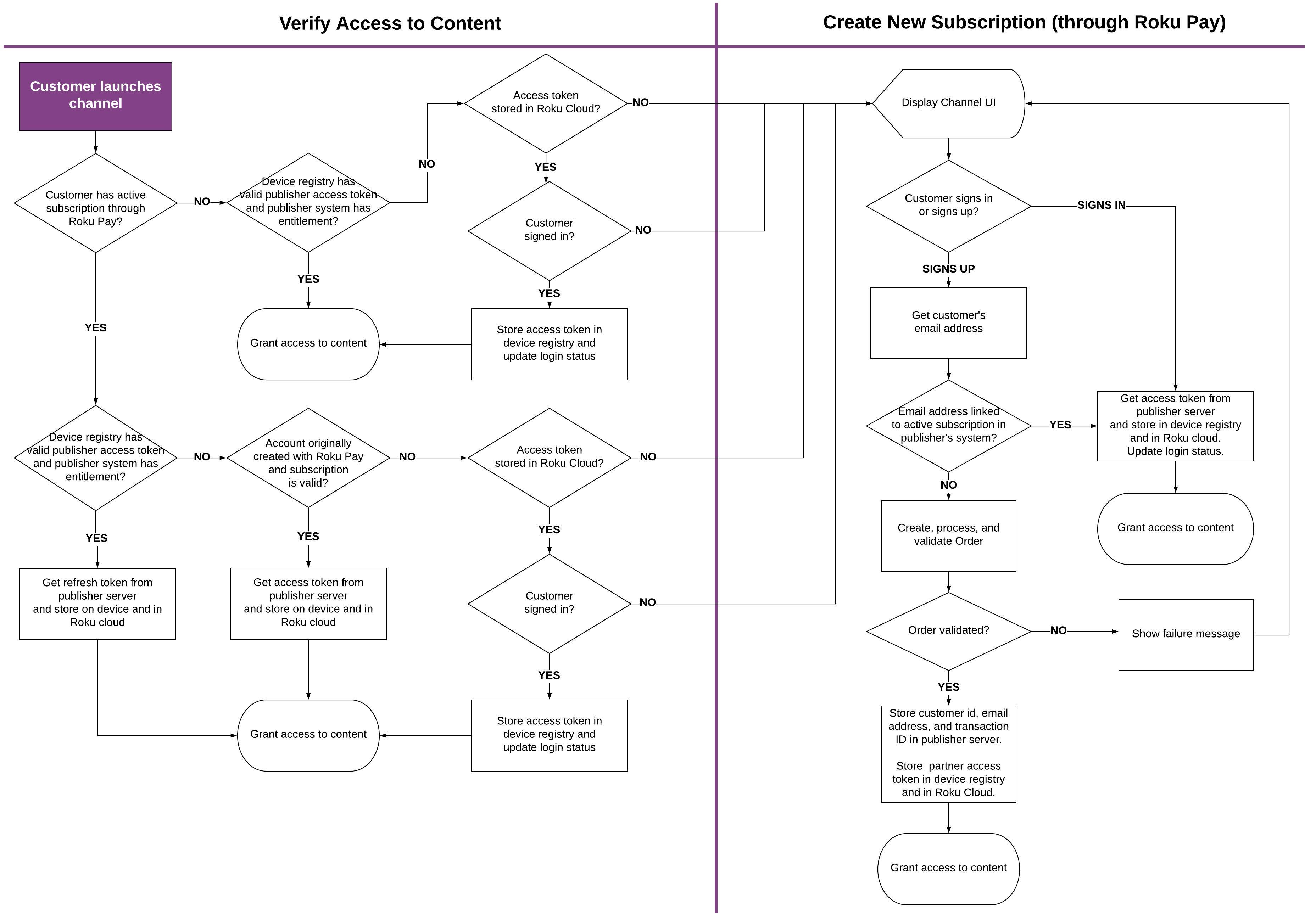
Verifying access to content
The first step for implementing on-device authentication entails checking whether a customer has access to content. To do this, use the ChannelStore node and Roku Pay Web Service API to check for an active subscription created through Roku Pay. Next, use the roRegistrySection() method to find an access token in the device registry and then check your entitlement server to see if it is still valid. If the device registry does not contain a valid access token, use the ChannelStore node to see if an access token is stored in the Roku cloud.
Check for an active Roku subscription
To check for an active Roku subscription with the ChannelStore API, follow these steps:
-
Call the ChannelStore.getAllPurchases command. This command returns all of the historical subscription and one-time purchases made by the customer on the app. It causes the purchases field to be set to a ContentNode containing the results of the command. The purchases contentNode contains a child content node for each purchase.
myChannelStore.command = "getAllPurchases" -
Get the transaction ID from the purchaseId field of the child content node. Find the subscription to be validated using the code or productType fields of the child content node.
if (myChannelStore.purchases <> invalid) count = myChannelStore.purchases.GetChildCount() for x = 0 to count - 1 if (myChannelStore.purchases.getChild(x).code = "monthlySubscription") transactionId = myChannelStore.purchases.getChild(x).purchaseId end if end for end if -
Pass the transaction ID into a validate-transaction Roku Pay web service GET API call
https://apipub.roku.com/listen/transaction-service.svc/validate-transaction/{partnerAPIKey}/transactionid -
Check the isEntitled field in the response to verify that the user is entitled to the content.
<result> <transactionId>{transactionId}</transactionId> ... <isEntitled>true</isEntitled> ... <rokuCustomerId>abcdefghijklmnop</rokuCustomerId> <expirationDate>2020-08-22T14:59:50</expirationDate> </result> -
Proceed to the next section to verify that the customer's device has a valid access token. This is still necessary even if isEntitled is true to handle scenarios where the customer has an active subscription but is using a new device or has factory reset their existing device. If isEntitled is false, cancel the subscription and remove the entitlement.
Check for a valid access token in the device registry
To check for a valid access token in the device registry, follow these steps:
-
Create an roRegistrySection object. This provides access to your section within the device registry to get and read your keys. When creating the registry section, pass in the name of your registry. This must be the same name used when the registry section was created.
reg_sec = CreateObject("roRegistrySection", \<your_registry_section>")To get a list of the keys in the registry section in order to find the one linked to the access token, call the roRegistrySection.getKeyList() method.
-
Use the roRegistrySection.read() method to retrieve the access token. This method takes the name of the key to get the value associated with it.
access_token_value = reg_sec.read("access_token_key_name") -
Check the access token in your entitlement server to verify whether it is still valid.
a. If the access token is valid, check your system to verify that the subscription is valid. If the subscription is valid, generate a refresh token in your system and store it in the device registry and in the Roku cloud, and then grant the customer access to the content. In this case, no additional steps are required and authentication is complete.
-
Call the roRegistrySection.write() and roRegistrySection.flush() methods to permanently store the refresh token on the device:
reg_sec.write("access_token_key_name", "access_token_value") reg_sec.flush() -
Call the ChannelStore.storeChannelCredData command to store an access token in the Roku cloud. You can use the status and response fields of the storeChannelCredDataStatus content node to verify that the command was successful and that the access token stored in the Roku cloud has the specified value.
myChannelStore.channelCredData = "your access token"
myChannelStore.command = "storeChannelCredData "

'check if command was successful
status = myChannelStore.storeChannelCredDataStatus.status
if status = 0
  ...
end if

'check if access token stored in Roku cloud has specified value
response = myChannelStore.storeChannelCredDataStatus.response
if response.json.channel_data = myChannelStore.channelCredData
   ...
end if
b. If the access token is valid, but the subscription cannot be verified in your system, delete the access token using the roRegistrySection.delete() method.
reg_sec.delete("access_token_key_name")c. If the access token is invalid and the customer has an active subscription billed through Roku Pay, validate the subscription using the validate-transaction Roku Pay Web Service API and business logic. Once the subscription is validated, generate a new access token in your system and store it in the device registry and in the Roku cloud (as described in step a), and then grant the customer to access the content.
d. If the subscription cannot be validated, get the customer's credentials in your app UI and check whether the customer already has an active subscription in your system.
e. If the access token is invalid and billing is managed through your services, get the customer's credentials in your app UI and check whether the customer already has an active subscription in your system.
f. If the access token is invalid and the customer does not have an active subscription through Roku Pay, display your app's landing page, which should include entry points for signing-up and signing-in, so the customer can sign up and [create a new subscription](#signing-up-new-subscribers-through-Roku Pay).
-
Check for a valid access token in the Roku cloud
To check for a valid access token in the Roku cloud, follow these steps:
-
Call the ChannelStore.getChannelCred command. This causes the channelCred field to be set to a ContentNode that includes a json.channel_data field.
myChannelStore.command = "getChannelCred" accessToken = myChannelStore.channelCred.json.channel_data -
If the json.channel_data field contains your access token, check whether the customer is currently signed in using a flag in the device registry. This is a publisher-specific key-value pair that you have previously added to your registry section to track the login status of customers. The value should be toggled when customers sign in and out.
-
If the customer is signed in, get the access token from the device registry and store it in the Roku cloud, and then grant the customer access to the content. In this case, no additional steps are required and authentication is complete. To store an access token in the Roku cloud, call the ChannelStore.storeChannelCredData command.
myChannelStore.channelCredData = "your access token" myChannelStore.command = "storeChannelCredData " -
If the customer is not signed in, display your app's landing page, which should include entry points for [signing-up](#signing-up-new-subscribers-through-Roku Pay) and signing-in.
Signing up new subscribers through Roku Pay
To enable customers to purchase a new subscription from your app UI, you first get their email address and use it to check whether they already have a subscription. If they already have one, have them re-authenticate their account and then store a new access token on their device. Otherwise, complete and validate an order for the new subscription and create a new customer account in your system following the steps in this section.
Get and check account credentials
To obtain and validate the customers' account credentials, follow these steps:
-
Set the ChannelStore.requestedUserData field to "email, firstName, lastName" to ask the customer to share their email address and name from their account, and then call the ChannelStore.getUserData command to get the email address and name.
myChannelStore.requestedUserData("email, firstName, lastName") myChannelStore.command = "getUserData" -
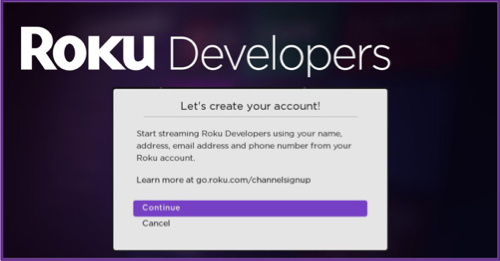
When you call the ChannelStore.getUserData command, a "Request for information" (RFI) screen is displayed automatically. It guides the customer to create an account in your system using their Roku account information.
-
If the customer clicks Continue, the
userDatafield is automatically set to a ContentNode that contains a string field with the customer's email address and name. In step 5, you will use the email address to verify whether the customer already has an active subscription that is billed through your services. You will send all the information stored in this ContentNode to your system when the order is completed.email = myChannelStore.userData.email firstName = myChannelStore.userData.firstName lastName = myChannelStore.userData.lastName -
Display a keyboard dialog pre-populated with the customer's email address so that they can verify their email address or enter a different one. If the customer clicks Cancel, the
userDatafield is set to "invalid". In this case, display an empty keyboard dialog so the customer can enter their email address for your app. -
Use the customer's email address from the userData.email field to check whether that email address is already linked to an active subscription for which your service is handling billing.
a. If the email address is linked to an active subscription, display a keyboard for the customer to enter their password.
b. After the user submits their password, validate their credentials in your system. If the credentials are valid, obtain an access token from your entitlement server, store it in the device registry, and update the login status flag in the device registry. Grant the customer access to the content. No additional steps are required and authentication is complete.
-
If the customer's email address is not linked to an active subscription in your system and they allowed access to their Roku account information, pre-populate the keyboard with an auto-generated secure password, which the customer can accept or edit. If the customer did not allow access, display an empty keyboard dialog so the customer can enter their own password for your app. Complete and validate a new subscription following the next section.
Complete and validate new subscription
To complete and validate the new subscription, follow these steps:
-
Call the ChannelStore getCatalog command to display the list of products that are available for purchase.
myChannelStore.command = getCatalog -
Once the customer selects a product, create an order that contains the product the customer is purchasing. To do this, you set the ChannelStore.order field to a ContentNode that has one child ContentNode for the item the customer is purchasing
myOrder = CreateObject("roSGNode", "ContentNode") itemPurchased = myOrder.createChild("ContentNode") itemPurchased.addFields({ "code": "UPC3L5A", "qty": 1}) myChannelStore.order = myOrder -
Call the ChannelStore doOrder command to display the Roku Pay order confirmation dialog, which is pre-populated with an order summary.
myChannelStore.command = "doOrder"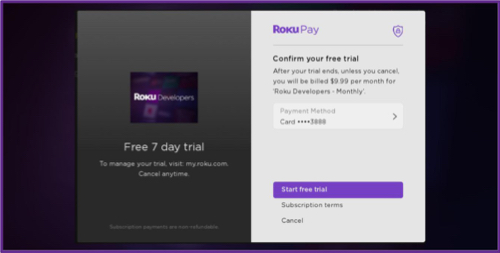
-
Once the customer approves the purchase, the ChannelStore.orderStatus field is set to a ContentNode containing information about the completed order. The ContentNode will have a child ContentNode for the item purchased. Get the transaction ID from the orderStatus ContentNode.
transactionId = myChannelStore.orderStatus.getChild(0).purchaseId -
Validate the transaction ID via a validate-transaction Roku Pay Web Service API call from your server. Check the isEntitled field in the response to verify that the user is entitled to the content. If isEntitled is true, allow the customer to access the content. If isEntitled is false, exit the order flow and return the user to your app's home page.
-
Create a new account for the customer in your system. Store the validated transaction ID, and the customer's email address, name, and user ID in your system.
-
Generate a new access token in your system and store it in the device registry and in the Roku cloud. To store an access token in the Roku cloud, call the ChannelStore.storeChannelCredData command.
myChannelStore.channelCredData = "your access token" myChannelStore.command = "storeChannelCredData " -
You should also generate a secure temporary password and store it in the customer's account, and then send the customer a "Welcome" email with information on how to reset the temporary password.
Signing in existing subscribers
If a customer is signing in, have them authenticate themselves in your app UI following these steps:
-
After the user enters the sign-in flow, set the ChannelStore.requestedUserData field to "email" to ask the customer to share their email address, and set the ChannelStore.requestedUserDataInfo field to a ContentNode that has a context field set to "signin".
myChannelStore.requestedUserData("email") info = CreateObject("roSGNode", "ContentNode") info.addFields({context: "signin"}) myChannelStore.requestedUserDataInfo = info -
Call the ChannelStore.getUserData command to get the email address.
myChannelStore.command = "getUserData" -
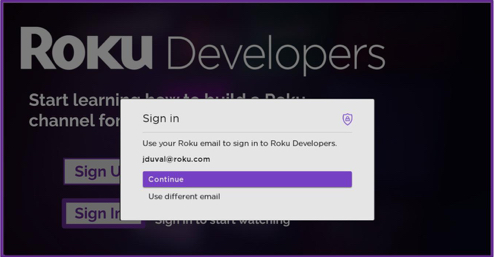
When you call the ChannelStore.getUserData command, a "Request for information" (RFI) screen is displayed automatically. It guides the customer to share the email address and/or phone number in their Roku customer account with the app in order to sign in.
-
If the customer clicks Continue, the
userDatafield is automatically set to a ContentNode that contains email and/or phone fields, which are strings set to the customer's email address and phone number.email = myChannelStore.userData.emailIf the customer clicks Cancel, the
userDatafield is set to "invalid". In this case, display an empty keyboard dialog so the customer can enter their email address or phone number for signing into your app. -
Display an empty keyboard dialog so the customer can enter their password for your app.
-
After the customer submits their password, validate their credentials in your system. If the credentials are valid, obtain an access token from your entitlement server, store it in the device registry, and update the login status flag in the device registry. Grant the customer access to the content. No additional steps are required and authentication is complete.
Sample app
You can download and install a sample app that demonstrates how to implement on-device authentication. This sample shows how to use the ChannelStore node and Roku Web Service API to check for an active Roku subscription, and how to use the roRegistrySection() object and ChannelStore node to check for access tokens in the device registry and Roku Cloud, respectively. If the customer does not have an active subscription or their subscription cannot be validated (because it was purchased on a different platform), the sample shows how to use the Roku Pay Request for Information (RFI) screen to sign customers up for a new Roku subscription and sign them in to their existing subscription..
Updated 9 days ago