
Transaction Report
Query and export Roku Pay purchases, refunds, renewals, and cancellations
You can use the Roku Pay Transaction Report in the Developer Dashboard to view and analyze transactions on your app. The report lets you query and analyze historical purchases, refunds, renewals, and cancellations. You can view the generated report in your web browser, or you can export or email the report as a spreadsheet, tab-separated text (TXT) file, comma-separated value (CSV) file, or as a chart.
The data compiled in the Transaction Report enables a number of critical use cases. This includes estimating annual and monthly subscription revenue, which you can then use to reconcile payouts received.
Opening the Transaction Report
To open the Transaction Report, go to the Developer Dashboard, click Sales reports in the left sidebar, click the Transactions tab, and then select the app for which you want to view the transactions. Alternatively, you can directly access the report at https://analytics.roku.com/analytics.
Running a Transaction Report
To run a Transaction Report, follow these steps:
-
Specify the time period for the Transaction Report. By default, the report includes data from the previous week (8 days ago for 7 days). To select a different time period, expand Filters and then configure the period. You can select a specific date, the last x days, a year, a specific time range, all the dates on or after a specific date, and so on. You can also use filter expressions by selecting matches (advanced).
Optionally, you can include additional criteria in the query by clicking the add icon and configuring another time period. For example, you can create a query that includes transactions for the first quarters of the last two years. Click the delete icon to remove a time period from the query.
A report may include transactions dating back to January 1, 2018.

-
Click Run. The User Transactions table lists the following information for each transaction in the specified time period:
| Field | Description | ||||||||||||||||||||||||||||||||||||
|---|---|---|---|---|---|---|---|---|---|---|---|---|---|---|---|---|---|---|---|---|---|---|---|---|---|---|---|---|---|---|---|---|---|---|---|---|---|
| event_date | The date of the transaction (in ISO 8601 format; timestamps are in UTC). | ||||||||||||||||||||||||||||||||||||
| invoice_number | The Roku-generated unique ID for the transaction. This invoice number is included in purchase confirmation emails sent to customers. It can be used as a lookup key for customer queries or requests. | ||||||||||||||||||||||||||||||||||||
| transaction_type | The type of transaction, which may be one of the following values:
| ||||||||||||||||||||||||||||||||||||
| Type | Meaning | ||||||||||||||||||||||||||||||||||||
| Purchase | A successful purchase transaction (historically used to indicate purchases under Roku Standard Billing: RSB). Such transactions include 1) one-time purchases. and 2) initial and recurring subscription charges. | ||||||||||||||||||||||||||||||||||||
| Cancellation | Either an end user actively canceled a subscription or Roku is unable to successfully capture the end user's subscription event. | ||||||||||||||||||||||||||||||||||||
| Renewal | An end user, who actively cancelled a subscription, successfully signed up again before the previously scheduled expiration of the subscription. | ||||||||||||||||||||||||||||||||||||
| DowngradeCancel | A successful downgrade transaction's cancellation of the outgoing (base) subscription. | ||||||||||||||||||||||||||||||||||||
| DowngradeSale | A successful downgrade transaction's sale of a new (downgraded) subscription, to replace the outgoing (base) plan. | ||||||||||||||||||||||||||||||||||||
| UpgradeCancel | A successful upgrade transaction's cancellation of the outgoing (base) subscription. | ||||||||||||||||||||||||||||||||||||
| UpgradeSale | A successful upgrade transaction's sale of a new (upgraded) subscription, replacing the outgoing (base) subscription. | ||||||||||||||||||||||||||||||||||||
| CancellationOfferInitiated | An offer was successfully sent to a customer trying to cancel their subscription. | ||||||||||||||||||||||||||||||||||||
| Charge | A successful purchase transaction (historically used to indicate purchases under Roku as Payment Method: RPM). | ||||||||||||||||||||||||||||||||||||
| Refund | A successful refund transaction (historically used to indicate refunds under Roku as Payment Method: RPM). | ||||||||||||||||||||||||||||||||||||
| Reversal | A successful refund transaction (historically used to indicate refunds under Roku Standard Billing: RSB). | ||||||||||||||||||||||||||||||||||||
| GraceInitiated | Payment for a subscription auto-renewal fails. Customer may still access content while Roku attempts to charge the MOP. | ||||||||||||||||||||||||||||||||||||
| GraceRecovered | Payment is received for a subscription that was in a grace period. Customer maintains access to content and the billing period remains the same. | ||||||||||||||||||||||||||||||||||||
| OnHoldInitiated | Payment for a subscription auto-renewal fails after the grace period elapses. Customer should no longer have access to content while Roku continues to attempt to charge the MOP. | ||||||||||||||||||||||||||||||||||||
| Chargeback | The customer has initiated a transaction dispute. For apps in the Germany Streaming Store only, a SEPA chargeback may occur when the customer disputes a transaction made through Roku Pay that results in a chargeback or their bank account has insufficient funds. | ||||||||||||||||||||||||||||||||||||
| ChargebackReversed | Roku successfully reversed the chargeback claim. | ||||||||||||||||||||||||||||||||||||
| SecondChargeback | The customer's bank has disputed the chargeback reversal on the transaction (this may occur if the customer provided new information, the chargeback reason changed, or the bank determined that the information provided by Roku was not sufficient to refute the chargeback). | ||||||||||||||||||||||||||||||||||||
| developer_transaction_id | The partner-specific unique ID for the transaction. | ||||||||||||||||||||||||||||||||||||
| user_transaction_id | The user-based ID for the transaction. If this transaction is a purchase, it will be the same as the original_transaction_id. If this transaction is a renewal, it will be different. | ||||||||||||||||||||||||||||||||||||
| user_id | The unique ID of the customer. | ||||||||||||||||||||||||||||||||||||
| zip_code | The zip code of the customer. | ||||||||||||||||||||||||||||||||||||
| channel_name | The name of the app. | ||||||||||||||||||||||||||||||||||||
| product_code | The product identifier as entered on the Developer Dashboard when the product was created. | ||||||||||||||||||||||||||||||||||||
| product_name | The name of the product as entered on the Developer Dashboard when the product was created. | ||||||||||||||||||||||||||||||||||||
| quantity | The number of items purchased. | ||||||||||||||||||||||||||||||||||||
| amount | The localized dollar amount of the purchase. If the amount is $0 and the transaction type is “Purchase”, the transaction is for a free trial or is a test transaction. All cancellation and downgrade transaction types should have a $0 amount. | ||||||||||||||||||||||||||||||||||||
| service_credits | Amount $0 is expected for all cancellation & downgrade transaction typesAny credits applied to the transaction. If the transaction_type is UpgradeSale, this field will contain the prorated amount of the current subscription that is still unused. | ||||||||||||||||||||||||||||||||||||
| net_amount | Localized total of the item purchased (including tax if applicable) with local currency symbol, after subtracting service_credits. If the amount is $0 and the transaction type is “Purchase”, the transaction is for a free trial or is a test transaction. All cancellation and downgrade transaction types should have a $0 amount. | ||||||||||||||||||||||||||||||||||||
| currency | The currency used for the transaction: USD, CAD, EUR, or GBP. | ||||||||||||||||||||||||||||||||||||
| expiration_date | The subscription end date (in ISO 8601 format). | ||||||||||||||||||||||||||||||||||||
| original_transaction_id | The ID of the original subscription purchase. | ||||||||||||||||||||||||||||||||||||
| original_purchase_date | The date of the original subscription purchase (in ISO 8601 format). | ||||||||||||||||||||||||||||||||||||
| partner_reference_id | The partner-specific internal ID for an in-app product. | ||||||||||||||||||||||||||||||||||||
| refund_description | Roku-specified explanation for refund transactions. | ||||||||||||||||||||||||||||||||||||
| comments | Any Roku-entered comments for the transaction. | ||||||||||||||||||||||||||||||||||||
| channel_store_code | The ISO Alpha-2 two-letter country code of the Streaming Store associated with the app from which the purchase was made. | ||||||||||||||||||||||||||||||||||||
| purchase_channel | Where the Roku Pay subscription purchase was made:
| ||||||||||||||||||||||||||||||||||||
| purchase_context | How the subscription purchase was made:
|
Estimating monthly subscription revenue with the Transaction Report
You can use the Transaction Report to estimate the monthly payouts from subscription purchases and reconcile the estimates with the actual payouts received. To estimate your monthly subscription revenue, follow these steps:
-
Run a Transaction Report for the last 13 months or the previous month.
-
If this is the first time you are doing the estimate and you have annual subscriptions, run a Transaction Report for the last 13 months (payouts are sent approximately 30 days after the end of a month; therefore you need to use a 13-month period to calculate payouts for the last 12 months). To do this, set the Time Period in the Filter to "is in the past" "13" "months", or select is in range and enter the 13-month time period.
-
If you are just estimating the previous month's subscription revenue, set the Time Period in the Filter to "is in the past" "1" "months", or select is in range and enter the 1-month time period.
-
-
Separate the monthly and annual subscription transactions. Filter on a field in the report that distinguishes between monthly and annual subscriptions. This may be the product_code or product_name field, if you included "monthly" or "annual" in the name, or it can be the net_amount as it is likely that your annual subscriptions have distinctive prices compared to the monthly ones.
-
Calculate the monthly subscription revenue. In the list of monthly subscription purchases, sum the revenue and multiply the total by 0.80 (based on 80% share of the subscription revenue).
Payouts for monthly subscription revenue are typically sent the next month; therefore, your January monthly revenue would be sent in February, February revenue in March, and so on.
The following table demonstrates how the product_name, product_code, and net_amount fields may be used to identify monthly subscriptions and then how to calculate the amount of revenue that will be paid out the following month. Only the first 3 of 300 hypothetical monthly subscriptions are shown.
| product_name | product_code | net_amount | 80% Revenue Share (paid out next month) |
|---|---|---|---|
| App 1 | monthly_sub | $5.00 | $4.00 |
| App 1 | monthly_sub | $5.00 | $4.00 |
| App 1 | free_trial | $0.00 | $0.00 |
| App 1 | free_trial | $0.00 | $0.00 |
| App 1 | monthly_sub | $5.00 | $4.00 |
| Total | $1,500 | $1,200 |
-
Calculate the annual subscription revenue for each month.
a. In the list of annual subscription purchases, filter on the event_date field to identify the new annual subscriptions were purchased during the first month in the 13-month range.
b. Sum the revenue from the new annual subscriptions for the month, multiply the total by 0.80 (based on 80% share of the subscription revenue), and then divide the product by 12 (annual subscription revenue payments are prorated over 12 months). To simplify this, you can multiply the total annual subscription revenue by 0.0667 (.8 X 1/12) to get the monthly annual subscription revenue.
c. Attribute the prorated monthly annual subscription revenue you calculated to each of the next 12 months. For example, if $3,600 of annual subscription revenue was generated in January, $2,400 in February, and $1,200 in March, then your January monthly annual subscription revenue would be $300, February would be $500, and March would be $600, and so on.
d. Repeat these steps for each subsequent month, summing the annual subscription revenue attributions for each month.
The following example demonstrates how new annual subscriptions are attributed to monthly revenue for a new app launched in January. The two left-most columns in the table record the new annual subscription revenue generated for each month within a year. The month columns to the right list the pro-rated annual subscription revenue that is attributed to the subsequent months. For example, the table shows $3,600 new annual subscription revenue for January, which is paid out in equal $300 installments from February to the next January (not shown).
| New Annual Subscription Revenue | Jan | Feb | Mar | Apr | May | June | July | Aug | Sep | Oct | Nov | Dec | |
|---|---|---|---|---|---|---|---|---|---|---|---|---|---|
| January | $3,600 | $300 | $300 | $300 | $300 | $300 | $300 | $300 | $300 | $300 | $300 | $300 | |
| February | $2,400 | $200 | $200 | $200 | $200 | $200 | $200 | $200 | $200 | $200 | $200 | ||
| March | $1,200 | $100 | $100 | $100 | $100 | $100 | $100 | $100 | $100 | $100 | |||
| April | $4,800 | $400 | $400 | $400 | $400 | $400 | $400 | $400 | $400 | ||||
| May | $3,000 | $250 | $250 | $250 | $250 | $250 | $250 | $250 | |||||
| June | $2,400 | $200 | $200 | $200 | $200 | $200 | $200 | ||||||
| July | $1,800 | $150 | $150 | $150 | $150 | $150 | |||||||
| August | $1,200 | $100 | $100 | $100 | $100 | ||||||||
| September | $2,000 | $150 | $150 | $150 | |||||||||
| October | $600 | $50 | $50 | ||||||||||
| November | $1,200 | $100 | |||||||||||
| December | $5,400 | ||||||||||||
| TOTAL | $300 | $500 | $600 | $1,000 | $1,250 | $1,450 | $1,600 | $1,700 | $1,850 | $1,900 | $2,000 |
- Use the calculations from steps 3 and 4 to add the monthly and pro-rated annual subscription revenue to estimate the expected payout for a month. The following table uses the first three months of a year to demonstrate how to do this:
| Month | Monthly Subscription Revenue (from previous month) | Pro-Rated Annual Subscription Revenue (from previous 12 months) | Total Expected Payout |
|---|---|---|---|
| February | $1,200 | $300 | $1,500 |
| March | $1,000 | $500 | $1,600 |
| April | $1,100 | $600 | $1,700 |
Using and sharing report data
Exporting report data
To export data from the Roku Pay Transaction Report, follow the steps below:
-
Set Filters properly and run the report, as described above.
-
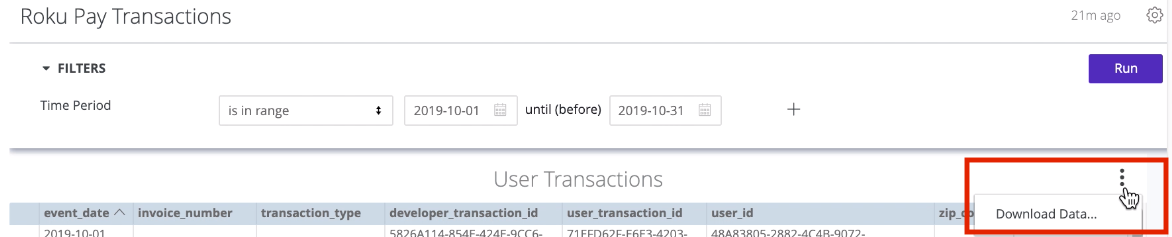
Click the "three-dot" (...) button in the upper-right portion of the generated report's table-heading. Choose Download Data...
-
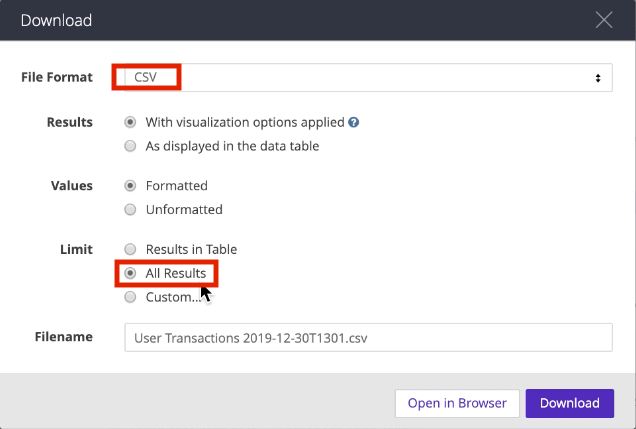
The Download dialog appears. The File Format field provides several output options, some of which include PDF, Excel worksheet (Excel 2007 or later), and CSV. For example, choose CSV:
-
Make sure that All Results is the selection in the Limit field, as shown above, or the full range of data may not be exported.
-
If desired, change the default Filename to something else.
-
Click Download.
Emailing a Transaction Report
You can email a Transaction Report to one or more recipients as a spreadsheet, tab-separated text (TXT) file, comma-separated value (CSV) file, or as a chart. To email a transaction, follow these steps:
-
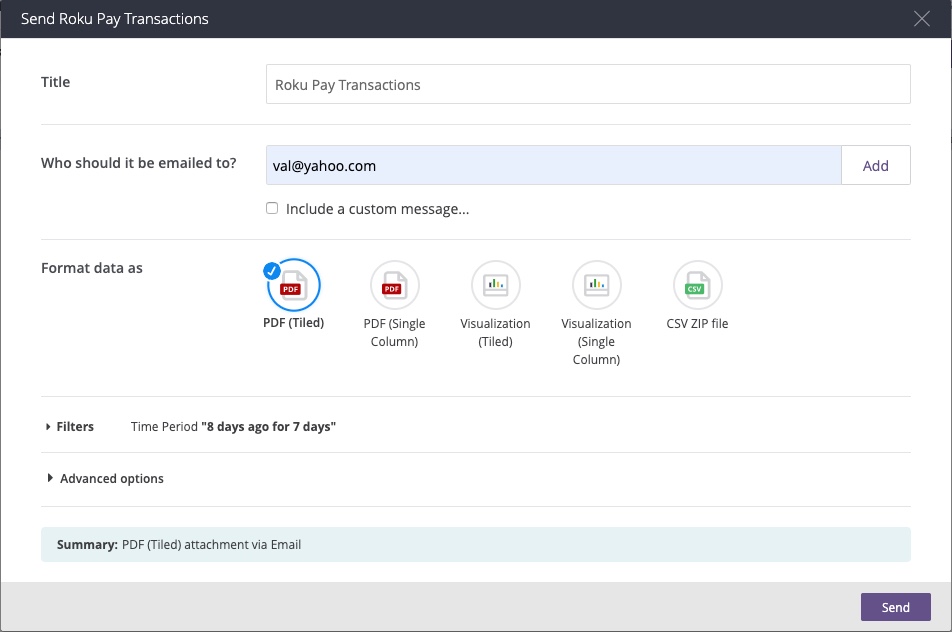
Click the Settings icon, and then click Send. The Send Roku Pay Transactions dialog opens.
-
In the Title field, enter the subject line for the email.
-
In the Who Should it be emailed to? field, enter one or more recipients by entering their email address and then clicking Add.
Optionally, select the Include a Custom Message check box to include any additional information in the body of the email message.
-
In the Format data as field, select whether to attach the Transaction Report as a PDF (tiled or single column), Visualization (tiled or single-column chart), or CSV zip file.
Optionally, expand Filters to edit the currently configured time periods to include in the report. See Running a Transaction Report for more information on how to do this.
-
Optionally, expand Advanced Options to configure the visualizations, data formatting, and hyperlinks in the email and the attached report.
-
Click Send.
Scheduling a Transaction Report
You can create a schedule to automatically email a Transaction Report in a recurring daily, weekly, or monthly pattern. To create a schedule, follow these steps:
-
Click the Settings icon, and then click Schedule. The Schedule Roku Pay Transactions dialog opens.

-
Click the New+ icon to create a new schedule, or click an existing schedule from the let pane to edit it.
-
In the Give your schedule a name field, enter a descriptive name for the schedule that makes it easy to identify in your list of schedules. For example, you can include the format, frequency, time period or any other relevant information that distinguishes the schedule.
-
In the Who Should it be emailed to? field, enter one or more recipients by entering their email address and then clicking Add.
Optionally, select the Include a Custom Message check box to include any additional information in the body of the email message.
-
In the Format data as field, select whether to attach the Transaction Report as a PDF (tiled or single column), Visualization (tiled or single-column chart), or CSV zip file.
-
In the Deliver this schedule field, configure the cadence used to email the report. You can send the report Daily, Weekly, Monthly, Hourly, or By Minute. Once you select a cadence, configure on which day/date and the time to send the report.
-
Daily. Email the report every day, every weekday, or one ore more specific days. The report is emailed every day at 8:00AM by default.
-
Weekly. Email the report once a week on a specific day and time. The report is emailed every Monday at 8:00AM by default.
-
Monthly. Email the report once a month on a specific date and time, every quarter (January, April, July, and October), or one or more specific months. The report is emailed on the 1st of each month at 6:00AM by default.
-
Hourly. Email the report every 1, 2, 3, 4, 6, 8, or 12 hours within a specific time range. You can configure on which 5-minute interval the report is sent. The report is emailed every hour on the hour between 6:00AM and 6:00PM by default.
-
By Minute. Email the report every 5, 10, 15, 20, 25, 30 minutes within a specific time range. The report is emailed every 5 minutes between 6:00AM and 6:00PM by default.
-
-
Optionally, expand Filters to edit the currently configured time periods to include in the report. See Running a Transaction Report for more information on how to do this.
-
Optionally, expand Advanced Options to configure the visualizations, data formatting, and hyperlinks in the email and the attached report.
-
Optionally, click Send Test to send the Transaction Report to the list of email recipients in the selected format.
-
Click Save As to save the schedule. Repeat steps 2-9 to create another schedule.
Sample report
You can view and download a sample report in Excel format here: https://go.roku.com/transaction-report-sample.xlsx
Updated 1 day ago