
App configuration options (roku-config.ts)
You can use the roku-config.ts file to control how your app is built and packaged. The file exports a configuration object that defines the entry point, image processing, build variables, manifest entries, and packaging defaults for your app.
To use the file, create a roku-config.ts file in your project that exports an object that implements the RokuConfig interface.
To configure your test Roku device for RSG 2.0 SDK testing, you can use the
rk devicecommand.
Configuring your app
Your roku-config.ts file should export a configuration object that implements the RokuConfig interface:
import { RokuConfig } from "@roku-sdk/rsg-ts/roku-config";

const config: RokuConfig = {
    app: {
        entryPoint: "src/index.ts"
        // ... other app configuration
    }
};

export default config;
Building BrightScript-only apps
To build an app that uses only BrightScript and XML, set app.brsOnly: true in roku-config.cjs. In this mode, the build does not use TypeScript, a tsconfig.json, JavaScript bundling, or Hermes compilation:
module.exports = { app: { brsOnly: true } };entryPoint is optional and unused in this mode; TS apps still require it. rk build --local and rk dev --local copy channel files, update the manifest and remove stale ts_path entries; --compile-ts is ignored in this mode. Ordinary TS builds are unchanged when brsOnly is absent or false. --no-write-ts-path alone does not select this mode: it still bundles the TypeScript entry.
The root layout copies manifest, source, components, images, fonts, locale, and sounds. For other asset directories, set app.staticAssetsDir to a separate, curated channel tree (everything in that tree is copied). Unknown top-level directories are listed in a warning rather than silently dropped. The nearest config is discovered, checking roku-config.ts, roku-config.cjs, roku-config.js, then roku-config.mjs within each directory. Build, dev, sideload and package defaults share this discovery. Use --local for build/dev until server project discovery supports non-TS configs. Server/MCP package defaults already use the same config discovery as the CLI. Pipeline plugins anchored before/after TypeScript build slots (hermes, solid, assets, etc.) are unsupported in this mode because those slots do not exist.
See the BrightScript-only example. This build path does not add ZIP output or signed .pkg publishing support.
Advanced app configuration
Advanced configuration covers the following aspects of your app:
- Build variables
- Perfetto auto-instrumentation
- Image processing
- Manifest entries
- XML type generation
- Package defaults
- Publishing
Defining build variables
You can define build-time constants that the build injects into your app:
const config: RokuConfig = {
    app: {
        entryPoint: "src/index.ts",
        buildVariables: {
            // Switches on the FinalizationRegistry ponyfill in `@roku-sdk/native`.
            __LEAK_DETECT__: true
        }
    }
    // ... other configuration
};
The build substitutes each value as a literal of its own type. For example, true arrives as a boolean and "on" as a string.
You do not need to declare a constant that the SDK reads (for example, __LEAK_DETECT__) because the package that reads it declares it. For a constant of your own, the substitution still happens, but the type check fails with the error Cannot find name until you declare the constant. Declare it once in a .d.ts file that your tsconfig.json already includes:
declare global {
    const __PERFETTO__: boolean;
}
export {};
Log levels are not build variables. The __BASE_LOG_LEVEL__ and __CURRENT_LOG_LEVEL__ constants look like build variables, but you cannot set them in buildVariables. After the build copies this map, it writes both keys itself and restores them only from app.logger. The build overwrites a value that you place here under either name with an empty string, which the reader treats as unset; therefore, you silently get the defaults. Configure them in app.logger instead:
const config: RokuConfig = {
    app: {
        entryPoint: "src/index.ts",
        logger: {
            // Build time: deletes SDK logger call sites below this level.
            // Production builds (rk build without --debug) default to INFO when unset,
            // stripping trace/debug calls from SDK packages (solid, navigation, common, ts-core).
            // Only SDK-bound receivers are stripped; non-SDK calls (someLib.debug) survive.
            baseLogLevel: "DEBUG",
            // Runtime: filters what survived the build-time cut (also gated by baseLogLevel).
            currentLogLevel: "INFO"
        }
    }
};
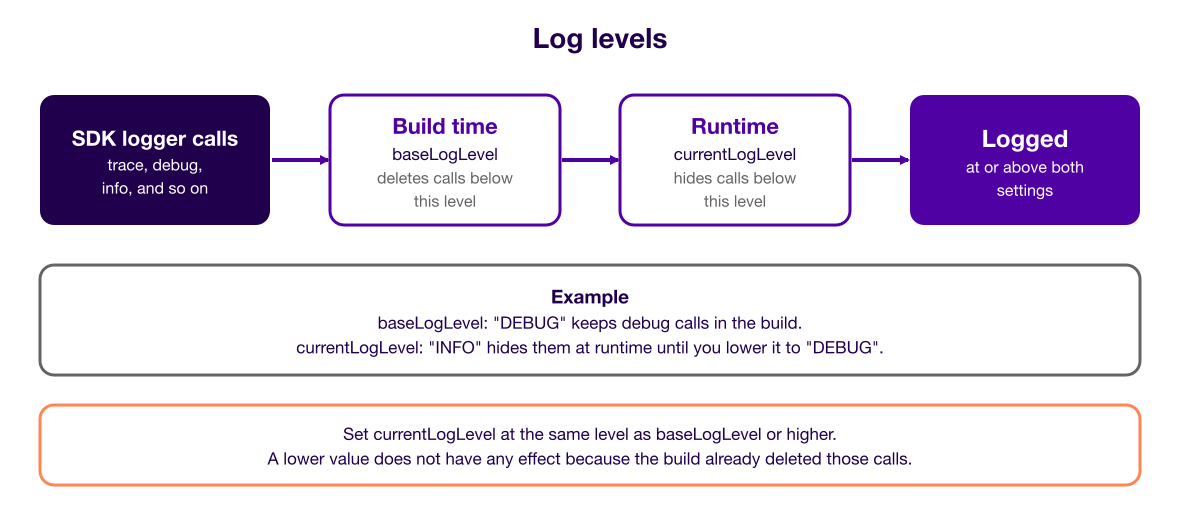
The logger records a call only if its level is at or above both settings. You must keep currentLogLevel at the same severity as baseLogLevel or higher: a currentLogLevel below baseLogLevel does not have any effect because the calls it would let through were already deleted at build time. The example keeps debug calls in the build but hides them at runtime until currentLogLevel is lowered to DEBUG.
The diagram below shows how the two log level settings filter calls.
The build injects a reserved boolean constant, __DEV__, into all builds to indicate the build mode:
- The
rk devcommand sets__DEV__totrueby default. - The
rk buildcommand sets__DEV__tofalseby default. - The
rk build --debugcommand sets__DEV__totrue. You can use--dev-blocksto set it independently.
You can use this constant to write development-specific code. Tree shaking, which removes unused code, automatically removes that code from production builds:
if (__DEV__) {
    // Development-only logic
}
You cannot override the
__DEV__constant with theapp.buildVariablesobject because it is a reserved name.
The build also injects __SIGNAL__ into all builds, and it defaults to false. It enables SolidJS signal/memo/effect names (useful for Perfetto tracing and Solid devtools). You can set it through the solidDevMode field at the top level of the config, or the --solid-dev-mode flag. The config field takes effect only on rk dev --debug; the flag works on any JavaScript build, including rk build. Builds that precompile to Hermes bytecode skip it in either case because devtools cannot attach.
The legacy spelling of the same setting is buildVariables: { __SIGNAL__: true }. It still works, but only as a bare true. The build converts values to JSON strings before it passes them on; therefore, true reaches the setting as true and enables it, while "true" stays quoted and does not enable it. Both spellings are valid build variables; therefore, nothing warns you about the spelling that does not enable the setting. For this reason, you should use solidDevMode.
Instrumenting your app with Perfetto
You can configure build-time Perfetto instrumentation to automatically wrap named functions in perfetto.beginEvent and perfetto.endEvent calls. This makes function execution visible in Perfetto traces without manual code changes. The following example instruments two folders and narrows the traces:
const config: RokuConfig = {
    app: {
        entryPoint: "src/index.ts",
        perfetto: {
            instrumentPaths: ["src/components", "src/services"],
            exclude: ["VariableDeclarator"],
            filter: ["createElement", "update"]
        }
    }
};| Field | Type | Description |
|---|---|---|
instrumentPaths | string[] | Folder paths whose files get instrumented. The build matches each entry as a substring against source file paths. As a result, "src/components" matches any file under that folder. A short or ambiguous entry, such as "src", matches any path that contains that substring, including "resource/data" and "other-src/utils". To avoid this, you should use specific prefixes. You can leave the field empty or undefined to disable instrumentation. |
exclude | PerfettoInstrumentVisitor[] | Babel visitor shapes to skip. Values: "FunctionDeclaration", "VariableDeclarator", "FunctionExpression", "ObjectMethod". You can use this field to narrow traces. |
filter | string[] | Trace name substrings to include. The build matches each entry against the function's beginEvent label as a substring. You can omit the field to instrument all eligible names. An empty array does not instrument any names. |
CLI overrides (rk build and rk dev): --perfetto-paths, --perfetto-exclude and --perfetto-filter override instrumentPaths, exclude and filter for that run. Each is repeatable and takes comma-separated values, for example --perfetto-paths src/components --perfetto-paths src/services. An empty value clears the field for that run: pass --perfetto-paths '' to disable instrumentation, or --perfetto-filter '' to instrument no function names. For every option, see rk build and rk dev.
Resolution order: CLI flags override roku-config.ts defaults for the fields they set.
What gets instrumented:
- Named function declarations:
function foo() {} - Named arrow/function expressions:
const foo = () => {}/const foo = function() {} - Named function expressions (for example, callbacks):
createEffect(function update() {}) - Object method shorthand:
{ createElement(tag) { ... } }
What is skipped: Anonymous functions, class methods, computed object keys.
Example output (conceptual):
// Before instrumentation
function processData(items) {
    return items.map(transform);
}

// After instrumentation
function processData(items) {
    perfetto?.beginEvent?.("processData");
    try {
        return items.map(transform);
    } finally {
        perfetto?.endEvent?.();
    }
}
You should use Perfetto instrumentation only in profiling builds. The RSG 2.0 SDK runtime provides the
perfettoglobal, which records trace events when a Perfetto session is active on the device.
Processing images
You can configure how the build processes your app's images. See Static image management for more information about image configuration and examples.
Setting manifest entries
You can set manifest entries for your app with the manifestEntries option. See Manifest processing for more information about manifestEntries, modes, and examples.
Generating XML types
The dtsOptions option controls declaration generation for XML components. See XML component imports for more information.
Setting package defaults
You can use the package option to configure the default settings that the rk device package command uses.
const config: RokuConfig = {
    app: {
        entryPoint: "src/index.ts"
    },
    package: {
        devId: "a1b2c3d4...",
        outDir: "./release"
    }
};
The package object has the following fields:
| Field | Description |
|---|---|
devId?: string | The expected Roku Developer ID after the package is re-keyed |
outDir?: string | The default output directory for signed package downloads |
ImportantYou must not store signing passwords in the
roku-config.tsfile. You can use--signing-passwordorROKU_SIGNING_PASSWORDinstead.
Loading rk plugins
The plugins option lists the rk plugin packages to load. It replaces the default first-party list, and an empty array disables plugin loading.
const config: RokuConfig = {
    app: {
        entryPoint: "src/index.ts"
    },
    plugins: ["@roku-sdk/rk-plugin-text-measure"]
};
rk reads plugins once per process, so restart a running rk server after you change it. See rk plugins for more information.
Publishing an app
The roku-config.ts file accepts a publishing block, but rk does not currently read it. Publish a beta channel from the Roku Developer Dashboard.
Extending the build and retaining assets
You can add custom hooks to the build and control which assets the build retains. See Pipeline extension API for more information about custom build hooks and Asset tree-shaking for more information about retention rules.
Related documentation
- Static image management: Describes image configuration and gives examples.
- Manifest processing: Describes
manifestEntries, modes, and examples. - XML component imports: Describes declaration generation and
dtsOptions. - Pipeline extension API: Describes custom build hooks.
- Asset tree-shaking: Describes asset retention rules.
- rk plugins: Describes plugin packages and discovery.
- rk build: Lists every
rk buildoption. - rk dev: Lists every
rk devoption. - BrightScript-only example: Includes an example BrightScript-only app.
Updated about 6 hours ago