
Flexible manifest processing
The RSG 2.0 SDK provides three modes for managing your manifest: conventional static manifest, dynamic manifest generated from TypeScript configuration, or a hybrid approach combining both.
To choose a mode, you keep a pkg/manifest file, define manifestEntries in your roku-config.ts file, or use both.
This processing system provides the following benefits:
- Type-safe manifest configuration with validation
- Automatic build-time processing with warnings
- Options that range from a static file to a fully generated manifest
- TypeScript support for all valid Roku manifest entries
Using a static manifest
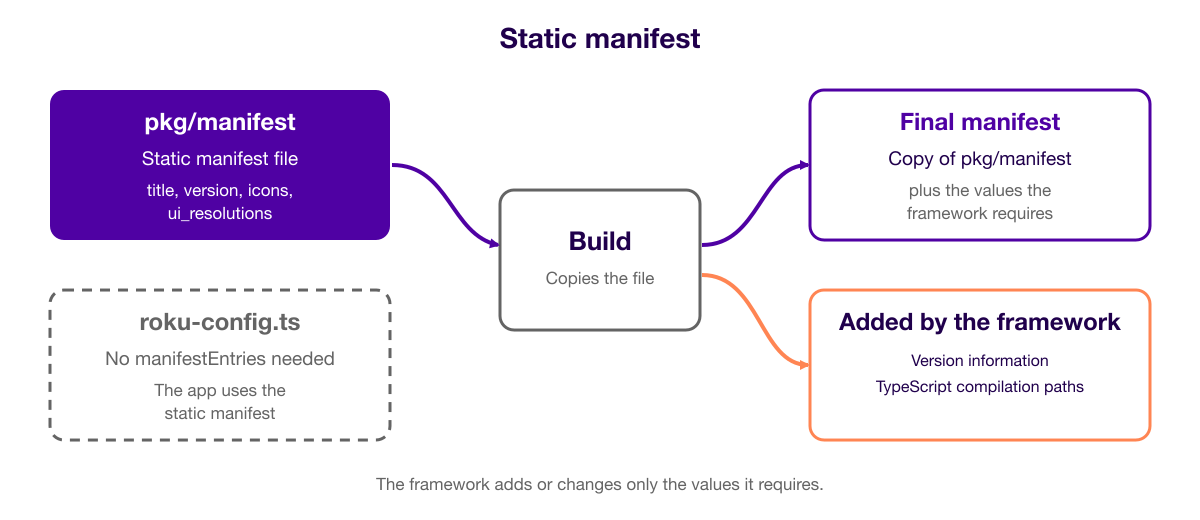
You can maintain a conventional pkg/manifest file that the build copies to the output directory. The framework adds or modifies only the values that it requires (for example, version information and TypeScript compilation paths).
Use cases
A static manifest works well in the following scenarios:
- You are migrating an existing Roku project to the RSG 2.0 SDK.
- Your team is familiar with traditional manifest files.
- You have a simple app with minimal dynamic requirements.
Examples
The following examples demonstrate the directory structure, file contents, and configuration of a static manifest. The diagram below shows how the build creates the final manifest in static mode.
Directory structure
The following structure shows an app that uses a static manifest in pkg/manifest:
your-app/
├── pkg/
│   ├── manifest          # Static manifest file
│   └── ...
└── roku-config.ts
File (pkg/manifest)
The following file is an example of a static manifest:
title=My Roku App
major_version=1
minor_version=0
build_version=1
mm_icon_focus_fhd=pkg:/images/channel-icon_FHD.png
mm_icon_focus_hd=pkg:/images/channel-icon_HD.png
splash_screen_fhd=pkg:/images/splash-screen_FHD.jpg
splash_screen_hd=pkg:/images/splash-screen_HD.jpg
ui_resolutions=fhd
Configuration (roku-config.ts)
The roku-config.ts file does not need manifestEntries because the app uses a static manifest:
import type { RokuConfig } from "@roku-sdk/rsg-ts/roku-config";

const configuration: RokuConfig = {
    app: {
        entryPoint: "src/index.ts"
        // No manifestEntries needed because the app uses a static manifest
    }
};

export default configuration;
Using a dynamic manifest
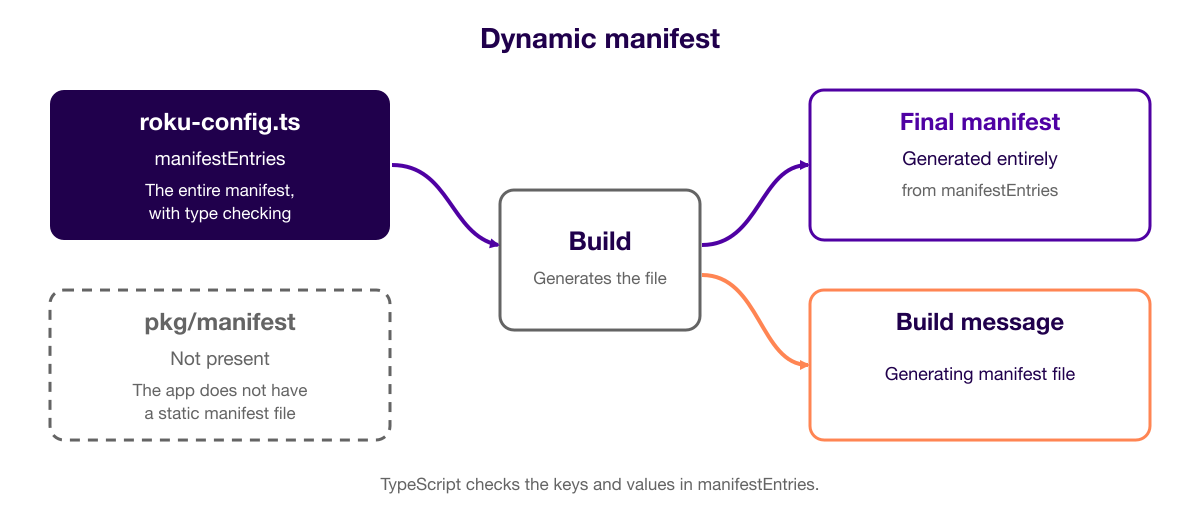
You can generate the entire manifest from the manifestEntries configuration in your roku-config.ts. This provides TypeScript type safety and validation.
Use cases
A dynamic manifest works well in the following scenarios:
- You are creating new projects with the RSG 2.0 SDK.
- You prefer configuration-as-code.
- You need manifest entries to be computed or environment-specific.
- You need maximum type safety for your apps. See Understanding type safety benefits for more information about how this feature helps you manage your manifests.
Examples
The following examples demonstrate the directory structure, configuration, and build output of a dynamically generated manifest. The diagram below shows how the build creates the final manifest in dynamic mode.
Directory structure
The following structure shows an app that does not have a pkg/manifest file:
your-app/
├── src/
│   └── ...
└── roku-config.ts       # No pkg/manifest file
Configuration (roku-config.ts)
The following configuration generates the manifest from manifestEntries:
import type { RokuConfig } from "@roku-sdk/rsg-ts/roku-config";

const configuration: RokuConfig = {
    app: {
        entryPoint: "src/index.ts",
        manifestEntries: {
            title: "My TypeScript App",
            subtitle: "Built with RSG SDK",
            major_version: 1,
            minor_version: 0,
            build_version: 1,
            mm_icon_focus_fhd: "pkg:/images/channel-icon_FHD.png",
            mm_icon_focus_hd: "pkg:/images/channel-icon_HD.png",
            splash_screen_fhd: "pkg:/images/splash-screen_FHD.jpg",
            splash_screen_hd: "pkg:/images/splash-screen_HD.jpg",
            ui_resolutions: "fhd",
            supports_input_launch: 1,
            hidden: 0
        }
    }
};

export default configuration;
Build output
The build prints the following message when it generates the manifest:
Generating manifest fileUsing a hybrid manifest
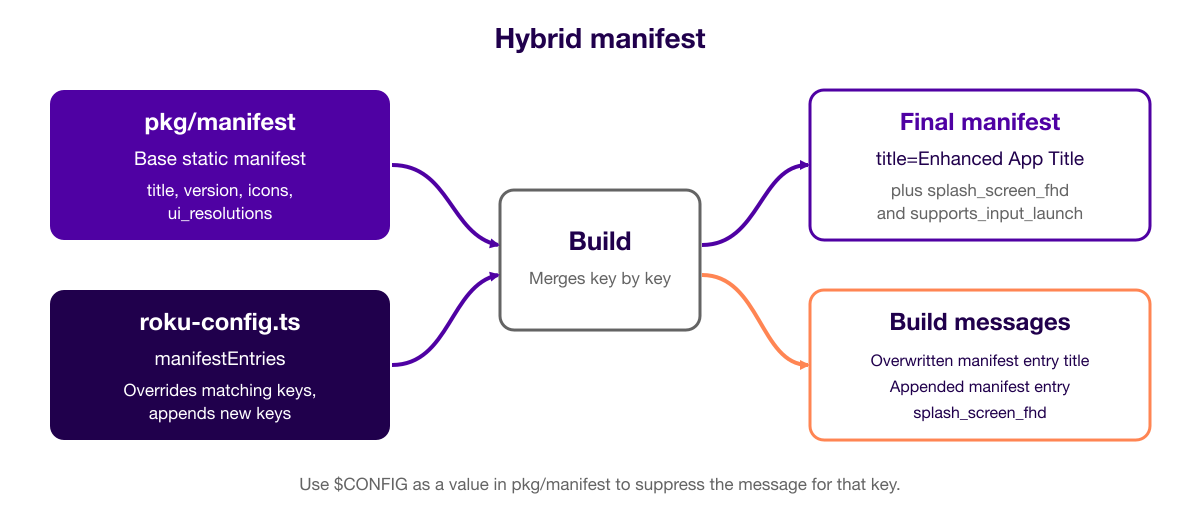
You can use a hybrid manifest, where the static manifest provides the base configuration and the manifestEntries in your roku-config.ts file override or append values on a key-by-key basis.
Use cases
A hybrid manifest works well in the following scenarios:
- You are gradually migrating from static manifests to dynamic manifests.
- You want to use a base configuration with environment-specific overrides.
- Your team has mixed preferences between static and dynamic manifests.
Examples
The following examples demonstrate the directory structure, file, configuration, and build output of a hybrid manifest. The diagram below shows how the build creates the final manifest in hybrid mode.
Directory structure
The following structure shows an app that has a base static manifest and a roku-config.ts file with additional and override entries:
your-app/
├── pkg/
│   ├── manifest          # Base static manifest
│   └── ...
└── roku-config.ts        # Additional/override entries
File (pkg/manifest)
The following file is the base static manifest:
title=Base App Title
major_version=1
minor_version=0
build_version=1
mm_icon_focus_fhd=pkg:/images/channel-icon_FHD.png
mm_icon_focus_hd=pkg:/images/channel-icon_HD.png
ui_resolutions=fhd
Configuration (roku-config.ts)
The following configuration overrides one entry and appends two entries:
import type { RokuConfig } from "@roku-sdk/rsg-ts/roku-config";

const configuration: RokuConfig = {
    app: {
        entryPoint: "src/index.ts",
        manifestEntries: {
            title: "Enhanced App Title", // Overrides static
            splash_screen_fhd: "pkg:/images/splash_FHD.jpg", // Appends to static
            supports_input_launch: 1 // Appends to static
        }
    }
};

export default configuration;
Build output
The build prints a message for each override and each append:
Overwritten manifest entry title=Enhanced App Title
Appended manifest entry splash_screen_fhd=pkg:/images/splash_FHD.jpg
Appended manifest entry supports_input_launch=1
Suppressing warnings with $CONFIG
In hybrid mode, you can suppress the "overwritten" or "appended" warnings by using the special $CONFIG placeholder value in your static manifest file.
Static manifest with $CONFIG placeholders
The following static manifest uses $CONFIG as a placeholder value:
title=$CONFIG
ui_resolutions=fhd
...
Configuration (roku-config.ts)
The following configuration sets values for the same keys. The build does not warn for either key:
const configuration: RokuConfig = {
    app: {
        entryPoint: "src/index.ts",
        manifestEntries: {
            title: "Enhanced App Title", // No warning because the static manifest uses $CONFIG
            ui_resolutions: "fhd" // No warning because the value is the same
        }
    }
};
Understanding type safety benefits
You should use a dynamic manifest because it provides maximum type safety. Using roku-config.ts provides the following benefits:
- Automatic type checking to detect invalid keys or values
- IntelliSense support for all manifest keys
- Compile-time validation of values
- Documentation tooltips for each manifest entry
Checking types automatically
Automatic type checking enables your integrated development environment (IDE) to detect invalid keys or values:
manifestEntries: {
    title: "My App",
    hidden: 1,                    // Valid: 0 or 1
    // hidden: "yes",             // TypeScript error
    // invalid_key: "value",      // TypeScript error
    major_version: 2,             // Valid: number
    // major_version: "2.0",      // TypeScript error
    ui_resolutions: "sd,hd,fhd"   // Valid: a comma-separated list, not an enum
    // ui_resolutions: "4k"       // Compiles: the type is `string`; therefore, the value
    //                            //    space is only enforced by the device
}
Using IntelliSense
IntelliSense enables your IDE to provide code completion and documentation as you type. IntelliSense provides the following support for manifests:
- Auto-completion for all valid manifest keys
- Inline documentation for each property
- Real-time validation while typing
- Hover tooltips explaining each manifest entry
Validating at compile time
TypeScript compile-time validation catches errors in your manifest before your app is deployed. It provides the following benefits:
- Catches typos and invalid values before build
- Ensures all required fields are present
- Type-safe handling of boolean-like values (0 or 1), such as
hiddenand thesupports_etc_*keys
The compiler does not check every value. Most string-valued keys, including
ui_resolutions, are typedstring. The property documents the set of values that each key accepts, but the compiler does not enforce that set; therefore, a wrong value reaches the device. Thersg_versionkey is an exception. Its type is a union of known values that also accepts any other string, and the build warns about unrecognized values when it generates the manifest.
Declaring the RSG version
The rsg_version manifest key declares which RSG (SceneGraph) SDK version your app targets. It selects the SceneGraph runtime feature set available to the app. The following table lists the accepted values:
| Value | Meaning |
|---|---|
"2.0" | Current RSG version. Use this for TypeScript SDK apps. |
"1.3", "1.2", and so on | Older RSG versions still accepted by firmware |
| (absent) | Firmware defaults to "1.2". |
Firmware requires at least RSG 1.2.0. Declaring a version that the device does not support causes runtime failures, not a build error.
The rk create command scaffolds rsg_version: "2.0" in roku-config.ts so that new projects start on the current version.
The following example sets rsg_version:
manifestEntries: {
    title: "My App",
    ui_resolutions: "fhd",
    rsg_version: "2.0"
}
Until the Channel Store static-analysis change lands (CHAN-111466), publishing with
rsg_version=2.0raises a P2 certification warning because static analysis still expects the older recommended value of1.3. This is a warning, not a rejection. The app runs on a device and sideloads normally.
Configuring for different environments
The RSG 2.0 SDK includes a getBuildType() function to enable environment-specific configuration. You can use it to apply different manifest entries to different builds, as in the following example:
import type { RokuConfig } from "@roku-sdk/rsg-ts/roku-config";
import { getBuildType } from "@roku-sdk/rsg-ts/roku-config";

const buildType = getBuildType();

const configuration: RokuConfig = {
    app: {
        entryPoint: "src/index.ts",
        manifestEntries: {
            title: buildType === "production" ? "My App" : `My App (${buildType})`,
            hidden: buildType === "development" ? 1 : 0,
            major_version: 1,
            minor_version: 0,
            build_version: 1
        }
    }
};

export default configuration;
The getBuildType() function returns the --build-type value, or the command's default when you do not provide one. The following commands show the result for each build type:
npx rk build                      # production
npx rk build --build-type staging # staging
npx rk dev                        # development
npx rk dev --build-type staging   # staging
Related documentation
- App configuration: Describes the
roku-config.tsoptions.
Updated about 3 hours ago