
Closed caption
Implement closed caption formats and meet certification requirements in your app
The Roku platform supports the following closed caption formats:
- SMPTE-TT
- EIA-608/708
- WebVTT
Overview
SMPTE-TT uses TTML formatted data either in an external file or embedded
into the video stream to carry the caption text, timing, and format
information. With EIA-608/708, caption information can only be embedded
into the video stream. Adding support for either of these formats to
your app is straightforward. SMPTE-TT and EIA-608
caption formats are not supported on legacy Roku platforms where the
device is running Roku OS version 3.1. These platforms are limited to
the use of SRT subtitles.
Closed caption tracks specification
Use the SubtitleTracks content metadata property to specify the language,
description, and track name for each subtitle track. Do not use the SubtitleConfig
property unless you are overriding the caption track that
is automatically selected based on user caption language preference.
When specifying a track in SubtitleConfig, be sure to also specify it
in SubtitleTracks so that the language and description are clear.
Omitting the description will cause the UI to display the language in
the closed caption menu. A description should at least contain the
language.
See the Video node documentation for additional fields related to closed captioning.
Certification requirements
Packaged control settings
In accordance with our certification requirements, Roku’s Video node
automatically handles:
- closed captioning,
- language selection, and
- instant replay
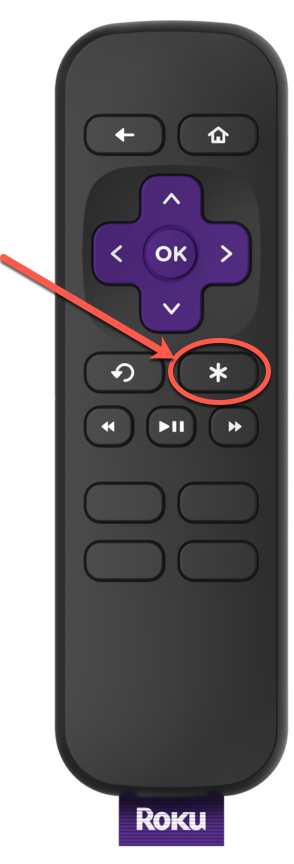
Unless the app overrides it, all Roku players will launch an Options overlay menu when the  key is
pressed during playback of full-screen videos.
However, this only works if the
app does not have its OnKeyEvent() handler
fired, and the Video node is playing full
screen and setFocus is enabled i.e., the Video node is in focus, as displayed in the following code
example:
sub init()
    m.top.setFocus(true)
    setVideo()
end sub
Note: When
a full-screen video is playing, the user will expect the * key to work
as expected. The app must not override it in cases where there are
no other UI elements showing with associated actions for the *
key.
Custom control settings
Certification requirements
Per Roku's certification requirements Apps must support the following closed captioning settings in the Options menu: On, Off, On instant replay, and On mute (Roku TVs only).
For VOD content, apps must synchronize the captions with the audio.
Recommendations
-
Apps should provide all available closed captioning tracks, but do not need to handle track selection. The Roku OS
selects a closed caption track based on the preferred caption
language selection in the system preferences. When the selected
language is not available, it defaults to the system's UI language. -
The global closedCaptionMode method of
the Video node object
is how you turn on and off closed captioning of the current playing
video. The global settings can be read and set in
the roDeviceInfo object. These
affect the same system setting. Whenever the user switches on/off
closed caption, it is expected that the global setting will be
adjusted accordingly. Therefore setting the global setting every
time you adjust a local setting is required. -
The audio track and the subtitle track (for Multilanguage
subtitles) can be
set using the VideoNode.audioTrack and VideoNode.subtitleTrack respectively.
The available tracks can be found
with VideoNode.availableAudioTracks and VideoNode.availableSubtitleTracks.
Another useful item is rodeviceinfo.GetCurrentLocale, which returns the current locale set on the device, which is based on the user's language setting. -
If you are using the roVideoScreen or roVideoPlayer, you
should be rewriting your application
in SceneGraph as the older
technologies are being dropped from the Roku OS.
Star button
Important notes about * button
All Roku devices handle the * button.
The options overlay slides in
whenever the * button is
pressed, the Video node is in focus, and the OnKeyEvent() handler is
fired. When the Video node is not in focus, the options overlay does not
slide in and the OnKeyEvent() handler is fired.
Instant replay button
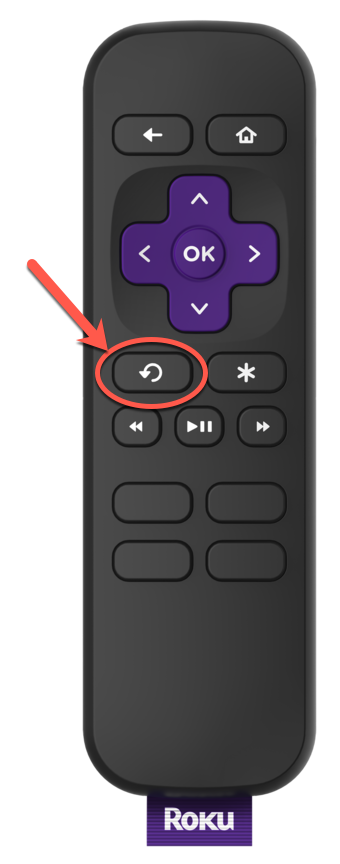
Similarly, for closed captioning, Roku recommends that you allow us to
handle use of the instant
replay button  in the
firmware itself. However, if you decide to override our built-in functionality,
then your app must offer equal levels of
functionality.
While playing
video, pressing will move
the play head back 10�25 seconds and resume playing. If the closed caption
setting is set to “On-replay,” then closed captioning will appear for
the duration of time until playback reaches the position where the
user presses *.
The replay button events
can be received like any
other events.
The Roku OS automatically enables the closed captions during the replay
interval.
Pressing * multiple times
should move the play head and changes the demarcation point accordingly
(only the most recent replay applies). For live linear content, you can stop seeking back if the play head hit the end of the live window.
Additional considerations
Although Closed captioning and Subtitles are two different
things, and server separate functions, both functions reside within the Video node.
One important consideration with the rules outlined above is that
the Roku Advertising Framework (RAF)
will turn off trickplay and the instant replay for the duration
of an ad. If you are using server-stitched ads, you must
disable this with the Video.enableUI field.

Finally, note that the fast forward, rewind, and
the left & right arrows on the direction pad should move the
play head.
Use the Video.notificationInterval field to simplify the app
logic around this. This field lets you set the number of seconds that observers of the position field should receive notifications.
Non-legacy platforms
The non-legacy Roku platforms also
include a closed captions setting menu (under the Settings menu option)
which allows Roku users to control how closed captions are rendered on
the device. These settings let users turn closed captions on and off,
and to customize various caption properties such as font size, color,
etc. These settings are available to developers via APIs defined on the
roDeviceInfo component. It is not necessary for apps to implement
their own closed caption settings UI, as the state of the global
settings can be queried using these new API functions. Details of the
global closed caption settings APIs can be found here.</span>
SMPTE-TT
Roku has partially implemented the
SMPTE-TT TTML spec that can be referenced
here: <http://www.w3.org/TR/ttaf1-dfxp/>. Roku makes no claim of even
minimal compliance. The link to the TTML spec is provided only for
discussion on features we have implemented. Roku's TTML parser will
recognize regions, styles, and spans. The captions are recognized as "p"
paragraph elements with a "begin" and "end" time.
Roku's caption rendering will always use a build in Gotham font
regardless of any font specified in the TTML. Likewise, some font styles may also be ignored. However, the Roku caption rendering will make the best guess effort at choosing the corresponding font size in the system Gotham font using the specified font size in the
TTML.
Roku's TTML parser recognizes sufficient stylings to render colors,
positions, and alignments either on an absolute or percentage offset.
Namespaces do not cause a problem for the parser, but they are not
validated either.
The Roku TTML parser recognizes the following elements from Section 7 of
the TTML spec that specify the structure and principal content aspects
of a document instance:
The Roku TTML parser recognizes the following elements from Section 8 of
the TTML spec that specify the structure and principal styling aspects
of a document instance:
The Roku TTML parser recognizes the following styling elements from
Section 8.2 of the TTML spec:
The Roku TTML parser recognizes the following layout elements from
Section 9 of the TTML spec:
The Roku TTML parser
recognizes the following basic timing attributes for use with timed
elements:
EIA-608
Roku supports EIA-608 closed caption data (analog TV format)
encapsulated within a EIA-708 container (digital TV) in an H.264
elementary stream and HEVC. EIA-608 captions are delivered as part of the video
stream itself. One benefit of this caption format is that there can be
multiple “channels” of captions within the stream. These separate
channels could be used for different languages, for example, English
captions on one channel, Spanish on another, and so forth.
To render EIA-608 captions from within BrightScript, simply set the
TrackName attribute of the SubtitleConfig content metadata parameter to
“eia608/n” where n is the caption channel. Also, add it to
SubtitleTracks to specify the correct language.
WebVTT
Roku supports WebVTT captions if embedded in HLS streams or manifests.
As with the other closed caption formats, an app specifies WebVTT
captions in the SubtitleTracks metadata. The TrackName property is
set to "webvtt/track" where track specifies the index of the caption
track to render.
Roku also supports WebVTT captions in DASH as per the DASH-IF IOP guidelines. The WebVTT content can be specified as mimetype “application/mp4” and codecs parameter “wvtt” for Fragmented MP4 content. For WebVTT captions carried as text, mimetype “text/vtt” is supported.
Closed caption support summary
Below is a summary of the closed caption formats supported by the various video streaming technologies on Roku devices.
Updated 16 days ago