
Eclipse IDE support
Discontinued Roku plugin for Eclipse for developing and packaging apps
Roku has discontinued support for its Eclipse IDE plug-in. Developers can still use it to program, sideload, and test their Roku apps. However, Roku will no longer release software updates or fix bugs for the tool. The tool is also no longer available for download.
Developers can use IDE extensions maintained by the Roku developer community. One of the most popular community-supported tools is the BrightScript extension for the Visual Studio Code IDE. Many Roku developers use this VSCode extension, which is well-reviewed. However, the tool is not built or maintained by Roku and its continued maintenance and support are not guaranteed. Developers can review the library of community-supported tools on the Roku developer community GitHub site.
Sample screen for the plugin
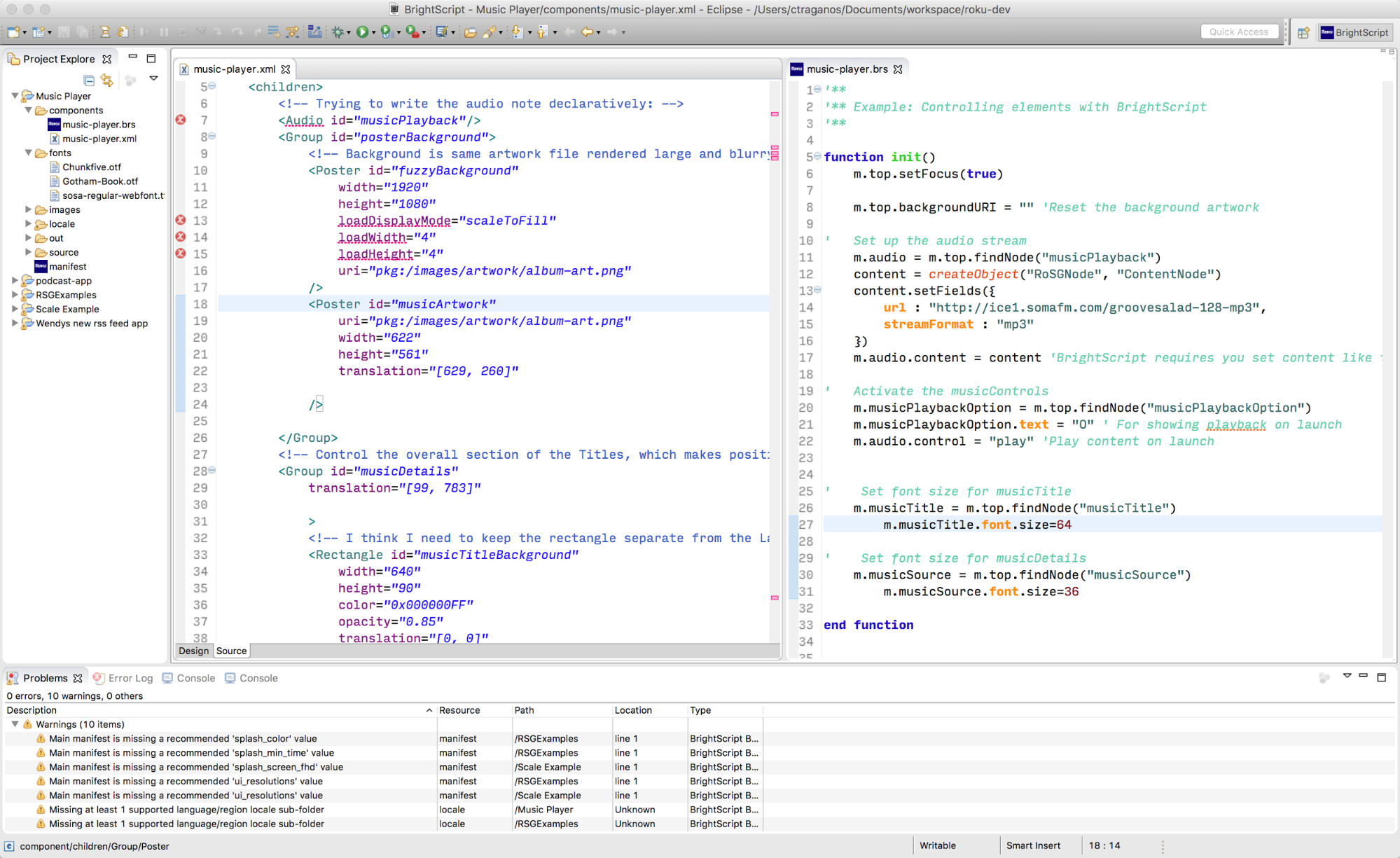
The Roku developer community maintains a BrightScript extension for the Visual Studio Code IDE. Many Roku developers use this VSCode extension and it is well-reviewed; however, it is not built or maintained by Roku and its continued maintenance and support are not guaranteed.
Key features
Building apps requires several items to work together in unison:
- A Roku device
- Your app code
- Hosted media content (video, audio, games, etc.)
To make this happen, developers set up various ways to get rapid coding
installed quickly on a device. With the Roku plugin for Eclipse,
within several minutes you’ll have the power of a fully functioning Integrated
Development Environment and the customizations needed to develop, test,
package, and install apps on Roku
devices.
Code highlight/syntax coloring
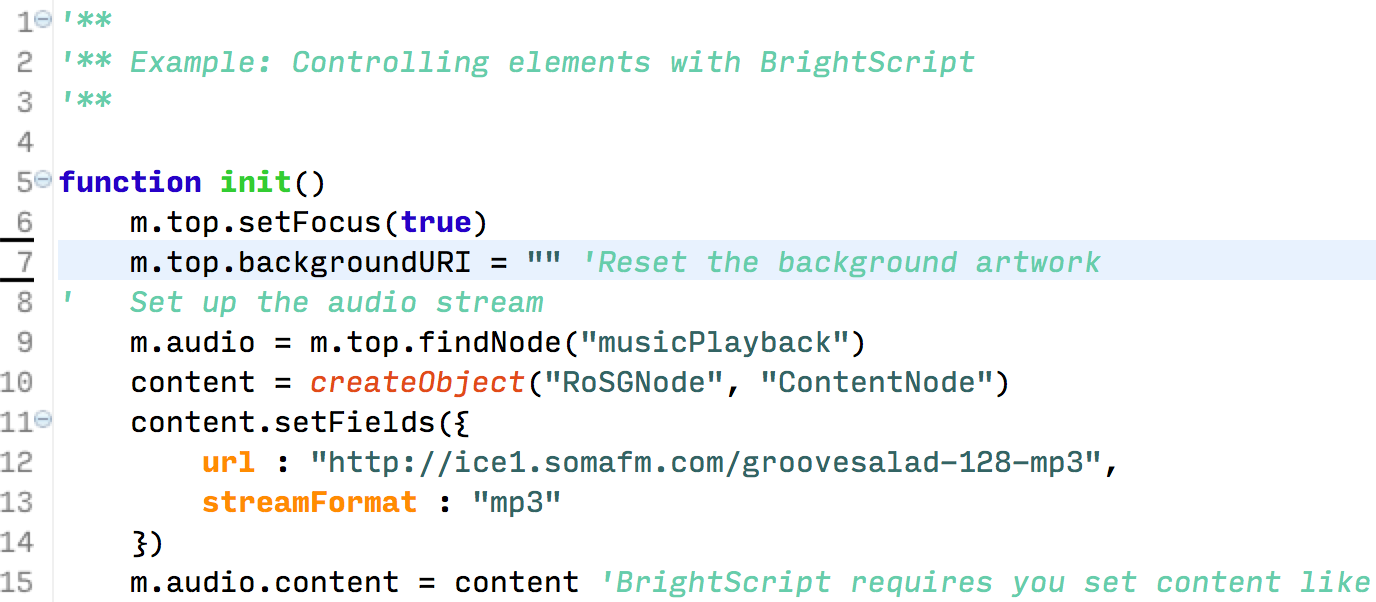
Quickly find errors in your app with our built in color
coding for BrightScript and Roku SceneGraph
syntax.
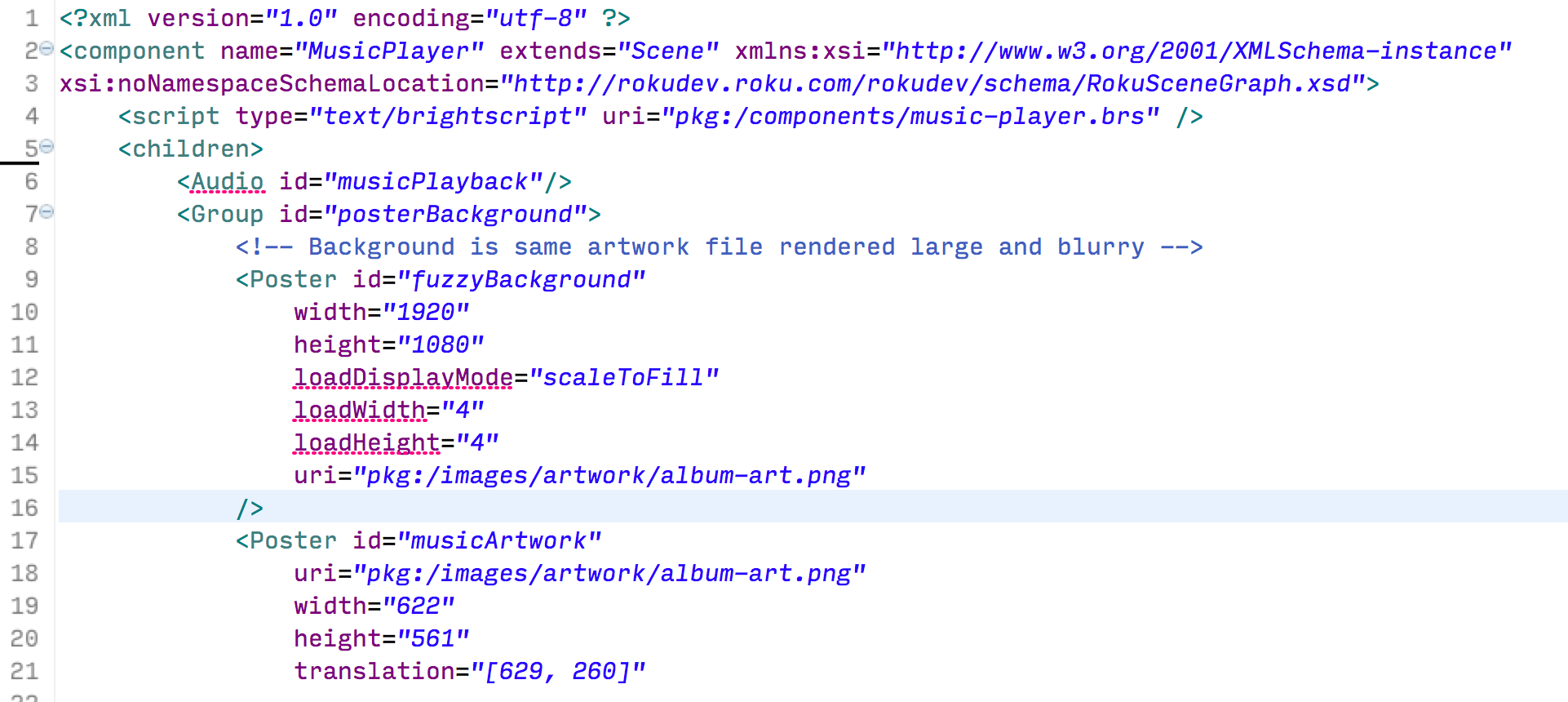
Code completion and hints
The plugin checks the reference guides for BrightScript and Roku
SceneGraph, allowing for auto completion and details for parameters,
methods, and
nodes.
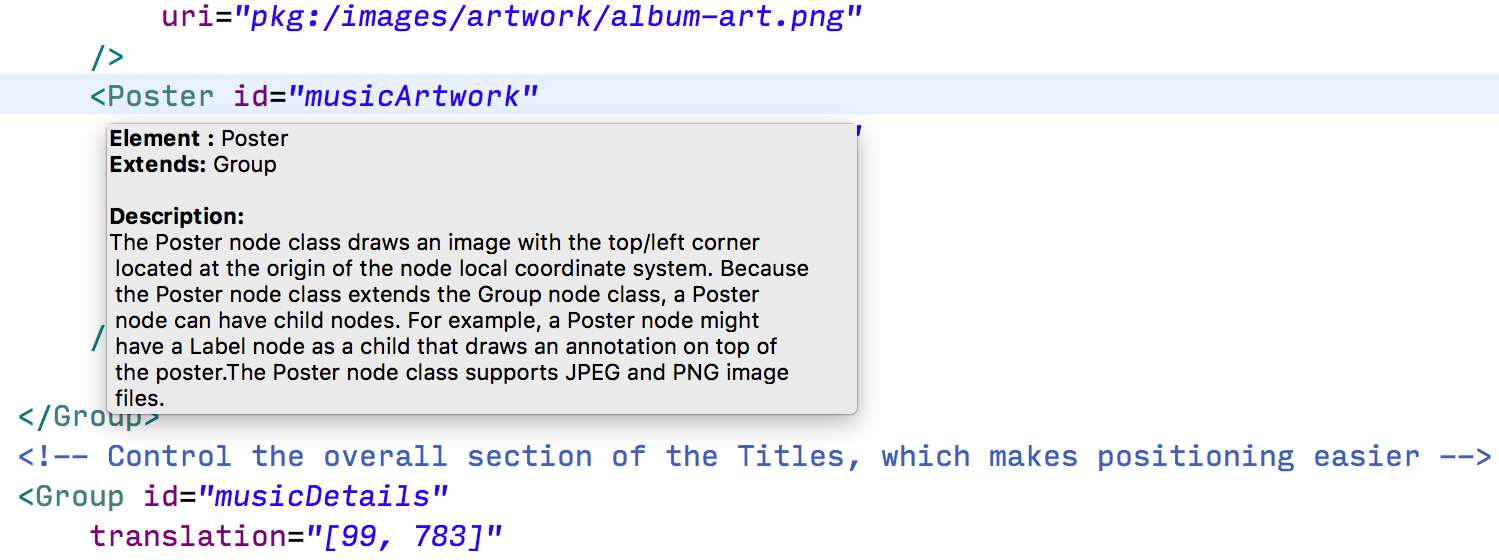
Built-in telnet console for BrightScript and SceneGraph
All the available Roku device telnet ports are built into the plugin,
allowing for fast feedback on bugs, stack traces, and break points in your
app
code.

Installing Eclipse and the plugin
Workspace: We encourage you to start your Roku projects in a fresh workspace. You can copy your projects back in afterwards.
Perform the following steps:
- Download Java version 8:
oracle.com/technetwork/java/javase/downloads/jre8-downloads-2133155.html - Download the latest version of the Eclipse Installer (currently
version “2020-12/R”) for Java IDE Developers:
https://www.eclipse.org/downloads/packages/installer - Install the Eclipse Dynamic Languages Toolkit via Eclipse > Help > Install New Software > Add...
- Name: DLTK
- Location: http://download.eclipse.org/technology/dltk/updates-dev/5.6/
- Follow the instructions and click Next... then Finish
- Add the Roku Plugin package via Eclipse > Help > Install New
Software > Add...- Name: Roku Plugin
- Location: https://devtools.web.roku.com/ide/eclipse/plugin
- Follow the instructions and click Next... then Finish
Updating the plugin
Add the Roku Plugin package using this path: Eclipse > Help >
Install New Software > Add...
-
- Name: Roku Plugin
- Location: https://devtools.web.roku.com/ide/eclipse/plugin/
- Follow the instructions and click Next.
- You will receive a message saying that "'BrightScript Core'" is
already installed, so an update will be performed instead."
Click Finish. - Restart Eclipse.
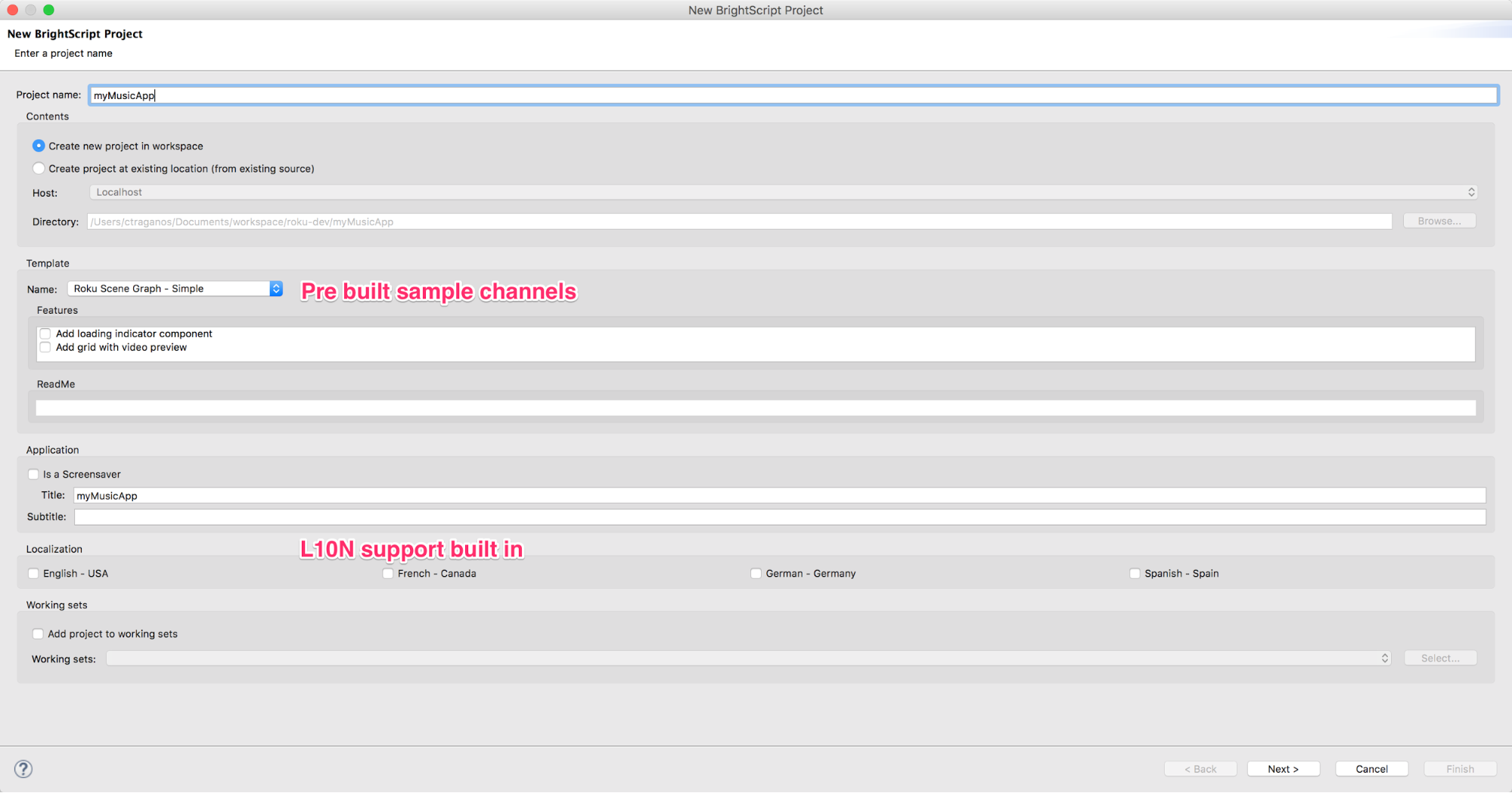
Creating a new BrightScript project
Quickly have all required assets and files setup through Eclipse. In
addition, reference sample apps are provided in a simple drop down
for testing. The manifest, components, source, images, locale, and
related directories are handled
instantly.
Installing and packaging apps
Using the standard export option for projects, the Roku plugin for
Eclipse enables developers to install their current app code onto
Roku devices within seconds. In addition, developers can package and key
their applications for preparing the Streaming Store required
assets.
Packaging an app can be done in Eclipse. Publishing an app on the Streaming Store requires several items for the app, such as its
source code, images, and fonts, to be "packaged" into a bundle that gets encrypted. This enables
developers to publish apps while keeping all intellectual property
safely encrypted. The process of “packaging an app” uses
cryptographic hardware built into Roku devices and creates a package
that can be safely distributed on Roku devices.
-
In an existing BrightScript project, select File > Export
BrightScript
Deployment.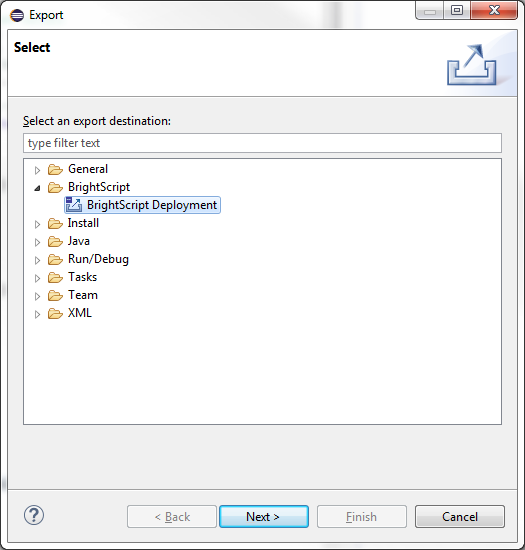
-
In the following dialog: click the check-box next to Install
on Roku Box, and Create Package (.pkg) file. Click
Finish and the package will be available in the out folder of
the current BrightScript project in the Eclipse
workspace.If the genkey utility has not been run previously, click New
Keys to generate a signing key.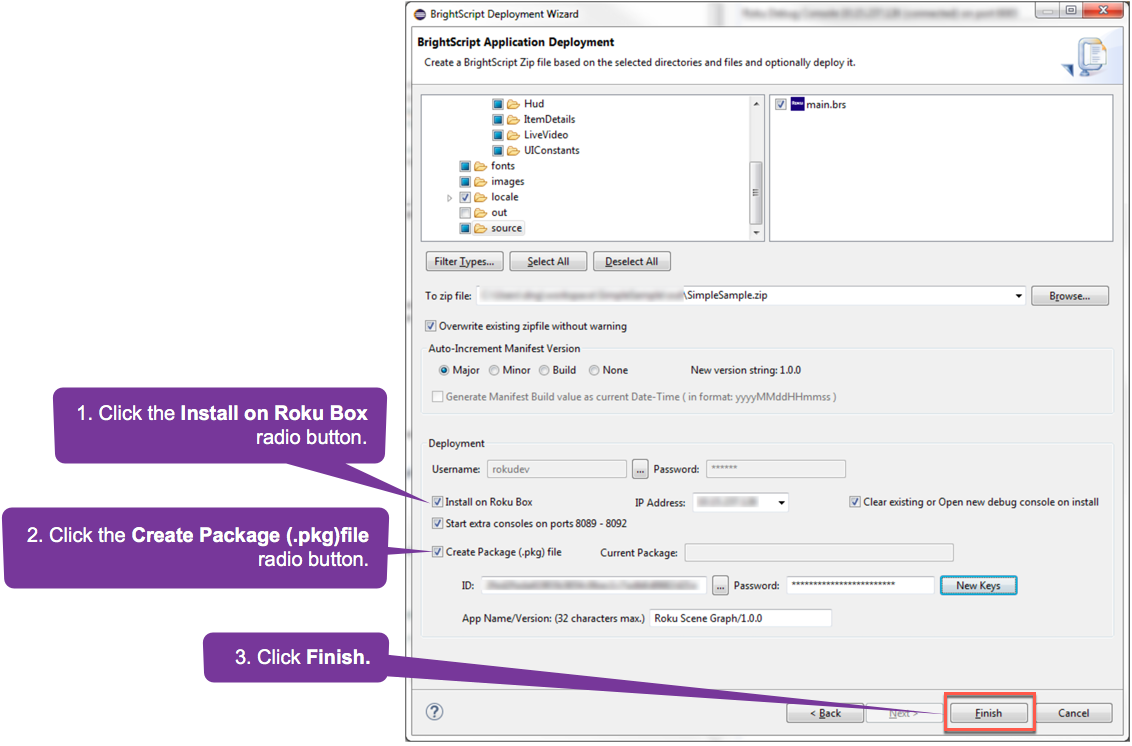
Documentation generator
Like many other development environments, the BrightScript Eclipse
plugin can produce in-line documentation through the simple use of
special tags in source code comments. An example of the kind of hover
help documentation that can be generated is shown
below.
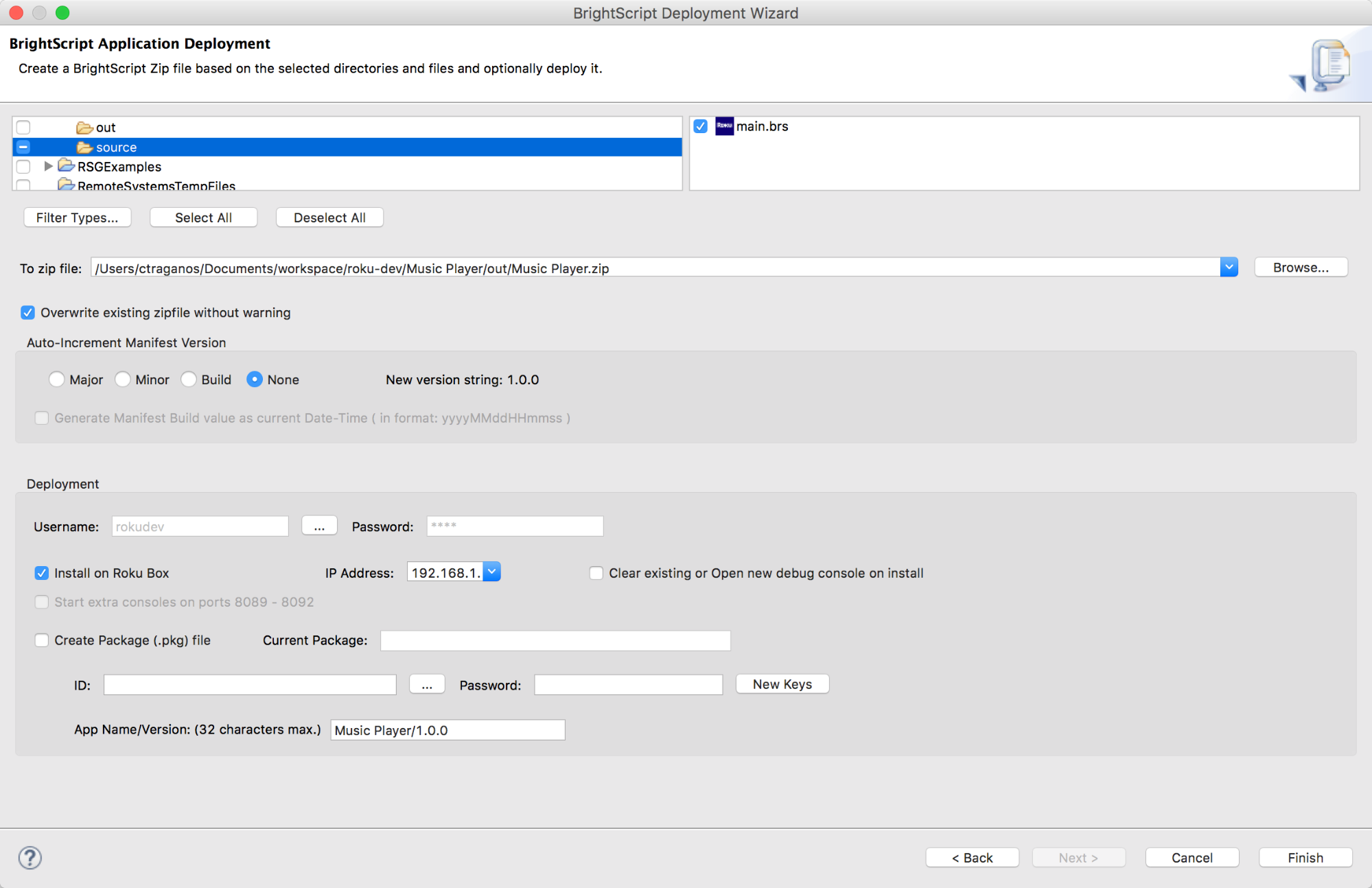
The complete specification and comment syntax for the documentation
generation system, called BrightScriptDoc, can be found here.
Updated 2 months ago