
Title tracking status
Overview
Monitor where your titles are in The Roku Channel publishing pipeline and identify which titles need action.
AvailabilityThe Roku Content Partner Portal is currently in a limited alpha or beta phase and is available by invitation only. Access is being rolled out in stages to ensure a high-quality experience while incorporating your feedback into ongoing development.
If you’re interested in participating, reach out to your Roku partner manager to express interest in joining the program. Eligible participants will be onboarded as capacity allows.
Who this is for
Use the Title status view if you are responsible for delivering or managing Video on Demand (VOD) content on The Roku Channel.
This view is most useful for:
Operations managers (asset delivery)
Use this view to:
- Track asset delivery and processing progress
- Identify ingestion or processing failures
- Monitor titles blocked by asset-related issues
Focus on these statuses:
- Unfulfilled: Missing or unmatched assets
- Failed: Processing or QC issues
- Processing: Assets are actively being prepared
Business managers (rights delivery)
Use this view to:
- Track rights submission and approval status
- Monitor availability windows across territories
- Identify titles blocked by rights issues
Focus on these statuses:
- Unfulfilled: Missing or unmatched rights
- Rights under review: Pending approval
- Expired: Rights windows need updating
Getting access
To use this feature, get the appropriate role assigned to your account.
- Request business manager or operations manager access from one of your company’s account administrators.
- Ask your administrator to grant access based on your responsibilities, such as rights management or asset delivery.
- Contact your internal team if you are not sure who your administrator is.
Page layout
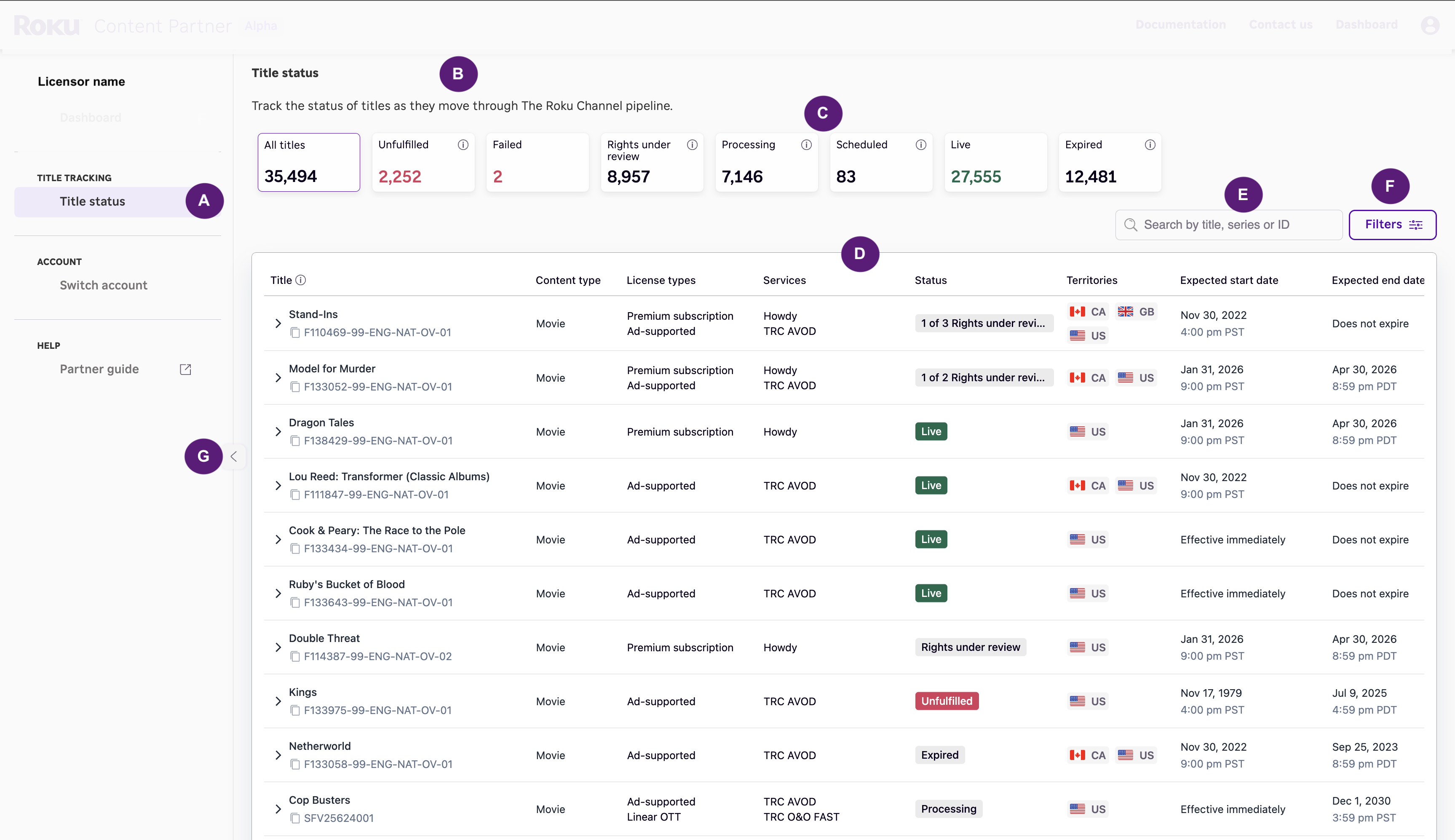
Each labeled element corresponds to the components described in the table below.
| Key | Page component |
|---|---|
| A | Feature navigation: Displays the available features within the portal and allows users to switch between them. Organizes functionality into sections so users can quickly access different areas such as Title Tracking, Creatives, and more. |
| B | Page header and feature description: Displays the current page title and a brief description of the feature. Provides context on what the page is used for and what actions users can take. |
| C | Title status cards: Displays a summary of titles by status and acts as a primary filter for the table below. |
| D | Title status table: Displays detailed information for each title, including status, territories, availability dates, and more. |
| E | Title status search field: Enables searching for titles by name, series, or title ID. |
| F | Title status filter panel: Provides filtering options to refine the title list based on selected criteria. |
| G | Collapse left navigation: Toggles the visibility of the left-hand navigation panel to expand workspace. |
How to use this page
1. Select a licensor (if applicable)
If your organization includes multiple licensors, use the dropdown in the top-left to switch views.
- Only titles for the selected licensor are displayed.
- If you have a single licensor, this control is hidden.
2. Use status cards as a primary filter
At the top of the page, status cards let you quickly filter and assess your catalog.
Available cards:
- All titles
- Unfulfilled
- Failed
- Rights under review
- Processing
- Scheduled
- Live
- Expired
Click any card to filter the table.
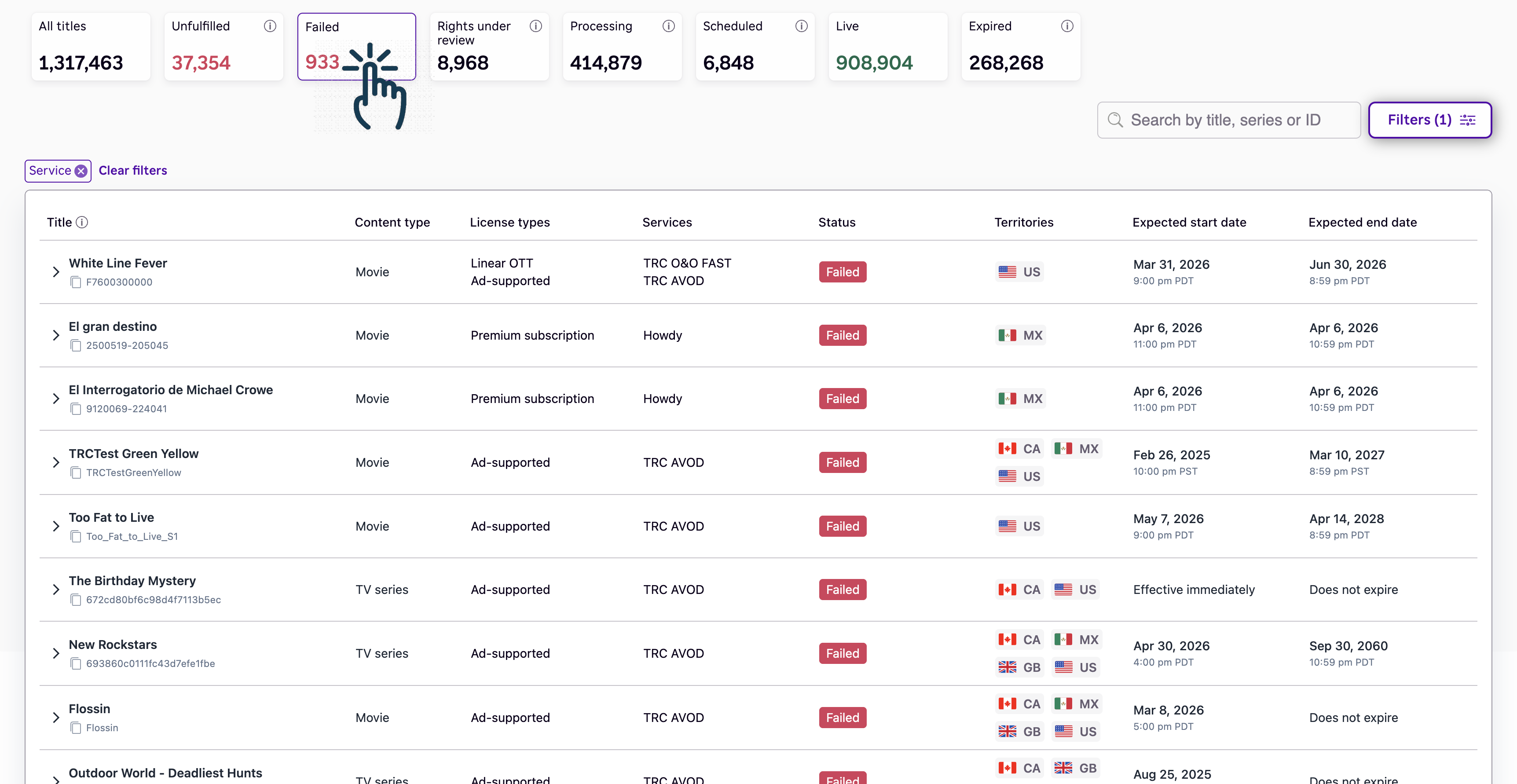
Selecting the 'Failed' status card displays titles that are failed for at least one territory.
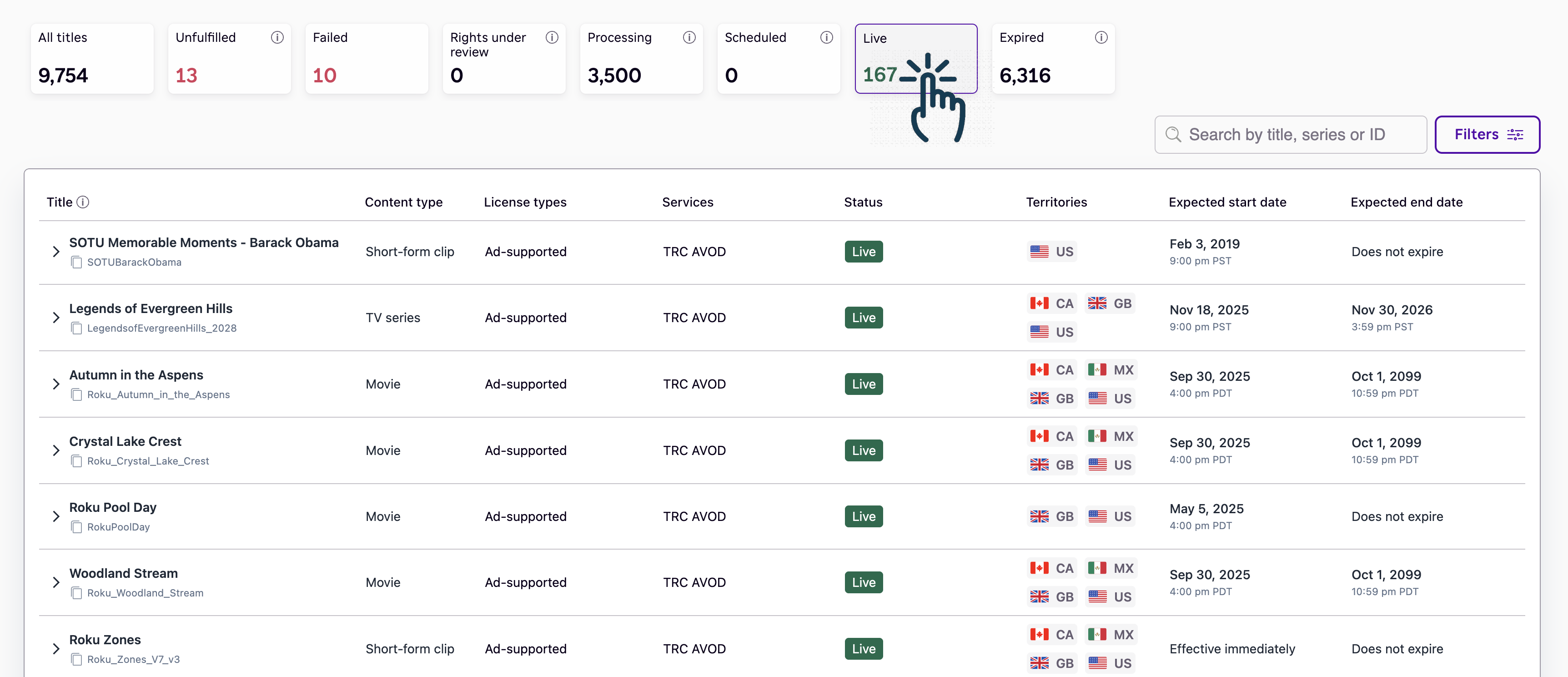
Select the 'Live' status card to view titles currently live in at least one territory.
How status is determined
How the 'All titles' card works
The All titles card shows every title in your catalog.
For each title, the Status column reflects the most restrictive condition across all territories and components.
This means:
- A single blocking issue, such as Failed or Unfulfilled, overrides all other states.
- The status shown here represents the overall health of the title.
Status priority
From most restrictive to least restrictive:
- Failed
- Unfulfilled
- Rights under review
- Processing
- Scheduled
- Live
- Expired
Examples
| Scenario | Result |
|---|---|
| Some territories Live, some Failed | Failed |
| Some territories Live, some Unfulfilled | Unfulfilled |
| Some territories Live, some Expired | Live |
| All territories Expired | Expired |
Why a title may show a restrictive status
Even if most of a title is Live, a single Failed or Unfulfilled component overrides the overall status.
Use the Territories panel to identify where the issue exists.
How the other status cards work
Each status-specific card, such as Failed or Expired, highlights titles that are actively in that state.
A title appears in a status card if:
- At least one territory matches that status, or
- At least one component matches that status
Example
- The Expired card shows any title that has at least one territory where availability has expired.
- The Live card shows any title that is live in at least one territory.
A single title can appear in multiple status cards because status is evaluated at the territory level. Use All titles to see the rolled-up overall status.
Because status is evaluated at the territory level, a single title can appear under multiple cards.
Example
- US → Live
- CA → Scheduled
- MX → Expired
This title appears in:
- Live
- Scheduled
- Expired
But in the All titles view, the Status column shows the most restrictive status. In this case, that status is Scheduled.
Why this matters
- Use All titles to understand overall readiness.
- Use individual status cards to find and act on specific conditions.
- Do not assume a title belongs to only one status.
- Expand the title to see where issues exist.
What requires your attention
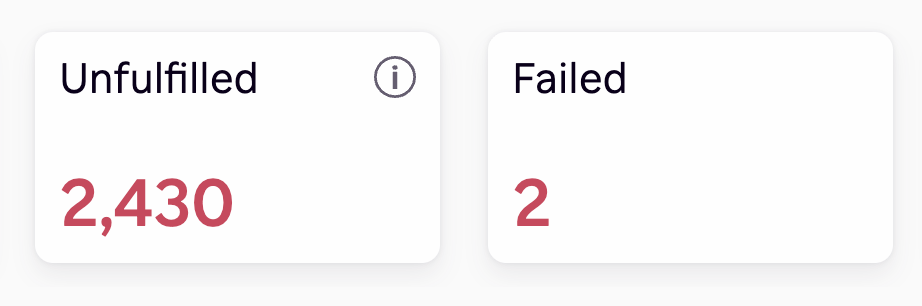
Focus on these two statuses first.
Unfulfilled
Waiting for ordered rights, assets, or a match between the two. Requires your attention.
This means required inputs are missing or not linked by the same Title ID.
Action:
- Deliver rights and assets.
- Make sure the Rights ID and Asset ID match the same Title ID.
Failed
One or more issues occurred while processing your files and are preventing this title from going live. Requires your attention.
This means blocking errors occurred during processing.
Action:
- Resolve the errors before the title can proceed.
Understanding the title status table
Each row represents a single title and its current status across territories.

The following table below explains each column in the title table illustrated above.
| Column | Description |
|---|---|
| Title | Displays the title name. Includes your Title ID, which can be copied on click. Use the Title ID for support, troubleshooting, and internal tracking. |
| Content type | Indicates the type of content. Each title has one type:
|
| License types | A title may have one or more license types, including Ad-supported, Linear O&O FAST, and Premium subscription. |
| Services | A service represents how your content is distributed and monetized on The Roku Channel. Examples include TRC AVOD, TRC O&O FAST, or one of your own or participating Premium subscriptions such as Howdy. A single title may appear under multiple services depending on its rights. |
| Status | Displays the overall status of the title, such as:
|
| Territories | Displays the countries where the title is available or targeted. Territories appear as country flags and codes, such as US, CA, and MX. A title may be available in multiple territories, and status may vary by territory. |
| Expected start date | Shows when the title is expected to become available. It reflects the next upcoming start date across all territories. If all start dates are in the past, it shows the most recent start date. Dates are based on your local timezone. |
| Expected end date | Shows when the title is expected to expire. It reflects the next upcoming expiration date. If all dates are in the past, it shows the most recent expiration date. Dates are based on your local timezone. |
How to read a row

When reviewing a title:
-
Start with License types by identifying how the title is licensed:
- Ad-supported
- Linear O&O FAST
- Premium subscription
This tells you what types of distribution the title is eligible for.
-
Next, review Services where the title will appear:
- TRC AVOD
- TRC O&O FAST
- Premium Subscription services
A title may be associated with multiple services depending on its rights.
This helps you understand how and where the title will be surfaced to viewers.
-
Check the overall Status to understand overall readiness.
-
Review Territories to understand rights coverage.
If the status shows something like “1 of 3 unfulfilled,” expand the row to identify which territories are impacted.
-
Finally, check the Expected timing:
- Expected start date → When the title will become available
- Expected end date → When availability will expire
These dates reflect:
- The next upcoming change across all territories
- Your local time zone
For TV content:
- Expected start and end dates for a TV series (and seasons) are derived by rolling up dates from all associated TV episodes.
- This means the dates represent the earliest upcoming availability or expiration across all episodes.
A title can appear ready in one territory but blocked in another. The Status column shows the most restrictive condition across all territories.
To investigate territory-level differences, expand the row.
Default sorting
By default, titles are sorted by the date they were added, with the most recently added titles shown first.
For TV content, additional sorting rules apply:
- TV seasons are ordered by season number.
- TV episodes are ordered by episode number within each season.
This ensures that:
-
Episodes appear in the correct chronological sequence
-
Seasons and episodes display in a logical viewing order
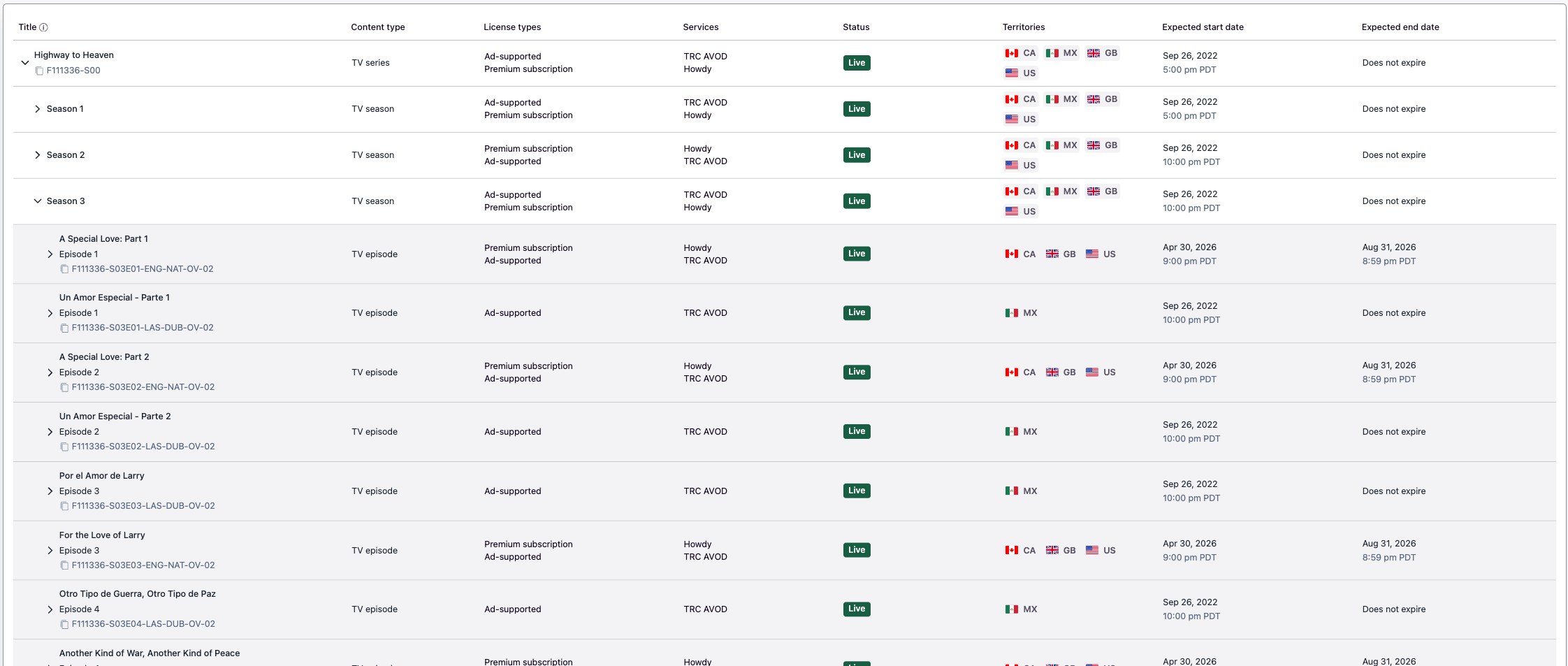
Seasons and episodes appear in chronological sequence for a logical viewing order.
Using search and filters
Use search and filtering to limit results and improve your focus.
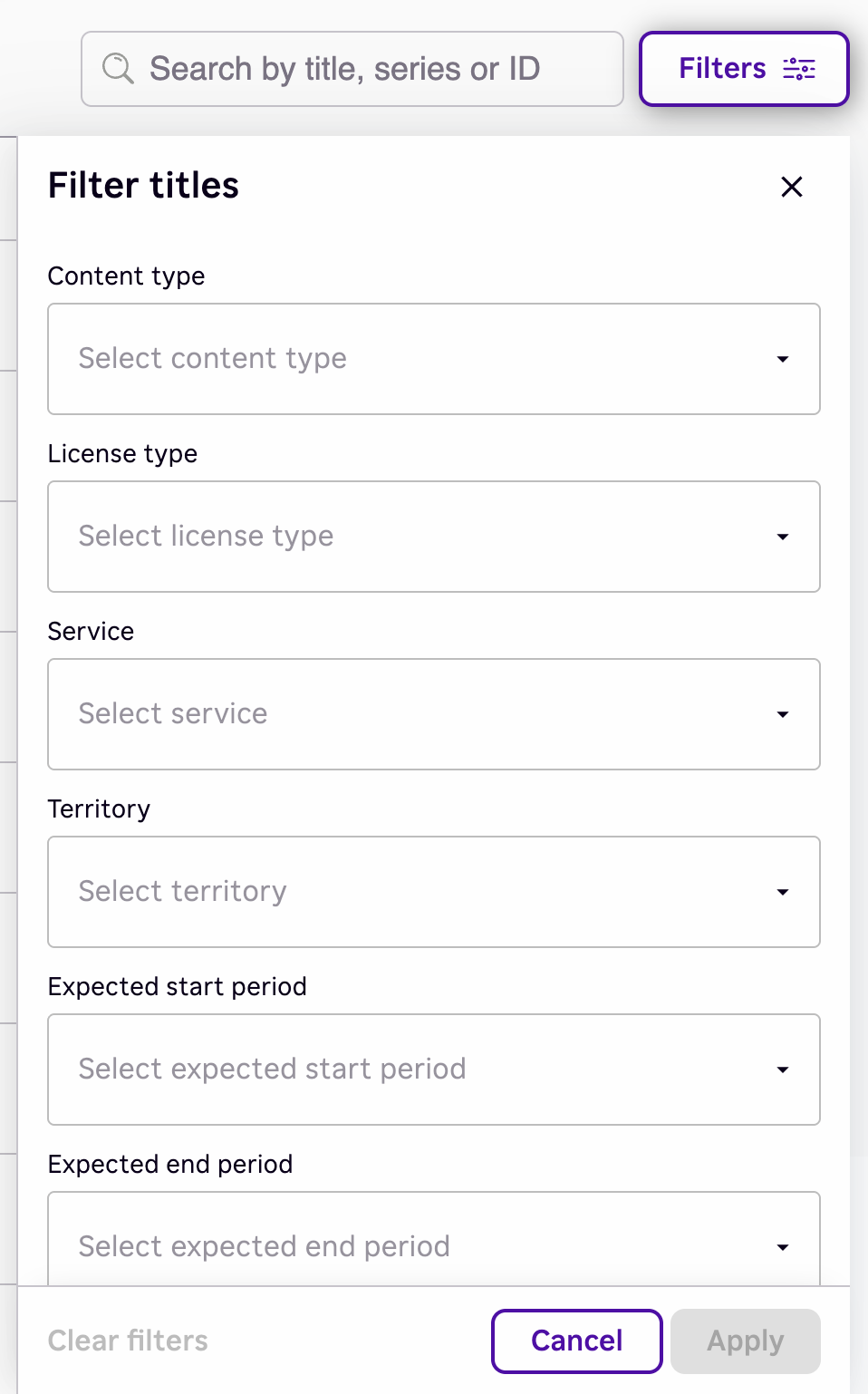
Use search to find a specific title
- Title name
- Series name
- Title ID
Use filters to narrow results
-
Content type
-
License type
-
Service
-
Territory
-
Expected start period
This filter shows titles whose Expected start date falls within a selected timeframe.
Available options:
- Tomorrow
- This week
- This month
- Next week
- Next month
Use this filter to:
- Identify titles launching soon
- Prepare for upcoming releases
- Monitor near-term availability
-
Expected end period
This filter shows titles whose Expected end date falls within a selected timeframe.
Available options:
- Tomorrow
- This week
- This month
- Next week
- Next month
Use this filter to:
- Identify titles that are expiring soon
- Take action to extend availability
- Monitor upcoming expirations across your catalog
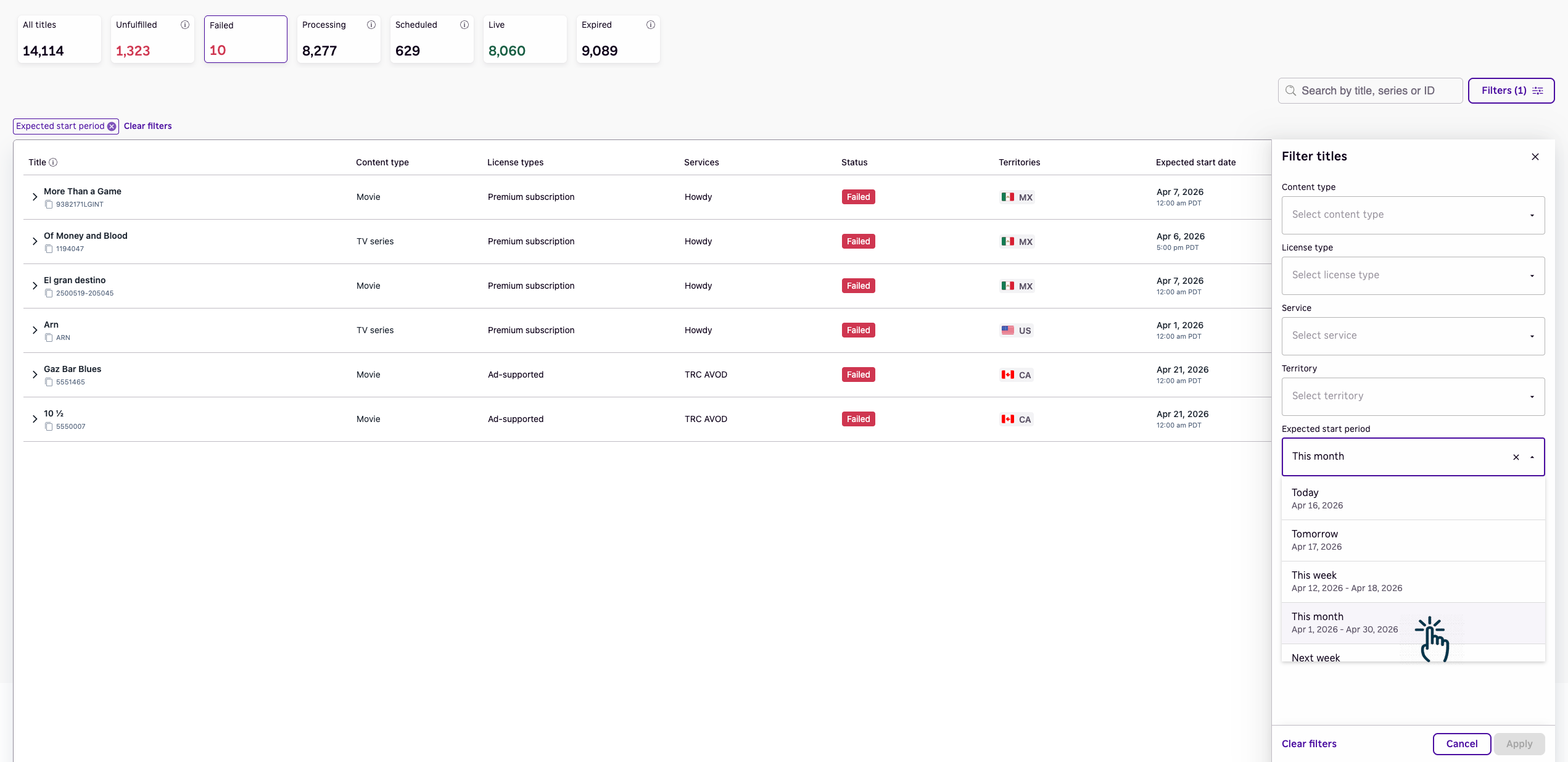
Filter titles by 'This month' while viewing 'Failed' to prioritize fixes for titles that are scheduled to go live soon.
These filters use the rolled-up Expected start and Expected end dates shown in the table.
- Filters apply to the full title list and update results immediately.
- A title appears if its date falls within the selected period.
Viewing status by territory
Some titles have different statuses across channel store locations.
To view details:
- Select the expand arrow next to a title.
- The Territories panel appears.

How to read the territories panel
Each card shows:
- Territory
- Status
- License type
- Availability window
Understanding mixed status
Example
1 of 3 unfulfilled
This means:
- Some territories are ready or live
- Others require action
Use the panel to:
- Identify affected territories
- Focus only where action is needed
Common scenarios
Which titles need attention?
Select Unfulfilled or Failed.
Prioritize titles with Errors.
Why isn’t my title live?
Check the status:
- Unfulfilled: Missing or unmatched inputs
- Failed: Blocking errors
- Processing or Rights under review: Still in progress
If rights are missing, fields such as license types, services, territories, or expected dates may display as blank or
'-'. This is expected until the required data is provided and matched.
Some final callouts
- This view provides summary-level visibility only.
- Issue details are not shown here.
- A dedicated Title tracking issues view will be provided in the future for detailed diagnostics and resolution paths.
- Some fields may display
'-'when data is unavailable.
Updated 6 days ago
What’s Next
Title tracking issues for detailed diagnostics and resolution paths, coming soon!