
RALE
The Roku Advanced Layout Editor (RALE) is a tool that provides a hierarchical view of the node tree
in a RokuSceneGraph app. It also lets developers or designers dynamically lay out the visual aspects
of an app for quick prototyping and design purposes. Changes are made in the RALE UI and reflected
immediately on the app under test on the target Roku device.
Using RALE
To get started with RALE, simply download the application via the link below
Your Roku device must be in developer mode to use RALE with your device. The commands to enable developer mode are:
Home, Home Home, Up, Up, Right, Left, Right, Left, Right
Once downloaded, open the app and landing page will appear. To get started, add your Roku to the device
list. On the landing page of the application, click the label "Select Device" at the top of the screen.
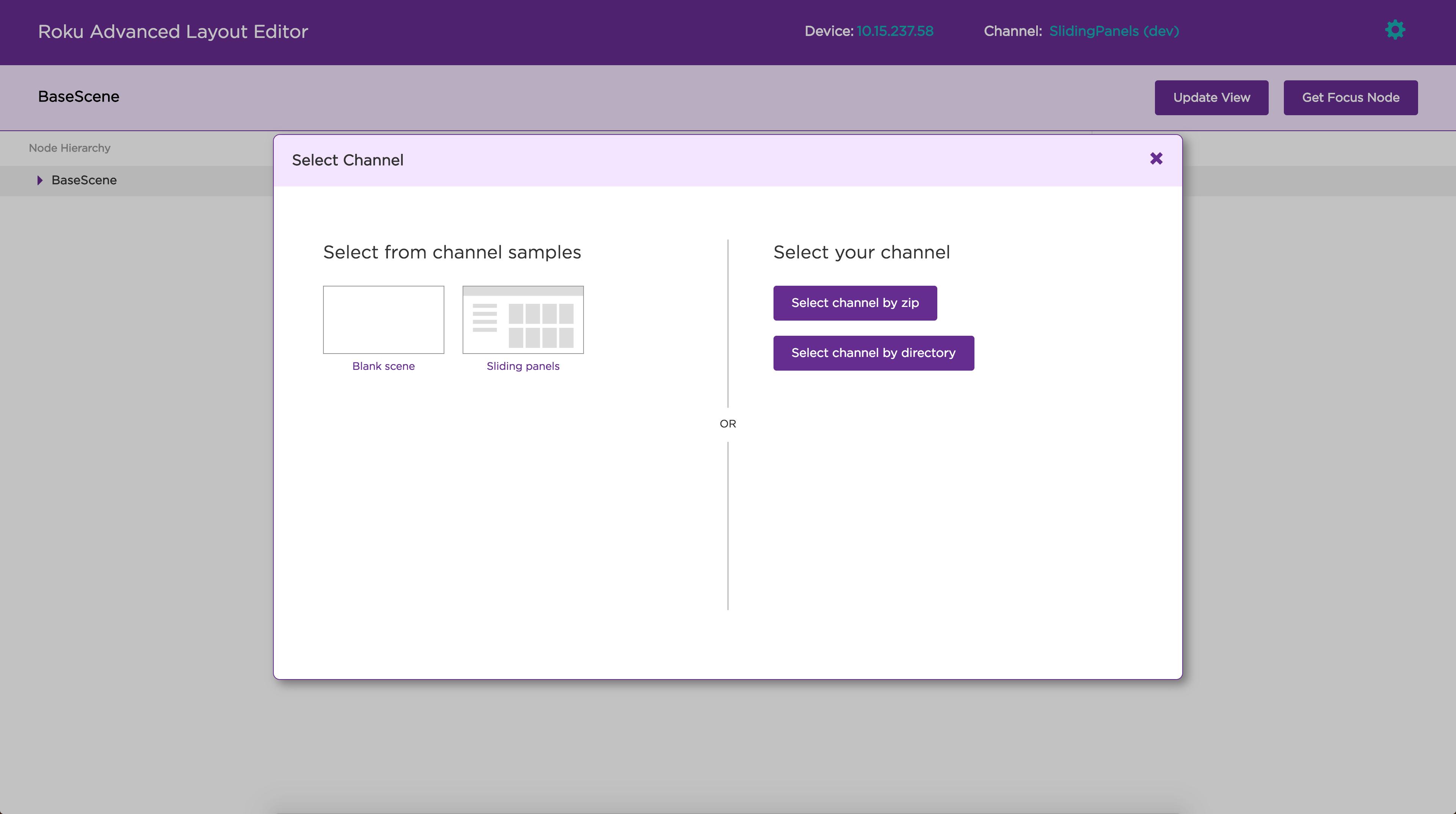
For first time users, RALE has a sample node hierarchy tree already built into one of its templates.
This template is called Sliding Panels and it can be accessed through the app samples. Simply click
Select Channel located next to your device after you've selected your target Roku device. From here
you can select the template you want to use, or upload your own zip to edit.
Editing components in RALE
Aside from providing templates, RALE offers a quick editing feature to modify your SceneGraph components on the fly. This
feature can be used to change fields, or node hierarchy in your SceneGraph while deployed. After loading your app, RALE
will provide you with a node hierarchy of your SceneGraph application.
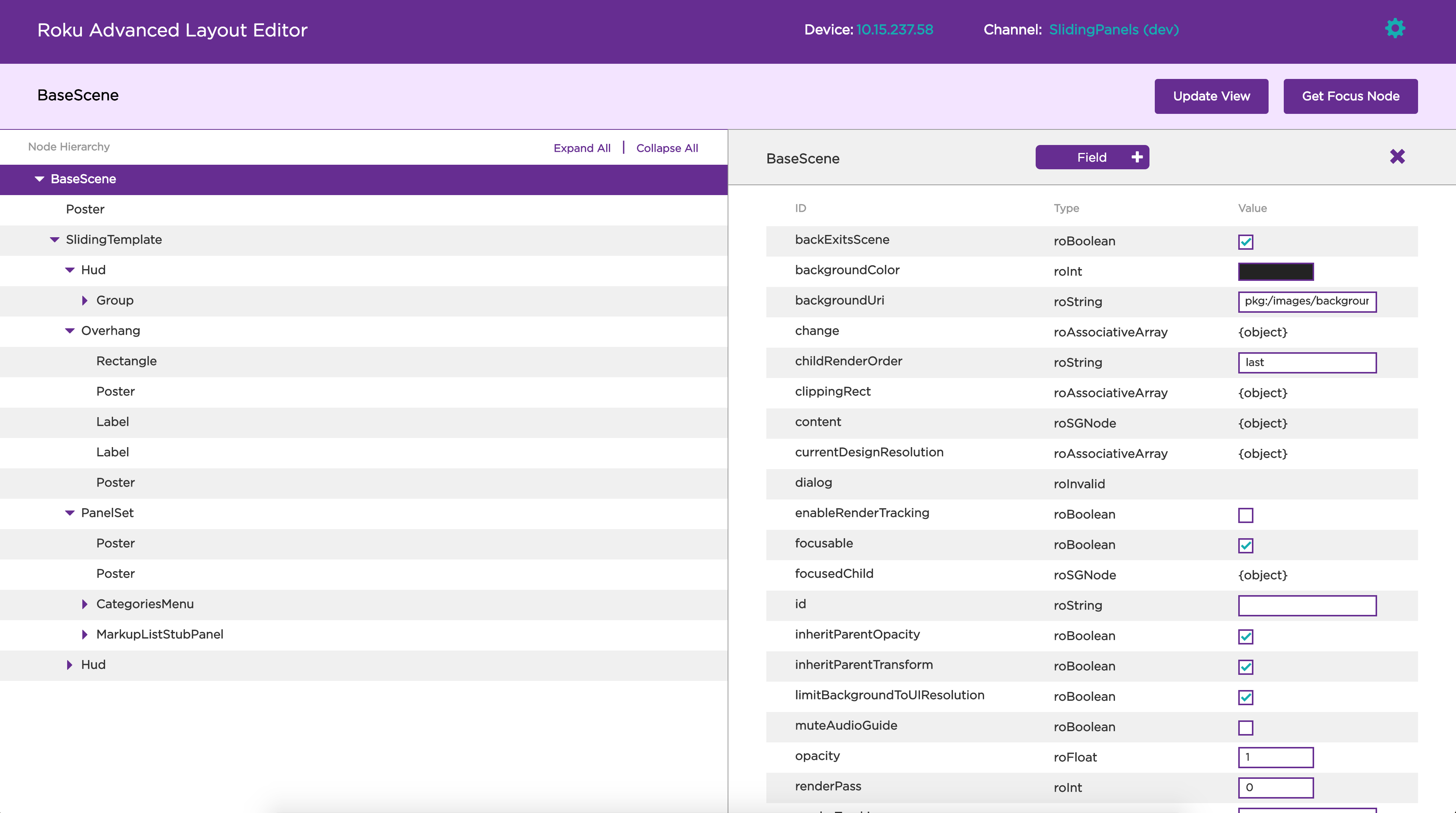
Not only can you edit the fields of these nodes, but the UI elements can actually be changed via a GUI that RALE provides.
Inside the node hierarchy, the layout tab provides a GUI representation of your SceneGraph app. Simply select your node that you want to modify, and then select the layout tab on the right side view. From here you can resize, move, or change your UI.
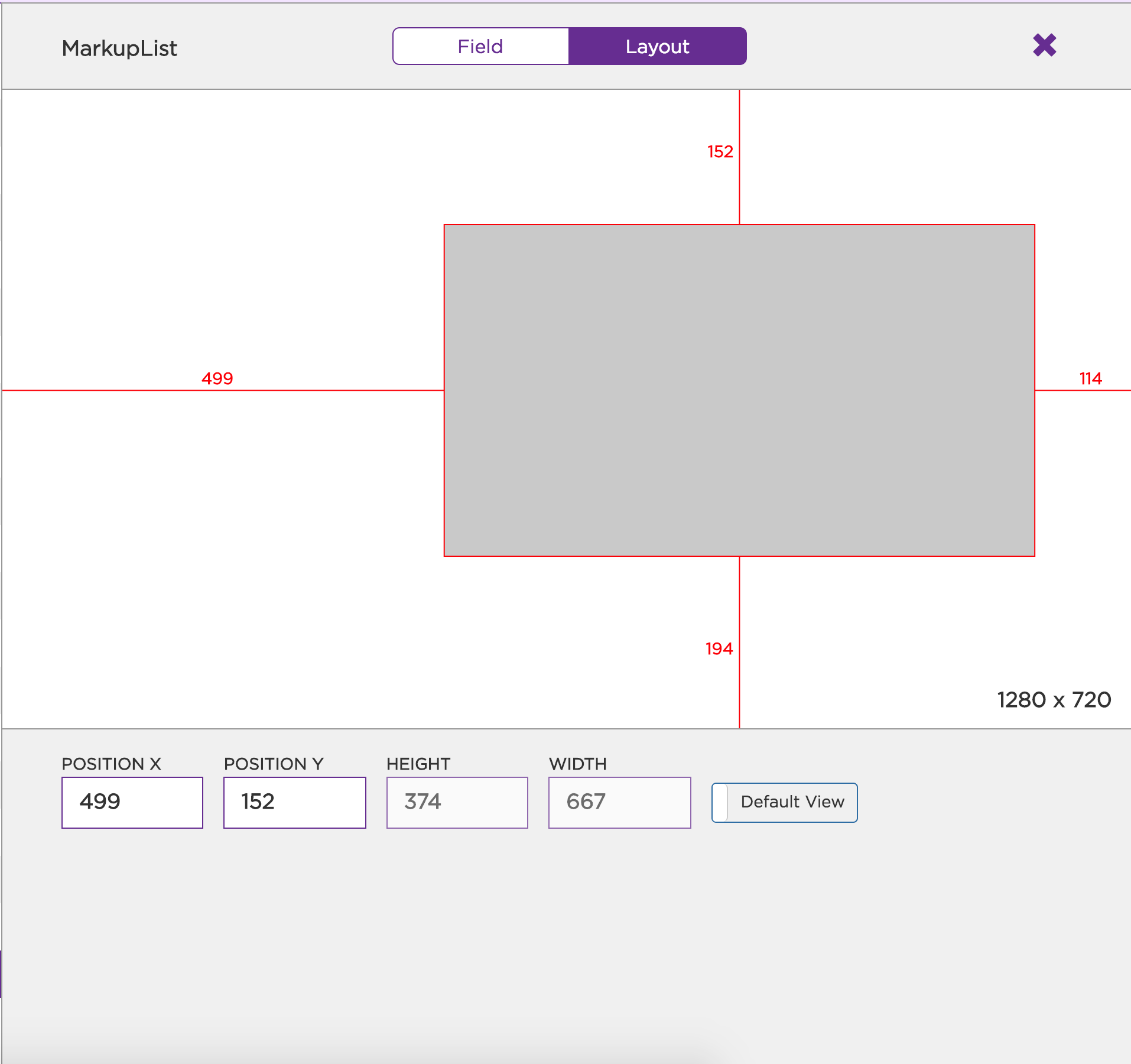
Dragging and resizing the node in the GUI will correspond with your Roku app on your TV.
Release notes
2.1.7: RALE version 2.1.7 includes the following new features that help developers work with designers to implement app layouts:
- Overlays: Upload a wireframe and then place components on top of a transparent overlay to quickly and accurately match the layout design.
- Guides: Drag vertical and horizontal guides onto your app to organize components into columns and rows and ensure text, images, and other nodes are aligned on the page per the wireframe.
- Export: Seamlessly share the current app layout by exporting it to an XML file and then sending it to designers to get their feedback. This feature is currently in the Alpha phase; therefore, it may not function completely as expected.
Updated 1 day ago