
Effects
The Effect node applies GPU shader effects, including rounded corners, borders, and linear or radial gradients, to a Rectangle or Poster node. To use an Effect, you create the node, set its fields, and then assign it to the effect prop of a Rectangle or Poster.
The Effect node itself is not renderable. It does not draw anything and only changes how the node that references it is drawn.
One Effect node can serve any number of Rectangle and Poster nodes, and changes to its fields update in place.
The effects AI skill in @roku-sdk/ai gives coding agents the rules in this document. This document explains the reasoning behind them.
The Effect node requires Roku OS 16.0 (or later) and a device with the OpenGL graphics backend. On any other device or backend, the app ignores the
effectprop and renders the Rectangle or Poster normally without reporting an error. Below Roku OS 16.0, the Effect node type does not exist at all.An Effect does not clip the node's children. To clip a subtree to a shape, use
MaskGroup.
Detecting Effect support
To check whether the device supports effects, read getDeviceInfo() from @roku-sdk/rsg-ts/runtime once per app and keep the answer. Each call builds a new object, and the SDK keeps the value returned by the first call, including null. As a result, calling getDeviceInfo() again does not change the result.
You can use the following test:
Number(info.osVersion.major) >= 16 && info.graphicsPlatform === "opengl"The Effect node has a supported field, but the firmware sets it when it creates the node, and TypeScript cannot read it. The getDeviceInfo() test also cannot detect effects that are switched off in the device's configuration.
Laying out child content
An Effect changes only how the Rectangle or Poster itself is drawn. A child of a Rectangle with rounded corners can still paint into and past those corners; therefore, you must lay out your content to stay inside the rounded area.
Hoisting the Effect into a const
You must hoist every Effect into a const before you use it. Hoisting means creating the node once, in its own const, instead of inside the effect prop expression. A new Effect node on every change reduces performance without producing an error. The following example hoists the effect:
// Do this
const fx = <effect borderRadius={32} borderWidth={2} borderColor="0xFFFFFFFF" />;
return <rectangle width={400} height={200} effect={fx} />;
The following example creates a new effect node on every focus change:
// Not this: a new effect node on every focus change
return <rectangle width={400} height={200} effect={focused() ? <effect borderWidth={6} /> : <effect borderWidth={0} />} />;
Understanding why hoisting matters
SolidJS compiles JSX with babel-plugin-jsx-dom-expressions, which decides which expressions are tracked. A signal behaves differently depending on where it is read:
- A signal read in the Effect node's own fields, such as
<Effect borderRadius={radius()} />, updates only that field. On<Effect>, the read sits in the component's props getter, whichcreateComponentruns without tracking changes. On<effect>, it sits in a nested_$effect. In either case, theeffectprop on the Rectangle or Poster does not react to the signal. As a result, the app builds the node once and updates the field in place, whether the node is inline or hoisted. - A signal read in the
effect={…}expression itself, such as a ternary or a function call, makes theeffectprop on the Rectangle or Poster re-run that expression whenever the signal changes.
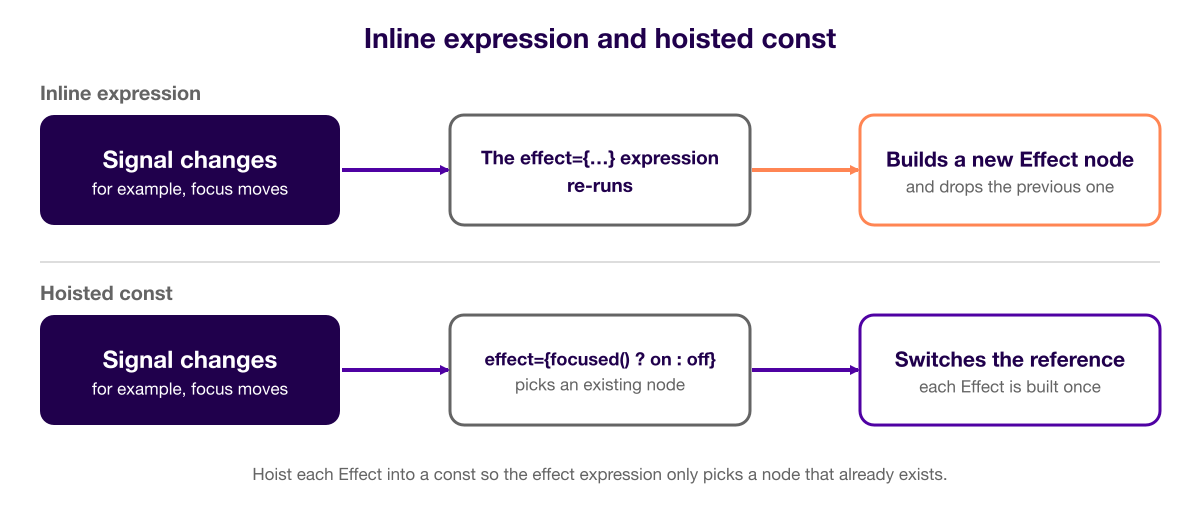
In the second case, the app creates a new Effect node and discards the previous one every time the signal changes (for example, on each focus change). Although the screen looks correct and does not indicate issues, app performance degrades. To avoid this, hoist each version of the effect into its own const and choose between the constants, as in effect={focused() ? on : off}. The app builds each node once and only switches the reference. Hoisting every Effect means the effect expression can only ever pick a node that already exists, whatever it reads later.
The diagram below compares an inline expression with a hoisted const.
The following example hoists both versions of the effect and chooses between them:
const on = <effect borderWidth={6} borderColor="0xFFFFFFFF" />;
const off = <effect borderWidth={0} />;
return <rectangle width={400} height={200} effect={focused() ? on : off} />;
You can use a const instead of createMemo. It gives the same result with less code. The Showcase app's effect-showcases.test.tsx counts how many Effect nodes each case builds and checks which node the Rectangle or Poster references, for both <Effect> and <effect>.
Choosing an Effect pattern
An Effect node does not draw anything; therefore, you can also render it next to the Rectangle or Poster without changing what appears on screen. You need to do this only to animate the Effect. If you want one pattern rather than three, you can hoist the node, pass it as effect={fx}, and also render {fx} next to the Rectangle or Poster. That approach covers the single, shared, and animated patterns. The following sections add the extra pieces as you need them.
Using one Effect for one node
To use one Effect for one node, hoist the Effect and assign it to the node's effect prop:
const rounded = <effect borderRadius={28} borderWidth={4} borderColor="0x4ECDC4FF" />;
return <rectangle width={300} height={300} color="0x1A1A2EFF" effect={rounded} />;
Sharing an Effect between nodes
The effect prop stores a reference to the node. It does not add the node as a child, and the Rectangle or Poster never inserts the node into the scene tree. As a result, you can assign one Effect to several nodes without a helper:
const framed = <effect borderRadius={24} borderWidth={6} borderColor="0xF39C12FF" />;

return (
    <>
        <rectangle width={300} height={140} effect={framed} />
        <poster width={300} height={140} shaderCompatible effect={framed} uri={photoUri} />
    </>
);
The ordering is already correct because framed is created before the JSX that uses it. As a result, you do not need to wait for onMount.
Animating an Effect
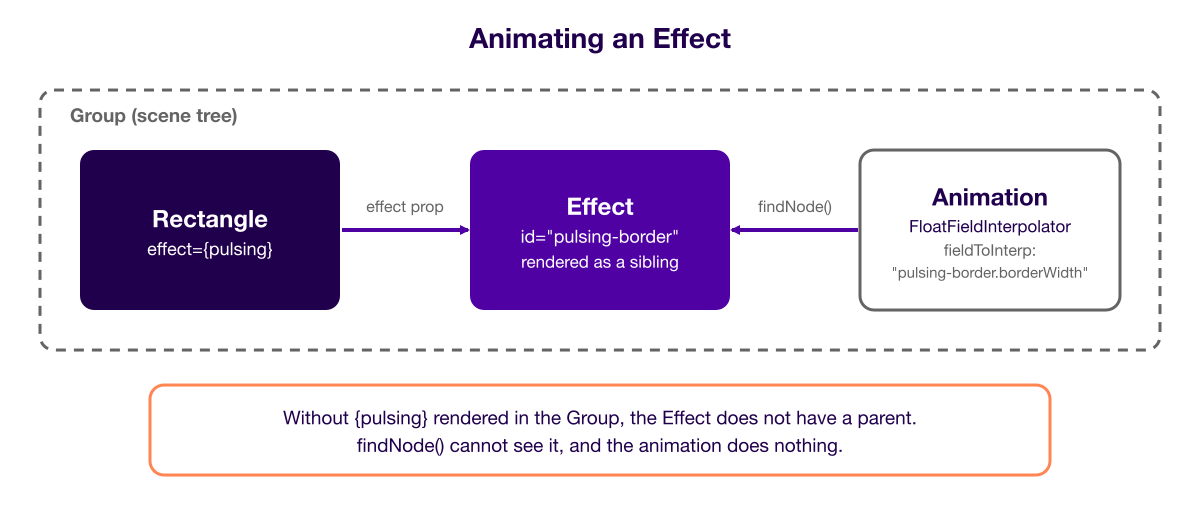
To animate Effect fields with an interpolator, you must give the Effect node an id and also render the node into the scene tree.
The diagram below shows how the Rectangle, the Effect, and the Animation relate in the scene tree.
import { Animation, AnimationRef, FloatFieldInterpolator } from "@roku-sdk/components";
import { onMount } from "@roku-sdk/solid";

const EFFECT_ID = "pulsing-border";

export function PulsingBorder() {
    let animRef!: AnimationRef;
    onMount(() => animRef.start());

    const pulsing = <effect id={EFFECT_ID} borderRadius={24} borderWidth={2} borderColor="0x9B59B6FF" />;

    return (
        <group>
            {pulsing}
            <rectangle width={300} height={300} color="0x1A1A2EFF" effect={pulsing} />
            <Animation ref={animRef} duration={2} repeat={true} easeFunction="linear">
                <FloatFieldInterpolator
                    fieldToInterp={`${EFFECT_ID}.borderWidth`}
                    key={[0, 0.5, 1]}
                    keyValue={[2, 14, 2]}
                />
            </Animation>
        </group>
    );
}
The fieldToInterp prop resolves its target through findNode(), which walks the scene tree. A node that you assign only to the effect prop does not have a parent. As a result, findNode() cannot see it, and the animation silently does nothing.
Rendering {pulsing} as a sibling puts the node where findNode() can see it, while effect={pulsing} still points the Rectangle at it. One node serves both roles, and this approach is verified on a device. You must keep the sibling and the Animation in the same node scope.
Using shaderCompatible with Posters
The following example sets shaderCompatible on a Poster that uses an Effect:
<poster shaderCompatible effect={fx} uri={photoUri} />The shaderCompatible prop requests that the system decode the bitmap into a format that shaders can use. You must write uri last. The load starts when uri is set, and a prop written after it applies to a load that has already started.
The shaderCompatible prop is not a hard requirement. A Poster without it may still show its effect, and many do. Whether the effect applies depends on how the source image decodes. As a result, an effect that works across your whole test set can quietly stop working when someone swaps in a different image. For that reason, set shaderCompatible on any Poster that takes an Effect.
The Rectangle node does not have a
shaderCompatibleprop. To apply an Effect to a Rectangle, you only need to set itseffectprop.
Deciding when to use setPropMethod
Setting an Effect with setPropMethod("effect") and with the effect prop produces the same result. Both call tmTransaction.setProperty, which passes a DomNode value to tmApi.setNodePropNodeRef. As a result, setPropMethod does not add any sharing ability that the prop does not already have.
The setPropMethod call sets the prop from code instead of from JSX; therefore, you should call it from onMount or an event handler. You can use it when the Effect that a Rectangle or Poster uses changes outside of rendering and handling that change with signals would be harder. The main use case is a key handler that reassigns a focus Effect between cells of a large grid (sharing one Effect between two nodes is not a use case).
Effect props reference
The following table lists the fields you can set on an Effect node, as defined by the IEffectProps type. All fields are optional. Colors are RGBA hex strings, such as "0xFF0000FF".
| Field | Type | Default | Notes |
|---|---|---|---|
borderRadius | number | [number, number, number, number] | 0 | A number applies to all corners. An array of four numbers sets each corner in this order: [topLeft, topRight, bottomRight, bottomLeft]. Because the array form is a Vector4 field, FloatFieldInterpolator cannot animate it. |
borderWidth | number | 0 | Drawn outside the content rectangle. |
borderPadding | number | 0 | Gap between the border and the content rectangle. When borderWidth is 0, the node does not have a border to space out. As a result, this field does not act as content padding. Inset the child instead. |
borderColor | string | "0xFFFFFFFF" | Border color. |
gradientStyle | "none" | "linear" | "radial" | "none" | Gradients do not render while this is "none". |
gradientColors | string[] | — | Two colors minimum, eight maximum. Outside that range the gradient does not render. In __DEV__ builds the SDK warns once when gradientStyle is not "none". |
gradientStops | number[] | — | Normalized [0, 1] positions, one per entry in gradientColors. Omit for even distribution. In __DEV__ builds the SDK warns once on a length mismatch or an entry outside [0, 1] when gradientStyle is not "none". |
gradientAngle | number | 0 | Linear gradient rotation, in degrees. |
gradientCentre | [number, number] | [0.5, 0.5] | Radial gradient center, as a fraction of the size of the node that uses the Effect: [0, 0] is top-left and [1, 1] is bottom-right. |
gradientRadius | [number, number] | [0.5, 0.5] | Radial gradient radii, as a fraction of the width and height of the node that uses the Effect. |
gradientFillContent | boolean | true | Fill the area inside the border. |
gradientFillBorder | boolean | false | Fill the border area. |
The Effect node also accepts the standard node props. To animate an Effect, set its
idprop becausefieldToInterpuses theidto find the node. See Animating an Effect for more information.
Related documentation
- Showcase app: Includes live Effect examples. The status line reports whether the device draws effects.
- FlexGrid focus highlighting: Describes how FlexGrid draws its own focus highlight instead of using Effect.
Updated about 3 hours ago