
Ideal app features
Capabilities and features that enhance the value of your Roku app
While attraction and retention of users primarily depends on the app content, the ability for the user to easily
interact with your app creates a delightful association with
the app and keeps the user coming back. Easy interactions go beyond
the design of the UI and into features and capabilities. Below is a list
of capabilities that users expect and features that will enhance the
value of your app.
Finding content
-
Browse
- There are many different ways to organize and present your
content. The key is to understand your audience and how they
think about your content and how they would want to access it. - Your app can offer a mix of organizational schemes. For
example, one or more of the time sensitive and personal schemes,
plus one consistent and predictable scheme as a fallback:- Time based (Updated frequently):
- Showcase or featured (E.g., Curated topics or content,
but it must be updated frequently) - Time oriented (E.g., New releases, latest episodes, new
this week, etc.) - Popular or trending (E.g., Algorithm based content)
- Showcase or featured (E.g., Curated topics or content,
- Personal (Updated based on usage):
- Recommended
- Recently watched
- Watchlist
- Consistent and predictable (Updated based on library
changes):- Logical or categorical (E.g., Genres)
- Alphabetical (However, categorical browsing may be
better/faster for large libraries)
- Time based (Updated frequently):
- There are many different ways to organize and present your
-
Search
- If your content library
exceeds 200 items, then your app should offer users the ability to search for
content. - Note, on-screen keyboards are tedious to use and so to help make
it easier, we recommend:- QWERTY key layout which is great for physical keyboards when
touch-typing is possible. For on-screen keyboards, an
alphabetic arrangement is preferred. - Provide search results for every character typed in. So, to
minimize typing, users can type until the result they're
looking for appears. This implies that your app must
return results very quickly.
- QWERTY key layout which is great for physical keyboards when
- Be forgiving with the input search terms:
- Don't force users to key in "The" (E.g., "Walking Dead" should work as well as "The Walking Dead")
- Capitalization is not necessary
- Allow users to input any word or part of a phrase in any
order (i.e., Don't require the phrase to be input in order -
the first word first, etc.)
- Mixed search results (E.g., Combining movies and TV shows) are
fine so long as you provide cues for users to tell items apart.
- If your content library
Pivoting
- Once users have found a piece of content or finished watching it,
make it easier for them to pivot to and find similar or related
content.- For example, from the details page of a specific:
- TV episode, make it easy for users to get to all episodes
and seasons - Piece of content, make it easy for users to get to similar
content (i.e., "more like this") - Piece of mainstream content, make it easy for users to see
the cast and crew and pivot to a specific cast member's
filmography
- TV episode, make it easy for users to get to all episodes
- For example, from the details page of a specific:
- Pivoting is a great way to keep users engaged with a topic in which
they've already expressed interest.
Content bookmarking
- When users find content of interest, provide an easy and fast way
for them to find it again.- Common features that accomplish this include:
- Adding an item to a 'watch list'; for episodic content, make
it easy to add the TV series, not just a specific episode - A list of 'recently watched' items
- 'Watch next' is great for episodic content (See below)
- 'Resume watching' is great for unfinished content (See
below). However, in order for 'resume watching' to work
effectively, 'watch list' and/or 'recently watched' need to
be offered as well.
- Adding an item to a 'watch list'; for episodic content, make
- Common features that accomplish this include:
Resuming video playback
- Users may start a video and then stop it before finishing it. The
app must make it easy for users to easily and quickly:- Find this recently watched video again
- Resume playback from where they left off
- Restart playback from the beginning of the video (Without having
to rewind)
- Since Roku users tend to own more than one Roku player/TV, it is
important that the information needed to support this capability be
server-based so that it can be accessed and used regardless of the
playback device being used. - When resuming playback, be sure to actually start the video a few
seconds back from the actual resume point (E.g., 3-5 seconds back).
This will help users identify a familiar scene and acknowledge that
the system is truly picking up where they left off.
Playing the next logical item
- For any episodic content or playlist scenario, once the current
video finishes, the system should make it super easy to watch the
next episode or item in the playlist. - Many apps are seeing an increase in viewing hours and general app stickiness when providing this sort of functionality.
- This is usually done in one of two ways:
- Auto-play
- Playlist scenarios: The app automatically begins
playback of the next item in the playlist. In such cases, be
sure the next video is introduced (E.g., Buffering or loading screen shows video title). - Episodic content scenarios: The app provides information
about the next episode to be played and a countdown timer.
Users can exit back into the app's main UI, or press OK
to accept and start playback of the next episode, or do
nothing and let the timer expire so playback starts
automatically.
- Playlist scenarios: The app automatically begins
- Play next
- Content finishes playing and users are returned to the UI
and offered an easy way to play the next item.- For example, users are returned to that content's
details page which offers a simple option to play or go
to the next episode, or go to the full list of episodes.
- For example, users are returned to that content's
- Content finishes playing and users are returned to the UI
- Auto-play
- If your app offers episodic content, then it must show users
which episodes have been watched already.- Typical solution involves showing a progress bar with each
episode. - Users can see if they have watched an episode completely,
partially, or not at all. - This is an easy manual way for users to see which episode to
watch next.
- Typical solution involves showing a progress bar with each
BIFs/Trick mode
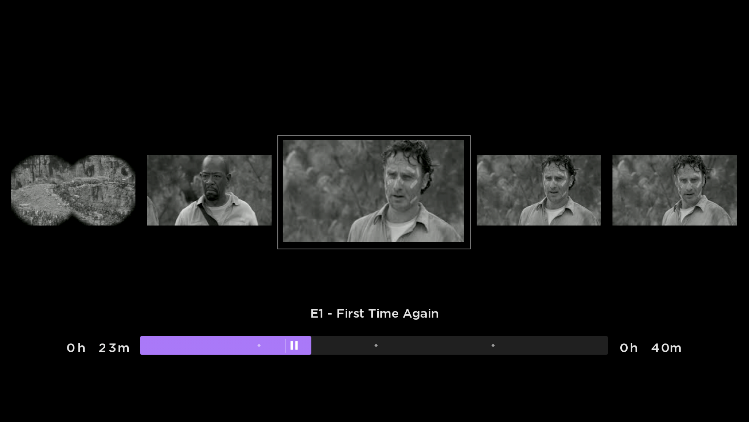
- When users are rewinding, fast-forwarding, or generally trying to
move within a video playback, they are effectively doing a search to
find that right point to resume watching. - Rewinding or fast-forwarding blindly with only a time marker is no
longer an adequate solution. Instead, the experience can be
more effective and satisfying as a 'visual search.' - To that end, all video navigation must be visual so users can
actually see/preview the video they are navigating:-
Show BIFs or key-frames
Instant replay
- The ability to press a single button and have the system
automatically skip back about 5-10 seconds and resume playback is a
very convenient and loved feature. - Additionally, most use this feature because they did not hear a
piece of dialog. Roku's closed-captioning's default setting is to
show on instant replay. Activating instant replay enables the user
to see/read what they may have not heard.
Simplified transactions
- Requiring users to supply credit card information during your
app's set up may cause some users to drop-out. - Waiting and asking users to supply credit card information right
before a transaction (E.g., Movie rental) is a hurdle many are not
willing to jump. - Obviously, you would be creating speed-bumps with either route, but
there is a more simple and pain-free route for your audience; Roku Pay makes it as easy as one-click to set up an account,
maximizing the number of users signing up and transacting.
Updated 6 months ago
Did this page help you?