
ChannelStore
Node interface to the Streaming Store for purchases and account data
Extends Node
The ChannelStore node class provides an interface to the Streaming Store. It provides functionality equivalent to the roChannelStore component. In general, the ChannelStore node class allows developers to issue one of several commands, which involves the following steps:
- Set the fields containing the data needed by the command (optional).
- Set up an observer of the result field associated with the command.
- Set the command field to the appropriate string to start the command execution.
- The field associated with the command is set to a ContentNode object containing the results of the command.
Each of the commands starts a sequence of actions associated with the financial transaction that are handled by the Roku OS outside of control or monitoring by the app SceneGraph markup. The SceneGraph markup merely initiates the purchase and receives a final result.
Fields
command
| Field | Type | Default | Access Permission | Description |
|---|---|---|---|---|
| command | string | READ_WRITE | Specifies the command to be executed: |
requestedUserData
| Field | Type | Default | Access Permission | Description |
|---|---|---|---|---|
| requestedUserData | string | all | READ_WRITE | Specifies the Roku customer account fields to be retrieved when the getUserData command is executed. The default value is "all", which causes a ContentNode object to be returned from getUserData that includes all of the available Roku customer account information. To request specific Roku customer account information items (for example, an email address, first name, and last name) set this field to a string containing a comma-separated list of values (for example, "email, firstname, lastname"). The available values are as follows:
In this case, the ContentNode object returned from the getUserData command includes the specified customer account information. |
requestedUserDataInfo
| Field | Type | Default | Access Permission | Description | ||||||||||||
|---|---|---|---|---|---|---|---|---|---|---|---|---|---|---|---|---|
| requestedUserDataInfo | ContentNode | invalid | READ_WRITE | Specifies whether the RFI screen is used for customer sign-ups or sign-ins. This may be one of the following values:
| ||||||||||||
| Field | Type | Default | Description | |||||||||||||
| context | string | "signup" | Specifies the context of the RFI screen, which may be one of the following values:
| |||||||||||||
| forceShowData | Boolean | false | If true, the RFI signup screen displays the values of the requested customer information to be shared with the app (for example, Jone Doe, [email protected]). By default, this flag is set to false, which means that the default RFI screen for the region is used. For example, in the US, the RFI screen displays the type of customer information being requested (email address, name, and so on). This flag has no effect if the context field is set to "signin" (the RFI sign-in screen always displays the customer information values). Example: |
Sign-up example
store = CreateObject("roSGNode", "ChannelStore")

' Request several properties for sign-up
store.requestedUserData = "email, phone, firstname, lastname"
store.command = "getUserData"

' Store requested properties
 email = store.userdata.email
 firstname = m.store.userData.firstname
 lastname = m.store.userData.lastname
 phone = m.store.userData.phone
Sign-in example
store = CreateObject("roSGNode", "ChannelStore")

' Set sign-in context for RFI screen
info = CreateObject("roSGNode", "ContentNode")
info.addFields({context: "signin"})
store.requestedUserDataInfo = info

' Request user's email for sign-in
store.requestedUserData = "email"
store.command = "getUserData"

' Store requested properties
 email = store.userdata.email
userData
| Field | Type | Default | Access Permission | Description |
|---|---|---|---|---|
| userData | ContentNode | invalid | READ_WRITE | Contains the results of a getUserData command. The value stored in this field depends on whether the user clicks Continue or Cancel in the Request for Information (RFI) screen. If the user clicks Continue, this field is populated with the Roku customer account information that was requested in the requestedUserData field. If the user clicks Cancel, this field is set to "invalid". |
order
| Field | Type | Default | Access Permission | Description | |||||||||||||||||
|---|---|---|---|---|---|---|---|---|---|---|---|---|---|---|---|---|---|---|---|---|---|
| order | ContentNode | invalid | READ_WRITE | Contains the order to be filled when the doOrder command is executed. This ContentNode contains one child ContentNode for each of the items to be purchased. The child ContentNode must contain the following fields:
To clear an order, set the order field to "invalid". For upgrades/downgrades only. You need to include an action field to specify a subscription plan change.
| |||||||||||||||||
| Field | Type | Description | |||||||||||||||||||
| code | string | Identifies the product to be purchased, as entered in the Product Identifier field on the In-App Product page in the Developer Dashboard when the product was created. See Creating an order for more information. | |||||||||||||||||||
| qty | Integer | The quantity of the item to be purchased, which is typically 1 for most in-app products. This is only typically more than 1 if the product is a "packet" of identical items (such as game points, number of viewings permitted of some item of content, and so on). | |||||||||||||||||||
| Field | Type | Access Permission | Description | ||||||||||||||||||
| action | string | READ_WRITE | Set this to "Upgrade" or "Downgrade" to change the subscription plan from a previous purchase (for example, myOrder.action = "Upgrade"). The required values are case-sensitive; do not pass "upgrade" or "downgrade". See On-device upgrade and downgrade for more information. |
Creating an order
To create an order, this field needs to be set to a ContentNode that has one child ContentNode for each item to be purchased. There are two approaches to setting the order field: setting it directly, or setting the deltaOrder field.
To set the order field directly, first create a ContentNode, then create one child ContentNode with the "code" and "qty" fields set for each item to be purchased. Assuming m.channelStore is a ChannelStore node object, the following Brightscript code shows how to do this:
myOrder = CreateObject("roSGNode", "ContentNode")
myFirstItem = myOrder.createChild("ContentNode")
myFirstItem.addFields({ "code": "UPC2397", "qty": 1})
mySecondItem = myOrder.createChild("ContentNode")
mySecondItem.addField({ "code": "UPC4321", "qty": 1})
m.channelStore.order = myOrder
The order field can be set indirectly as well, by setting the deltaOrder field to add or modify the desired quantity of an item. Assuming m.channelStore is a ChannelStore node object, the following results in the order field containing the same items as the previous example:
m.channelStore.deltaOrder = { "code": "UPC2397", "qty": 1}
m.channelStore.deltaOrder = { "code": "UPC4321", "qty": 1}
deltaOrder
| Field | Type | Default | Access Permission | Description |
|---|---|---|---|---|
| deltaOrder | associative array | WRITE_ONLY | Enables the order field to be populated incrementally. Each time this field is set, the order field is modified. The deltaOrder associative array should contain a "code" string that identifies an available item, and a "qty" integer value to indicate how the children of the order field ContentNode should be modified. For example, if the order is invalid, setting the deltaOrder field to the following associative array: { "code": "Merchandise1", "qty": 1 } Would cause an order field to be set to a ContentNode, with one child ContentNode with a "code" field set to "Merchandise1", and a "qty" field set to 1. If the deltaOrder field was then set to: { "code": "MyItem2", "qty": 1 } The order field ContentNode would have a second ContentNode child appended to it, with the specified "code" and "qty" field values. The "qty" field can be set to a negative value to remove an item from an order. For example, if the order field was set as above, and the deltaOrder field was set to: { "code" MyItem2", "qty": -1 } The order field ContentNode would have the second child ContentNode removed. |
requestPartnerOrder
See Creating TVOD apps for how to use this field for transactional purchases.
| Field | Type | Default | Access Permission | Description | |||||||||||||||||||||
|---|---|---|---|---|---|---|---|---|---|---|---|---|---|---|---|---|---|---|---|---|---|---|---|---|---|
| requestPartnerOrder | ContentNode | invalid | READ_WRITE | Specifies the product to be ordered from a TVOD app. The order contains the following fields:
| |||||||||||||||||||||
| Field | Type | Description | |||||||||||||||||||||||
| code | string | Identifies the product to be purchased, as entered in the Product Identifier field on the In-App Product page in the Developer Dashboard when the product was created. For TVOD-exclusive apps, a single in-app product may be used for all orders. A TVOD-exclusive app only has transactional products such as movie rentals; it does not offer any subscription products. | |||||||||||||||||||||||
| priceDisplay | string | The original price of the product. Do not include a currency symbol (for example, set this to "3.99" instead of "$3.99"). | |||||||||||||||||||||||
| price | string | The final price of the product, including any discounts. Do not include a currency symbol (for example, set this to "3.99" instead of "$3.99"). | |||||||||||||||||||||||
| title | string | A description of the product (for example, the name of a rental movie). | |||||||||||||||||||||||
| couponCode | string | An alphanumeric string entered by the customer to receive a discounted price on the product. | |||||||||||||||||||||||
| contentKey | string | The publisher-specific SKU (or other unique identifier) for the product. |
confirmPartnerOrder
See Creating TVOD apps for how to use this field for transactional purchases.
| Field | Type | Default | Access Permission | Description | ||||||||||||||||||||||||
|---|---|---|---|---|---|---|---|---|---|---|---|---|---|---|---|---|---|---|---|---|---|---|---|---|---|---|---|---|
| confirmPartnerOrder | ContentNode | invalid | READ_WRITE | Confirms the product being ordered from a TVOD app. The order contains the following fields:
| ||||||||||||||||||||||||
| Field | Type | Description | ||||||||||||||||||||||||||
| orderId | string | The orderID returned by Roku in the RequestPartnerOrderStatus content node. | ||||||||||||||||||||||||||
| code | string | The product identifier. | ||||||||||||||||||||||||||
| priceDisplay | string | The original price of the product. Do not include a currency symbol (for example, set this to "3.99" instead of "$3.99"). | ||||||||||||||||||||||||||
| price | string | The final price of the product, including any discounts. Do not include a currency symbol (for example, set this to "3.99" instead of "$3.99"). | ||||||||||||||||||||||||||
| title | string | The name of the product to be displayed on customers' invoices. | ||||||||||||||||||||||||||
| couponCode | string | An alphanumeric string entered by the customer to receive a discounted price on the product. | ||||||||||||||||||||||||||
| contentKey | string | The publisher-specific SKU (or other unique identifier) for the product. |
orderStatus
| Field | Type | Default | Access Permission | Description |
|---|---|---|---|---|
| orderStatus | ContentNode | invalid | READ_WRITE | Contains the results of the doOrder command. |
purchases
| Field | Type | Default | Access Permission | Description |
|---|---|---|---|---|
| purchases | ContentNode | invalid | READ_WRITE | Contains the results of a getPurchases or getAllPurchases command. |
catalog
| Field | Type | Default | Access Permission | Description |
|---|---|---|---|---|
| catalog | ContentNode | invalid | READ_WRITE | Contains the results of a getCatalog command. |
storeCatalog
| Field | Type | Default | Access Permission | Description |
|---|---|---|---|---|
| storeCatalog | ContentNode | invalid | READ_WRITE | Contains the results of a getStoreCatalog command. |
requestPartnerOrderStatus
| Field | Type | Default | Access Permission | Description |
|---|---|---|---|---|
| requestPartnerOrderStatus | ContentNode | invalid | READ_WRITE | Contains the results of a requestPartnerOrder command. |
confirmPartnerOrderStatus
| Field | Type | Default | Access Permission | Description |
|---|---|---|---|---|
| confirmPartnerOrderStatus | ContentNode | invalid | READ_WRITE | Contains the results of a confirmPartnerOrder command. |
fakeServer
| Field | Type | Default | Access Permission | Description |
|---|---|---|---|---|
| fakeServer | Boolean | false | READ_WRITE | Enables a test mode for the ChannelStore node. The test mode disables communication by the ChannelStore node with the Streaming Store server, and it causes responses to asynchronous queries and operations to come from XML test configuration files rather than the server. To use this test method, create a csFake folder and add the following XML files to it in order to simulate web service request and response data:
See the SimpleChannelStore sample app for how to use this testing method. The fakeServer field must be set to false in a published app to allow actual In-App Product purchases by users.It is recommended that developers use billing testing instead of the fakeServer. |
Commands
Each of the actions associated with a command string are described in detail below.
getUserData
Displays the Roku Pay Request for Information (RFI) screen, which prompts customers to confirm that Roku may share their Roku customer account information with the calling app in order to sign up/sign in to that app. This enables apps to create and update customer accounts in their system without requiring customers to manually enter their personal information in an account creation screen.
To pass certification, all authenticated apps (SVOD, TVOD, other subscription services, and AVOD) must use the getUserData command to display a Request For Information (RFI) screen during the sign-up and sign-in workflows to enable customers to share their Roku account information with the app. Only if the user declines the request may apps require the customer to manually enter their information.
To use this command, follow these steps:
-
Set the requestedUserData field to the Roku customer account information to be requested. This may be set to either "all" to get all the available account information items, or a string with a comma-separated list of specific information items (for example, "email, firstname). Request the minimum amount of information required to create/update an account.
store = CreateObject("roSGNode", "ChannelStore")
store.requesteduserdata = "email, first name, lastname, phone" -
Send the getUserData command.
m.store.command = "getUserData"
-
The RFI screen's asks the customer to use their Roku customer account information to sign up or sign in to the app, and it lists the requested information.
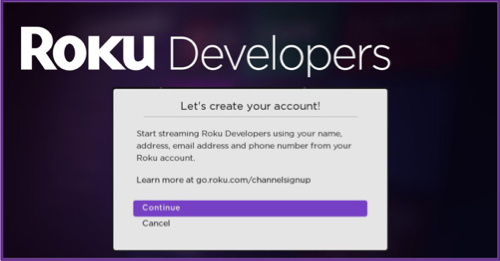
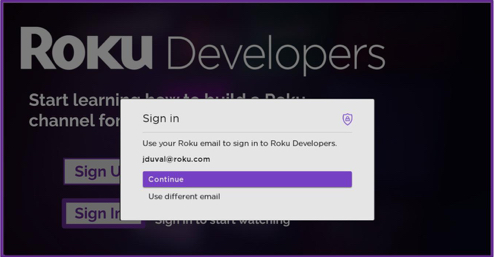
-
If the customer clicks Continue in the RFI screen to confirm that Roku can share their Roku customer account information with the app, the userData field field is populated with the Roku customer account information that was requested in the requestedUserData field. If the customer clicks Cancel in the RFI screen to decline sharing their information, the userData field is set to "invalid".
email = store.userdata.email
firstname = m.store.userData.firstname
lastname = m.store.userData.lastname
phone = m.store.userData.phone
Overall, the userData field field may contain the following Roku customer account information fields.
| Field | Type | Description |
|---|---|---|
| firstName | string | The user first name |
| lastName | string | The user last name |
| string | The user email address | |
| street1 | string | The first line of the user street address |
| street2 | string | The second line of the user street address |
| city | string | The city where the user lives |
| state | string | The state where the user lives |
| zip | string | The user postal code |
| country | string | The country where the user lives |
| phone | string | The user phone number |
| birth | string | The user birthdate (YYYY-MM). |
| gender | string | The user gender ("Male", "Female", or unspecified). |
For authenticated free and AVOD apps that are not enrolled in the Roku Partner Payouts Program, the userData field contains a limited set of account information fields:
- Sign-up RFI screen: email, phone, and zip.
- Sign-in RFI screen: email and phone.
getUserRegionData
The getUserRegionData command retrieves the state, zip code, and country associated with the customer's Roku account. The location information returned by this command can be used to determine a customer's eligibility for regional-specific subscription products and content.
When this command is invoked, the ContentNode stored in the userRegionData field contains the following fields:
| Field | Type | Description |
|---|---|---|
| state | string | The state associated with the customer's Roku account. |
| zip | string | The zip code associated with the customer's Roku account. |
| country | String | The country associated with the customer's Roku account. |
getCatalog
Lists the In-App Products that are linked to the running app. When this command completes, the catalog the completion status:
| Field | Type | Description |
|---|---|---|
| status | integer | Contains the command completion status. which may be one of the following values:
|
| statusMessage | string | Contains a string describing the command completion status |
If the command is successful, the catalog or storeCatalog ContentNode contains a child ContentNode for each product available for purchase. Each child ContentNode includes the following information related to the product:
| Field | Type | Description |
|---|---|---|
| code | string | The product identifier, as entered in the Product Identifier field on the In-App Product page in the Developer Dashboard when the product was created. |
| name | string | The item name (this name will also be set as the description). |
| quantity | Integer | For one-time purchase/consumable products only. The number of the product purchased (for example "1000" game points, "3" viewings of a movie rental). |
| productType | string | The product type (ex. "MonthlySub") |
| cost | string | Localized cost of the product with local currency symbol |
| freeTrialQuantity | integer | If the product has a free trial offer, the length of the trial period. For example, 1 for a 1-month free trial or 7 for a 7-day free trial. |
| freeTrialType | string | If the product has a free trial offer, the unit of time used by the trial ("Days" or "Months") |
| trialCost | integer | If the product uses introductory pricing, the discounted price. |
| trialQuantity | integer | If the product uses introductory pricing, the number of months the discounted pricing is applicable. |
| trialType | string | Set to "months" for all products. All products using introductory pricing use "months" as the unit of time for the trial. |
| status | string | Indicates whether the product has been "saved" or "approved for sale". |
| purchaseDate | String | The subscription purchase date |
getStoreCatalog
Lists the globally available In-App Products, which are available to all apps. When the command completes, the storeCatalog field is set to a ContentNode containing completion status. If successful, the storeCatalog field ContentNode has child ContentNodes for each available item. See the getCatalog command for the fields related to the product that are available in the child ContentNode.
doOrder
Displays the Roku Pay order confirmation screen, which is populated with information about the current order (product name, price, any free trial or discount offer). The customer can then either approve and complete the purchase, or cancel the purchase.
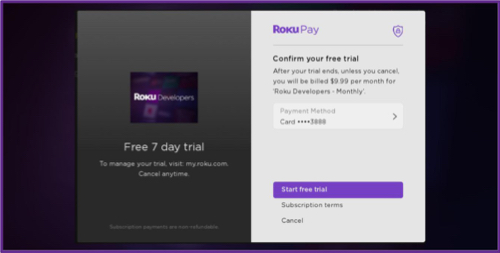
When the command completes, the orderStatus field is set to a ContentNode containing information about the command completion.
| Field | Type | Description |
|---|---|---|
| status | integer | Contains the command's completion status, which may be on the following values:
|
If this command is successful, the orderStatus field ContentNode will have child ContentNodes for each item purchased. The fields for each child ContentNode include the same information when the getPurchases command is sent, but only the following fields are populated when the transaction is made:
| Field | Type | Description |
|---|---|---|
| amount | string | Localized amount of the item purchased (post transaction) with local currency symbol |
| code | string | The product identifier, as entered in the Product Identifier field on the In-App Product page in the Developer Dashboard when the product was created. |
| purchaseId | string | The transaction ID |
| qty | integer | The quantity purchased |
| total | string | Localized total of the item purchased (including tax if applicable) with local currency symbol |
As of Roku OS 9.4, if the back button is pressed from the Order Confirmation dialog, the doOrder command returns only a status of 2 ("interrupted"). Error handling in apps may need to be updated based on this behavior.
getPurchases
Returns the list of purchases of current subscription products associated with the Roku customer account.
When this command completes, the purchases field is set to a ContentNode containing the completion status.
| Field | Type | Description |
|---|---|---|
| status | integer | Contains the command's completion status, which may be one of the following values:
|
If this command is successful, the purchases field ContentNode will have child ContentNodes for each item purchased. The fields for each child ContentNode include the following information about the purchased item:
| Field | Type | Description |
|---|---|---|
| code | string | The product identifier, as entered in the Product Identifier field on the In-App Product page in the Developer Dashboard when the product was created. |
| cost | string | Localized cost of the item (prior to purchase) with local currency symbol |
| expirationDate | string | The subscription expiration date (ISO 8601 format) |
| freeTrialQuantity | integer | The free trial amount associated with the freeTrialType. For example, 1 for a 1-month free trial or 7 for a 7-day free trial. |
| freeTrialType | string | The free trial type ("Days" or "Months") |
| inDunning | string | A flag that indicates whether the purchased subscription is past due state because of an invalid method of payment. This flag is set to "true" if the subscription is in the dunning state. In this case, check the status field to determine whether to grant the customer access to content:
|
| name | string | The item name (this name will also be set as the description). |
| productType | string | The product type (ex. "MonthlySub") |
| purchaseChannel | string | Indicates where the Roku Pay subscription purchase was made:
|
| purchaseContext | string | Indicates how the subscription purchase was made:
|
| purchaseDate | string | The purchase date (ISO 8601 format) |
| purchaseId | string | The transaction ID |
| qty | integer | The quantity purchased |
| renewalDate | string | The subscription renewal date (ISO 8601 format) |
| status | string | Indicates whether the purchase is for a current subscription ("Valid") or for a subscription that has been canceled, expired, or terminated ("Invalid") |
| trialCost | integer | If the product uses introductory pricing, the discounted price. |
| trialQuantity | integer | If the product uses introductory pricing, the number of months the discounted pricing is applicable. |
| trialType | string | Set to "months" for all products. All products using introductory pricing use "months" as the unit of time for the trial. |
getAllPurchases
The getAllPurchases command is similar to the getPurchases command except that it requests the historical list of all canceled, expired, and terminated subscriptions over the lifetime of the current user account—in addition to the active subscriptions. You can use this method to leverage purchase history in order to implement subscription renewal flows and more easily determine if subscriptions have expired.
When this command completes, the purchases field is set to a ContentNode containing the completion status.
| Field | Type | Description |
|---|---|---|
| status | integer | Contains the command's completion status, which may be one of the following values:
|
If this command is successful, the purchases field ContentNode has child ContentNodes for each item purchased. The fields for each child ContentNode include a status field that indicates whether the purchase is for a current subscription ("Valid") or for a subscription that has been canceled, expired, or terminated ("Invalid"), and the following information about the purchased item:
| Field | Type | Description |
|---|---|---|
| code | string | The product identifier, as entered in the Product Identifier field on the In-App Product page in the Developer Dashboard when the product was created. |
| cost | string | Localized cost of the item (prior to purchase) with local currency symbol |
| expirationDate | string | The subscription expiration date (ISO 8601 format) |
| freeTrialQuantity | integer | If the product has a free trial offer, the length of the trial period. For example, 1 for a 1-month free trial or 7 for a 7-day free trial. |
| freeTrialType | string | If the product has a free trial offer, the unit of time used by the trial ("Days" or "Months") |
| inDunning | string | A flag that indicates whether the purchased subscription is past due state because of an invalid method of payment. This flag is set to "true" if the subscription is in the dunning state. In this case, check the status field to determine whether to grant the customer access to content:
|
| name | string | The item name (this name will also be set as the description). |
| productType | string | The product type (ex. "MonthlySub") |
| purchaseChannel | string | Indicates where the Roku Pay subscription purchase was made:
|
| purchaseContext | string | Indicates how the subscription purchase was made:
|
| purchaseDate | string | The purchase date (ISO 8601 format) |
| purchaseId | string | The transaction ID |
| qty | integer | The quantity purchased |
| renewalDate | string | The subscription renewal date (ISO 8601 format) |
| status | string | Indicates whether the purchase is for a current subscription ("Valid") or for a subscription that has been canceled, expired, or terminated ("Invalid") |
| trialCost | Integer | If the product uses introductory pricing, the discounted price. |
| trialQuantity | integer | If the product uses introductory pricing, the number of months the discounted pricing is applicable. |
| trialType | string | Set to "months" for all products. All products using introductory pricing use "months" as the unit of time for the trial. |
storeChannelCredData
Stores an OAuth token, custom token, or other custom data, which you can then retrieve with the getChannelCred command (the token is stored in the channelCred.json.channel_data field). This data is stored securely in the Roku cloud and can be retrieved by other devices linked to the same Roku account. As a result, users do not have to re-enter their account credentials when setting up new devices associated with the same Roku account. For more information, see Automatic Account Link.
function init():
    m.store.ObserveField("storeChannelCredDataStatus", "onStoreChannelCredData")
    m.store.ObserveField("channelCred", "onGetChannelCred")

    ' trigger "storeChannelCredData" command with "test app cred data" in m.store.channelCredData field.
    print "StoreChannelCredData"
    m.store.channelCredData = "test app cred data"
    print "store.channelCredData: " m.store.channelCredData
    m.store.command = "storeChannelCredData"
end function

function onStoreChannelCredData() as void
    print "onStoreChannelCredData"
    if (m.store.storeChannelCredDataStatus <> invalid)
        print "- response: " m.store.storeChannelCredDataStatus.response
        print "- status: " m.store.storeChannelCredDataStatus.status
    end if

    ' trigger "getChannelCred" command.
    print "GetChannelCred"
    m.store.command = "getChannelCred"
end function

function isstr(value)
    return (value <> invalid) and (GetInterface(value, "ifString") <> invalid)
end function

function isNullOrEmpty(obj)
    if obj = invalid return true
    if not isstr(obj) return true
    if Len(obj) = 0 return true
    return false
end function

function onGetChannelCred() as void
    print "onGetChannelCred"
    if (m.store.channelCred <> invalid)
        print "- channelID: " m.store.channelCred.channelID
        print "- status: " m.store.channelCred.status
        print "- publisherDeviceID: " m.store.channelCred.publisherDeviceID
        if (not isNullOrEmpty(m.store.channelCred.json))
            json = parsejson(m.store.channelCred.json)
            if (json <> invalid) and (not isNullOrEmpty(json.roku_pucid))
                print "- error: " json.error
                print "- roku_pucid: " json.roku_pucid
                print "- token_type: " json.token_type
                print "- channel_data: " json.channel_data
            end if
        end if
    end if
end function
This command returns an roAssociativeArray with the following values:
| Key | Type | Value | ||||||||||||
|---|---|---|---|---|---|---|---|---|---|---|---|---|---|---|
| response | json | A string in JSON format, with the following key-value pairs:
if billing is not enabled for the app, this field will include a string with a service error message. | ||||||||||||
| Key | Type | Description | ||||||||||||
| status | string | The request status, which may be "success" or "failure". | ||||||||||||
| error | string | A description of the error (if any). This will be set to "none" for a successful request. | ||||||||||||
| error_detail | string | A detailed description of the service error (if any). This value will be null (uninitialized) for a successful request. | ||||||||||||
| status | Integer | An integer representing the request status. A successful request will return a status of 0. |
getChannelCred
Retrieves an oAuth token, custom token, or other authentication artifact (channel_data), or a Roku Partner Unique Customer Identifier (roku_pucid) if the app is using the Roku single-sign on (SSO) authentication service for authenticating users. If successful, the ContentNode stored in the channelCred field represents the app credentials with the following fields:
| Key | Type | Description | |||||||||||||||
|---|---|---|---|---|---|---|---|---|---|---|---|---|---|---|---|---|---|
| channelID | string | A string representing the app ID (ex. "2213" for Roku Media Player) | |||||||||||||||
| errorCode | string | A description of the service error (if any). This will be an empty string for a successful request. | |||||||||||||||
| json | string | A string in JSON format, with the following key-value pairs:
If the request fails, this json string will be empty. | |||||||||||||||
| Key | Type | Description | |||||||||||||||
| error | string | A string containing an error message (if any). This value will be null (uninitialized) for a successful request. | |||||||||||||||
| roku_pucid | string | An agnostic ID (in UUID format) representing the user. This value will be identical when retrieved in the same app across devices linked to the same Roku account. If an app is storing an access token in the Roku cloud, this field does not contain a PUCID value. | |||||||||||||||
| token_type | string | Type of the returned token, e.g. "urn:roku:pucid:token_type:pucid_token" | |||||||||||||||
| channel_data | String | The access token, oAuth token, or other authentication artifact stored by the app in the Roku cloud via the StoreChannelCredData command. This field is not returned if the StoreChannelCredData command is not used to store an artifact in the Roku cloud. | |||||||||||||||
| publisherDeviceID | string | A unique identifier of the device. | |||||||||||||||
| status | integer | An integer representing the request status. A successful request will return a status of 0. |
getDeviceAttestationToken
Generates a signed JSON web token (JWT) in the Roku cloud and returns it to the app. This token can then be used by the publisher's web services to verify that a message originated from a genuine Roku device. The following example demonstrates how to generate the device attestation token:
sub handleData(event)
  data = event.getData()
  print data.status
  print data.token
end sub

m.channelstore_node= m.top.findNode("deviceAttestationToken")
m.data.observeField("deviceAttestationToken", "handleData")
..
m.channelstore_node.nonce = GetHexString(16)
m.channelstore_node.command = "getDeviceAttestationToken"
Sample JWT
The following demonstrates a sample JWT that is returned to the app. Developers can use a JWT debugger to decode this token.
eyJ4NXUiOiJodHRwczovL2V4YW1wbGUucm9rdS5jb20vc2FtcGxlY2VydCIsInR5cCI6IkpXVCIsImFsZyI6IlJTMjU2In0.eyJuYmYiOjE2NTYzNzQyNzQsIngtcm9rdS1hdHRlc3RhdGlvbi1kYXRhIjp7Im5vbmNlIjoiNUUwNjkyRTBBMzg5RjRGNiIsImNoYW5uZWxJZCI6ImRldiIsImRldmVsb3BlcklkIjoiY2FhNzNmYmI1ZTc1YTQ2YTRiNjExNGRlNTFhNWFkYTdkNjE2ZTJlZCIsInRpbWVzdGFtcE1zIjoxNjU2Mzc3ODczOTkwfSwiaXNzIjoidXJuOnJva3U6Y2xvdWQtc2VydmljZXM6ZGV2aWNlLWF0dGVzdGF0aW9uIiwiZXhwIjoxNjU2NDY0Mjc0fQ.nywDvSUys27oeaQZ3yXwNBfOnXbO-TUDuekOPZYjSssfZhNhWwRXvPLbJKHcNMR5Z0vFOQLVDFeqEVGauIMxMEke5UFLuCRxhr3ayBJJPt_BPfrEFbAvYjFEGdKkxJqYUhuFE38R8lU2k7dhO0iFxDw1Qq7W4w8_7CjmDy4YFf7IfyhV7Vf2kGiOx5C94Niw5N2td3s21F3z77Rq_bofQ51DOKIwo_cDVuvPQnDyxG-CNEydZKCZZwGPYCKEHMPrIOOXJ-S9ZjArgaEpBUpMXWJibFxnkpVUVzbC22GEaqz_SjOJXFMQU7TaCKkDeCYVKylgKwCvbvHRDlgogf7kqg
Verifying the JWT
To verify the JWT, developers must download the Roku device attestation token certificate and authenticate that the token is signed by that certificate (see https://jwt.io/introduction for more information on JWT verification methods). The decoded JWT contains the following fields
Decoded JWT
The decoded JWT contains the following fields:
"x-roku-attestation-data": {
    "nonce": "5E0692E0A389F4F6",
    "channelId": "dev",
    "developerId": "caa73fbb5e75a46a4b6114de51a5ada7d616e2ed",
    "timestampMs": 1656377873990
 }
GetRokuCustomerId
Available since Roku OS 16.0.
Returns the unique rokuCustomerId for the app, without requiring a prior purchase.
You can use the rokuCustomerId to identify Roku customers consistently across your apps, and to keep order context intact from on-device in-app purchases through to Roku Pay push notifications. Before Roku OS 16.0, this ID was only available from the getPurchases command after a successful purchase.
To send the GetRokuCustomerId, you must use Roku's generic request framework. Set the request field to an associative array containing the command, and observe the requestStatus field for the result.
Request
| Field | Type | Description |
|---|---|---|
| command | string | "GetRokuCustomerId" |
Result fields
| Field | Type | Description |
|---|---|---|
| result | roAssociativeArray | Wraps the response data |
| rokuCustomerId | string | The Roku customer ID for the app |
Example
function init()
    m.store = m.top.findNode("channelStore")
    m.store.observeField("requestStatus", "onRequestStatus")

    request = {}
    request.command = "GetRokuCustomerId"
    m.store.request = request
end function

function onRequestStatus()
    requestStatus = m.store.requestStatus

    if requestStatus <> invalid and requestStatus.status = 1
        if requestStatus.command = "GetRokuCustomerId"
            print "rokuCustomerId: "; requestStatus.result.rokuCustomerId
        end if
    end if
end function
Appendix A: Generic request framework
Roku's Channel Store generic request framework enables developers to pass the ChannelStore command, parameters, and context into a single request object (an associative array). The result of the request is encapsulated in a requestStatus object (also an associative array), which includes the status of the request and the data returned by it.
This API is available for both SceneGraph (SDK 2) and BrightScript (SDK 1).
request
| Field | Type | Description | ||||||||||||||||||
|---|---|---|---|---|---|---|---|---|---|---|---|---|---|---|---|---|---|---|---|---|
| request | associative array | Includes the request's command and context.
| ||||||||||||||||||
| Field | Type | Description | ||||||||||||||||||
| command | string | Set to the ChannelStore command | ||||||||||||||||||
| context | associative array | Used to match the requestStatus with request. For example, you can set this to "id: {commandName}". | ||||||||||||||||||
| params | associative array | See the command documentation for how to set this parameter.
| ||||||||||||||||||
| Field | Type | Description | ||||||||||||||||||
requestStatus
| Field | Type | Description | ||||||||||||||||||
|---|---|---|---|---|---|---|---|---|---|---|---|---|---|---|---|---|---|---|---|---|
| requestStatus | associative array | Includes the status of the command and the data returned by it.
| ||||||||||||||||||
| Field | Type | Description | ||||||||||||||||||
| result | associative array | Any return data | ||||||||||||||||||
| status | enum | The command completion status, which may be one of the following values:
| ||||||||||||||||||
| statusMessage | string | A text description of the command completion status. | ||||||||||||||||||
| command | string | The command passed into the request. | ||||||||||||||||||
| context | associative array | The context passed into the request. |
Updated 7 days ago