
Sliding panels
Panel node classes that group elements into sliding panel sets
Sliding panels allow the creation of sets of other elements, such as
lists or grids, that are grouped into panels that can be moved left
and right on and off the display screen. The panels can also be created
(and removed) dynamically in response to user input and program
behavior.
Sliding panel nodes
The following are the panel node classes supplied by Roku as part of the
SceneGraph API:
- OverhangPanelSetScene
- Overhang
- PanelSet
- Panel
- ListPanel
- GridPanel
Panel nodes, panel sets, and panel set scenes
The Panel, ListPanel, and GridPanel node classes are the
panel node classes that can be extended to create a custom panel
component design in XML markup. The Panel node class is a generic
panel node that can include any type of content, while the ListPanel
and GridPanel node classes are specifically intended to contain list
or grid content respectively, with special features that can
automatically create new panels based on item selection in the panel
list or grid.
These panel node classes are designed to be used as part of a panel
set. Panel sets are groups of child panel nodes that can be dynamically
created and moved into view automatically after being created. The
PanelSet node class is the parent node class of the child panel
nodes in the panel set.
A special Scene node class is provided for panel sets:
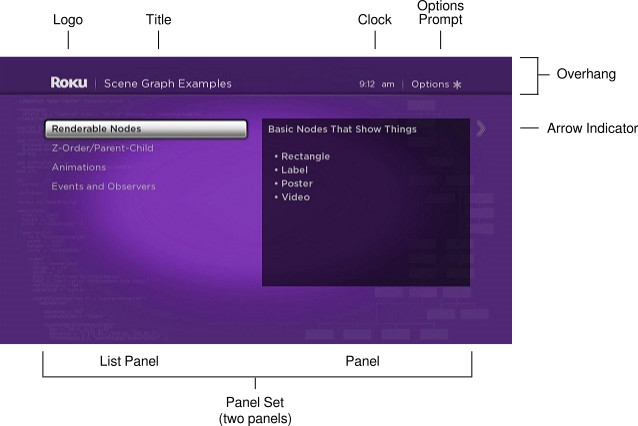
OverhangPanelSetScene. The OverhangPanelSetScene node class by
default includes a child Overhang node, and a child PanelSet
node. The Overhang node class provides a region at the top of the
screen that is the full width of the screen, with default poster and
label elements that can be automatically targeted with content by the
focused panel in the PanelSet node. As part of an
OverhangPanelSetScene scene, the child PanelSet node is
automatically positioned below the Overhang node. The PanelSet
node class includes areas on the left and right side of the panel set
designed for automatic arrow indicators, to prompt the user to press the
Right,
Left, or
Back keys to select and
slide the
panels.
Panel adding/sliding
As part of a panel set, panel node classes are designed to automatically
slide into and out of view in response to being added to the panel set
as a result of user input or other program behavior. To allow this
automatic adding/sliding behavior, panel node classes have a set of
default width sizes based on the width of the panel set, excluding the
arrow indicators on the sides of the panel set. The panelSize field
for panel node classes should be set to one of four width sizes:
| Size | Description |
|---|---|
| narrow | Approximately a third of the panel set width |
| medium | Approximately one half the panel set width |
| wide | Approximately two-thirds of the panel set width |
| full | Approximately the full panel set width |
The precise horizontal positioning of panels in the panel set depends on
the screen resolution, as well as the setting of the leftPosition
field of the panel node. The leftPosition field determines the offset
from the left side of the panel set for a panel, but has default
settings based on screen resolution that generally should not be
changed. The actual pixel sizes and left position of the panels is as
follows:
| Panel Field | Panel Size | SD Value | HD Value |
|---|---|---|---|
| height | all | 403 | 605 |
| width | narrow | 218 | 388 |
| medium | 292 | 520 | |
| wide | 363 | 645< | |
| full | 520 | 940 | |
| leftPosition | narrow | 60 | 105 |
| medium | 60 | 105 | |
| wide | 63 | 112 | |
| full | 100 | 170 |
The width size you choose for each panel should be determined by the
size of the content of the panel, and the size of adjacent panels to the
left and right. When a panel is added that can only be displayed by
sliding an existing panel (or panels) to the left, the PanelSet node
class will automatically slide the existing panel or panels to the
left. So the simplest method to set up this automatic sliding of the
panels as needed is to select the default panel width sizes that fill
the panel set width at all times.
To do this, you should pair adjacent panels based on their width size.
For example, two medium panels that are added as the first two panels on
the left could be paired with full panel to be created on the right,
with the isFullScreen field set to true, which configures the panel to
be the only panel to be shown. Then when the full right panel is added,
the two medium panels slide automatically off the screen to the left,
and the full right panel slides into view from the right. Alternately,
you could pair a narrow and a wide panel on the left with a full panel
on the right. In some cases, you might want to create tombstone panels
with additional information on focused items in a panel to the left to
fill the panel set width.
After setting up the panels in the panel set according to size and
content, the panels will slide back and forth automatically based on
user Right,
Left, and
Back key presses,
adding new panels to the panel set, and putting the focus on
already-added panels. You add new panels as children of the panel set
using the createChild() function, or using the createObject()
function followed by the appendChild() function, depending on the
sequence your application will follow to slide the panels, because the
panels will not slide until added to the panel set.
Sliding panels example
Example Application:
SlidingPanels
The following adds two medium panels as children of a panel set in an
OverhangPanelSetScene component init() function, and sets up field
observers with callback functions to populate and add panels to the
right, and slide the panels back and forth based on user key
presses.
Panel Adding/Sliding Example
sub init()
  m.top.backgroundURI = "pkg:/images/rsgetbg.jpg"
  m.top.overhang.showClock = false
  m.top.overhang.showOptions = true

  m.categoriespanel = m.top.panelSet.createChild("categoriesListPanel")
  m.categoryinfopanel = m.top.panelset.createChild("categoryinfoPanel")
  m.categoriespanel.list.observeField("itemFocused", "showcategoryinfo")
  m.categoryinfopanel.observeField("focusedChild", "slideexamplesgridpanel")

  m.categoriespanel.setFocus(true)
end sub

sub showcategoryinfo()
  categorycontent = m.categoriespanel.list.content.getChild(m.categoriespanel.list.itemFocused)
  m.categoryinfopanel.description = categorycontent.description
  m.examplespanel = createObject("RoSGNode", "examplesGridPanel")
  m.examplespanel.overhangtext = categorycontent.shortdescriptionline1
  m.examplespanel.gridcontenturi = categorycontent.Url
end sub

sub slideexamplesgridpanel()
  if not m.top.panelSet.isGoingBack
    m.top.panelSet.appendChild(m.examplespanel)
    m.examplespanel.setFocus(true)
  else
    m.categoriespanel.setFocus(true)
  end if
end sub
The categoriesListPanel component object created as a child of the
panel set was defined as a medium panel in its component XML file, and
the same was done for the categoryinfoPanel component. For example,
the categoriesListPanel component was defined as
follows:
<component name="categoriesListPanel" extends="ListPanel">
<script type="text/brightscript">
<![CDATA[
sub init()
m.top.panelSize = "medium"
m.top.focusable = true
m.top.hasNextPanel = true
m.top.leftOnly = true
m.top.createNextPanelOnItemFocus = false
m.top.selectButtonMovesPanelForward = true
m.top.overhangTitle = "SceneGraph Examples"
m.categorieslist = m.top.findNode("categorieslist")
m.top.list = m.categorieslist
end sub
]]>
</script>
<children>
<LabelList id="categorieslist">
<ContentNode role="content">
<ContentNode
title="Renderable Nodes"
description="Basic Nodes That Show Things


 • Rectangle

 • Label

 • Poster

 • Video"
shortdescriptionline1="Renderable Node Markup"
Url="http://www.sdktestinglab.com/renderablegrid.xml" />
<ContentNode
title="Z-Order/Parent-Child"
description="SceneGraph Tree Order Matters


Demonstrates the basic concepts of SceneGraph element layering
and inheritance. In Roku SceneGraph, what's on the bottom of your XML tree goes
on top!"
shortdescriptionline1="Z-Order/Parent-Child Markup"
Url="http://www.sdktestinglab.com/zordergrid.xml" />
<ContentNode
title="Animations"
description="Fly Things Around and Flash Lights


This shows you how to make your application more moving, by animating
screen elements. There are examples for all of the field interpolator nodes, plus
sequential and parallel animations."
shortdescriptionline1="Animation Markup"
Url="http://www.sdktestinglab.com/animationgrid.xml" />
<ContentNode
title="Events and Observers"
description="React When Stuff Happens


You need to handle events that come from both the user, and program
actions. You'll learn to use the onKeyEvent() and observeField() SceneGraph
functions to do this."
shortdescriptionline1="Events and Observers Markup"
Url="http://www.sdktestinglab.com/eventsobserversgrid.xml" />
</ContentNode>
</LabelList>
</children>
</component>Since both the categoriesListPanel and categoryinfoPanel components
were defined as medium panels (each approximately one-half the panel set
width), they fill the entire panel set width. The categoryinfoPanel
component is defined as a simple tombstone panel to be targeted with
additional information on the focused item in the categoriesListPanel
component list on the left. It implements an <interface> element with
an onChange callback function attribute for a string
field:
Simple Tombstone Panel XML Markup Example
<component name="categoryinfoPanel" extends="Panel">
  <interface>
    <field id="description" type="string" onChange="showdescription" />
  </interface>

  <script type="text/brightscript">
    <![CDATA[
      sub init()
        m.top.panelSize = "medium"
        m.top.focusable = true
        m.top.hasNextPanel = true
        m.infolabel = m.top.findNode("infoLabel")
      end sub

      sub showdescription()
        m.infolabel.text = m.top.description
      end sub
    ]]>
  </script>

  <children>
    <Rectangle
      id="infoRectangle"
      translation="[0,40]"
      height="420"
      width="520"
      color="0x00000099">
      <Label
        id="infoLabel"
        translation="[15,15]"
        height="595"
        width="510"
        font="font:MediumBoldSystemFont" />
    </Rectangle>
  </children>
</component>
So when a user focuses on an item in the m.categoriespanel component
list, the showcategoryinfo() callback function triggered by the
itemFocused field change targets the m.categoryinfopanel panel
object with content for that item, and creates an examplesGridPanel
component object, a full width GridPanel node panel to the right.
Because the m.examplespanel panel object is created using
createObject(), but not yet added to the panel set, the panels do not
slide. The sliding is performed by the focusedChild field observer
callback function slideexamplesgridpanel() when focus moves to the
m.categoryinfopanel panel object in automatic response to user
Right,
Left, and
Back key presses. The
callback function moves the focus to either the left-hand
m.categoriespanel panel object, or the full width right-hand
m.examplespanel object, depending on the direction of the key press
indicated by the panel set isGoingBack field, automatically sliding
the panels in response to the focus change.
The full width examplesGridPanel component was defined as follows,
setting the isFullScreen field to true to automatically slide the
panel when added to the panel set and
focused:
<component name="examplesGridPanel" extends="GridPanel">
  <interface>
    <field id="overhangtext" type="string" />
    <field id="gridcontenturi" type="string" onChange="readpostergrid" />
  </interface>

  <script type="text/brightscript">
    <![CDATA[
      sub init()
        m.top.panelSize = "full"
        m.top.isFullScreen = true
        m.top.focusable = true
        m.top.hasNextPanel = false
        m.top.createNextPanelOnItemFocus = false
        m.top.optionsAvailable = true
        m.top.grid = m.top.findNode("examplesPosterGrid")
      end sub

      sub readpostergrid()
        m.readPosterGridTask = createObject("roSGNode", "postergridCR")
        m.readPosterGridTask.postergriduri = m.top.gridcontenturi
        m.readPosterGridTask.observeField("postergridcontent", "showpostergrid")
        m.readPosterGridTask.control = "RUN"
      end sub

      sub showpostergrid()
        m.top.grid.content = m.readPosterGridTask.postergridcontent
        m.top.overhangTitle = m.top.overhangtext
      end sub
    ]]>
  </script>

  <children>
    <PosterGrid
      id="examplesPosterGrid"
      basePosterSize="[520,296]"
      caption1NumLines="1"
      numColumns="2"
      numRows="5"
      itemSpacing="[15,15]" />
  </children>
</component>
Updated 4 months ago