
Developer Dashboard
Central hub for managing apps, Roku Pay products, analytics, and more
The Developer Dashboard serves as the central control center from which a developer can manage apps, Roku Pay products, or search feeds, as well as view analytics and enroll in the partner payouts program.
If you distribute content on The Roku Channel instead of building an app, you manage your content in the Roku Content Partner Portal. Both tools use the same Roku account. To create one, see Set up your Roku account.
My apps
The My apps section provides easy access to recently updated apps, enabling developers to quickly click into their most high-touch projects.
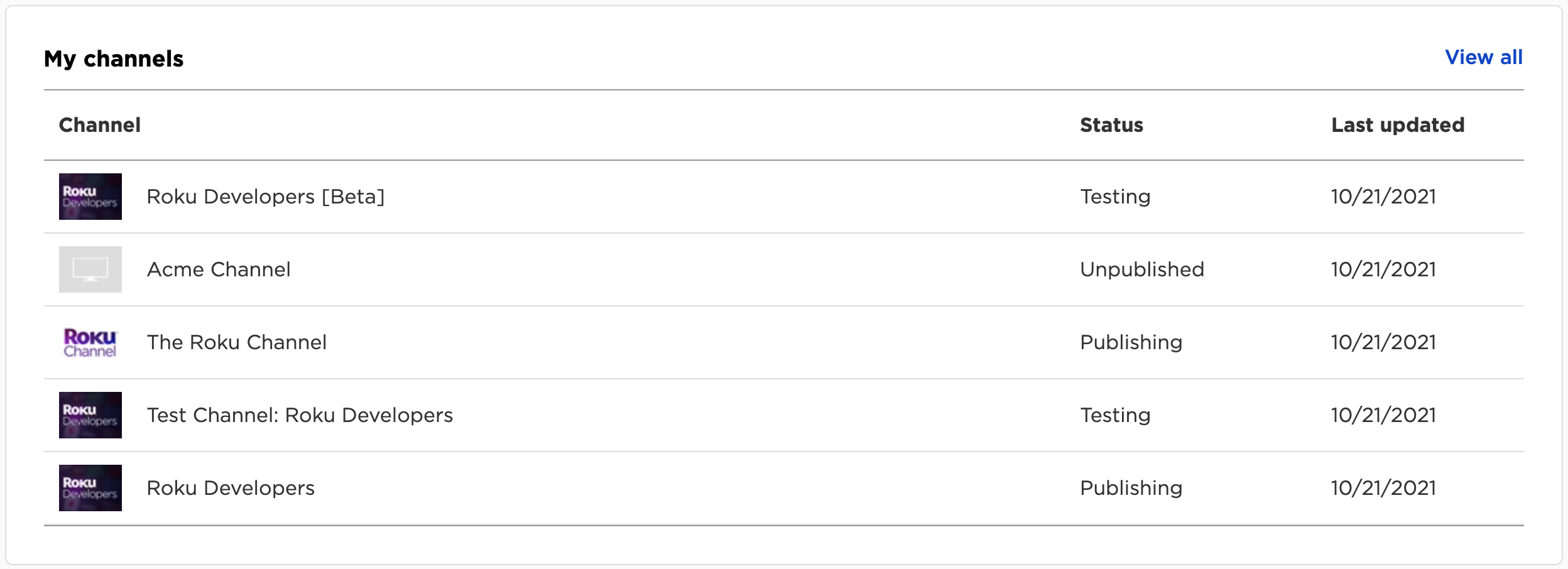
Clicking on any of these apps will take the user to the Preview & Publish page for the app, from which they can edit the app metadata. Refer to App publishing for information on managing app settings.
Scheduled releases
The Scheduled releases section of the main panel lists app releases, product updates, or offers that were previously scheduled by the developer, ordered by date.
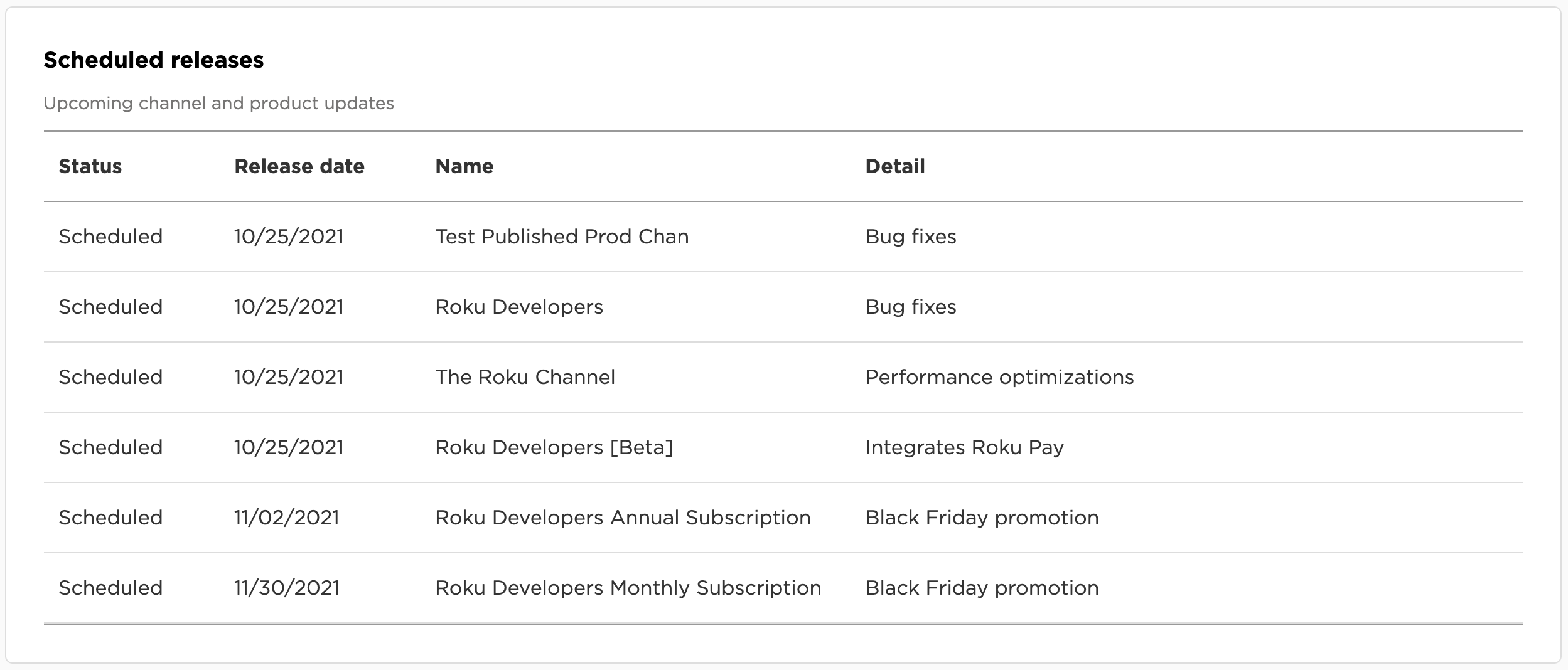
For an overview on in-app products, promotions, and product groups, see Adding in-channel products.
What's new
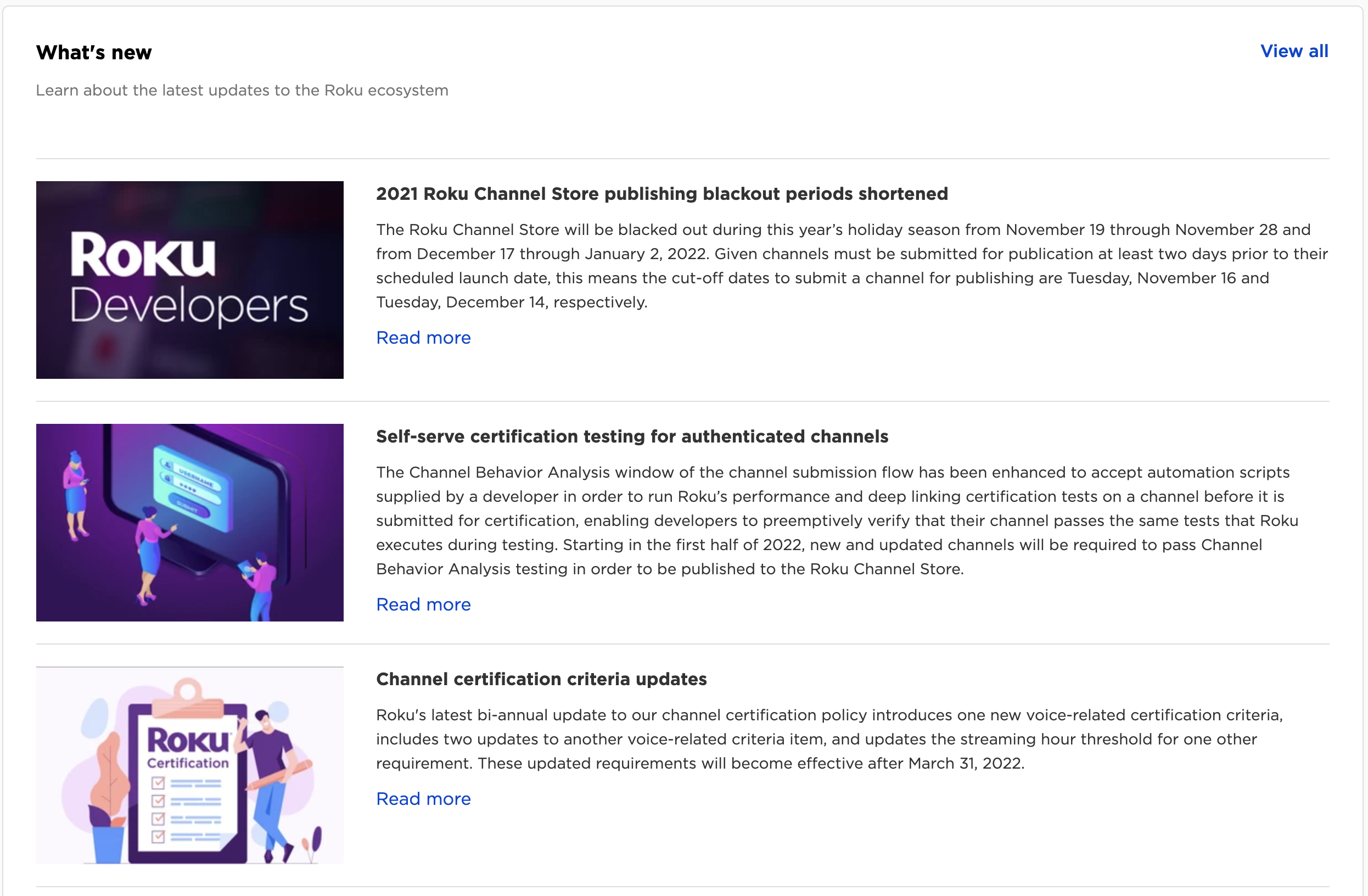
The What's new section highlights important Roku platform news such as platform policy changes, app certification updates, and app publishing blackout dates.
Additional topics
In addition to the utilities found on the Developer Dashboard itself, developers can also navigate to several additional tools from the left-hand navigation menu of the Developer Dashboard.
Channel
The app section allows developers to manage their apps, Streaming Store listings, and Roku Search feed configurations.
- My apps: This is where developers can create new apps or update existing apps. Here, developers can configure an app's settings, Streaming Store metadata listing, or update new application packages. Read the documentation on App publishing for information.
- Search feeds: The search feed validator allows developers to submit a search feed URL to Roku, in order to begin the process of integrating their apps into Roku Search. Read the documentation on Implementing Roku Search for more information.
Monetization
The monetization section provides essential tools for Roku Pay, including the ability to configure your Roku Pay products, offers, web services, and test users.
-
Product catalog: This is the primary page for creating new in-app products for purchases in apps using Roku Pay, as well as their corresponding offers and intro pricing deals. Read the documentation on Adding in-channel products for more information.
-
Test users: Here, developers can manage any Roku accounts that should have "test user" permissions for their apps, meaning these users will not be charged for any products they purchase within the designated app using Roku Pay. A valid payment method is required but purchases will not be charged. Read the documentation on Creating test users for more information.
-
Roku Pay Web Services: Enables developers to configure:
- the security key, and an allowed source IP address range, to be used when making Roku Pay billing API calls
- the endpoint for an entitlement server to receive push notifications from Roku Pay related to transactions such as credits, sales, refunds, and cancellations.
Read the documentation on Setting up Roku Pay web services for more information.
Financial reports
The financial reports section makes available Roku Pay reports, containing information about the various transactions customers make within a developer's apps. The reports include information such as product purchases, free trial activations, and cancellations. Summarized payout reports are also provided.
- Transaction Reporting: This report generates a list of transactions in various spreadsheet formats, covering transactions across multiple apps. Refer to the Transaction Report article for full information.
- Sales activity: This report allows report generation; use the filters to focus on particular time periods and data types of interest. Refer to the Sales Activity Report article for details.
- Payout reporting: This report generates a Payout Audit Report in real time. Refer to the Payout Audit Report article for more information.
Engage
This section provides tools that enable developers to promote their apps to Roku end-users to help grow their audience and drive engagement.
- Display ads: Developers can use Roku's self-serve promotion tool to programmatically purchase Roku home screen banner ads, Roku screensaver ads, and video ads in order to reach users across the Roku platform. Refer to the documentation article for more information.
Account
The Account section to is used to configure personal and business account information, share payout information with Roku so you can collect revenues due to you, and grant account access to other users.
- Developer information: Use this page to manage your basic developer account information, as the developer name displayed on apps you own in the Streaming Store, or your address and legal contact information.
- Payment settings: This is where developers can enroll in the Roku Partner Payouts Program, which enables your account for remittances and payments. Refer to the Publisher Payouts article for more information, or Enrolling in the Roku Partner Payouts Program for instructions.
- User access: Developers can grant additional users access to manage elements of their account from this page, as well as configure the exact access permissions these third-party enjoy. Refer to User access management in the Developer Dashboard for instructions on user setup.
- Switch accounts: Developers that have been granted access to manage someone else's account must use this page to switch between the various accounts. Refer to User access management in the Developer Dashboard for details on how to switch accounts.
- RokuTV CA: The RokuTV Certification Authority page provides the RokuTV Certification Authority (CA) client-side certificate used in SSL/TLS-based secure transactions. The certificate can be copied and pasted as text, or downloaded as a text file.
Updated 4 days ago