
Enrolling in the Roku Partner Payouts Program
Publishers must enroll in the Roku Partner Payouts Program to receive payments from Roku. This applies to publishers who monetize content in a Roku app and to publishers who distribute content on The Roku Channel. Enrollment enables you to receive payouts from video ads, subscriptions, one-time purchases, pay-to-install apps (games and screensavers), and content distributed on The Roku Channel. Monetized apps cannot be published without enrollment.
Entering your payout settings
If you already have an existing Roku developer account, use those account credentials to sign in and enter your payout settings. Do not create a new account.
To enter payout settings, you must have the Payout admin or Administrator role on the account. If you cannot complete the payout forms, ask an Administrator to assign you one of these roles. See User access management.
If you are already monetizing your app on the Roku platform, you must still enter your payout settings to continue receiving payouts.
If an Enrolled status tag appears next to the Payout Settings title, you must still enter your up-to-date contact, payout, and tax information.
About maximum tax withholding
Per IRS guidelines, Roku is required to withhold taxes at rates governed by the tax treaty between the United States and the publisher's tax country. For publishers in the United States, a valid W-9 is required for zero withholding.
Without proper tax documentation (W-9 for the United States and applicable W-8 for non-US countries) and a tax treaty between the United States and the publisher’s tax country, Roku is required to withhold at a maximum rate of 24% for publishers in the United States and 30% for publishers outside the United States.
It is the publisher’s responsibility to complete payout enrollment which includes providing their latest tax forms. If the publisher does not provide this information by March 31st, 2024, the maximum tax withholding will be applied to all future payouts.
Once the publisher has provided valid tax documentation, the system will apply the correct withholding tax rate on all future payouts. Any tax withheld from payouts will be deposited by Roku to the IRS. The withheld tax can be re-claimed back by publishers from the IRS directly when they file taxes at the end of the year by submitting proper documentation. Roku will provide an annual receipt of withheld taxes by January of the following year.
Entering payout settings
To enroll in the Roku Partner Payouts Program, enter your payout settings following these steps:
-
Verify that you have created a Roku account and enrolled in the Roku Developer Program. For instructions, see Set up your Roku account.
-
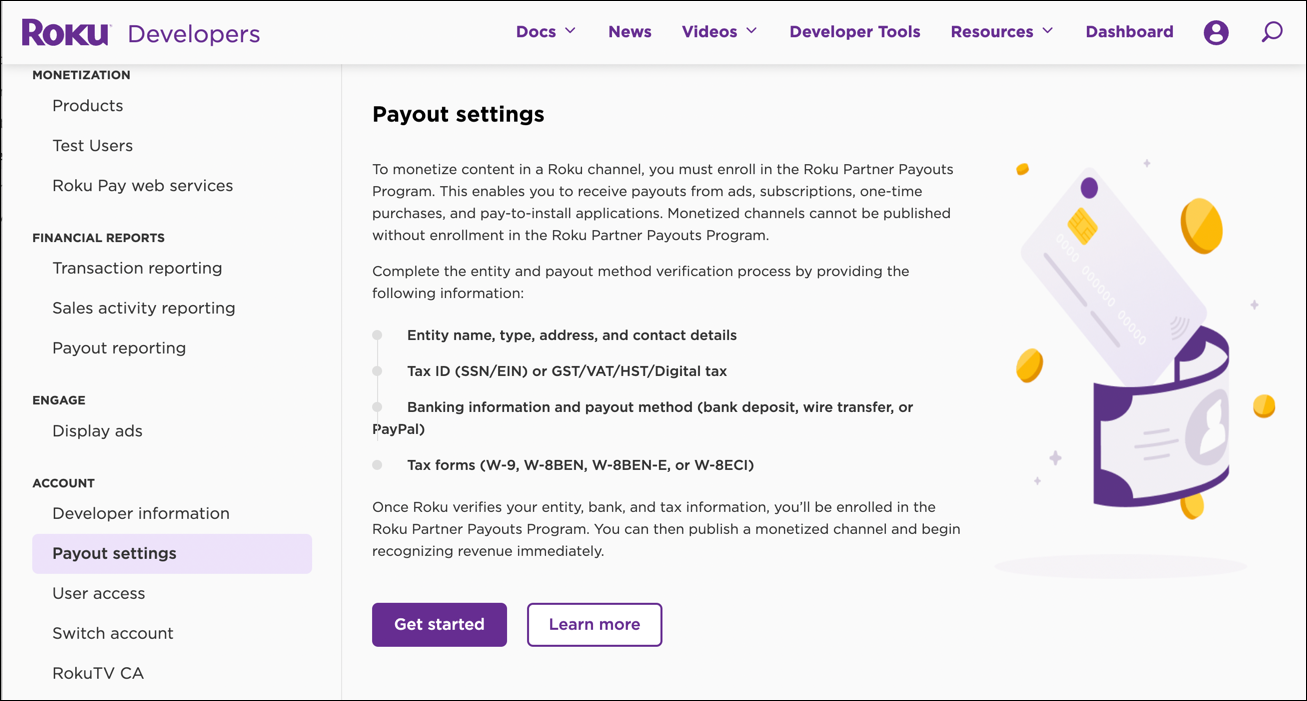
Sign in, and then select Payout settings. If you are using the Payout Settings workflow for the first time, review the steps and then click Get started.
-
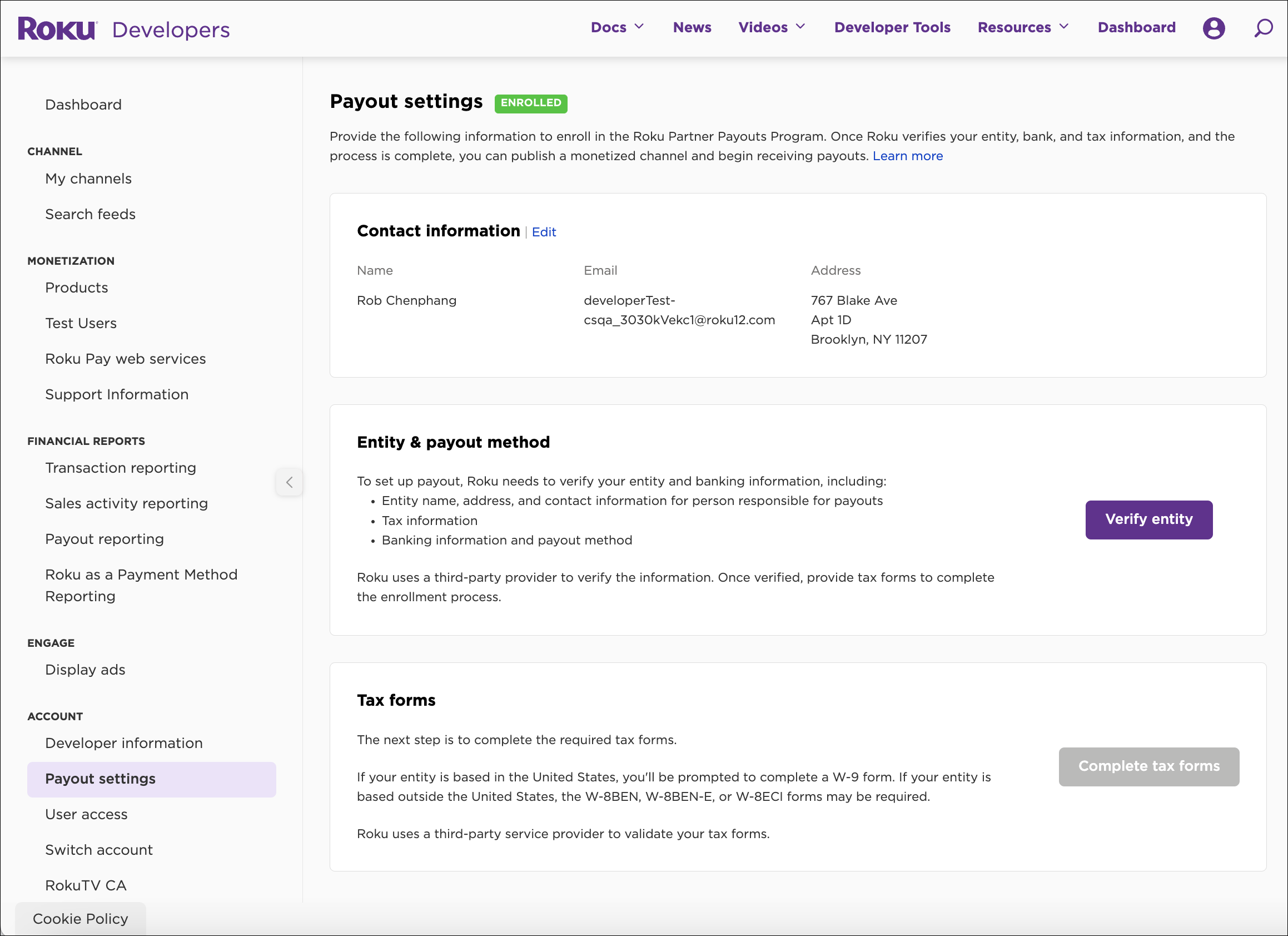
Enter or update the following information:
-
Contact information (name, email, address).
-
Entity and payout method (PayPal, ACH [in the US only], or Cross-border wire [non-US only]).
-
Tax form (W9, W8-BEN, W8-BEN-E, W–8 ECI, W–8 EXP, W–8 IMY, or form 8233).
-
Video demo
Contact information
Under Contact Information, confirm that the existing information is correct. Select Edit to make any updates.
Entity and payout method
To provide your entity and payout method, follow these steps:
-
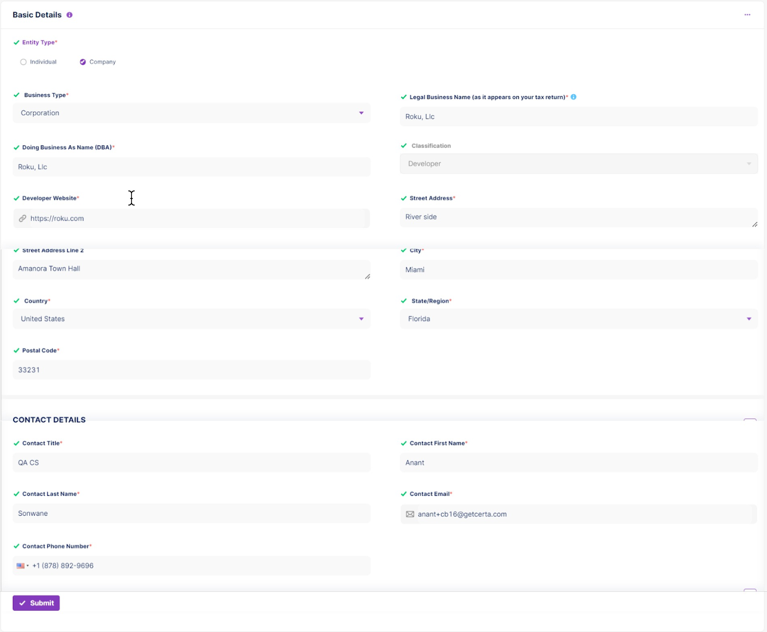
Under Entity & payout method, select Verify entity and then do the following:
-
Enter your contact information, and then select Submit.
-
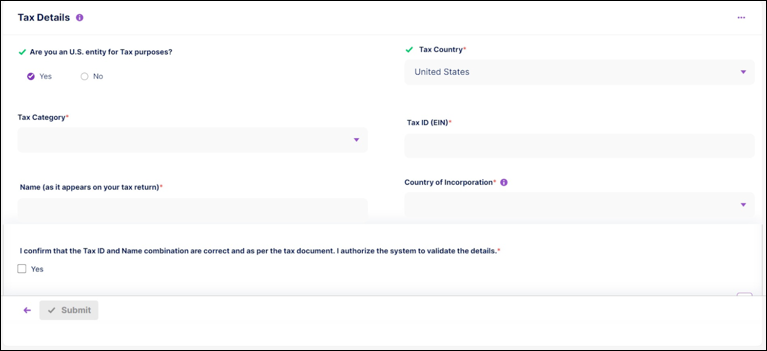
Enter your Tax Details, and then select Submit.
-
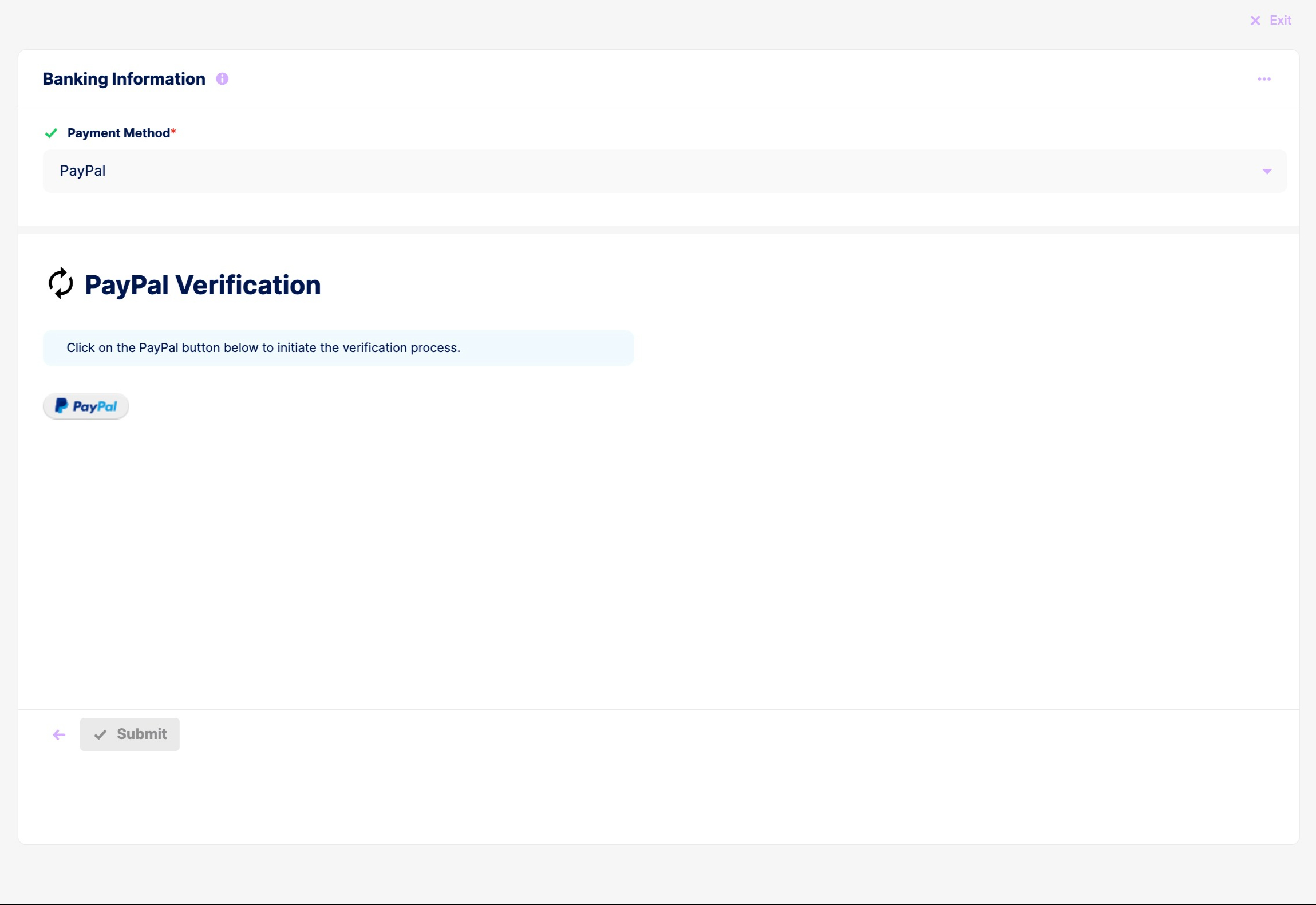
Enter your Banking Information, and then select Submit. You can choose one of the following payout methods:
-
PayPal: Your PayPal account must be linked to a valid payout method (for example, a bank account). Payouts are subject to PayPal terms.
-
ACH (US only): This option is only available to publishers located in the United States. ACH payouts are made in USD only (non-USD transactions are converted to USD using the average foreign exchange rate for the month in which the payment occurs). ACH payouts are subject to additional bank fees. Routing and account numbers must be entered accurately; entering incorrect bank account information will cause payouts to fail.
-
Cross-border wire (non-US only; availability varies by region): This option is only available to publishers located outside the United States, and support for this payout method varies based on the region.
-
Tax forms
Once your entity and payout method have been verified, provide your tax forms following these steps:
-
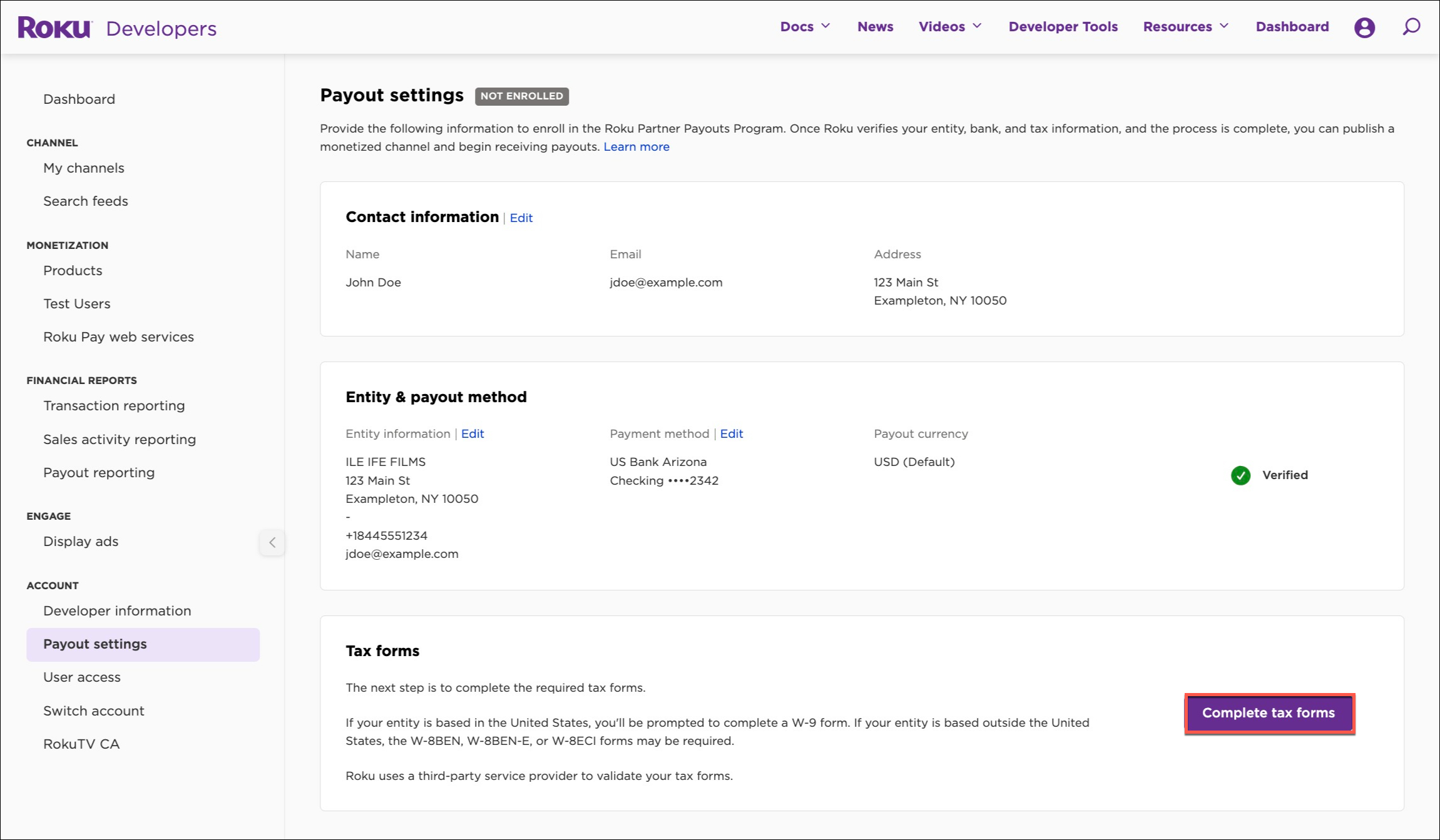
Select Complete tax forms (this button is unavailable until all your information has been completed and validated), and then complete the following steps:
-
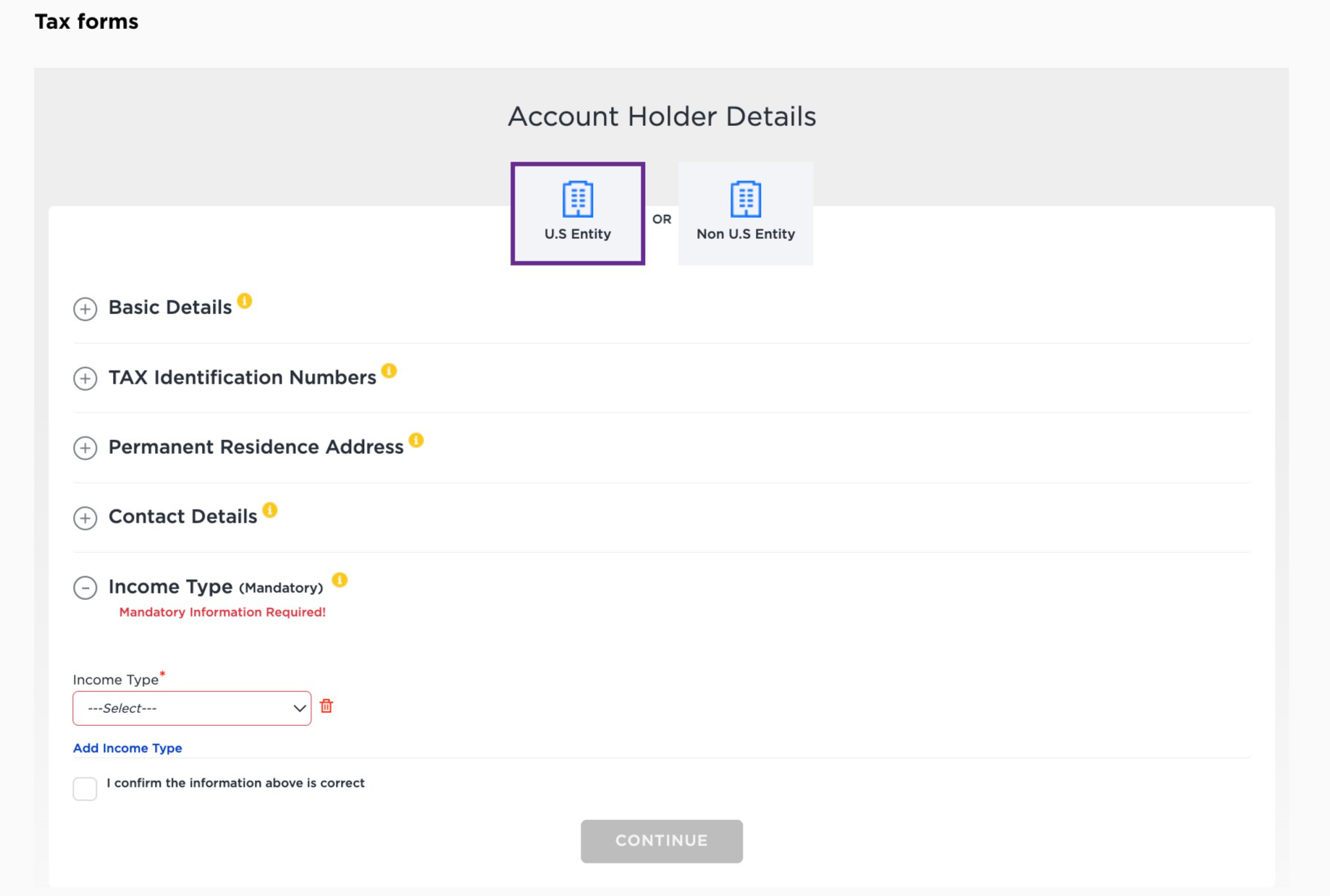
Confirm your source of income, select the confirmation checkbox, and then select Continue.
-
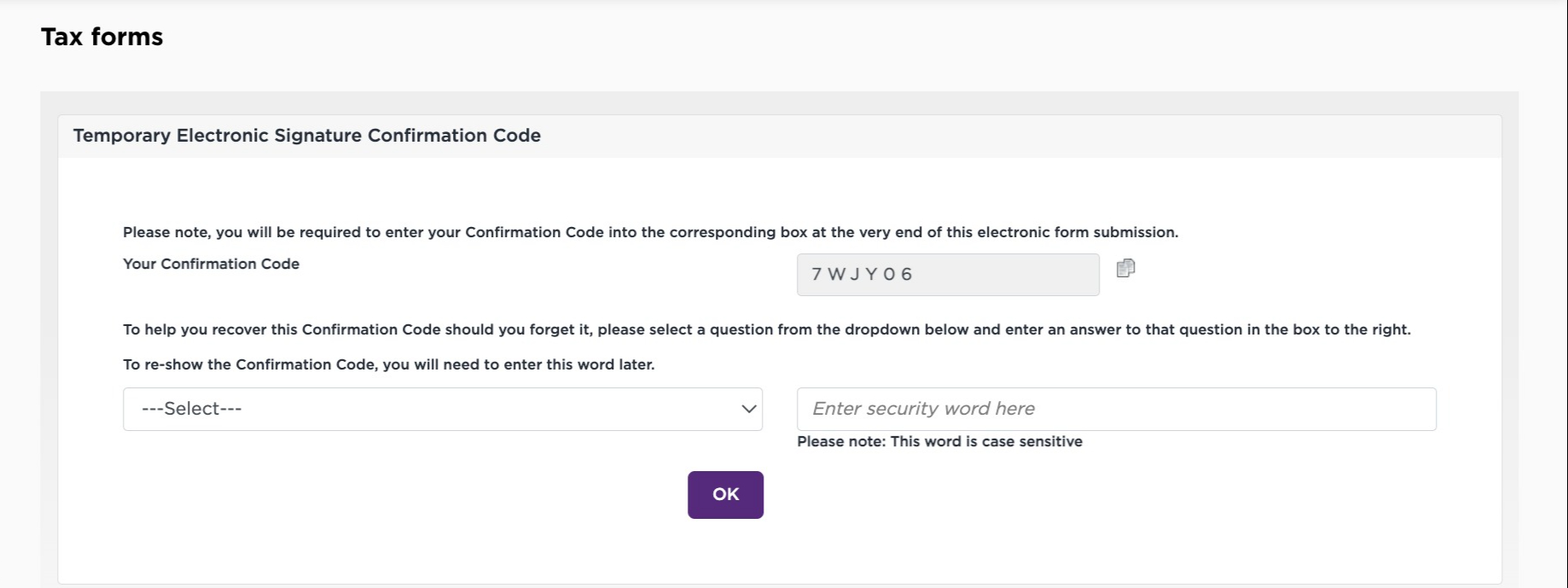
Record your confirmation code, enter code recovery information, and then select Continue.
-
Select the applicable tax form for your region and entity and then select Continue.
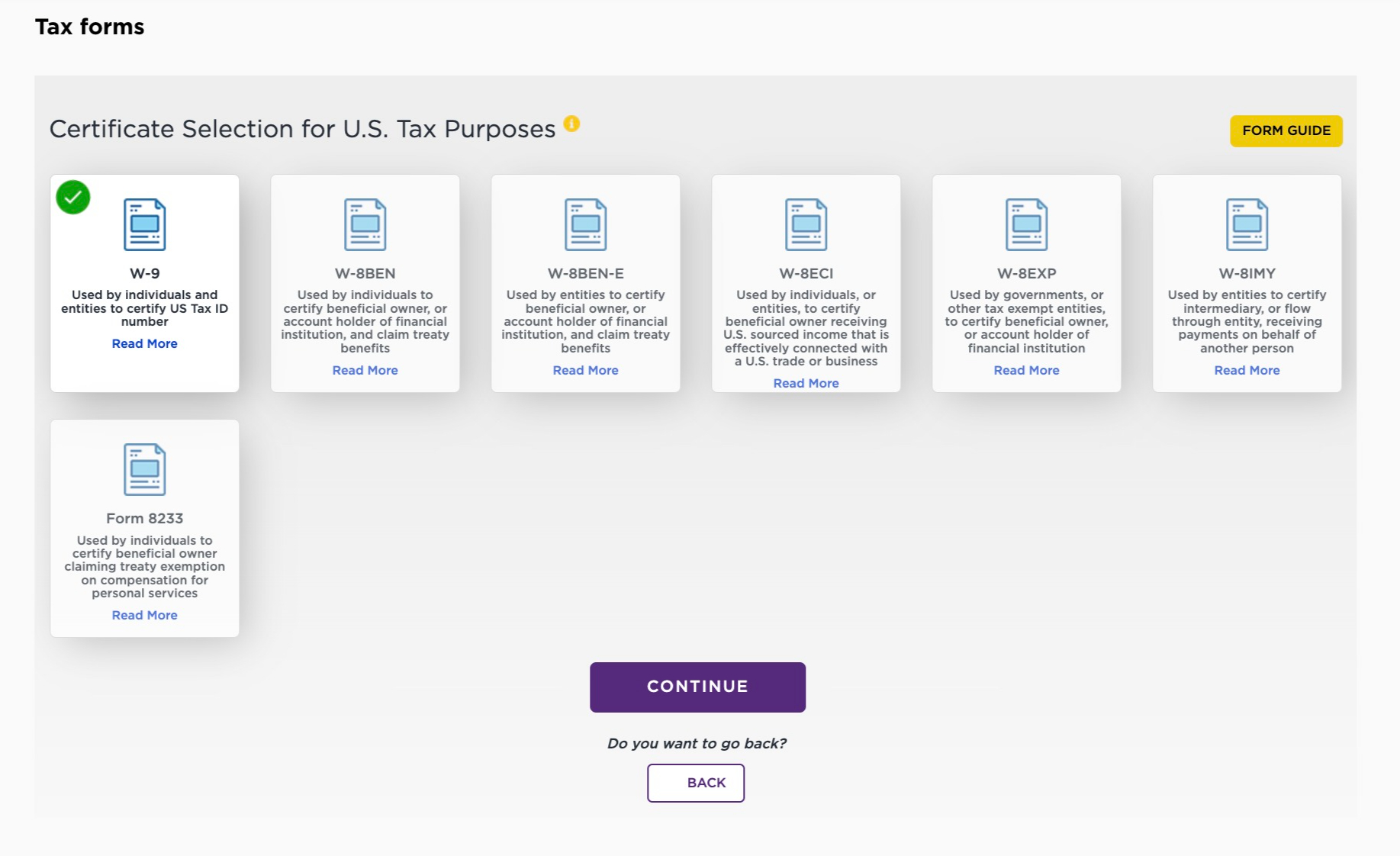
The remaining steps vary based on the selected tax form. The following steps and screenshots are based on the user selecting the W-9.
-
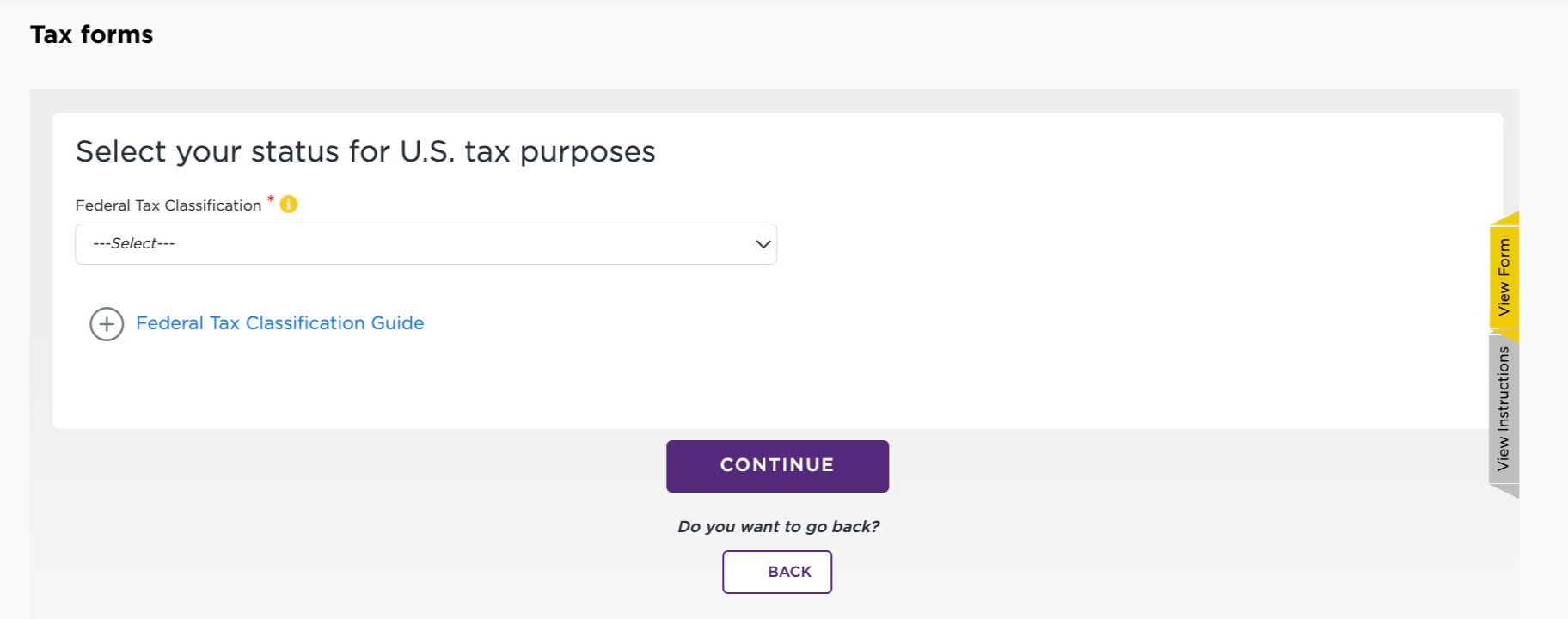
Select your US federal tax classification (corporation, partnership, LLC, and so on) enter the required information, and then select Continue.
-
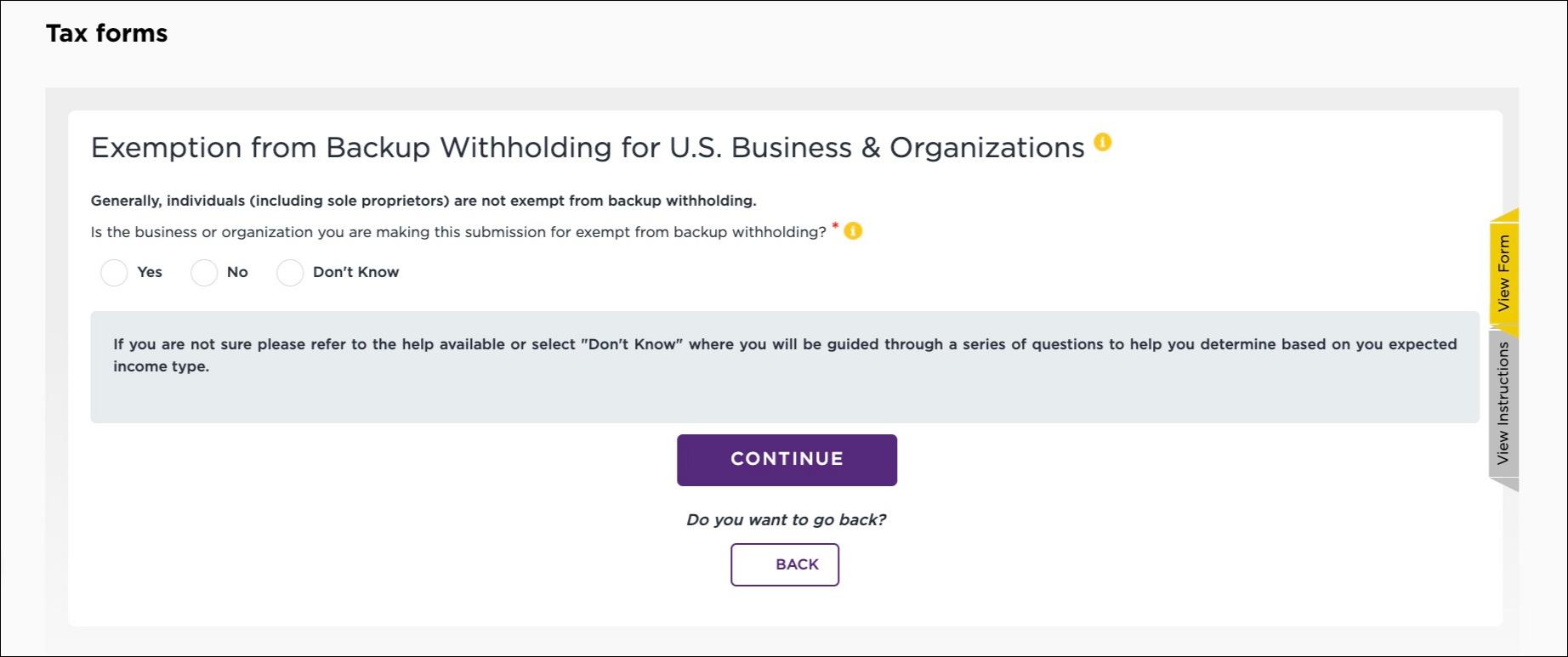
Enter your exemptions from backup withholding and then select Continue.
-
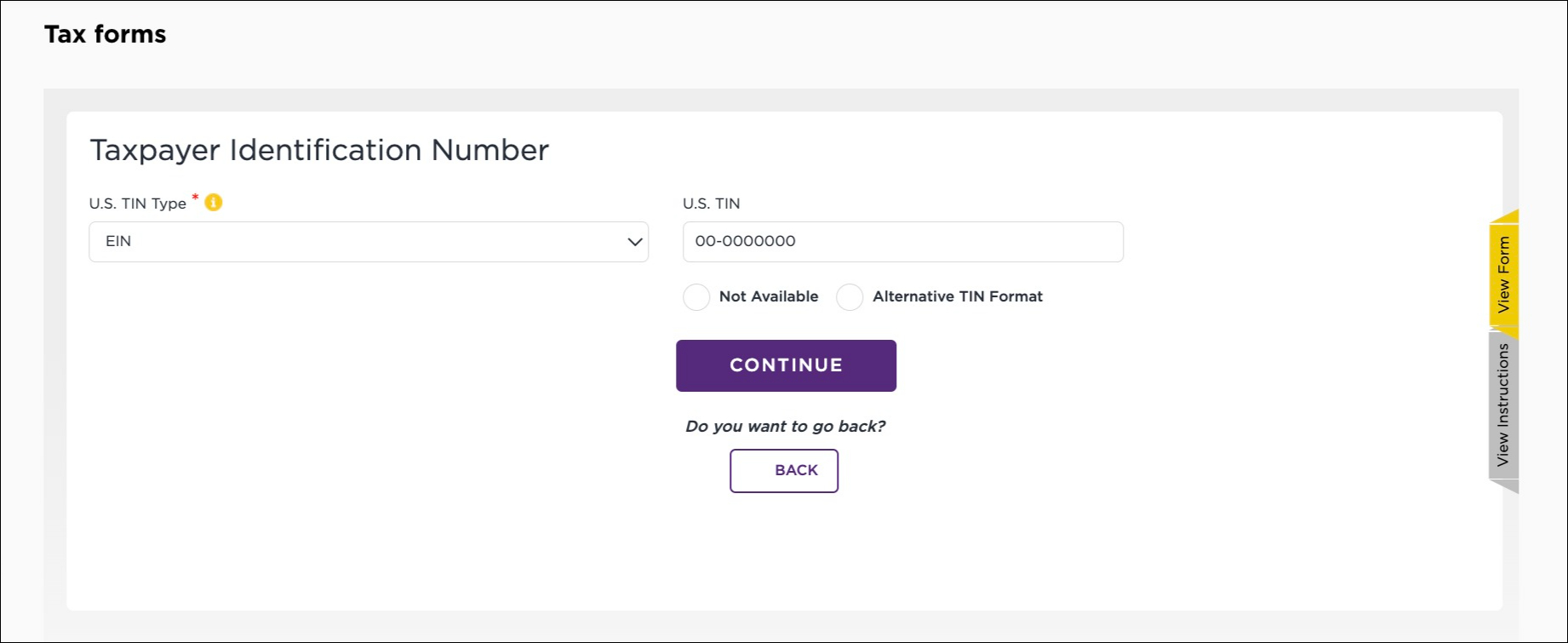
Verify your tax identification number (TIN) and then select Continue.
-
Upload the required supporting documentation (affidavit, certificate of incorporation, withholding/allocation statement, and so on) and any other additional documentation, and then select Confirm & Continue.
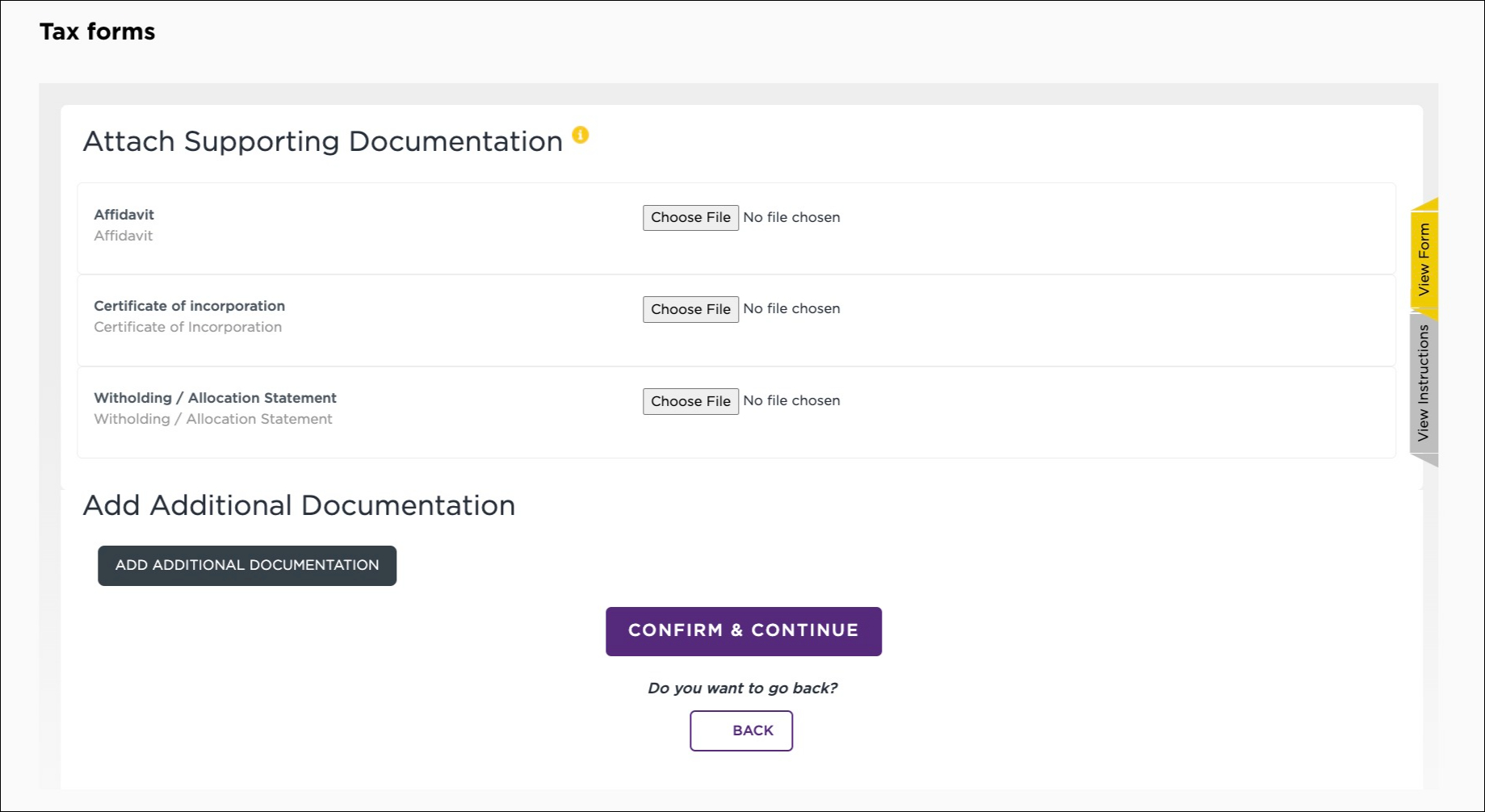
-
Select the applicable certification checkboxes and then select Continue.
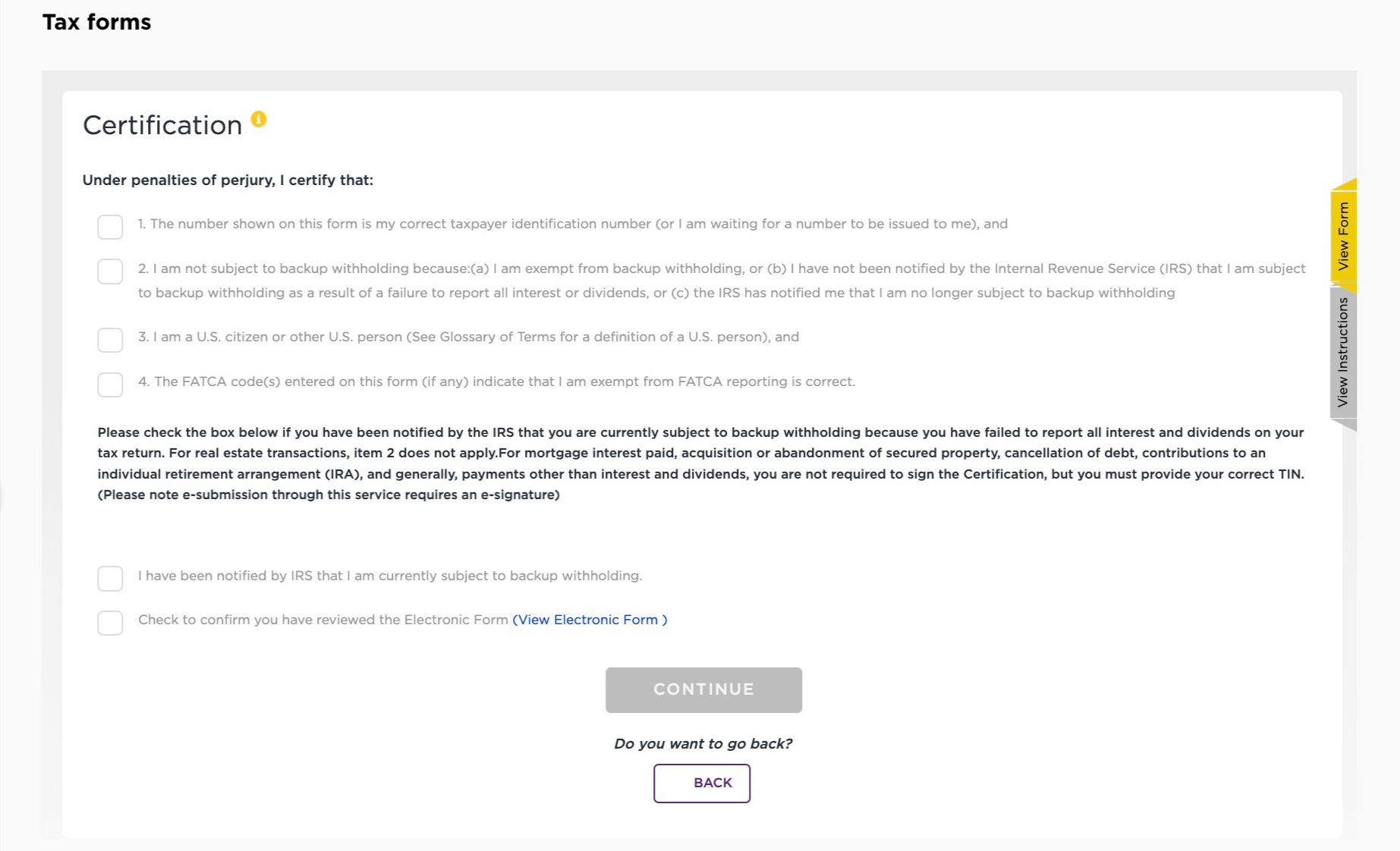
-
Electronically sign your form, enter the confirmation code you received in step b, select the declaration acceptance check box, and then select Submit Electronically.
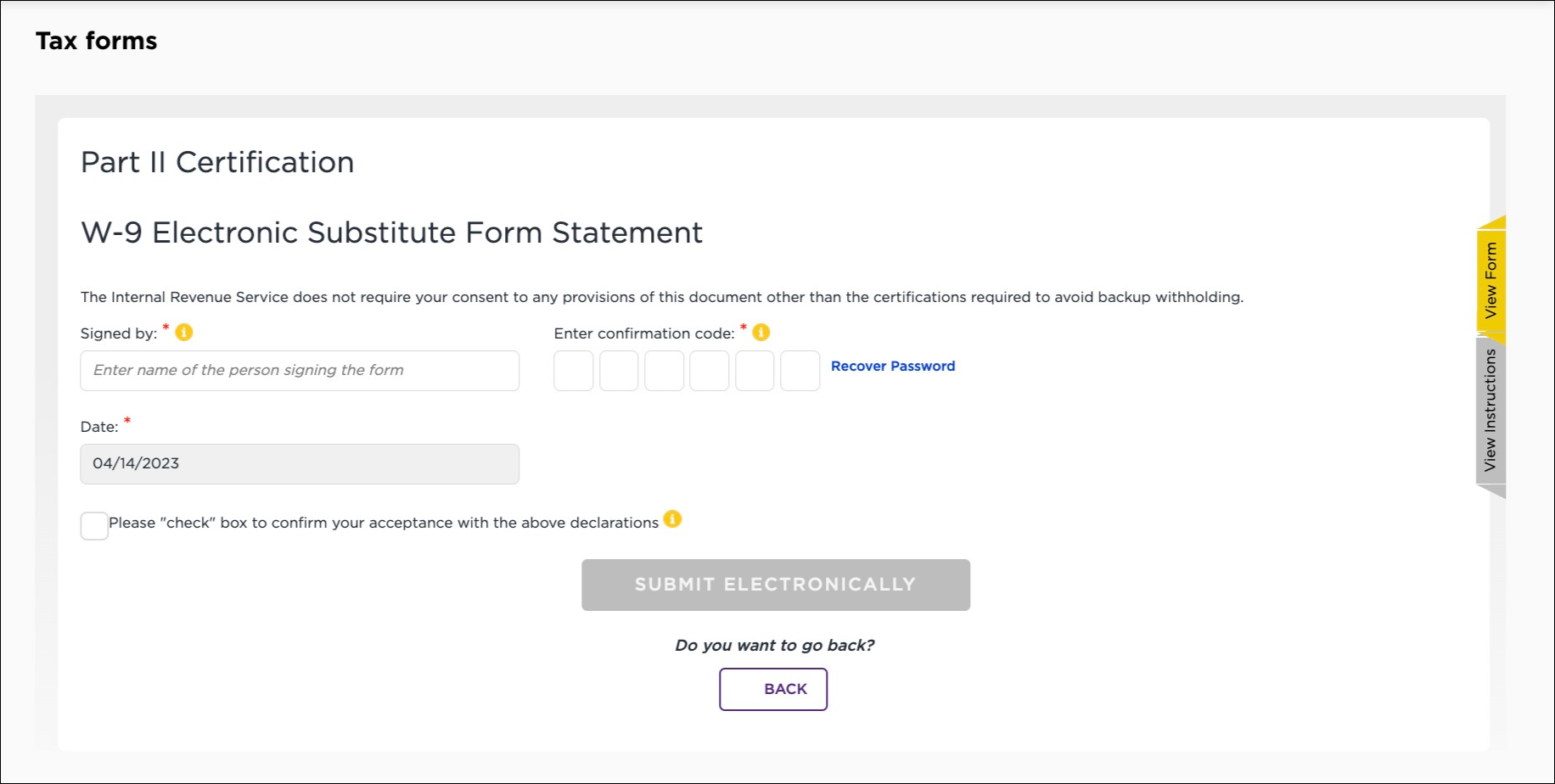
-
A dialog opens confirming that the withholding certification submission process has been completed. Optionally, you can select Download PDF to receive an electronic copy of the submitted forms.
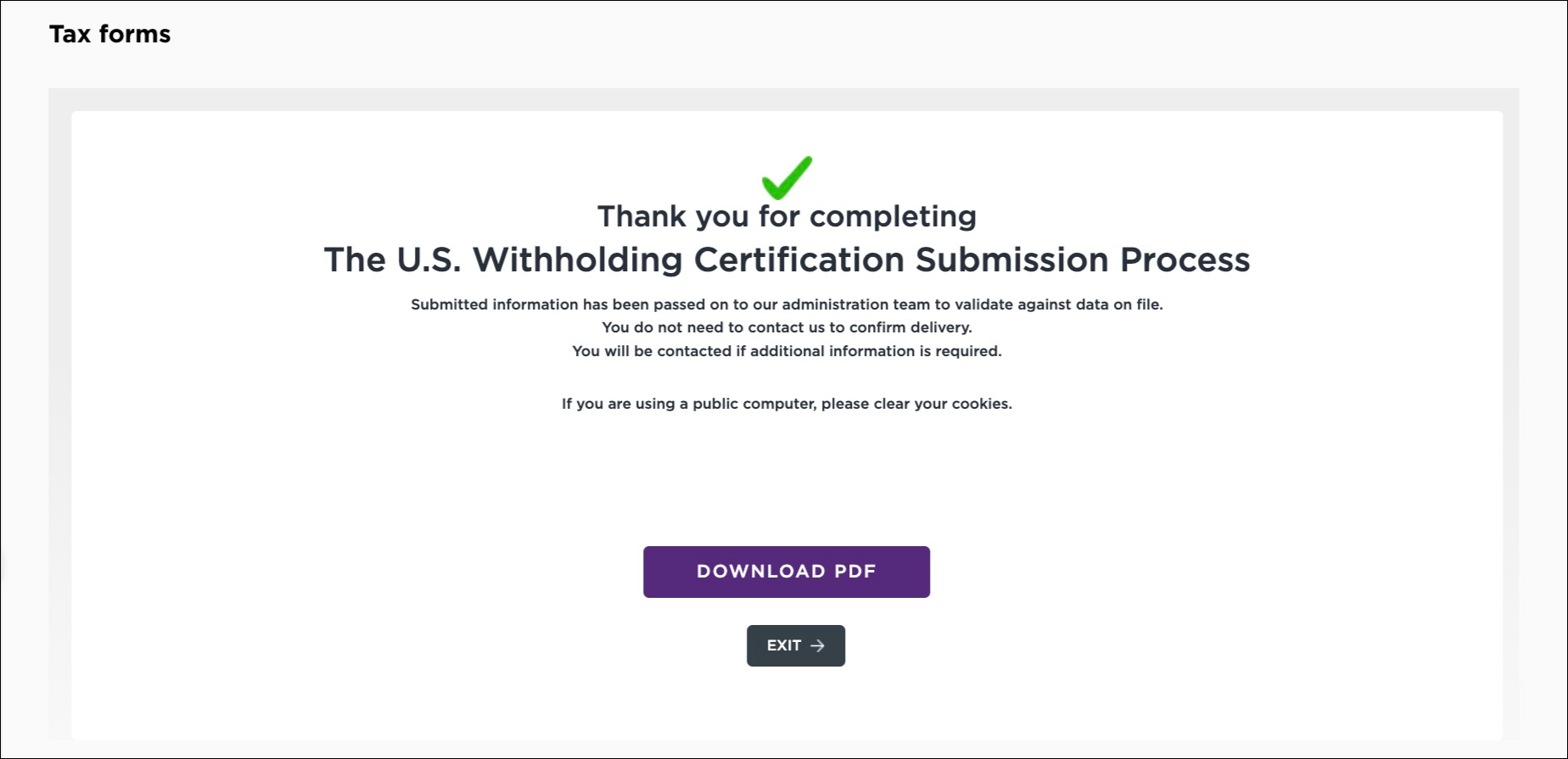
-
Select Exit to close the tax form workflow.
Once you submit your tax forms, they are reviewed and approved immediately, provided that no manual review is required.
If your tax forms require a manual review, you will receive an email notification, and it may take 48 to 72 hours for your tax forms to be approved. Manual reviews can result in your tax forms being approved or declined.
Editing payout settings
Once you have entered payout settings, you can update them anytime.
Receiving payouts
Payout timing depends on how you distribute your content. For payment schedules for content on The Roku Channel, see Publisher payouts.
Payouts for apps
Until your enrollment in Roku Pay is complete, Roku will not bill customers for transactions associated with your app. Any pre-enrollment transactions, including those executed via billing test accounts, are treated as test transactions with no fees collected. All pre-enrollment transactions are cancelled once you complete enrollment in Roku Pay,
Once Roku verifies a publisher's bank information and tax documents, the publisher's account will be enrolled in the Roku Partner Payouts Program. The publisher can then publish a monetized app and begin recognizing revenue immediately.
Roku will pay the publisher 80% of all amounts actually received by Roku from your end users in respect of your Application(s) through Roku Pay, after deducting any applicable taxes, credits, refunds and chargebacks, and Roku will retain the remaining 20%.
Payouts from Roku are made no later than 60 days after the end of each month in which Roku received payments through Roku Pay. For subscriptions that are longer than one month (for example quarterly or annual subscriptions), payouts are made no later than 60 days after the end of each month in which Roku receives payments through Roku Pay.
No minimum sum is required to receive payouts from purchases made through Roku Pay. Payouts are made based on the specified interval regardless of the amount of accrued revenue.
For more information on payout terms, see the Roku Distribution Agreement.
Updated 4 days ago