
Implementing Roku Pay
Build on-device signup, sign-in, and entitlement flows with ChannelStore
Implementing Roku Pay in an app entails creating low-friction authentication, signup, and sign-in workflows with the SceneGraph ChannelStore node and Roku Pay web services. These flows enable customers to access content and purchase subscriptions with minimal interaction. This document provides a high-level overview of how to create these workflows through Roku Pay. See On-device authentication for complete, step-by-step instructions that include how to manage subscriptions created through both Roku Pay and the publisher's system.
Certification requirement: To pass certification, SVOD and TVOD apps (and other subscription services) must complete sign-ups and sign-ins on-device, without having customers visit an external webpage. The sign-up and sign-in workflows may not include links to off-device promotional or marketing materials, nor may it utilize off-device sign-in mechanisms such as rendezvous linking.
Apps must display the Request for Information (RFI) screen during the on-device sign-up and sign-in flows to enable customers to share their Roku customer account information with apps. Only if the user declines the request, may apps require the customer to manually enter their information.
Authentication and entitlement checks
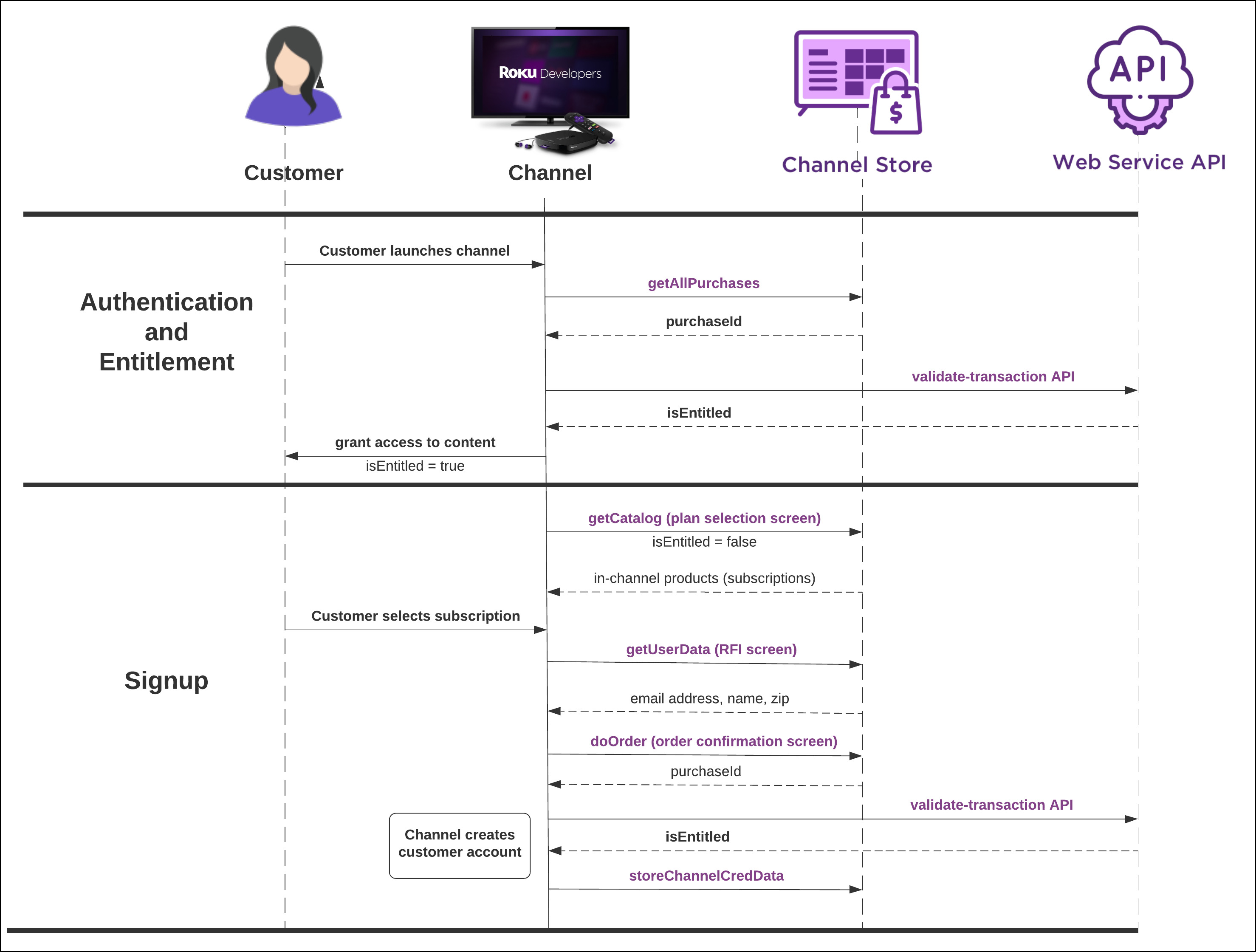
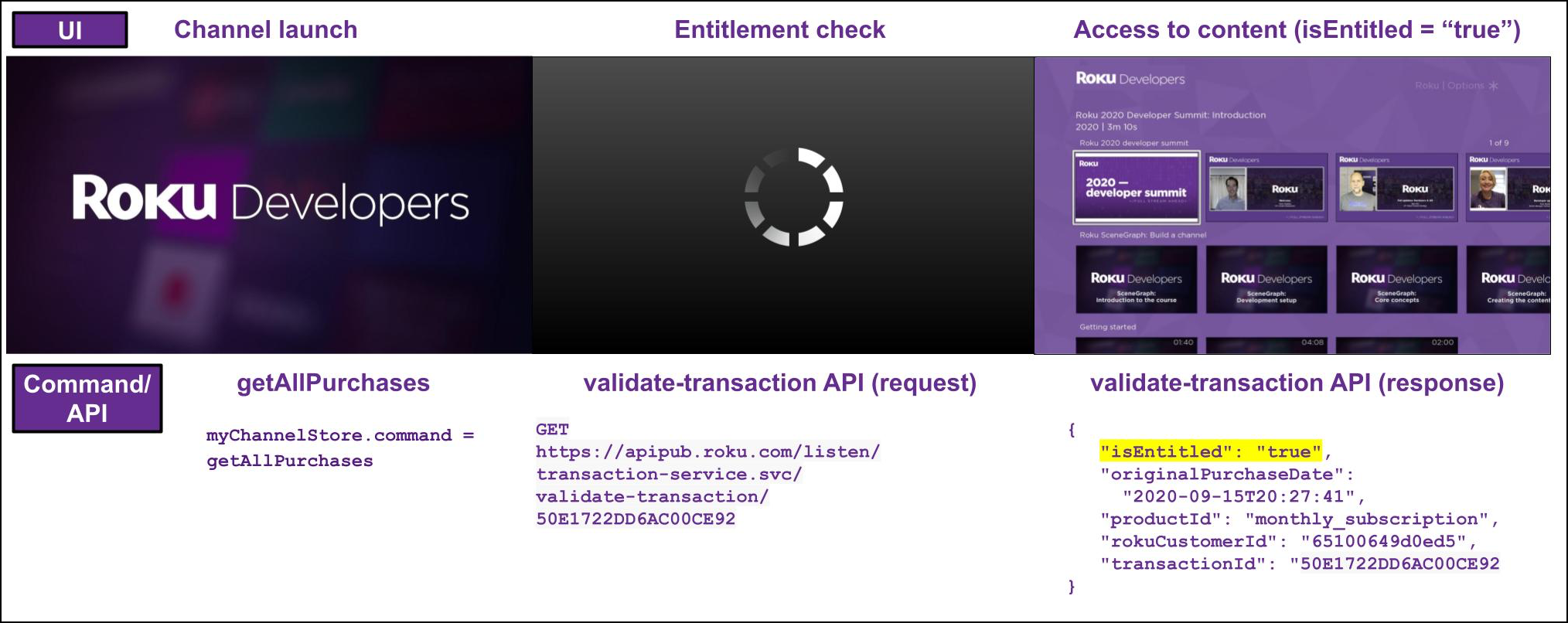
The ChannelStore node and Roku Pay web services are used together to manage the on-device authentication and entitlements in apps. When the app is launched, the app sends the ChannelStore node's getAllPurchases command to retrieve the customer's existing subscription purchase (if any). The transaction ID for that subscription is passed into Roku Pay's validate-transaction API to confirm whether the customer is still entitled to it. If the isEntitled flag included in the API response is "true", the app grants the customer access to content; if it's "false", the app prompts the customer to sign up for a subscription product (see the next section for how to implement the signup workflow). The result is a seamless, authentication workflow that requires no user interaction.
Certification requirement: SVOD, TVOD, and all other authenticated apps must implement on-device authentication to pass certification (for AVOD apps, the effective date for this requirement is after September 30, 2021; TVE apps are excluded from this requirement).
Signups
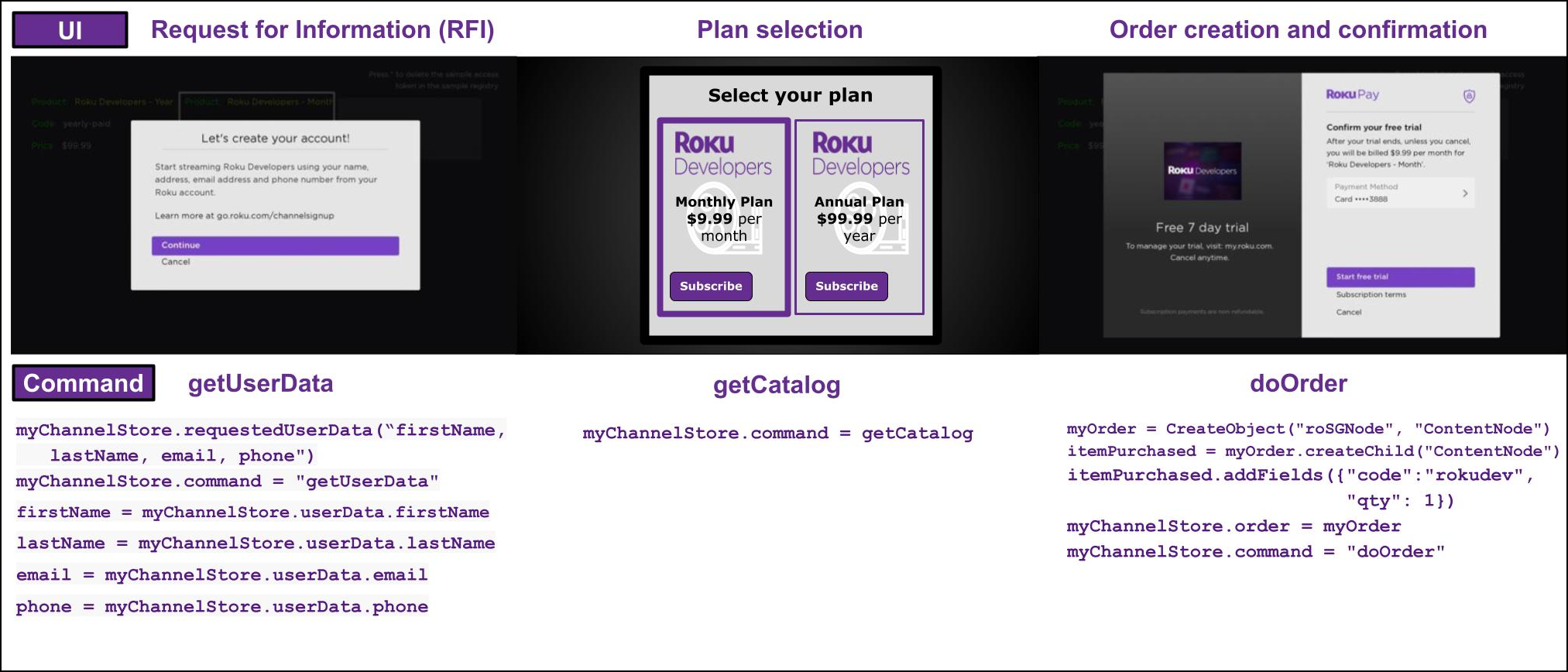
The Roku Pay signup workflow typically includes a landing page and maximum of three screens (in the following recommended order for maximizing conversions): request for information (RFI), plan selection, and order creation and confirmation. Each of the screens use a SceneGraph ChannelStore command as illustrated in the following diagram:
See Signup requirements and best practices for how to implement the optimal on-device signup UI. This document explains and illustrates the recommended screen order, tips for the copy displayed on the screens, and when in the signup flow to check and create users accounts.
Request for information
The app displays an RFI screen in order for customers to grant the app access to their Roku account information (name, email address, street address, zip code, phone number, and so on). The app then uses this information to automatically create a user account for the customer in their own backend system without any additional keypresses from the customer.
The user account should be created after the customer completes the subscription purchase. After which, apps should create a temporary password for the customer in the backend system and then send the customer an email instructing them to reset it. This eliminates the need for an account creation screen and numerous additional customer keypresses, which slow down the signup flow and increase the risk of abandonment.
Sending the ChannelStore node's getUserData command displays the RFI screen with the customer's Roku account information, which is used for creating an account in the publisher's system.
Certification requirement: Apps must display the RFI screen in the sign-up flow to pass certification.
Plan selection
If an app offers, for example, monthly and annual subscriptions or ad-supported and ad-free plans, the app displays a dialog or screen listing the different plans in the app's product catalog. If an app only has a single plan, no plan selection screen is needed; clicking content that is behind a paywall can initiate the next step in the workflow, which is to create the customer's account.
The ChannelStore node's getCatalog command is used to get the subscription and one-time purchase products in the app's catalog.
Order creation and confirmation
The app displays Roku Pay’s order confirmation screen, which lists the terms of the purchase and the method of payment.
The ChannelStore node's doOrder command is used to display the order confirmation screen, which lets customers start their subscription or confirm their one-time purchase.
The signup workflow for apps with a single subscription product only requires the two built-in Roku Pay screens: Request for Information (RFI) and order creation/confirmation. Similarly, apps with two or more subscription plans require only a plan selection UI in addition to the built-in RFI and order creation/confirmation screens.
These are the recommended approaches as they minimize customer keypresses and therefore decrease the risk of abandonment.
The ChannelStore node also includes a storeChannelCred command for storing a publisher's access token in the Roku cloud. This enables customers to access their entitled content on all the devices linked to their Roku account—without requiring any additional authentication.
Subscription processing
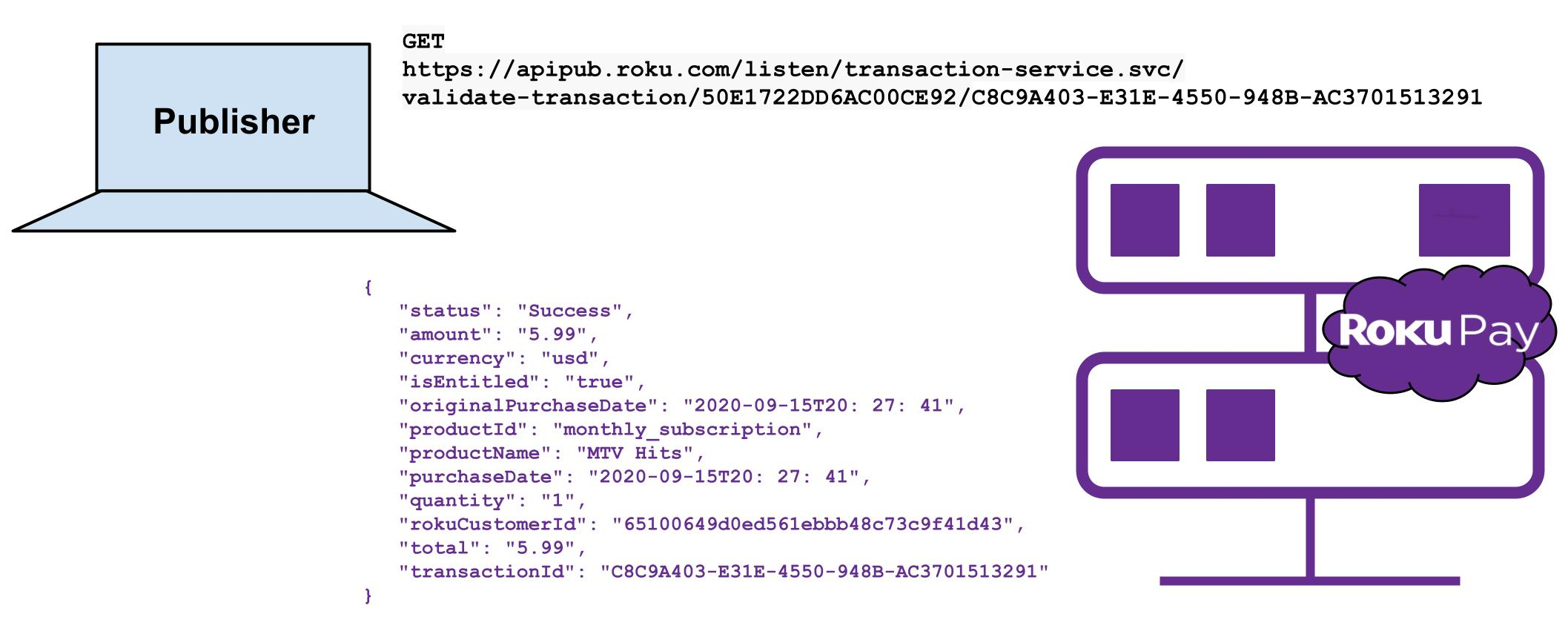
The Roku Pay web services are called by the publisher's backend system for validating and canceling subscriptions, issuing refunds and service credits, and updating the customer's billing cycle. In addition to pulling transactions via the Roku Pay web services, publishers can receive the transactions in near real-time via push notifications.
Sign-ins
The Roku Pay sign-in workflow typically includes the landing page, the request for information (RFI) screen, and a password keyboard dialog, which is overlaid on top of a log-in screen. See Sign-in requirements and best practices for more information.
Certification requirement: Apps must display the RFI screen in the sign-in flow to pass certification.
Sample app
The On-device authentication sample shows the code you need to implement to sign up new users and handle subscription purchases using the SceneGraph ChannelStore node, Web Service API, and roRegsitrySection node.
Video lesson
You can learn how to implement Roku Pay in order to offer subscriptions in your app by watching the Offering Subscriptions video lesson in Roku's SceneGraph: Build a Channel online video course.
This lesson describes how to monetize content by offering subscriptions, directly on-device, through Roku Pay. It explains how to get started with Roku Pay, including how to create an app, in-app products, and test users. It details the Roku Pay workflow from checking entitlements to completing purchases and granting access to content. It also summarizes how to integrate the Roku Pay Web Service APIs into your backend system for validating, refunding, and canceling subscriptions.
Next steps
Read the SceneGraph ChannelStore overview, Roku Pay web services reference, and Roku Pay push notifications reference to learn how to integrate the APIs used in the Roku Pay signup workflow.
Updated 5 months ago