
App Health Report
Examine app crashes and BrightScript errors to improve app stability
You can use the App Health Report to examine the number and type of crashes for your app to understand how the app is performing. This report can be especially helpful around the time of a new release for your app when a spike in errors may indicate the need to either rollback or quickly update your app version to prevent the user experience from degrading substantially. Included in this report is a crash log showing BrightScript errors.
This report helps you identify products experiencing the most BrightScript crashes. Crashes are measured in total counts as well as normalized for the total number of devices and streaming hours. The higher the count and normalized measurement, the more opportunity for improvement. Counts and normalized measurements should always be interpreted together. A relatively high count alone may be more indicative of the size of the install base, while a high normalized measurement could be indicative of a particularly problematic minority of the install base.
Analyzing patterns in crashes will help you find ways to improve the user experience. For example, video start times and rebuffering have been shown to be highly predictive of time spent streaming and are strong indicators of the overall user experience in the app. If the dashboard reveals that videos are slower to start on certain devices or that rebuffers or crashes occur more frequently, you might focus your troubleshooting on those devices to improve your overall app stability and user experience.
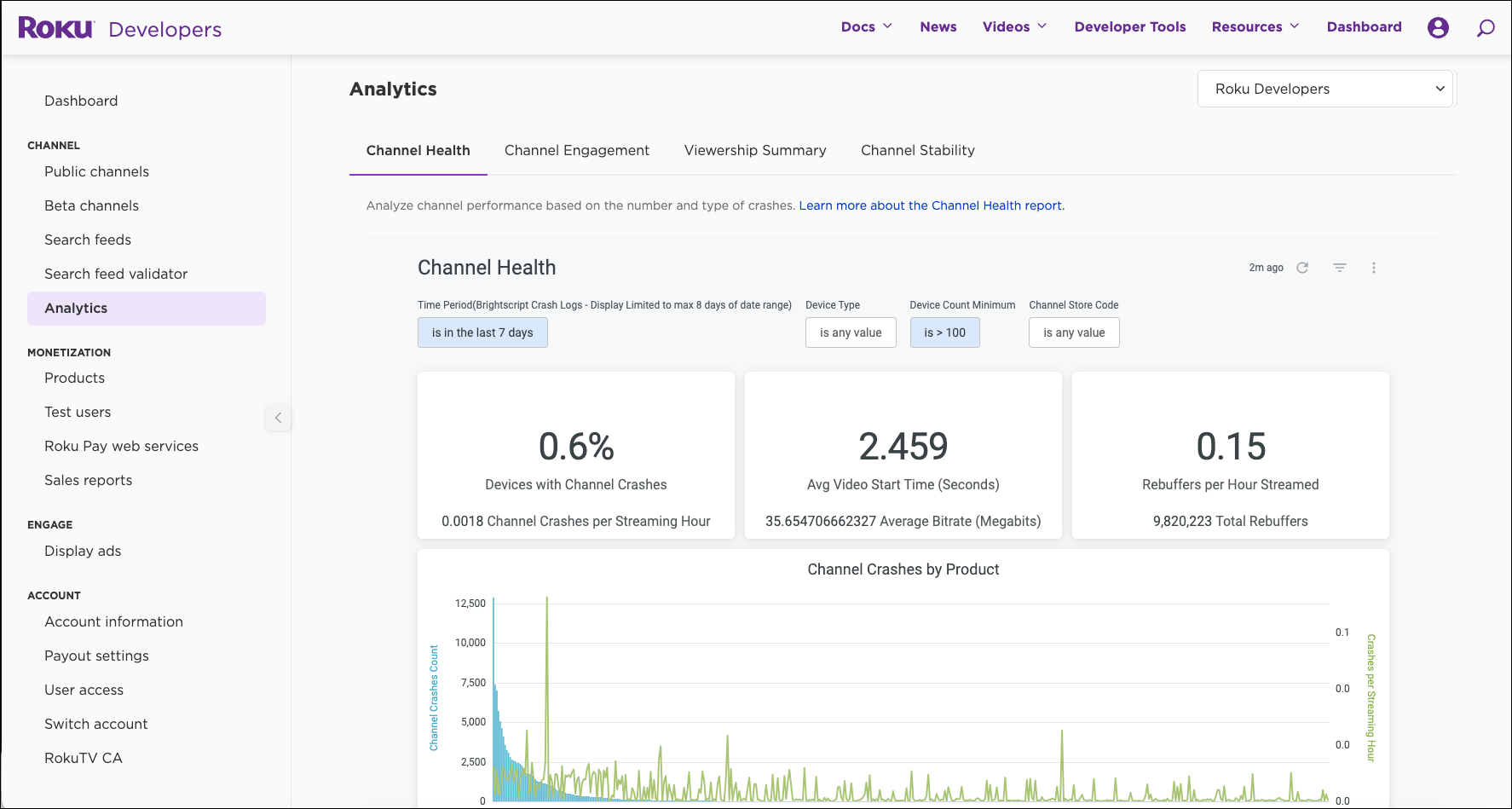
Filters
The filters applied to this report are:
- Time Period - sets the data sample period for the entire report. The default is set to "8 days ago for 7 days" because data from the most recent day will be incomplete.
- Device Type - analyzes data for specific types of devices - Players, Roku TVs, Roku Powered devices - or any combination of the three. More than one Device Type is allowed.
- Device Count Minimum - use this to filter out devices with a small install base; the default is set to 100 devices
- Streaming Store Code - identifies the market where your app can legally be distributed. More than one code is allowed.
Summary statistics
The band of metrics below FILTERS shows the summary statistics based on what you select in FILTERS:
- Devices with Channel Crashes - percentage of unique devices that have streamed in your app which have experienced a BrightScript crash in the selected Time Period; the lower, the better
- Channel Crashes per Streaming Hour - count of BrightScript crashes normalized for total streaming hours; the lower the better
- Average Video Start Time (seconds) - average time required for video content to start streaming; the lower, the better
- Average Bitrate (Megabits) - the average number of bits per second streamed in your app; the higher, the better
- Average Rebuffers per Device - average number of rebuffers per unique device that has streamed in your app; the fewer, the better
- Buffering Time as % of Total Streaming Time - effectively the ratio of time spent waiting on content to stream vs. total streaming time; the lower the better
Visualizations
Below the band of summary statistics are two visualizations analyzing app and device crashes. Both visualizations have been sorted to list the products with the most crashes to the far left on the horizontal axis. The product names currently include the Roku pseudonym for hardware from 3rd party OEMs. On the vertical axis are the number of crashes by app or device. See Roku Models and
Features for the list of hardware and model numbers.
Click on the legend at the bottom of each visualization to view only one or multiple metrics.
Channel Crashes by Product visualization
This visualization shows the number of app crashes on the devices that have streamed in the sample time period. The left vertical axis is for the total number of BrightScript crashes while the right vertical axis is for the average number of crashes per streaming hour.
Devices with Channel Crashes by Product visualization
This visualization shows the number of crashes on each type of device that has streamed in the sample time period. The left vertical axis is for the number of unique devices that experienced a BrightScript crash in the selected time period, while the right vertical axis is for the percentage of all device streaming in your app that experienced a BrightScript crash in the selected time period.
BrightScript Crash Logs table
The BrightScript Crash Logs table summarizes the total number of app crashes and unique devices that experienced a crash. It enables developers to quickly identify and triage app crashes in order to improve the app's user experience and performance. This table is available for both public and beta apps.
The BrightScript Crash Logs table provides a maximum 7 days of data—regardless of the interval or date range selected in the Filters section at the top of the report page. If the specified filter exceeds 7 days, only data for the last 7 days of the period are provided (for example, if the specified filter is from January 1st to January 31st, data is only returned for January 25–31.
The BrightScript Crash Logs tables report data within approximately 8 hours after an app crash.
The table lists crashes by the date, the number of errors, Roku OS version, app version, and the logged error text. You can sort the crashes by clicking a column header (for example, you can sort the "Error Count" column to identify the cause of the most recurring crash). In the row of a crash, you can click one of the following metrics to get a detailed summary:
- Platform: Displays the total number of crashes per hardware model and Roku OS version.
- App: Displays the total number of crashes per app version.
- Backtrace: Displays the stack backtrace. This enables you to identify which file and line of code caused the crash and analyze the sequence of calls that led to it. This summary list a maximum of 1,500 stack backtraces.
In the Platform and App reports, you can click Visualization to view the metrics in a bar chart. In all the reports, you click Download Results to export the report as a CSV file. The exported report includes additional Roku product details in the table for troubleshooting.
Updated about 8 hours ago