
Implementing Roku Search
Steps to create, validate, and submit a search feed for Roku Search integration
Roku Search aggregates content from participating apps into a single, indexed search feed. It helps users find content quickly by entering or saying the name of a movie, TV show, actor/actress, and so on. By participating in Roku Search, any content in your app that matches a query is automatically listed in the search results. This provides opportunities to convert searches into subscriptions and rentals, drive users to your app, and increase engagement.
This document covers the step to prepare and submit your app to participate in Roku Search. To review the Roku Search feed schema itself, see the Search feed specification.
Integration Steps
Integrating Roku Search in your app entails the following steps:
-
Create a search feed (create and validate a test feed first, and then provide the full feed).
-
Test feed: Create a test feed with just a few entries (one per each type of content in your catalog). This makes it easier to verify and troubleshoot your search integration before submitting the whole feed.
-
Full feed: Once the test feed has successfully been validated, submitted, and verified with your Search beta app following steps 1–5, add all the entries in your catalog to your feed and then repeat steps 2–5.
-
-
Validate the search feed:
a. Use an online JSON format validator to verify that your feed is using properly formatted JSON.
b. Use an online JSON schema validator to verify that your feed adheres to Roku's search feed schema.
-
Submit the search feed using the self-serve tool in the Developer Dashboard.
-
Test the app with your validated search feed.
-
Verify that the content in your feed appears in Roku Search queries.
-
Verify that selecting content from Roku Search deep links to your app with the proper playback experience.
-
Add deep linking parameters.
-
Submit your search feed to Roku for review.
-
-
Send authentication events (for SVOD and TVE apps).
Search feed submission video demo
The following video demonstrates how to validate and submit a search feed.
Creating a search feed
Apps participating in Roku Search must provide a search feed, which is a JSON document that contains the metadata for each content item in an app's catalog. Metadata includes the ID, type, title, description, genre, rating, release date, and artwork for the content item.
The content metadata is stored in Roku's master database and is available for matching searches. It is also used to display information about the item after it has been selected.
For content metadata to be added to the Roku Search master database, the search feed must conform to Roku's JSON schema and be validated by Roku. See the Search Feed specification for more information on configuring a search feed so that it passes validation. The spec includes detailed information about each metadata field to be included in the search feed, and it provides the JSON schema and sample feeds that you can reference.
To make testing and troubleshooting your Roku Search integration easier, create a short test feed following the schema. This test feed should contain a single entry for each type of content in your catalog (movie, television episode, short-form video, and so on). For testing episodic television content, you can provide all the episodes within a single season of a series.
By starting with a test feed, you can make sure that the search feed integration works end-to-end with all the different content types in your catalog. You can then use the small feed as a template for adding the rest of your catalog to the feed.
You can use the sample feeds in the Search Feed specification as templates for adding entries to your feed. The sample feeds adhere to the feed spec and pass validation.
Third-party support for integrating Roku Search
Apps can work with third-party vendors such as Universal Search and Discovery (USAND) or Instant TV App to onboard their content feed into Roku Search. These services provide outsourced feed ingestion and metadata delivery services for the Roku platform.
Validating the search feed
Once the search feed has been created and is hosted online, verify that the JSON is formatted correctly, adheres to Roku's search feed schema, and includes all the required metadata.
-
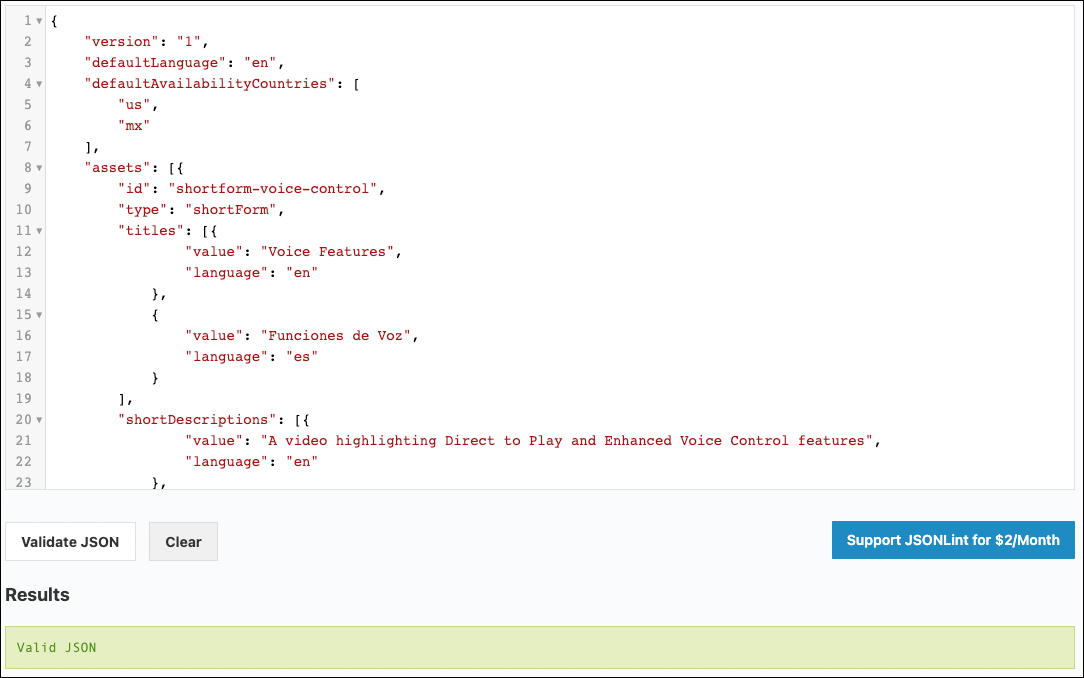
Use an online JSON format validator to make sure that your feed is using properly formatted JSON. Feeds with incorrect JSON formatting will be rejected by Roku's search feed submission tool.
-
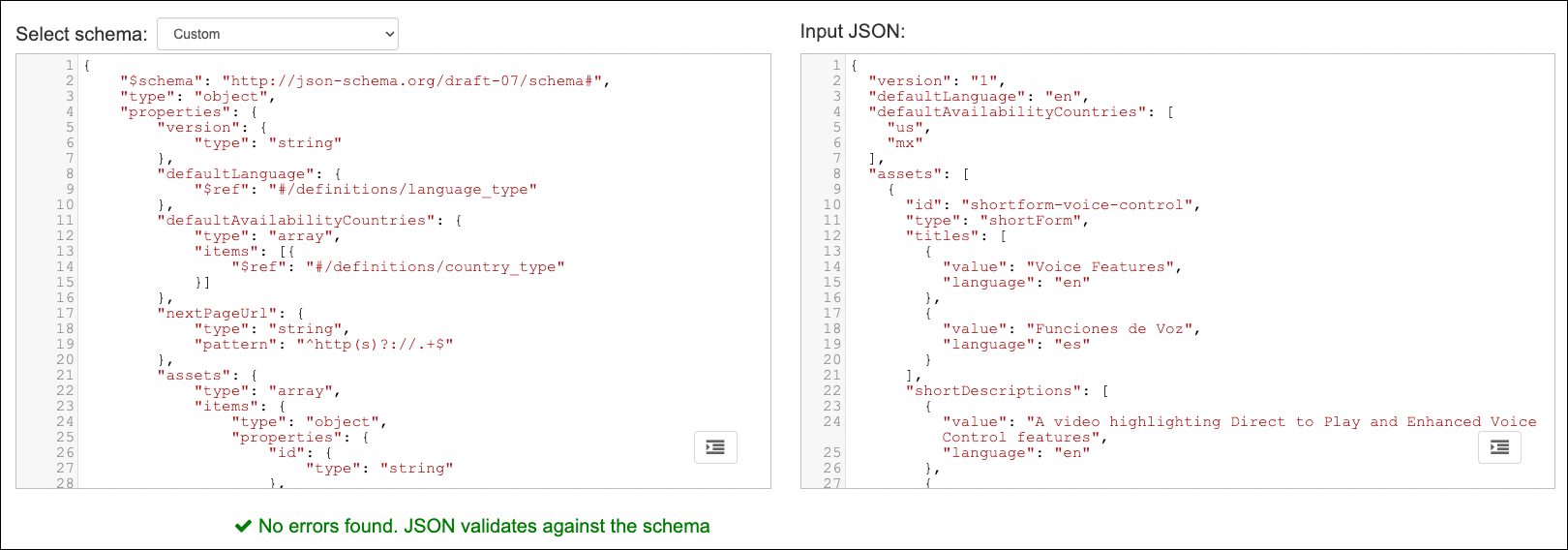
Use an online JSON schema validator to verify that your feed adheres to Roku's search feed schema. You can use the provided link and then copy and paste your feed into the validator. Non-compliant feeds will prevent content from being ingested.
-
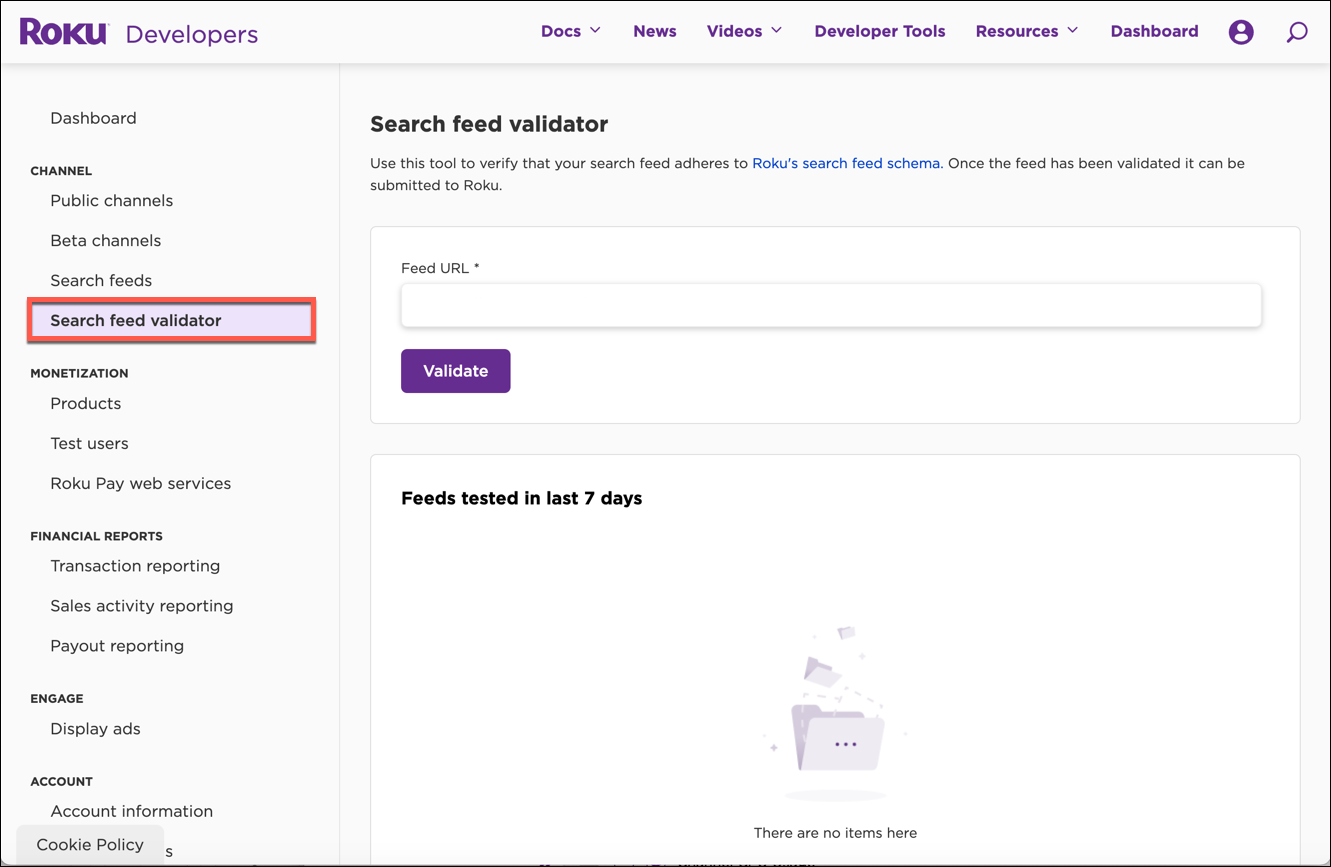
Use Roku's search feed validator in the Developer Dashboard to verify that your feed includes all the required metadata following these steps:
a. In the Developer Dashboard, click Search feed validator under App.
b. In the Search feed validator page, enter the URL of the app's search feed:
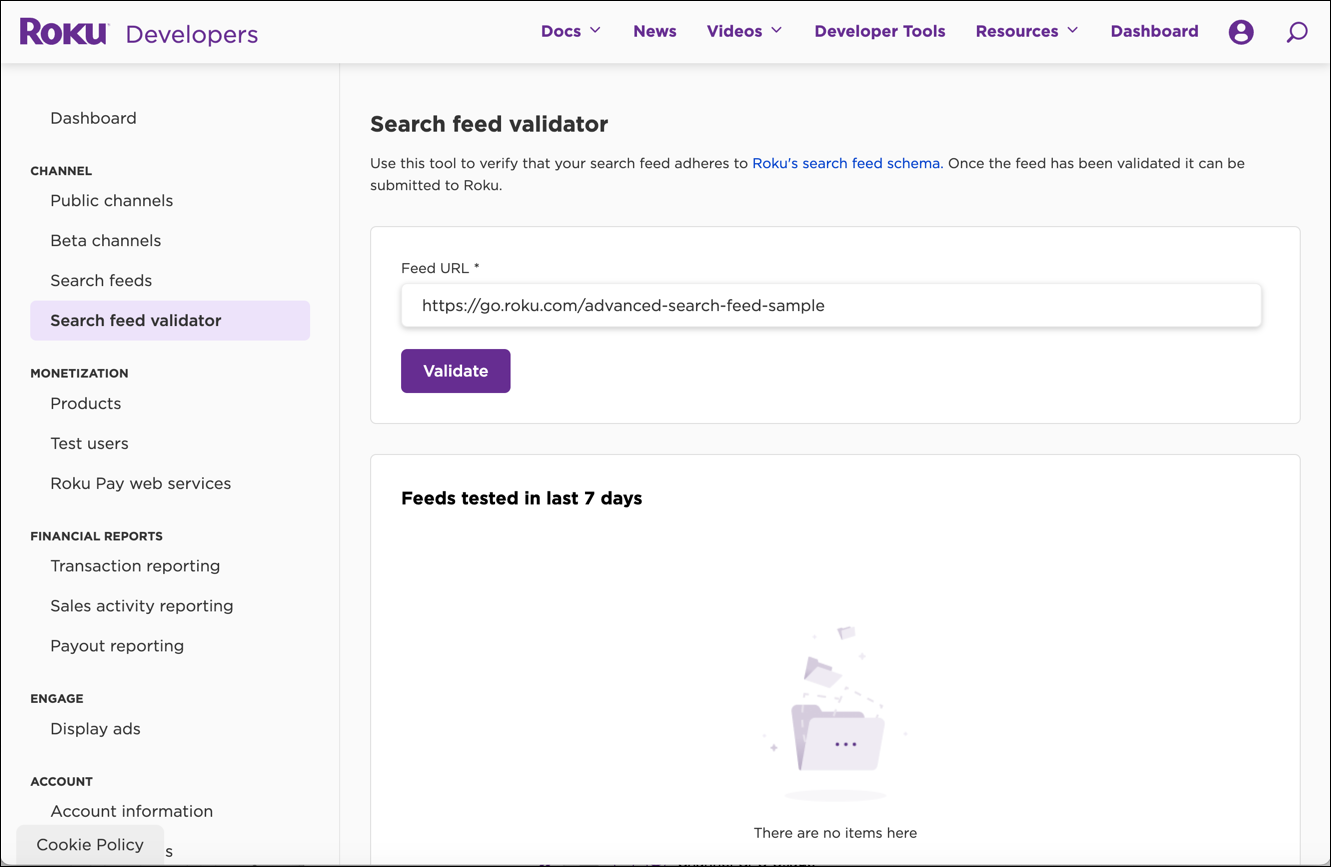
c. Click Validate. Validation testing of your search feed is completed within approximately 15 minutes.
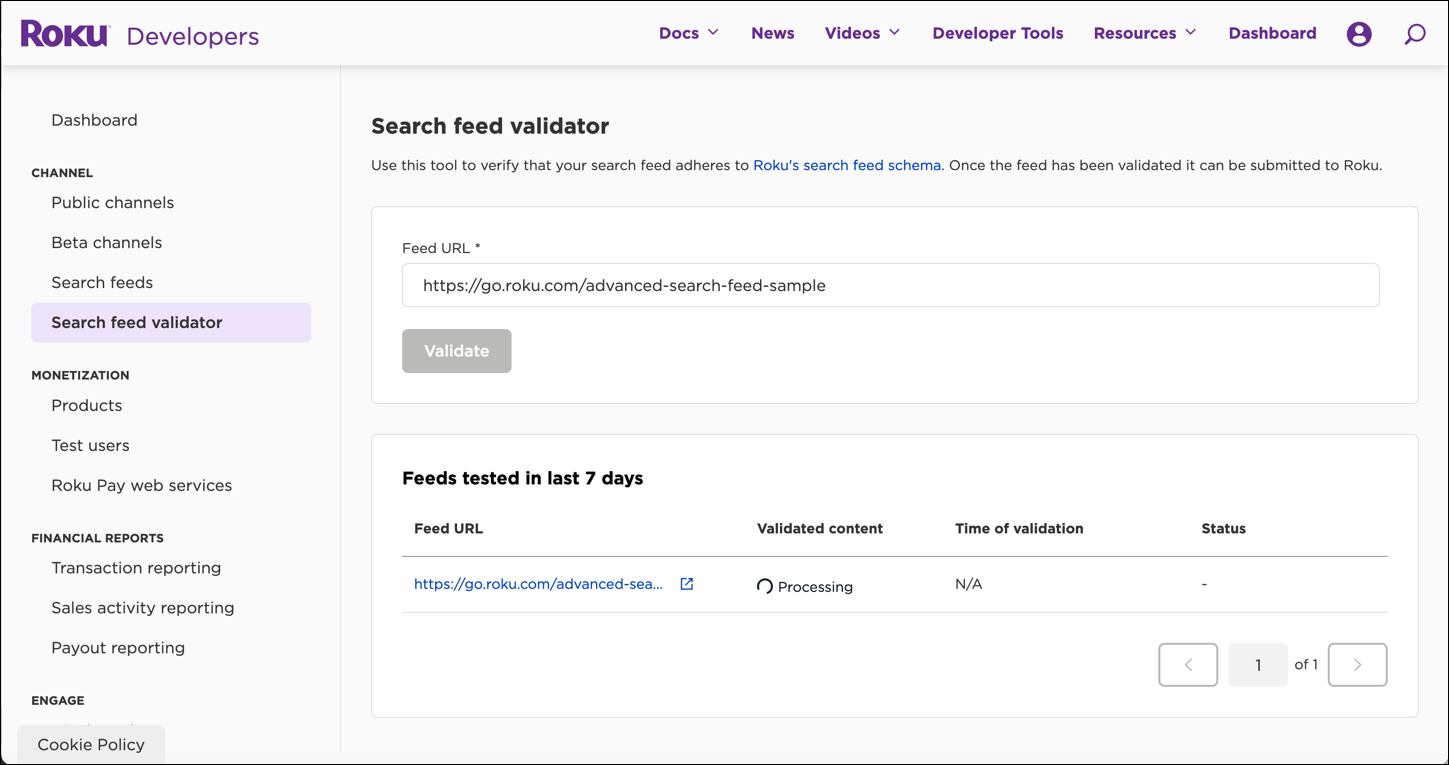
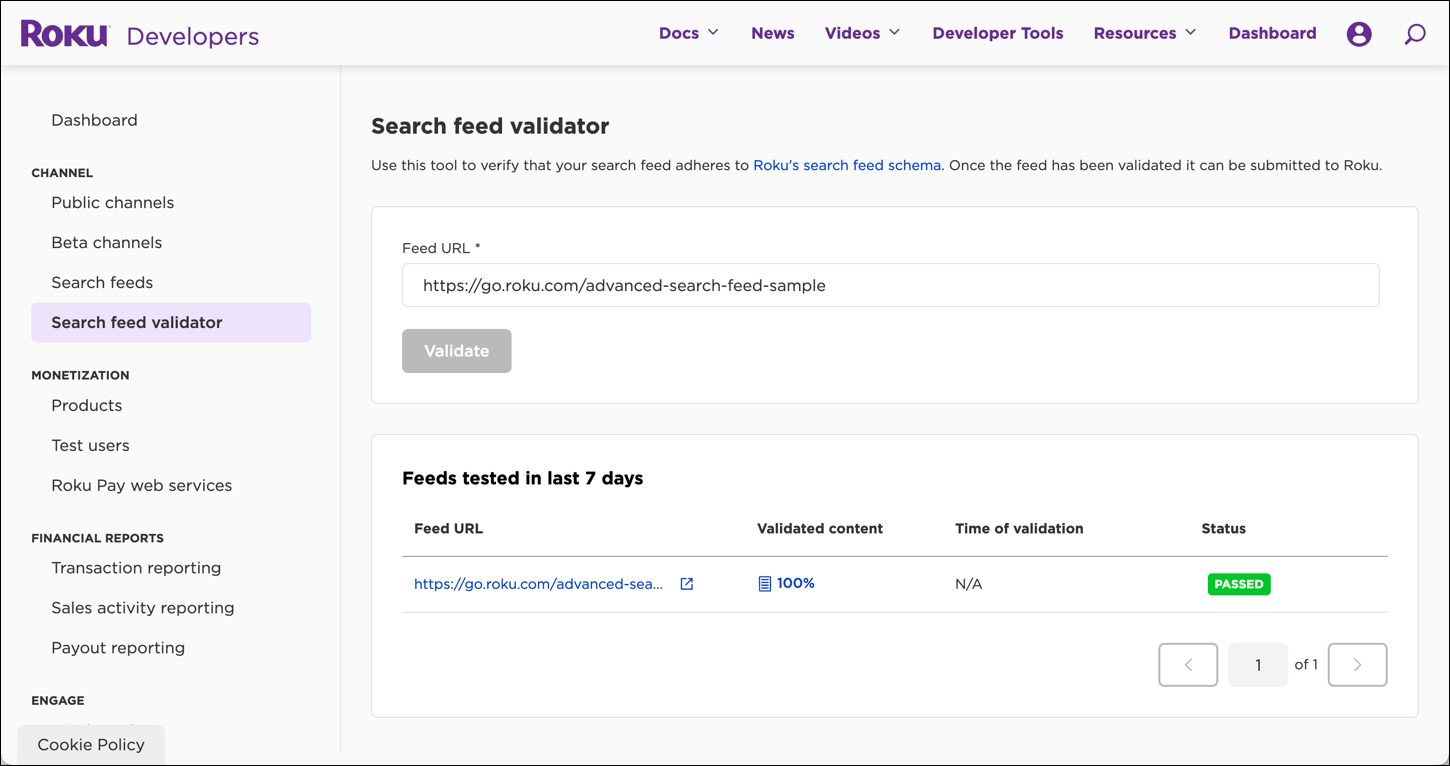
d. Once the validation testing has been completed, the Feeds validated in the last 7 days column displays the percentage of entries in the feed that have passed validation, and the Status column lists whether the feed Passed or Failed validation. A status of "Passed" means that your feed complies with Roku's search feed schema; a status of "Failed" means a part of your feed does not adhere to the schema. This means that your feed can have a status of "Passed" while having less than 100% of the entries validated.
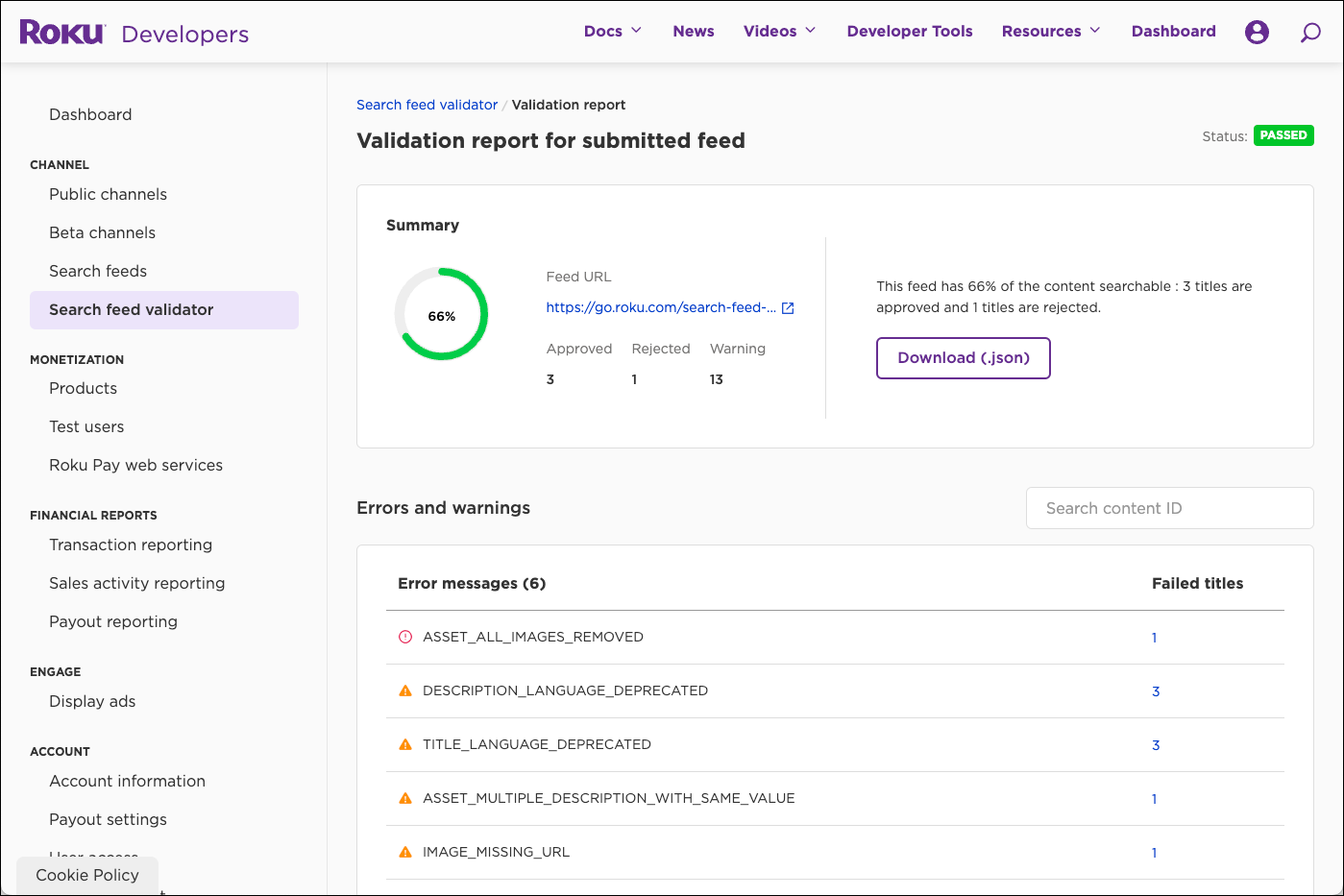
e. Click the percentage to view the errors and warnings in your feed to open the Validation report for your feed. This report lists the number of entries in the feed that have passed/failed validation, lists the different errors and warnings in your feed and the number of entries with that specific error or warning, and provides a link to download the report. The errors must be resolved to pass validation; warnings indicate items that passed validation but could be improved if additional metadata fields were provided. Correct the entries and then re-validate your feed.
Submitting a search feed
Once you have validated your search feed, you can submit your feed following these steps:
-
Go to the Developer Dashboard, and then click Search feeds under App.
-
The Search feeds page opens. It lists the following information for all of your search feeds.
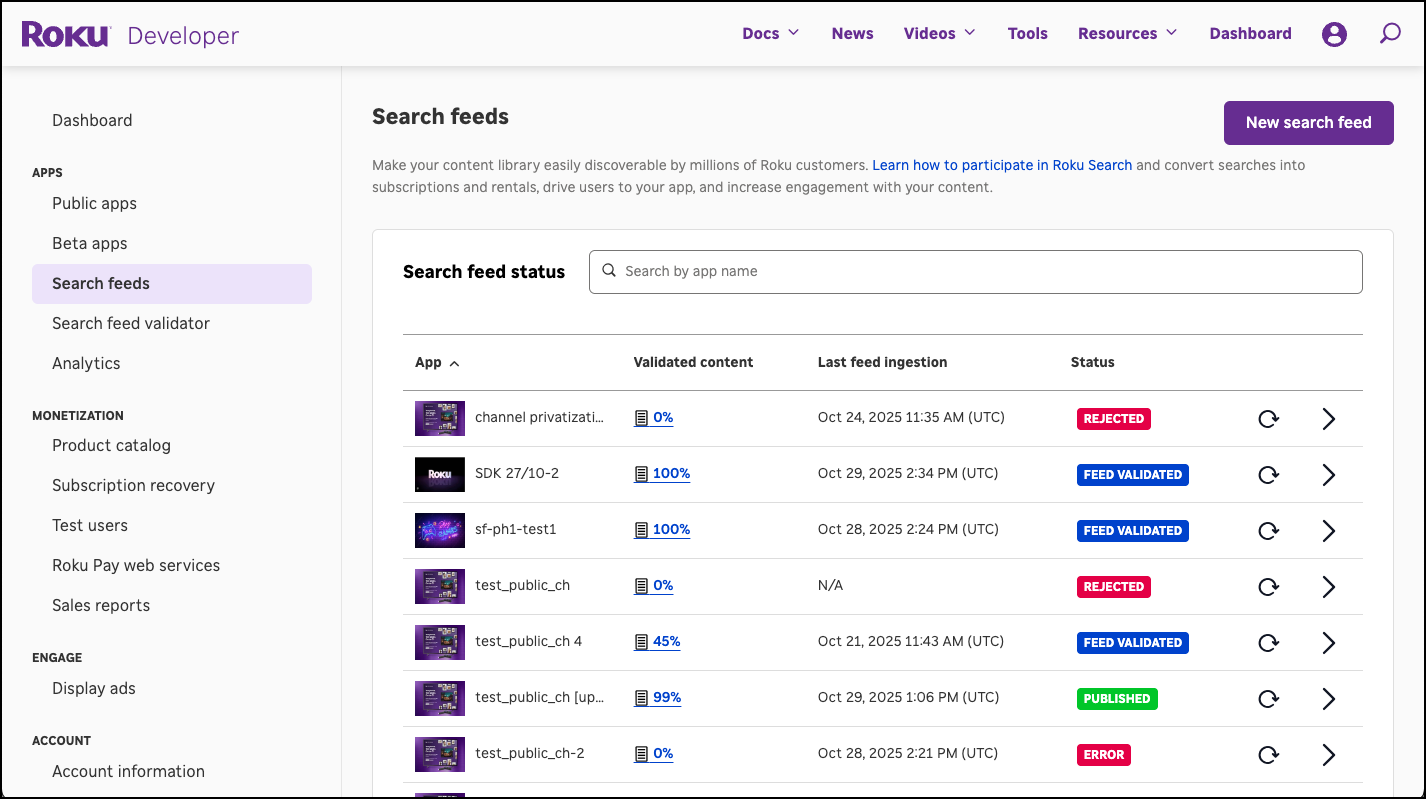
| Field | Description |
|---|---|
| App | The app associated with the search feed. |
| Validated content | The percentage of the feed that has been successfully indexed without error. This number is updated approximately every 4 hours. You can click this field to view the current Feed ingestion report. |
| Last feed ingestion | A UTC timestamp indicating when the feed was last ingested. |
| Status | The current state of the feed ingestion, which may be one of the following values:
|
| Refresh icon | Re-validate your feed. |
| Next (right-arrow) icon | View the details of your search feed, including validation results, vanity code for installing the search beta version of your app, and UI for adding deep linking parameters for testing your app's search integration, click the right arrow icon. |
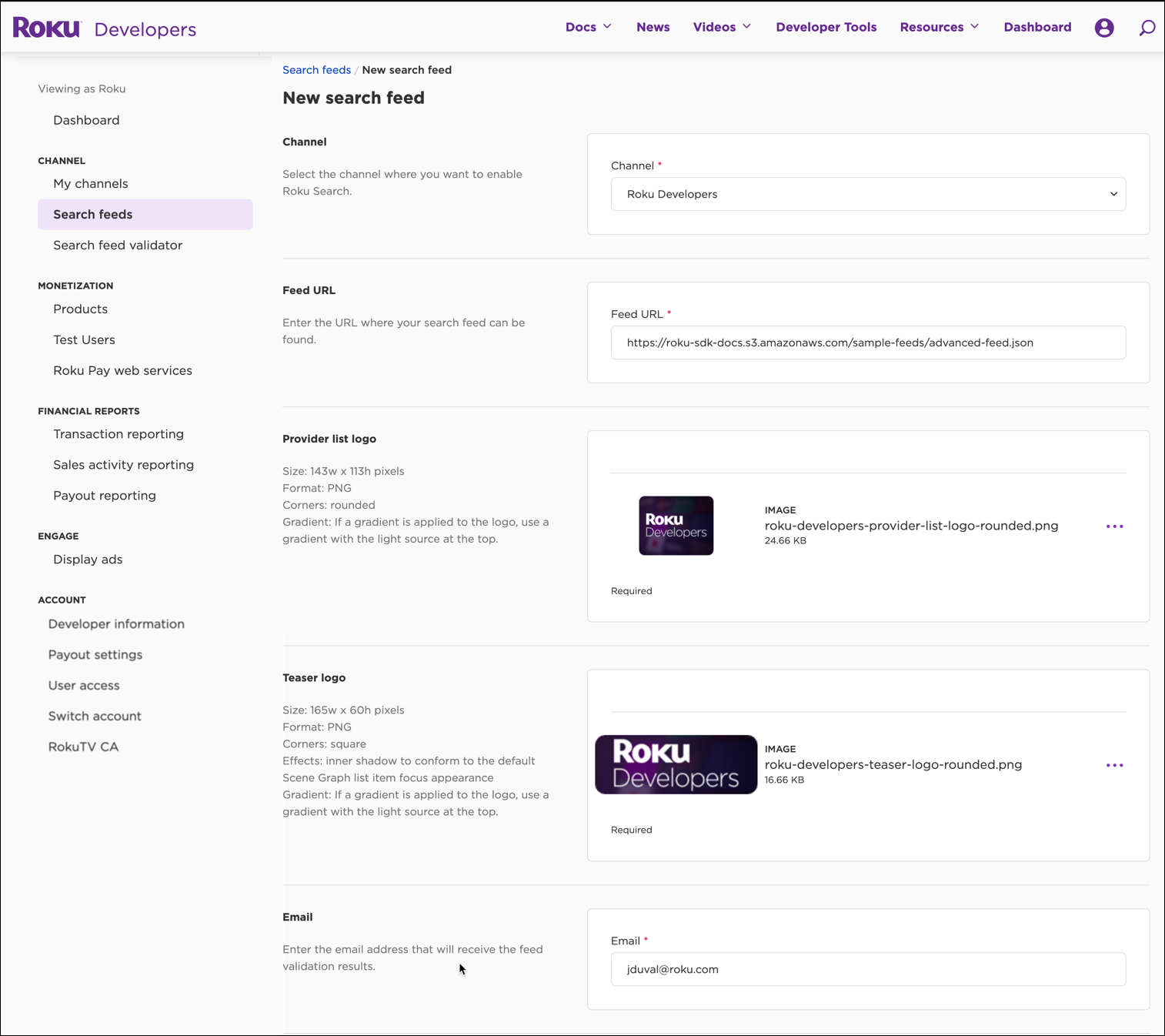
- Click New search feed. In the New search feed page, enter the following information:
| Item | Description |
|---|---|
| Channel | Select the app to be linked to your search feed. Only public apps that have been published can be selected. To publish your search feed at the same time you publish your app, contact Partner Success. |
| Feed URL | Enter the URL where your search feed is hosted. The search feed is a JSON file with content metadata from one or more sources. See the Roku Search feed specification for how to create your feed. Optionally, you can protect your search feed with basic HTTP authentication and provide the username and password credentials. If your search feed uses basic HTTP authentication, select Basic Authentication from the Feed Authentication Type field, and then enter the Username and Password for the feed. |
| Provider list logo | Upload a 143X113 PNG of your app logo with rounded corners. |
| Teaser logo | Upload a 165X60 PNG of your app logo with rounded corners. |
| Enter the email address to receive the search feed validation results. |
-
Click Submit. The Search feeds page displays the status of the feed submission.

To process changes to your search feed (for example, adding new content), you need to resubmit your feed.
-
To open the Feed ingestion report, click the percentage under the Validated content column.

This report lists the number of entries in the feed that has passed/failed validation, lists the errors and warnings in your feed, and provides a link to download the report.
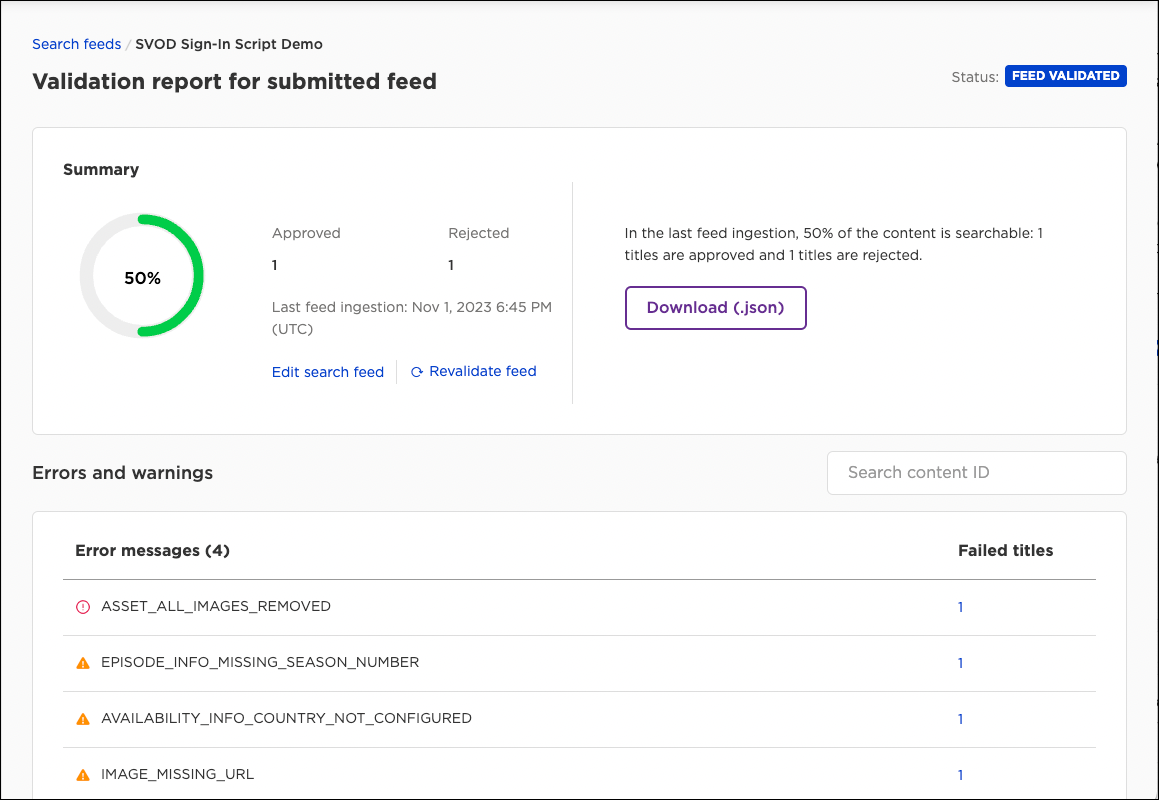
The Errors and Warnings table in the report groups and counts any issues in your feed by the error type. You can then click an error type to get all the entries with that specific error or warning. The error types with the highest number of entries with that issue are listed first. You can also search for a specific content ID in your feed to check whether that entry has any errors.
You can click Edit search feed to update the URL, logos, and validation email for your feed. You can click Revalidate feed once you have fixed the errors in your feed to ingest additional content. You may submit a feed a maximum of 20 times per week.
-
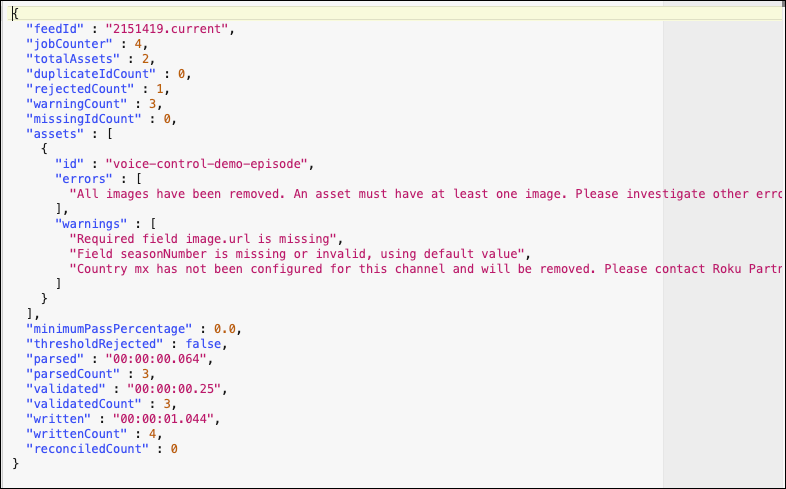
Click Download (.json) to get the error report, which is provided in JSON format. Warnings indicate issues that do not prevent an entry from being successfully indexed but could be improved if additional metadata fields were provided. Errors indicate individual entries that failed to be indexed and must be fixed. Use the error report to correct these entries and re-submit your feed until it is validated.
-
Once you have fixed the errors and warnings, you can click the refresh icon in the Search feeds page to revalidate your feed.

-
Once your search feed has been validated, test your search feed integration.
Testing and submitting the app
Before submitting your search feed for review, you need to test your app's deep linking implementation in order to verify that the app is successfully integrated with Roku Search following these steps:
-
In the Search feeds page, find your feed and click the next (right arrow) icon.

-
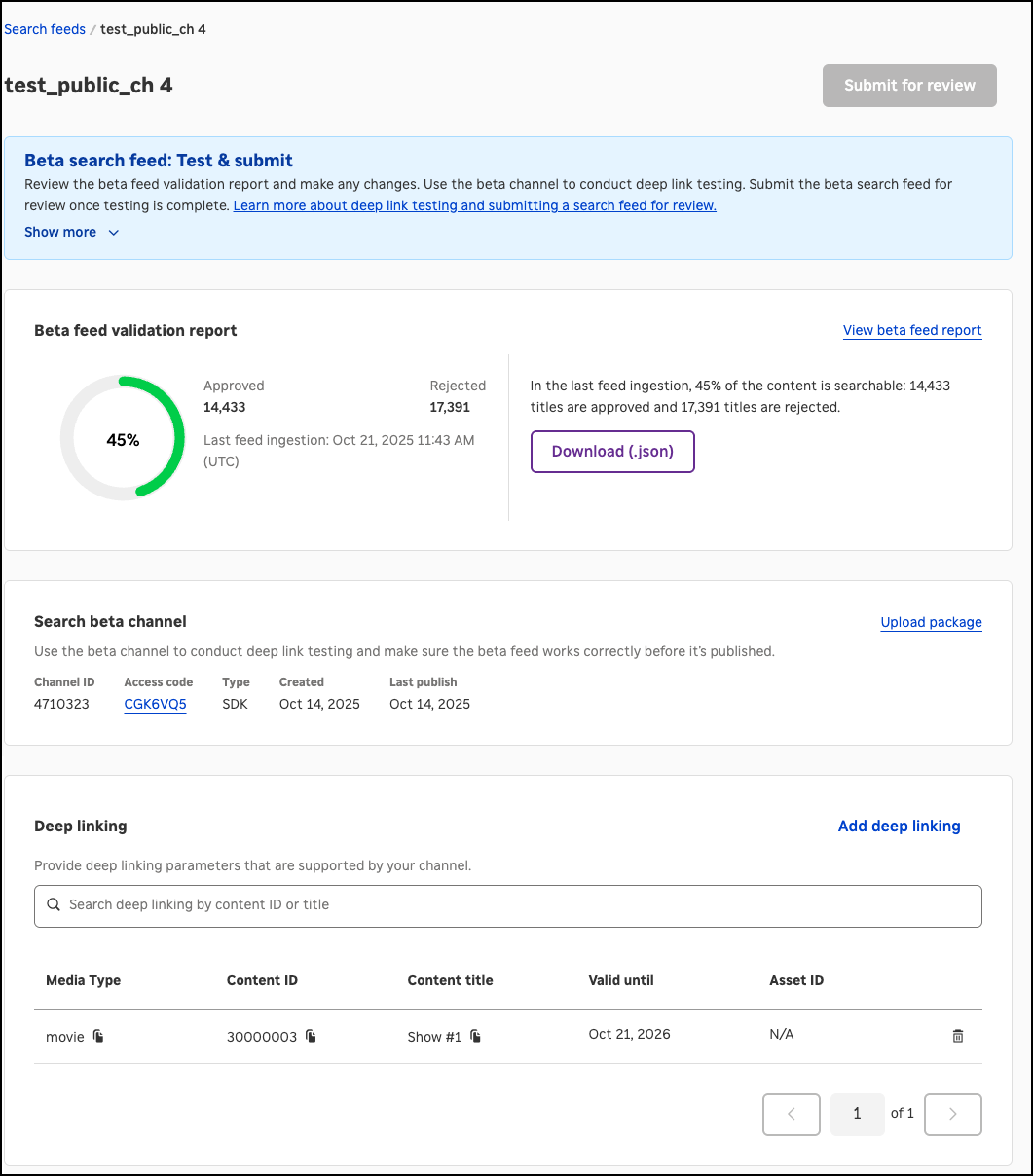
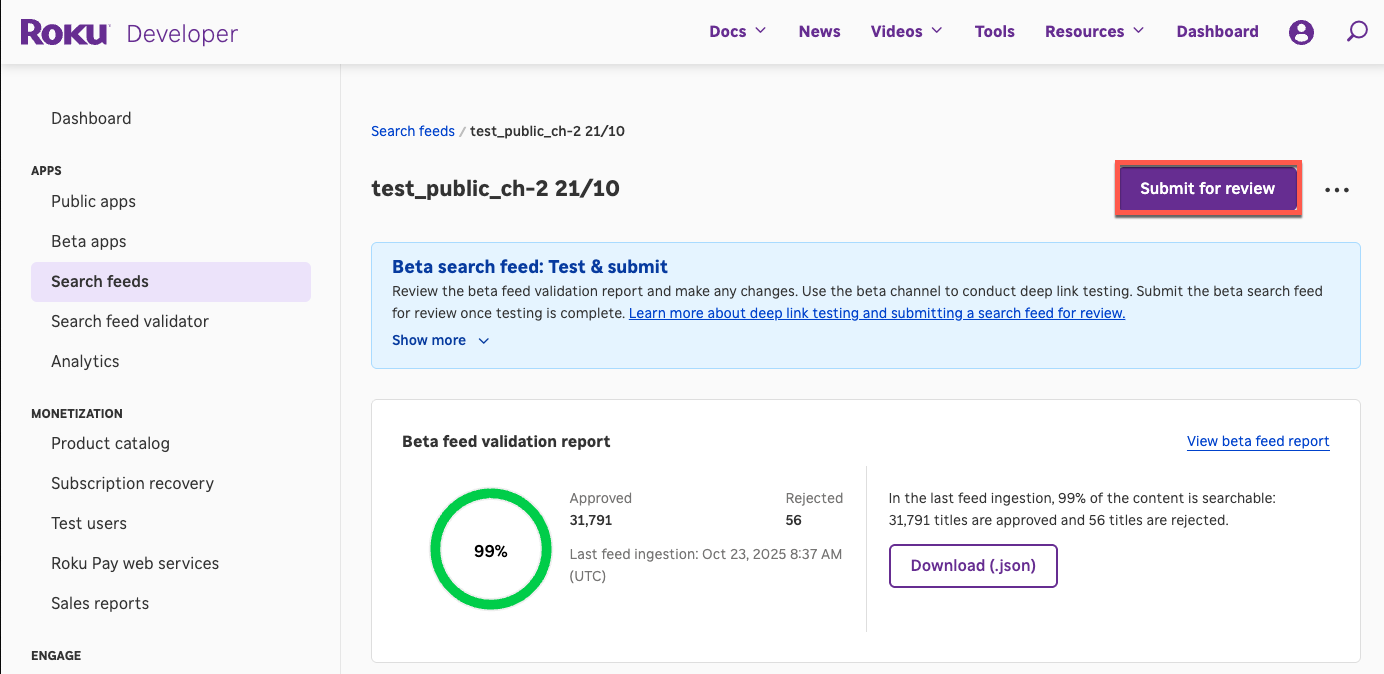
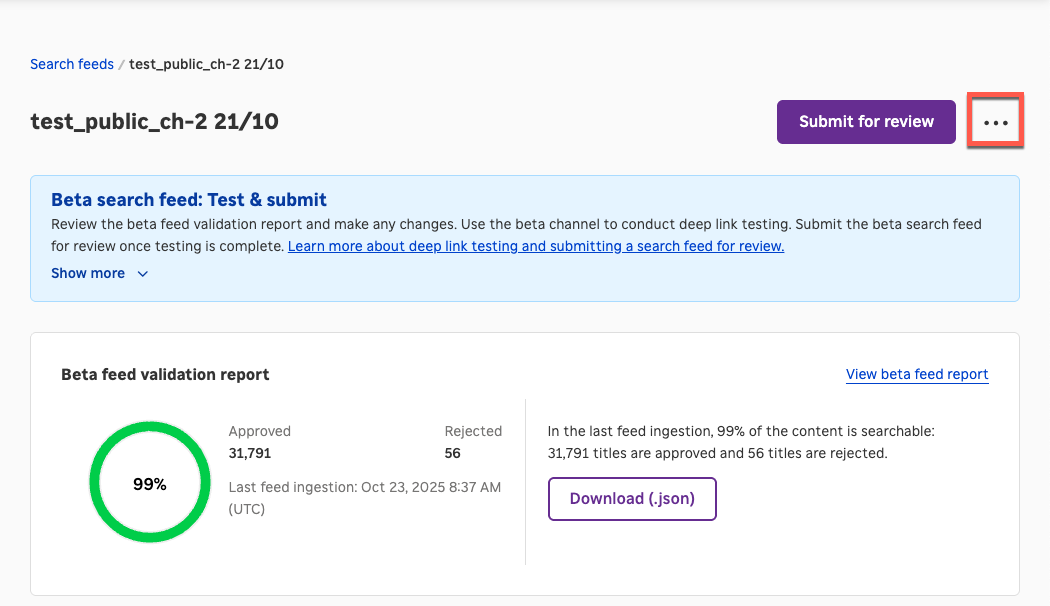
The Test & Submit page opens. You can use this page to manage, update, and submit your unpublished feed (referred to as a "Beta search feed" in the UI).
-
In the Beta feed validation report section, you can view the percentage and number of entries in your unpublished feed that passed or failed validation. Click Download (.json) to review a JSON file with the errors and warning in your feed. Click View beta feed report to review the feed's ingestion report.
-
The Search beta app section provides details about the beta version of your app that was automatically created in your developer account when you initially submitted your feed. The app is named "
<appName>SearchBeta", and it is listed in the Search testing channels section on the Beta channels page. You use this beta app specifically to test your search feed integration.The following information is listed for your search beta app:
-
Channel ID: The unique ID generated for your app.
-
Access code: A six-character alphanumeric code for installing your search beta app.
-
Type: The type of app (SDK or SDK (Beta).
-
Created: The date the app was created.
-
Last published: The date the app was last published.
Information about auto-created Search beta apps
- The auto-created Search beta apps do count towards the limit of 10 beta apps per developer account.
- A developer account may have a maximum of four auto-created beta apps.
- The auto-created beta apps cannot be deleted (they are automatically removed 120 days after being created).
- If a user on your team cannot access to the auto-created beta app, manually grant them access via the User Management page in the Developer Dashboard.
Keeping the Search beta app synced with the production app
Keep the Search beta app synchronized with the production app by continually updating the beta package with a copy of the latest version of the production package. To do this, resubmit your updated Search beta app in the Developer Dashboard. This is required to pass deep linking certification.
-
-
Click the vanity code link to install the Search beta app on your Roku device.
The Search beta app is only created for new feeds upon their initial submission. Resubmitting an existing feed does not generate a beta app (for existing feeds submitted before January 31, 2024, contact Roku Partner Success to get the beta app).
-
Search for content items in your feed and verify that they are included in the search results. This process confirms that your feed has been ingested into Roku Search. If results do not appear in Roku Search, confirm that the feed follows the schema and it includes all the required metadata. If you need further help with this step, contact Roku Partner Success.
Search for each type of content (movie, series, tvSpecial, and shortform) in your feed in Roku Search.
-
Verify the expected deep linking behavior for each applicable mediatype by clicking on search results. For series/episodic content, test both series and episode level watch options in Roku search to complete testing.
-
Series: Clicking the series level watch option triggers a deep link command to app with an episode contentId and mediatype series. See the deep linking documentation for more information on the required launch behavior.
-
Episode: Clicking "Episodes" on the series search result screen leads to a season/episodic menu. Selecting an episode and clicking a watch option triggers a deep link command with the associated episode content ID and mediaType episode. See the deep linking documentation for more information on the required launch behavior.
-
-
Test with unauthenticated accounts.
-
In the Deep Linking section, add deep linking parameters for each different media type in your app. Roku Partner Success will use these to verify that deep linking has been integrated into your app per the implementation guide. To do this, follow these steps:
a. Click Add deep link (or Add if at least one deep link is already listed).
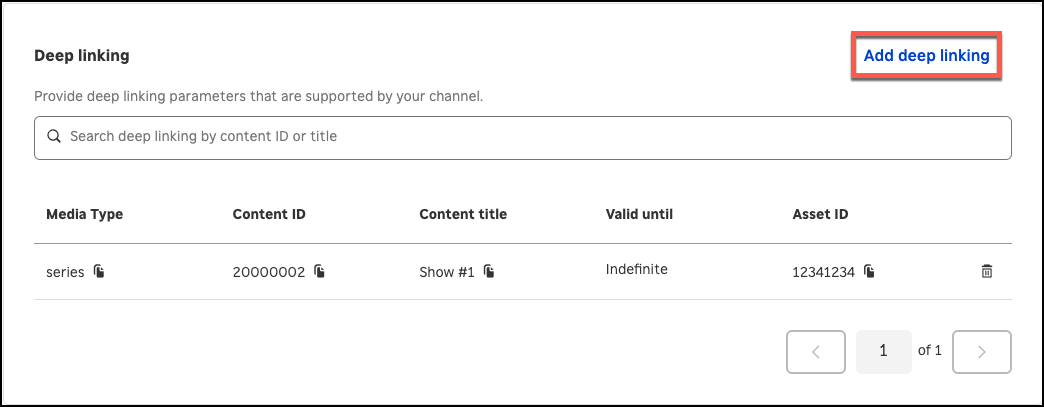
b. Enter the following information in the Add new deep link parameter dialog, and then click Save.
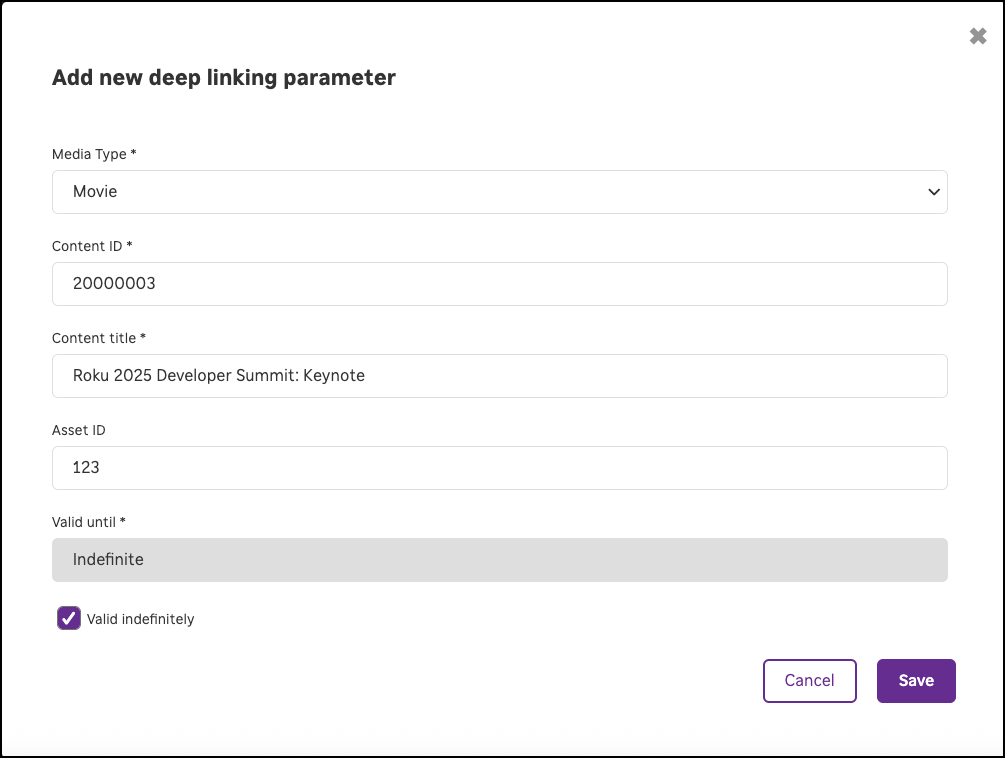
Field Description Media type Select the media type of the content item from the list of choices (for example, movie, television episode, or television series). Custom types are not available. Content ID Enter the content ID of the item (this should be the same as the PlayId in the app's search feed). Content title Enter a descriptive name that makes it easy to identify the content associated with the deep link parameters. Asset ID Enter the ID specified for the content item in the assets.Id field of the app's search feed. Valid until Once an ID is created for a content item in Roku Search, it may not be changed.Enter the last date when the deep linking parameters will be used in your app. Notice that, for a new parameter set, this field is pre-populated with a date that is one year in the future. You can change this date as needed. If the deep linking parameters do not expire, you can select the Valid indefinitely check box. c. The deep linking parameters are added to the list. You can edit and delete deep linking parameters in the list.
-
Once you have verified that the search integration is working correctly, submit your unpublished feed for review following these steps:
a. Click Submit for Review.
b. In the Feed submission checklist, select the check boxes to confirm that you have completed all the prerequisites for submitting a search feed.
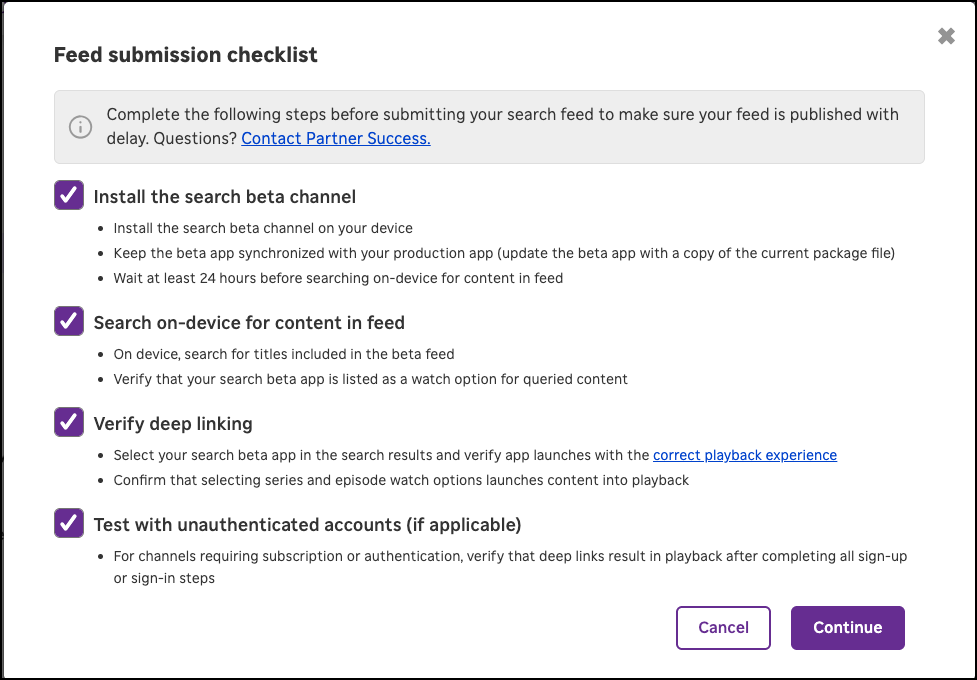
c. Click Continue.
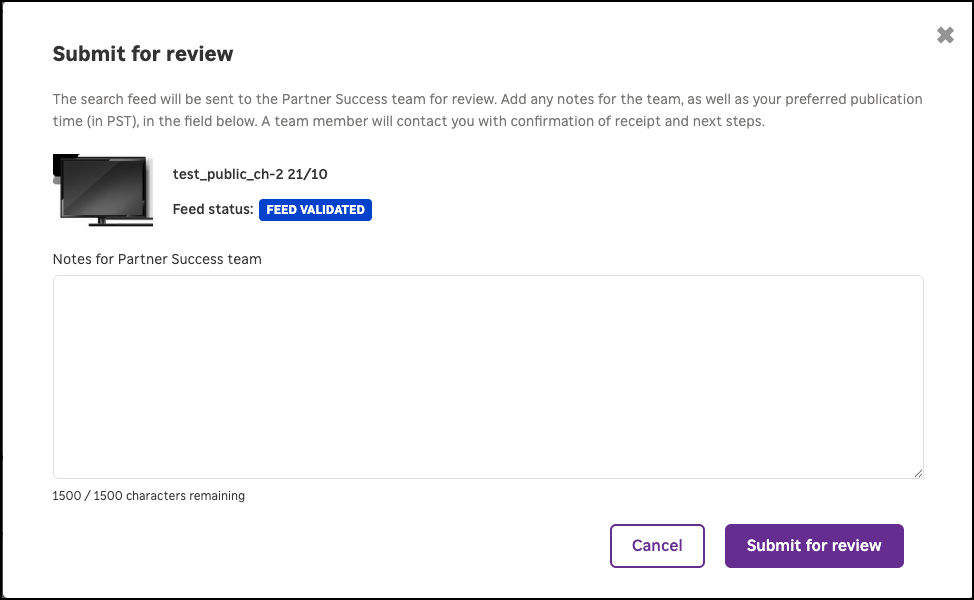
d. In the Submit for review dialog, enter any notes for the Roku Partner Success team and your preferred publication time (in PST). You will receive an email from the team confirming the receipt of your feed and outlining the next steps.
-
Roku will use the auto-created beta app to test your app's deep linking implementation and verify that the app is successfully integrated with Roku Search.
Troubleshooting with a sideloaded app
You can sideload an app and use it to troubleshoot the search integration following these steps:
-
Use the Roku Deep Linking Tester or manually send deep link requests to your app via ECP to verify that deep links to content in your app from Roku search are working as expected. This method enables you to pass specific content IDs and mediaTypes in order to confirm that your app is properly launching content for the different mediaTypes it supports.
-
If deep links are not launching into the playback experience per the content item's mediaType, make sure the app code has implemented deep linking according to the Deep Linking specification.
If the Deep Linking Tester launches content into the correct playback experience, but on-device testing does not, make sure that the playId in the search feed is synced to the contentId in the app.
Sending authentication events
SVOD and TVE apps must send authentication events to Roku to communicate the authentication status of customers when their app is launched. This is a certification requirement, and it drives engagement because it ensures that your SVOD or TVE app is listed above non-authenticated apps in the Roku Search content providers list.
Updating search feeds
Metadata updates
If you need to update the URL, logos, or validation email for your feed, click the more (...) icon in the upper right-hand corner of the Test & Submit page and make changes.
Feed updates
You can upload changes to your search feed and resubmit your feed to update Roku Search with your current content (changes are not processed unless you resubmit your feed in the Developer Dashboard). Search feed updates may take up to 24 hours to be propagated to Roku Search.
Participating in additional discovery programs
By participating in Roku Search, your app is eligible for three more discovery programs that provide additional exposure: Visual Search Results for Roku Voice, Roku Zones and Save List.
Visual Search Results for Roku Voice
The Roku UI displays content matching users' voice requests for a movie, TV show, short-form video, or other content.
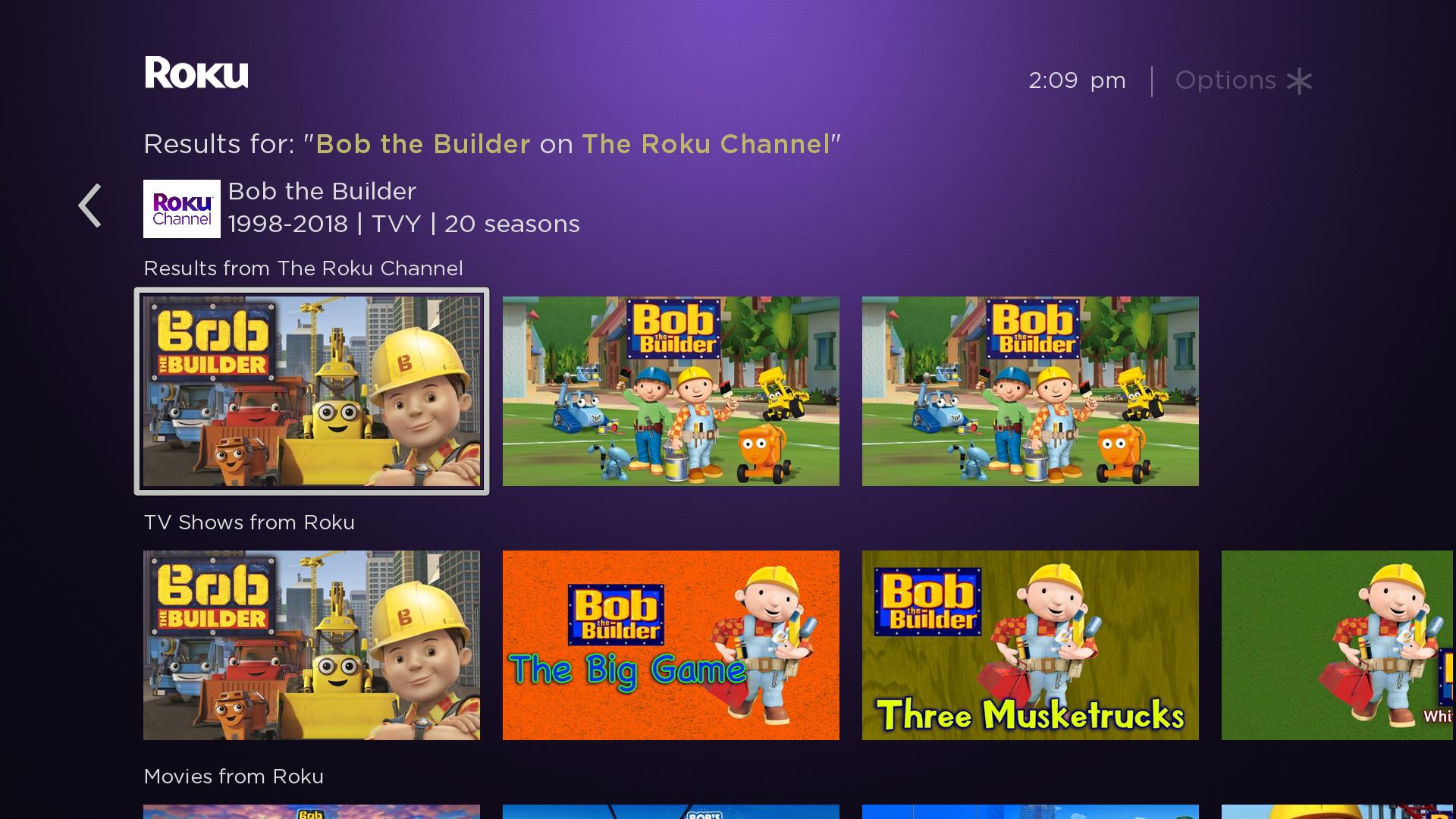
If a user requests content on a specific app (for example, "Bob the Builder on The Roku Channel" or "find Bob the Builder on The Roku Channel") when outside an app, the Roku UI opens a page with matching content from that app in the top row. The rows below list relative Roku Zones and TV shows, movies, and short-form videos from other apps in the Roku platform that are participating in Roku Search.
If the voice request does not include a specific app (for example, "Bob the Builder" or "find Bob the Builder"), the Roku UI just displays the relative content from apps in the Roku platform that are participating in Roku Search. When the user selects a content item, the content details screen provides options for playing the item (from free or subscription apps).
When users ask for content while in an app, the Roku UI displays a partial overlay with content matching the search request. Content from within the active app is listed in the first row of the display if the active app participates in Roku Search. The rows below include matches from other apps.
This feature is currently available to customers in the United States only.
Roku Zones
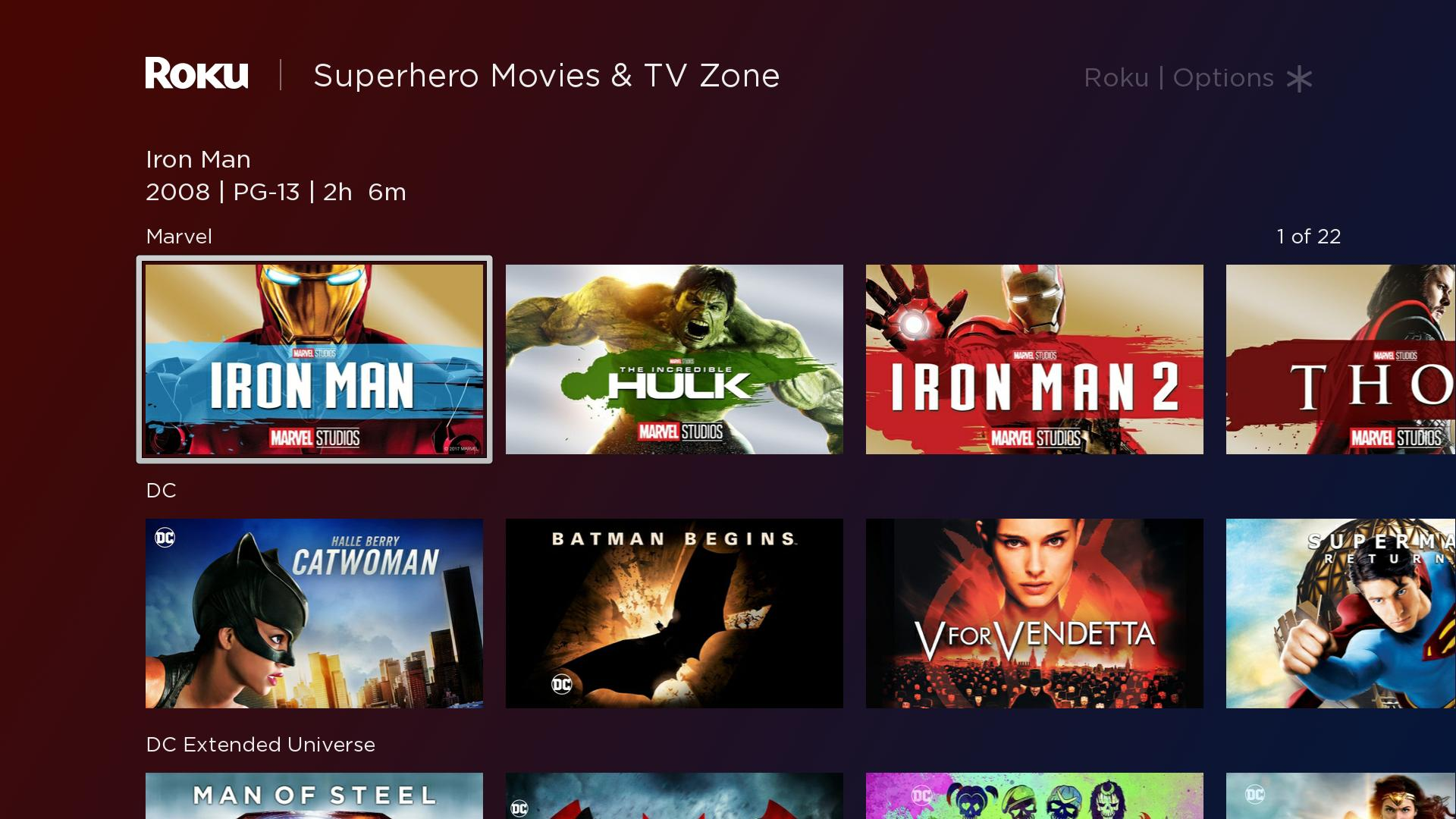
Roku Zones provides a curated selection of relevant content from apps across the Roku platform. It lets users find content and apps related to a specific genre or topic. For example, search results for "Avengers" could include a "Superhero Movies & TV Zone" that lists curated superhero-related movies and TV shows.
Save List
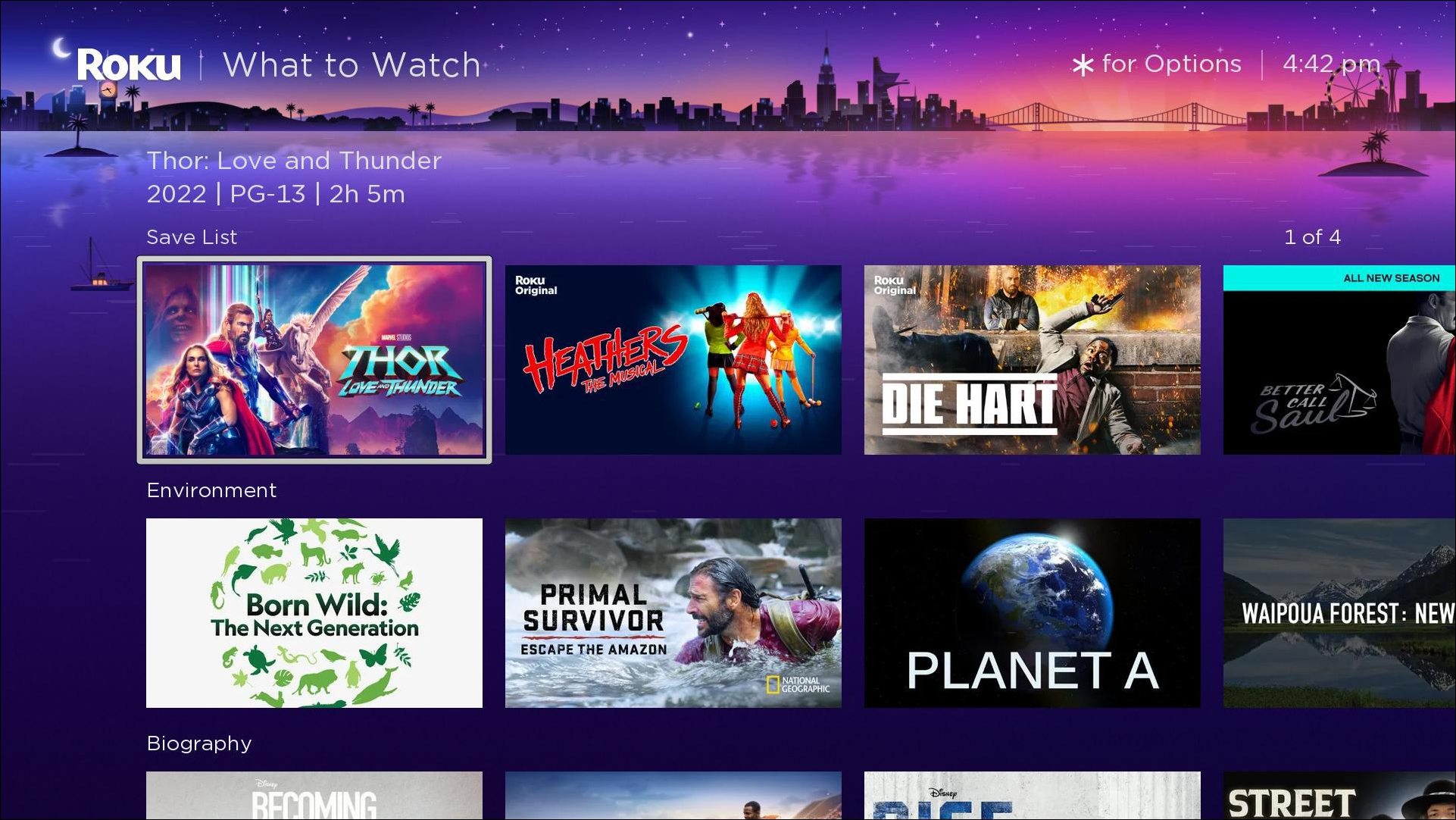
When customers search for content, they can add the movies and TV shows that they find to their Save List. They can they access their saved content by navigating to the What to Watch menu, which includes a Save List content row.
Language and regional support
The following table lists each region where Roku Search is available and the primary language:
| Region | Primary language |
|---|---|
| North America | |
| United States | English |
| Canada | English |
| Europe | |
| United Kingdom | English |
| Ireland | English |
| Germany | German |
| Latin America | |
| Argentina | Spanish |
| Brazil | Portuguese |
| Chile | Spanish |
| Colombia | Spanish |
| Costa Rica | Spanish |
| El Salvador | Spanish |
| Guatemala | Spanish |
| Honduras | Spanish |
| Mexico | Spanish |
| Nicaragua | Spanish |
| Panama | Spanish |
| Peru | Spanish |
| Asia Pacific | |
| Australia | English |
For more information on participating in Roku Search in multiple regions and multiple languages, see the Roku Search feed specification.
Updated 7 days ago