
Activating developer mode
Enable developer mode and sideload apps on your Roku device using the web plug-in
Once you get a Roku device and enroll in the Roku developer program, you can put your device in developer mode, sideload apps using the Roku web plug-in, and then run sample apps and test and debug your app.
To activate developer mode on your Roku device, follow these steps:
-
Use your Roku remote or Roku remote app and press home three times, up twice, and then right, left, right, left, right.

-
Write down the URL of your Roku device that is displayed on the screen and then enable the Development Application Installer.
-
Read and accept the Developer Tools License Agreement, which enables you to build apps with the Roku SDK and other developer tools.
-
Enter a password for your Roku device (note that passwords are case sensitive). Once you submit the password, your Roku device reboots. When the device finishes rebooting, it is activated in developer mode and ready for sideloading apps.
Sideloading apps
Sideloading is how you install apps on your Roku device outside of adding them from the Streaming Store. To sideload an app on a Roku device that is in developer mode, follow these steps:
-
In your web browser, enter the URL of your Roku device.
-
Log in to your Roku device. In the User Name field, enter "rokudev", and then enter the password you created when you enabled developer mode.
-
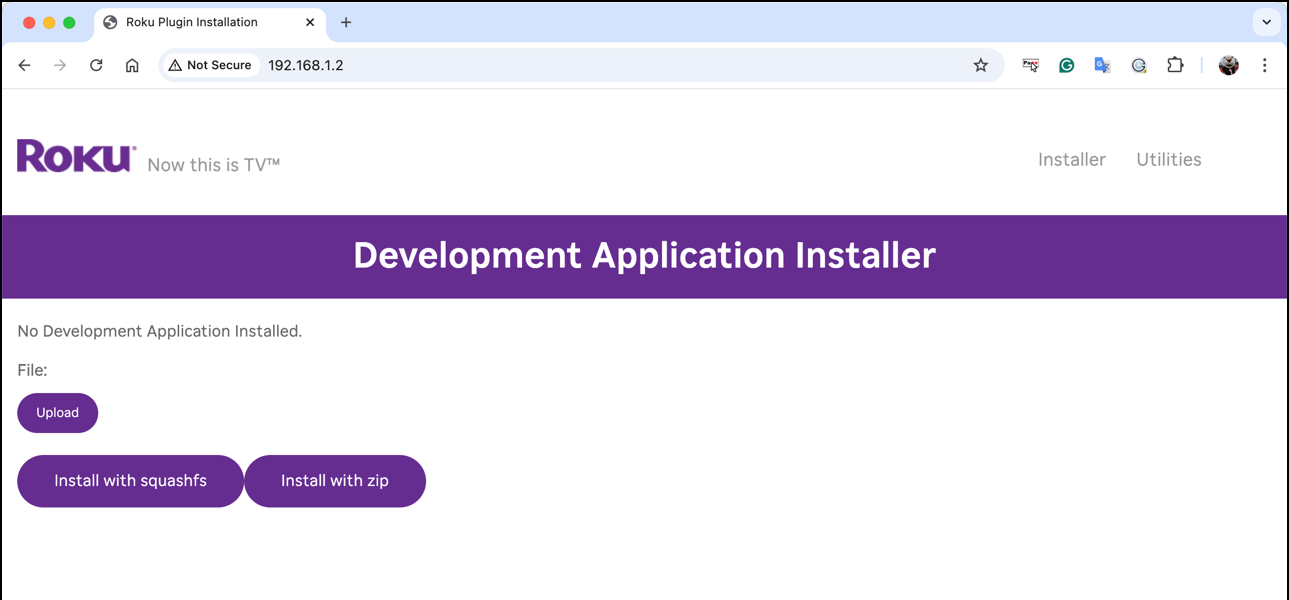
The Development Application Installer in the Roku plug-in opens. You use this tool to sideload apps on your Roku device. See Roku plug-in tools for more information on the other utilities available in the Roku plug-in.
-
Download the Roku Hello World sample app, and then extract the archive.
-
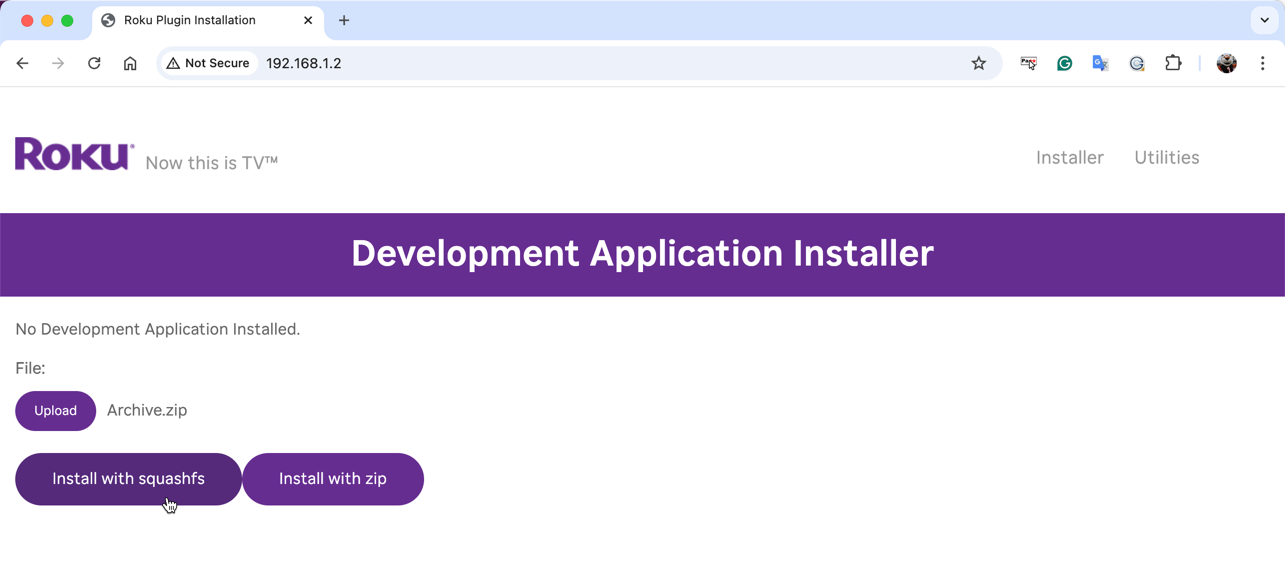
In the Development Application Installer, click Upload, and then select the hello-world-master/dist/apps/hello-world.zip file. Select the type of compression you want to use for loading the app: squashfs or zip. Select squashfs for faster sideloading.
-
The Hello World app launches on your Roku device and displays "Hello World" on the screen. The sideloaded app is displayed in the bottom row of apps on the Roku home screen by default. In the next section, you will build this app from scratch.

Only one app can be sideloaded at a time. If you sideload another app, the new app replaces the older app on your Roku device.
If you reinstall an identical version of an app that is already sideloaded on your Roku device, you will receive an error. You can always delete and then re-install an app at any time.
Video demo
Watch the following video to learn how to activate developer mode on your Roku device and sideload apps:
Roku plug-in tools
In addition to the Development Application Installer, the Roku plug-in includes Utilities and Packager tabs.
Package Utilities
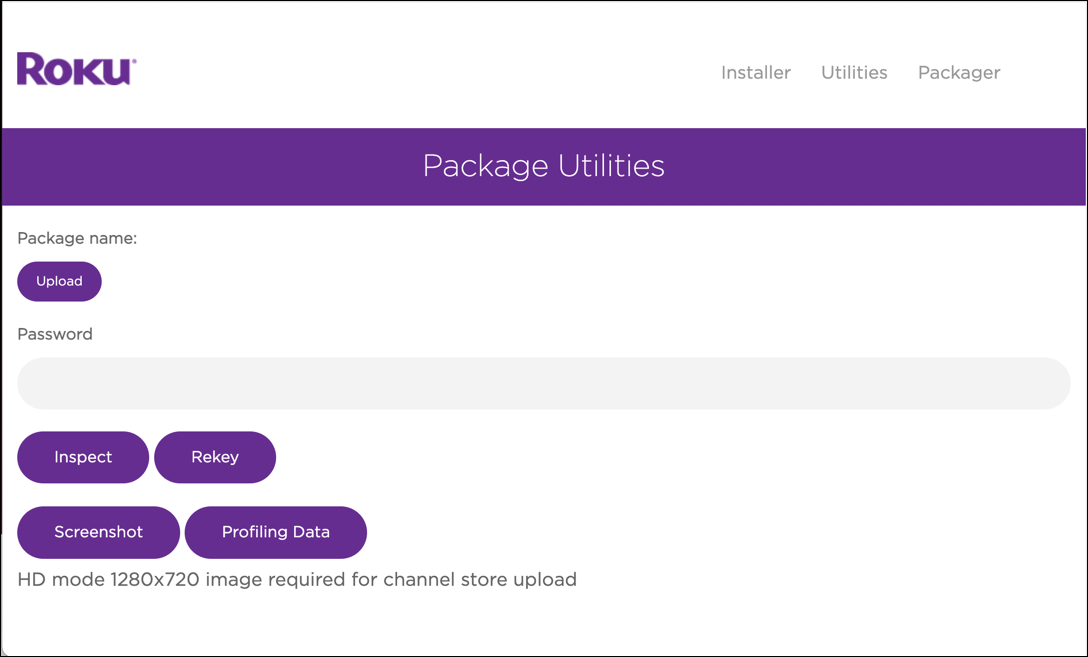
The Utilities tab contains several tools essential for Roku app development:
-
Inspect. Examine the details of a package file such as the developer ID used and the creation date.
-
Rekey. Replace the signing key on the current Roku device with a key from an existing package.
-
Screenshot. Take HD screenshots highlighting the UI of your sideloaded app.
-
Profiling data: Collect app performance statistics such as CPU and memory usage, "wall-clock" time, and function call counts. You can then use the BrightScript Profiler to analyze the collected data and optimize your app.
Package inspector
The package inspector is a utility to inspect the details of the package such as the developer ID used and the creation date. This is helpful for verifying the same developer ID is used when updating a package to ensure any registry data remains intact. The app registry data will be lost when using a different developer ID to update a published app.
Rekey utility
The rekey utility allows you to replace the signing key on the current Roku device with a key from an existing package. This utility is most useful when developing multiple apps on the same Roku device. See Packaging apps for how to rekey a Roku device.
Screenshot utility
The screenshot utility enables you to take an HD screenshot (1280 X 720) of your sideloaded app's UI (you cannot take a screenshot of any content playback). FHD (1920x1080) screenshots require a 4K-capable Roku set to 1080p or 4K UHD display type. This is useful for generating images that highlight your app in the Streaming Store. See App Publishing for more information on uploading the screenshots when submitting your app for publishing to the Streaming Store.
Profiling data utility
The profiling data utility enables you to capture app performance statistics. You can then use the BrightScript Profiler to analyze the collected data and determine where performance improvements and efficiencies can be made in the app. See the BrightScript Profiler documentation for more information on collecting data with this tool.
Application Packager
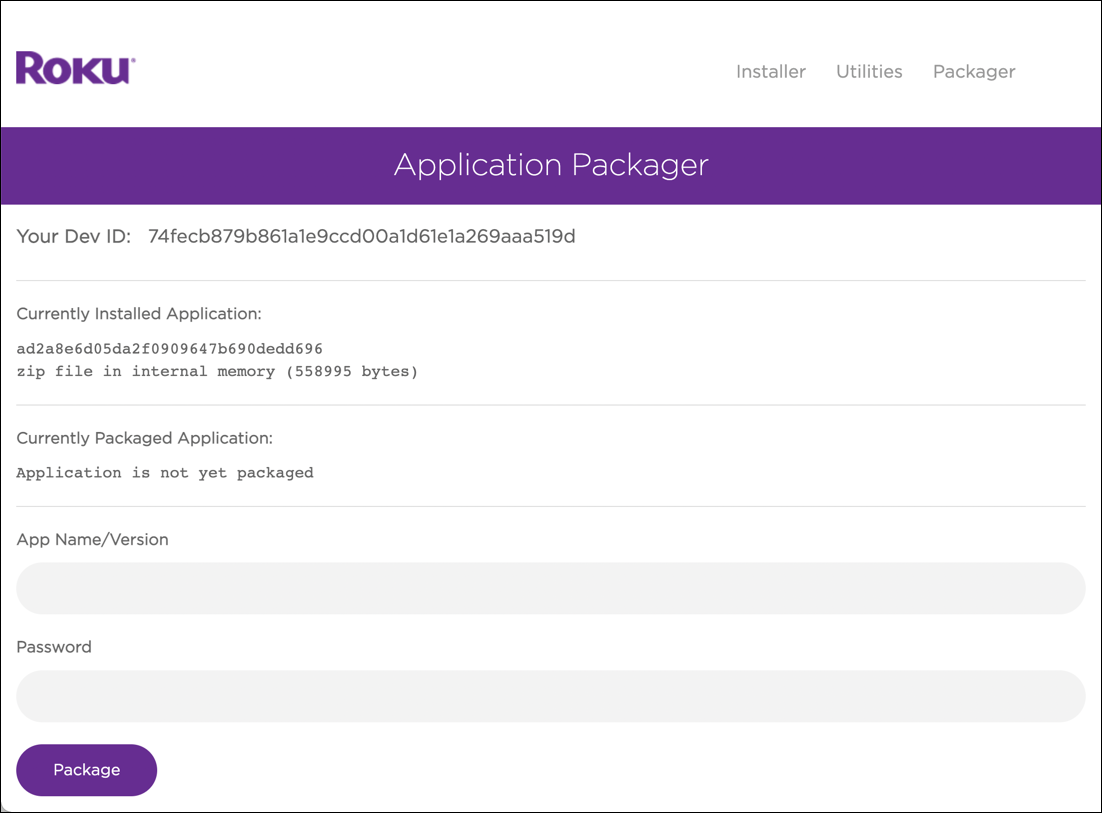
The Application Packager takes the sideloaded app, signs it, and then generates an encrypted package for publication. This enables developers to securely publish apps while keeping all intellectual property safely encrypted. The process of packaging an app uses cryptographic hardware built into Roku devices and creates an encrypted package that can be easily and securely distributed on Roku devices. For more information, see Packaging Roku apps.
Updated 17 days ago