
Building your first app
Modify, sideload, and debug the Hello World sample app
You can build your first Roku app by modifying Roku's Hello World sample. After you sideload the app, you can use the Roku debug console to view the app's runtime output.
Viewing the directory structure
To get started, download the Hello World sample app and unzip it if you have not done so already. Expand the /hello-world-master/dist/apps/hello-world folder to view the app's directory structure. The directory of a Roku app typically contains the following folders and files:
- The components folder contains the SceneGraph XML files that define the app's layout.
- The source folder contains the main entry point for launching the app.
- The images folder contains the splash screen image and other artwork for the app.
- The manifest file defines the app attributes and versioning.
- The makefile is an optional utility for installing the app. See Using a makefile for more information.
The maximum number of files inside a single directory should be less than 100 to avoid performance issues.
Editing the Hello World app
To edit the text displayed on your television screen by the sample app, follow these steps:
-
Browse to the /hello-world-master/dist/apps/hello-world.zip file and extract the archive.
-
Expand the /hello-world-master/dist/apps/hello-world/components folder and then open the helloworld.xml file.
-
In the SceneGraph Label node, update the text field (line 5) to the string you want displayed on your television screen (for example, "My first Roku app!").
-
In the init() function, you can also set the label.color field (line 27) to a different hex code (for example, white, which is 0xFFFFFF).
-
Save the file.
-
Zip the contents of the hello-world directory; do not zip the directory itself or the development application installer will report an error when you try to upload the app. Name the zip file something that makes it easy to find (for example, my-hello-world.zip).
Sideloading the updated sample app
To sideload the updated Hello World sample app, follow these steps:
-
In your web browser, enter the URL of your Roku device, and then log in (the User Name is "rokudev"; the password is the one you created when you activated developer mode on your Roku device.
-
In the Development Application Installer, click Upload, and then select the /hello-world-master/dist/apps/hello-world/my-hello-world.zip file.
-
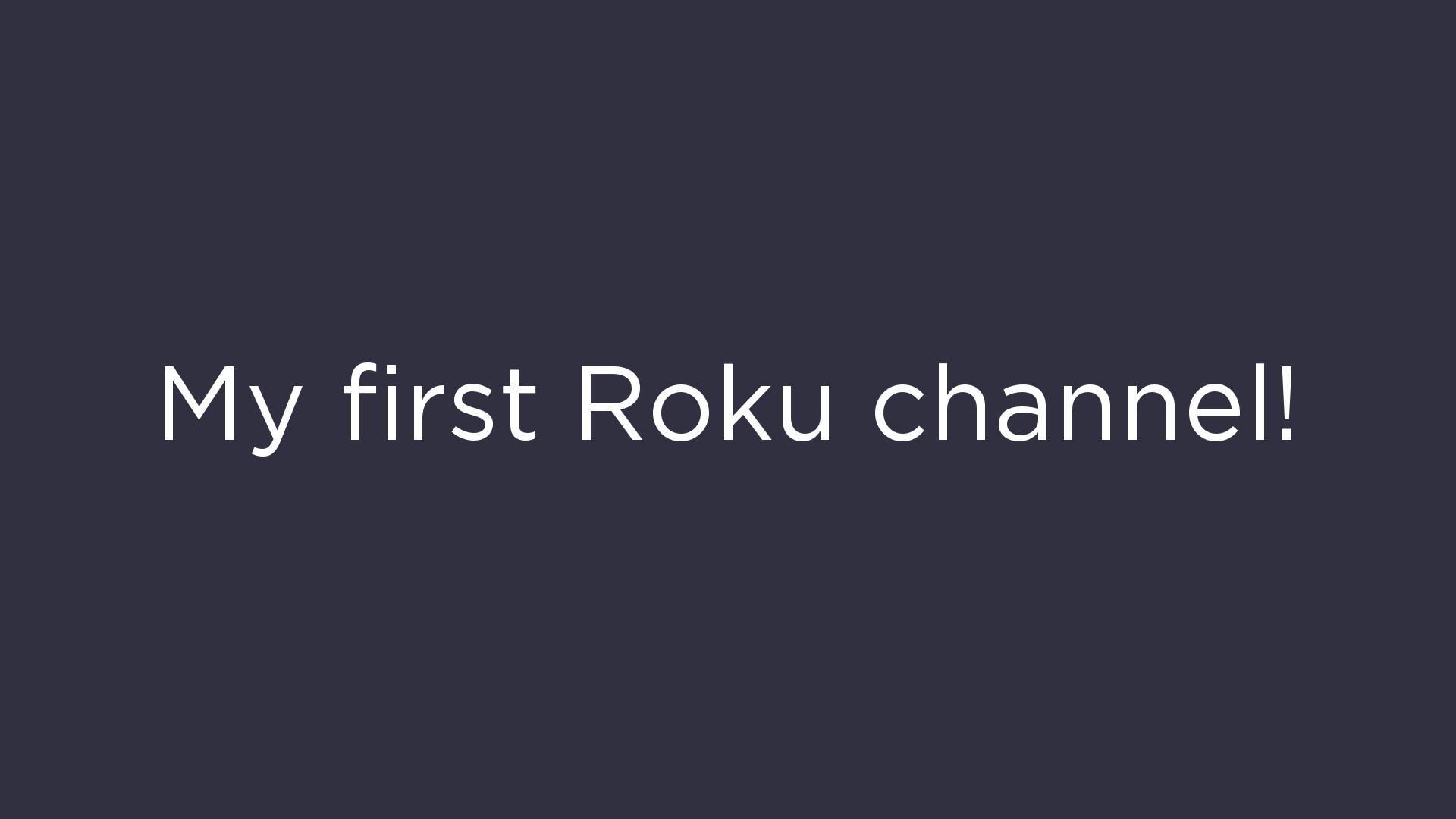
The updated Hello World app launches on your Roku device and displays "My first Roku app!" in white on the screen.
Using the debug console
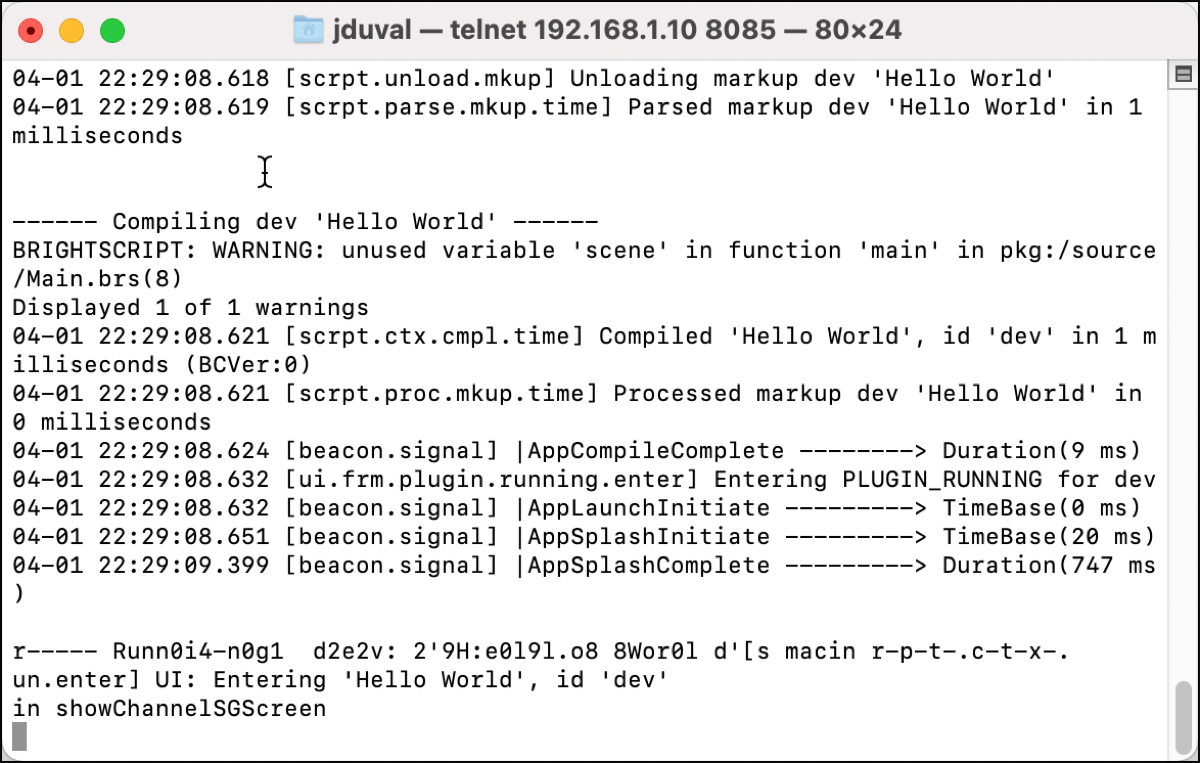
You can use the Roku debug console to view the output of a Roku app during runtime. If the app fails during runtime, the debug console displays the line number of the error, as well as the contents of variables at the time of the failure. If the app has compilation errors, the debug console displays them as well. It is recommended to have the debug console open whenever you are running a sideloaded app.
To open the debug console, follow these steps:
-
Using a shell application such as PuTTY for Windows or terminal on Mac and Linux, enter the following telnet command:
telnet roku-ip-address 8085
-
Return to the Development Application Installer, click Delete, Upload, select the /hello-world-master/dist/apps/hello-world/my-hello-world.zip file again, and then click Replace.
-
In the debug console, view the output from the sample app.
The BrightScript extension for the Visual Studio Code IDE, which is maintained by the Roku developer community, also contains a built-in debug console (this VSCode extension is used by many Roku developers and it is well-reviewed; however, it is not built or maintained by Roku and its continued maintenance and support are not guaranteed).
Using a makefile to sideload apps
To use a makefile to automate the sideloading of an app, follow these steps:
-
Verify that the makefile and the app.mk file are in the same directory as the manifest. Optionally, you can modify the "ZIP_EXCLUDE" line in the makefile to exclude certain files. You can use the makefile in the /hello-world-master/makefile directory as a template.
-
Set the ROKU_DEV_TARGET and DEVPASSWORD environment variables.
-
ROKU_DEV_TARGET is the IP address of your Roku device.
-
DEVPASSWORD is the password you set when you activated developer mode.
-
-
Run “make install”.
% export ROKU_DEV_TARGET=192.168.1.140 % export DEVPASSWORD=1234 % cd<sdk>/examples/source/videoplayer % make install
Updated 5 months ago