
Catalog 2.0 API integration guide
Step-by-step guide to integrating add-ons and purchase options using Catalog 2.0 APIs
Publishers can integrate add-ons in their apps to offer customers premium content, additional apps, and other upgrades and features, and they can bundle add-ons with base subscriptions. By integrating add-ons, customers can complete the purchase of all desired products and features for their subscription online and directly on-device with just a few key presses. This enables publishers to maximize subscription revenue through upsells, without any additional friction in the purchase workflow.
An add-on is defined as a service purchased on top of a base subscription product.
Integrating add-ons entails the following steps:
-
Creating add-on products in the Developer Dashboard. A product represents a set of content (for example, a premium app or app package) or other features offered by your app. You must upgrade to Product Catalog 2.0 to create add-ons (see Creating the Product Catalog for how to migrate the In-app purchase workflow in the Developer Dashboard to the new Product Catalog 2.0 experience).
-
Creating purchase options for the add-on. A purchase option specifies the billing frequency (monthly, quarterly [requires additional API work], or annual), price, and any free trial or introductory price offers for the add-on product.
-
Update the app with new ChannelStore APIs that support add-ons.
Creating add-on products
Publishers need to create a product in the Developer Dashboard for each add-on to be offered in their app. To create an add-on product, follow these steps:
-
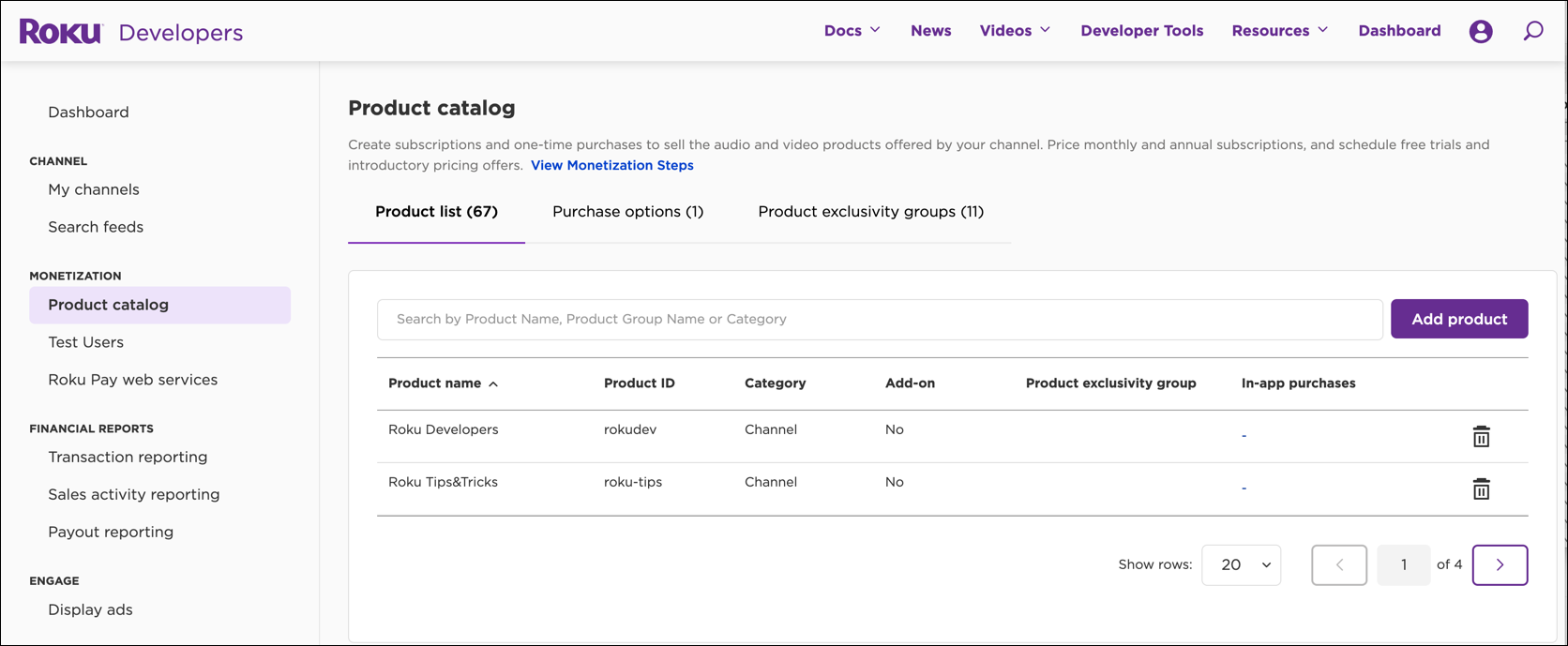
In the Developer Dashboard, select Product Catalog under Monetization. You can also select Manage Product Catalog from the drop-down list on the left side of the pages within the Developer Dashboard. The Product Catalog page opens.
-
From the Product List tab, click Add Product. The Add Product page opens.
-
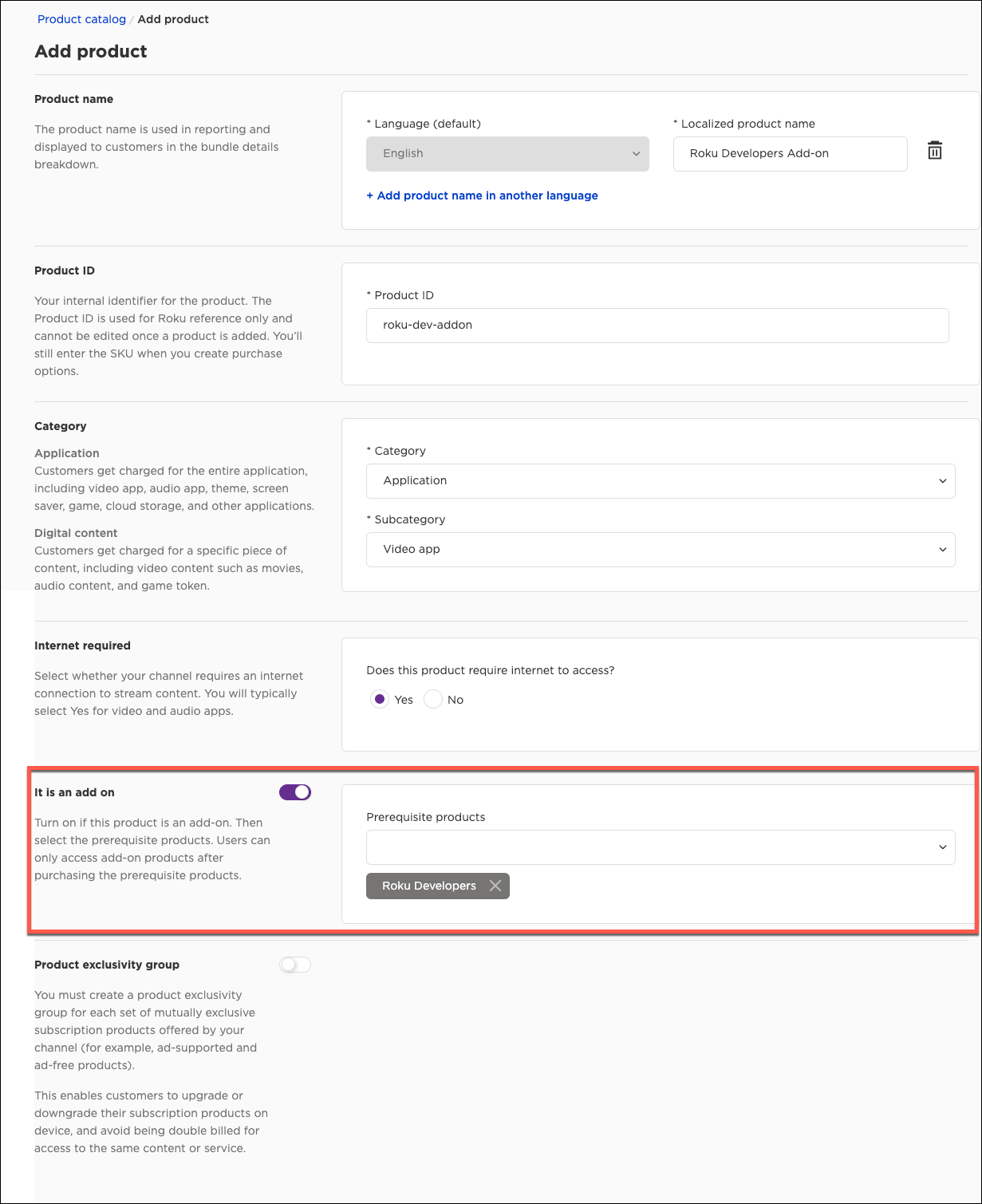
Enter the following information for the add-on product:
Setting Description Product name Select a locale and then enter the product name. This name is used in Roku Pay reports, and it is displayed to customers for product bundles only. The list of available locales is based on the languages selected in the Channel Properties window. To provide additional localized product names, click Add product name in another language, select a locale, and then enter the localized product name. You can provide one product name per locale. Internet required Accept the default setting, which is Yes. Product Id The internal code for the add-on product. It is an add-on Enable this setting, and then select the prerequisite base products. Add-ons are only accessible in the customer flow if the required base products have already been purchased or are being purchased at the same time as the add-on. Product exclusivity group Product groups are required for each set of mutually exclusive add-ons offered by your app. This enables customers to avoid being double billed for access to the same content or service. If customers cannot purchase this add-on while being entitled to another add-on, enable this. If an add-on has multiple prerequisite base products, those base products must be in a product group. -
Click Save and create purchase option to create one or more purchase options for the add-on immediately after saving the product.
-
Accept the default purchase option, which is Subscription, and then click Continue to create the purchase option for the add-on.
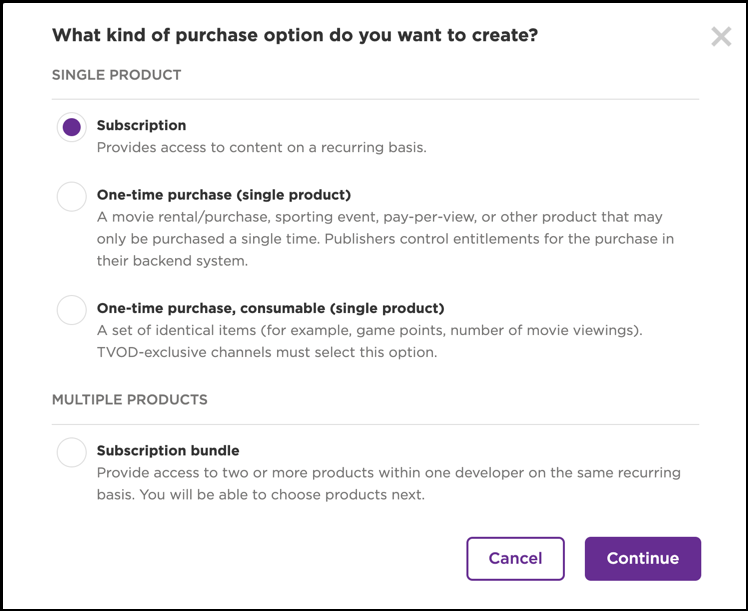
You can create a subscription bundle that includes two base products or a single base product and one or more add-ons. To do this, click Subscription bundle and then select the products to be packaged together from the Product list. You may only select products that are not in the same product group. Click Add another product to bundle to include additional products in the bundle. Add-on products can only be bundled with their prerequisite base products.
Creating purchase options for add-ons
Once you have created an add-on product, you create one or more purchase options for it. A purchase option specifies the billing frequency (monthly, quarterly [requires additional API work)], or annual), price, and any free trial or introductory price offers for the add-on.
To create a purchase option for an add-on product, follow these steps:
-
From the Product list, select the add-on product for which you are creating a purchase option.
-
Configure the following Purchase Details settings:
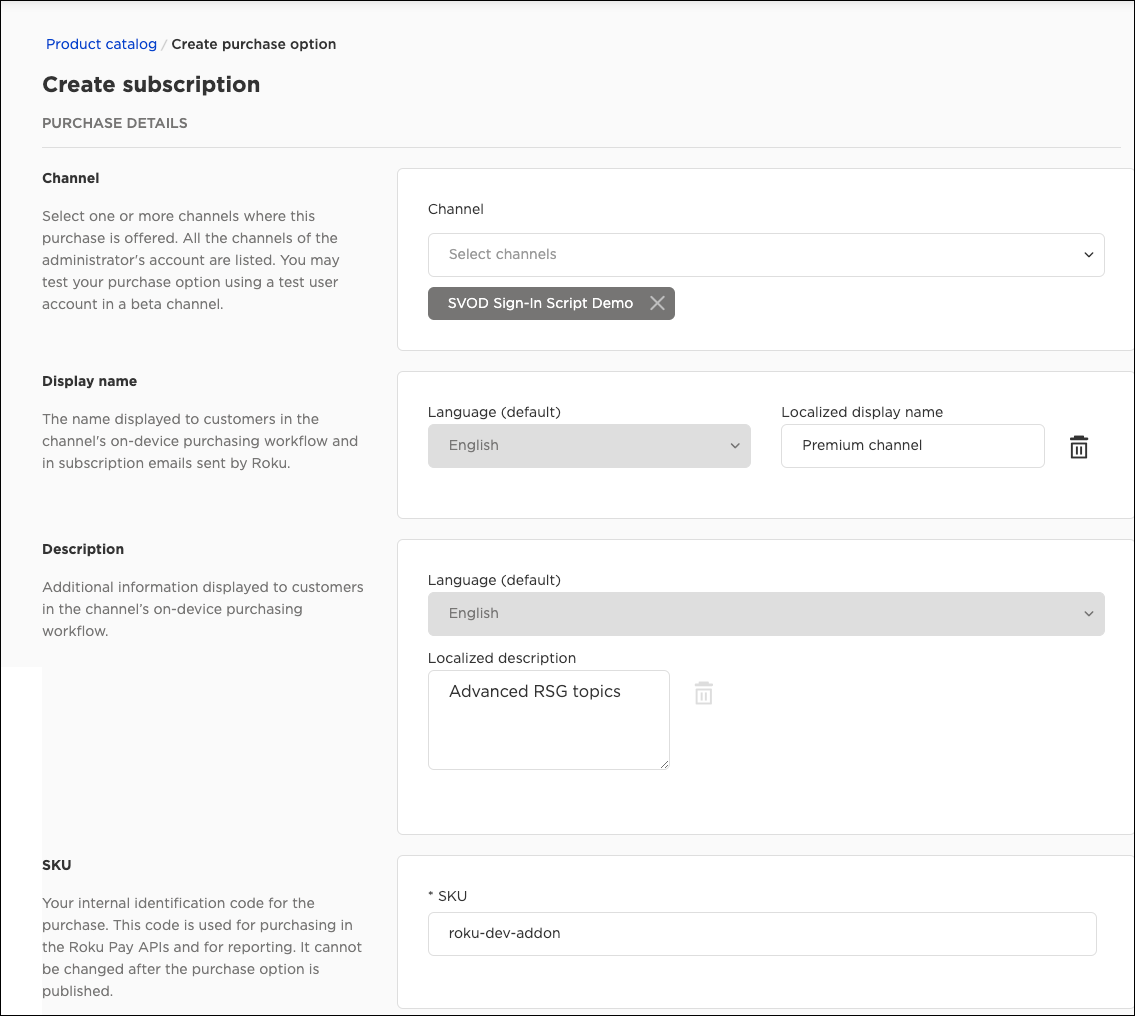
Purchase detail setting Description Channel Select one or more apps where this add-on purchase option will be available for sale. All the apps that belong to the logged-in administrator (root account) are listed. Display name A 30-character maximum name of the purchase option. This name will be displayed to customers in the app's on-device purchasing workflow and in subscription emails sent by Roku.
The name can include letters, numbers, spaces, and punctuation marks (UTF-8 characters are not supported for product names in English). The display name should include the name of the app, and it should make it easy for customers to identify the product (for example, "Roku Developers - Ad-Free").
Do not include any billing information in the name (for example, billing frequency, price, or trial/discount); the Roku platform UI will automatically display this information to customers.Description An optional description of the add-on purchase option. Select a language, and then enter a description. SKU The publisher-specific SKU (or other unique identifier) for the add-on purchase option. This code is used in the Roku Pay APIs and reporting. It cannot be changed after the purchase option is published. -
Configure the following Products and billing plan settings:
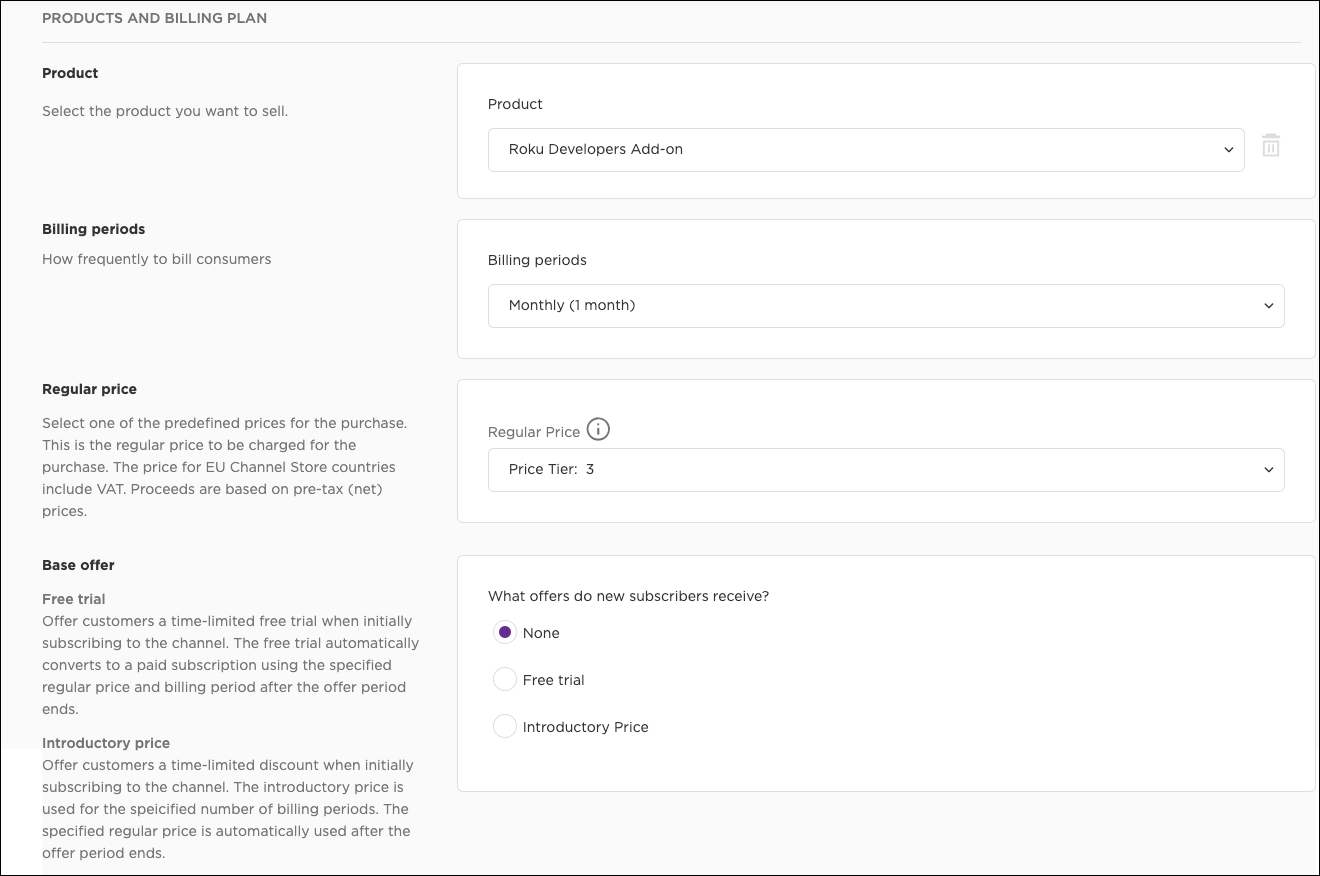
Billing plan setting Description Product Select the add-on product for which you are creating a purchase option. Add-on products are tagged with a blue "ADD-ON" label in the drop-down list. Billing periods Select the billing period for the add-on product: monthly, quarterly (requires additional API work), or annual. The billing period for the add-on must be the same as the base product. Regular price Select one of the predefined price tiers for the product. Tiers are used to enforce 99-cent or 49-cent pricing (in USD) on app products.
used to enforce 99-cent or 49-cent pricing (in USD) on app products.
- One to three-digit tier numbers are used for 99-cent pricing. Subtract 1 cent from a tier to get the corresponding price. For example, Tier 1 is 99 cents, Tier 2 is $1.99, Tier 10 is $9.99, Tier 100 is $99.99 and so on. The highest tier is 400 ($399.99).
- Four-digit tier numbers are used for 49-cent pricing. Append 49 cents to the last digit or last two digits in the tier to get the corresponding price. For example, Tier 1000 is 49 cents, Tier 1001 is $1
Base offer The administrator (root account) can create free trial and introductory price offers for an add-on product. Roku Pay automatically handles the auto-renewals of the trial or discounted offers to paid full-price subscriptions. Separate products do not need to be created for free trial or introductory price offers. A single product may include both a base offer (the standard base price) and a trial/discount offer. Select one of the following base offers:
a base offer (the standard base price) and a trial/discount offer. Select one of the following base offers:
- None (default). The purchase option does not include an offer.
- Free trial. Include a free trial period with the purchase option. In the Trial length box, enter the number of days or months in the trial offer and then select the unit of time (Days or Months).
- Introductory price. Include a discount with the purchase option. In the Introductory period box, enter the number of days, months, or years the introductory price is valid, and then select the pricing tier corresponding to the discounted price to be offered from the Price list. Discounts cannot be specified using percentages or absolute currency units (for example, USD). Discounts may only be specified using the appropriate price tier. Fo
-
Click Save as Draft to save the purchase option without publishing it. Click Publish to activate the purchase option on your app.
-
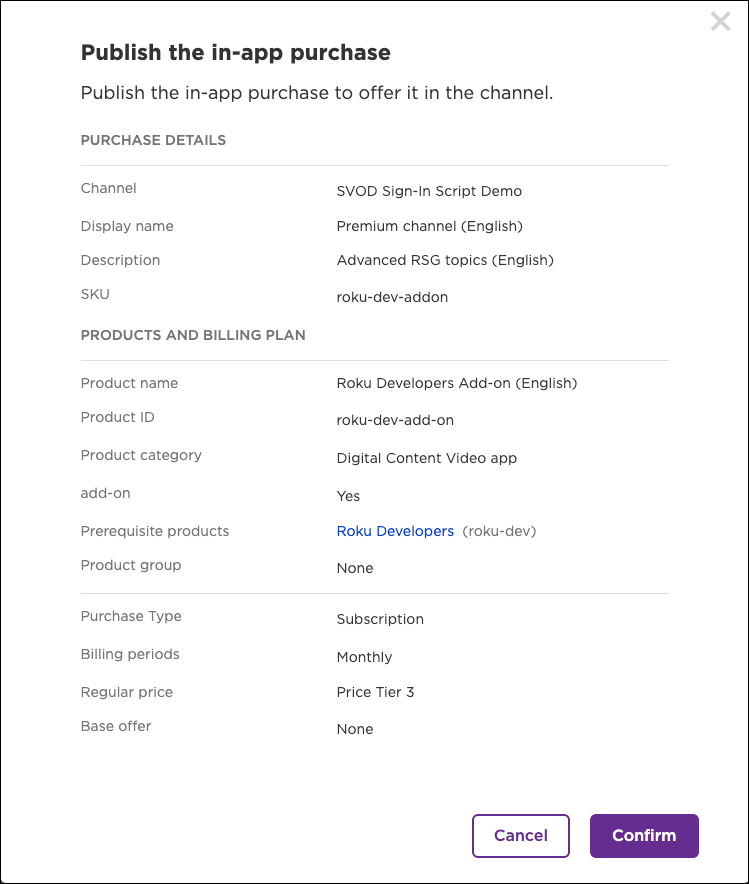
If you selected Publish in step 6, review the Purchase details and Billing plan settings, and then click Confirm to make the purchase option available to customers on your app. After you create an add-on, you can schedule limited-time offers and schedule price changes for it (see Creating the Product Catalog for how to do this).
Updating the app
Publishers need to update their app's code to leverage the new GetAllPurchases, GetCatalog, QueryPuchaseOptions, and DoOrder ChannelStore APIs, which have been enhanced for supporting add-ons. These APIs are summarized as follows (See Appendix A for the Add-on API reference):
-
GetAllPurchases: Lists the current (and optionally historical) products and purchase options associated with the Roku customer account. The v2 GetAllPurchases command includes a new includesExpired flag that enables you to get the historical purchases associated with the customer account. As a result, the getAllPurchases command is not used for this integration.
-
GetCatalog: Retrieves the list of products and purchase options in the app.
-
QueryPuchaseOptions: Takes the new purchase option map and product map objects returned by the GetPurchases and GetCatalog commands and returns a list of purchase options matching the specified query. This command helps developers determine which purchase options to offer to customers (it replaces the complex BrightScript mapping login used in earlier versions of this integration).
-
DoOrder: Displays the Roku Pay order confirmation screen where customers complete their subscription and add-on purchase.
The new versions of these ChannelStore APIs use Roku's generic request framework, which enables developers to pass the ChannelStore command, parameters, and context into a single request object (an associative array). The result of the request is encapsulated in a requestStatus object (also an associative array), which includes the status of the request and the data returned by it. Channels must observe the requestStatus field to be notified of changes and fire a callback function to parse and process the Channel Store API commands.
To update your app with the new Channel Store APIs, follow these steps:
-
Initialize the ChannelStore API generic request framework. The following code monitors the channelStore.requestStatus field and fires the onRequestStatus() callback function when changes to the requestStatus field occur. The onRequestStatus() function determines which command was sent and sends the results to the dedicated parser for the command.
function init() m.store = m.parent.FindNode("channelStore") m.store.observeField("requestStatus", "onRequestStatus") end function ' Generic SDK API request callback function onRequestStatus() requestStatus = m.store.requestStatus if requestStatus = invalid print "Invalid requestStatus" else print "requestStatus", requestStatus print "requestStatus.command", requestStatus.command print "requestStatus.status", requestStatus.status print "requestStatus.statusMessage", requestStatus.statusMessage print "requestStatus.context", requestStatus.context ' requestStatus.status: ' 2: Interrupted ' 1: Success ' 0: Network error ' -1: HTTP Error/Timeout ' -2: Timeout ' -3: Unknown error ' -4: Invalid request ' Generic request succeeded if requestStatus.status = 1 then if requestStatus.command = "GetCatalog" then onGetCatalog(requestStatus.result) else if requestStatus.command = "QueryPurchaseOptions" then onQueryPurchaseOptions(requestStatus.context, requestStatus.result) else if requestStatus.command = "DoOrder" then onOrderStatus(requestStatus.result) else if requestStatus.command = "GetPurchases" then onGetPurchases(requestStatus.result) end if end if end if end function -
Send the GetCatalog command to get the list of purchase options. In all the requests within the add-on API workflow, the version field must be set to 2.
sub GetCatalog() request = {} request.command = "GetCatalog" request.params = { "version": 2 } m.store.request = request end sub -
From the OnGetCatalog() callback function, store the purchaseOptionsMap and productsMap collections returned by the GetCatalog command.
sub onGetCatalog(requestResult as object) print "requestResult.status", requestResult.status print "requestResult.statusMessage", requestResult.statusMessage m.purchaseOptions = {} m.products = {} ' GetCatalog succeeded if requestResult.status = 1 and type(requestResult.result) = "roAssociativeArray" then m.purchaseOptions = requestResult.result.purchaseOptionsMap m.products = requestResult.result.productsMap end if end sub -
Use the QueryPurchaseOptions command to offer the customer base and bundle purchase options in the UI. The following example creates a map of base and bundle purchase options:
sub queryBasePurchaseOptions() query = [ {"billingType":"Subscription","base":true}, {"billingType":"Subscription","bundle":true} ] QueryPurchaseOptions("Base", query) end sub sub QueryPurchaseOptions(queryType as String, query as Object) request = { "context": { "queryType": queryType } "params": { "purchaseOptionsMap": m.purchaseOptions "productsMap": m.products "query": query } "command": "QueryPurchaseOptions" } m.store.request = request end sub sub onQueryPurchaseOptions(context as object, requestResult as object) if context.queryType = "Base" then m.basePurchaseOptions = requestResult.purchaseOptionsMap offerBasePurchaseOptions() else if context.queryType = "Addon" then m.addonPurchaseOptions = requestResult.purchaseOptionsMap offerAddonPurchaseOptions() end if end sub -
Offer the customer add-on purchase options in the UI. The following example creates a map of add-on purchase options that are available for the specified SKU of a base purchase option:
sub queryAddonPurchaseOptions() query = [ {"referenceSku":m.base,"addon":true} ] QueryPurchaseOptions("Addon", query) end sub sub onQueryPurchaseOptions(context as object, requestResult as object) if context.queryType = "Base" then m.basePurchaseOptions = requestResult.purchaseOptionsMap offerBasePurchaseOptions() else if context.queryType = "Addon" then m.addonPurchaseOptions = requestResult.purchaseOptionsMap offerAddonPurchaseOptions() end if end sub -
Send the DoOrder command to purchase the base prerequisite product and any add-ons, and then check the order status.
sub DoOrder() request = {} request.command = "DoOrder" orderItems = [] if m.content.base <> "" then orderItems.push({ "sku" : m.content.base "qty" : 1 }) end if for each addon in m.content.addons orderItems.push({ "sku" : addon "qty" : 1 }) end for request.params = { "version": 2 "orderItems": orderItems } m.store.request = request end sub function onOrderStatus(requestResult as object) as void print chr(10) + "onOrderStatus" dialog = CreateObject("roSGNode", "statusDialog") message = "" if requestResult.status <> 1 message = "status: " + str(requestResult.status) + chr(10) message += "statusMessage: " + requestResult.statusMessage else message = "Your Purchase completed successfully" + chr(10) message += "statusMessage: " + requestResult.statusMessage + chr(10) if type(requestResult.result) = "roAssociativeArray" then purchases = requestResult.result.purchases ' roArray if type(purchases) = "roArray" then for i = 0 to purchases.Count() - 1 message += chr(10) + "Product " + AnyToString(i+1) + ":" + chr(10) item = purchases[i] ' roAssociativeArray print type(item) print "item", item if item.replacedPurchase <> invalid then print "item.replacedPurchase", item.replacedPurchase end if keys = item.Keys() for each key in keys strField = AnyToString(item[key]) if strField <> invalid if strField.len() > 0 message += key + " = " + strField + chr(10) else message += key + " = " + chr(10) end if else message += key + " = " + chr(10) end if end for end for end if end if end if print "message", message dialog.message = message m.top.getScene().dialog = dialog end function -
Send the GetAllPurchases command to query the customer's purchases, and then check the order status. The response includes three arrays: purchases, products, and entitlements. If a cross-partner bundle subscription was purchased, its information is in the entitlements list.
sub GetAllPurchases()
    request = {}
    request.command = "GetPurchases"
    request.params = {
        "version": 2,
        "includeExpired": true
    }
    m.store.request = request
end sub

function onGetAllPurchases(requestResult as object) as void
    m.purchases = {}
    m.purchasedProducts = {}
    m.entitlements = []

    print chr(10) + "onGetAllPurchases"
    dialog = CreateObject("roSGNode", "statusDialog")
    message = ""
    if requestResult.status <> 1
        message = "status: " + str(requestResult.status) + chr(10)
        message += "statusMessage: " + requestResult.statusMessage
    else
        purchaseResult = requestResult.result
        ' AA
        print chr(10) + "purchaseResult", type(purchaseResult)
        if type(purchaseResult) <> "roAssociativeArray" or purchaseResult.purchases = invalid then
            print chr(10) + "invalid purchaseResult.purchases"
            return
        end if
        ' roArray
        print chr(10) + "purchaseResult.purchases", type(purchaseResult.purchases)
        print "purchaseResult.purchases.Count()", purchaseResult.purchases.Count()
        for i = 0 to purchaseResult.purchases.Count() - 1
            purchase = purchaseResult.purchases[i]
            m.purchases.AddReplace(purchase.sku, purchase)
            ' message for purchases
            message += chr(10) + "Purchase " + AnyToString(i+1) + ":" + chr(10)
            fields = purchase.items()
            for each field in fields
                strKey = AnyToString(field.key)
                strValue = AnyToString(field.value)
                if strValue <> invalid
                    if strValue.len() > 0
                        message += strKey + " = " + strValue + chr(10)
                    else
                        message += strKey + " = " + chr(10)
                    end if
                else if type(field.value) = "roArray" then
                    ' billingPlans
                    for j = 0 to field.value.Count() - 1
                        message += strKey + "[" + j.ToStr() + "]" + chr(10)
                        fields1 = field.value[j].items()
                        for each field1 in fields1
                            strKey1 = AnyToString(field1.key)
                            strValue1 = AnyToString(field1.value)
                            if strValue1 <> invalid
                                if strValue1.len() > 0
                                    message += "- " + strKey1 + " = " + strValue1 + chr(10)
                                else
                                    message += "- " + strKey1 + " = " + chr(10)
                                end if
                            else if type(field1.value) = "roArray" then
                                for k = 0 to field1.value.Count() - 1
                                    if type(field1.value[k]) = "roAssociativeArray" then
                                        ' phases
                                        message += "-- " + strKey1 + "[" + k.ToStr() + "]" + chr(10)
                                        fields2 = field1.value[k].items()
                                        for each field2 in fields2
                                            strKey2 = AnyToString(field2.key)
                                            strValue2 = AnyToString(field2.value)
                                            if strValue2 <> invalid
                                                if strValue2.len() > 0
                                                    message += "--- " + strKey2 + " = " + strValue2 + chr(10)
                                                else
                                                    message += "--- " + strKey2 + " = " + chr(10)
                                                end if
                                            else if type(field2.value) = "roAssociativeArray" then
                                                ' duration
                                                message += "--- " + strKey2 + chr(10)
                                                fields3 = field2.value.items()
                                                for each field3 in fields3
                                                    strKey3 = AnyToString(field3.key)
                                                    strValue3 = AnyToString(field3.value)
                                                    if strValue3 <> invalid
                                                        if strValue3.len() > 0
                                                            message += "---- " + strKey3 + " = " + strValue3 + chr(10)
                                                        else
                                                            message += "---- " + strKey3 + " = " + chr(10)
                                                        end if
                                                    end if
                                                end for
                                            end if
                                        end for
                                    else
                                        ' productIds
                                        message += "- " + strKey1 + "[" + k.ToStr() + "]" + ": " + field1.value[k] + chr(10)
                                    end if
                                end for
                            else
                            end if
                        end for
                    end for
                end if
            end for
        end for
        ' roArray
        print chr(10) + "purchaseResult.products", type(purchaseResult.products)
        print "purchaseResult.products.Count()", purchaseResult.products.Count()
        for i = 0 to purchaseResult.products.Count() - 1
            product = purchaseResult.products[i]
            m.purchasedProducts.AddReplace(product.productId, product)
            ' AA
            ' message for products
            message += chr(10) + "product " + AnyToString(i+1) + ":" + chr(10)
            fields = product.items()
            for each field in fields
                strKey = AnyToString(field.key)
                strValue = AnyToString(field.value)
                if strValue <> invalid
                    if strValue.len() > 0
                        message += strKey + " = " + strValue + chr(10)
                    else
                        message += strKey + " = " + chr(10)
                    end if
                else if type(field.value) = "roArray" then
                    for j = 0 to field.value.Count() - 1
                        if type(field.value[j]) = "roAssociativeArray" then
                            ' entitlementIds
                            message += "- " + strKey + "[" + j.ToStr() + "]" + chr(10)
                            fields1 = field.value[j].items()
                            for each field1 in fields1
                                strKey1 = AnyToString(field1.key)
                                strValue1 = AnyToString(field1.value)
                                if strValue1 <> invalid
                                    if strValue1.len() > 0
                                        message += "-- " + strKey1 + " = " + strValue1 + chr(10)
                                    else
                                        message += "-- " + strKey1 + " = " + chr(10)
                                    end if
                                end if
                            end for
                        else
                            ' purchaseOptions
                            message += strKey + "[" + j.ToStr() + "]" + ": " + field.value[j] + chr(10)
                        end if
                    end for
                end if
            end for
        end for
        ' roArray
        print chr(10) + "purchaseResult.entitlements", type(purchaseResult.entitlements)
        print "purchaseResult.entitlements.Count()", purchaseResult.entitlements.Count()
        for i = 0 to purchaseResult.entitlements.Count() - 1
            entitlement = purchaseResult.entitlements[i]
            m.entitlements.push(entitlement)
            ' AA
            ' message for entitlements
            message += chr(10) + "entitlement " + AnyToString(i+1) + ":" + chr(10)
            fields = entitlement.items()
            for each field in fields
                strKey = AnyToString(field.key)
                strValue = AnyToString(field.value)
                if strValue <> invalid
                    if strValue.len() > 0
                        message += strKey + " = " + strValue + chr(10)
                    else
                        message += strKey + " = " + chr(10)
                    end if
                end if
            end for
        end for
    end if
    print "message", message
    dialog.message = message
    m.top.getScene().dialog = dialog
end function
Sample app
The add-ons sample app demonstrates how to integrate add-ons and bundles in your app to offer customers premium content, additional channels, bundled packages, and other upgrades and features. It lets you purchase base subscription products and bundles in your product catalog, and then purchase any eligible add-ons.
Appendix A: Catalog 2.0 APIs
The requestStatus object returned by the ChannelStore generic request framework is an roAssociativeArray that has the following hierarchy. Observe that the products, purchase options, and entitlements returned by the ChannelStore commands are encapsulated in a nested result.result associative array.
"requestStatus": {
    "command": "GetCatalog",
    "status": 2,
    "statusMessage": "...",
    "context": {...},
    "result": {
        "status": 2,
        "statusMessage": "...",
        "result": {
            "products": [...],
            "purchaseOptions": [...],
            "entitlements": [...]
        }
    }
}| Field | Type | Description | ||||||||||||||||||
|---|---|---|---|---|---|---|---|---|---|---|---|---|---|---|---|---|---|---|---|---|
| requestStatus | associative array | Returns the request's command and parameters:
|
GetPurchases
Returns the list of current and historical (optional) purchases associated with the Roku customer account.
request
| Field | Type | Description | ||||||||||||||||||
|---|---|---|---|---|---|---|---|---|---|---|---|---|---|---|---|---|---|---|---|---|
| request | roAssociativeArray | Includes the request's command and parameters:
|
requestStatus.result
| Field | Type | Description | ||||||||||||||||||
|---|---|---|---|---|---|---|---|---|---|---|---|---|---|---|---|---|---|---|---|---|
| result | associative array | Includes the transaction data returned by the GetPurchases:
|
||||||||||||||||||
| status | enum | The command completion status, which may be one of the following values:
|
||||||||||||||||||
| statusMessage | string | A text description of the command completion status. |
GetCatalog
Lists the products and purchase options linked to the app.
request
| Field | Type | Description | |||||||||||||||
|---|---|---|---|---|---|---|---|---|---|---|---|---|---|---|---|---|---|
| request | associative array | Includes the request's command and parameters:
|
requestStatus.result
| Field | Type | Description | |||||||||||||||
|---|---|---|---|---|---|---|---|---|---|---|---|---|---|---|---|---|---|
| result | associative array | Includes the products and purchase options returned by the GetCatalog command:
|
|||||||||||||||
| status | enum | The command completion status, which may be one of the following values:
|
|||||||||||||||
| statusMessage | string | A text description of the command completion status. |
QueryPurchaseOptions
Returns the collection of purchaseOptionMap objects matching the specified query.
request
| Field | Type | Description | |||||||||||||||
|---|---|---|---|---|---|---|---|---|---|---|---|---|---|---|---|---|---|
| result | associative array | Includes the products and purchase options returned by the GetCatalog command:
|
|||||||||||||||
| status | enum | The command completion status, which may be one of the following values:
|
|||||||||||||||
| statusMessage | string | A text description of the command completion status. |
requestStatus.result
| Field | Type | Description | ||||||
|---|---|---|---|---|---|---|---|---|
| result | roAssociativeArray |
|
DoOrder
Displays the Roku Pay order confirmation screen, which is populated with information about the current order (product name, price, any free trial or discount offer). The customer can then either approve and complete the purchase, or cancel the purchase.
request
| Field | Type | Description | ||||||||||||||||||
|---|---|---|---|---|---|---|---|---|---|---|---|---|---|---|---|---|---|---|---|---|
| request | associative array | Includes the request's command and parameters:
|
requestStatus.result
| Field | Type | Description | ||||||
|---|---|---|---|---|---|---|---|---|
| result | associative array |
|
||||||
| status | enum | The command completion status, which may be one of the following values:
|
||||||
| statusMessage | string | A text description of the command completion status. |
Appendix B: Roku Pay Web Services updates
The new catalog data structure has not changed any of the Roku Pay web service API contracts. The fields returned by the Roku Pay APIs remain the same. The only change is that the values included in the productId and productName fields now reference the purchase option associated with the transaction, instead of the product.
Publishers should map the values returned in the productName and productId fields, which reference the purchase option, to the associated products in their backend system
Appendix C: On-device add-on purchase workflow
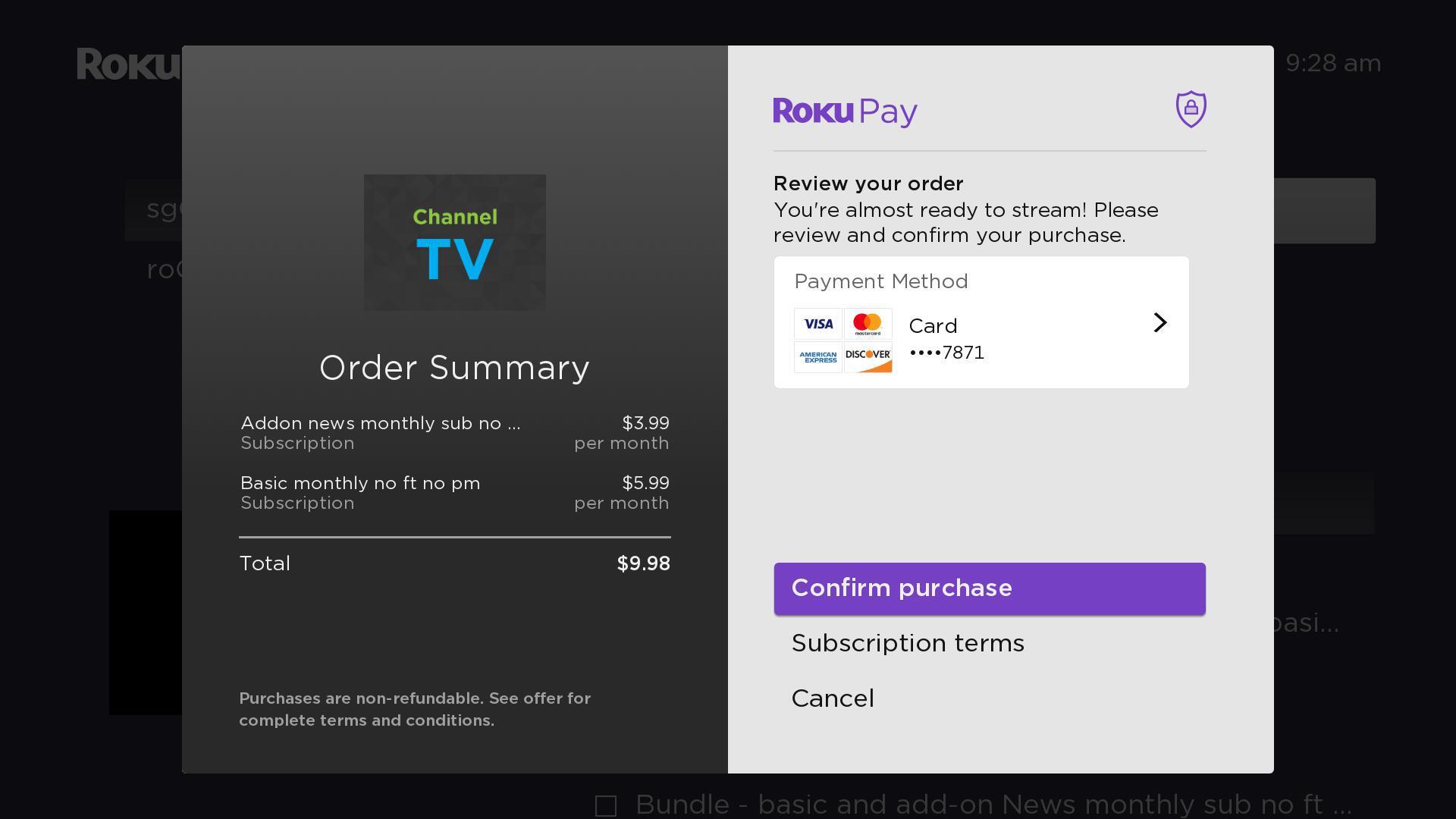
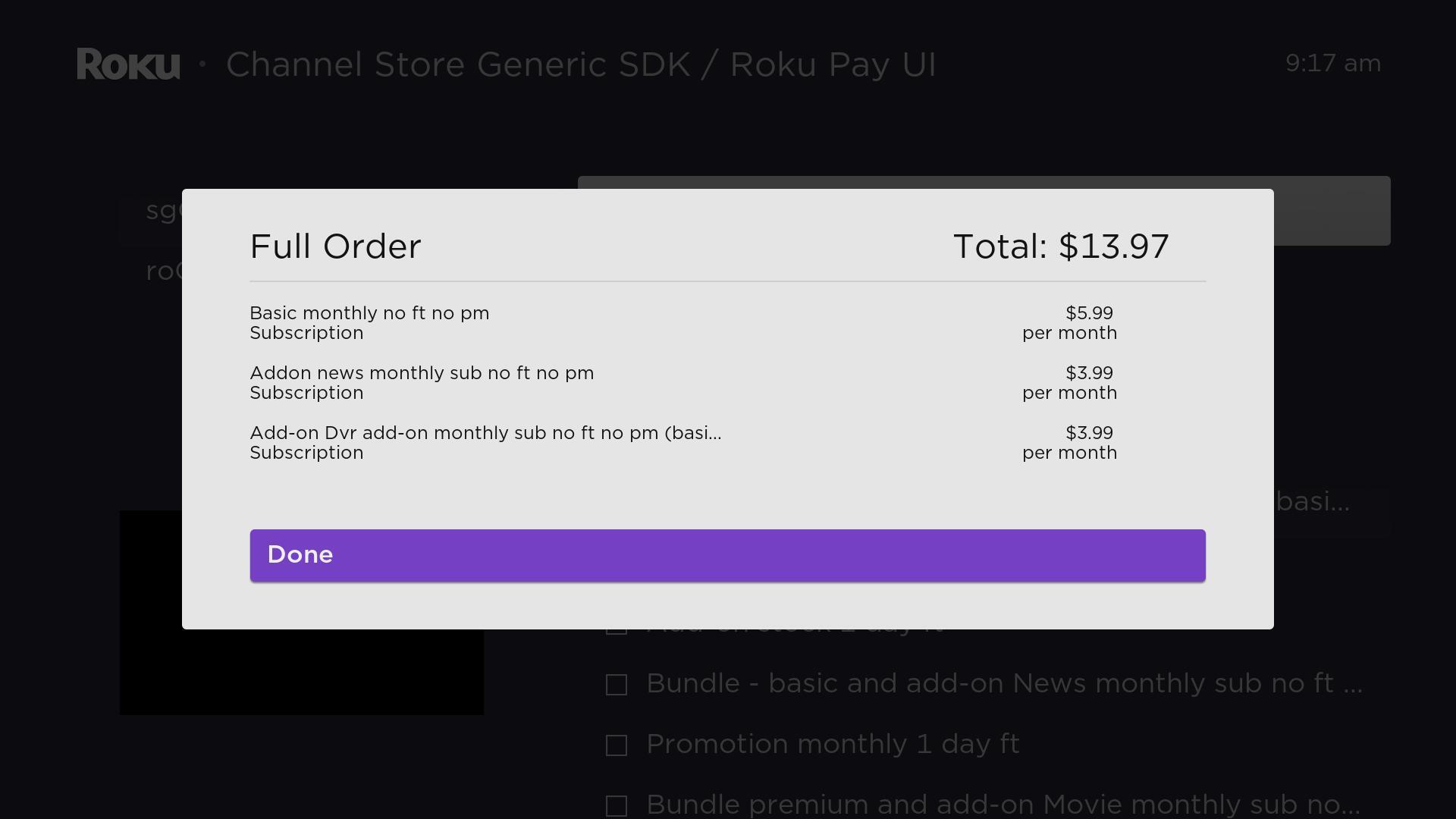
When the DoOrder command is sent, the Roku Pay order confirmation screen lists each product being purchased, including base subscriptions and add-ons.
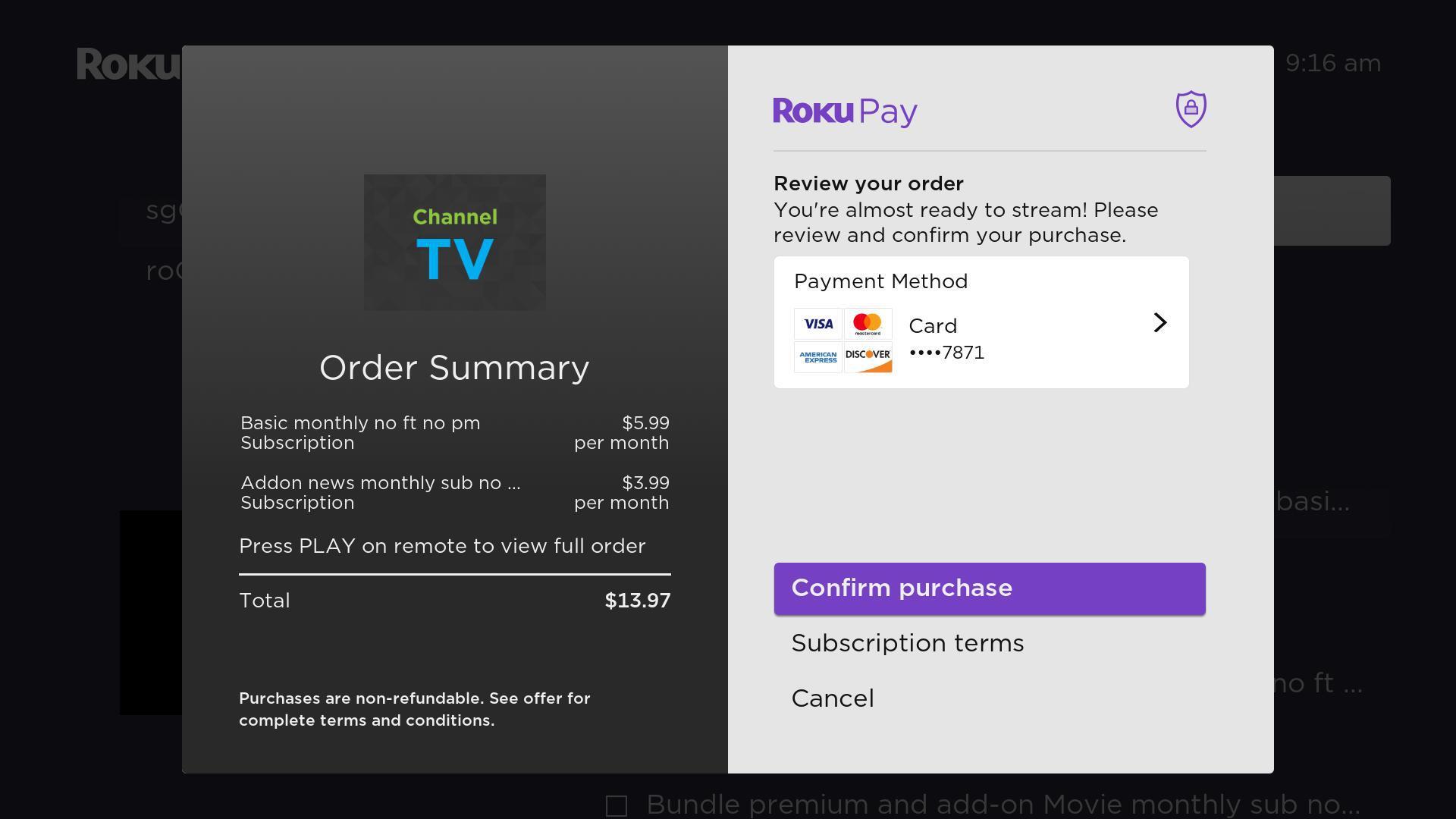
If the purchase includes two or more add-ons, the customer can press the PLAY button on their Roku remote control to view an itemized list of products before confirming the purchase.
Appendix D: Base subscription and add-on management workflow for customers
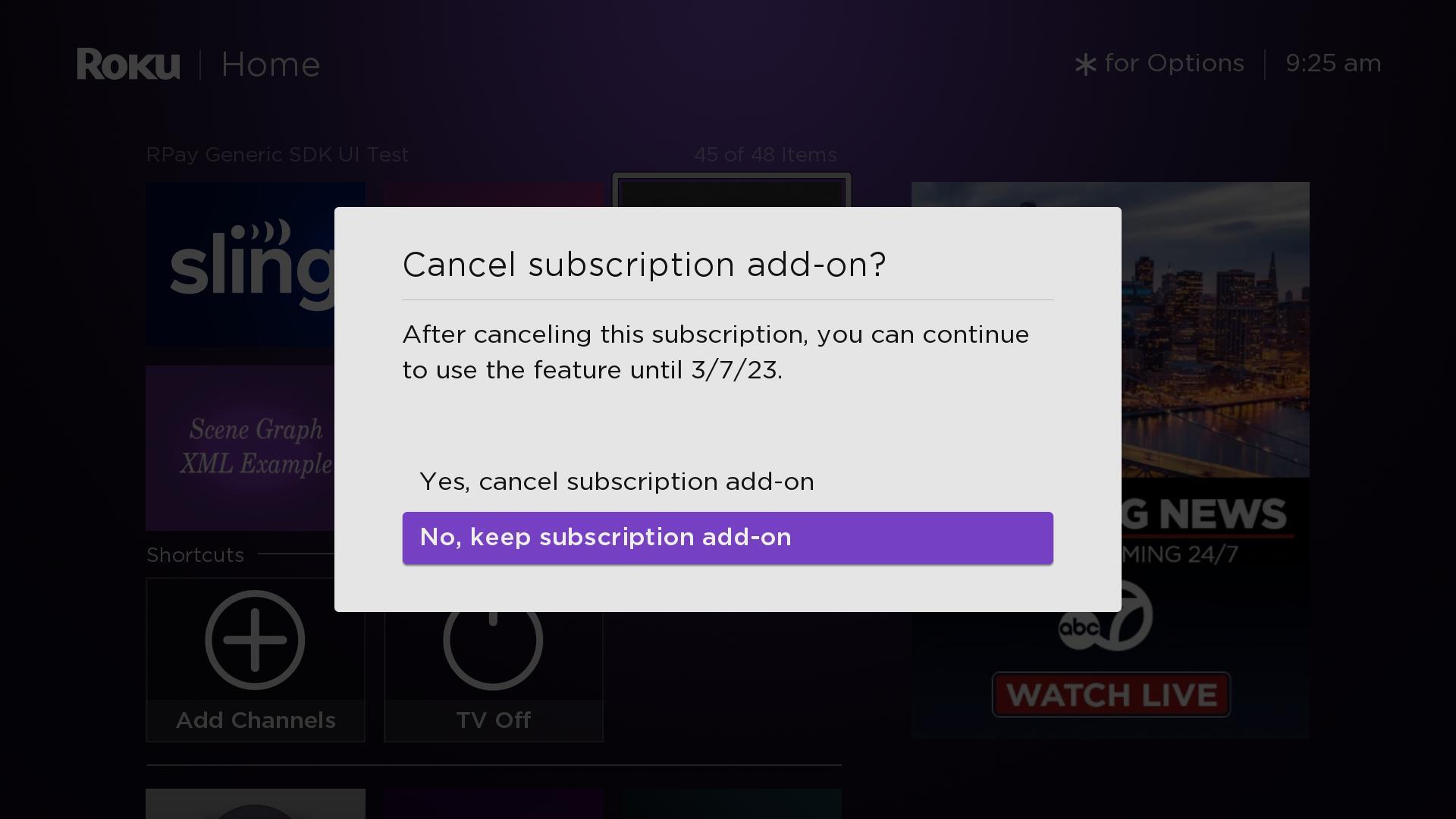
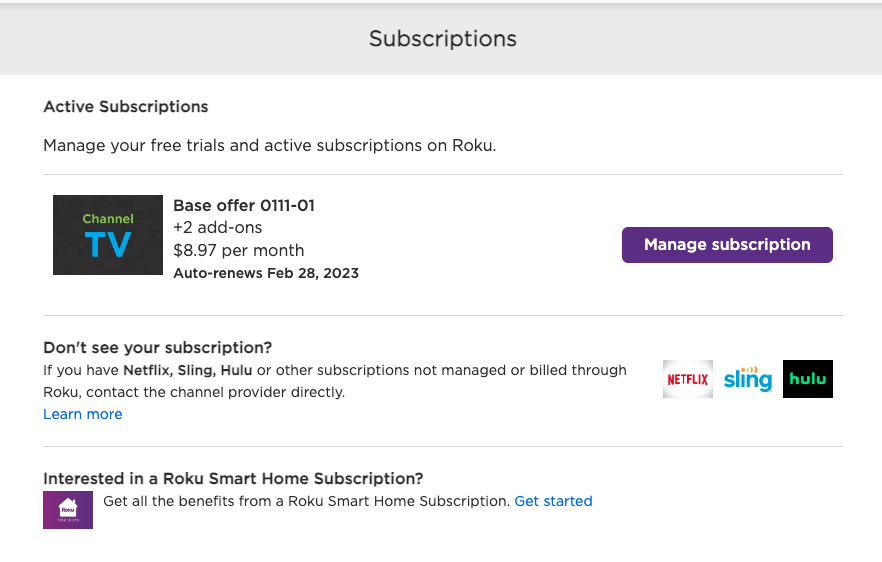
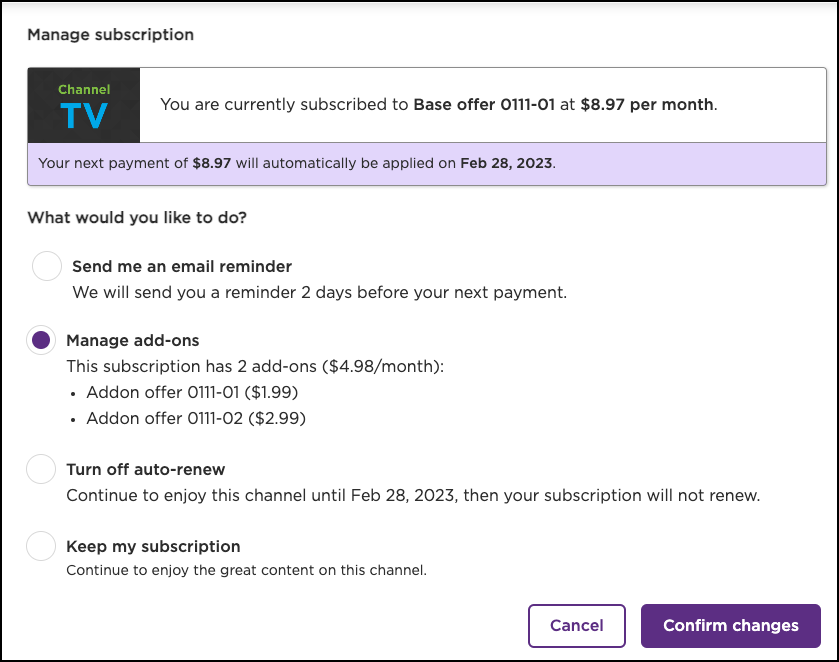
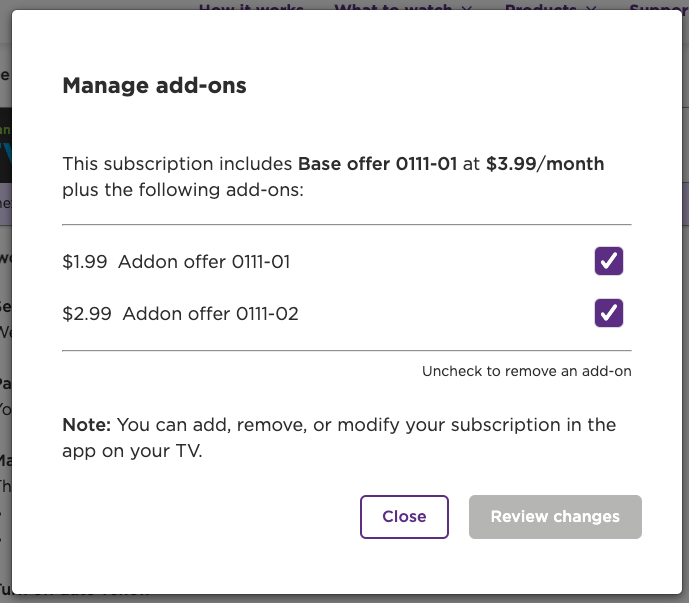
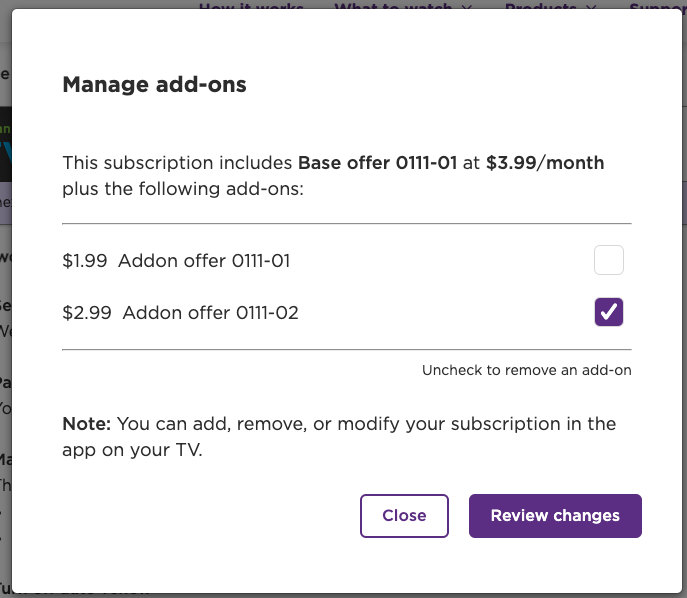
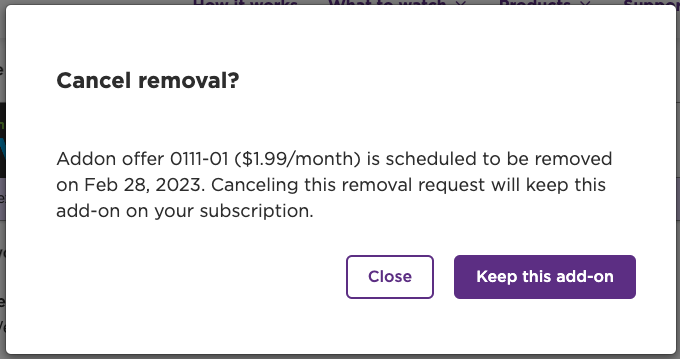
Customers can cancel their base subscriptions and add-ons either directly on-device or online from Roku's Subscription management page.
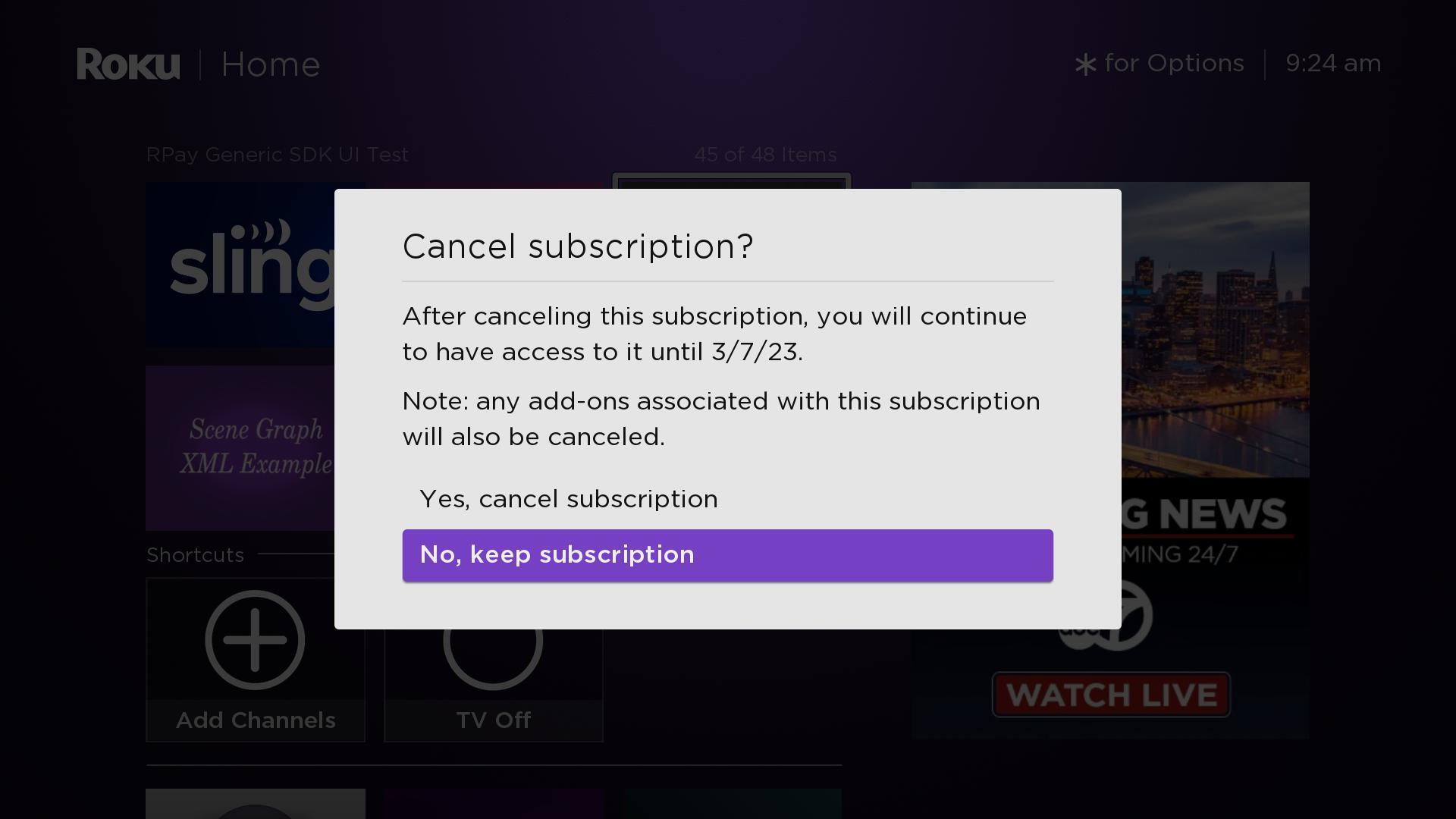
At least one base prerequisite product must be active in order for an add-on product to remain active as well. If no base prerequisite products are active, the add-on product is cancelled. For example, if the customer cancels the prerequisite base product (and is not entitled to any other prerequisites), the add-on is also canceled.
If a customer upgrades/downgrades a base prerequisite subscription product, the add-on remains active only if the upgrade/downgrade transaction includes a different prerequisite base product and that same add-on. For example, customers can sign up for one base prerequisite and an add-on, and then upgrade to a second base prerequisite product (the upgrade transaction must include the new base product and the same add-on), and then downgrade back to the first (the downgrade transaction must include the new base product and the same add-on), without access to the add-on being interrupted.
When an add-on is canceled, its entitlement is removed from the Roku customer account at the next billing cycle (no refunds are given for partial-term cancellations)
When a customer upgrades/downgrades their base subscription product and retains one or more add-ons linked to that base product, you must include those retained add-ons in the DoOrder request.
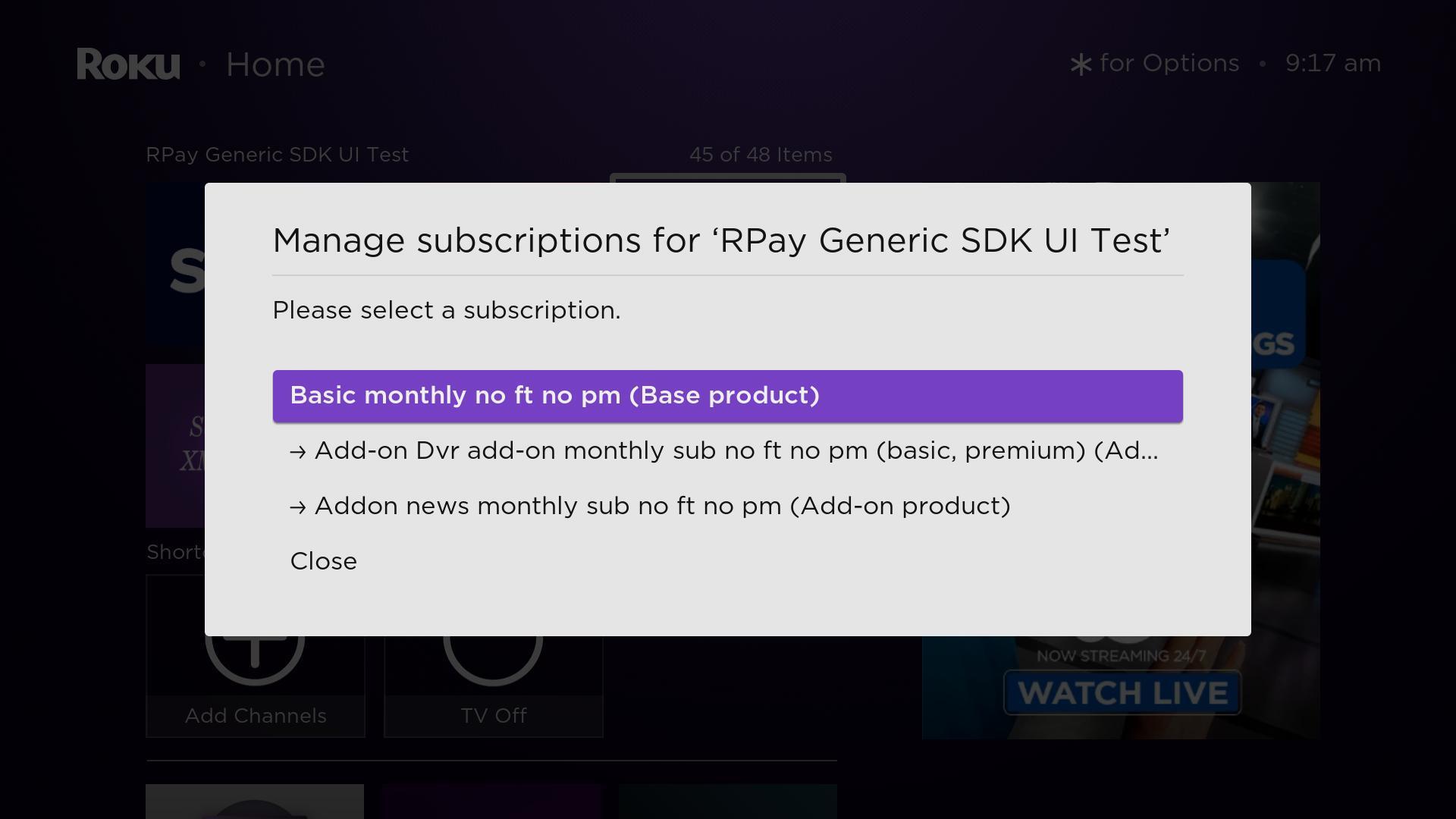
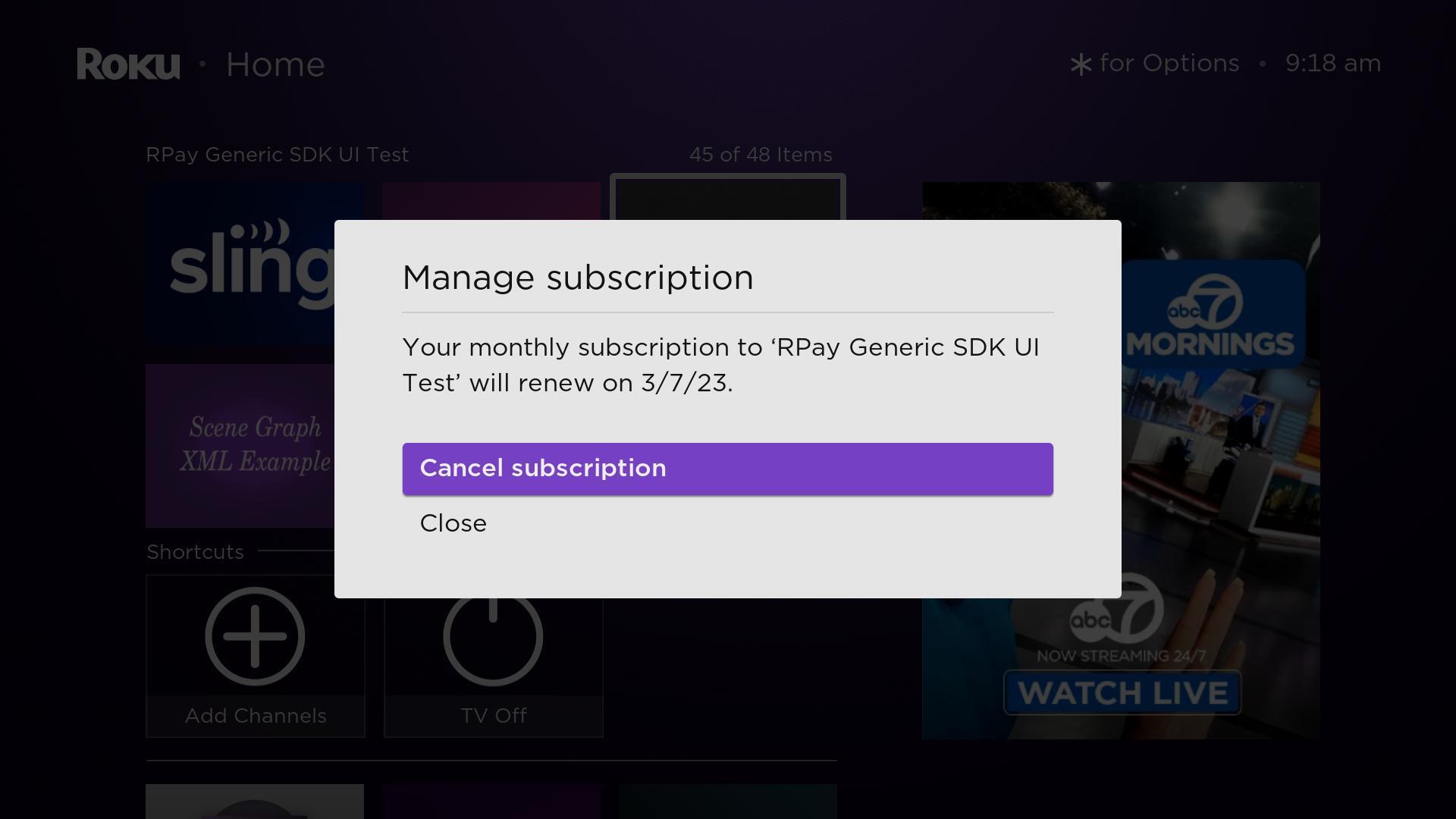
On-device subscription management workflow
The following images demonstrate how the on-device add-on management and cancellation workflow can be used to cancel base subscription products and add-ons:
Online subscription management
The following images demonstrate the online add-on management and cancellation workflow:
Updated 1 day ago