
Remote control buttons
Overview of Roku remote buttons, their commands, and expected user behavior
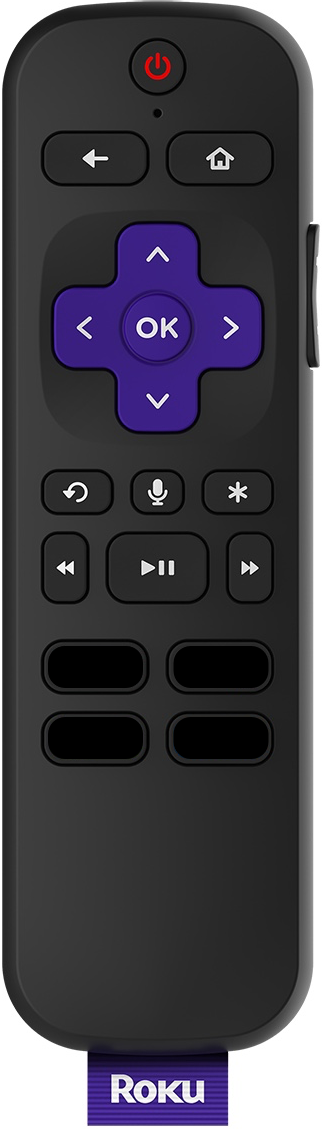
The Roku remote is unique to the platform, with a specific set of
buttons each triggering different commands. Some buttons, like the dPad,
are likely familiar to any user or developer. Other buttons, like the
Instant Replay or Star buttons, might seem a little more unique. Below
is an overview of the buttons on the Roku remote, how they work, and the
standard behavior users expect when pressing them.
4-way directional pad (dPad)
Conventional uses of the Roku remote's buttons:
-
While on a standard UI screen:
- Use the directional pad to move the onscreen focus highlight
up/down/left/right from one screen element to another. - Alternatively, in a "fixed-focus" model, use it to move the
content or choices into the focus highlight.
- Use the directional pad to move the onscreen focus highlight
-
During video playback:
-
dPad left/right: Pauses the video, reveals a horizontal row of
Roku BIF (Base Index Frame) files, HLS/DASH thumbnails, or video key-frames, and users can navigate backwards/left
and forward/right through the video via these
key-frames: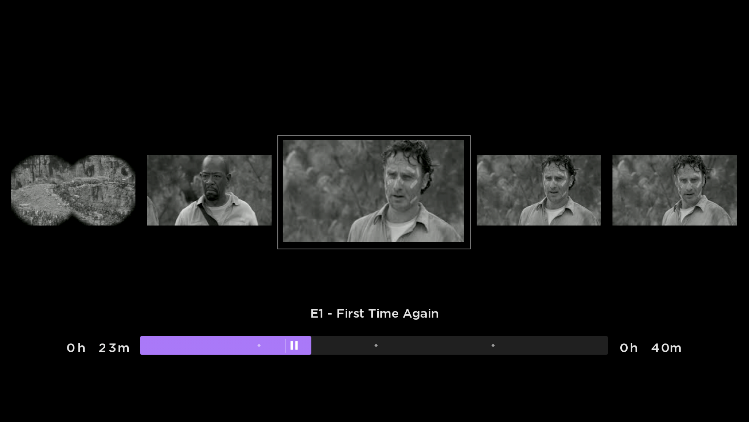
-
A single dPad pressed for left or right moves 1 key-frame in the
corresponding direction. Continual press and hold of the
left/right key scrolls horizontally through the row of
key-frames. Pressing OK or Play/Pause resumes video playback
from the key-frame in focus. -
dPad up/down: Some apps with playlists use up/down key to
navigate to the previous or the next video.See Trick Mode for more information.
-
-
During music playback:
- Pressing left or right on the dPad skips to the previous or next track/item in the playlist.
OK
- While on a standard UI screen:
- Selects or activates the item in focus.
- During video playback:
- Preferred: OK button should reveal a Heads Up Display (HUD)
containing video-relevant information and actions (which should
dismiss when it times out or when the Back button is pressed). - Alternative: Toggle between video play and pause.
- Preferred: OK button should reveal a Heads Up Display (HUD)
Back
- While on a standard UI screen:
- Navigate users to a previous screen. Note that there are at
least two different back-navigation schemes:- Hierarchical: Navigate to the screen that is one level up in
the UI hierarchy. - Historical: Navigate to the previously viewed screen,
regardless of where that screen is within the UI's
map/hierarchy. - Users expect and more easily understand the 'historical'
model. Where it is important to navigate to other screens or
levels of the UI hierarchy, offer better on-screen
navigation choices.
- Hierarchical: Navigate to the screen that is one level up in
- While users can press the Back button to exit a popup dialog,
Back is not used to navigate from a screen to a popup dialog.
- Navigate users to a previous screen. Note that there are at
- While on your app's home screen:
- It is critical that people be allowed to exit your app via
the remote's Back button. This ensures they can get to the
original Roku UI screen from which they launched into your
app. - Consistent exit strategy: Users can press the Back button enough
times to eventually get to your app's home screen. From
there, one more press of the Back button should reveal an "exit
opportunity". For example:- A Popup Dialog asking for exit confirmation.
- A menu offering "exit" as a choice.
- Hence, pressing Back from your app's home screen should
either exit your app or reveal a way to exit your app
(E.g., A popup dialog confirming a user's intent to exit).
- It is critical that people be allowed to exit your app via
- During video playback:
- Exit video playback and return to the referring screen (E.g.,
Content details page).
- Exit video playback and return to the referring screen (E.g.,
Instant replay/skip-back
- While on a standard UI screen:
- No system-response
- During video playback:
- Auto rewind the video 10–25 seconds and resume playback.
- The amount of time required to rewind takes into account that
users may need to reach for a remote, find, and then press the
Instant Replay button. - Note that within the Roku settings users can set Closed
Captioning to be on during instant replay. The idea here is that
most people skip back because they didn't hear what was said.
Hence, when Instant Replay is pressed, the last 20 seconds are
replayed with Closed Captioning on only during that replayed
portion of the video. - Some Roku remotes do not have an Instant Replay button. If you
want the functionality to be available consistently, you could
also offer it via the first dPad left press during video
playback. If users press dPad left more than once in rapid
succession, then revert to standard dPad behavior during video
playback.
- During music playback:
- Restart current track from beginning.
Star/Options
- While on a standard UI screen:
- It is used to access a popup menu of contextual and/or global
options or information. - Options can be contextual to the screen and/or the screen item
in focus. - Global options can be navigational (E.g., Home, Search) or
features/settings. - While the popup menu is visible, pressing the Star button again (or the Back button)
should dismiss it.
- It is used to access a popup menu of contextual and/or global
- During full-screen video playback:
- Only video is displayed:
- The Star button reveals a Roku options menu offering users
standard options, like Closed Captioning, and audio tracks.
- The Star button reveals a Roku options menu offering users
- App UI/HUDs displayed over
video:- The Star button is passed to the app to handle and decide
what to do. - For example, app is displaying a mini-EPG over a video,
so the Star button press would be handled by the app.
- The Star button is passed to the app to handle and decide
- Only video is displayed:
Play/Pause
- While on standard UI screen:
- Can be used as a shortcut to activate or play something.
- For example, showing a featured item elsewhere on the screen
and activating/selecting it without having to move the focus
highlight to it. - For example, when highlighting a movie poster within a grid,
pressing OK would select it and take you to the movie's
details page, but Play could just play the movie or its
trailer.
- For example, showing a featured item elsewhere on the screen
- Can be used as a shortcut to activate or play something.
- During content playback:
- If the video is playing, a button press pauses the video (and
reveals BIFs). - If the video is paused, a button press resumes video playback.
- If the video is rewinding or fast-forwarding, pressing the Play
button switches to video playback at the current rewind or
fast-forward position.
- If the video is playing, a button press pauses the video (and
- During audio playback:
- A button press pauses the audio track.
- If the audio track is paused, a button press resumes audio playback.
- During ad video playback:
- Allow users to play/pause advertisements.
- Play/pause behavior should be the same as with content video.
Rewind/Fast-forward
- While on a standard UI screen:
- When focus is on a vertical or horizontal list of text or
images:- Rewind: Vertical pages list up and horizontal pages list
left. - Fast-forward: Vertical pages list down and horizontal pages
list right.
- Rewind: Vertical pages list up and horizontal pages list
- When focus is on a vertical or horizontal list of text or
- During content video playback:
- For long-form content (E.g., 30 minute TV show), usually 3
rewind/fast-forward speeds are offered. - For short-form content, it's okay to reduce the number of speeds
to 2 or just 1. - Each press of the rewind button increments the rewinding speed
by one step: Current state >> Rew x 1 >> Rew x 2 >> Rew x
3 >> Rew x 1 >> Rew x 2 >> etc. - Each press of the fast-forward button increments the forwarding
speed by one step: Current state >> Ffwd x 1 >> Ffwd x 2
>> Ffwd x 3 >> Ffwd x 1 >> Ffwd x 2 >> etc. - Pressing and holding the rewind or the fast-forward button
accelerates the video to the fastest speed: Current state >>
Rew x 3 or Current state >> Ffwd x 3. - Note that in all the cases above, the "current state" could be:
video paused, video playing, rewinding, or fast-forwarding.
- For long-form content (E.g., 30 minute TV show), usually 3
- During content music playback:
- Pressing the rewind or fast-forward button skips to the previous or next track/item in the playlist.
- During ad playback:
- Usually, users are not allowed to fast-forward an ad that is
playing. - Users should be allowed to rewind within an ad, and even rewind
past the ad back into the content video. - If users are rewinding or fast-forwarding from content video
playback, they must be allowed to go past any point an ad would
normally play. For example, users can fast-forward from the
5-minute mark to the 45-minute mark, passing by several ad play
points. - If they do fast-forward past an ad play point, when playback is
resumed the system can play an ad first before resuming the
content video (As compensation for having fast-forwarded over an
ad).
- Usually, users are not allowed to fast-forward an ad that is
Updated 6 months ago