
Streaming Store graphics
Graphic specifications for app posters, splash screens, and TV safe zones
Roku has defined guidelines for rendering a poster on the Roku home screen and in the Streaming Store. The following section describes the specifications required to display the graphics for an app on the Roku platform.
App poster
The App Poster is the image shown on the Roku OS home screen when
your app is installed and is also used in your Streaming Store listing
displayed alongside the app
details.

App splash screen
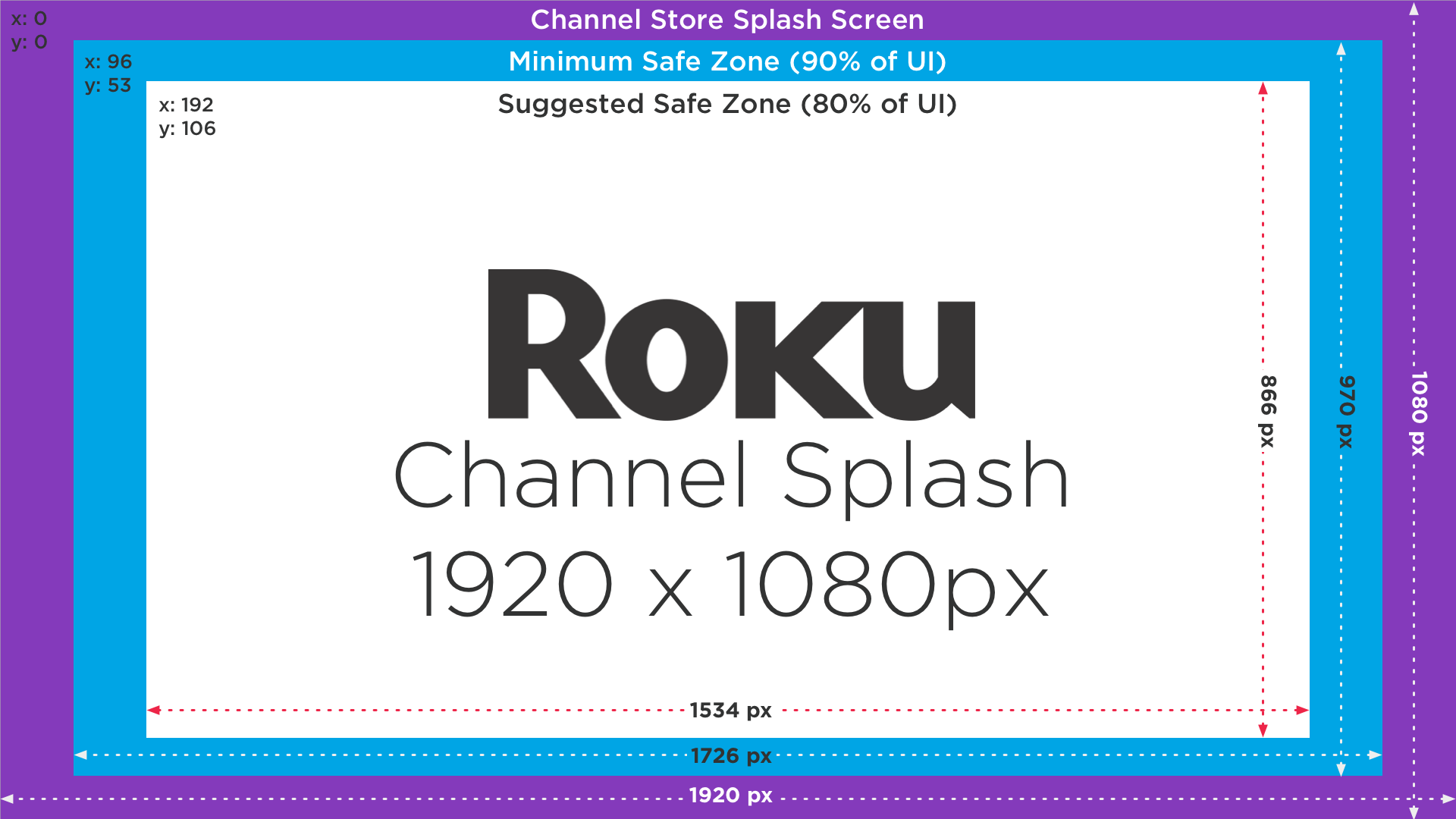
Splash screens are full size graphics displayed while the app is loading from the Roku OS homescreen. It's the first visual viewers will see as an app completes rendering.
Safe zones
Preparing for how various TVs render your app requires an
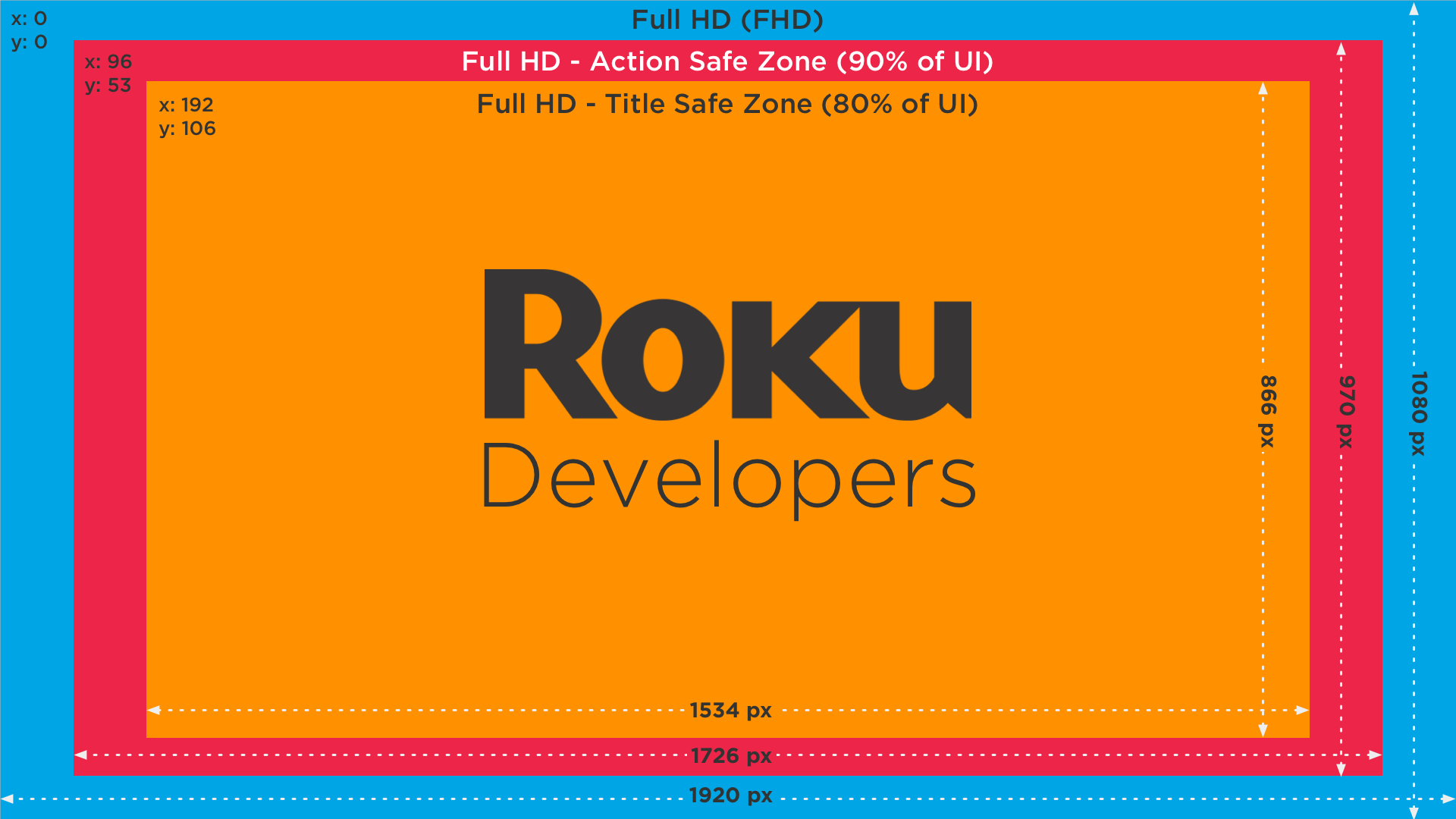
understanding of Title and Action "Safe Zones". These are the
recommended areas to ensuring the edges of your TV screen do not cut off
the interface.
We've also created a sample app that shows these safe zones in action.
Title safe zone
Keep text that you intend the audience to read within the Title Safe Zone - 80% scale of UI resolution
- The FHD Title Safe Zone is 1534x866, offset from the upper left
corner (0,0) by 192, 106. - The HD Title Safe Zone is 1022X578, offset from the upper left
corner (0,0) by 128,70. - The SD Title Safe Zone is 576X384, offset from the upper left corner
(0,0) by 72,48.
Action safe zone
Keep important visual elements within the Action Safe Zone, content
outside the Action Safe Zone risks being cut off by the edge of the
screen - 90% scale of UI resolution
- The FHD Action safe zone is 1726x970, offset from the upper left
corner (0,0) by 96, 53. - The HD Action safe zone is 1150X646, offset from the upper left
corner (0,0) by 64,35. - The SD Action safe zone is 648X432, offset from the upper left
corner (0,0) by 36,24.
TV safe zones overlay
To help developers with testing their titles and action spaces, we've
created a simple function that overlays these screens on their app.
Great for UX testing on FHD and HD. This brightscript file contains a function to overlay your current UI in your SceneGraph scene with a transparent safezone markup.
Use case
This BrightScript file can be added to an app before publishing to avoid issues with truncated overhangs, posters, etc. Note: Works with apps built in Roku SceneGraph
How to run this sample
- Add the SafeZone.brs file to your source folder in your SceneGraph app
- Call the method SafeZone(scene) underneath your screen.show() line in your main.brs
Features
Creates a transparent SafeZone markup on top of any SceneGraph app
App Flow
Event: Once the app starts, a transparent overlay will show on top of the app UI
Here's a sample of the tool in action Safe Zones Overlay: https://github.com/rokudev/tv-safe-zone-overlay
FHD user interface requirements and recommendations
The following are the requirements and recommendations for creating and
using a 1080p user interface for your app or application.
To create and use a 1080p user interface in an app or application,
you must set up the manifest file as described in Manifest File.
The following are the graphic image sizes and formats for a 1080p user
interface.
Updated 4 months ago