
Enabling billing testing
Designate a public or beta app for billing testing with Roku Pay
Developers can designate one public or beta app for "billing testing" to observe output from the SceneGraph ChannelStore node in the debug console when the app is sideloaded. The billing testing feature provides developers with visibility into the confirmations, error codes, and other transactional metadata related to purchases made with Roku Pay.
When an app enabled for "billing testing" is sideloaded, calls to the ChannelStore node will use the product catalog associated with that app. Developers should therefore upload a package file that reflects the actual app being tested. This is because the product catalog of the app designated for "billing testing" is always returned regardless of the actual UI or behavior of the package that is sideloaded.
Billing testing now supports multiple developers. Developers with the Admin or App Management role can now enable an app as the billing test app for their account. This removes the previous restriction where only the account owner could enable billing testing for an app in their developer account.
As a reminder, while multiple users can now use the same billing test app concurrently, a developer can still have only one billing test app linked to their account at a time.
Prerequisites
Using an app for billing testing requires the following:
- The app must be sideloaded on the Roku device.
- The app must be the only one in the developer's account designated for billing testing.
- The developer account making purchases on the sideloaded app must be designated as a Test User. Sideloaded "billing testing" apps make live calls to the ChannelStore node and therefore generate actual billing transactions. As a result, developers must add themselves as Test Users to the "billing testing" app to avoid incurring any billing charges while testing the app.
- The Test User's Roku account must be linked to the Roku device on which the app is sideloaded.
Enabling an app for billing test
To enable billing testing on an app, follow these steps:
-
In the Developer Dashboard, click Public apps or Beta apps for whichever app type you want to use for billing testing. You can only use one public or beta app at a time for billing testing.
-
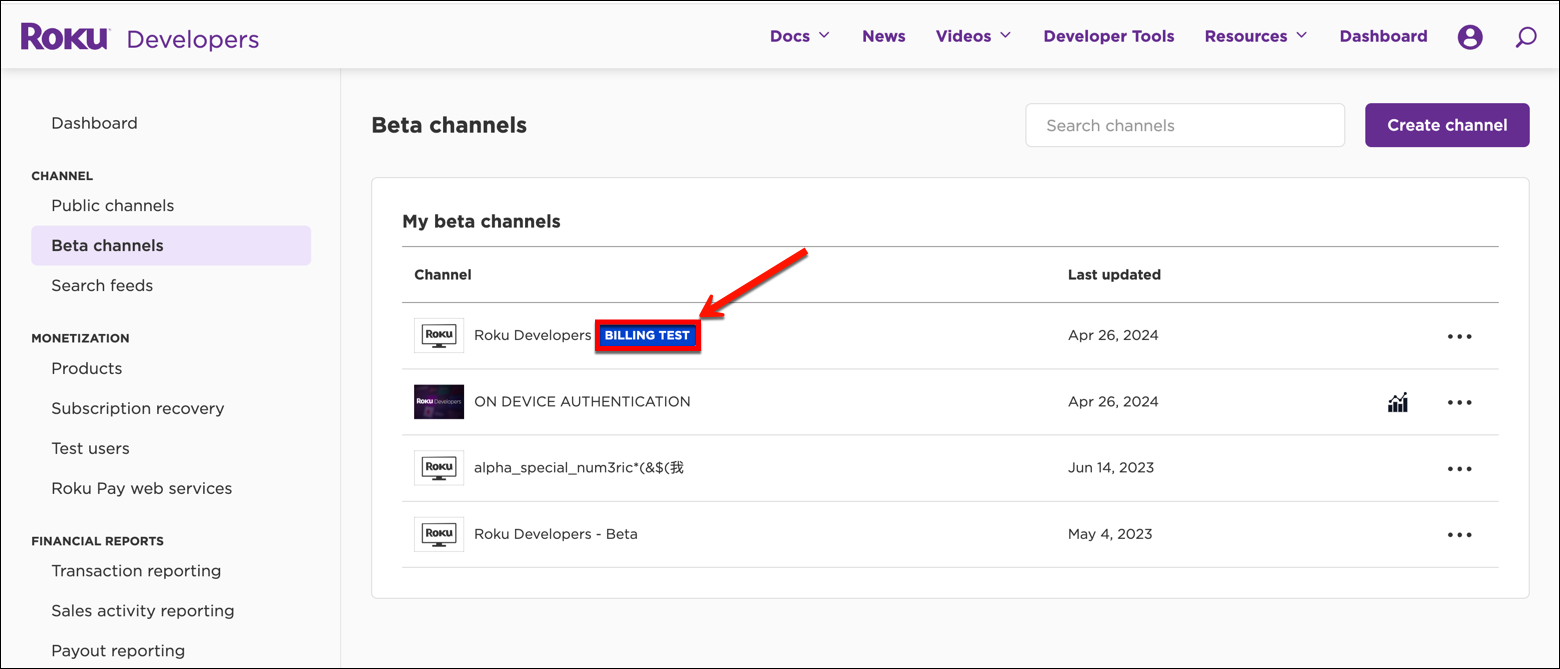
Confirm that no other app is currently being used for billing testing. An app designated for billing testing is a tagged with a "Billing Test" label and it is listed at the top.
-
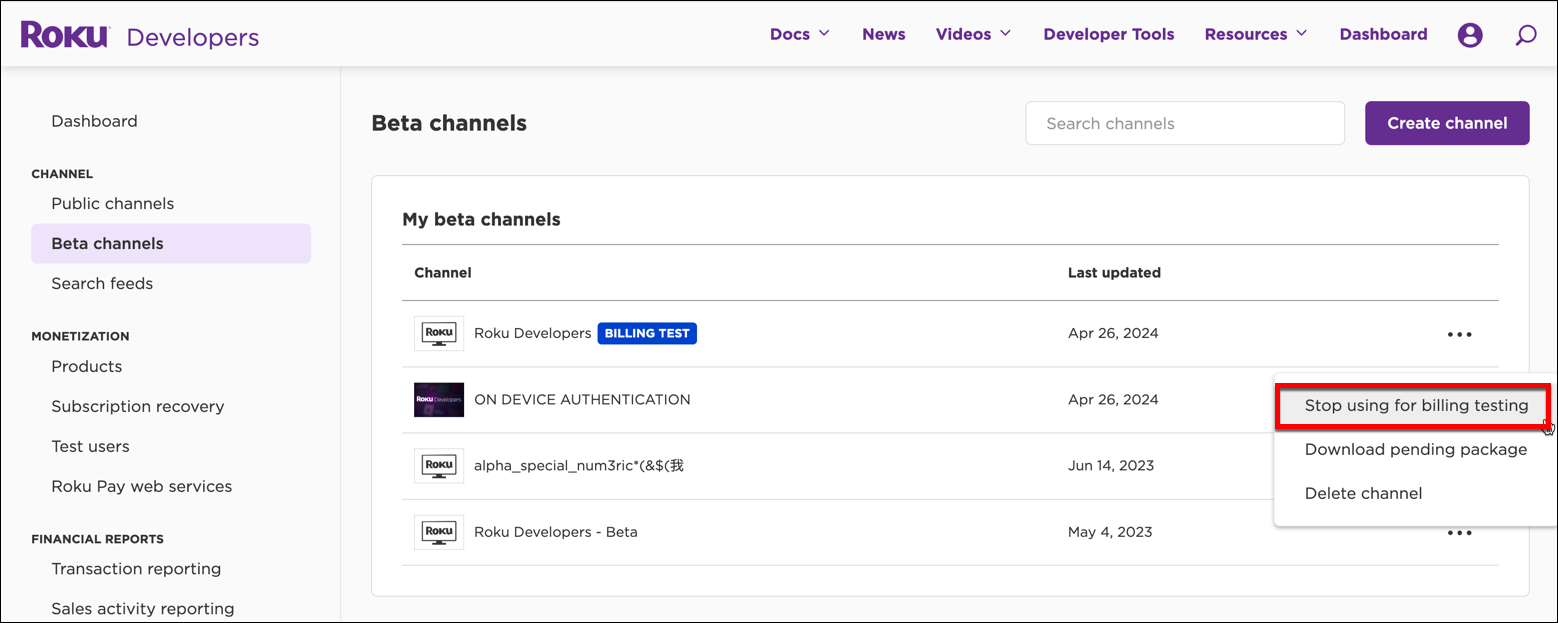
If another app is being used for billing testing, click the shortcut menu for the app to the right, and then click Stop using for billing testing.
-
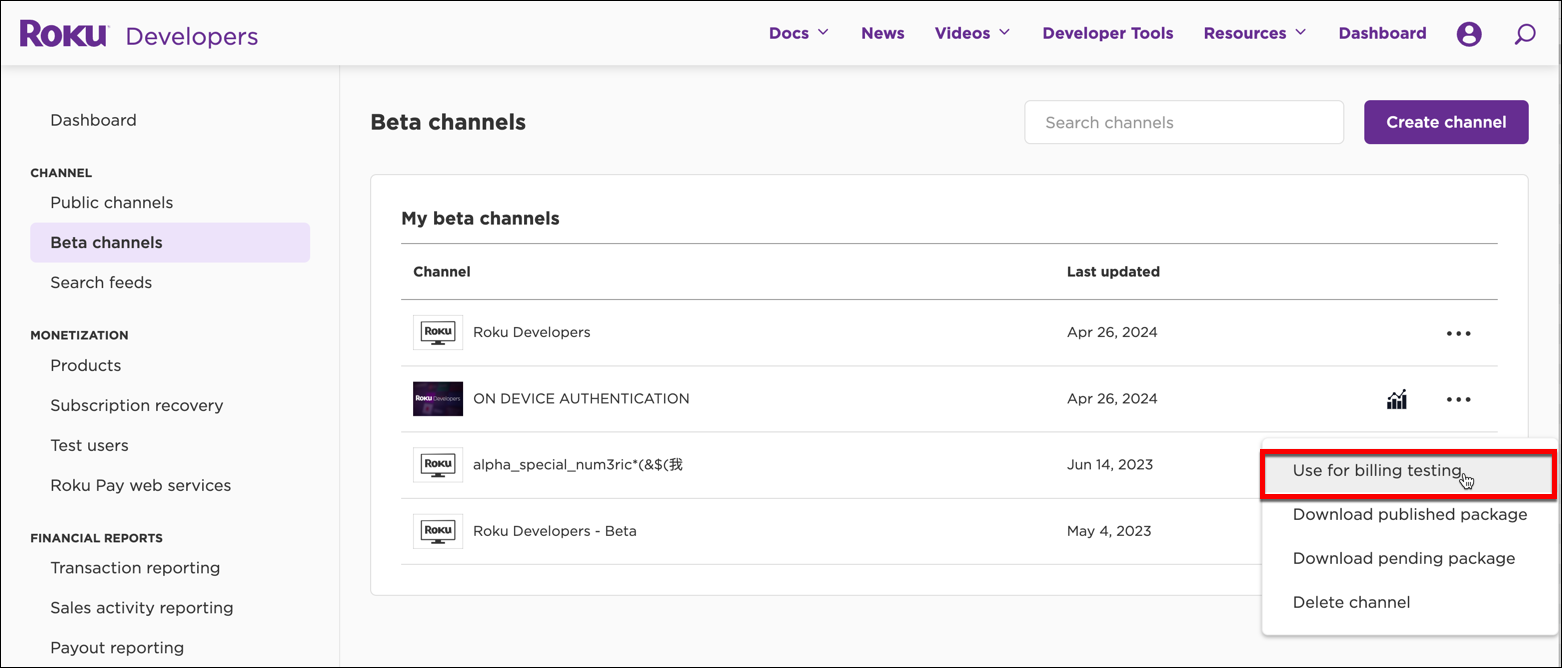
Click the shortcut menu for the app to be used for billing testing and then click Use for billing testing.
-
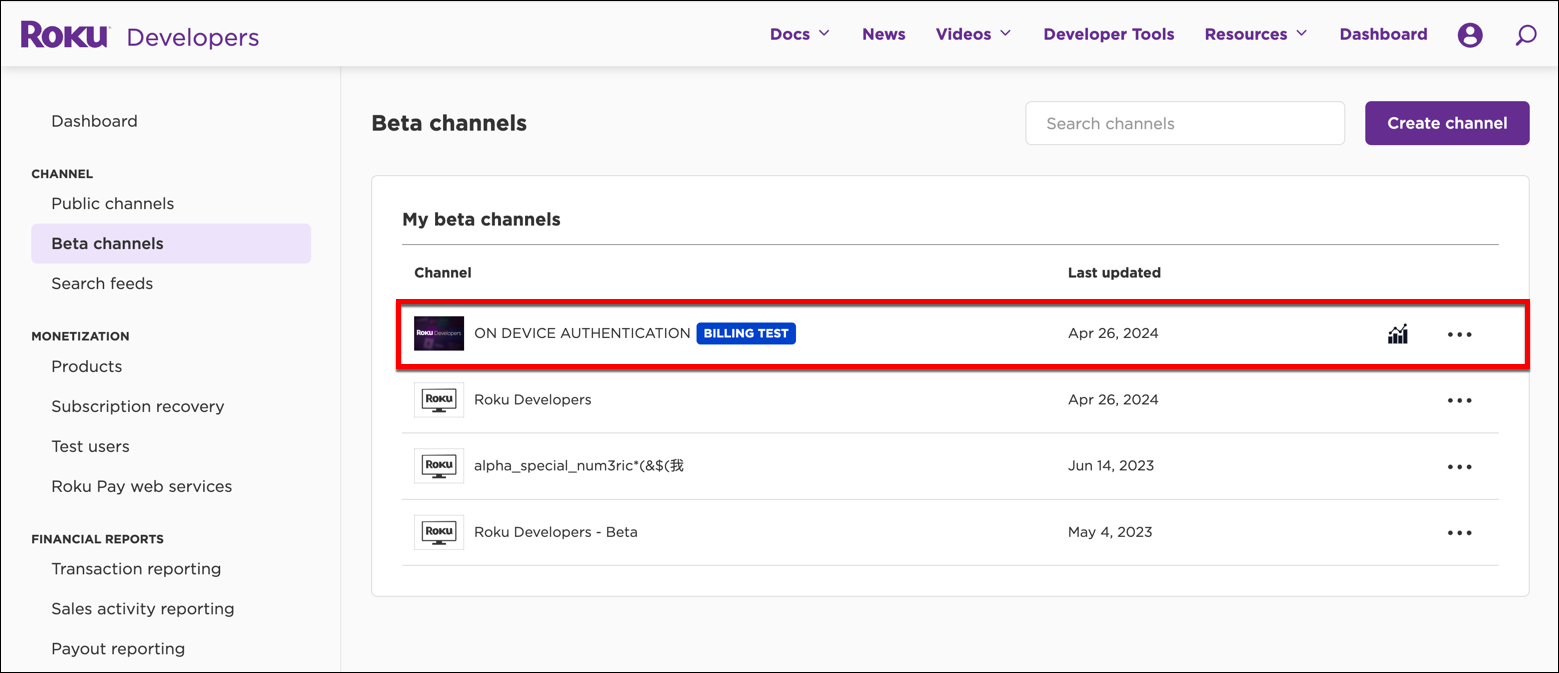
The selected app is tagged with the "Billing Test" label and is ready to be used for testing.
Updated about 2 months ago