
User access management
Invite team members and assign roles and permissions to your launchpad account
You can use the Roles and access page in the Roku Launchpad to enable team members to manage your account or specific apps within it. A role gives a user a set of one or more permissions to complete specific tasks in your account. Each role has an access level, which determines whether the user can complete tasks for all the apps in your account or just one or more selected apps.
For example, the app management role lets users manage and publish one or more apps, the financial reports role lets users view transaction and sales activity reports for one or more apps in the account, and the administrative role lets users complete all tasks in the account.
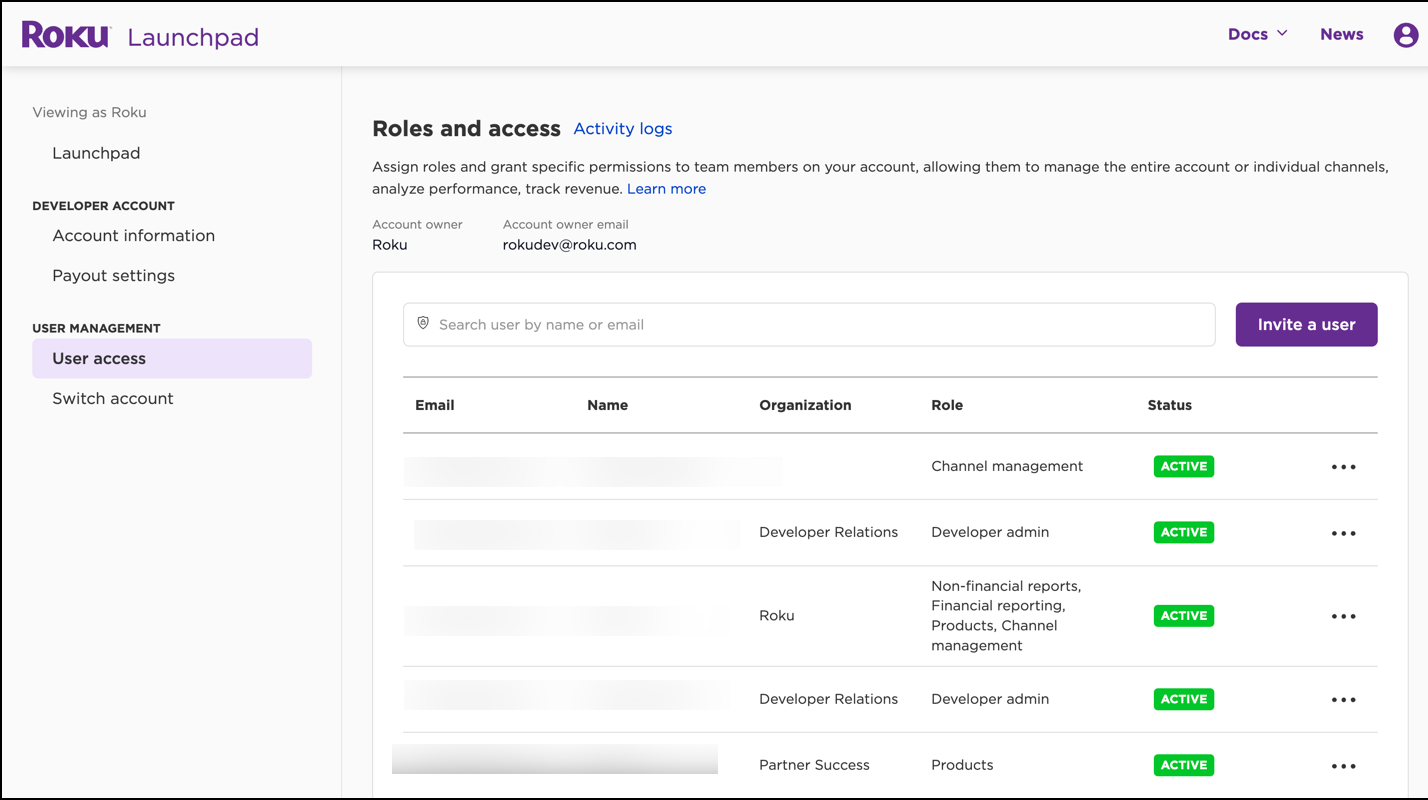
Adding users
To add a user to your account and assign them roles and permissions, follow these steps:
-
From the Roku Developer or Roku Content Partner Dashboard, click User access on the left sidebar; or from the Roku Launchpad, click Roles and access.
-
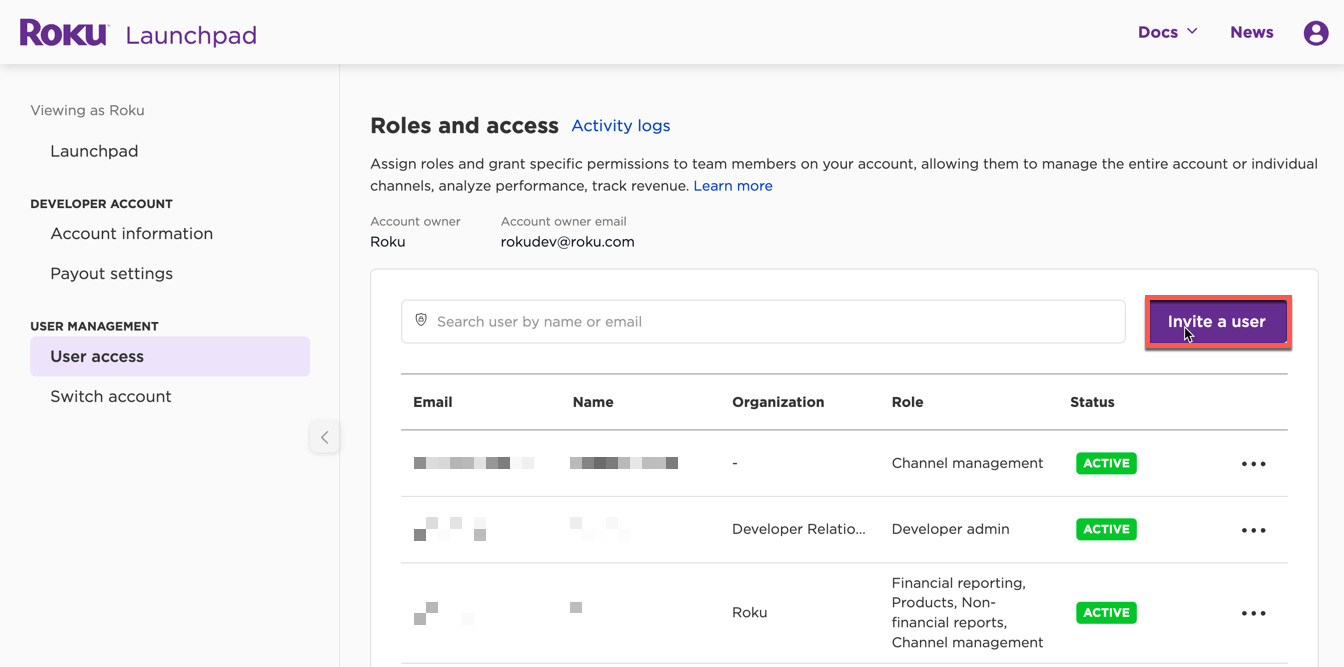
Click Invite a user.
-
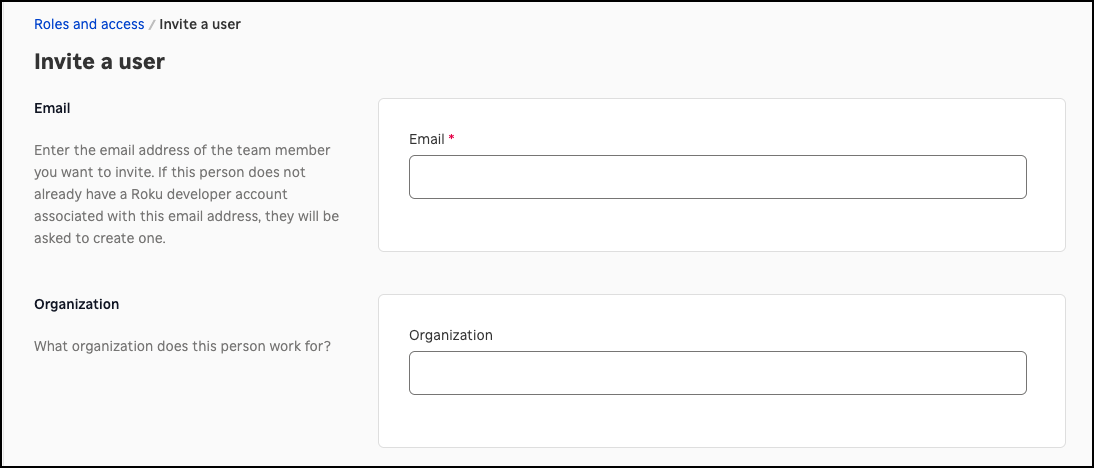
In the Invite a user page, enter the following information:
Field Description Email The email address of the user to be added to your developer account. Organization The name of the company associated with the Roku developer. Roles Select the checkboxes for one or more roles and permissions:
-
Click Invite.
-
If the user already has a Roku account, they are immediately granted access to your account with their specified role.
If the user does not have a Roku account, they receive an email notification from Roku informing them that they have been granted access to your account.
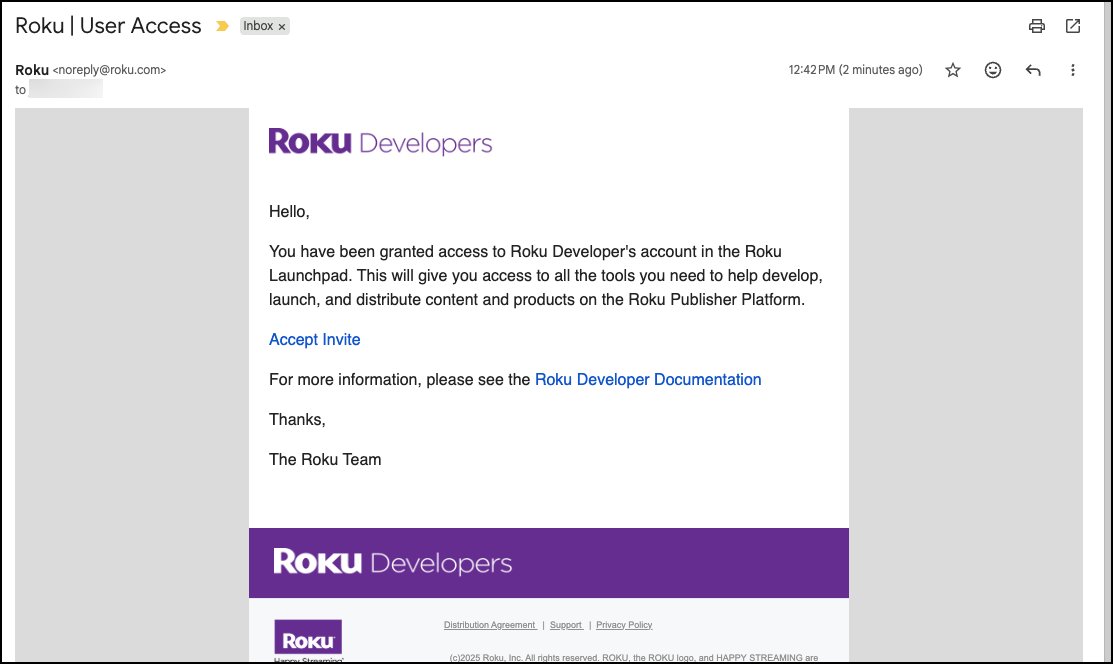
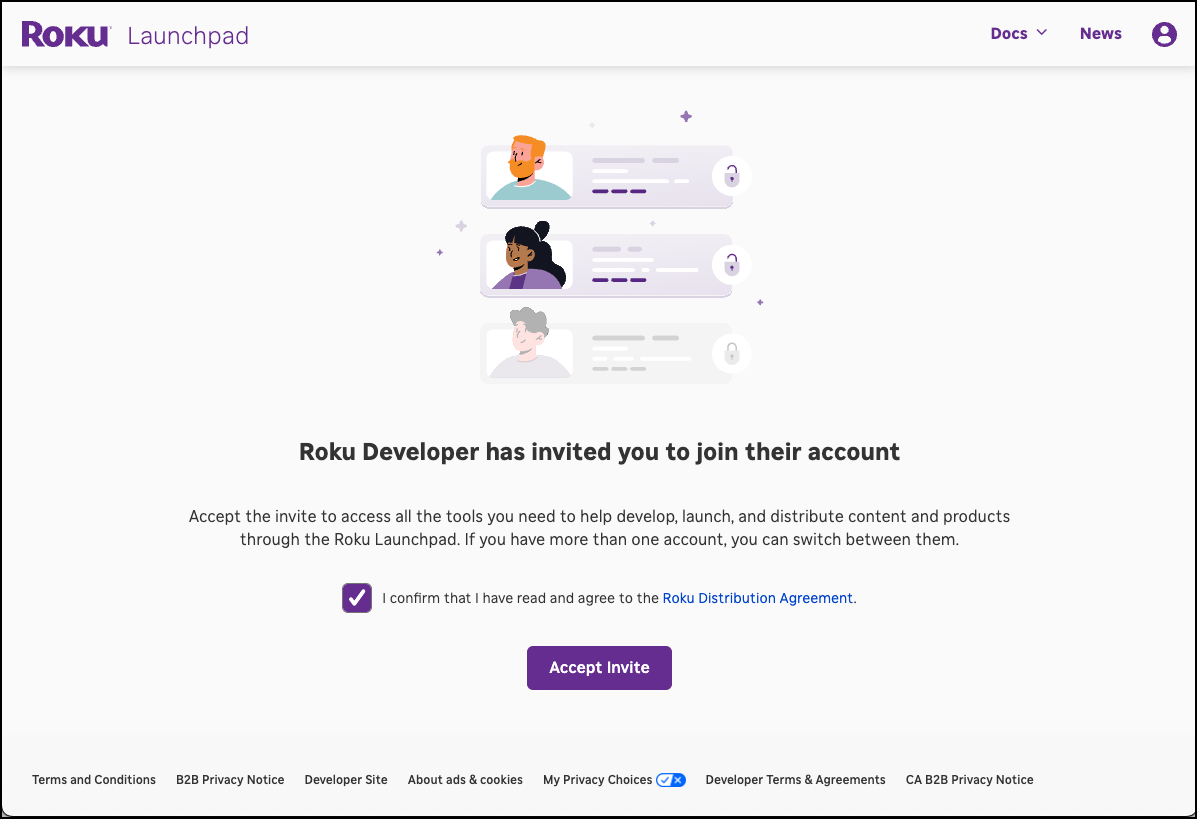
Once the user clicks the accept invite link in the email, they are taken to the Roku Launchpad, where they accept the invite and then select your account. The user can access your account and take actions permitted by their specified role.
Roles and permissions for Roku developers
Roku developer accounts can have the following roles and permissions:
| Role | Permissions | Access-level |
|---|---|---|
| Administrator | Same permissions as the root account holder. An administrator can perform all the tasks listed in this table, as well as:
|
Account |
| App Management | ||
| App management | Access the app management and publishing features for one or more apps, including:
Select one or more apps from the drop-down list. You can filter the list of apps as you enter the app name. Click Select all to grant the user access to the management and publishing features for all existing apps (as you create new apps, you will need to manually add them to grant access). |
App |
| Non-financial Reports | Access the following app analytics and health reports:
Select apps from the drop-down list. You can filter the list of apps as you enter the app name. Click Select all to grant the user access to view the financial reports for all existing apps (as you create new apps, you will need to manually add them to grant access to their financial reports). |
App |
| Monetization | ||
| Products |
|
Account |
| Financial Reports | Grant the developer access to the Roku Pay transaction, sales activity, and payout reports for one or more apps. Select apps from the drop-down list. You can filter the list of apps as you enter the app name. Click Select all to grant the user access to view the financial reports for all existing apps (as you create new apps, you will need to manually add them to grant access to their financial reports). |
App |
Roles and permissions for Roku content partners
Roku Content Partner accounts can have the following roles and permissions:
| Role | Permissions |
|---|---|
| Administrator | Maintain administrative control over the Roku Content Partner Portal. This user can:
|
| Marketing Manager | Manage merchandising and creative assets. This user can:
|
| Operations Manager | Manage title assets and operational reports. This user can:
|
| Business Manager | Manage title rights, partner deals, and business performance reporting. This user can:
|
| Analytics | View Roku analytics reports. This user can:
|
Roles and permissions for Roku partner payouts
| Role | Permissions |
|---|---|
| Payout admin |
|
Managing user accounts
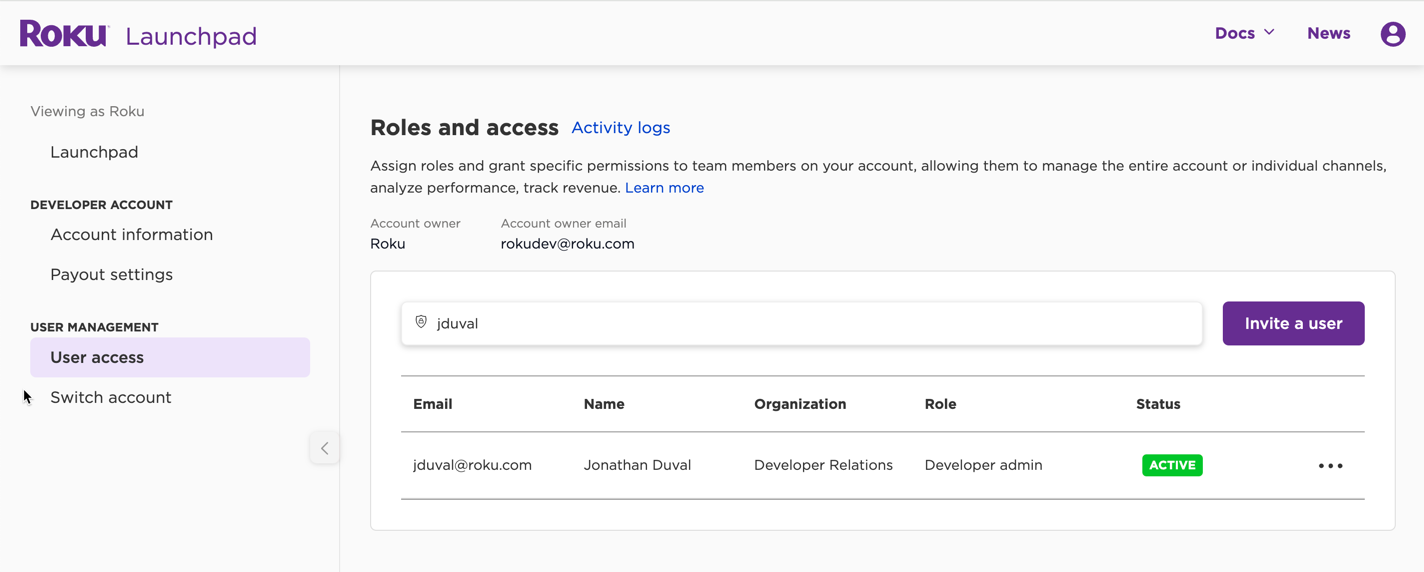
You can use the Roles and access page to edit, re-invite, and remove users and view their activity logs.
The page lists the email, name, and organization of each user who has been invited to your account, their roles, and their current status.
You can search the listed user accounts by email address or user name.
Editing users
You can edit the organization and roles of existing users. To edit a user, click anywhere in the user’s row, update the properties, and then click Save.
Re-sending users invites
If you have the Admin role (or are the root account owner), you can re-send an invite to a user. To do this, click the menu icon on the right-hand side of the user’s row, and then click Resend invite in the shortcut menu.
Removing users
If you have the Admin role (or are the root account owner), you can remove a user from the account. To do this, click the menu icon on the right-hand side of the user’s row, click Remove user in the shortcut menu, and then click Yes in the confirmation dialog.
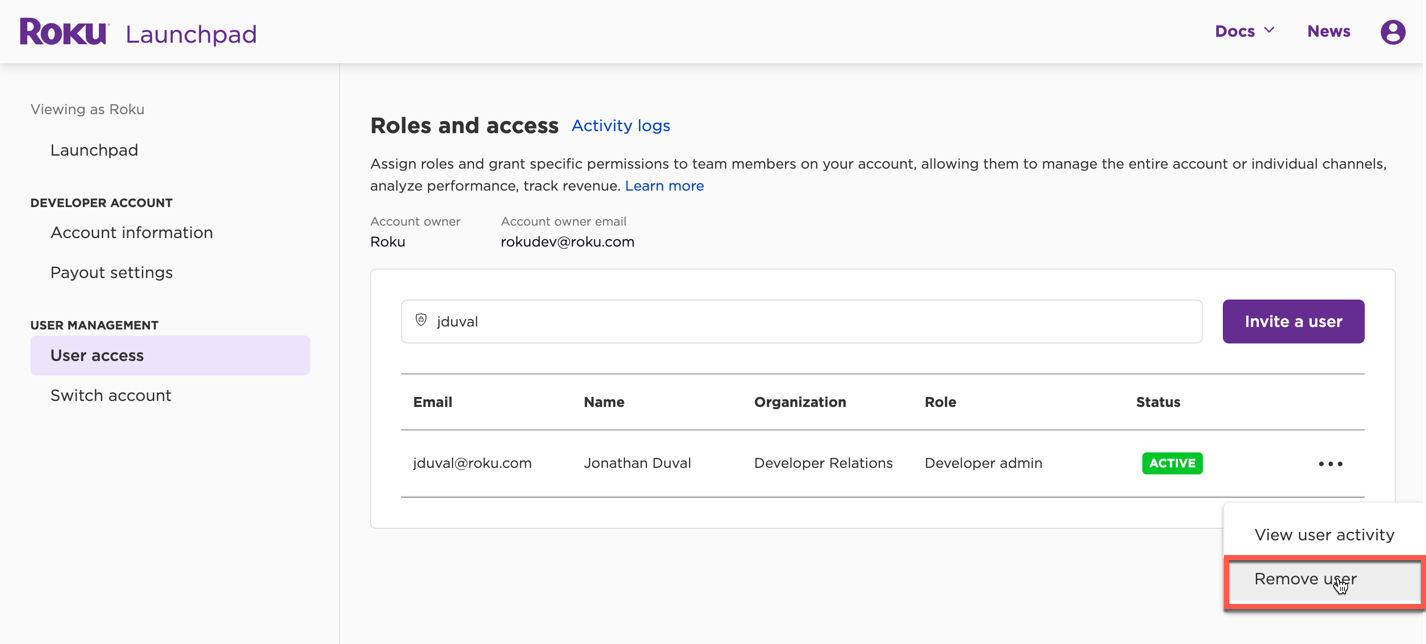
Removing a user does not affect the user's own Roku account. If you need to add the removed user in the future, you must re-invite them.
Viewing user activity logs
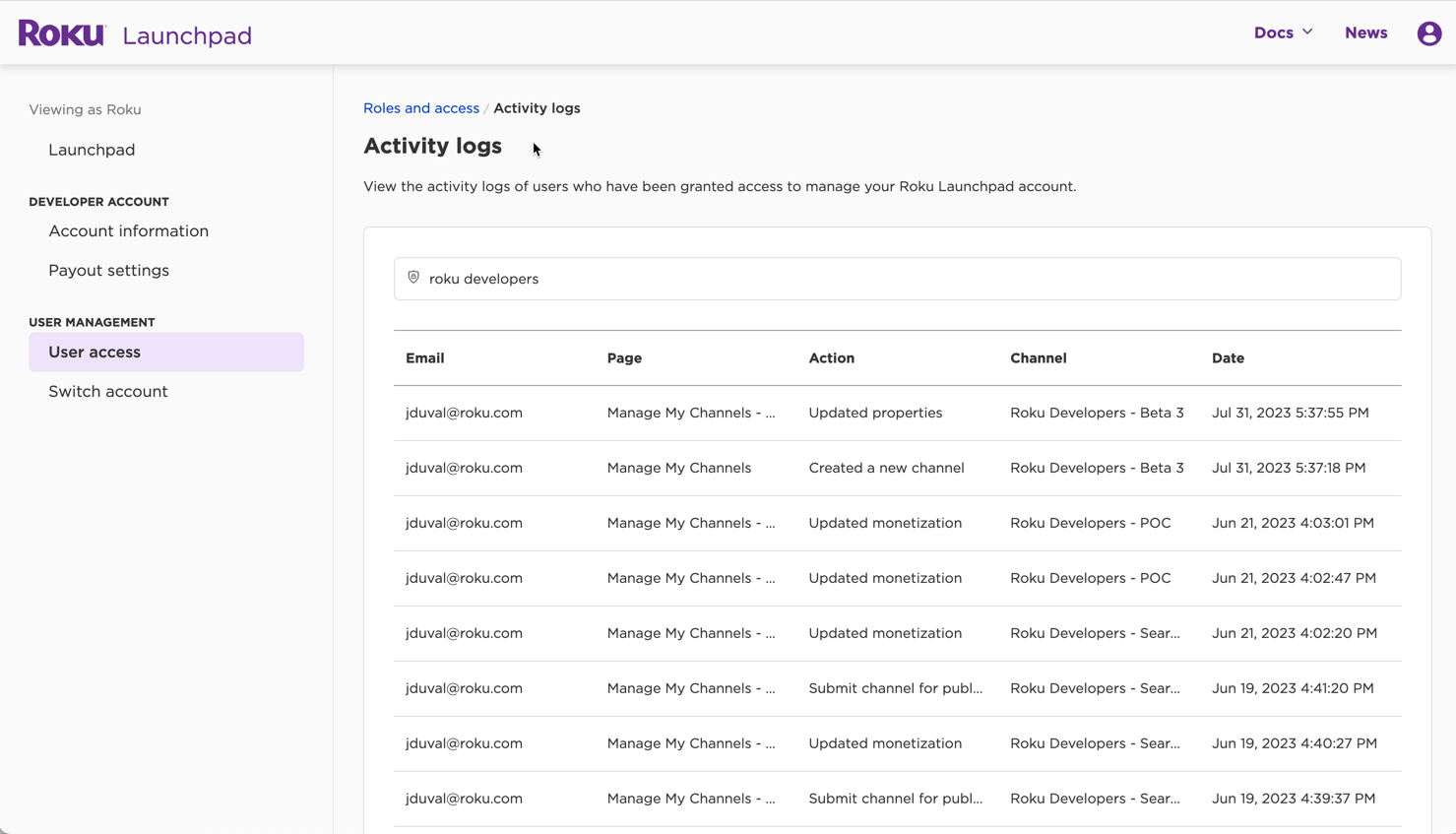
If you have the Admin role (or are the root account owner), you can access the user activity log, which tracks the actions taken by each user in the account.
The log lists the user’s email address, page they accessed, action taken, subject app, and the date and time of the action.
You can search log entries by email address, page name, action, or app name, and you can sort the entries by clicking the Email, Page, and Channel, and Date headers.
-
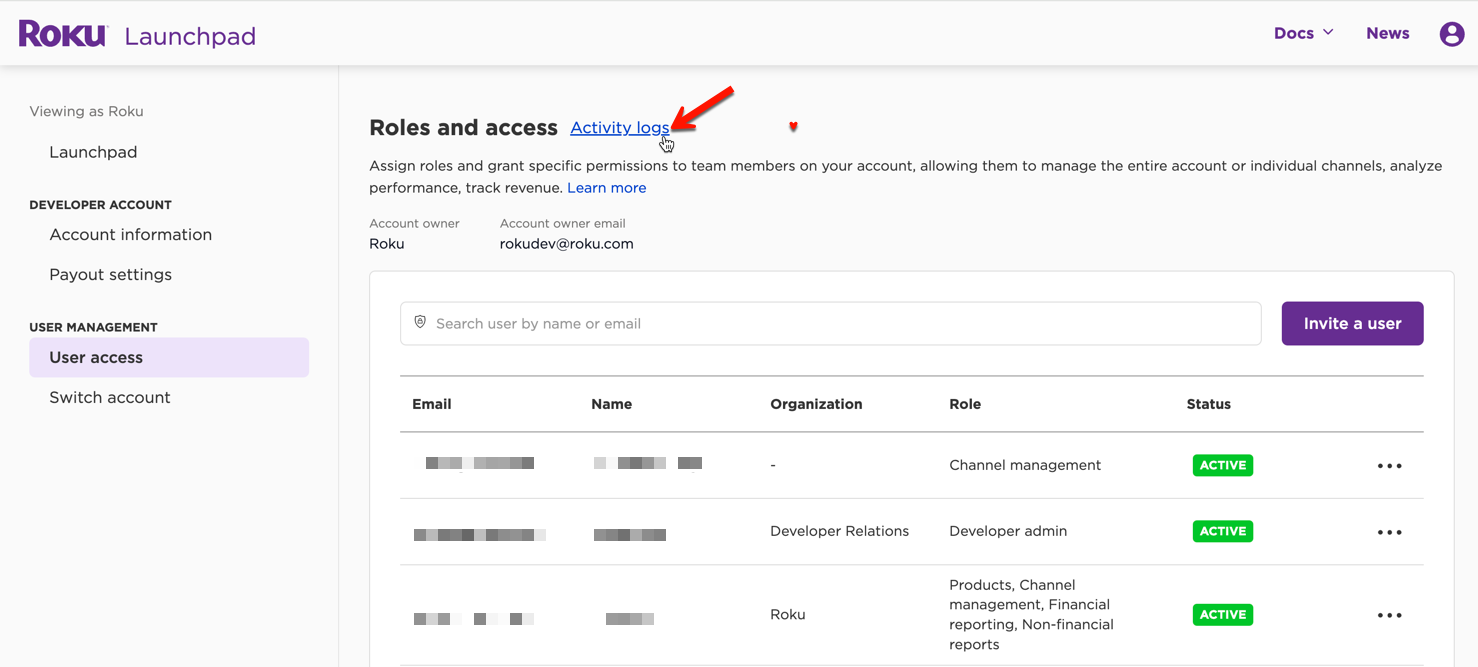
To view the activity log for all users, click Activity logs at the top of the page.
-
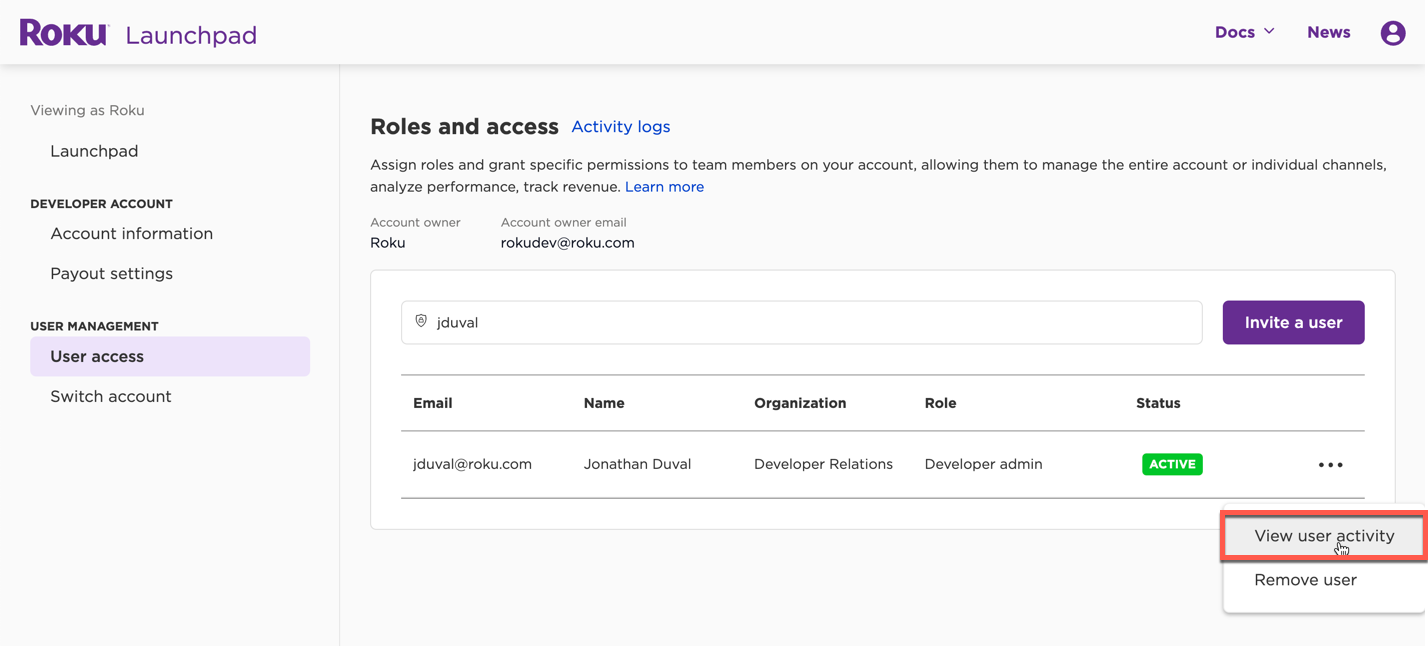
To view the activity log for a specific user, click the menu icon on the right-hand side of the user’s row, and then click View user activity in the shortcut menu.
Switching accounts
If you have been granted access to another account, you can change the account you are currently managing. To do this, follow these steps:
-
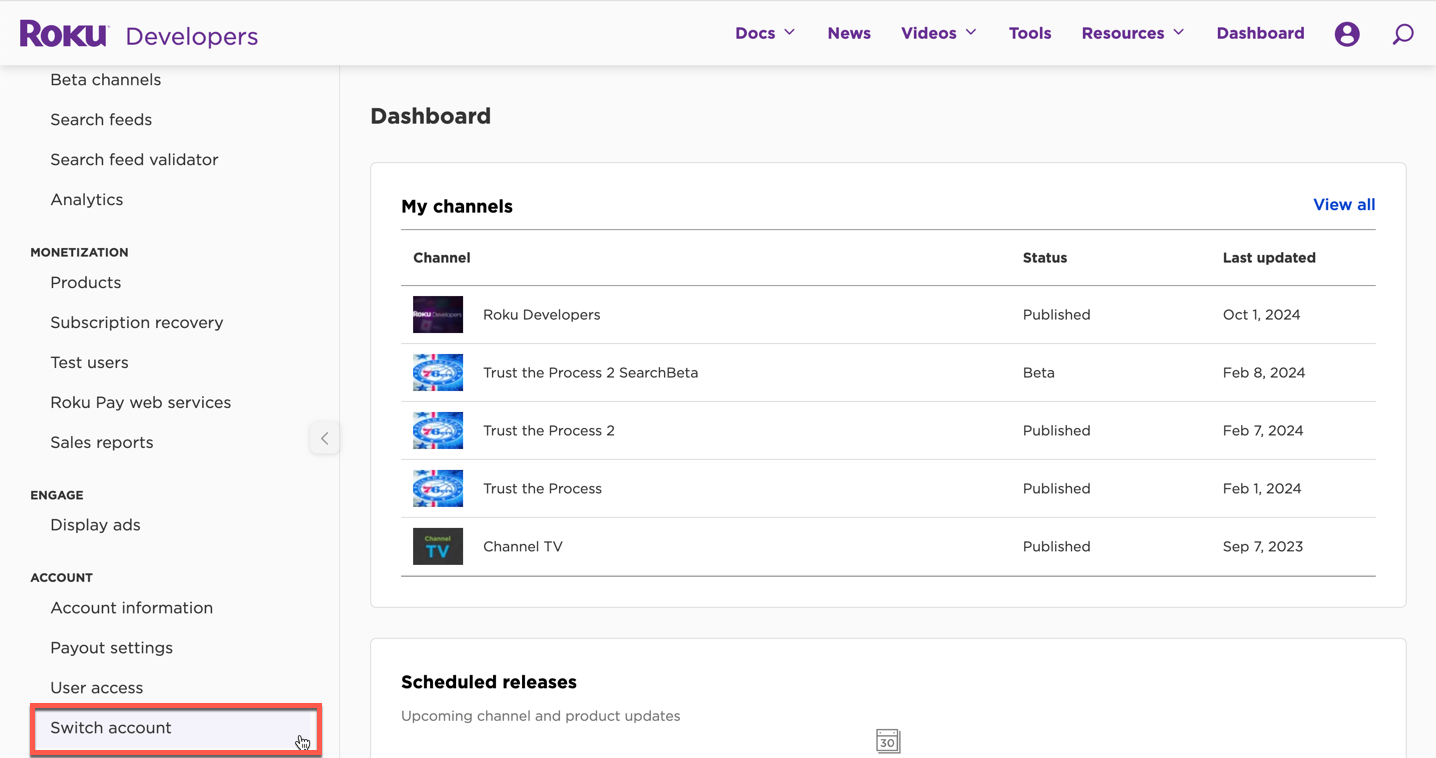
Click the Switch account option from the left sidebar.
-
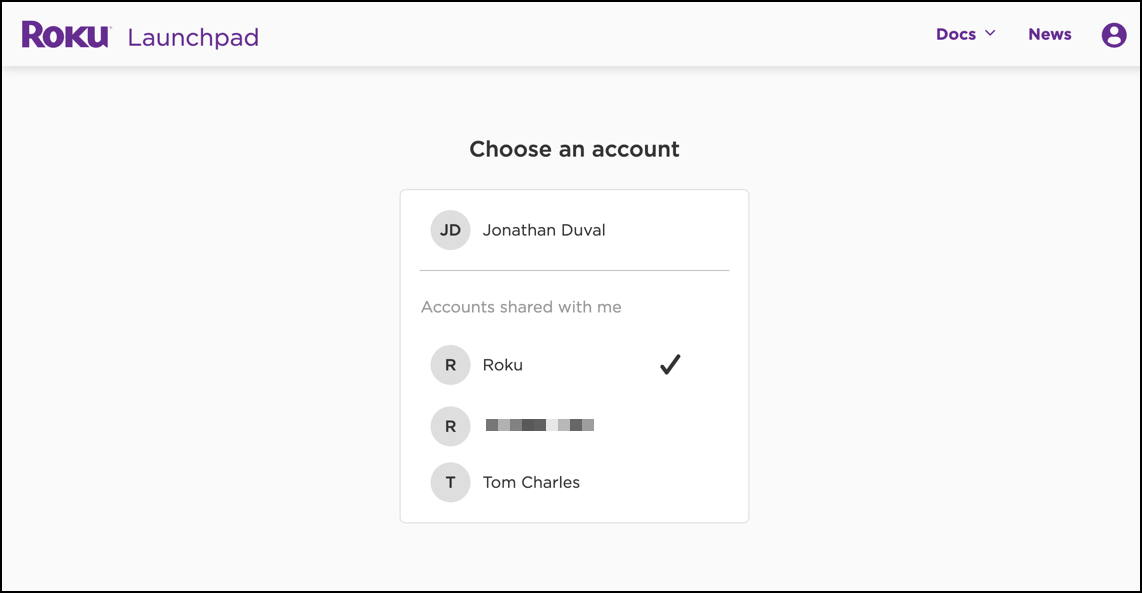
In the Choose an account page, select the desired account from the list. Your root account is listed at the top, and the accounts shared with you are listed below.
Updated 2 months ago